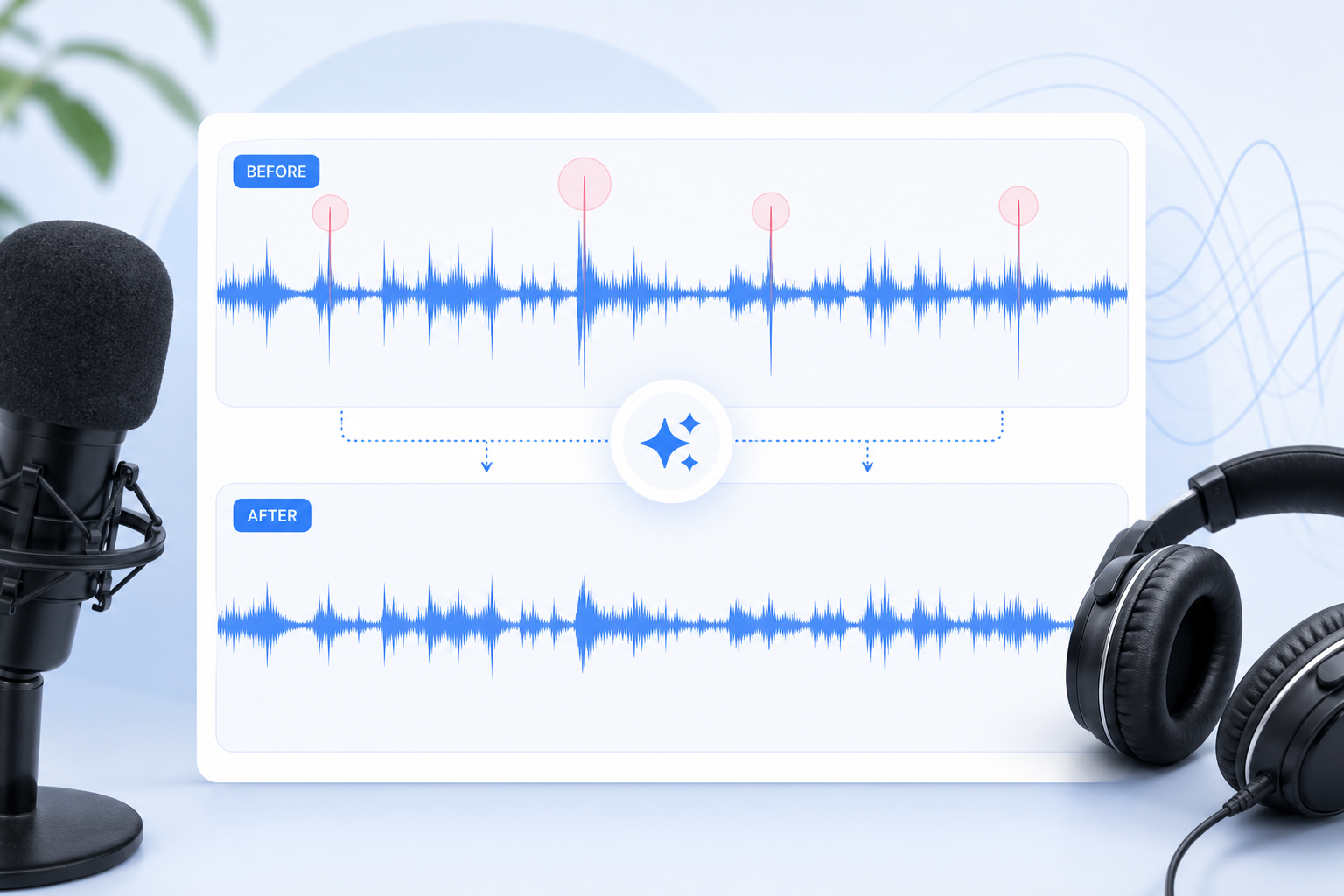
Quick Answer: How to Remove Mouth Clicks from Audio Online
To remove mouth clicks from audio online, start by uploading your audio or video file to SimpleClean, run the online AI cleanup, preview the result, compare it against the original, then download the cleaned file for your podcast, voiceover, course, YouTube video, or client project.
The fastest workflow is:
- Upload your audio or video file.
- Let SimpleClean clean the speech recording and reduce distractions such as background noise, hum, wind, echo, and other unwanted sound.
- Listen on headphones and check that the voice still sounds natural.
- Download the cleaned audio or video.
- Spot-fix any stubborn mouth clicks manually if needed, especially clicks that happen inside words.
- Use the cleaned file in your podcast editor, video editor, caption workflow, or publishing platform.
Mouth clicks are usually easiest to deal with before you normalize, compress, or master the audio. Compression reduces dynamic range and can make small noises feel more obvious after gain is added, so clean first, level second, and export last.
CTA: Need a quick first pass? Use SimpleClean to clean speech-heavy audio or video online without installing a full DAW.
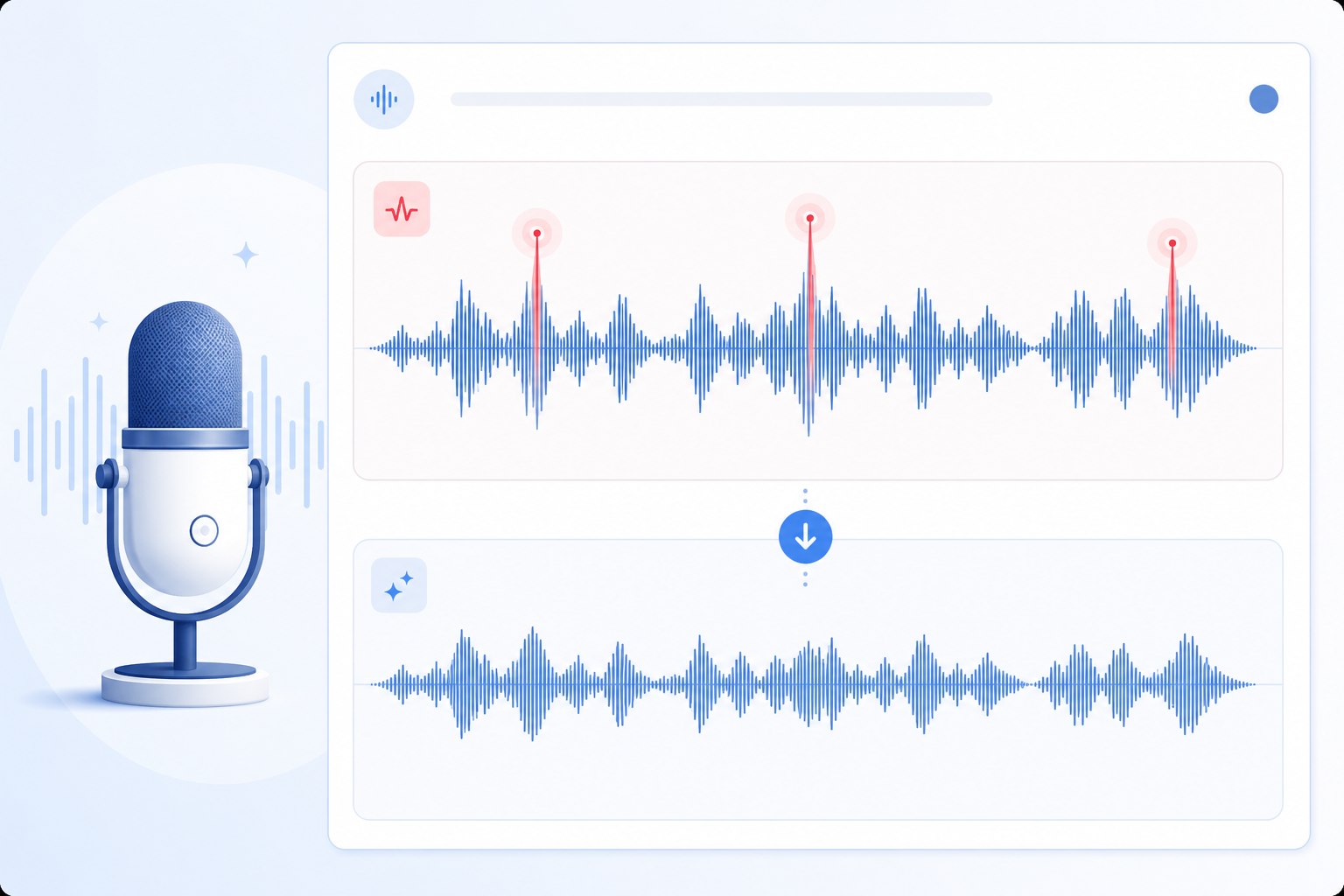
What Counts as a Mouth Click?
A mouth click is a short, sharp, often wet-sounding noise made by the lips, tongue, saliva, or mouth movement during speech. It can happen before a word, between words, at the end of a sentence, or even inside a syllable.
Common mouth sounds include:
- Saliva clicks: tiny wet clicks caused by saliva movement.
- Lip smacks: louder noises from the lips opening or closing.
- Tongue clicks: sharp ticks from the tongue separating from the mouth.
- Mouth crackle: rapid little crackles, often from dry mouth or sticky saliva.
- Tiny pops between words: short impulse sounds that are not part of the spoken word.
- Wet consonant artifacts: clicks attached to “t,” “k,” “p,” “d,” or similar transients.
These are not the same as every other audio problem. Use this quick diagnostic table before you process the file.
| Problem | What it sounds like | Usually caused by | Best first fix |
|---|---|---|---|
| Mouth clicks | Short wet ticks, smacks, or crackles close to speech | Saliva, lips, tongue movement, dry mouth | Online cleanup first, then manual mouth de-clicking for stubborn clicks |
| Background noise | Constant hiss, fan, room tone, traffic, crowd sound | Recording environment | Noise reduction before mastering |
| Static | Hiss, crackle, or electrical roughness across the recording | Gain, cables, interface, wireless issues | Diagnose gear, then reduce noise |
| Plosives | Low thumps on “p” and “b” sounds | Air hitting the mic capsule | Pop filter, off-axis mic placement, de-plosive repair |
| Digital glitches | Hard clicks, skips, dropouts, or distortion | Buffer errors, clipping, corrupted file | Manual repair or re-export if possible |
| Echo/reverb | Boxy room reflections or distant voice | Hard room surfaces, poor mic placement | De-reverb or echo reduction |
The key difference: mouth clicks are attached to the speaker, while background noise usually sits under the entire recording.
When Mouth Clicks Matter Most
Not every tiny mouth sound needs to be removed. Natural speech includes small breaths, lip movement, and consonant transients. But mouth clicks become a problem when they distract listeners from the message.
They matter most in:
- Podcasts: especially solo episodes, interviews, and close-mic conversations.
- YouTube narration: clicks stand out during quiet explainer sections.
- Voiceovers: brand videos, ads, tutorials, and product demos need polished speech.
- Webinars and sales videos: distracting audio can make a presentation feel less professional.
- Audiobooks: long-form headphone listening makes repeated mouth noise more noticeable.
- Online courses: learners may listen for hours, so fatigue matters.
- Client deliverables: agencies and editors need files that sound ready to publish.
- Remote interviews: guests often record on close laptop, headset, or USB mics.
A good target is not “remove every trace of the mouth.” It is: remove the distracting clicks while keeping the voice believable.
Best Option by Use Case
| Use case | Best option | Why |
|---|---|---|
| Fast podcast or YouTube cleanup | SimpleClean online workflow | Browser-based upload, preview, cleanup, and download without installing a full DAW |
| Video with distracting soundtrack noise | SimpleClean, then replace audio in your editor if needed | Useful for MP4/MOV projects where you want to clean the soundtrack quickly |
| A few obvious isolated clicks | Manual waveform edit | Faster than processing the whole file if there are only 2–3 clicks |
| Severe clicks inside words | Dedicated de-clicker or spectral editor | More control over repair strength and exact selection |
| Audiobook mastering | Clean first, then check loudness and delivery specs | Long-form narration needs careful QC after repair |
| Multi-speaker interview | Clean each track separately if possible | Guest tracks often need different treatment |
How to Remove Mouth Clicks from an Audio File Online
Use this workflow for podcasts, voiceovers, narrations, interviews, audiobooks, courses, and audio-only deliverables.
1. Save a backup of the original
Before cleanup, duplicate the original file. Keep it in a folder called something like original-recordings so you can always go back if you over-process the audio.
2. Upload the file to SimpleClean
Open SimpleClean and upload your audio file. SimpleClean is designed for online audio and video cleanup with browser-based upload, preview, and download. Use the cleanest source file you have; if you recorded a high-quality WAV or uncompressed export, start there instead of a heavily compressed copy.
3. Run the cleanup before compression or mastering
Run cleanup while the recording is still relatively natural. Avoid heavy compression, limiting, loudness normalization, or “make it louder” processing first. Those steps can raise the level of small mouth clicks and make them harder to treat cleanly.
4. Preview the cleaned result
Listen to the preview in headphones. Focus on:
- The first word after pauses.
- Sentence endings.
- Quiet sections.
- Close-mic phrases.
- Words with “t,” “k,” “p,” “b,” and “d.”
Then compare the cleaned version against the original. You want fewer distractions, not a plastic or filtered voice.
5. Download the cleaned file
Download the cleaned version and name it clearly, for example:
episode-14-voice-cleaned.wav
or
client-demo-cleaned.mp3
6. Level and export after cleanup
After the mouth clicks and background distractions are under control, continue with your normal finishing chain:
- Light noise/echo cleanup if still needed.
- Volume leveling or normalization.
- Gentle compression.
- Limiting/mastering.
- Final export.
If you also need captions for a video version, send the final edited video to Best AI Captions after the audio is clean. Cleaner audio can make caption review and correction easier.
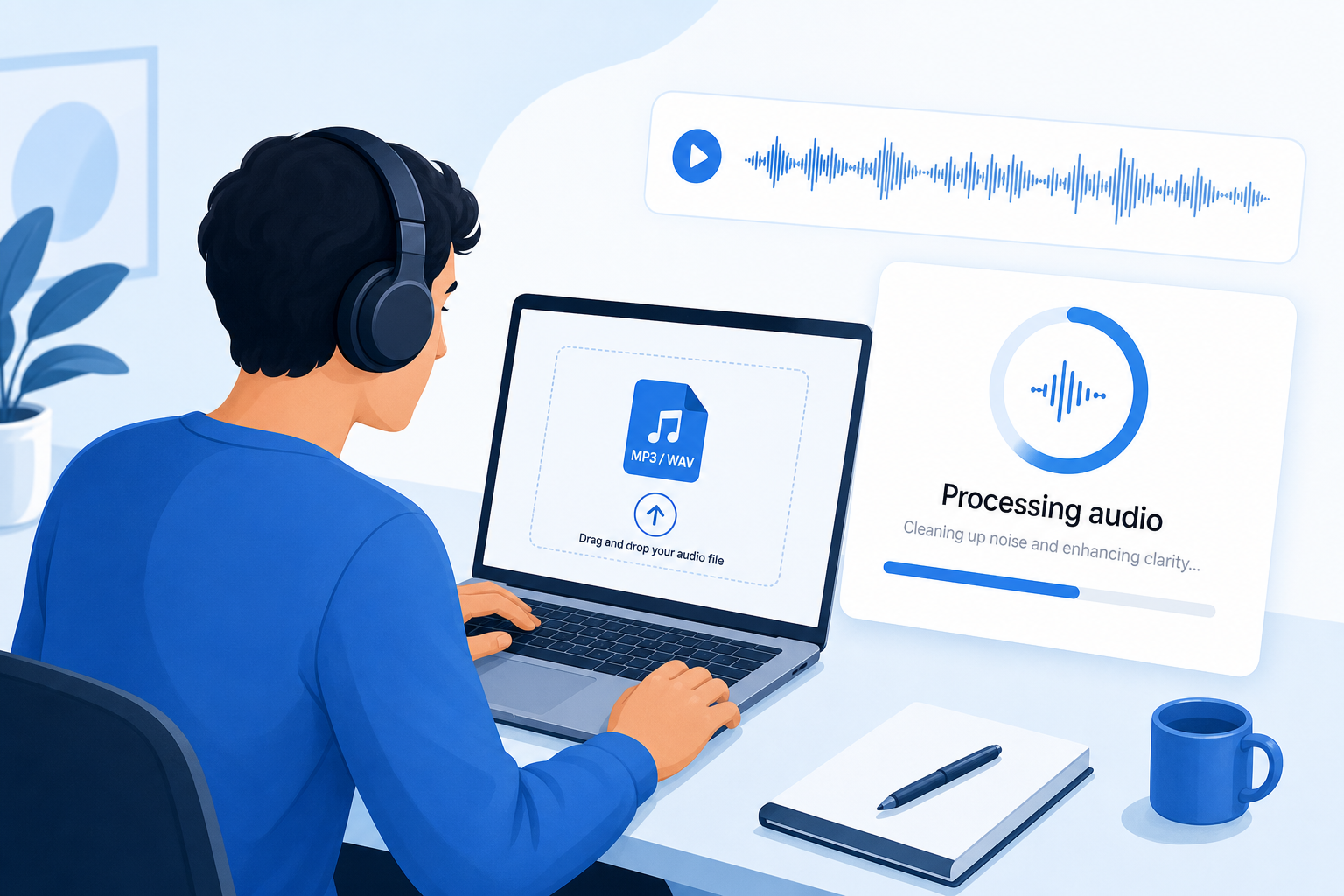
How to Remove Mouth Clicks from a Video Online
Mouth clicks are not only an audio problem. They often appear in YouTube videos, webinars, talking-head clips, screen recordings, sales videos, and course lessons.
1. Upload the video file
Upload your video export to SimpleClean. The goal is to clean the soundtrack without forcing you to extract audio manually first.
2. Clean the video soundtrack
Run cleanup on the video’s audio. This is useful when the recording has a combination of mouth clicks, fan noise, room echo, HVAC hum, or keyboard noise.
3. Preview for sync and naturalness
After cleanup, check two things:
- Audio quality: Are lip smacks, saliva clicks, and other distractions less noticeable?
- Sync: Do the lips still match the words?
If you download a cleaned video, watch the beginning, middle, and end before publishing.
4. Download cleaned video or cleaned audio
Depending on your project, you may want:
- A cleaned video file ready to upload.
- A cleaned audio file to replace the original soundtrack in Premiere Pro, Final Cut, DaVinci Resolve, CapCut, Descript, or another editor.
5. Replace the audio in your video editor if needed
If you already have a finished video timeline, import the cleaned audio, line it up with the original waveform, mute the old audio, and export a fresh master.
Before publishing, check:
- The first frame of speech.
- Any cuts where audio may shift.
- Music beds under speech.
- Intros, outros, and lower-volume sections.
If you plan to localize the video, clean the original audio first, then use Translate Dub for translation, dubbing, and multilingual captions.
The Correct Cleanup Order
A common mistake is to make the voice louder first and remove clicks later. That can make mouth clicks more obvious.
For most speech-heavy audio, use this order:
| Order | Step | Why it comes here |
|---|---|---|
| 1 | Remove mouth clicks and obvious distractions | Tiny clicks are easier to treat before they are amplified |
| 2 | Reduce background noise, hum, wind, or echo | Broad cleanup should happen before loudness processing |
| 3 | Edit mistakes and tighten pacing | Removes bad takes, long gaps, and repeated words |
| 4 | Normalize or level volume | Creates consistent loudness after repair |
| 5 | Compress lightly | Adds polish without exaggerating untreated noise |
| 6 | Limit/master | Sets final loudness and peak control |
| 7 | Export and QC | Confirms the delivered file still sounds natural |
For a deeper general cleanup workflow, see SimpleClean’s guides on how to remove background noise from video online, how to remove hum from audio online, remove static sound, and how to edit audio.
For technical context, Adobe’s Audition documentation describes compression as a way to reduce dynamic range and increase perceived loudness, which is why small noises can become more noticeable after processing.
How Much Mouth Click Removal Is Too Much?
Over-processing can be just as distracting as the original clicks. If the voice starts sounding dull, lispy, phasey, watery, or strangely gated, the cleanup is too aggressive.
Keep these natural elements when they do not distract:
- Light breaths before important phrases.
- Normal consonant attack.
- Subtle lip movement that does not jump out.
- Room tone between edits.
- Natural pauses that preserve speech rhythm.
Remove or reduce:
- Loud wet clicks before words.
- Repeated saliva crackle in quiet narration.
- Lip smacks between every phrase.
- Sharp ticks that poke through headphones.
- Clicks made louder by compression or normalization.
A practical rule: if you only notice the sound while staring at the waveform, leave it. If you notice it while listening casually, fix it.
Troubleshooting: Why the Clicks Still Sound Bad
Clicks are still audible after AI cleanup
Try another pass only if the voice still sounds natural. If the same few clicks remain, use a manual edit instead of repeatedly processing the whole file.
The voice sounds dull or muffled
You may have removed too much high-frequency detail. Go back to the original, process less aggressively, or blend a cleaner section with the original if your editor allows it.
Consonants sound damaged
Mouth clicks often live near consonant transients. If “t,” “k,” and “p” sounds become weak or lispy, undo and use lighter cleanup. Dedicated tools such as iZotope RX warn that higher sensitivity can affect plosives and the original signal, which is why previewing matters.
Breaths were removed too aggressively
Breath removal is not the same as mouth click removal. In podcasts and narration, removing every breath can make speech feel unnatural. Reduce loud gasps, but keep normal breaths when they support the performance.
Background noise remains
Mouth click cleanup is not a substitute for noise reduction. If you still hear fan noise, traffic, HVAC, hum, or room echo, run a broader noise cleanup step before leveling.
Clicks became louder after compression
Compression reduces dynamic range. When output or makeup gain is added, quieter details can become more noticeable. That is why mouth clicks should usually be cleaned before compression.
Clicks are inside words
Clicks inside words are harder because the noise overlaps useful speech. Use a manual repair tool, spectral editor, or a lighter de-click process on a small selection instead of processing the whole phrase.
Manual Fallback for Stubborn Mouth Clicks
Online cleanup is fastest for most creator projects, but a few clicks may need manual attention.
Try this fallback workflow:
- Open the file in Audacity, Adobe Audition, Reaper, Logic, Pro Tools, or another editor.
- Zoom into the waveform around the click.
- Identify the short spike or crackle.
- Select only the click if it is isolated.
- Lower the gain, silence a tiny section, redraw/repair the waveform, or apply a de-click effect.
- Listen in context before and after the edit.
- Avoid cutting so much that the timing of the sentence changes.
Audacity’s official support explains that Click Removal can automatically remove clicks across a larger selection, while Repair is intended for very short clicks. Audacity also notes that Click Removal needs a large enough selection to work and may not work on single clicks, so use the right tool for the problem.
Dedicated repair tools can also help. iZotope’s Mouth De-click documentation says the module detects and reduces mouth noises such as clicks and lip smacks, and includes controls for sensitivity, frequency focus, and click widening. That extra control is useful when a click is embedded in a word or when you are editing paid narration line by line.
How to Prevent Mouth Clicks Before Recording
Cleanup helps, but prevention gives you a better file and a faster edit.
Before you record:
- Hydrate early. Drink water before the session, not just during the take.
- Avoid sticky foods right before recording. Dairy, sugary drinks, and sticky snacks can make mouth noise worse for some speakers.
- Keep water nearby. Take small sips between sections.
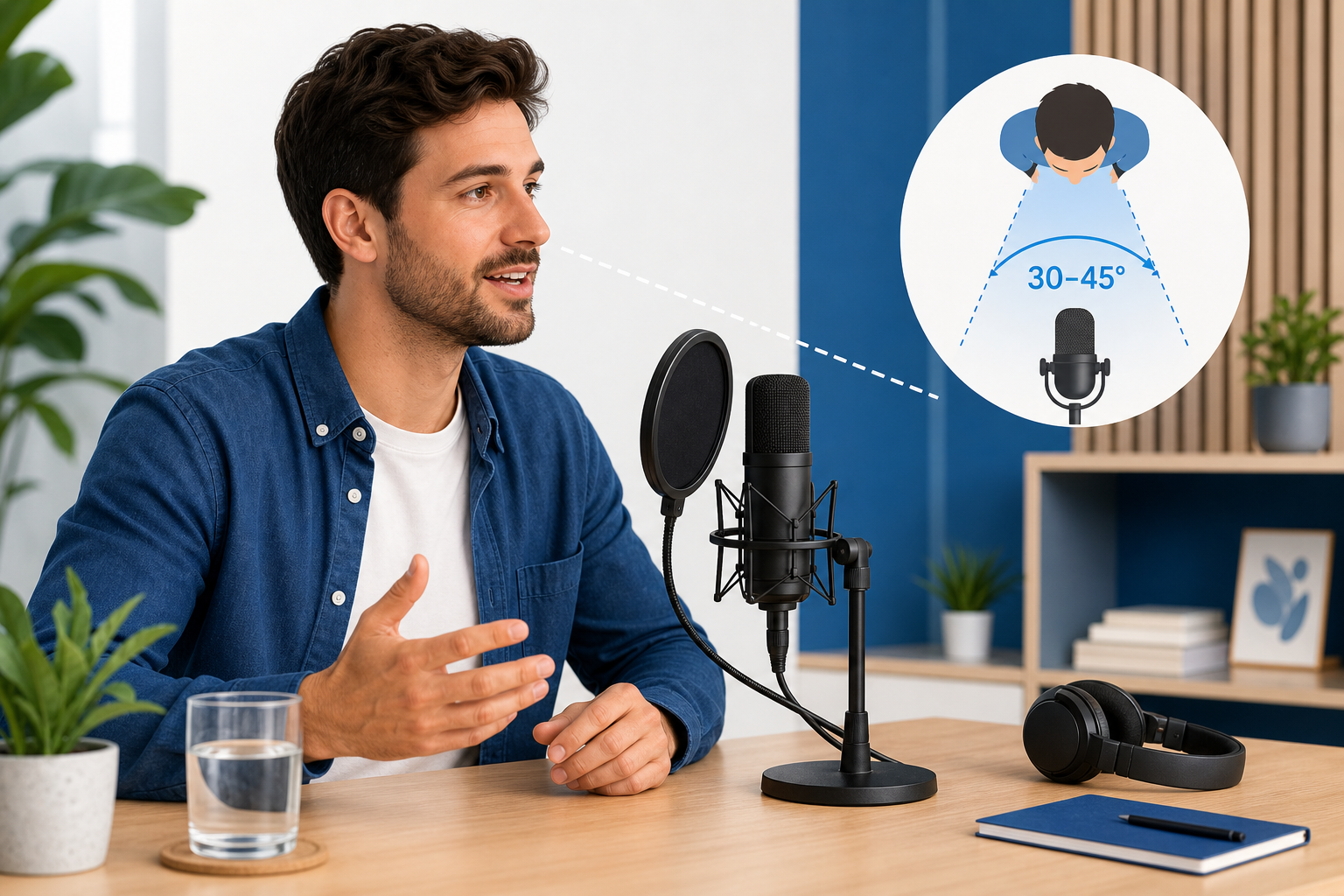
- Use a pop filter. A pop filter helps reduce plosive air blasts and can help keep saliva away from the microphone.
- Speak slightly off-axis. Aim your voice just past the microphone instead of directly into the capsule.
- Use a reasonable mic distance. Too close can exaggerate mouth detail; too far can add room echo. Shure’s voiceover guidance suggests experimenting, with 6–12 inches as a common starting range depending on the mic and speaker.
- Record a short test. Listen on headphones before recording the full episode or lesson.
- Reduce compression while tracking. Heavy live compression can bake mouth noise into the recording.
- Pause and reset. If your mouth gets clicky, stop, sip water, and restart the sentence.
For gear setup help, see SimpleClean’s guides to the best microphone for podcasting and the best microphone for YouTube videos.
Publishing Checklist
Before you send the cleaned audio to a client or publish it, run this checklist.
Audio QC
- Listen once on closed-back headphones.
- Listen once on a phone speaker.
- Check the first and last 30 seconds.
- Check quiet sections where clicks are easiest to hear.
- Check music transitions, intros, and outros.
- Confirm breaths still sound natural.
- Confirm consonants are not damaged.
Podcast or voiceover QC
- Check host and guest tracks separately if you have them.
- Make sure volume is consistent between speakers.
- Confirm edits do not cut off words.
- Export a backup WAV or high-quality master before making compressed delivery files.
Video QC
- Verify lip sync after replacing audio.
- Watch scene cuts where audio may drift.
- Check captions after the final audio is in place.
- Make sure the cleaned soundtrack did not remove intentional sound effects or ambience.
Online AI Cleanup vs Manual DAW Editing
| Method | Pros | Cons | Best for |
|---|---|---|---|
| SimpleClean online cleanup | Fast, browser-based, works for audio and video, minimal learning curve | Less surgical than line-by-line editing | Creators who need a quick first pass and publishable speech cleanup |
| Audacity manual repair | Free, precise for isolated clicks, good learning tool | Slower, requires waveform editing | Editors with a few obvious clicks |
| Dedicated de-click tools | More control for severe mouth noise | More expensive/technical, can be overused | Voiceover, audiobook, post-production work |
| Re-recording | Best possible fix when the take is bad | Not always possible with guests or clients | Short scripts, ads, important voiceover lines |
The best workflow is often hybrid: use SimpleClean for the broad cleanup, then manually repair the few clicks that remain.
FAQ
How do I remove mouth clicks from audio online?
Upload your audio or video to SimpleClean, run the online cleanup, preview the result on headphones, compare it with the original, then download the cleaned file. Clean clicks before volume leveling, compression, and final mastering.
What causes mouth clicks in recordings?
Mouth clicks are usually caused by saliva movement, lip smacks, tongue movement, dry mouth, sticky mouth texture, close mic placement, or heavy compression that makes small sounds more noticeable.
Can AI remove lip smacks from a podcast?
AI cleanup can reduce many distracting mouth sounds and other speech-recording artifacts, but severe clicks inside words may still need manual editing or a dedicated de-click tool.
How do I remove saliva sounds from a voiceover?
Clean the recording before mastering, listen for wet clicks at phrase starts and endings, and use online cleanup first. If a few saliva clicks remain inside words, zoom into the waveform and repair those clicks manually.
Can I remove mouth clicks from a video?
Yes. Upload the video file, clean the soundtrack, preview for lip sync, then download the cleaned video or export cleaned audio and replace the original audio in your video editor.
Why are mouth clicks louder after compression?
Compression reduces the difference between loud and quiet parts. When gain is added after compression, small mouth noises can become more noticeable. That is why click cleanup should usually happen before compression.
How do I remove mouth clicks without making my voice sound unnatural?
Use the lightest cleanup that solves the distraction, preview before downloading, keep normal breaths and consonants, and avoid repeated heavy processing over the whole file.
What is the difference between mouth clicks and static?
Mouth clicks are short noises tied to the speaker’s lips, tongue, or saliva. Static is usually continuous or repeated electrical noise caused by gain, cables, wireless issues, or recording hardware.
Can Audacity remove mouth clicks?
Audacity can help with clicks using Click Removal for larger selections and Repair for very short selections. It is useful as a manual fallback when a few stubborn clicks remain after online cleanup.
Should I remove breaths as well as mouth clicks?
Remove only breaths that are distracting, too loud, or badly placed. Keeping natural breaths often makes podcasts, narration, and voiceovers sound more human.
Final Takeaway
The fastest way to remove mouth clicks from audio online is to clean the file before mastering, preview it carefully, and avoid chasing every tiny natural sound. Use SimpleClean for a quick browser-based cleanup of audio or video, then do a short headphone QC pass before publishing.
If your recording also has hum, wind, echo, static, or background noise, clean those distractions in the same early repair stage. Then level, compress, caption, translate, and export from a cleaner source.
CTA: Clean your speech audio or video with SimpleClean, then use Best AI Captions or Translate Dub when you are ready to caption, publish, or localize the final video.
Sources and further reading
- SimpleClean home page - Verified SimpleClean’s online audio/video upload, preview, AI cleanup, and download workflow, plus speech creator use cases.
- Audacity Support: Removing clicks & pops - Verified Audacity Click Removal, Repair behavior, selection-size cautions, and manual fallback guidance.
- Audacity Manual: Click Removal - Verified additional Click Removal guidance and caution that individual subtle clicks may need Repair or other manual treatment.
- iZotope RX Mouth De-click documentation - Verified that dedicated mouth de-click tools target clicks and lip smacks and that high sensitivity can affect plosives/original signal.
- Adobe Audition Help: Amplitude and compression effects - Supported the explanation that compression reduces dynamic range and can increase perceived loudness.
- Shure: Getting Started in Voiceover Recording - Verified prevention guidance around mic distance, off-axis placement, windscreen/pop protection, and level setting.
- HARMAN: Pop Filters and Microphones - Verified that pop filters reduce plosive air impact and can help protect the microphone element from saliva.
- RØDE: Why Does the Microphone Capture Mouth Noises? - Supported prevention guidance for pop filters and off-axis microphone positioning to reduce mouth-noise pickup.