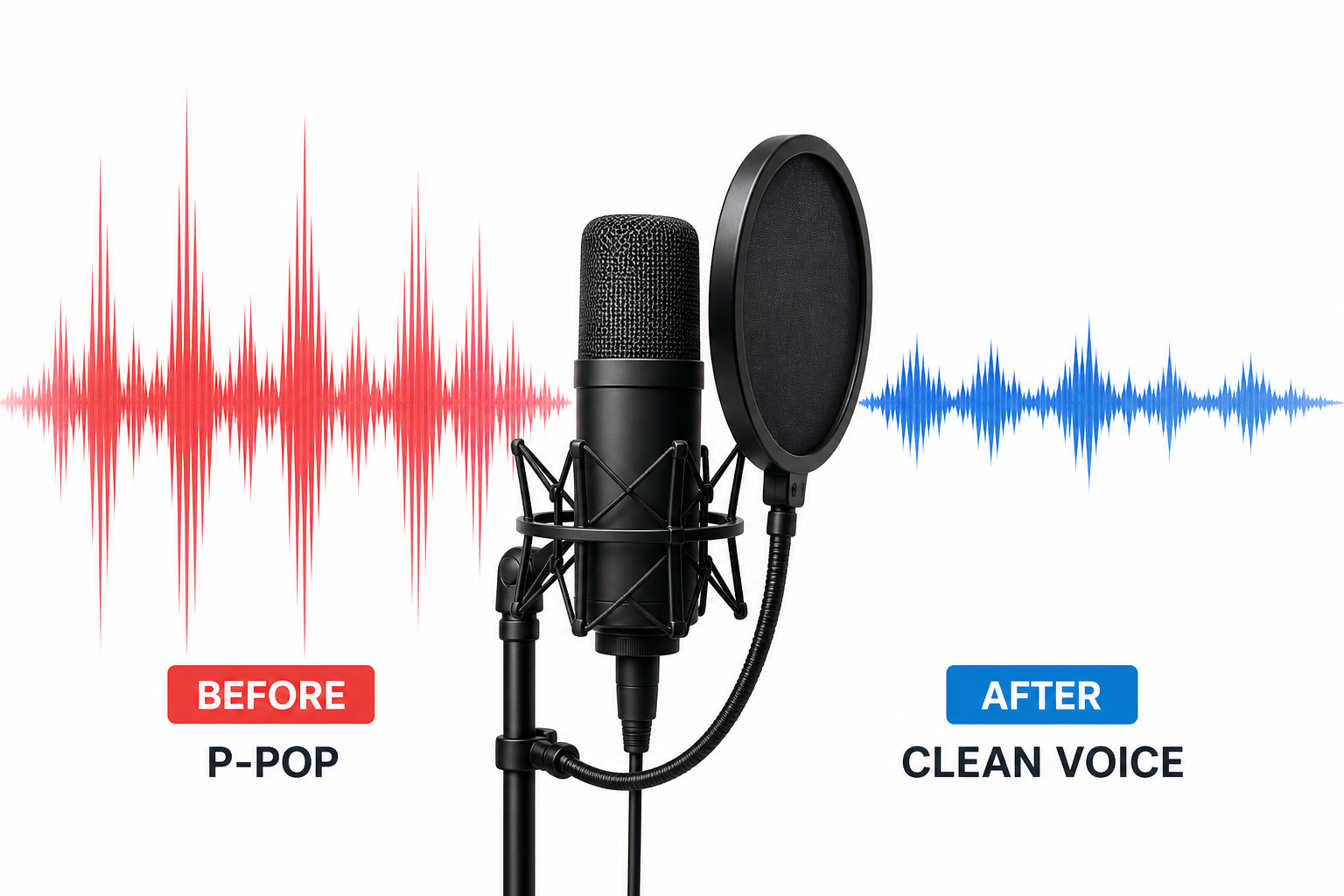
Quick Answer: How to Remove Plosives from Audio Online
To remove plosives from audio online, start with a reversible first pass: upload your audio or video to SimpleClean, preview the cleaned result, compare it against the original on headphones, and download only if the voice still sounds natural. SimpleClean is an online AI audio cleaner with an upload-and-preview workflow for audio and video files.
Use AI cleanup first when the issue is a normal P-pop, B-boom, or short mic thump in spoken-word audio. Use manual repair only when the pop is extreme, clipped, mixed with wind, or loud enough to mask the word.
Best practical order:
- Clean the raw voice first before compression, loudness normalization, music, captions, or final video export.
- Preview the worst P and B words, not only the first 10 seconds.
- Reduce, don’t erase, most plosives so consonants still sound like speech.
- Manually repair only the worst syllables with brief clip-gain reduction and a localized high-pass/low-cut filter.
- Prevent it next time with a pop filter, off-axis mic angle, sensible mic distance, and a quick P/B test sentence.
Clean a file now: Upload your podcast, interview, voiceover, screen recording, or talking-head video to SimpleClean and compare the before/after preview before you commit.
What Are Plosives?
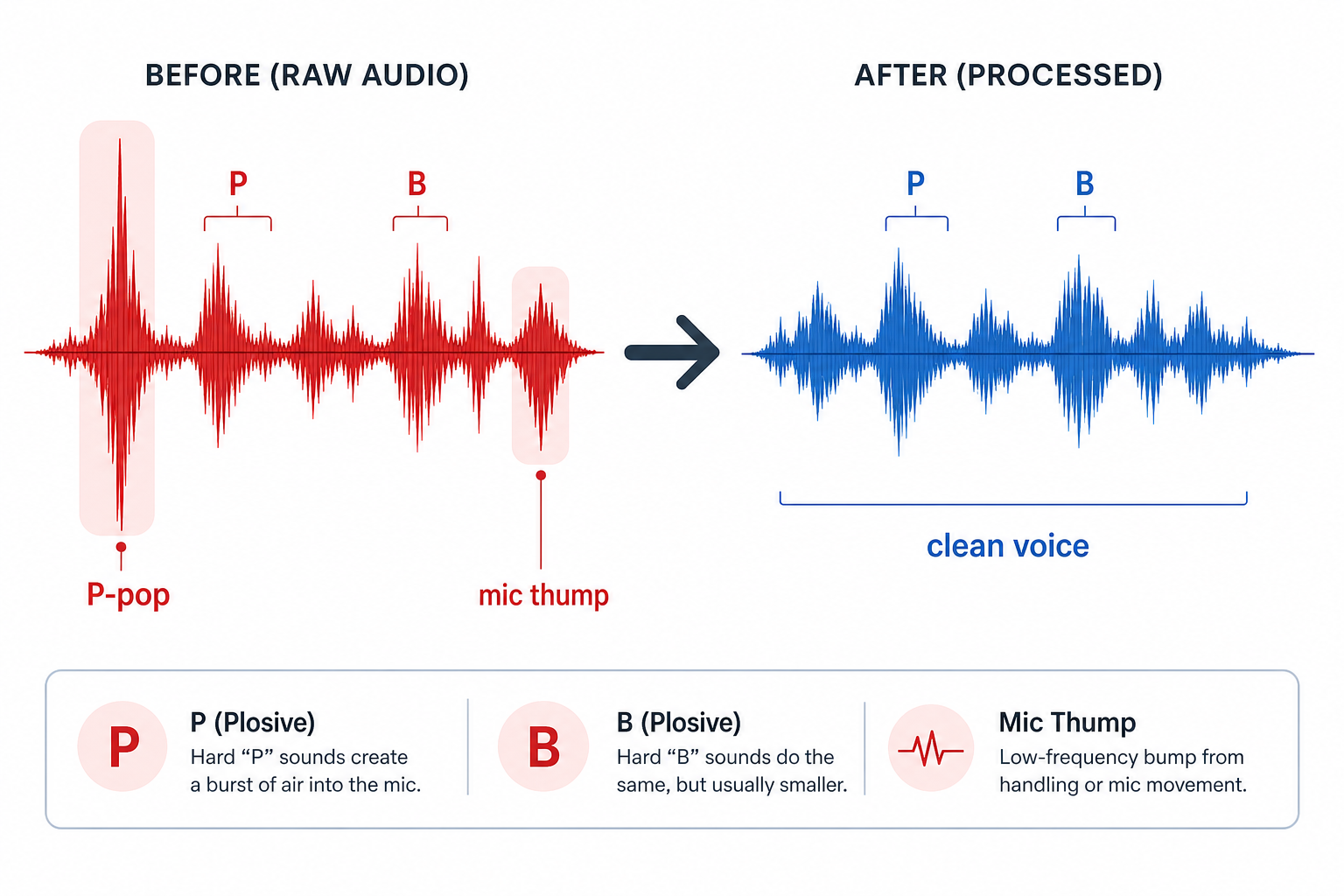
Plosives are sudden bursts of air from consonants such as P, B, T, D, K, and G. In recordings, that air can hit the microphone diaphragm and create a short low-frequency pop, thump, or boom. HARMAN explains that popping is especially associated with aspirated plosives and that pop filters break up the plosive energy before it reaches the microphone diaphragm.
In creator audio, the most distracting plosives are usually P and B sounds in words like “podcast,” “business,” “people,” “best,” and “publish.” To the listener, a plosive can sound like:
- A bassy “whoomp”
- A short microphone bump
- A speaker-cone thud
- A popped P or B that jumps out of the sentence
- A gust-like thump at the start of a word
Plosives are tricky because they are attached to the spoken word. If you remove too much, the word can sound clipped, hollow, or unnatural.
Plosives vs. Clicks, Clipping, Wind, Hum, and Handling Noise
Before processing the whole file, identify what you are hearing. Different problems need different fixes.
| Problem | What it sounds like | Usually happens when | Best first fix |
|---|---|---|---|
| Plosive / P-pop / B-boom | Short bass thump on P, B, T, or similar consonants | Speaker is too close, directly on-axis, or using too much gain | AI voice cleanup, then manual clip-gain/high-pass repair on worst syllables |
| Mouth click / lip smack | Tiny tick, saliva snap, sticky click, or wet mouth sound | Dry mouth, close mic, quiet narration, heavy editing | Use a mouth-click cleanup workflow, not only low-cut EQ |
| Clipping | Crunchy distortion, flattened peaks, harsh crackle | Input gain or recorder level was too high | Try declipping/repair; severe clipping may not fully recover |
| Wind noise | Rushing, rumbling, unstable low-frequency blast | Outdoor recording, fan gusts, exposed lav/shotgun mic | Treat wind separately; plosive tools alone may not be enough |
| Handling noise | Bumps, knocks, cable rubs, desk thuds | Touching mic, stand, table, lav cable, or camera rig | Cut or repair isolated bumps; use a shock mount next time |
| Hum / buzz | Constant 50/60 Hz tone or electrical buzz | Power, lighting, HVAC, appliances, ground-loop issues | Hum removal or notch filtering |
| Room echo / reverb | Voice sounds distant, boxy, or bathroom-like | Hard walls, empty room, mic too far away | De-reverb/echo cleanup, not plosive removal |
If the pop happens only on certain consonants, it is probably a plosive. If it runs under the whole recording, it is more likely hum, rumble, HVAC, or wind. If it sounds like a tiny wet tick instead of a bassy thump, read our guide to removing mouth clicks from audio online.
Best Options: Online AI, Dedicated Plugin, or Manual Editor?
There is no single best plosive-removal method for every recording. Use this comparison to choose the fastest safe path.
| Option | Best for | Pros | Watch-outs |
|---|---|---|---|
| SimpleClean online AI cleanup | Creators who want a fast browser-based first pass for podcasts, interviews, voiceovers, YouTube videos, courses, and client recordings | Upload, preview, compare, and avoid plugin setup; works as a simple online cleanup workflow for audio and video | Always preview the voice; extreme clipped plosives may still need manual repair |
| Dedicated plosive plugin | Editors already working in Premiere Pro, Audition, Pro Tools, Final Cut, DaVinci Resolve, Logic, GarageBand, or similar apps | Purpose-built controls inside a DAW/NLE; Boris FX PopRemover is positioned as a plugin for plosive noises in common editors | Requires installing and learning a plugin |
| Broad vocal enhancer | Creators who also need noise, reverb, clicks, pops, or clipping reduction | LANDR ReHance describes browser-based vocal enhancement for background noise, reverb, clicks, pops, clipping, and plosive “p” sounds | Broad enhancement can change tone; check that speech still sounds natural |
| Technical online high-pass tool | Audio-only files with simple low-frequency pops | Melobytes’ tool uses high-pass/low-cut filtering and lists MP3, AAC, FLAC, WAV, and AIFF inputs | Global high-pass filtering can thin the entire voice if overused |
| Manual Audacity/Audition repair | One or two huge P-pops, clipped pops, or problem syllables left after AI cleanup | Maximum control over the exact syllable | Slower; requires careful selection, filtering, gain changes, and fades |
Recommendation: use SimpleClean first when you need a quick online rescue. Then manually repair only the few plosives that still jump out.
How to Remove Plosives from Audio Files Online
Use this workflow for spoken-word audio exports such as MP3, WAV, M4A, AAC, AIFF, or podcast narration.
1. Save a Copy of the Original
Never overwrite your source recording. Duplicate the file or export a working copy first so you can return to the unprocessed version if cleanup goes too far.
2. Upload the Audio to SimpleClean
Open SimpleClean, upload the audio file, and run the cleanup. The goal is to reduce distracting P-pops and B-booms while keeping the speaker’s tone intact.
3. Preview the Worst Words
Do not judge the result only by the first few seconds. Search the transcript or timeline for P/B-heavy words such as:
- “Podcast”
- “People”
- “Business”
- “Public”
- “Best”
- “Problem”
- “Playback”
- “Please subscribe”
Listen on headphones and normal speakers. Headphones reveal low-end thumps; small speakers help you confirm that the words still sound clear.
4. Compare Before and After
A good cleanup should make the pop less distracting without making the voice hollow. If the cleaned file sounds clearer and the consonants still feel natural, continue. If the voice loses too much warmth, use a lighter result if available or plan manual repairs only on the worst syllables.
5. Download and Continue Editing
After plosive cleanup, continue with:
- Dialogue leveling
- Light compression
- Loudness normalization
- Music and sound effects
- Final podcast or video export
For podcast editing, fix obvious plosives before compression and loudness processing. Compression reduces dynamic range, so big low-frequency thumps can become more distracting if they drive later processing.
How to Remove Plosives from Video Files Online
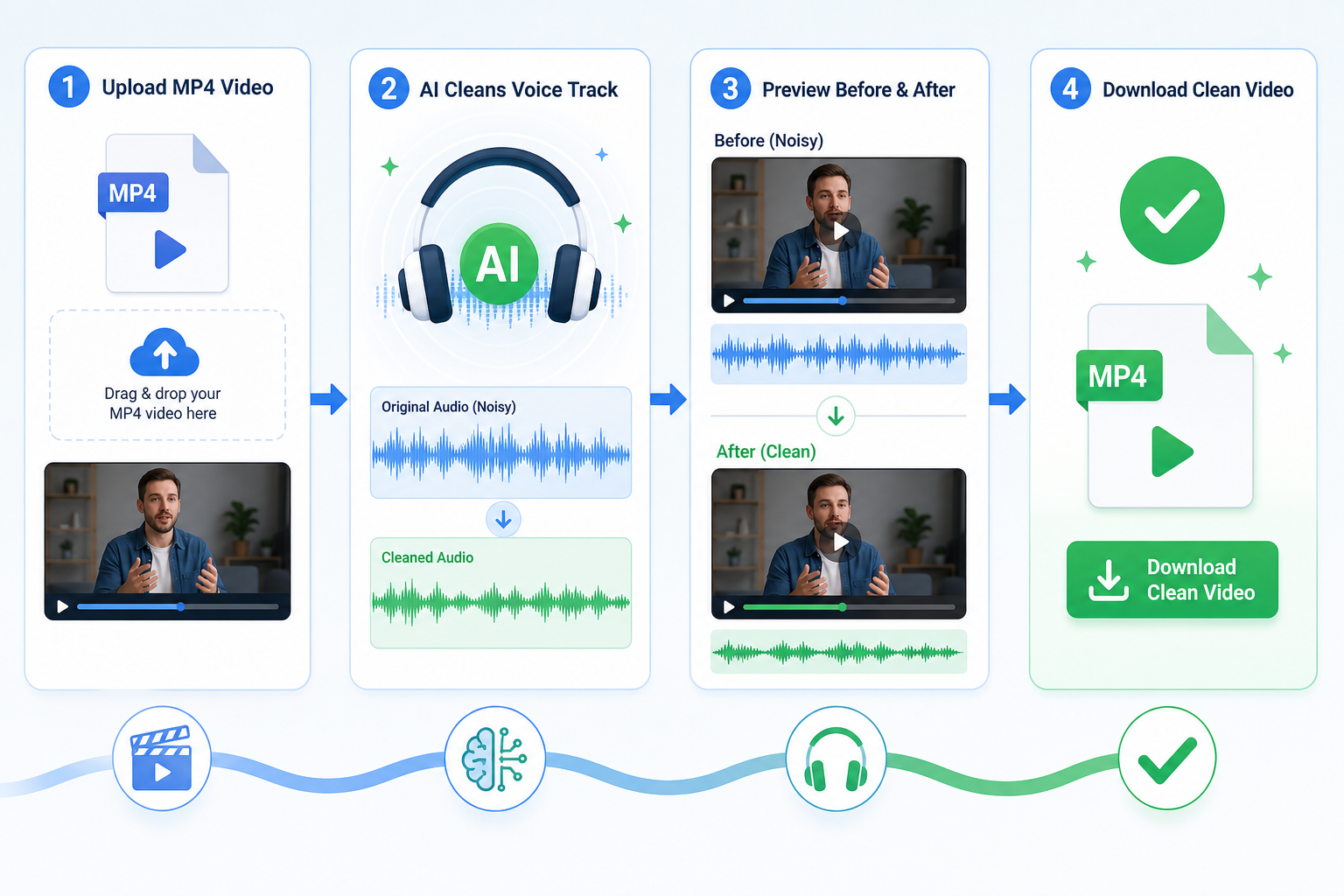
Use this workflow for common video exports such as MP4, MOV, WebM, webinar recordings, screen recordings, course videos, and talking-head clips.
1. Upload the Original Video Export
Use the original exported video whenever possible. Do not record your screen while playing the video back, because that can add room noise, speaker distortion, and extra compression artifacts.
2. Clean the Voice Track Before Final Assets
For YouTube and course videos, clean the narration before you add:
- Background music
- Captions
- End screens
- Transitions with sound effects
- Final loudness processing
- Translated or dubbed versions
If you add captions after cleanup, the captions should match the final voice track. For finished video subtitles, SimpleClean pairs naturally with Best AI Captions, which helps creators add captions and subtitles to videos. If you are publishing the same cleaned video in multiple languages, Translate Dub can help translate, dub, and caption the video for multilingual audiences.
3. Preview Audio and Sync Together
After cleanup, check both sound and picture:
- Did the P-pop drop without muting the word?
- Is the voice still in sync with the lips?
- Did you keep music and effects out of the cleanup stage when possible?
- Are there any new clicks at edit points?
4. Export the Clean Version for Final Editing
Use the cleaned video as your new working copy for captions, publishing, or client review. If you edit in Premiere Pro, Final Cut, DaVinci Resolve, or another NLE, import the cleaned result back into your timeline and compare it with the original before deleting anything.
SimpleClean CTA: If your MP4 or screen recording has distracting P-pops, upload it to SimpleClean first and preview whether the voice is cleaner before rebuilding the edit.
When to Reduce Plosives Instead of Removing Them Completely
Most plosives should be reduced, not erased. Real speech needs consonant energy. If every trace of the P or B is removed, words can sound muted, lisped, or oddly edited.
Reduce rather than remove when:
- The pop is noticeable but the word is understandable.
- The recording is a conversational podcast or interview.
- The speaker’s voice already sounds thin.
- The plosive is part of an important word, brand, or name.
- Aggressive cleanup creates artifacts.
Remove or heavily repair when:
- The plosive hurts the listener’s ears.
- A P-pop triggers a limiter or compressor.
- The low-end thump masks the next syllable.
- The pop sounds like a mic bump.
- A client specifically flagged that word.
This is why whole-track high-pass filtering can be risky. Audacity’s official manual describes high-pass filtering as passing frequencies above a cutoff and attenuating frequencies below it, while Adobe Audition’s documentation describes high-pass mode as passing high frequencies and removing low frequencies. That can reduce rumble and plosive energy, but too much low-end reduction across the entire voice can remove body along with the pop.
Troubleshooting: Why the P-Pop Is Still There
| Problem | Likely cause | What to try |
|---|---|---|
| One huge P-pop remains after AI cleanup | The air blast is much louder than the surrounding voice | Isolate that syllable, lower clip gain briefly, and add a short high-pass filter only to the pop |
| Repeated B-booms throughout a podcast | Speaker is too close or talking straight into the mic | Run online cleanup first, then manually repair the loudest 5–10 pops; change mic setup next episode |
| One guest is much worse than another | Different mic distance, angle, gain, or pop filter | Process that guest’s track separately if you have multitrack audio |
| Voice sounds thin after cleanup | Too much low-frequency reduction across the whole track | Back off the processing or repair only the problem syllables |
| Pop plus clipping | The recorder overloaded during the air blast | Try declipping if available, then plosive reduction; severe distortion may not fully recover |
| Pop plus wind noise | Outdoor air movement and consonant blast overlap | Treat wind separately; a plosive tool may not distinguish both perfectly |
| Pop filter failed | Speaker was too close, directly on-axis, or gain was too hot | Add distance, speak past the mic, lower gain, and test before recording |
| Clicks appear after cutting pops | Edit points are too abrupt | Add tiny fades at the start and end of the repaired region |
Manual Fallback: Fix a Severe Plosive Without Rebuilding the Whole Track
If online cleanup improves the recording but one or two P-pops still jump out, use a manual repair in Audacity, Adobe Audition, Premiere Pro, DaVinci Resolve, Logic, Reaper, or your preferred editor.
Manual Plosive Repair Steps
- Find the plosive. Zoom in on the word and look for a short, large low-frequency burst.
- Select only the problem syllable. Avoid selecting the whole word unless the pop covers it.
- Lower clip gain briefly. Start with a small reduction and listen in context.
- Apply a high-pass/low-cut filter only to the selected region. This targets the thump without thinning the entire track.
- Add short fades. Fade in and out around the repair to prevent new clicks.
- Listen in the sentence. The goal is not a perfect-looking waveform; it is a natural word.
For severe dialogue repair, specialized tools such as iZotope RX De-plosive are designed to identify and reduce plosives while preserving more of the dialogue than broad EQ alone.
Podcast and Interview Workflow
For podcasts, interviews, webinars, and client calls, use this order:
- Organize tracks by host, guest, and remote source.
- Remove or reduce the worst plosives before heavy processing.
- Clean background noise, hum, and clicks if needed.
- Level dialogue so speakers are balanced.
- Apply light compression only after major thumps are controlled.
- Normalize loudness for the final platform.
- Spot-check on earbuds, headphones, and laptop speakers.
If your podcast also has typing from live note-taking, use our guide to removing keyboard noise from audio online. If a guest recorded in a reflective room, see how to remove reverb from video online. If the problem is a constant electrical tone instead of a consonant pop, read how to remove hum from audio online.
YouTube, Course, and Voiceover Workflow
For YouTube videos, tutorials, courses, and voiceovers, repair plosives before final creative polish.
Recommended order:
- Record or export the cleanest narration file you have.
- Upload the narration or video to SimpleClean.
- Preview P/B-heavy lines.
- Repair any severe leftover pops manually.
- Add music, effects, captions, and end screens.
- Export the final video.
- Caption the final cut with a dedicated caption workflow if needed.
This order helps the cleanup focus on the voice rather than reacting to music or effects.
How to Prevent Plosives Next Time
Post-production can rescue many P-pops, but prevention is cleaner than repair. Shure’s microphone technique guidance recommends keeping a podcast/spoken-word mic about 6–12 inches from the mouth, aiming the mic from above or below to reduce popping from plosive consonants, and using an external pop filter. Shure also notes that slightly off-axis placement can help avoid explosive breath sounds from consonants such as P, B, D, and T.
Use this prevention checklist:
- Place a pop filter between your mouth and the mic.
- Keep the mic at a sensible spoken-word distance; 6–12 inches is a common Shure recommendation, then adjust for your room, mic, and voice.
- Speak slightly off-axis so air passes across the microphone instead of straight into it.
- Lower input gain if P and B words spike the meter.
- Avoid talking directly into the capsule at very close range.
- Use a shock mount or stable stand so plosives are not confused with desk bumps.
- Record a 10-second test sentence before every important session.
Try this test sentence:
“Please publish the podcast preview before the business presentation.”
If that sentence pops, fix the mic position before recording the full episode.
Can a Pop Filter Remove All Plosives?
A pop filter helps a lot, but it cannot guarantee perfect plosive control. HARMAN describes pop filters as reducing or eliminating popping by breaking up plosive energy before it hits the microphone diaphragm. Sound On Sound also notes that a low-cut filter may ease overload, but the basic cause of popping remains at the source.
A better setup combines:
- Pop filter
- Off-axis angle
- Proper mic distance
- Controlled gain
- Speaker technique
- Quick test recording
If you still get a few small pops, that is normal. The goal is to avoid the huge low-end thumps that distract listeners.
Final Checklist: Fix P-Pops Fast Without Making the Voice Thin
Before you publish, ask:
- Did I compare the original and cleaned version?
- Did I listen to the worst P and B words?
- Did I avoid over-filtering the whole voice?
- Did I repair clipped or extreme pops manually?
- Did I clean the voice before compression and final export?
- Did I check the final audio on headphones and normal speakers?
Clean a file now: Use SimpleClean to upload your audio or video, preview the cleaned version, and decide whether the P-pops are reduced enough for your podcast, interview, voiceover, YouTube video, course, or client recording.
FAQs
How do I remove P-pops from audio after recording?
Upload the file to an online AI cleaner such as SimpleClean, preview the P-heavy words, and download the cleaned version if the voice still sounds natural. If one or two pops remain, manually lower the gain on those syllables and apply a short high-pass filter only to the pop.
Can plosives be fixed online without Audacity?
Yes. Online AI cleanup is the easiest first step for creators who do not want to learn Audacity or a DAW. Audacity or another editor is still useful for severe isolated pops that need manual clip-gain repair.
What is the difference between plosives and mouth clicks?
Plosives are bassy air blasts from consonants like P and B. Mouth clicks are tiny ticks, smacks, or saliva sounds. Plosives usually need low-frequency reduction; mouth clicks need click/smack cleanup.
Why do P and B sounds make my microphone pop?
P and B sounds can release a burst of air toward the microphone. When that air hits the diaphragm, it can create a low-frequency pop or boom.
Can I remove plosives from an MP4 video?
Yes. Use an online cleaner that accepts video uploads, preview the cleaned voice, and check that the final video remains in sync. Work from the original export when possible, not a screen recording of playback.
Should I use a high-pass filter or an AI plosive remover?
Use AI cleanup first when you want a fast result across a whole recording. Use a high-pass filter manually when a specific syllable still has too much low-end thump. Avoid aggressive high-pass filtering across the entire voice unless the recording genuinely needs it.
How do I fix plosives in podcast audio?
Fix the worst plosives before compression and loudness normalization. If you have separate host and guest tracks, process the problem speaker separately, then level and master the episode.
Will removing plosives make my voice sound thin?
It can if you remove too much low-frequency energy from the whole track. Reduce the pop, not the entire voice. Manual repair on only the problem syllable usually sounds more natural than heavy global EQ.
How do I prevent plosives when recording voiceovers?
Use a pop filter, speak slightly off-axis, keep a sensible mic distance, lower gain, and test P/B-heavy words before recording the full script.
Can a pop filter remove all plosives?
No pop filter is perfect. It reduces the air blast, but mic angle, distance, input gain, and speaking technique still matter.
Sources and further reading
- HARMAN Help Center: Pop Filters and Microphones - Supports explanation of plosives, air blasts, microphone diaphragm impact, and the role of pop filters.
- Shure: Microphone Techniques for Recording - Supports spoken-word mic distance, off-axis placement, aiming from above/below, and pop-filter prevention advice.
- Shure Singapore: Avoid Plosives When Using Microphones - Supports prevention guidance around off-axis mic technique and pop filters.
- iZotope: How to remove plosives from a voice recording - Authority source for plosive repair, De-plosive workflow, and limits of broad high-pass filtering.
- iZotope RX De-plosive documentation - Supports specialized de-plosive repair and the idea of reducing plosives while preserving dialogue.
- Audacity Manual: High-Pass Filter - Official support for what a high-pass filter does and why it can reduce low-frequency content.
- Adobe Audition: Filter and equalizer effects - Supports manual fallback guidance using high-pass, low-pass, and EQ tools in a professional editor.
- Sound On Sound: Pop Shields — Why You Need Them - Supports the caution that low-cut filtering may ease overload but does not fix the source cause of popping.
- Boris FX PopRemover - Competitor reference for dedicated plosive-removal plugin positioning and supported editing environments.
- LANDR ReHance vocal enhancer - Competitor reference for browser-based vocal enhancement that mentions clicks, pops, clipping, and plosives.
- Melobytes Plosive & Pop Removal - Competitor reference for a technical online plosive tool based on high-pass/low-cut filtering and listed input formats.
- Podsworth Automated Voice Cleaner - Competitor reference for automated speech cleanup features including plosive reduction and file-format examples.