Before you can even think about fixing that annoying static, you have to figure out where it’s coming from. More often than not, the problem isn't some complex digital glitch but something surprisingly simple—a bad cable, a weird software setting, or another piece of electronics interfering with your setup. A quick, systematic check of these areas can save you hours of editing headaches later.
Finding the Source of Unwanted Static Sound
So, where do you start? The key is to play detective. That hiss, crackle, or hum isn't random; it's a clue pointing to a specific problem somewhere in your recording chain. The great thing is, most of these issues fall into just a handful of common categories.
Think of it as a process of elimination. If the noise only shows up when a particular microphone is plugged in, you've got a strong suspect. If it vanishes when you move to a different outlet, environmental interference is likely the culprit.
Pinpointing the Root Cause
I can’t tell you how many times I've torn my hair out over a persistent hum, only to find my microphone cable was draped over a power strip. Moving it six inches solved everything. Another classic is the subtle crackle that turns out to be a loose connection on an XLR cable. These are the real-world problems that prove a physical check is always the best place to begin.
To help you narrow things down, this diagnostic flowchart is a great starting point.
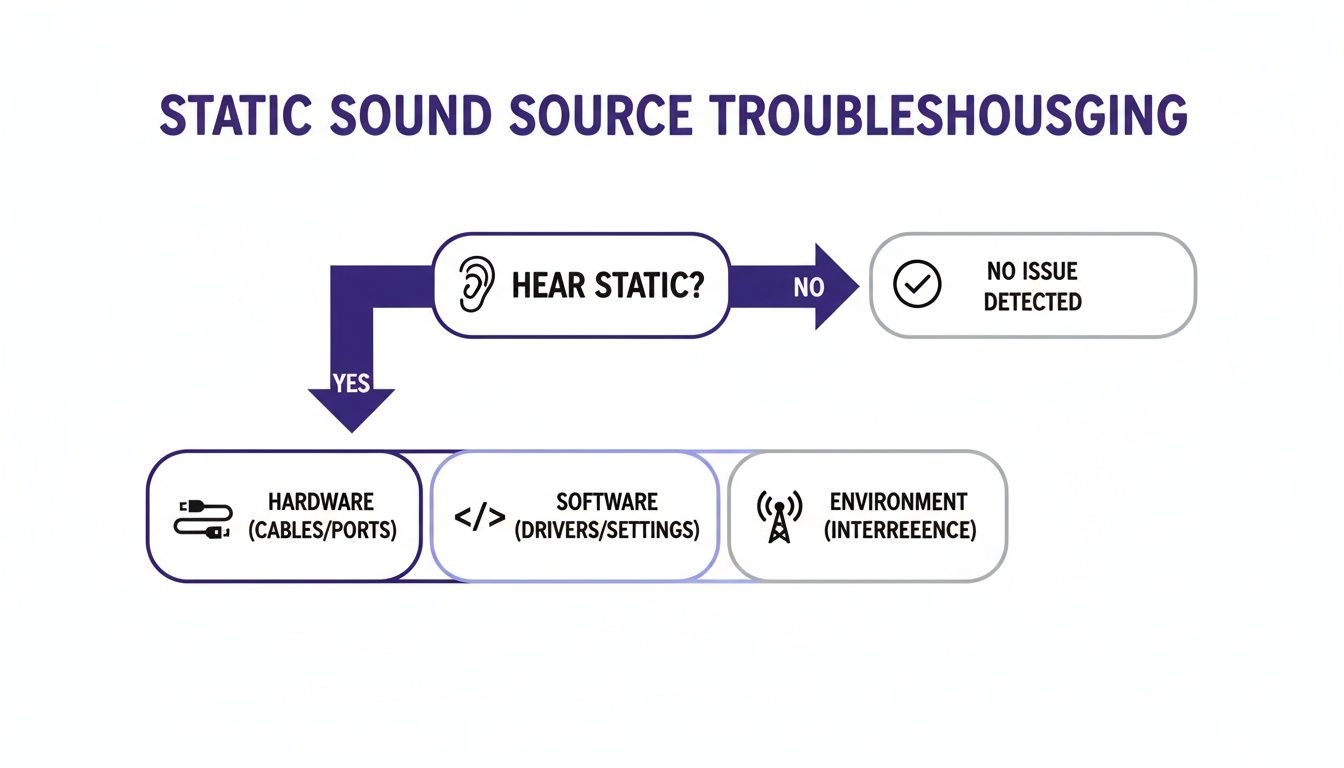
This map helps you quickly isolate whether the static is coming from your gear, your software, or the room itself.
The Growing Need for Clean Audio
The demand for crystal-clear audio isn't just a niche concern for audiophiles anymore. It’s a huge driver of technology and business. The global market for noise suppression components is on a tear, expected to jump from USD 27.23 billion in 2025 to a massive USD 73.04 billion by 2033.
This surge is fueled by everything from the remote work boom to consumer demand for noise-canceling headphones and even strict rules in the automotive and aerospace industries. Companies are pouring money into getting rid of static and ambient noise. You can see more data on this trend over at Straits Research.
The best audio engineers I know all say the same thing: A clean recording starts at the source. Fixing it in post-production is a last resort, not a primary strategy. Your goal should be to capture audio that needs as little help as possible.
Before diving into complex software solutions, a quick check of your setup can often solve the problem in minutes. This table breaks down the most frequent issues I see and how to tackle them quickly.
Common Static Sound Culprits and Their Quick Fixes
| Symptom | Potential Cause | Quick Fix |
|---|---|---|
| High-Pitched Whine or Hum | Ground Loop or Electrical Interference | Plug all your audio gear into a single power strip. Try a ground loop isolator. Move audio cables away from power cords. |
| Random Crackles and Pops | Loose or Damaged Cables/Connections | Unplug and firmly reconnect all cables (XLR, USB, 1/4"). Wiggle the cable near the connector; if it crackles, replace the cable. |
| Consistent, Low-Level Hiss | Gain Staging Issue (Preamp Noise) | Turn the gain down on your audio interface or mixer. Speak closer to the microphone to get a stronger signal without cranking the gain. |
| Digital "Glitching" or Stuttering | Software/Driver Conflict | Increase the buffer size in your DAW's audio settings. Ensure your audio interface drivers are up-to-date. Close other applications. |
Running through these common culprits first will resolve the majority of static issues. If the noise persists after these checks, then it’s time to look at software-based solutions.
Let’s break down the three main areas where static originates:
- Hardware Issues: This is your physical gear. We're talking faulty cables, poor connections, a malfunctioning audio interface, or just setting your gain way too high.
- Software Conflicts: Sometimes the problem is purely digital. Outdated drivers, mismatched sample rates, or other apps running in the background can introduce noise.
- Environmental Interference: Your recording space can be the enemy. Electrical devices like Wi-Fi routers, dimmer switches, and even fluorescent lights are notorious for creating audible interference.
Simple Hardware Fixes for Immediate Clarity
Before you even think about firing up your audio software, let's talk about the physical stuff. The cleanest fix is almost always the simplest one, and most static problems actually start with your hardware. Tackling the issue at the source is way more effective than trying to scrub out the noise in post-production.
These are the first things any seasoned audio pro checks, and getting them right can often eliminate static completely.
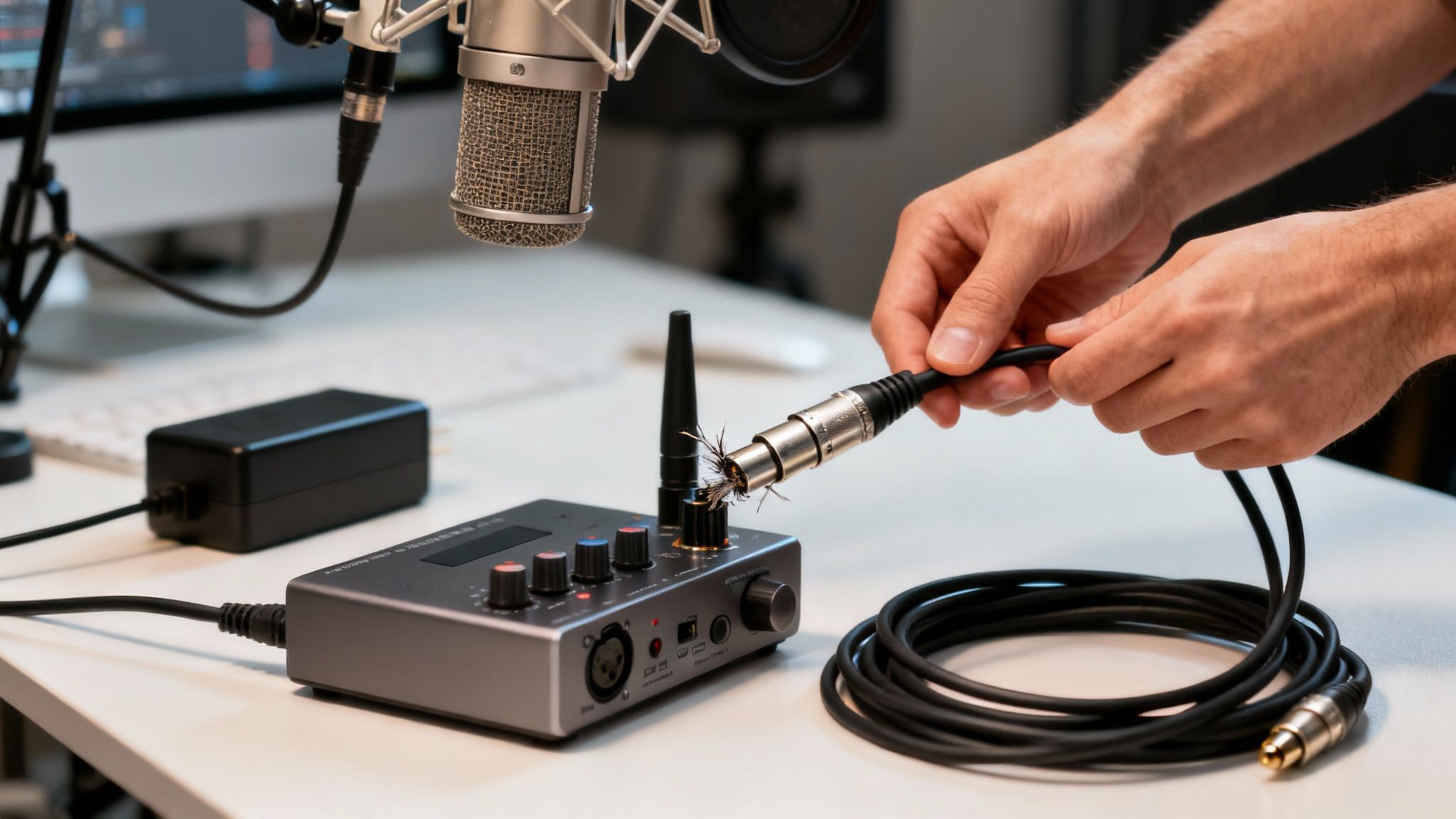
Start by looking at your cables. They’re the most common culprits behind countless crackles and hums. A cheap, poorly shielded, or damaged cable is basically an antenna for unwanted interference. If you hear a pop or crackle when you wiggle a cable, that’s a dead giveaway—it's time for a replacement.
Isolate and Test Your Connections
The best way to pinpoint a bad cable is by playing detective. If you have a couple of microphones or instruments, try swapping their cables. If the static jumps to the new device along with the cable, you’ve found your problem.
- Go Balanced with XLR: For microphones, always use a balanced XLR cable if you can. They're built with a third wire that actively cancels out interference, making them far better than the unbalanced 1/4" or 3.5mm cables you often see.
- Check That USB: Don't forget the USB cable connecting your audio interface or mic to the computer. A flimsy, unshielded one can easily pick up digital noise from your computer's internal components.
- Cable Etiquette: This is a big one—never run your audio cables right alongside power cords. If they absolutely have to cross, make sure they do it at a 90-degree angle. This simple trick minimizes the electrical hum that can ruin a recording.
Master Your Gain and Grounding
Beyond cables, two other things are absolutely crucial for clean audio: gain staging and electrical grounding. Nailing these gives you a rock-solid foundation for any recording session.
Gain staging is just the fancy term for setting your microphone's input level correctly. The goal is to get a strong, clear signal without it being so loud that it "clips" and distorts. If your gain is set too low, you'll have to crank it up later in your software, which also amplifies the preamp's natural hiss (the noise floor). Set it too high, and you get that nasty digital distortion that’s impossible to remove.
Pro Tip: The sweet spot for most recording, especially vocals, is when your audio meter peaks between -12dB and -6dB. This gives you plenty of headroom to avoid clipping while keeping your signal far above the noise floor.
Finally, let's talk about that annoying electrical hum. This is often caused by a ground loop, which happens when different pieces of gear are plugged into different power outlets. It's an easy fix, though.
First, try plugging all your audio equipment—computer, interface, speakers—into a single, high-quality power strip.
If the hum is still there, you might need a ground loop isolator. They're inexpensive little gadgets that can be a real lifesaver. By systematically checking these physical components, you can often solve static issues before you ever have to click "record."
Using AI Tools for Effortless Audio Cleanup
Sometimes, no amount of fiddling with cables or changing your recording spot can save a file that's already full of static. If you're dealing with an existing recording, or if those hardware fixes just didn't cut it, it’s time to turn to software.
The good news? You don't need to be an audio engineer to get fantastic results anymore. Modern AI-powered tools, especially the simple browser-based ones, can strip out that annoying static with just a couple of clicks. They're built for people who need to get the job done fast, letting you focus on your content instead of getting lost in a sea of confusing dials and settings.
The Magic of One-Click Cleaning
So, how does it work? These AI cleaners are trained on vast libraries of audio—thousands and thousands of hours of it. This process teaches the AI to tell the difference between a human voice and all the junk you don't want, like static, hiss, hum, and even people talking in the background. It can then surgically remove the noise while leaving the important parts of your audio intact.
The demand for this kind of technology is exploding. The market for background-noise reduction software was valued at around USD 2.5 billion in 2025 and is projected to hit nearly USD 8.0 billion by 2033. This surge is fueled by the exact stuff we're talking about: remote meetings, podcasting, and the massive growth of online video content. You can dig deeper into these trends over at Archive Market Research.
For the user, the process couldn't be simpler. You just:
- Upload your file: Drag your audio or video right into your web browser.
- Let the AI work: The tool analyzes the file, finds the static, and separates it from the voice.
- Preview and download: You get to hear a clear "before and after" comparison and then just download the cleaned-up version.
Here’s a look at the kind of refreshingly simple interface you can expect from a tool like this.
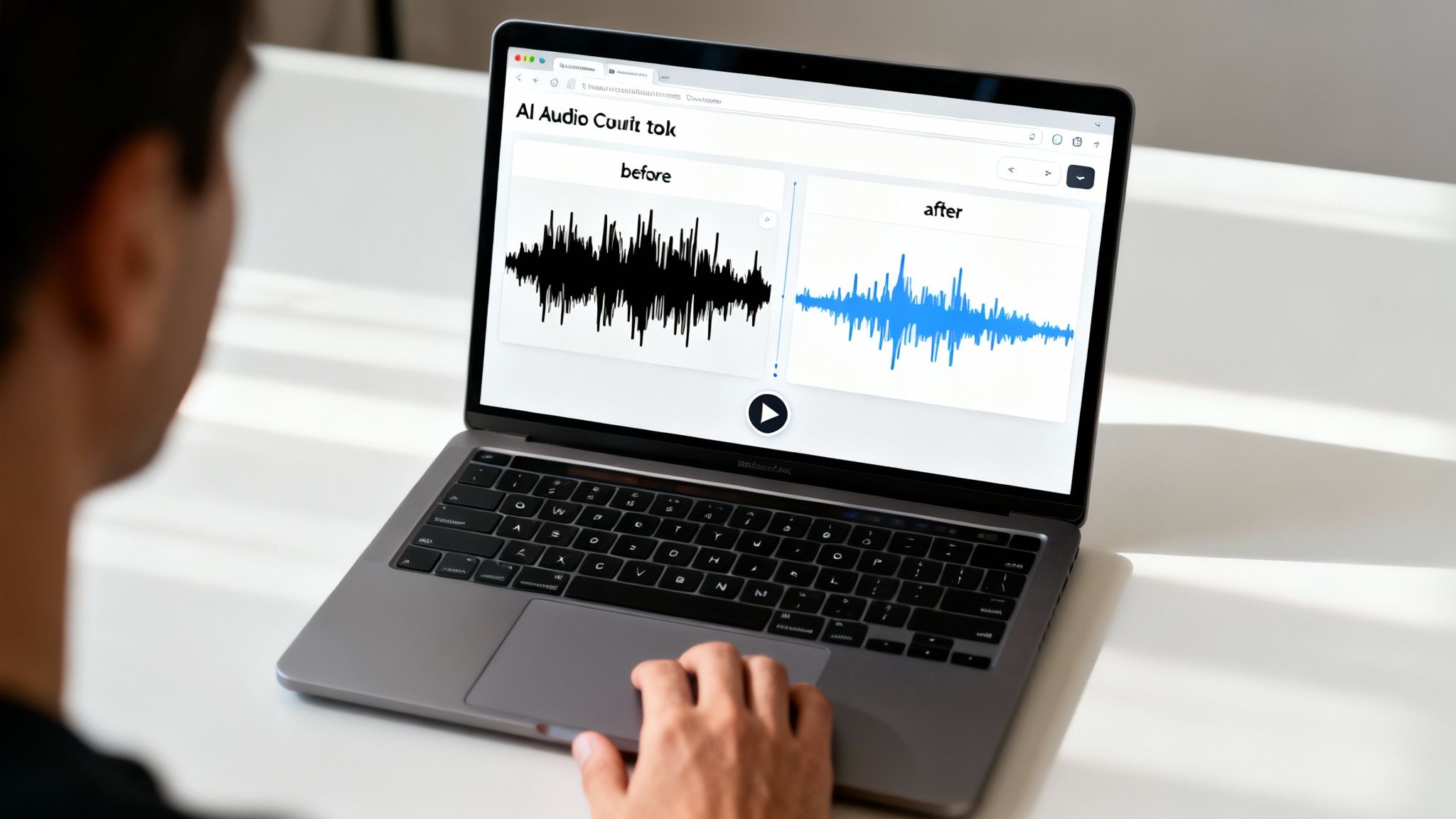
As you can see, it’s all about getting you from a noisy file to a clean one with the least amount of friction possible. The technology handles all the heavy lifting.
When Is an AI Tool Your Best Bet?
This approach is an absolute lifesaver in certain situations, especially when you're short on time or technical know-how. It's the perfect fix when you need solid results without getting tangled up in the weeds.
Think of AI audio cleanup less as a replacement for a skilled audio engineer and more as a way to give everyone access to better-sounding audio. It empowers creators to solve common problems on their own and get back to creating.
An AI tool is probably the right call if:
- You’re a content creator working against a deadline.
- You've never touched a complex Digital Audio Workstation (DAW) like Pro Tools or Audition.
- Your audio is plagued by a consistent, steady hiss or static from a bad microphone or noisy room.
- You have a batch of files that all need the same quick cleanup.
For those recordings ruined by a persistent hum from an air conditioner or the crackle of a faulty cable, a quick run through an AI cleaner can be the difference between a file you have to throw away and a polished, professional-sounding result. It’s an incredibly powerful first step before you even need to think about more advanced, manual techniques.
Diving Deeper with Audio Editing Software
When the one-click fixes don't cut it, it's time to roll up your sleeves and get into a proper Digital Audio Workstation (DAW). If you're dealing with a recording where preserving every nuance of the original audio is critical, a DAW gives you the surgical precision you just can't get from automated tools. This is where you move from just cleaning audio to truly restoring it.
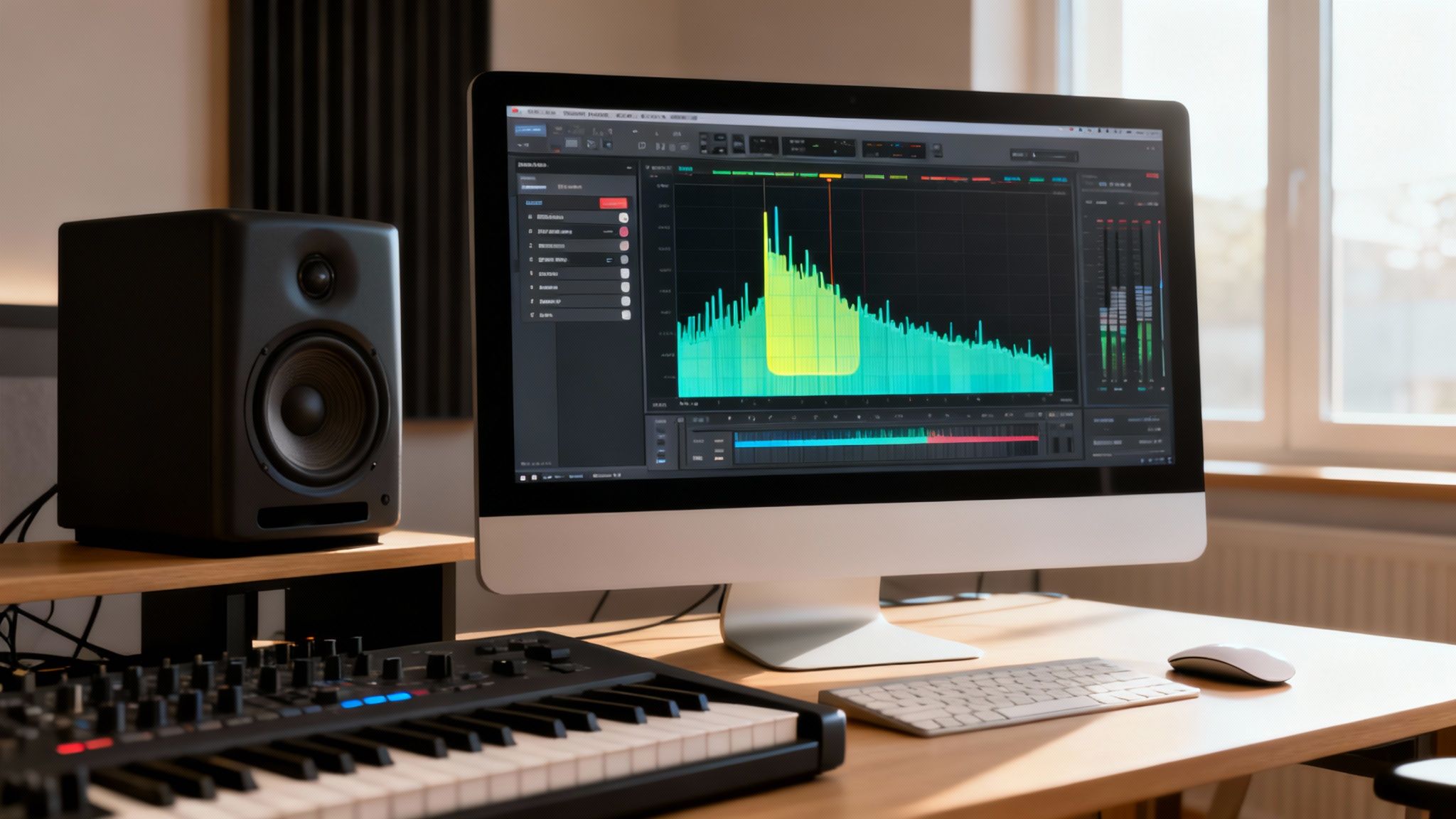
Working in a DAW like the free and powerful Audacity, Adobe Audition, or the Fairlight page in DaVinci Resolve puts you in complete control. Instead of an algorithm making its best guess, you’re actively guiding the process. You teach the software exactly what the unwanted noise sounds like, which is the key to removing it without damaging the audio you want to keep.
The Power of a Noise Print
The classic technique, and still one of the most effective, is using a noise print. A noise print is simply a clean, isolated sample of the static you want to remove. It’s like giving the software a sonic fingerprint to hunt for.
You'll need to find a second or two in your recording that contains only the static—no dialogue, no music, just the hiss or hum. You select this tiny section and tell your software's noise reduction effect to "learn" it. Once it has that profile, the software can scan your entire track and intelligently subtract that specific noise pattern, leaving the desired audio behind. This method works wonders for consistent, steady background noise like air conditioner hum or preamp hiss.
The real art here is in the subtlety. It's tempting to crank the noise reduction to 100%, but that almost always introduces weird digital artifacts, making your audio sound watery or robotic. Aim for reduction, not complete annihilation. A little bit of clean-up that pushes the static into the background is far better than an aggressive pass that ruins the main recording.
Targeting Specific Audio Headaches
Static isn't a one-size-fits-all problem. Sometimes it’s a very specific buzz from a ground loop, or intermittent crackles from a faulty cable. This is where a DAW’s arsenal of tools really proves its worth.
- Zap Hum with a Parametric EQ: That low, annoying electrical hum is often found at a consistent 50Hz or 60Hz (depending on your region's power grid). A parametric equalizer lets you perform sonic surgery. You can create a super-narrow filter right at that frequency and pull it down, effectively eliminating the hum without touching the surrounding frequencies.
- Clean Up Pauses with an Audio Gate: If the static is only audible during the silent gaps between words, an audio gate is the perfect tool. Think of it as an automatic mute button. You set a volume threshold, and any time the audio dips below that level (like during a pause), the gate closes and silences the track. The static vanishes from the quiet parts but leaves your main dialogue completely untouched.
Handling Noise That Won't Sit Still
What about noise that changes, like wind blowing or distant traffic? A standard noise print won’t work well here. For these situations, you'll want to reach for an adaptive noise reduction plugin. These tools don't rely on a single static sample; instead, they constantly analyze the audio and adjust the processing in real-time. It’s a smarter approach for recordings made in less-than-ideal, dynamic environments.
While it takes more time and a bit of a learning curve, mastering these techniques in a DAW gives you the power to rescue audio that automated tools might give up on. The clean, professional results are well worth the effort.
Comparing Different Audio Cleanup Methods
Choosing the right tool depends entirely on your situation—the severity of the static, your timeline, and your comfort level with audio software. Here’s a quick breakdown to help you decide which path to take.
| Method | Best For | Pros | Cons |
|---|---|---|---|
| Quick Fixes | Minor, consistent hiss in non-critical audio. | Fast, easy, and requires no special software. | Limited effectiveness; can degrade audio quality. |
| AI Cleanup Tools | Podcasters, YouTubers, and anyone needing fast, high-quality results with minimal effort. | Incredibly effective, simple to use, and preserves audio integrity. | Often requires a subscription; less granular control. |
| DAW & Plugins | Audio professionals, musicians, and anyone needing precise, surgical control over the final sound. | Ultimate control, targets specific problems, and delivers professional results. | Steep learning curve; can be time-consuming. |
| Spectral Editing | Removing isolated, non-repeating noises like coughs, clicks, or phone rings. | Pinpoint accuracy for removing specific sounds without affecting the surrounding audio. | Very advanced and time-intensive; requires specialized software. |
Ultimately, having a few different approaches in your toolkit is the best strategy. For a quick podcast edit, an AI tool is a lifesaver. For restoring a crucial piece of dialogue, nothing beats the control of a DAW.
Of course, here’s the rewritten section with a more natural, human-written feel.
How to Prevent Static in Future Recordings
While software can work wonders on a noisy recording, nothing beats capturing clean audio right from the start. Preventing static at the source doesn't just save you a headache during editing; it delivers a far more professional and natural-sounding result. A few good habits can make all the difference.
Think of it like this: you can't unscramble an egg. Once that harsh static is baked into your audio, it's nearly impossible to remove it completely without some kind of sonic compromise. Getting your raw recordings as pristine as possible is the real secret to a great final product.
Invest in Quality Gear and Cables
Your recording setup is only as strong as its weakest link, and more often than not, that weak link is a cheap cable. One of the best upgrades you can make is investing in well-shielded, balanced XLR cables for your microphones. Their design is brilliant at canceling out the electrical noise that unshielded cables love to pick up.
A dedicated audio interface is another non-negotiable for clean sound. Let's be honest, the preamps built into most computers are notoriously noisy. An external interface gives you clean, high-quality preamps built for one job: recording audio. This dramatically improves your signal-to-noise ratio. You don’t need to break the bank, but a solid unit from a trusted brand like Focusrite or PreSonus is an investment you won't regret.
Optimize Your Recording Space
Your room has a huge impact on your audio quality, and I'm not just talking about echoes. You have to be aware of both acoustic and electrical interference. Thankfully, a few simple tweaks can drastically cut down on unwanted hum and buzz.
- Separate Power and Audio: Whatever you do, don't run your audio cables parallel to power cords. If they have to cross, make sure they do it at a 90-degree angle to minimize induced hum.
- Hunt Down Interference Sources: Take a look around. Common culprits like Wi-Fi routers, dimmer switches, and fluorescent lights can wreak havoc on your signal. Keep your setup away from them.
- Use a Single Power Source: Plug all your gear—computer, interface, monitors—into the same power strip. This helps prevent a ground loop, which is one of the main causes of that awful low-frequency hum.
The best way to remove static sound is to avoid recording it in the first place. Every minute spent optimizing your setup before hitting record can save you ten minutes of frustrating cleanup in post-production.
Perfect Your Gain Staging
Gain staging is just the fancy term for setting the right recording level for your microphone, and it's a delicate balancing act. Set the gain too low, and you'll have to crank it up in your software later, which also boosts all the underlying electronic hiss. Set it too high, and your audio will clip and distort—and that's a mistake you can't undo.
As a rule of thumb, aim for your voice or instrument to peak between -12dB and -6dB on your meters. This sweet spot gives you a strong, clean signal with plenty of headroom to avoid any nasty clipping.
The importance of tackling noise at the source is being recognized more and more. The market for engineered noise-control systems was valued at USD 6.6 billion and is projected to hit USD 11.0 billion by 2034. This trend shows a clear, industry-wide focus on solving noise problems before they even start. You can dive deeper into this growing market on market.us. By adopting these same preventative habits, you’re applying a core professional principle to your own work.
Your Top Questions About Removing Static, Answered
When you're trying to get rid of static, a few common questions always seem to pop up. I hear them all the time. Let's walk through some of the most frequent challenges and get you some clear answers.
Can I Just Remove Static From the Video File Itself?
Yes, you absolutely can. Gone are the days of painstakingly stripping the audio from your video just to clean it up. Modern tools are built for this.
AI audio cleaners and professional video editors like DaVinci Resolve or Adobe Premiere Pro are designed to work directly with video files. Just drop in your MP4 or MOV, and the software will work its magic on the audio track while leaving your video perfectly in sync. It's a huge time-saver and avoids the nightmare of trying to re-align your audio manually.
What’s the Difference Between Static, Hiss, and Hum?
Good question. People often lump them all together, but they're actually different beasts, and knowing which one you have helps you track down the source.
- Static is that random, spitty sound—think pops, crackles, and clicks. It’s often caused by a bad cable, a loose connection, or some kind of electrical short.
- Hiss is that steady, high-frequency "shhhh" you hear in the background. This is what audio engineers call the "noise floor," and it usually comes from the electronics in your gear itself, like your microphone's preamp.
- Hum is that low, droning tone. It’s almost always a 50Hz or 60Hz tone caused by electrical interference from power lines or what’s known as a ground loop.
Will Noise Reduction Software Mess Up My Voice?
It can, especially if you get too aggressive with it. This is a classic rookie mistake. Pushing the noise reduction too hard can leave your audio sounding thin, watery, or metallic—what some of us call the "underwater effect."
The good news is that high-quality AI tools are much better at telling the difference between your voice and the noise, which really helps avoid trashing the original audio.
The key is subtlety. Your goal is to apply just enough processing to push the static into the background, not to obliterate it completely. Always A/B test your original against the processed version to make sure you haven't sucked the life out of the voice.
Should I Fix Static with Hardware or Software?
Hardware, every time. An ounce of prevention is worth a pound of cure. Nothing beats starting with a clean, pristine recording in the first place.
Using good shielded cables, making sure all your gear is properly grounded, and setting your gain levels correctly will solve 90% of your problems before they even start. Software is an incredible safety net for when a perfect recording just wasn't possible, but think of it as your backup plan, not your main strategy. You'll always get a more professional, natural-sounding result by cleaning up your signal chain first.
Ready to let AI handle the heavy lifting? SimpleClean is designed to scrub static and background noise from any audio or video file with just one click. No complicated plugins, just clear results. Try it for free and hear for yourself.