Quick Answer
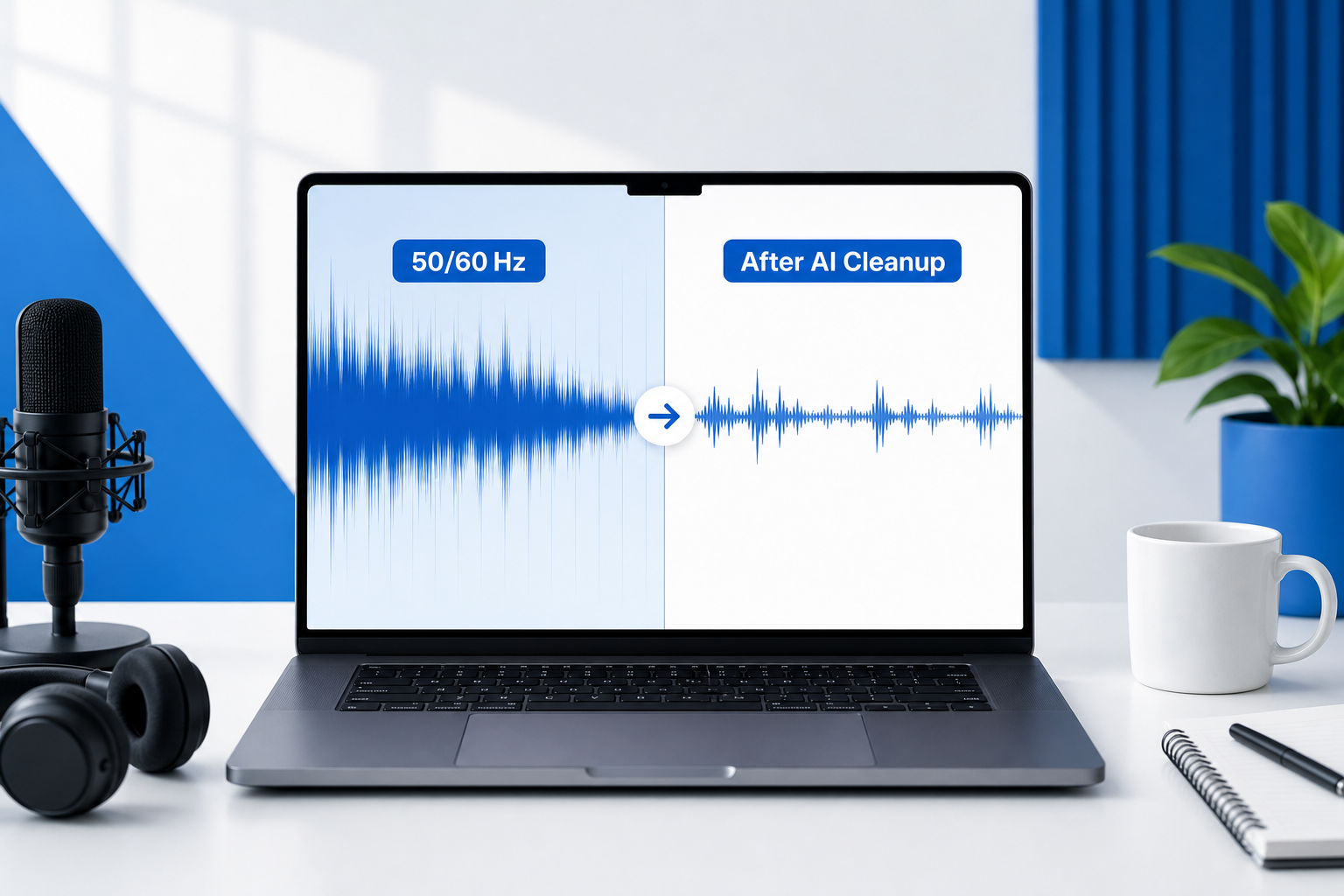
To remove hum from audio online, upload your audio or video to an AI audio cleaner, run cleanup, preview the voice, and download the repaired file. For most creator recordings—podcasts, YouTube videos, course lessons, webinars, and client testimonials—online AI cleanup is the fastest first pass because it can reduce many steady background noises without forcing you to learn a full DAW.
If the hum is a steady electrical tone, use this order:
- Keep the original file.
- Clean the file online with SimpleClean to reduce constant hum, fan noise, HVAC rumble, refrigerator noise, and background buzz.
- Preview before/after on headphones and speakers.
- If a clear tone remains, use a notch filter at 60 Hz in the U.S. or 50 Hz in many other regions, plus only the obvious harmonics.
- Apply compression, loudness, captions, translation, music, and final video export after hum cleanup.
Audacity’s manual notes that noise reduction can reduce constant background sounds such as hum, buzz, hiss, and fan noise, but may struggle when the noise is loud, variable, or close to the speech. It also recommends using notch filtering before noise reduction when the problem is mains hum. Adobe Audition’s restoration documentation similarly treats power-line hum as a constant-noise problem and includes DeHummer tools for narrow hum bands and harmonics.
/assets/images/blog/remove-hum-from-audio-online/image_1.webp
What “hum” actually is: hum vs. buzz vs. hiss vs. rumble
Creators often call every unwanted sound “static,” but hum has a few recognizable patterns. Naming the problem helps you pick the right fix.
| Sound problem | What it sounds like | Common sources | Best first fix |
|---|---|---|---|
| Hum | Low, steady “mmmm” tone | Ground loop, power adapter, USB mic noise, electrical interference | AI cleanup first; notch filter if tonal |
| Buzz | Sharper, raspy electrical sound | Bad cables, dimmers, lights, motors, camera or mic electronics | AI cleanup; spectral denoise or de-hum if tonal |
| Hiss | High “ssss” noise | Preamp gain, cheap mic, tape, noisy interface | AI denoise or noise-profile reduction |
| Rumble | Low vibration or soft thump | HVAC, refrigerator, desk vibration, traffic, handling noise | High-pass filter plus AI cleanup |
| Fan noise | Steady air sound, sometimes tonal | Laptop fan, AC, projector, computer tower | AI cleanup; record farther away next time |
A classic electrical hum is usually concentrated around 50 Hz or 60 Hz and may include harmonics above that base frequency. iZotope’s De-hum documentation describes hum removal as targeting a base frequency—usually 50 or 60 Hz—plus harmonics, while its spectrogram guide explains that hum often appears as horizontal lines at the fundamental and harmonics.
How to remove hum from audio online with SimpleClean
Use this creator-friendly workflow when you need a fast fix without installing Audacity, Adobe Audition, or another full editor.
1. Upload your audio or video
Start with the highest-quality version you have. If your recording is a video, upload the video file directly when your workflow supports it. If your editor requires separate audio, export the original audio track first and keep the unedited video safe.
2. Run AI cleanup
Use SimpleClean to reduce steady hum, HVAC rumble, fan noise, fridge noise, and broadband room noise. The goal is not to make the recording unnaturally silent; it is to make the voice clearer and easier to publish.
CTA: Have a noisy podcast, course lesson, webinar, or talking-head video? Use Clean My Audio in SimpleClean, preview the repaired voice, and download the clean version before you rebuild the edit.
3. Preview around pauses and consonants
Check three spots:
- A quiet pause before someone speaks.
- A sentence with soft consonants like “s,” “f,” and “th.”
- A louder sentence where the hum was sitting under the voice.
If the voice sounds clear and not watery, download the cleaned file.
4. Reinsert cleaned audio into your editor
For video, line the cleaned audio up with the original track, mute the original, and export. If the final video needs social, course, or accessibility subtitles, add captions after cleanup with Best AI Captions. For multilingual campaigns, use Translate Dub after cleanup so translation, dubbing, and captions start from clearer speech.
5. Do final polish after cleanup
Apply compression, loudness normalization, EQ sweetening, music, captions, translation, and final export after the hum pass. Audacity recommends doing notch filtering or click removal before noise reduction, and compression after noise reduction.
/assets/images/blog/remove-hum-from-audio-online/image_2.webp
Hum diagnosis checklist
Before you overprocess the file, answer these questions:
- Is the noise constant? If yes, AI cleanup or noise-profile reduction can work well.
- Is it a single low note? It may be 50/60 Hz electrical hum.
- Is it a raspy tone with higher overtones? It may be buzz from lighting, motors, cables, or a power issue.
- Does it disappear when the laptop charger is unplugged? Suspect a power adapter, USB hub, or ground-loop problem.
- Does it get louder when the AC, fridge, or fan runs? Treat it like HVAC or appliance rumble.
- Is the voice barely louder than the hum? Cleanup may help, but a re-record may sound better.
- Does the hum change pitch or level? Adaptive cleanup may work better than a fixed notch.
AI vs. notch filter vs. high-pass filter vs. noise gate
| Tool | Best for | Not good for | Best for this creator |
|---|---|---|---|
| Online AI cleanup | Voice recordings with steady hum, fan, HVAC, room noise, laptop noise | Extreme hum louder than speech | Non-technical creators who need a fast publishable result |
| Notch filter | Pure 50/60 Hz electrical tone and harmonics | Broadband HVAC noise, hiss, changing noise | Editors who can identify a specific tone |
| High-pass filter | Low rumble, desk vibration, mic handling, HVAC thump | High buzz or hiss | Voiceover and podcast editors removing low-end rumble |
| Noise gate | Muting noise between phrases | Hum under speech | Podcasters who only need cleaner pauses |
| Re-recording | Severe ground-loop buzz, clipped audio, hum louder than voice | Time-sensitive salvage jobs | Anyone who can fix the source and record again |
Audacity defines a noise gate as a dynamics processor that allows audio above a threshold to pass and reduces audio below that threshold. That makes gates useful between phrases, but not a true fix for hum that sits under speech.
Fallback: how to fix stubborn 50/60 Hz electrical hum
Use this only if AI cleanup leaves a clear tonal whine or low electrical note.
Step 1: Find the likely base frequency
- In the U.S., start by checking 60 Hz.
- In Europe and many other regions, start by checking 50 Hz.
- If the file came from old tape, speed-changed video, or a resampled recording, the hum may sit slightly off the exact number.
Step 2: Look for harmonics
Electrical hum often has energy at multiples of the base frequency:
- 60 Hz, 120 Hz, 180 Hz, 240 Hz, 300 Hz...
- 50 Hz, 100 Hz, 150 Hz, 200 Hz, 250 Hz...
A spectrogram can show these as horizontal lines. iZotope’s spectrogram guide describes hum as a low-frequency tone at 50 or 60 Hz, often visible with lighter harmonic lines above it.
Step 3: Apply narrow notch cuts
Start with the base frequency and one or two obvious harmonics. Do not automatically notch every multiple up the spectrum. Too many notches can thin the voice, especially in lower voices and narration with a lot of low-mid body.
Step 4: Use light AI cleanup after the notch
Once the tonal line is reduced, run a lighter AI cleanup pass or use a more conservative setting. Listen for artifacts before exporting.
Step 5: Compare with the original
If the cleaned version is quieter but the voice sounds metallic, back off. A little remaining room tone is usually better than a robotic voice.
Best workflow by creator type
Podcast guest track
Clean each speaker track separately if possible. A guest’s laptop fan or USB hum should not force heavy processing on the host’s clean mic.
YouTube talking-head video
Clean the audio before adding music, compression, and captions. Replace the original audio track, export, then add captions for retention and accessibility.
Course lesson narration
Prioritize consistency. A small amount of room tone is acceptable; distracting hum across a long lesson is not.
Webinar or Zoom recording
Use AI cleanup first because the noise may include compression artifacts, room hum, keyboard clicks, and fan noise. Avoid heavy notch filtering unless the buzz is obvious.
Client testimonial video
Preserve authenticity. Clean the HVAC or fridge hum, but do not process the speaker so aggressively that the testimonial sounds artificial.
Home voiceover
If the hum is caused by your setup, fix the setup before recording the final take. Unplug chargers, move away from appliances, check cables, and record a few seconds of room tone.
/assets/images/blog/remove-hum-from-audio-online/image_3.webp
Quality-preservation tips
- Clean before compression. Compression raises quiet noise and can make hum harder to remove.
- Keep the original file. Always duplicate before processing.
- Use the lightest effective cleanup. Silence is not the goal; intelligibility is.
- Check headphones and speakers. Headphones reveal hum; speakers reveal unnatural voice tone.
- Listen to pauses and word endings. Over-denoise often damages breaths, consonants, and room tails first.
- Avoid stacking too many tools. AI cleanup plus several filters can create watery or metallic artifacts.
- Do not normalize too early. Raising level before cleanup can make the noise feel worse.
Audacity warns that stronger noise reduction settings can damage the remaining audio and that artifacts may appear when the noise profile or sensitivity is not well matched to the file.
Prevention: stop hum before it reaches the recording
Post-production helps, but prevention is better.
Before recording:
- Turn off or move away from refrigerators, AC units, fans, projectors, and computer towers.
- Put the microphone closer to the speaker and farther from machines.
- Avoid recording with a laptop charger or cheap USB hub if it introduces buzz.
- Test a different cable, port, charger, or outlet.
- Use balanced XLR or TRS connections when your gear supports them.
- Keep audio cables away from power bricks and extension cords.
- Monitor with closed-back headphones while recording.
- Record a few seconds of room tone at the start or end of every take.
Shure’s audio systems guide describes balanced connections as using two signal wires plus shielding, while unbalanced cables are more easily affected by interference from sources such as fluorescent lights. That is one reason balanced cables are preferred for many production setups.
Should you use SimpleClean, Audacity, or Adobe Audition?
| Option | Best for | Why choose it |
|---|---|---|
| SimpleClean | Creators who want to remove hum online quickly | Upload, clean, preview, download; no full DAW workflow required |
| Audacity | Free desktop editing and manual control | Good for noise profiles, notch filters, and basic repair if you are comfortable editing audio |
| Adobe Audition | Professional editors and advanced restoration | Strong spectral display, restoration tools, DeHummer-style workflows, and detailed control |
| Re-recording | Severe electrical faults or hum louder than speech | Best quality if you can fix the cable, charger, appliance, or mic placement problem |
For most creators, start with SimpleClean because it is faster. If the file has a pure electrical tone that survives cleanup, use a notch filter as a targeted second step. If the recording is mission-critical, badly damaged, or part of a paid production, advanced tools or a re-record may be worth the time.
FAQ
How do I remove humming noise from audio online?
Upload the audio or video to an online AI cleaner, run cleanup, preview the result, and download the repaired file. If a 50/60 Hz tone remains, use a narrow notch filter on the base frequency and obvious harmonics.
Can AI remove electrical hum from a recording?
Yes, AI cleanup can often reduce electrical hum, especially when the voice is louder than the noise. If the hum is a strong fixed tone, a notch filter may be a better targeted supplement.
How do I remove 60 Hz hum from audio?
Try AI cleanup first. If the 60 Hz tone remains, apply a narrow notch at 60 Hz and check harmonics such as 120 Hz, 180 Hz, and 240 Hz. Use subtle cuts and compare against the original.
What is the difference between hum, buzz, hiss, and static?
Hum is usually a low tonal sound. Buzz is sharper and more electrical. Hiss is broadband high-frequency noise. Static is a casual term people use for many noises, but it is not specific enough for choosing a repair tool.
How do I remove AC or HVAC hum from a podcast recording?
Clean each speaker track separately if possible, use AI cleanup to reduce fan or HVAC noise, and only add manual notch or high-pass filtering if a low tone or rumble remains.
Can I remove hum from video audio without exporting the audio separately?
Yes, if your online cleaner accepts video files, you can clean the audio inside the video workflow. If your editor requires a separate audio track, export the audio, clean it, then re-sync it with the video.
Why does noise reduction make my voice sound robotic?
The settings may be too aggressive, the hum may overlap the voice, or the recording may not have enough signal above the noise. Reduce the strength, avoid repeated passes, and leave a small amount of natural room tone.
Is a noise gate enough to remove background hum?
No. A gate can reduce hum during silent gaps, but when the person speaks, the gate opens and the hum under the voice remains.
How do I remove refrigerator or HVAC noise from a voice recording?
Use AI cleanup first, then consider a gentle high-pass filter for low rumble. For future recordings, turn off appliances when possible, move the mic closer, and record room tone.
Should I use Audacity, Adobe Audition, or an online AI audio cleaner to remove hum?
Use an online AI cleaner for the fastest creator workflow, Audacity for free manual editing and notch filtering, and Adobe Audition for advanced professional restoration.
What if the hum is louder than the voice?
Try cleanup, but be realistic. If the voice is buried, any tool may create artifacts. If possible, fix the source and re-record.
Final recommendation
If you need to remove hum from audio online, start with SimpleClean: upload the file, run AI cleanup, preview carefully, and download the clean version. Use manual notch filtering only when a stubborn 50/60 Hz electrical tone remains. For video creators, clean the audio before captions, translation, compression, and final export so every downstream step starts with a clearer voice.
Sources and further reading
- Audacity Manual — Noise Reduction - Supports claims about constant noise, hum, noise profiles, notch filtering before noise reduction, processing order, and artifact risk.
- Adobe Audition Help — Reduce Noise and Restore Audio - Supports restoration workflow claims around spectral display, noise prints, power-line hum, DeHummer, adaptive noise reduction, and artifact tradeoffs.
- iZotope RX Plug-in Pack Help — De-hum - Supports 50/60 Hz hum, harmonics, notch-style de-hum controls, adaptive/manual modes, and off-frequency hum cases.
- iZotope — Understanding Spectrograms - Supports descriptions of hum, buzz, hiss, broadband noise, spectrogram appearance, and horizontal harmonic lines.
- Audacity Manual — Noise Gate - Supports explanation that noise gates work by threshold and are mainly useful for reducing residual sound between phrases.
- Shure — Audio Systems Guide for Video and Film Production - Supports prevention guidance around balanced and unbalanced connections and susceptibility to interference.