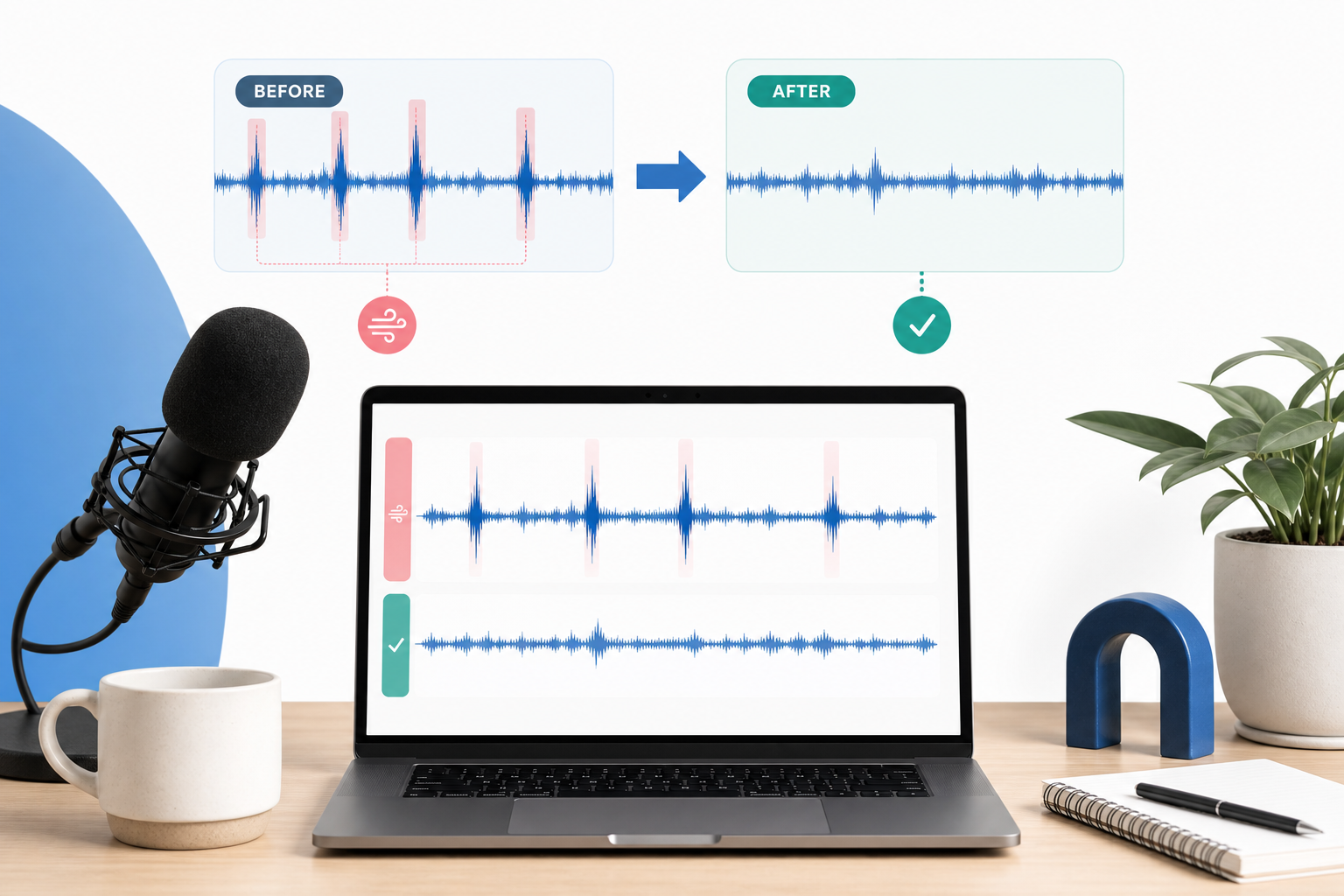
Quick Answer: How do you remove breathing sounds from audio online?
The fastest way to remove breathing sounds from audio online is to upload your audio or video file to an AI cleanup tool, preview the cleaned result, and download the polished file only after you confirm the voice still sounds natural. For podcasts and interviews, reduce loud breaths instead of deleting every inhale. For voiceovers, courses, ads, and product videos, remove or strongly reduce distracting gasps, mic breaths, and off-camera breathing.
- Upload the original file — use the highest-quality audio or video export you have.
- Run cleanup — use an online AI workflow to reduce distracting noise and, when available, breath-heavy sections.
- Preview before and after — listen around sentence starts, pauses, edits, and visible lip-sync moments in video.
- Choose reduce, not hard silence, when possible — this keeps speech from sounding robotic.
- Download the clean audio or video — export the full video for publishing, or export clean audio if you are replacing the track in a video editor.
If you want a no-DAW workflow, try a short preview in SimpleClean first. Upload your recording, listen to the cleaned sample, and only continue if the voice still feels human.
Clean podcast audio with SimpleClean
What “breathing sounds” usually means in creator files
Breath noise is not one single problem. It can be a natural part of speech, a recording-technique issue, or a post-production artifact made worse by compression.
- Loud inhales before sentences in podcasts, audiobooks, and voiceovers.
- Nose breathing that sits close to the microphone between phrases.
- Gasps or sharp mouth breaths before emotional or high-energy lines.
- Mic breaths caused by speaking directly into a sensitive microphone.
- Camera-operator breathing in interviews, weddings, real estate tours, and documentary clips.
- Compressed voiceover breaths that become louder after leveling, limiting, or loudness normalization.
- Breaths plus mouth clicks where an inhale also contains saliva noise or lip smacks.
- Breaths plus room noise where every silent gap exposes hiss, HVAC, hum, or echo.
The goal is not always to make the recording breathless. A completely breath-free human voice can sound edited, rushed, or artificial. The better goal is to remove the breaths that pull attention away from the message.
Should you remove breaths completely or just reduce them?
Use this decision rule: remove breaths that are not part of the performance; reduce breaths that make speech feel human but are too loud.
| Recording type | Best treatment | Why |
|---|---|---|
| Conversational podcast | Reduce only the loudest breaths | Some breathing makes dialogue feel natural and unedited. |
| Remote interview | Reduce host and guest breaths; remove off-mic breathing | Different microphones make breaths inconsistent, so even reduction matters. |
| YouTube voiceover | Reduce most breaths and remove obvious gasps | Viewers expect a polished narration track. |
| Online course lecture | Reduce distracting inhales before key points | Clarity matters, but the instructor should still sound present. |
| Audiobook narration | Follow the publisher/client preference; usually reduce, not erase | Audiobook pacing can feel unnatural if all breaths vanish. |
| Product demo or sales video | Remove off-camera breathing and heavy pauses | The voiceover should feel clean, concise, and confident. |
| Camera-operator breathing | Remove whenever possible | It is not part of the speaker’s performance. |
| Breath overlapping words | Reduce carefully or leave it | Hard removal can damage syllables. |
Professional breath tools often focus on suppression or attenuation, not simply deleting audio. iZotope RX Breath Control describes detecting breaths in dialogue or vocals and suppressing them, including a target mode that can reduce loud breaths while leaving quieter breaths more natural. Waves DeBreath also includes reduction, fade, and room-tone concepts rather than only hard cuts.
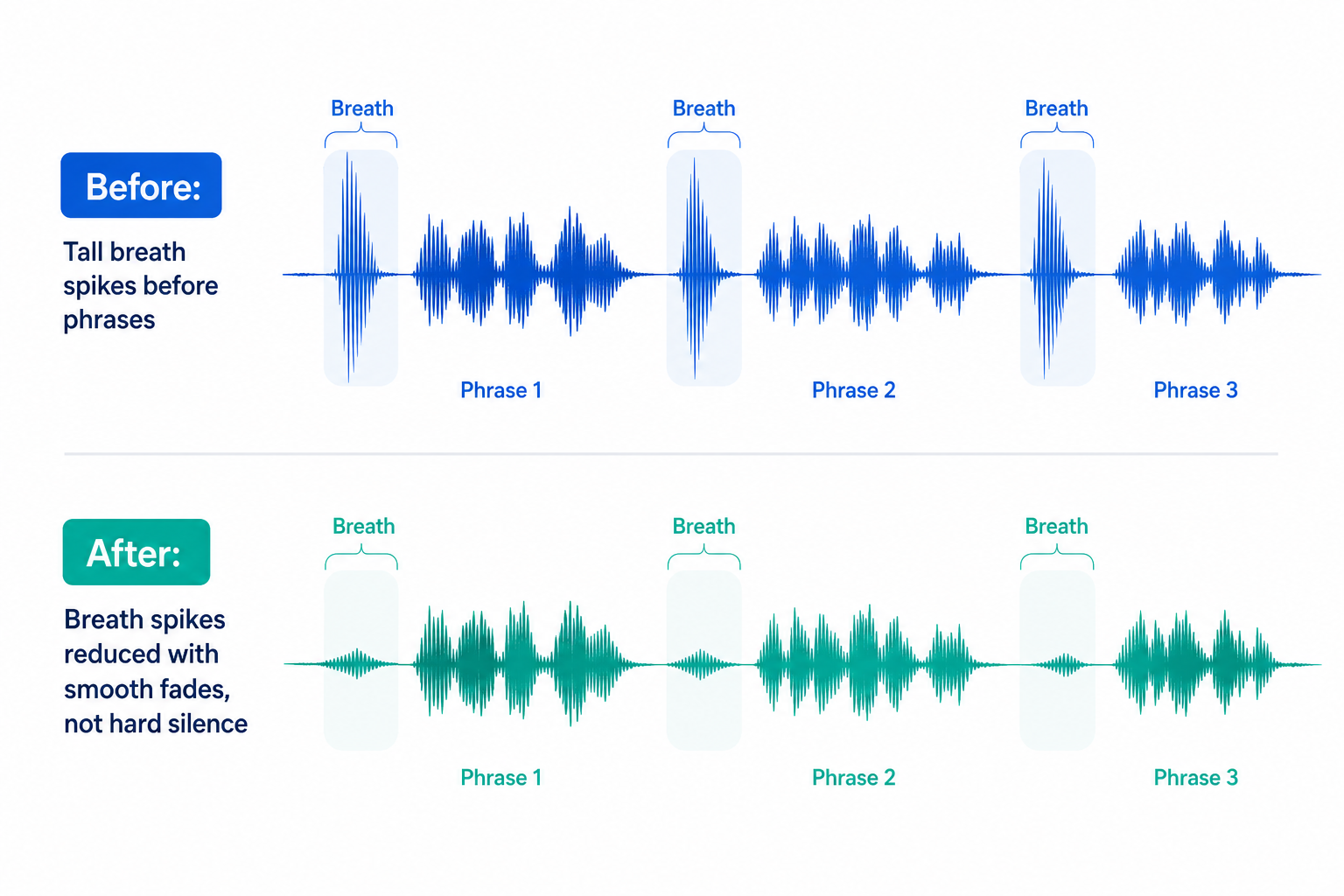
Fast online workflow: remove breathing sounds without learning a DAW
Step 1: Upload the cleanest source file you have
Use the least-compressed version available. A WAV export from your recorder, an original video from your camera, or a high-quality screen recording gives cleanup tools more detail than a heavily compressed social-media download.
Step 2: Run AI cleanup
Online AI cleanup tools are useful because they remove repetitive editing from the process. SimpleClean’s current workflow is built around uploading an audio or video file, hearing a cleaned preview, and paying only if you want the full download. It is a practical first pass when you want browser-based cleanup without learning a DAW.
Step 3: Preview the breath-heavy sections first
- The first word after a loud inhale.
- Sentence endings where breaths sit close to consonants.
- Emotional or excited passages.
- Quiet pauses where room tone may disappear.
- Any part where the speaker turns away from the mic.
Step 4: Download the right output
- Download clean audio if you are mixing a podcast, audiobook, course, or voiceover in another editor.
- Download clean video if you want a ready-to-upload video with the cleaned audio already attached.
- Download a preview first when the file is long, client-facing, or hard to re-record.
Clean podcast audio with SimpleClean
How to remove breathing from a video file online without losing sync
Video adds one extra concern: audio/video sync. Upload the original video, process the audio while keeping the duration unchanged, preview visible speech for lip sync, and export either the full cleaned video or a cleaned audio track.
YouTube Help warns that audio and video may not sync correctly if the audio track is shorter or longer than the video. For advanced editors, FFmpeg documentation explains stream copying, where streams can be copied without decoding and re-encoding when no filtering is needed.
When should you export clean audio only?
- You have color grading, captions, graphics, or cuts already finished in a video editor.
- The video has multiple camera angles or timeline layers.
- You need to replace one speaker’s audio track but keep the rest of the edit.
- You are sending audio to a client, mixer, or captioning workflow.
If your cleaned video needs subtitles, use Best AI Captions after the audio is clean. If you are preparing the video for multilingual audiences, Translate Dub can help with the translation, dubbing, and captioning stage after cleanup.
Troubleshooting: why breath removal sometimes sounds wrong
| Problem after cleanup | Likely cause | Fix |
|---|---|---|
| Breath is still audible | Breath overlaps speech or is nearly as loud as the voice | Try a stronger pass only on that section, or manually lower the breath with clip gain. |
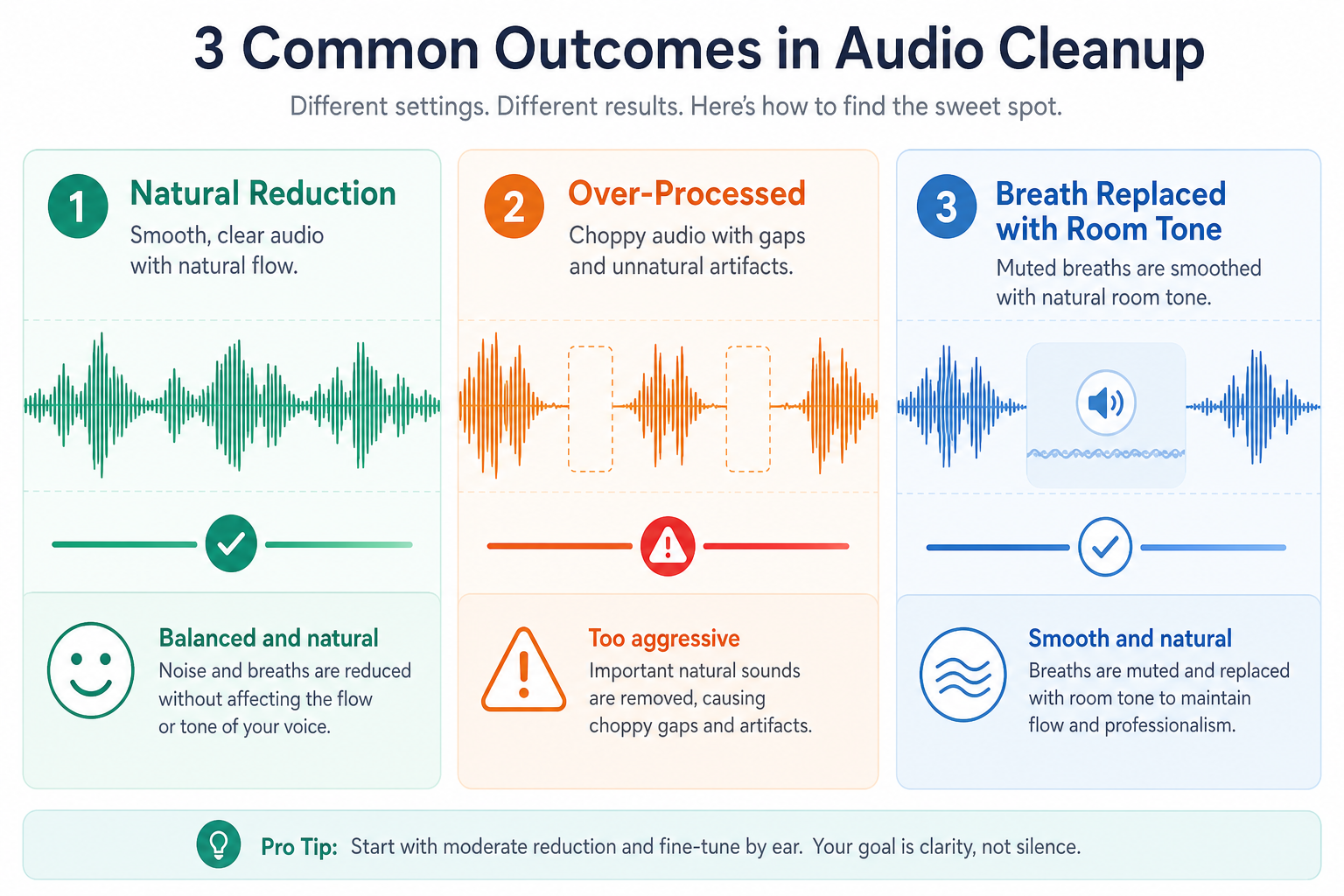
| Voice sounds choppy | Breaths and quiet syllables were treated too aggressively | Use lighter reduction, avoid hard muting, and check sentence starts. |
| First syllables are missing | Detection caught the start of a word as breath noise | Restore the original syllable or use a version with less processing. |
| Silence gaps sound unnatural | Breath was muted without room tone | Leave a quiet breath, add room tone, or use fades instead of hard cuts. |
| Breaths overlap words | The speaker inhaled while beginning the next phrase | Reduce only; do not fully remove unless you can repair the word. |
| Heavy breathing plus background noise | Compression raised both breaths and room tone | Clean background noise first or use a combined cleanup workflow. |
| Exported file is too quiet | Loudness changed during processing or export | Normalize or master after cleanup, not before. |
| Mouth clicks remain after breath cleanup | Clicks are a separate transient problem | Run a mouth-click cleanup pass or manually repair the clicks. |
| Video audio is out of sync | Audio duration changed during export or timeline replacement | Re-export with the same duration and line up the first visible word. |
If your file has breaths plus lip smacks, use this guide next: How to Remove Mouth Clicks from Audio Online. If the pauses reveal room tone, hum, or hiss, start with How to Remove Hum from Audio Online or How to Remove Background Noise from Video Online.
Clean podcast audio with SimpleClean
Manual alternatives: what editors use when AI is not enough
| Method | Best for | Pros | Cons |
|---|---|---|---|
| Clip gain | Individual loud breaths | Natural and precise | Slow on long recordings |
| Short fades | Breath edits between phrases | Prevents clicks and abrupt cuts | Requires manual attention |
| Room tone replacement | Muted breaths in quiet rooms | Avoids dead-silent gaps | Needs a clean room-tone sample |
| High-pass filter | Low rumble from breath blasts | Simple first-pass cleanup | Does not remove airy inhale noise |
| Noise gate | Reducing low-level sounds between words | Fast for consistent noise | Can pump, chatter, or clip soft syllables |
| Expander | Gentle reduction below a threshold | More natural than hard gating | Needs careful threshold and release settings |
| Dedicated de-breath plugin | Long narration, vocals, audiobooks | Built for breath detection | Requires software, setup, and learning time |
| Re-recording | Damaged words, clipped breaths, bad mic placement | Best quality when possible | Costs time and may be impossible for interviews |
Audacity’s Noise Gate manual explains that a gate reduces sound below a threshold and notes that stronger attenuation can create noticeable pumping as the gate opens and closes.
Best option by use case
Best for podcasters
Use online AI cleanup for the first pass, then manually reduce any breath that appears right before a key quote, laugh, or emotional moment. Do not remove every breath from a conversational episode.
Best for YouTube voiceovers
Reduce most loud inhales and remove obvious gasps. YouTube voiceovers usually benefit from tighter pacing than podcasts, but leave enough micro-pauses for the narration to breathe.
Best for online course lectures
Prioritize intelligibility. Reduce breaths that distract from definitions, instructions, or key steps. If the course includes screen recordings, check that the cleaned audio remains synced to cursor movements, slides, and demonstrations.
Best for audiobook narration
Follow the delivery requirements from the rights holder, publisher, or client. If there is no strict instruction, reduce distracting breaths while preserving natural pacing.
Best for client interviews
Use light cleanup first. Interviews often include cross-talk, laughter, and room tone, so aggressive breath removal can damage authenticity.
Best for product demos and sales videos
Use a more polished treatment. Remove off-camera breaths, reduce loud inhales, and tighten long pauses.
Online AI breath remover vs DAW plugin vs video editor vs re-recording
| Option | Best for | Choose it when | Avoid it when |
|---|---|---|---|
| Online AI cleanup | Fast creator workflow | You need a clean preview without learning a DAW | You need frame-level control over every breath |
| DAW plugin | Pro narration, vocals, audiobooks | You already edit in a DAW and want detailed controls | You want a simple browser workflow |
| Video editor | Talking-head videos, shorts, demos | You need captions, cuts, B-roll, and audio fixes together | The audio problem needs specialized cleanup |
| Manual editing | High-stakes client work | Only a few breaths are bad or overlap words | The file is long and full of repetitive breath noise |
| Re-recording | Damaged lines | Breath overlaps important words or the mic distorted | The speaker is unavailable or the moment cannot be recreated |
How to prevent loud breathing in future recordings
- Move the mic slightly off-axis. Do not speak directly into the capsule if breath blasts are a problem.
- Use a pop filter or windscreen. This helps with plosives and some breath energy.
- Keep a consistent distance. Being too close exaggerates inhales and mouth noise.
- Breathe away from the mic. Turn slightly before big inhales, especially in voiceover.
- Record room tone. Capture 10 to 30 seconds of quiet room sound for natural repairs.
- Reduce compression before cleanup. Heavy compression can make breaths jump forward.
- Hydrate and pause naturally. Dry mouth often adds clicks to breaths.
- Check the waveform after one test paragraph. Fix mic placement before recording an hour.
If your room is also echoey, read How to Remove Reverb from Video Online.
FAQ
How do I remove breathing sounds from audio without making it sound unnatural?
Reduce loud breaths instead of muting every breath. Leave quiet, natural inhales in conversational material, use fades instead of hard cuts, and preview the first syllable after each edit.
Can I remove breathing from a video file online?
Yes. Upload the video to an online cleanup tool, process the audio, preview lip sync, and export either the cleaned video or a cleaned audio track.
Should I remove all breaths from a podcast or voiceover?
Usually no. Podcasts sound more natural with some breathing left in. Scripted voiceovers can handle stronger breath reduction, but removing every breath can make narration feel artificial.
How do I reduce heavy breathing in a microphone recording?
Move slightly off-axis, add a pop filter, increase distance a little, and breathe away from the mic. For an existing recording, run AI cleanup, then manually lower the worst breaths with clip gain if needed.
What is the fastest way to remove breaths from a long voiceover?
Use an online AI cleanup pass first, preview the worst sections, then manually repair only the breaths that remain distracting.
Can AI remove breaths, mouth clicks, and background noise at the same time?
AI cleanup can often improve multiple voice-recording problems in one workflow, but each defect behaves differently. Always preview the result and run a focused second pass if one problem remains.
Why does my voice sound choppy after removing breaths?
The tool or settings may be removing too much audio between words, clipping soft syllables, or creating dead-silent gaps. Use lighter reduction and avoid hard muting when breaths are close to speech.
How do I remove camera breathing noise from a video?
If the camera operator’s breathing happens between dialogue lines, remove or strongly reduce it. If it overlaps speech, reduce it carefully and consider adding music, ambience, or a cutaway if it cannot be removed cleanly.
Final take: remove the distraction, not the humanity
Breaths are only a problem when they steal attention. Start with a fast online preview, listen for naturalness, and only use manual editing where the AI pass needs help. SimpleClean is built for that kind of practical creator workflow: upload the file, hear the cleaned preview, and download only if the result works for your project.