Quick Answer: How to Remove Keyboard Noise from Audio Online
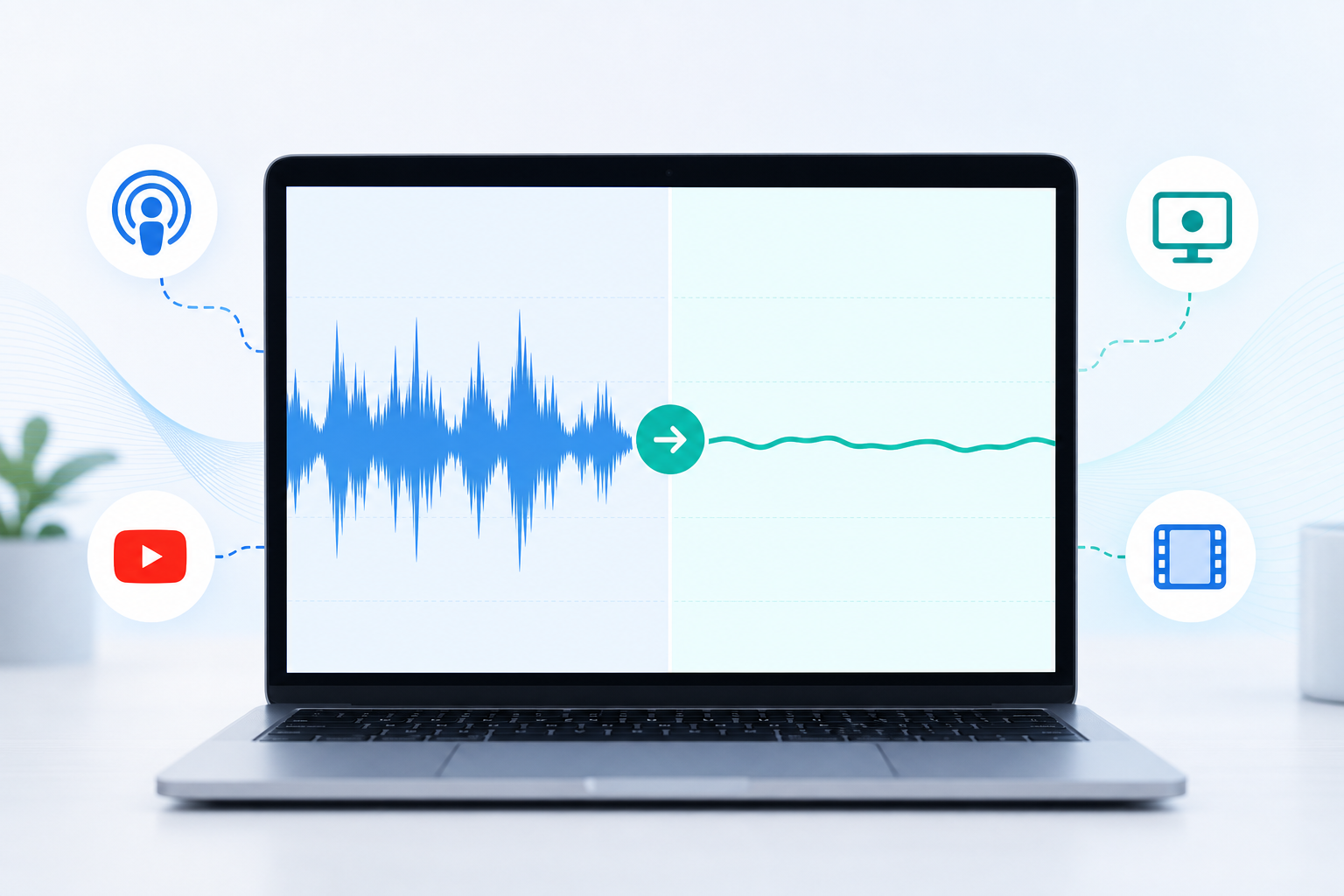
The fastest way to remove keyboard noise from audio online is to upload your noisy audio or video file to SimpleClean, run AI cleanup, preview the result on headphones, then download the cleaned file. Spot-check the exact moments where typing, mechanical keyboard clicks, mouse clicks, or trackpad taps overlap with speech, because those sections are the hardest to repair cleanly.
Simple workflow:
- Upload your recording to SimpleClean — audio files such as MP3, WAV, M4A, podcast exports, voice memos, or video files such as MP4, MOV, and WebM.
- Run AI cleanup to reduce typing noise, keyboard clicks, mouse clicks, room noise, fan noise, and other distractions.
- Preview the cleaned version on headphones.
- Listen closely where typing happens during speech, not just in silent gaps.
- Download the cleaned file and keep a copy of the original.
SimpleClean is an online AI audio cleaner for audio and video uploads. Its homepage lists major audio formats such as MP3, WAV, AIFF, FLAC, and M4A, plus video formats including MP4, MOV, WebM, MKV, FLV, and WMV.
If you already recorded a podcast, course lesson, Loom-style walkthrough, OBS gameplay video, Zoom meeting, coding tutorial, sales demo, or webinar with distracting typing, start with post-production AI cleanup. If you are trying to stop keyboard sounds during a live stream or live call, use mic placement plus a noise gate, expander, or live noise suppression before recording.
What Keyboard Noise Sounds Like in Recordings
Keyboard noise is not one single sound. It can show up as several different distractions:
- Mechanical keyboard clicks — sharp, bright spikes from clicky or tactile switches.
- Laptop typing — lighter but frequent tapping, often close to the built-in microphone.
- Mouse clicks — short, high-frequency clicks that cut through quiet narration.
- Trackpad taps — softer taps that still stand out in meetings and tutorials.
- Desk vibration — low thumps when the keyboard, mouse, mic stand, or laptop shares the same desk.
- Note-taking noise — typing during podcasts, interviews, webinars, sales calls, and remote meetings.
- Gaming keyboard and mouse noise — rapid key presses and mouse clicks under commentary.
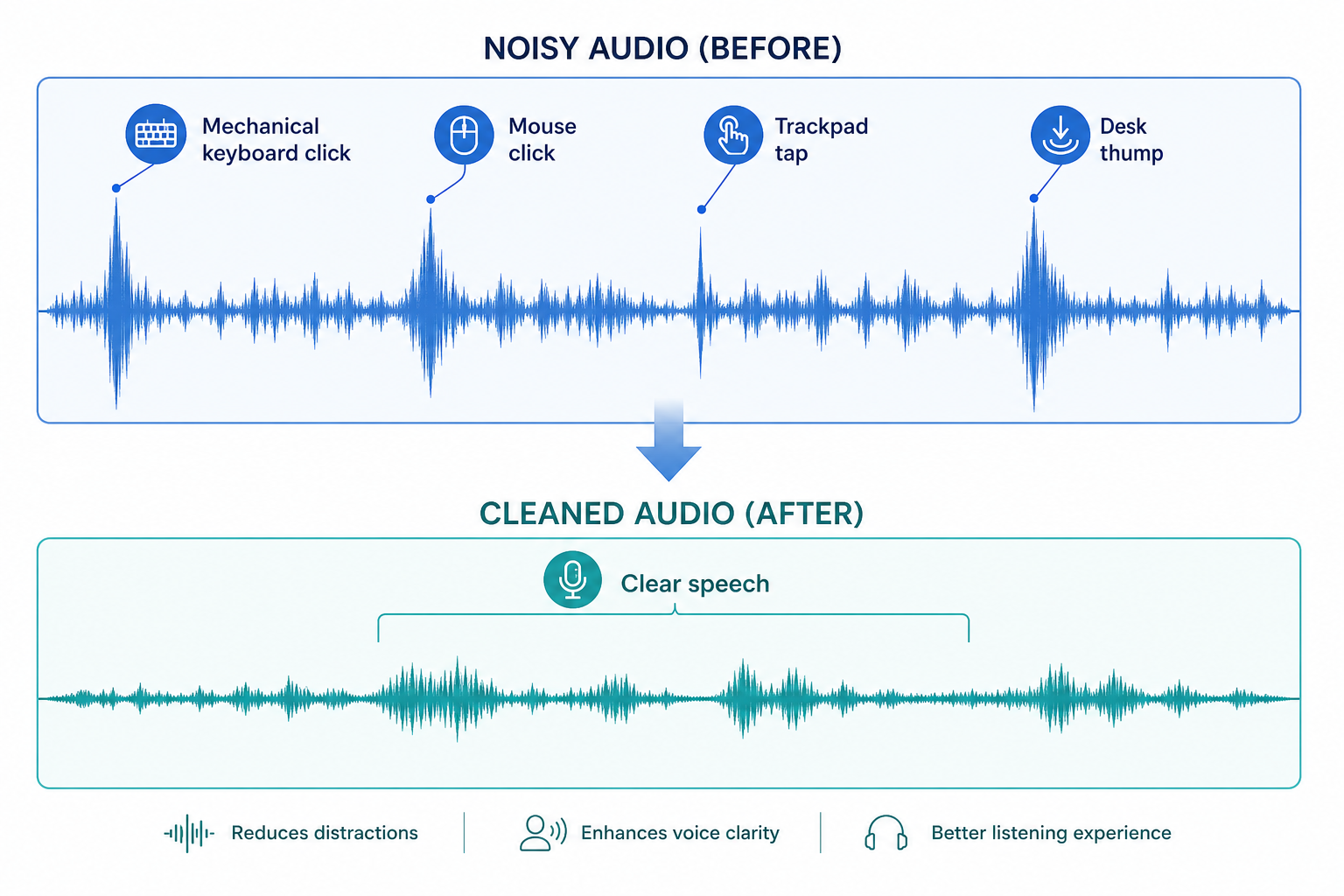
Keyboard noise is especially common in screen recordings because the creator is often speaking while typing, clicking, switching tabs, dragging windows, or demoing software. It is also common in remote interviews where one speaker takes notes while another person talks.
Why Keyboard Noise Is Harder to Remove Than Steady Background Noise
A fan, air conditioner, electrical hum, or hiss is usually more consistent. Keyboard clicks are different: they are short, sharp, irregular transients. Adobe’s Audition documentation describes click/pop tools as being used for clicks, pops, and other short transient noises, which is the same general type of problem you hear with keyboard and mouse clicks.
- Clicks overlap speech consonants. Keyboard clicks can resemble hard consonants like “t,” “k,” “p,” and “s.”
- Typing is irregular. AI cannot simply subtract one steady sound profile the way it can with some hums or fans.
- Mechanical keyboards can be bright and loud. Clicky switches often occupy the same high-frequency area that gives speech clarity.
- Desk vibration travels through stands. If the mic stand sits on the same desk as the keyboard, every keystroke can become a physical thump.
That is why the realistic goal is usually to reduce keyboard noise so the voice feels clean and natural, not to promise perfect removal in every recording.
Best Online Workflow for Audio Files
Use this workflow when you have a standalone audio file: podcast audio, interview WAV, voice memo, narration track, M4A, MP3, exported meeting audio, or a downloaded voiceover.
Step-by-step: clean keyboard clicks from audio
- Save a backup of the original. Do not overwrite your only copy.
- Upload the audio file to SimpleClean. Use the highest-quality version you have, such as WAV or the original exported audio, when available.
- Run the AI cleanup. Let the tool reduce voice-adjacent typing, clicks, and background distractions.
- Preview on headphones. Laptop speakers can hide artifacts and remaining clicks.
- Check three areas: quiet gaps, normal speech, and moments where typing happens directly under words.
- Download the cleaned file. Use it in your podcast editor, video editor, LMS, or publishing workflow.
- Normalize or level volume only after cleanup. Making the file louder before cleanup can make keyboard clicks more obvious.
This workflow is best for:
- Podcast hosts taking notes while recording.
- Interview tracks with occasional keyboard taps.
- Voiceovers recorded near a laptop.
- Course narration with light typing.
- Meeting audio exported from a conferencing app.
- Agency review calls and client feedback recordings.
Listening checklist before publishing audio
- Clicks that remain during important words.
- A watery or robotic voice texture.
- Cut-off consonants at the beginning of words.
- Sudden changes in room tone between cleaned and uncleaned sections.
- Overly quiet pauses that feel unnatural.
- A cleaned voice that sounds worse than the original.
If cleanup introduces obvious artifacts, use a lighter cleanup pass if available, repair only the worst sections manually, or keep a small amount of natural keyboard sound instead of forcing total silence.
Best Online Workflow for Video Files
If your keyboard noise is inside a video, do not assume you must detach the audio manually. For many creator workflows, the simpler option is to upload the video file, clean the audio, and download a cleaned version.
SimpleClean lists video upload formats including MP4, MOV, WebM, MKV, FLV, WMV, AVI, M4V, MPEG, and others, so most common creator exports and screen recordings should be a fit.
Step-by-step: remove keyboard clicks from a video
- Export or locate the original video. Use the highest-quality MP4, MOV, WebM, or screen recording file you have.
- Upload the video to SimpleClean. If your editor or platform struggles with the file later, export or convert a copy to MP4 for compatibility.
- Run AI cleanup. The goal is to reduce typing, mouse clicks, trackpad taps, fan noise, and other distractions while preserving the speaker’s voice.
- Preview speech and sync. Watch the mouth movement, cursor clicks, and screen actions while listening.
- Spot-check high-risk sections. Coding bursts, rapid mouse clicking, software demos, gaming action, and Q&A segments need extra attention.
- Download the cleaned video or cleaned audio. Use the version that fits your editing workflow.
- Add captions after cleanup. Cleaner audio can make caption review easier. For videos, you can use Best AI Captions to add captions and subtitles after the audio is cleaned.
Video types this works well for
- YouTube software tutorials.
- Coding courses and walkthroughs.
- Screen recordings for customers or teammates.
- Zoom, Meet, and webinar replays.
- Loom-style product demos.
- Sales demos and onboarding videos.
- OBS recordings and gaming commentary.
- Training modules and course lessons.
If you plan to publish the same video in multiple languages, clean the original audio first, then caption, translate, or dub. For multilingual videos, Translate Dub can help translate, dub, and caption the cleaned video for other audiences.
When AI Keyboard Noise Removal Works Best
AI cleanup usually performs best when the voice is clearly dominant and the keyboard is secondary.
- Your voice is louder than the keyboard.
- The keyboard is not directly under the microphone.
- Most clicks happen between phrases.
- The recording is not clipped or distorted.
- The mic is close to your mouth.
- The keyboard noise is occasional, not constant rapid typing.
- The audio track is mostly voice, not a dense mix of music, game audio, system sounds, and speech.
Example: A YouTuber explains a software feature, types a short command, pauses, and continues talking. AI cleanup can often reduce the typing enough that viewers focus on the explanation.
When Results May Be Limited
AI cleanup is powerful, but it is not magic. You may still hear keyboard noise or voice artifacts when:
- You type continuously while speaking.
- A loud clicky mechanical keyboard is directly in front of the mic.
- The keyboard is louder than the voice.
- The audio is clipped from too much input gain.
- Desk thumps travel through the mic stand.
- The mic is built into the laptop next to the keyboard.
- Game audio, system audio, music, and voice are all mixed into one track.
- The clicks land exactly on consonants.
- The recording is already heavily compressed or processed.
If a click is baked directly into an important word, the best repair may be a combination of AI cleanup plus manual editing, spectral repair, or re-recording that sentence.
AI Cleanup vs Noise Gate vs Expander vs Audacity
Different tools solve different versions of the keyboard noise problem. Use this table to choose the right approach.
| Method | Best for | Use it when | Watch out for |
|---|---|---|---|
| SimpleClean AI cleanup | Already-recorded audio or video | You have a noisy MP3, WAV, M4A, MP4, MOV, WebM, webinar, podcast, or screen recording | Very loud typing under speech may not disappear completely |
| Noise gate | Live streams and recordings with silence between phrases | You want the mic to close when you are not speaking | The gate opens when you speak, so keyboard noise during speech can still come through |
| Expander | More natural live mic control than a hard gate | You want to lower background sounds instead of hard-muting them | Aggressive settings can cut off the starts of words |
| Audacity noise reduction | Manual audio-only cleanup | You have a clean sample of keyboard-only noise and time to adjust settings | Too much reduction can damage wanted audio or create artifacts |
| Spectral repair / de-click tools | Rescue work on individual clicks | A few clicks ruin important words | Manual and slower, but useful for high-value recordings |
| Re-recording | Severe overlap or clipped audio | The keyboard is louder than the voice or speech is distorted | Takes time, but may sound better than over-processing |
OBS’s filters guide lists expander, noise gate, and noise suppression as separate audio/video filters: an expander reduces background sounds, a noise gate cuts off background noise when you are not speaking, and noise suppression removes background or white noise in audio sources.
BEACN’s support documentation makes the key limitation clear for keyboard clicks: an expander can reduce or remove keyboard clicks when you are not speaking, but clicks can still enter the microphone while the expander is open, and overly aggressive settings may cut off consonants such as initial “ess” or “tee” sounds.
Audacity’s manual explains the classic noise-reduction approach: give Audacity a noise profile from a section containing only the noise, then reduce that kind of noise in the selected audio. It also warns that stronger settings can damage wanted audio, while lighter settings leave more noise behind.
Best-for recommendations
- Best for a finished recording: SimpleClean AI cleanup.
- Best for live OBS streams: mic placement plus expander/noise gate/noise suppression.
- Best for a few isolated clicks: manual de-click or spectral repair.
- Best for a podcast with many typing gaps: AI cleanup first, then manual edits only where needed.
- Best for severe keyboard-under-speech problems: re-record the worst lines if possible.
Use-Case Mini Workflows
1. Podcast host taking notes
Problem: You typed notes while your guest was speaking, and the clicks are distracting in the final episode.
- Clean the full episode in SimpleClean.
- Listen to guest answers where you typed the most.
- If clicks remain under the guest’s voice, lower that section manually or use spectral repair for the worst clicks.
- Keep natural room tone so the edit does not feel over-silenced.
2. YouTube software tutorial
Problem: Keyboard shortcuts and mouse clicks are loud during narration.
- Upload the MP4, MOV, or WebM to SimpleClean.
- Preview sections where you type commands or click menus.
- If the clicks are part of the demonstration and help the viewer understand the action, reduce them rather than removing them completely.
- Add captions after cleanup for accessibility and retention.
3. Coding course
Problem: Continuous typing under explanation makes the lesson tiring to watch.
- Clean the screen recording.
- For long coding bursts, consider splitting the lesson: voice explanation first, typing demo second.
- Lower the keyboard-heavy sections under narration.
- Re-record short explanations where typing covers key words.
4. Sales demo or webinar
Problem: You typed notes during a client presentation, and the replay sounds less polished.
- Upload the webinar replay or exported audio.
- Clean the recording before clipping highlights.
- Check Q&A sections, because typing often increases there.
- Export a clean version for sales enablement, onboarding, or client follow-up.
5. Twitch or OBS recording
Problem: Keyboard and mouse noise are baked into your commentary track.
- If the voice is on its own track, clean that track.
- If voice, game audio, and system sounds are mixed together, cleanup may be more limited.
- For future recordings, separate mic audio from game/system audio in OBS when possible.
- Use live filters carefully so your voice does not pump, cut out, or sound underwater.
6. Remote interview
Problem: One person’s laptop mic picked up typing throughout the call.
- Clean each speaker track separately if you have separate tracks.
- If you only have a mixed recording, clean the full file and inspect overlaps.
- Mute or reduce sections where the non-speaking participant is typing.
- Ask guests to avoid note-taking on the same laptop during future recordings.
7. Agency client video
Problem: A client testimonial or review call has mouse clicks, keyboard taps, and screen-share noise.
- Clean the source video before editing clips.
- Check audio sync after export.
- Add captions after cleanup.
- Keep the original file in case the client requests a different edit.
How to Prevent Keyboard Noise in the Next Recording
Post-production cleanup is helpful, but prevention gives you better audio before AI has to do anything.
1. Move the mic closer to your mouth
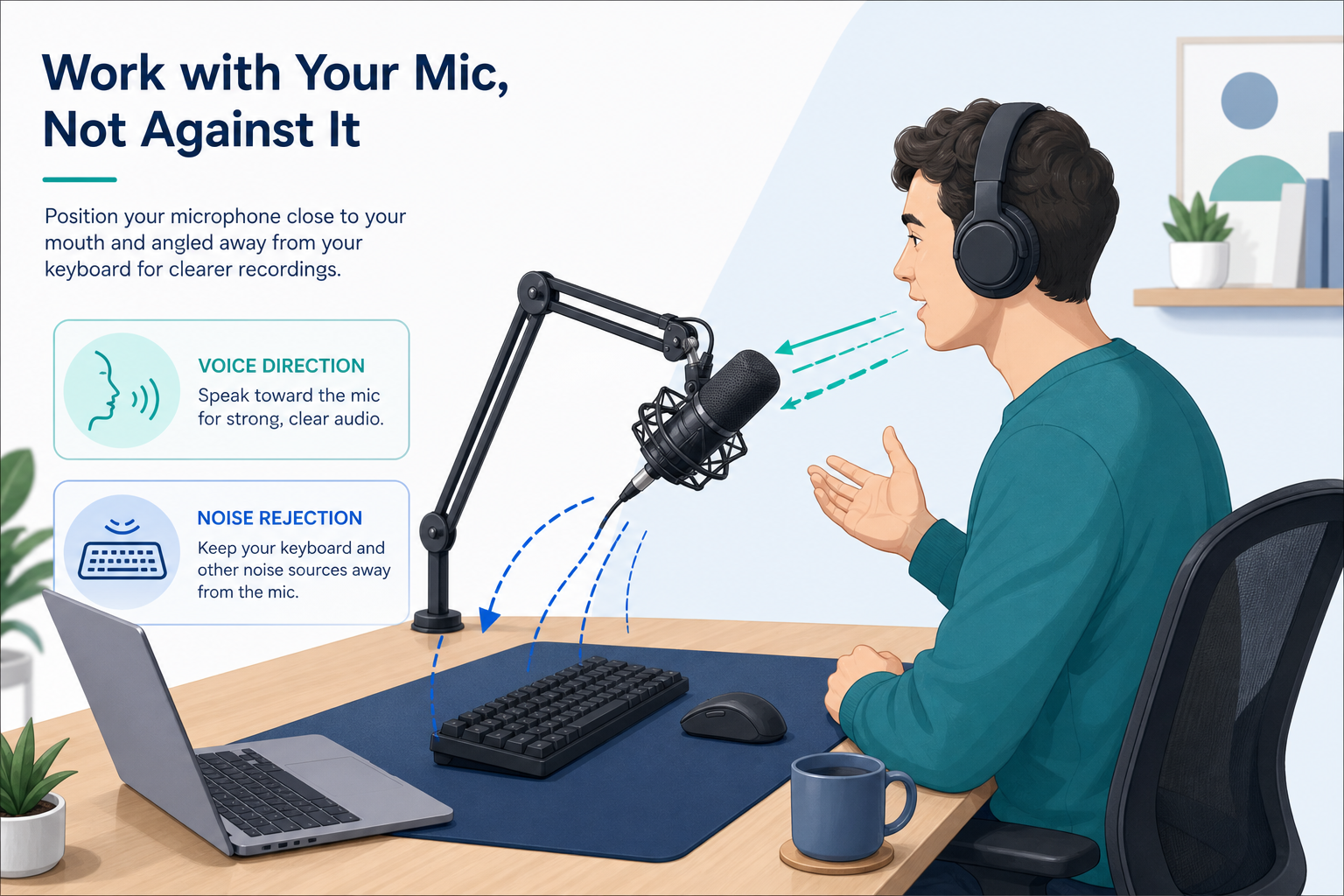
The closer the mic is to your voice, the better the voice-to-keyboard ratio. This does not mean shouting. It means placing the mic where your voice is clearly stronger than the typing.
2. Angle a cardioid mic away from the keyboard
Cardioid microphones are commonly used to focus on the source in front of the mic while rejecting unwanted sound from other directions. Shure’s overview of microphone directionality explains that engineers choose polar patterns and mic technique to capture the desired source and reject unwanted background noise or feedback.
- Put the mic slightly to the side of your mouth, not between your mouth and keyboard.
- Aim the front of the mic at your mouth.
- Aim the keyboard toward the mic’s less-sensitive area when possible.
- Avoid placing a laptop mic directly above the keys you are typing on.
3. Use a boom arm and shock mount
A boom arm gets the mic off the desk. A shock mount helps reduce vibration from the desk, keyboard, mouse, and laptop.
4. Reduce mic gain
High gain makes everything louder, including keyboard noise. Lower the gain and move closer to the mic instead of keeping the mic far away and boosting input level.
5. Put the keyboard on a mat
A desk mat or keyboard mat can reduce hard contact noise and some desk vibration. It will not make a loud clicky keyboard silent, but it can reduce thumps and resonance.
6. Use quieter switches or a quieter keyboard
If you record often, quieter keyboard switches, dampening rings, or a low-profile quiet keyboard can be a real audio upgrade.
7. Separate the mic stand from the keyboard surface
If your mic stand sits on the same desk as your keyboard, keystrokes can travel through the desk into the stand. Try a floor stand, boom arm mounted away from the typing area, or a separate surface.
8. Avoid typing while speaking
- Explain first, type second.
- Pause while entering commands.
- Take notes on paper away from the mic.
- Use a second person to take notes during interviews or webinars.
- Record voiceover after the screen action instead of live during the typing.
Troubleshooting Keyboard Noise Cleanup
My voice sounds watery or robotic
This usually means the cleanup is too aggressive for the source file, or the keyboard noise overlaps speech too heavily.
- Use a lighter cleanup pass if available.
- Start from the original file, not a file already processed multiple times.
- Reduce only the worst sections manually.
- Keep a little natural noise instead of forcing total silence.
- Re-record key sentences if they sound damaged.
Clicks remain during speech
A gate or expander will not solve this after the fact, because the voice and click are happening at the same time. Try AI cleanup first, then manual de-click or spectral repair on the worst clicks.
Mouse clicks remain
Mouse clicks are often sharper than typing and may stand out even after general noise reduction. Check whether they are actually useful to the viewer.
The cleaned video audio is out of sync
Go back to the original video and test a short export first. Check sync at the beginning, middle, and end of the video.
Keyboard noise is mixed with game audio or music
When voice, music, game audio, system sounds, and keyboard clicks are all on one track, cleanup is harder. For future OBS or screen recordings, record the mic separately from game/system audio when possible.
My transcription still catches noise or weird words
Clean the audio first, then generate captions or transcripts. If the transcript still contains artifacts, review the noisy sections manually.
Related Cleanup Guides
- Remove background noise from video online for broad video noise cleanup.
- Remove reverb from video online if the recording also sounds echoey.
- Remove mouth clicks from audio online if the clicks come from lip smacks or saliva sounds instead of a keyboard.
- Remove hum from audio online for electrical buzz, HVAC rumble, or steady hum.
- MP3 vs WAV if you are deciding which format to export.
Publishing Checklist
- Compare the original and cleaned versions.
- Listen on headphones, not only laptop speakers.
- Check intros, outros, pauses, and quiet sections.
- Spot-check every section where typing overlaps speech.
- Make sure consonants still sound natural.
- Confirm that mouse clicks are reduced enough for the content type.
- Check video sync after export.
- Normalize or level volume after cleanup if needed.
- Export in the right format for your platform.
- Keep the original backup.
- Add captions after cleanup if you are publishing video.
- Translate or dub only after the cleaned master is approved.
FAQ
How do I remove keyboard noise from audio online?
Upload the audio file to an online AI cleaner such as SimpleClean, run the cleanup, preview with headphones, then download the cleaned version. Listen carefully to places where typing overlaps speech, because those are the hardest sections to fix.
Can AI remove mechanical keyboard clicks from a recording?
AI can often reduce mechanical keyboard clicks, especially when the voice is louder than the keyboard and the clicks happen between phrases. Results may be limited when a loud clicky keyboard is directly under the mic or when typing happens continuously under speech.
How do I remove typing sounds from a video?
Upload the video file, run AI audio cleanup, preview the cleaned video, then download the result. For screen recordings, check typing-heavy moments such as commands, shortcuts, code entry, and menu clicks.
Can I remove keyboard noise from an MP4 without editing the audio separately?
Yes, if your cleanup tool supports video uploads. SimpleClean supports audio and video uploads and lists common video formats such as MP4, MOV, and WebM.
Why does my mic pick up keyboard clicks when I record?
Your mic may be too far from your mouth, too close to the keyboard, set with too much gain, mounted on the same desk, or using a pickup pattern/position that captures the keyboard clearly.
Can a noise gate remove keyboard sounds while I am talking?
Not reliably. A noise gate can mute or reduce the mic when you are not speaking, but it opens when you speak. That means keyboard clicks that happen during speech can still be recorded.
How do I remove mouse clicks from podcast audio?
Start with AI cleanup, then manually repair the few clicks that remain under important words. If mouse clicks happen during silence, you can also cut, fade, or reduce those sections in an editor.
How do I stop OBS from recording keyboard noise?
Use better mic placement first, then add OBS filters such as expander, noise gate, or noise suppression carefully. For best editing flexibility, record mic audio separately from game or system audio when possible.
Can Audacity remove keyboard clicks?
Audacity can reduce some keyboard noise with its Noise Reduction effect if you provide a keyboard-only noise profile. For isolated clicks, manual editing or de-click tools may work better.
Why does noise reduction make my voice sound robotic?
Robotic or watery sound usually comes from over-processing, low-quality source audio, or noise that overlaps speech. Use less reduction, start from the original file, avoid stacking multiple cleanup tools, and re-record the worst lines if needed.
What is the best way to remove keyboard noise from a screen recording?
Upload the screen recording to an AI cleanup tool, preview typing-heavy sections, and export the cleaned video. If you need maximum editor compatibility, MP4 is usually the safest export format.
How do I record tutorials without keyboard and mouse sounds?
Use a close mic, angle a cardioid mic away from the keyboard, lower gain, use a boom arm or shock mount, put the keyboard on a mat, choose quieter switches, and avoid speaking while typing when possible.
Final Takeaway
If the recording already exists, the simplest fix is to upload it to SimpleClean, run AI cleanup, preview the keyboard-heavy sections, and download the cleaned version. If you are recording again, prevent the problem at the source: move the mic closer, angle it away from the keyboard, reduce gain, isolate desk vibration, and stop typing while speaking whenever possible.
Keyboard clicks are difficult because they are sharp, irregular, and often overlap speech. But with the right workflow, you can turn a distracting podcast, tutorial, meeting, or screen recording into something much easier to watch and listen to.
Sources and further reading
- OBS Filters Guide - Verified the roles of OBS expander, noise gate, and noise suppression filters.
- BEACN Support: How do I set the Expander to avoid keyboard clicks? - Verified the limitation that expanders reduce keyboard clicks mainly when the mic is not open and can cut off consonants if set aggressively.
- Audacity Manual: Noise Reduction - Verified Audacity’s noise profile workflow and the tradeoff between stronger noise reduction and preserving wanted audio.
- Shure: Microphone Directionality and Polar Pattern Basics - Supported mic placement and polar pattern guidance for rejecting unwanted background noise.
- Adobe Audition Help: Applying noise reduction techniques and restoration effects - Supported the explanation of clicks and pops as short transient noises handled by click/pop restoration tools.
- iZotope RX Help: Spectral Repair - Supported the recommendation to use spectral repair or manual repair for isolated unwanted sounds.