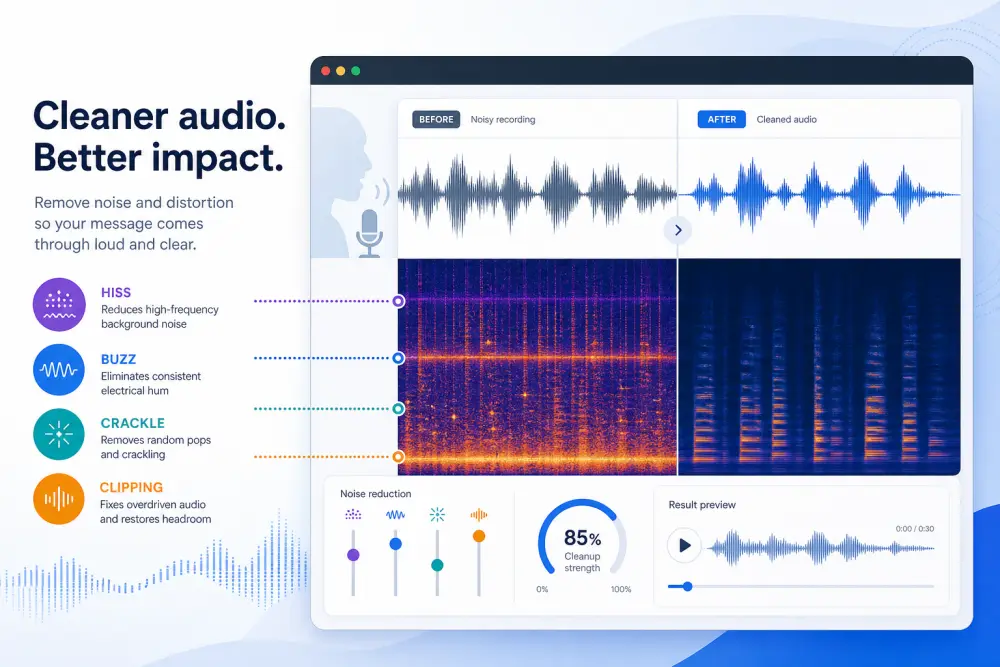
If your recording sounds "static-y," the fix depends on what you are actually hearing. Steady hiss is different from a 50/60 Hz electrical buzz, intermittent crackle needs a different repair approach than broadband noise, and clipping distortion is a separate problem entirely. The good news: many static problems can be reduced online without opening a DAW, especially on speech-first recordings like podcasts, interviews, Zoom calls, and course videos.
In most cases, the fastest workflow is to upload the file, apply moderate cleanup, preview carefully, and export once. For a browser-first option, SimpleClean is a practical starting point when you want to clean spoken audio or video audio without building a full restoration chain by hand.
Quick Answer
Yes, you can often remove static from audio online without a DAW, but results depend on the type of noise:
- Steady hiss: usually the most recoverable with moderate noise reduction.
- Electrical hum or buzz: often needs targeted filtering, especially around mains-related tones and harmonics.
- Crackle, clicks, or pops: better handled with click/crackle repair than broad denoise.
- Clipping distortion: not really static, and only sometimes partially repairable.
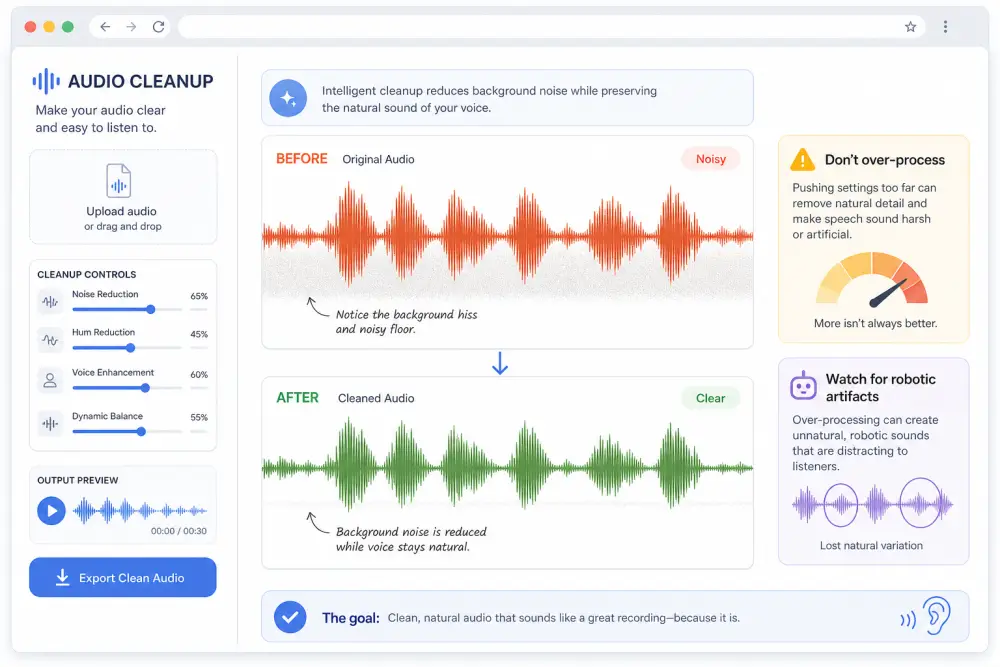
The tradeoff is that aggressive cleanup can introduce robotic, watery, or swirly artifacts. Audacity and Adobe both note that stronger noise reduction can damage the wanted signal, so the goal is usually less noise with natural speech, not total silence between words.
Static Diagnosis Table: What You Hear, What It Probably Is, and What to Do
| What it sounds like | Likely cause | Best fix | Usually salvageable? |
|---|---|---|---|
| Soft, constant shhhhhh behind the voice | Broadband hiss, self-noise, high mic gain, noisy room tone | Moderate AI denoise or noise reduction | Often yes |
| Low buzz or hum, sometimes with extra harmonics | Ground loop, power interference, mains-related electrical noise | Notch-style filtering plus source troubleshooting | Often partly to mostly |
| Random crackle, tiny snaps, clicks, or fizz | Impulse problems, bad connection, digital glitches, damaged audio events | Click/crackle repair, then light denoise if needed | Sometimes |
| Harsh breakup on loud words, crunchy peaks | Clipping or overload distortion | Declipping workflow, not standard static removal | Only partly in many cases |
If your audio has a tonal electrical problem rather than general hiss, a narrow notch cut is often more appropriate than broad noise reduction. Adobe specifically documents notch filtering for removing a very narrow frequency band, which is why hum or buzz should not always be treated the same way as broadband static.
What users usually mean by “static”
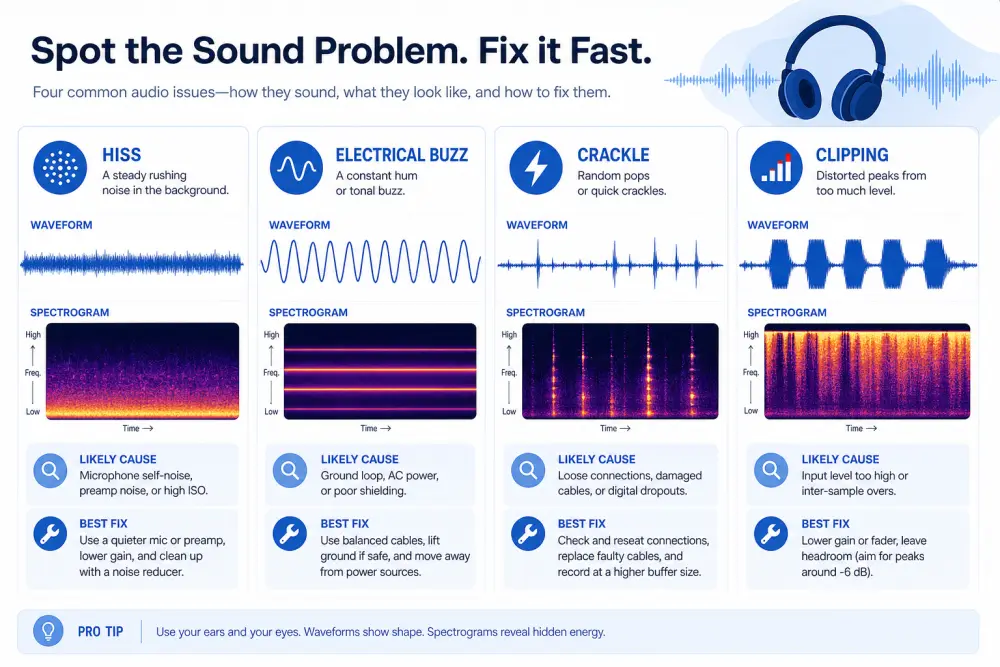
Searchers use the word static loosely. In practice, it usually means one of four things:
- Hiss: a steady, airy background noise across a wide frequency range.
- Buzz or hum: a more tonal electrical noise, often tied to power or grounding issues.
- Crackle: small intermittent bursts, pops, or gritty interruptions.
- Distortion: overloaded audio that sounds rough, splatty, or broken on peaks.
This matters because each problem responds differently to processing. Adobe’s restoration guidance separates hiss, hum, crackle, and broadband noise for a reason, and Audacity’s click-and-pop support similarly treats impulse defects differently from normal noise reduction.
How to remove static from audio online with SimpleClean
If you want the fastest online workflow, keep it simple:
- Upload your audio or video file. This is useful for podcasts, voice memos, interviews, Zoom recordings, and video files where the problem is in the soundtrack rather than the picture.
- Run cleanup and preview the result. Start conservatively. If the voice gets metallic or watery, back off the intensity rather than pushing for total silence.
- Download the cleaned version and export once. If you have a WAV source, prefer that over MP3. Repeated lossy exports can compound artifacts.
If you are ready to try a browser workflow, use Remove mouth clicks with SimpleClean and compare before/after on headphones. For video teams, this is often the fastest way to clean dialogue before captioning or publishing.
After cleanup, you can add subtitles with Best AI Captions. If you need multilingual versions, Translate Dub fits naturally after audio cleanup because cleaner dialogue usually gives downstream captioning and dubbing a better starting point.
Best fix by problem type
Best for steady hiss: AI denoise or classic noise reduction
Steady broadband noise is usually the cleanest online win. Audacity’s noise reduction documentation explains the general tradeoff clearly: reducing more noise can also reduce wanted audio quality. That is why moderate settings usually sound better than maximum settings on spoken-word recordings.
Best for electrical-style buzz: targeted filtering
If the interference is narrow and tonal, a notch-style approach is often better than wide denoise. Adobe’s Notch Filter guidance supports using a very narrow cut for an offending frequency band. For mains-related noise, Audacity’s support also notes that hum often appears with harmonics, so one single cut may not remove the full problem.
Best for crackle or tiny pops: click/crackle repair
Clicks and pops are impulse defects, not steady noise. Audacity’s click-and-pop repair guidance is a good reminder that these events need a different tool or restoration strategy than standard denoising.
Best for clipping: declipping, not denoising
If the waveform overloaded during recording, static removal will not solve the root issue. For that case, see our guide on how to remove clipping from audio online.
Why aggressive noise reduction makes voices sound robotic
This is one of the most important expectations to set. According to Audacity’s documentation, stronger noise reduction can create audible artifacts. In practice, these artifacts are often described as:
- robotic
- watery
- swirly
- chirpy
- hollow
Why it happens: when a tool removes too much broadband content, it does not only strip the noise. It can also eat into consonants, breath texture, room cues, and upper voice detail. Speech may become technically cleaner but less intelligible or less natural.
The better target is usually:
- make the noise less distracting
- keep the voice believable
- accept a little residual noise if the alternative sounds artificial
When the recording can be saved, and when it probably cannot
As a rule of thumb:
- Most salvageable: steady hiss under clear speech.
- Often salvageable with limits: hum or buzz that is not overpowering the voice.
- Mixed results: intermittent crackle, especially if it overlaps many words.
- Least salvageable: severe clipping, severe packet-like digital breakup, or noise louder than the speech itself.
If the voice is consistently buried, chopped up by crackle, or distorted on nearly every peak, re-recording may be faster and better than restoration. That is especially true for narration, ads, and evergreen course content.
How to fix electrical static at the source
If the problem sounds like hum or electrical buzz, source fixes matter as much as repair. Sennheiser and Native Instruments both recommend checking grounding, shared power, and cable paths when dealing with hum or buzz.
- Power connected devices from the same outlet or power strip where possible.
- Check for ground-loop style issues between computer, interface, speakers, and peripherals.
- Use balanced connections where your gear supports them.
- Test cables and adapters; a bad cable can sound like static or crackle.
- Move audio cables away from power adapters and noisy electronics.
- Disconnect unnecessary USB devices one at a time to isolate interference.
- On problem setups, laptop power can sometimes contribute noise; test on battery if practical.
If your issue is clearly mains-related, our guide on removing hum from audio online goes deeper on 50/60 Hz buzz and related noise.
How to reduce hiss and self-noise before you record
Some static is really a recording-chain problem. To reduce hiss at the source:
- Keep the mic at an appropriate distance so you do not need excessive gain.
- Avoid recording too quietly and boosting heavily later.
- Choose the quietest practical room and reduce HVAC or computer fan noise.
- Check your interface or USB mic gain staging.
- Record a clean, strong voice signal instead of trying to rescue a weak one afterward.
If the recording also has room reflections, combine static cleanup with our guide on removing reverb from video online. If the problem includes little saliva ticks or lip smacks, see how to remove mouth clicks from audio online.
Best export and file tips
- Use WAV when available. It preserves more detail for cleanup than MP3.
- Avoid repeated lossy exports. Each extra MP3 pass can add quality loss.
- Do your main cleanup early. Restore first, then caption, dub, edit, and publish.
- Keep one untouched original. If a stronger pass sounds worse, you can go back.
Once the audio is cleaned, caption or localize it, then distribute it everywhere. For teams publishing clips, podcasts, interviews, or course trailers, Mallary.ai is useful on the distribution side because it helps schedule and publish content across multiple social platforms from one workflow.
Best for recommendations
- Best for podcasters and interview editors: Start with moderate online cleanup, then listen for artifacts on voices before exporting.
- Best for YouTubers and course creators: Clean the video audio first, then add subtitles with Best AI Captions or create multilingual versions with Translate Dub.
- Best for remote teams and Zoom-heavy workflows: Use browser-based cleanup for speed, but re-record mission-critical sections if clipping or heavy digital crackle is present.
- Best for electrical noise: Fix the source first, then apply repair. Filtering cannot fully replace a clean signal path.
Conclusion
You can remove static from audio online in many real-world cases, but the first step is diagnosis. Hiss, hum, crackle, and clipping are not the same problem, and they do not respond to the same repair method. Speech recordings with steady background hiss are often the easiest to improve. Tonal electrical noise may need filtering and source fixes. Crackle may need dedicated click repair. Clipping may need a different recovery workflow entirely.
If you want a fast browser-based starting point, try SimpleClean, keep your cleanup moderate, and aim for clearer speech rather than over-processed silence.
Frequently Asked Questions
Can static be removed from audio without a DAW?
Yes. Many static problems, especially steady hiss in spoken audio, can be reduced with browser-based tools. The key is to identify whether the issue is hiss, hum, crackle, or clipping first.
What causes static in a microphone recording?
Common causes include high gain, self-noise, poor cables, electrical interference, grounding issues, weak signal levels, or overload distortion that is mistaken for static.
How do I remove electrical static from video audio?
First, confirm it is electrical buzz or hum rather than hiss. Tonal interference is often better treated with narrow filtering, and you should also troubleshoot the source: power, grounding, cable routing, and connected peripherals.
Is static the same as hiss or hum?
No. People often use “static” as a catch-all term. Hiss is broadband noise, hum is tonal electrical noise, and buzz may include harmonics. They need different fixes.
Can AI remove static without making voices sound robotic?
Sometimes, yes, if the cleanup is moderate and the source recording is decent. Very aggressive reduction can create robotic or watery artifacts, which is why previewing and backing off stronger settings is important.
When is a static-filled recording beyond repair?
If the noise is louder than the voice, if crackle destroys many words, or if clipping distortion is severe throughout, restoration may not produce acceptable results. In those cases, re-recording is often the better use of time.
How do I fix static from a USB mic or audio interface?
Check gain staging, swap cables if applicable, isolate noisy USB devices, test power arrangements, and look for ground-loop-style issues if the noise is tonal. Source fixes can matter more than post-processing.
Can I remove static from MP3 or should I use WAV?
You can clean MP3 files, but WAV is better when available because it avoids additional lossy compression damage and usually gives restoration tools a cleaner starting point.
Sources and further reading
- Audacity Manual: Noise Reduction - Supports the explanation that noise reduction involves tradeoffs and can introduce artifacts if pushed too far.
- Adobe Audition: Applying noise reduction techniques and restoration effects - Supports distinguishing broadband noise, hiss, hum, crackle, and restoration approaches.
- Audacity Support: Removing clicks & pops - Supports the distinction between crackle/clicks and steady noise reduction problems.
- Sennheiser: Hum or Buzz from Ground Loops - Troubleshooting Guide - Supports source troubleshooting for grounding and power-related hum or buzz.
- Native Instruments: How to Resolve Ground Loop Issues (Hum or Buzzing Noises) - Supports practical fixes like same-outlet power, balanced connections, and hardware troubleshooting.
- Adobe Audition: Notch Filter effect - Supports explaining why tonal electrical interference may be better handled with narrow cuts than broad denoise.
- Audacity Support: Noise reduction & removal - Supports the explanation of hiss, hum, and harmonics when users confuse static with electrical noise.