Quick Answer: How to remove reverb from a video online
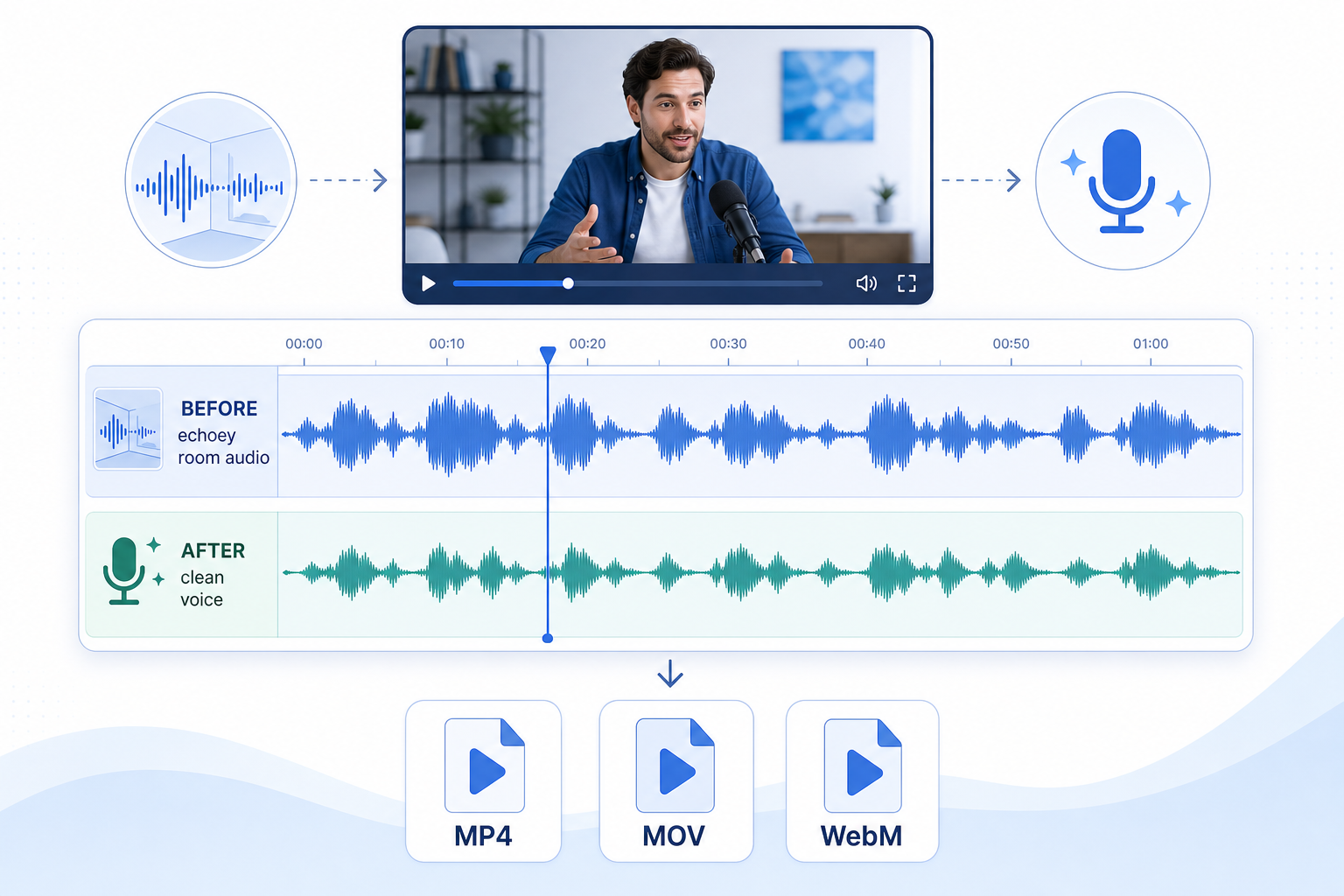
If your video sounds like it was recorded in a bathroom, hallway, kitchen, conference room, or empty office, the fastest fix is to clean the voice track before you publish.
The simple workflow:
- Upload your video to SimpleClean.
- Use AI audio cleanup to reduce distracting background noise, echo-like room sound, and voice distractions.
- Preview the cleaned result before committing.
- Download the cleaned file and check that the audio is still in sync.
- Listen once on headphones before publishing.
SimpleClean is built for browser-based audio and video cleanup: its site says you can upload audio or video files, hear a cleaned preview, process in the browser, and download a cleaned recording. It lists video uploads such as MP4 and MOV, and describes SimpleClean as a tool for fixing video sound as well as podcast audio.
Best for: creators who already recorded a video and need the voice to sound closer, clearer, and less hollow without learning Audacity, Premiere, Final Cut, or a full DAW.
Try it now: upload your echoey video to SimpleClean, preview the cleaned result, and only keep the version if it sounds better.
Why your video sounds echoey, hollow, or “far away”
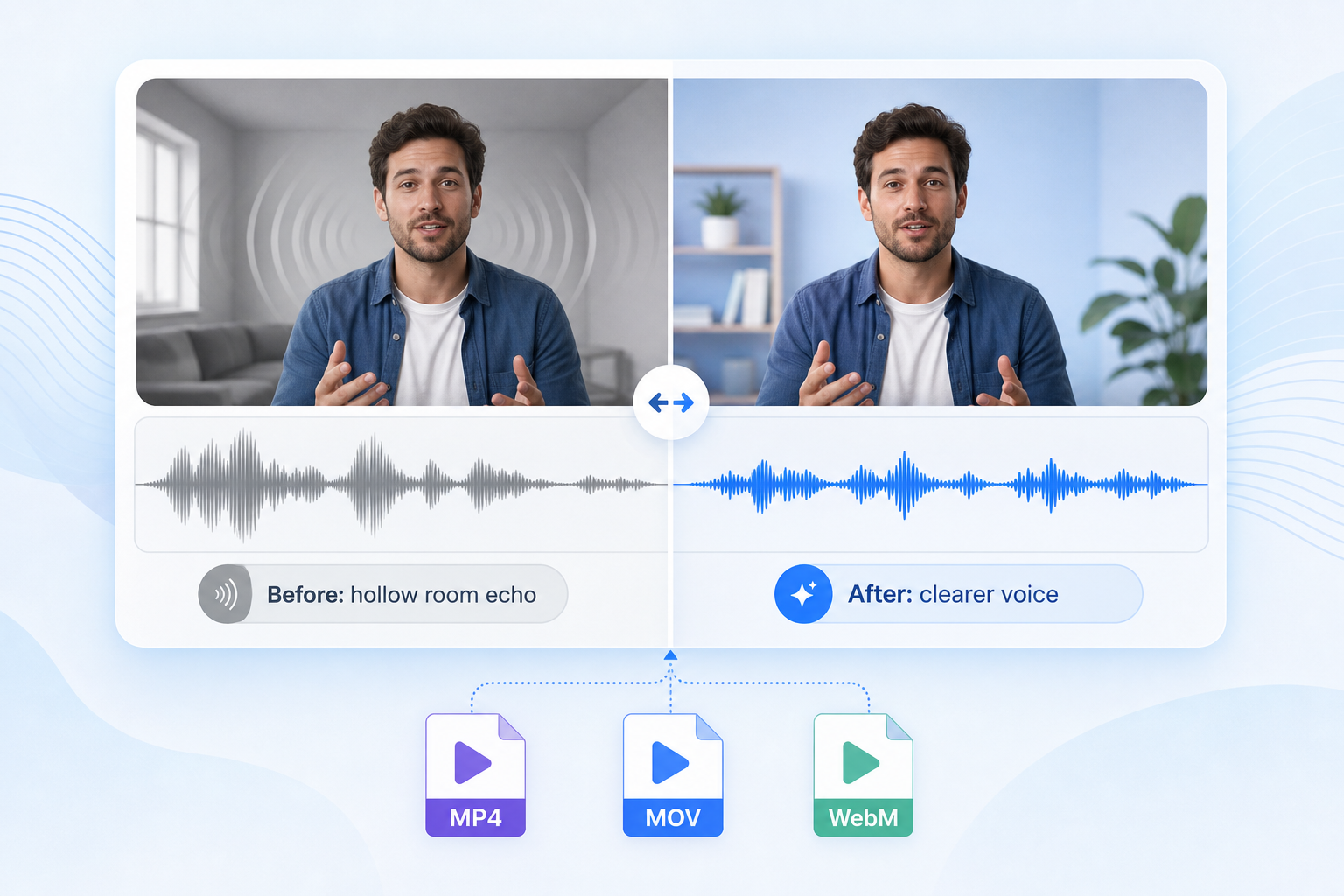
Bad room sound usually comes from one simple problem: your microphone captured too much of the room and not enough direct voice. ASHA explains that a voice reaches the listener directly and indirectly through reflections from hard surfaces such as walls, ceilings, and furniture. Those reflections are reverberation.
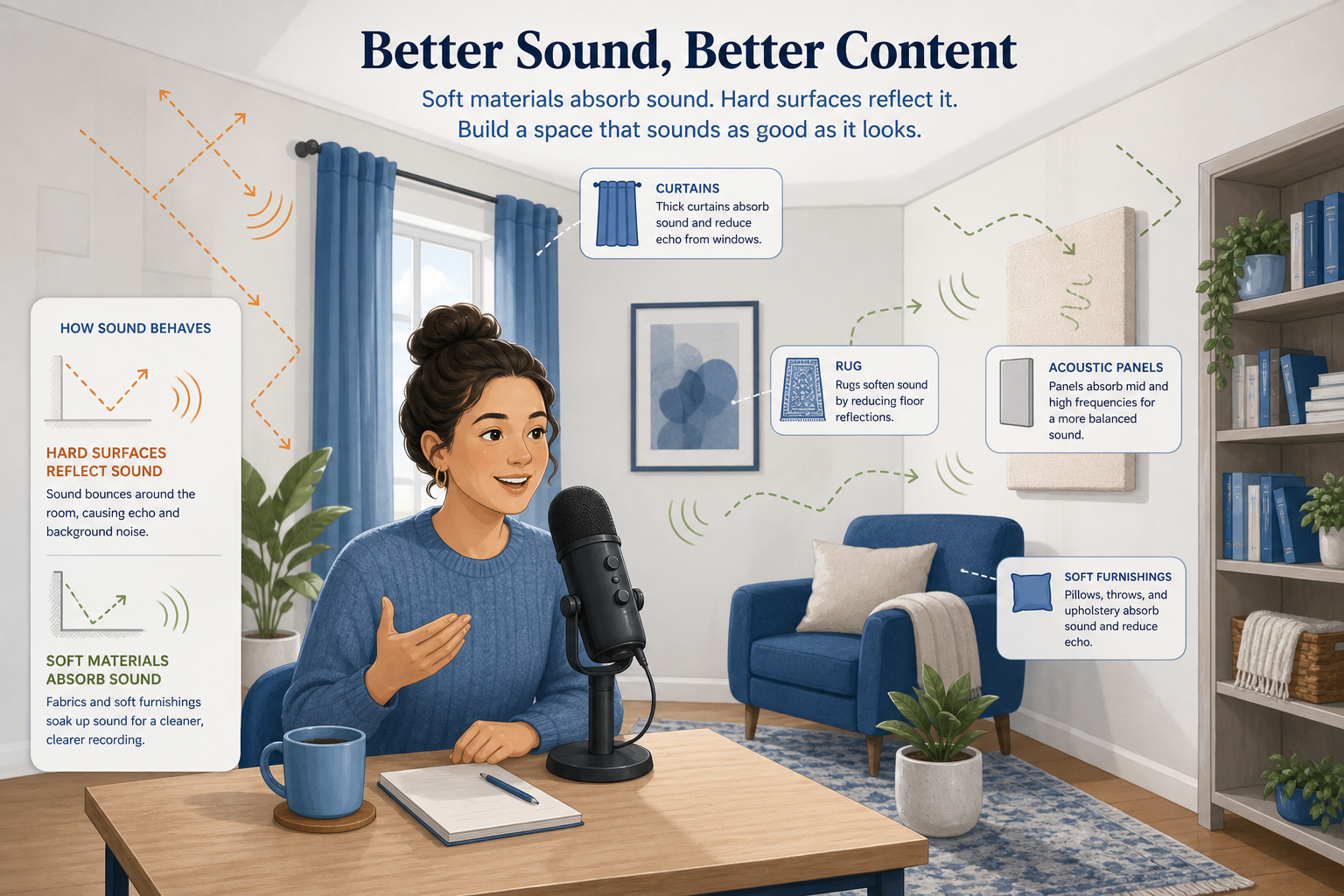
That is why videos recorded in kitchens, bathrooms, offices, classrooms, conference rooms, and empty apartments often sound roomy. Hard surfaces reflect sound; porous materials such as textiles and foam absorb sound. CDC/NIOSH also notes that covering hard surfaces with absorptive materials reduces reflected sound and lowers noise levels.
- Laptop microphone too far from your mouth during a screen recording.
- Hard room surfaces: tile, glass, drywall, bare desks, whiteboards, and concrete.
- Empty rooms with no carpet, curtains, bookshelves, couch, or acoustic treatment.
- Speaker playback feeding back into the mic during calls or webinars.
- Two microphones recorded at once, creating a doubled or delayed sound.
- Compression or clipping from a recording that was too loud, too quiet, or heavily processed by meeting software.
Reverb vs echo vs delay vs background noise vs duplicate mic track
People use “echo” for almost every bad-room problem, but the fix is not always the same.
| What you hear | Likely problem | What it means | Best first fix |
|---|---|---|---|
| Hollow, boxy, bathroom-like voice | Room reverb | Many short reflections are blended into the voice | AI cleanup, echo reduction if available, then voice leveling |
| A clear repeated word after the original word | Echo or slapback | A strong reflection arrives late enough to be heard as a repeat | Echo reduction; consider re-recording if severe |
| Robotic doubled voice, like two copies slightly apart | Delay or duplicate track | Two audio sources are misaligned | Mute one track or manually align before cleanup |
| Fan, hum, air conditioner, keyboard, traffic | Background noise | Non-speech sound sits under or around the voice | Noise reduction, hum removal, or targeted cleanup |
| Ringing, squealing, endless looping echo | Speaker feedback | Speaker audio was captured by a microphone and repeated | Mute the feedback source if available; severe cases may be hard to repair |
| Harsh crackle or flattened loud syllables | Clipping/distortion | The input overloaded during recording | Reduce harshness if possible, but true clipping is not fully reversible |
A useful rule: reverb is the room smeared into the voice; delay is often a second copy of the same voice. Voice Science describes echo as a distinct repetition and reverberation as dense overlapping reflections that blend into a continuous decay.
Troubleshooting checklist before you process the video
1. Listen with headphones
Laptop speakers can create the illusion of echo. Put on headphones and play the original file from your computer, not from a streaming preview.
2. Check whether two microphones were recorded
If the voice sounds doubled, look for webcam mic plus USB mic, laptop mic plus headset mic, camera audio plus external recorder audio, screen recording system audio plus meeting app audio, or separate guest tracks stacked on top of a mixed track.
3. Confirm the echo is in the source file
Export a short test clip and play it outside your editor. If the echo disappears, the problem may be your timeline, monitoring, or duplicate tracks.
4. Identify the dominant issue
- For broad video noise, read remove background noise from video online.
- For electrical buzz or HVAC rumble, read remove hum from audio online.
- For lip smacks and saliva clicks, read remove mouth clicks from audio online.
- For audio-only echo cleanup, see remove echo from audio.
- For broader polishing, read enhance sound in video.
5. Make a backup copy
Always duplicate the original video before processing.
How to remove reverb from video online with SimpleClean
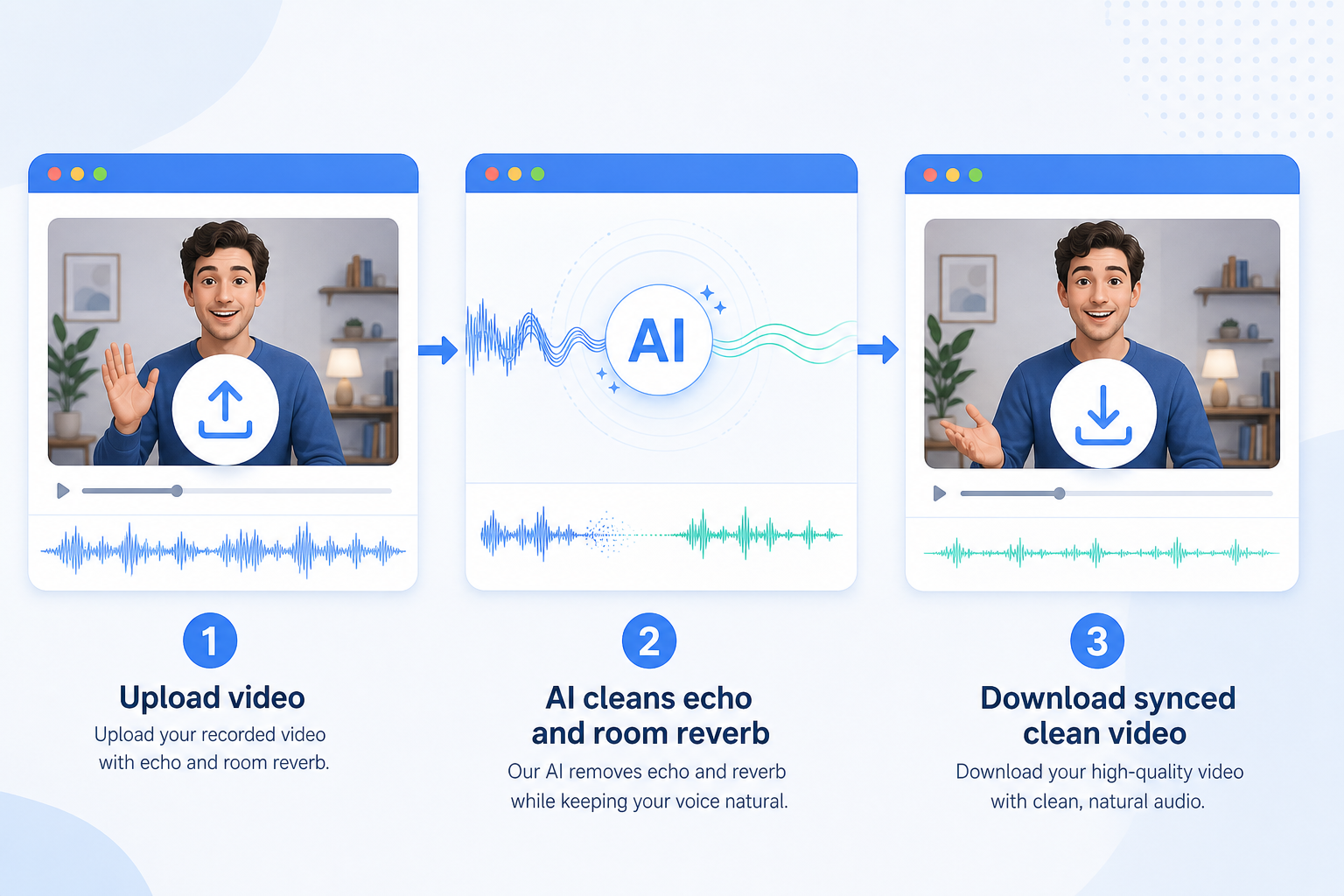
- Upload the original video. Start with the highest-quality export you have.
- Choose the cleanup option closest to the problem. Start moderate if strength controls are available.
- Preview the cleaned voice. Check quiet, loud, and pause-heavy sections.
- Check sync. Watch the speaker’s mouth while listening on headphones.
- Download the cleaned file. Export in the same general video format when possible.
- Do a final polish pass. Normalize volume, reduce remaining noise, and add captions if needed.
For captions, SimpleClean users can pair the cleaned video with Best AI Captions. For multilingual publishing, Translate Dub can translate and dub videos.
SimpleClean CTA: start with a short preview. If the cleaned audio sounds more natural and easier to understand, download the cleaned version and use it in your final edit.
Format-specific workflows: MP4, MOV, WebM, Zoom, Loom, webinars, podcasts, and phone videos
MP4 videos
MP4 is the most common final delivery format for YouTube, social clips, online courses, and client videos. Upload the MP4, clean the audio, preview the result, and download a cleaned version.
MOV videos
MOV files often come from iPhones, cameras, QuickTime, or editing apps. Process the cleanest source available, then export your final MP4 or MOV depending on where you publish.
WebM videos
WebM commonly appears in browser recordings and web-based capture tools. If your cleanup or editing workflow struggles with WebM, convert only once from the cleanest source.
Zoom recordings
Check whether you have a single mixed recording, separate participant tracks, computer audio plus microphone audio, or speaker audio bleeding into someone’s mic.
Loom-style screen recordings
Echoey screen recordings often happen because the laptop mic is far from the speaker’s mouth. Clean the video audio, then check keyboard clicks, fan noise, and low volume.
Webinar recordings
Webinars can combine room echo, compression, audience questions, intro music, and platform processing. Clean the speech-heavy sections first.
Video podcasts and interviews
If you have isolated guest tracks, process each speaker separately. If you only have a combined video, clean the full file but pay attention to overlapping speech.
Phone recordings
Phone videos in kitchens, gyms, classrooms, and offices often have bright reflections and a distant voice. Cleanup can help, but closer mic placement will make the biggest difference next time.
What AI reverb removal can realistically fix
- Hollow room tone.
- Moderate reflections from an office, bedroom, kitchen, or classroom.
- Distant laptop mic sound.
- Light slapback echo.
- Mild fan noise mixed with room sound.
- Webinar or course audio that is clear but not polished.
- Interview audio where one speaker sounds far from the mic.
ASHA notes that later speech reflections can smear or blur the original speech, making it harder to understand. That is why reducing the room tail can make a video feel more professional even if the audio does not become studio-perfect.
What may not be fully fixable
- Severe clipping.
- Very loud room echo.
- Multiple people talking over each other.
- Music under speech.
- Feedback loops.
- Duplicate tracks printed into one file.
- Extremely low-quality compressed audio.
Audacity’s manual makes a useful general point for repair work: noise reduction may not be satisfactory when noise is very loud, variable, or similar in frequency to the wanted speech or music. Prevention and better recording conditions still matter.
Best cleanup settings and finishing workflow after reverb removal
- Fix duplicate tracks first.
- Reduce reverb or echo.
- Reduce steady noise.
- Normalize voice volume.
- Remove mouth clicks only if needed.
- Export a synced video.
- Add captions.
Best workflow by use case
| Use case | Typical problem | Best workflow | Extra tip |
|---|---|---|---|
| YouTube talking-head video | Empty room, hard walls, distant mic | Clean reverb, normalize voice, export MP4 | Add captions for retention and accessibility |
| Online course lesson | Roomy speech plus keyboard/mouse sounds | Reverb cleanup, noise reduction, remove long silences | Re-record only the worst modules if needed |
| Client testimonial | Conference room echo | Clean the full video, preview client names and key quotes | Keep processing natural; authenticity matters |
| Video podcast | Guest track sounds far away | Clean separate tracks if available, then mix | Avoid heavy cleanup on overlapping speech |
| Webinar replay | Platform compression, room echo, intro music | Clean speech sections, use lighter processing near music | Export chapters or clips after cleanup |
| Screen recording | Laptop mic, fan, typing | Reverb/noise cleanup, volume leveling, captions | Use a USB mic next time |
| Remote interview | One speaker has speaker bleed | Mute duplicate tracks if available, clean each voice | Ask guests to wear headphones next time |
| Social ad | Voiceover recorded in untreated room | Clean voice, normalize, caption, export platform version | Test on phone speakers before publishing |
Online AI reverb remover vs Audacity, DAW plugins, re-recording, or hiring an editor
| Option | Best for | Pros | Cons |
|---|---|---|---|
| Online AI cleanup with SimpleClean | Fast repair for creator videos, interviews, webinars, and screen recordings | Browser-based, video-friendly, preview-first, no DAW setup | Severe audio problems may still need manual repair or re-recording |
| Audacity or free desktop editor | Audio-only files, hands-on users, basic noise cleanup | Free, flexible, good learning tool | More manual work; video workflows may require extracting and replacing audio |
| DAW plugins | Experienced editors | More control and advanced repair chains | Learning curve; easy to over-process |
| Re-recording | Short videos, voiceovers, intros, course lessons | Best possible quality if setup is improved | Not always possible for interviews, events, or client shoots |
| Hiring an audio editor | Important sales videos, documentaries, legal/event footage, large courses | Human judgment, detailed repair, mix polish | Costs more and takes longer |
How to prevent reverb in your next video
- Move the microphone closer.
- Use a lavalier, USB mic, headset mic, or close shotgun mic.
- Add curtains, rugs, a couch, bookshelves, moving blankets, or acoustic panels.
- Avoid empty rooms.
- Turn off speakers and ask remote guests to wear headphones.
- Record a 10-second test before the full session.
CDC/NIOSH guidance for noise control notes that porous materials such as textiles and foam absorb sound and that covering hard surfaces reduces reflected sound.
Common mistakes when trying to remove reverb from video
- Processing the same file multiple times.
- Using maximum strength by default.
- Ignoring duplicate tracks.
- Exporting compressed copies repeatedly.
- Fixing reverb before checking sync.
- Trying to remove every trace of room sound.
When should you re-record instead?
Re-record if the video is short, the current audio has severe clipping, the room echo is louder than the direct voice, or the video is a high-value ad, sales page, course intro, or keynote-quality asset. Use online cleanup first for interviews, webinars, testimonials, and one-time events that cannot be recreated.
Final checklist before publishing
- The cleaned video plays from start to finish.
- Dialogue is synced to lips.
- Voice is clearer than the original.
- No words are chopped off by aggressive cleanup.
- Loud sections are not distorted.
- Quiet sections are still understandable.
- Captions are added if the video will be watched muted.
- The exported file is in the format your platform accepts.
If you want the fastest browser-based pass, upload your video to SimpleClean, preview the cleaned result, and download only when the improvement is worth keeping.
FAQ
How do I remove reverb from a video online?
Upload the video to an online audio cleanup tool such as SimpleClean, choose the cleanup option closest to the problem, preview the result, and download a cleaned file.
Can I remove echo from an MP4 file without editing the video manually?
Yes. Upload the MP4, process the audio in the browser, preview it, and download a cleaned version. If the echo is caused by duplicate tracks in an editor, mute or align those tracks first.
Can I remove reverb from a MOV file?
Usually, yes. Upload the MOV or the cleanest export you have, clean the audio, then export in the format you need for editing or publishing.
Can I fix an echoey Zoom recording?
Often. First check whether you have separate participant tracks. If so, clean the problem track before mixing. If you only have a single mixed video, run the whole file through cleanup and preview carefully.
Why does my video sound echoey or hollow?
Your mic captured room reflections along with your voice. Hard surfaces reflect speech, while soft materials absorb more of that energy. Distance from the mic makes the room sound more obvious.
What is the difference between echo and reverb in video audio?
Echo is usually a distinct delayed repeat. Reverb is many reflections blending into a tail that makes the voice sound hollow, distant, or washed out.
Can AI remove room echo from a webinar recording?
AI can often reduce moderate room echo and improve speech clarity, especially when the voice is still understandable. It may struggle with heavy compression, music under speech, feedback loops, or overlapping speakers.
Can I remove reverb from a video without downloading software?
Yes. A browser-based tool lets you upload the video, clean the audio online, preview the result, and download the cleaned file without installing a DAW or desktop plugin.
Will reverb removal affect video quality or audio sync?
A good video-native workflow should preserve sync, but always preview the exported file. If the original file already had sync drift, fix that before or after cleanup in your video editor.
How do I fix duplicate mic echo in a screen recording?
Look for two recorded audio sources, then mute one source or align the tracks before using reverb removal.
Is it better to remove reverb online or re-record the video?
If the video is short and important, re-recording in a better room with the mic closer will usually sound best. If it is an interview, webinar, testimonial, or one-time event, online cleanup is usually the fastest first step.
Sources and further reading
- ASHA — Classroom Acoustics - Supports acoustic explanations about direct sound, reflected sound, hard-surface reflections, reverberation, echoes, and speech intelligibility.
- CDC/NIOSH — Implement Engineering Controls - Supports prevention guidance about hard-surface reflections and absorptive materials such as textiles and foam.
- Voice Science — Echo - Supports the distinction between echo as a delayed repetition and reverberation as dense overlapping reflections.
- Audacity Manual — Noise Reduction - Supports comparison with traditional desktop workflow, including the need to capture a noise profile and limitations of noise reduction.