Quick Answer
If you want to remove background noise in Discord fast, do this in order:
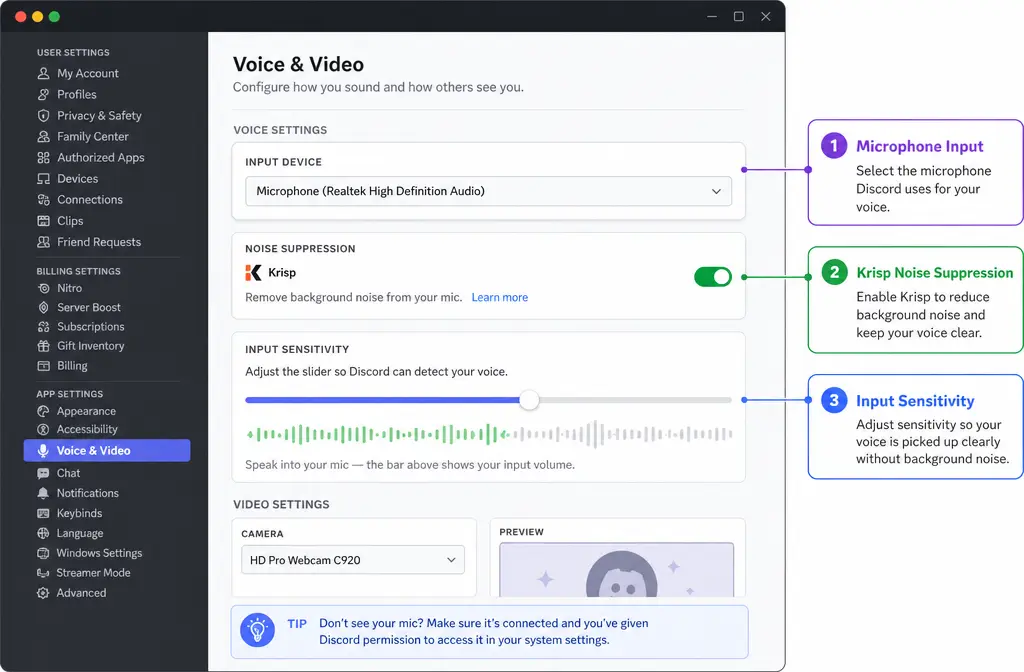
- Make sure Discord is using the correct microphone under User Settings > Voice & Video.
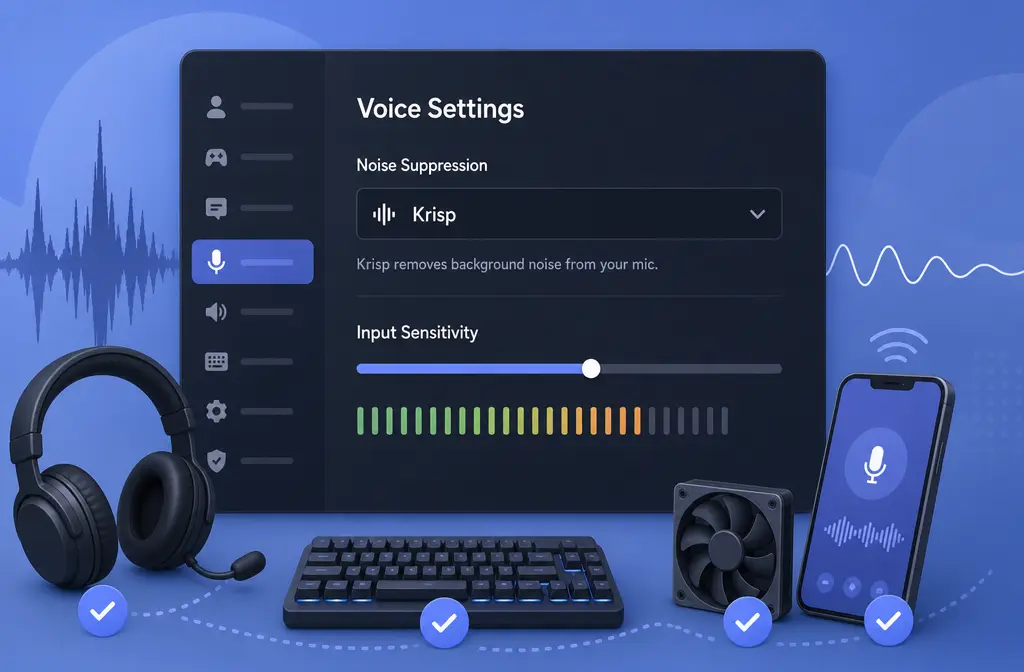
- Turn on Krisp noise suppression in Discord.
- Choose Push to Talk if your room noise is intermittent, or Voice Activity if you need hands-free talking.
- If you use Voice Activity, tune Input Sensitivity so Discord hears your voice but ignores your keyboard, fan, or room noise.
- If your voice starts sounding clipped, robotic, or inconsistent, test related settings like Echo Cancellation, Automatic Gain Control, and optional operating-system mic enhancements.
That is the shortest path for most people. It matches Discord’s own support guidance, but the missing piece is order: don’t start randomly flipping every voice setting at once. Verify the mic, enable Krisp, pick the right input mode, then tune sensitivity, and only after that troubleshoot the extra processing options.
Also important: Discord’s built-in Krisp is for live voice chat. If you already recorded a noisy call in OBS or another recorder, Discord cannot clean that exported file afterward. For that, you need a separate post-production pass, such as cleaning a Discord recording with SimpleClean.
What Discord can fix live vs. what it cannot fix later
Discord’s built-in noise suppression uses Krisp technology. According to Discord, it is designed to reduce unwanted noise from your side of the call, and it works best on non-human background noise like fan hum, keyboard noise, HVAC, traffic, or barking. Discord also notes that nearby human voices are harder to remove cleanly, so expectations should stay realistic.
Discord says Krisp runs on-device, and no voice, user, or video data is sent to Krisp. Support coverage includes Windows, macOS, Linux, Android, and iOS, plus browser support on desktop Chrome and Firefox.
| Problem | Best fix | Why |
|---|---|---|
| Fan noise, keyboard clicks, HVAC, road noise during a live call | Discord Krisp | Built for real-time suppression during voice chat |
| Open mic picking up room noise between phrases | Push to Talk or manual Input Sensitivity | Stops Discord from transmitting every quiet background sound |
| Voice sounds clipped, robotic, or cuts out | Retune sensitivity and test AGC/echo-related settings | Over-processing or a bad threshold is often the real cause |
| Noisy call already recorded in OBS as WAV or MP4 | Clean the exported file separately | Live suppression and post-recording cleanup are different workflows |
How to turn on noise suppression in Discord on desktop and browser
You can enable Krisp in two practical ways: while you are already in a live voice channel, or from Discord’s broader Voice & Video settings.
From a live voice channel
- Join a voice channel or call.
- Open the call controls.
- Find the Noise Suppression option.
- Turn on Krisp.
From Voice & Video settings
- Open User Settings.
- Go to Voice & Video.
- Find the noise suppression controls.
- Enable Krisp.
If Discord audio gets worse after enabling it, Discord’s troubleshooting guidance specifically suggests testing with Krisp disabled. That does not mean Krisp is bad. It means a quiet room, a strong mic, or overlapping audio processing may be giving you a worse result than a simpler chain.
How to turn on Discord noise suppression on mobile
Discord also supports Krisp on iOS and Android, with access from live call controls and Voice settings.
From a live voice channel on mobile
- Join the voice channel or call.
- Open the call options.
- Find Noise Suppression.
- Turn on Krisp.
From Voice settings on mobile
- Open Discord settings.
- Go to Voice.
- Enable Krisp noise suppression.
Mobile users usually benefit most when the problem is steady environmental noise rather than several people talking near the phone.
Push to Talk vs. Voice Activity: which is better for background noise?
This choice matters more than many guides admit.
Best for Push to Talk
- Gaming in a noisy room
- Mechanical keyboard users
- Desk fan or AC that turns on and off
- Shared spaces where you do not want every sound transmitted
Why it helps: Discord only sends your audio while you press the key, so random noise between sentences never goes out.
Best for Voice Activity
- Team meetings
- Long conversations
- Hands-free streaming or community hosting
- Situations where you cannot hold a key while speaking
Why it helps: It is more natural, but only if the sensitivity threshold is set properly.
Best-for recommendation
- Use Push to Talk if your environment changes a lot or you mainly want the most reliable way to block intermittent background noise.
- Use Voice Activity if you need convenience, but be ready to tune Input Sensitivity.
How to adjust Discord input sensitivity to stop background noise
Discord’s Input Sensitivity setting is often the real difference between clean and frustrating audio.
Discord supports both automatic sensitivity and manual sensitivity. The automatic option is a good starting point if your room is fairly stable and your mic level is normal. But if your fan, keyboard, or room tone keeps opening the mic, switch to manual and place the threshold so normal speech crosses it while background sound does not.
When to leave auto on
- Your room is quiet most of the time
- Your voice is being detected consistently
- You are not hearing frequent false mic triggers
When to switch to manual
- Keyboard noise is opening your mic
- Fan or AC keeps transmitting
- Your voice gets missed unless you speak loudly
- Discord alternates between too sensitive and not sensitive enough
Practical tuning method
- Speak at your normal volume.
- Watch Discord’s input meter.
- If room noise is triggering the mic, raise the threshold.
- If the start or end of words gets cut off, lower the threshold slightly.
- Test in a short call before changing anything else.
If you push the threshold too high, the result sounds like Krisp is broken when the real problem is clipped speech from input gating.
When Krisp helps most, and when it can hurt
Discord’s own guidance is clear that Krisp is strongest on non-human background noise. That makes it a good first choice for:
- Fan noise
- Keyboard noise
- HVAC rumble
- Traffic noise
- Occasional barking
But Discord also notes that Krisp may reduce voice quality in a quiet room with a good microphone. In practice, that means you should test turning it off if you hear:
- Speech cutoffs
- Robotic or musical-sounding voice
- Over-processed tone
- A worse result than your untreated microphone
If you already know your recording suffers from those artifacts, this companion guide on how to fix metallic voice after noise reduction can help you diagnose the cause.
Advanced Discord settings to test if audio gets worse
After you verify the microphone, enable Krisp, and set the input mode and sensitivity, only then should you start testing the extra processing settings.
- Echo Cancellation: worth testing if your setup is feeding speaker audio back into the mic, but unnecessary processing can complicate speech quality.
- Automatic Gain Control: can help some setups, but if your level keeps pumping up room tone or making speech feel unstable, test it off.
- Optional operating-system mic enhancements: Discord’s troubleshooting guide recommends disabling optional microphone signal processing from the OS if it conflicts with Discord.
The main idea is not that these settings are always bad. It is that stacked processing can make troubleshooting much harder. Change one variable at a time.
Troubleshooting: why Discord background noise removal still is not working
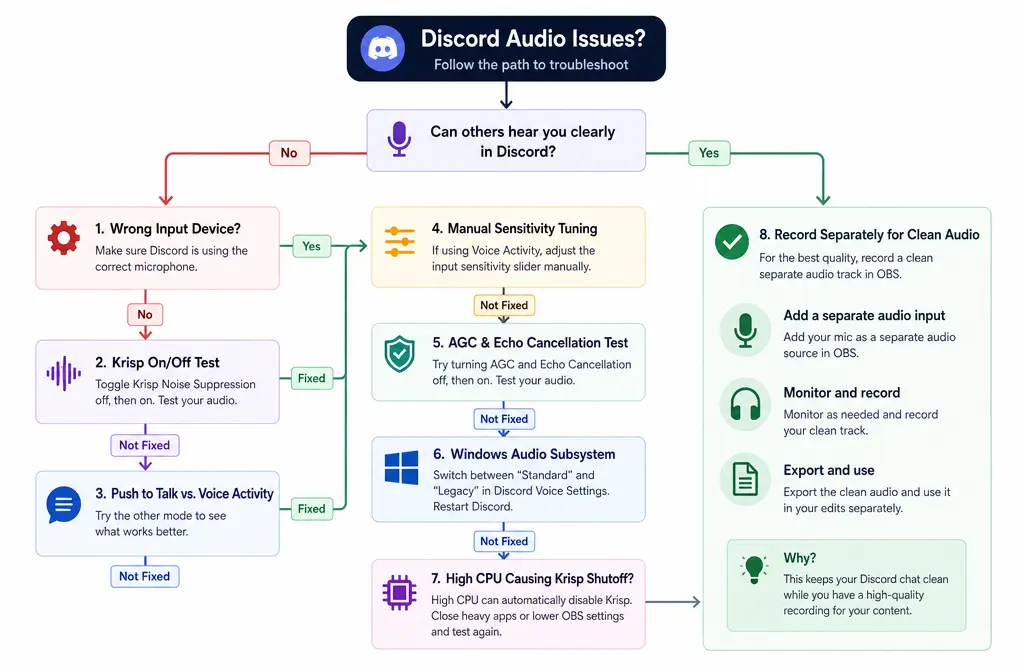
1. Krisp keeps turning off in Discord
Discord says Krisp can automatically disable when CPU usage is too high. If it keeps shutting off:
- Close heavy background apps
- Test a lower-load game or workflow
- Rejoin the call after system load settles
If your CPU is the bottleneck, this is not a sensitivity issue.
2. Discord is listening to the wrong input device
Before touching anything else, confirm the correct microphone is selected in Voice & Video. A laptop mic across the room will always sound noisier than the headset mic you meant to use.
3. Your voice cuts out or sounds robotic
First lower the chance of a threshold problem: test Push to Talk or reduce the manual sensitivity threshold slightly. Then test whether Krisp, AGC, or Echo Cancellation is the source by toggling one at a time.
4. Reset Voice & Video settings
Discord’s support guide recommends resetting Voice & Video settings when too many changes have piled up. If you have been guessing for twenty minutes, a reset is often faster.
5. Switch Windows Audio Subsystem
On Windows, Discord’s troubleshooting flow includes switching the audio subsystem if voice issues persist. This is a smart test when the device is correct but capture still behaves inconsistently.
6. Compare desktop app vs. browser
Discord supports Krisp in desktop Chrome and Firefox. If one environment behaves strangely, compare it with the desktop app or supported browser. That can quickly tell you whether the problem is app-specific.
Step-by-step workflow: the best order to remove background noise in Discord
- Select the right microphone. Open Voice & Video and confirm Discord is using the intended input device.
- Enable Krisp. Turn on Discord’s noise suppression in a live call or in settings.
- Choose the input mode. Use Push to Talk for unpredictable room noise, or Voice Activity for hands-free conversation.
- Tune Input Sensitivity. Leave auto on if it works; switch to manual if background sounds keep opening the mic or speech gets clipped.
- Test one advanced setting at a time. If voice quality worsens, compare Krisp on/off, then AGC, then Echo Cancellation, then any OS mic enhancements.
- If Discord recorded elsewhere, clean the export separately. Live call suppression is not the same as repairing a WAV or MP4 after capture.
When to clean a Discord recording after export
If you captured the call in OBS or another recorder, the exported file is now its own project. Discord’s live settings will not retroactively fix that recording.
OBS’s own guides cover getting started with recording and explain recording formats and saved files. Once you have the file, a second-pass cleaner makes sense when:
- Krisp was off during the call
- Live suppression helped, but the recording still has hiss or room noise
- Live suppression introduced artifacts and you want to work from the exported file instead
- You recorded system audio plus Discord voices into a single file and need cleanup afterward
That is where SimpleClean fits naturally: use Discord for live voice chat, then use clean exported Discord audio with SimpleClean if your OBS WAV or MP4 still sounds noisy after the session.
If your next step is publishing clips, transcripts, or repurposed social edits, tools can chain together well: Best AI Captions can add captions and subtitles to cleaned videos, Translate Dub can translate, dub, and caption content for multilingual audiences, and Mallary.ai is a natural fit once you are ready to schedule and distribute those cleaned clips across multiple social platforms.
Discord live suppression vs. post-cleaning an exported file
| Option | Best for | Limit |
|---|---|---|
| Discord Krisp | Live calls and voice channels | Does not repair audio that was already recorded |
| Push to Talk | Intermittent room noise | Less convenient for long hands-free discussion |
| Voice Activity + manual sensitivity | Hands-free speaking with threshold control | Needs tuning to avoid noise pickup or clipped words |
| Post-cleaning exported WAV/MP4 | OBS recordings and saved call files | Separate workflow after capture |
Related guides
- Remove background noise in Slack Huddles
- Remove background noise in Zoom
- Remove background noise in Microsoft Teams
- Fix metallic voice after noise reduction
FAQ
How do I turn on noise suppression in Discord?
Enable Krisp either from a live voice channel’s call controls or from User Settings > Voice & Video. On mobile, you can also enable it from live call controls or Voice settings.
Why does Discord Krisp make my voice cut out?
The most common causes are an input sensitivity threshold set too high, overlapping processing like AGC or other mic enhancements, or a setup where Krisp is not helping because the room is already quiet and the microphone is good.
Should I use Push to Talk or Voice Activity in Discord?
Use Push to Talk for noisy or unpredictable environments. Use Voice Activity if you need hands-free conversation and are willing to tune input sensitivity.
How do I adjust Discord input sensitivity to stop background noise?
Start with automatic sensitivity. If background noise still opens the mic, switch to manual and raise the threshold until room noise stays below it, while your normal speaking voice still crosses it consistently.
Why does Krisp keep turning off in Discord?
Discord says Krisp may automatically disable under high CPU load. Close heavy apps and test again when system usage is lower.
Can Discord remove background noise on mobile?
Yes. Discord supports Krisp on iOS and Android.
Does Discord noise suppression work in browser?
Discord says Krisp is supported in desktop Chrome and Firefox.
Does Discord send data to Krisp?
According to Discord, Krisp runs on-device and no voice, user, or video data is sent to Krisp.
How do I clean a Discord recording after exporting it from OBS?
Use OBS to capture and save the recording, then clean the exported file separately. Discord’s live settings do not repair an already exported WAV or MP4. A tool like remove noise from a Discord recording with SimpleClean is the better fit at that stage.
Sources and further reading
- Krisp FAQ – Discord - Primary source for what Krisp does, supported platforms, privacy, and CPU shutoff behavior.
- Discord Voice and Video Troubleshooting Guide - Primary source for reset settings, Krisp on/off testing, Windows audio subsystem switching, and optional mic-enhancement guidance.
- Voice Input Modes 101 (Push-to-Talk & Voice Activated) – Discord - Primary source for Push to Talk vs Voice Activity and input sensitivity guidance.
- Discord Voice, Video, & Streaming Guide - Current Discord hub page confirming the modern settings area and related support flows.
- Tune into Discord with Krisp noise suppression on iOS and Android - Supportive source for mobile availability and live-call positioning of Krisp.
- Krisp | Discord - Secondary confirmation that Discord’s built-in suppression uses Krisp technology.
- OBS Quick Start Guide - Primary source for the external recording workflow with OBS.
- OBS Standard Recording Output Guide - Primary source for recording formats and saved-file workflow for exported cleanup.