How to Remove Background Noise in Zoom: Best Audio Settings, Separate Audio Files, and When to Clean the Recording After Export
If you want to remove background noise in Zoom, the fastest rule is simple: use Zoom’s built-in noise controls before or during the meeting, and clean the exported recording afterward if the saved file is still noisy.
That distinction matters because Zoom’s audio settings are mainly designed for live meeting audio. Once the meeting is over and you already have a noisy MP4 or M4A, Zoom does not retroactively re-process that saved file for you. That is when it makes sense to clean a Zoom recording with SimpleClean.
Quick Answer
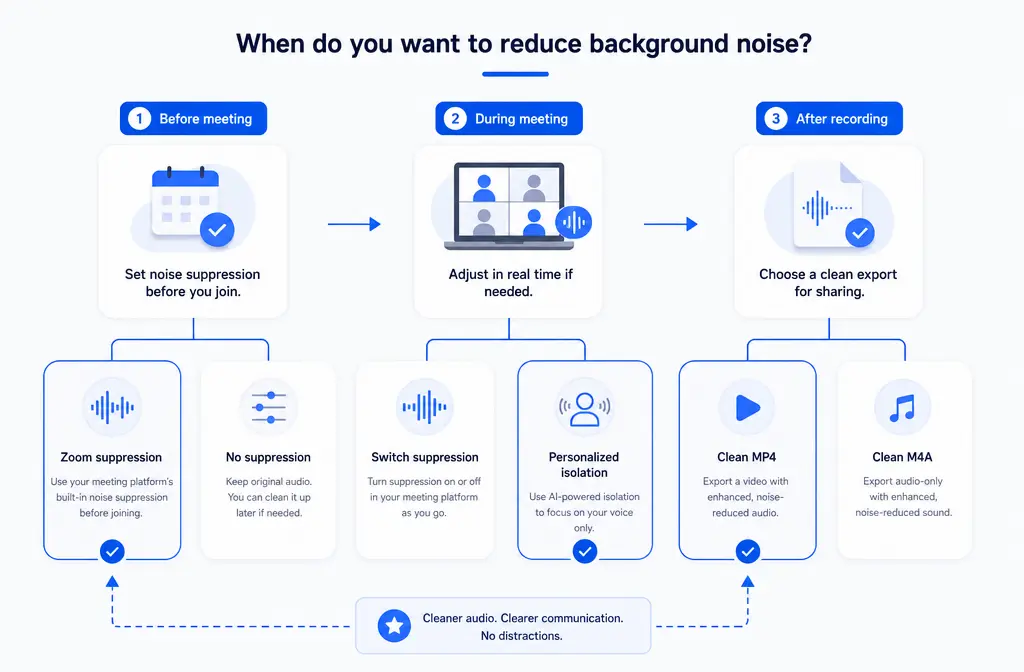
- Meeting has not happened yet: Open Zoom audio settings and choose the right Background noise suppression level.
- Meeting is already live: Change suppression settings during the call, or switch to Personalized audio isolation if you are in a crowded or very noisy environment.
- Recording is already saved: Export or locate the Zoom MP4 or M4A, then clean that file separately in SimpleClean.
- Need the cleanest post-production result: If you recorded separate participant audio files in Zoom computer recording, clean each speaker track before remixing.
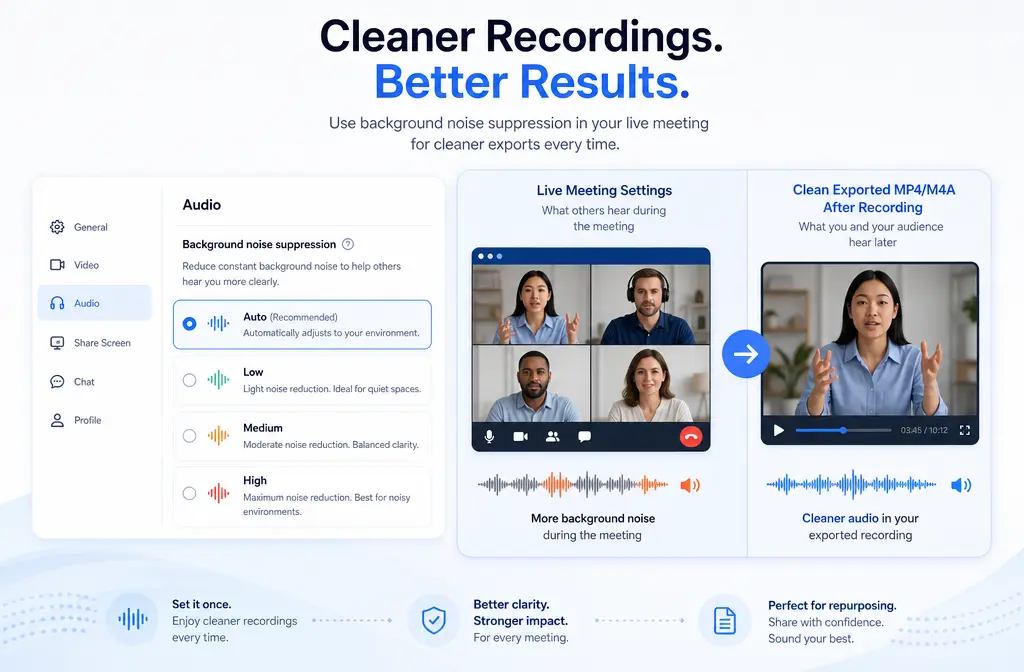
For most speech-only meetings, interviews, recruiting calls, sales demos, webinars, and course recordings, Auto is the safest starting point. Move to Medium or High when the room is much louder. Avoid Original sound for musicians for normal voice calls, because Zoom says it disables in-meeting noise suppression.
A simple decision tree: live prevention vs post-recording cleanup
People often search for one problem but actually have two different ones:
- Live call problem: You want other participants to hear less keyboard noise, fans, HVAC, traffic, or office chatter during the meeting.
- Recorded file problem: You already exported a Zoom recording and the saved audio still has noise, echo, compression artifacts, or baked-in room sound.
Zoom helps most with the first problem. For the second, you usually need a separate cleanup step after export.
| Situation | Best tool | Why |
|---|---|---|
| Before the meeting | Zoom audio settings | Prevents noise from getting into the live call and recording in the first place. |
| During the meeting | Zoom in-meeting audio settings | Lets you react if your environment changes mid-call. |
| After export | External cleanup on the MP4 or M4A | Zoom does not re-clean a saved recording after the meeting ends. |
| Separate participant tracks available | Clean each track individually | Usually gives cleaner results than trying to fix one mixed file. |
Where to find Zoom audio settings
On desktop
Zoom’s support documentation is the main reference here. On desktop, you can access the meeting audio profile and noise handling settings through Zoom’s audio settings area. Zoom documents controls for:
- Noise removal and Background noise suppression
- Personalized audio isolation
- Original sound for musicians
- Switching audio settings during a meeting
On web
Zoom’s professional audio support article also covers the web app behavior and where these controls apply. If you use Zoom in a browser, confirm which options are available in your environment rather than assuming they match desktop exactly.
On mobile
Mobile is most important for recording expectations. Zoom supports cloud recording on iOS and Android, but Zoom’s support docs say mobile devices cannot record locally to the device. That matters if you are looking for local files or separate participant tracks on a phone or tablet.
What each Zoom background noise suppression level is best for
Zoom’s documentation describes adjustable suppression levels for standard noise removal. In practice, the right choice depends on whether you care more about natural voice tone or aggressive noise reduction.
Auto
Best for: most users, most meetings, most home offices.
- Good default for speech-first calls
- Useful when your environment changes throughout the day
- Usually the safest first setting if you are unsure
Low
Best for: quieter rooms where you want to preserve more natural voice and room tone.
- Better when the space is already fairly controlled
- Useful if stronger suppression starts to make speech sound processed
- A better fit than High when casual music or fuller ambient sound matters somewhat
Medium
Best for: moderate background noise like fans, light traffic, or occasional office sound.
- Good step up when Auto is not enough
- Often a strong speech-only choice for remote work and interviews
High
Best for: loud environments where clarity is more important than natural sound.
- Useful in noisier offices or shared spaces
- Can be worth trying when your microphone is picking up persistent distractions
- May sound less natural than lighter suppression, so recheck your voice quality
That last point is important: if you are asking, “Does Zoom High noise suppression affect voice quality?” the practical answer is it can. Zoom provides the control, but stronger suppression can trade realism for noise reduction, especially compared with lighter settings.
When to use Personalized audio isolation
Zoom also provides Personalized audio isolation, which is separate from standard background noise suppression. Based on Zoom’s support materials, this is the better recommendation for voice-focused use in crowded or especially noisy environments.
Best for:
- Busy offices
- Shared coworking spaces
- Homes with frequent background voices
- Situations where your spoken voice should be prioritized over nearby sound
If your goal is clear spoken dialogue rather than natural room sound, personalized isolation may be a better fit than simply pushing normal suppression higher.
Important warning: Original sound for musicians is not the normal speech setting
Zoom’s support docs are explicit here: Original sound for musicians disables in-meeting noise suppression. That is useful when you truly need more raw audio fidelity for music or performance, but it is usually the wrong choice for everyday meetings.
Use Original sound for musicians only if you specifically need it. For normal speech calls, it will usually make background noise harder, not easier, to control.
Best Zoom settings by scenario
| Scenario | Recommended Zoom setup | Why |
|---|---|---|
| Quiet home office | Auto or Low | Usually enough without over-processing the voice. |
| Loud office or coworking space | Medium or High, or Personalized audio isolation | Better for stronger background speech and environmental noise. |
| Podcast interview on Zoom | Auto or Low during recording, plus separate participant audio if possible | Preserves more natural speech and gives better post cleanup options. |
| Webinar or sales demo | Auto or Medium | Speech clarity matters more than room realism. |
| Music lesson or live performance | Only use Original sound for musicians if you need it | It disables noise suppression, so it is not ideal for standard speech meetings. |
How Zoom recordings are saved
Zoom’s recording documentation matters because cleanup decisions depend on the file type you actually have.
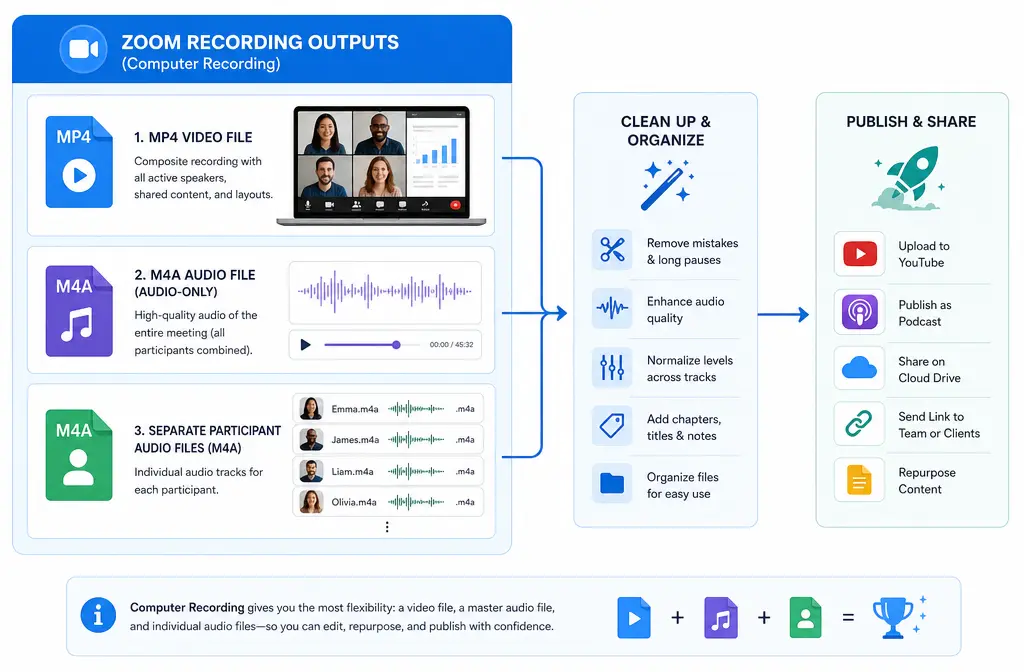
- MP4: standard video recording output
- M4A: audio-only output
- Separate participant M4A files: available for computer/local recording when enabled
Zoom support documentation on recording file formats confirms these standard outputs. Zoom’s getting-started recording documentation also confirms the distinction between computer recording and cloud recording.
Why separate participant audio files are better for cleanup
If you can enable separate participant audio files in a Zoom computer recording workflow, do it for important interviews and podcasts.
Why it helps:
- You can clean each speaker based on their own noise profile
- One noisy participant does not force heavy cleanup on everyone else
- Cross-talk is easier to manage than in a single mixed track
- You can rebalance voices after cleanup
If you only have one mixed MP4 or one mixed M4A, use a lighter touch. At that point, room noise, conferencing compression, overlapping speech, and tone changes are already baked together.
Mobile recording limitation: cloud yes, local no
If you are recording from iPhone or Android, Zoom’s support docs say you can start a cloud recording if you have the right permissions and account setup, but you cannot record locally on the mobile device.
That explains two common frustrations:
- You cannot find a local M4A or MP4 on your phone because Zoom did not create one there.
- You will not get the same local-computer workflow for separate participant audio files from mobile recording.
What Zoom cannot fix after the meeting
Zoom can help reduce noise during the meeting, but once the recording is already saved, Zoom is not the tool for retroactive file cleanup. If the exported recording still sounds noisy, echoey, clipped, or compressed, you need to work on the saved media file itself.
That is the handoff point to post-production.
If your file already exists, you can remove background noise from a Zoom export instead of trying to solve a finished recording with live-call settings.
SimpleClean workflow for a noisy Zoom recording
- Find the Zoom export. Start with the M4A if you only need audio. Use the MP4 if your workflow is video-first.
- Prefer separate participant files when available. Clean each person’s M4A track before mixing.
- Upload the file to SimpleClean.
- Preview lightly. Avoid over-correcting if the Zoom recording already has conferencing artifacts.
- Export and listen again. Recheck for speech artifacts, especially on sibilants, breaths, and overlapping dialogue.
If you are unsure whether to upload the Zoom MP4 or the M4A audio file, the short answer is:
- Upload the M4A when you only need audio cleanup.
- Upload the MP4 when you want to keep the video attached in one step.
- Upload separate participant M4As first when you have them, because that is usually the best cleanup path.
After cleanup, if you plan to publish clips, add subtitles with Best AI Captions. If you need multilingual versions for training, recruiting, or global marketing, Translate Dub is a natural next step. And if you are repurposing the cleaned recording into clips, teasers, or social posts across multiple channels, Mallary.ai fits the distribution side well.
How to remove background noise in Zoom step by step
- Before the meeting, open Zoom audio settings.
- Start with Auto. For most speech calls, this is the safest baseline.
- Move to Low if the room is already quiet and you want a more natural voice.
- Move to Medium or High if your space is noticeably noisy and clarity matters more than realism.
- Use Personalized audio isolation for crowded environments where nearby voices are the main problem.
- Do not enable Original sound for musicians unless you specifically need unfiltered music-oriented audio.
- If recording on computer, enable separate participant audio files when the session is important enough to justify cleaner post-production.
- After the meeting, review the saved MP4 or M4A.
- If the exported file is still noisy, clean it separately instead of relying on Zoom to fix it after the fact.
Troubleshooting
Zoom suppression still is not enough
- Try moving from Auto to Medium or High.
- Switch to Personalized audio isolation if the main problem is nearby voices.
- If the recording is already saved, clean the exported file afterward.
My voice sounds clipped, underwater, or overly processed
- Back off from High to Medium, Low, or Auto.
- If you already exported the file, use lighter post-cleaning.
- For more on artifact recovery, see how to fix metallic voice after noise reduction.
Music sounds bad
- Do not treat a music lesson like a normal speech call.
- Only use Original sound for musicians when preserving raw audio matters more than suppression.
- Remember that this disables in-meeting noise suppression.
I cannot find the setting I expected
- Check whether you are on desktop, web, or mobile.
- Zoom documents some audio behaviors separately by platform and mode.
Cloud recording is unavailable
- Zoom’s cloud recording depends on account and permission setup.
- Host and co-host behavior is covered in Zoom’s cloud recording support docs.
The recording is still echoey
- Noise suppression and isolation are not the same as perfect echo repair.
- Once echo is printed into the saved file, you are in post-production territory.
Best-for recommendations
- Best for most people: Zoom Auto suppression
- Best for noisy offices: Medium or High, then Personalized audio isolation if voices around you are the main issue
- Best for podcast-style Zoom interviews: Auto or Low plus separate participant audio files
- Best for musicians: Original sound for musicians only when you intentionally want rawer audio and understand the tradeoff
- Best for already-saved noisy recordings: Clean the exported MP4 or M4A afterward
Final takeaway
To remove background noise in Zoom, start with Zoom’s own live audio controls: choose the right suppression level, use personalized isolation when the environment is crowded, and avoid Original sound for musicians unless you truly need it. If you are recording on a computer, separate participant audio files give you a much better cleanup path later.
But if the meeting is over and the recording is already noisy, the job has changed. At that point, work on the saved file itself. That is when it makes sense to clean Zoom audio after export.
Sources and further reading
- Zoom Support: Setting up professional audio for Zoom Meetings - Primary source for Zoom noise suppression, personalized audio isolation, web app behavior, and live audio guidance.
- Zoom Support: Changing audio settings during a Zoom meeting - Supports in-meeting switching and the warning that Original sound for musicians disables in-meeting noise suppression.
- Zoom Support: Understanding recording file formats - Source for MP4, M4A, and separate participant audio file details.
- Zoom Support: Getting started with computer and cloud recording - Confirms local/computer vs cloud recording availability and standard outputs.
- Zoom Support: Starting a cloud recording - Supports host/co-host and cloud recording behavior references.
- Zoom Support: Starting a cloud recording on iOS and Android - Confirms mobile can start cloud recordings and cannot record locally on-device.
- Zoom Support: Configuring and using personalized audio isolation - Fact-checking for when to recommend personalized audio isolation.