How to Remove Background Noise in NVIDIA Broadcast: Setup, Supported GPUs, App Conflicts, and When to Clean a Recording After Export
Quick Answer
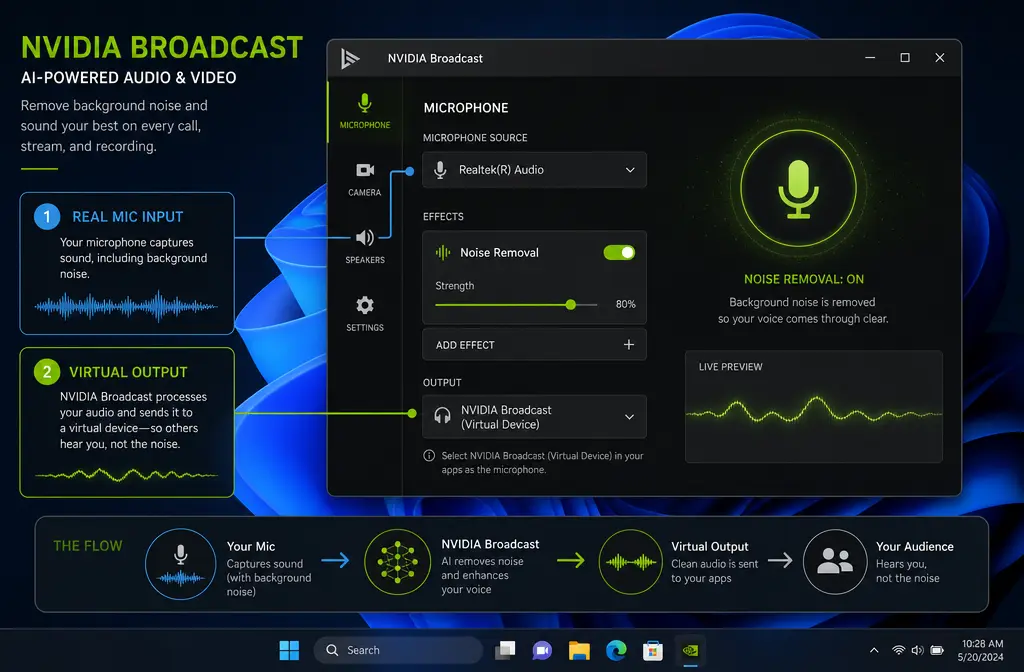
NVIDIA Broadcast is one of the fastest ways to remove background noise from your mic live on an RTX PC. It works by creating a virtual microphone device called Microphone (NVIDIA Broadcast), which you then choose inside OBS, Discord, Zoom, or another app. For most live use cases, that makes it a strong fit for steady fan noise, HVAC noise, and general speech cleanup.
The key limitation is this: NVIDIA Broadcast is mainly a real-time routing and enhancement tool, not a file-restoration editor for already exported MP4 or WAV files. If you already recorded noisy audio, or you want to clean clips before repurposing and publishing them, exporting the file and using SimpleClean is usually the better workflow.
- Use NVIDIA Broadcast for: live calls, streams, webinars, game chat, and screen recordings.
- Use exported-file cleanup for: noisy finished recordings, repurposed clips, and content you need to polish after the session.
- Avoid using multiple noise suppression tools at once, because stacked processing can make voices sound thin, watery, or strange.
Who NVIDIA Broadcast Is Best For
NVIDIA Broadcast is best for people who want cleaner speech right now without building a full audio chain.
- Streamers who want a cleaner mic in OBS or Streamlabs
- Remote workers using Zoom, Teams, or Google Meet alternatives
- Gamers using Discord voice chat
- YouTubers recording live commentary or screen captures
- Creators with RTX laptops or desktops who want fast speech cleanup
If your main problem is a noisy recorded file rather than a noisy live signal, skip the urge to keep adding more live suppression. It is often smarter to clean an exported recording with SimpleClean after the session.
How NVIDIA Broadcast Actually Works
The most important setup concept is that NVIDIA Broadcast creates virtual devices. According to NVIDIA’s FAQ, the app provides virtual microphone, speaker, and camera devices that other apps can use. That means your workflow is:
- Select your real microphone inside NVIDIA Broadcast.
- Enable the audio effect you want, usually Noise Removal.
- Then select Microphone (NVIDIA Broadcast) inside your target app.
That is why Broadcast feels different from a normal audio editor. It is not primarily designed for opening an old video file and repairing it after the fact. It is designed to sit in the signal path while you speak.

System Requirements and Supported GPUs
Based on NVIDIA’s official Broadcast app page, the current listed requirements include:
| Requirement | Official guidance |
|---|---|
| Operating system | Windows 10 64-bit |
| Memory | 8 GB RAM or more |
| Recommended CPU | Intel Core i5-8600 or AMD Ryzen 5 2600 or better |
| GPU class | RTX-class GPU |
| Minimum listed GPU examples | GeForce RTX 2060, Quadro RTX 3000, or TITAN RTX or higher |
If you do not have an RTX-class GPU, NVIDIA Broadcast is not the right tool path. This article is aimed at users who already have supported RTX hardware and want the cleanest workflow.
Exact Setup Steps for Background Noise Removal
1) Open NVIDIA Broadcast and choose your real mic
In the Microphone section, set your input source to the actual mic you use, such as a USB mic, headset mic, or laptop microphone.
2) Turn on Noise Removal
Enable Noise Removal first. This is the main speech cleanup effect for reducing common background sounds during live use.
3) Optionally test with the sample recorder
NVIDIA’s troubleshooting materials reference testing the microphone signal, and NVIDIA’s app flow makes it easy to verify whether the processed signal sounds cleaner before you jump into another app.
4) In OBS, Discord, Zoom, or another app, choose the virtual device
Now go into the app where you want the clean mic and set the input to Microphone (NVIDIA Broadcast).
5) Turn off duplicate suppression in the target app
NVIDIA’s setup guide specifically advises disabling the app’s own noise removal or noise cancelling so the effects do not clash.
6) Listen for overprocessing
If your voice starts sounding metallic, watery, overly loud, or unnatural, reduce the number of active processors. Broadcast often works best when it is the only suppression layer.
What Each NVIDIA Broadcast Audio Effect Does
NVIDIA’s FAQ and product materials highlight a few different audio effects, and they are not interchangeable.
Noise Removal
Use this for common background sounds behind speech, such as fans and general room noise. For most users trying to clean a live mic, this is the first setting to turn on.
Room Echo Removal
Use this when your room sounds reflective or hollow. It targets the roomy, echoey quality caused by hard surfaces and distance from the microphone.
Studio Voice
NVIDIA’s release highlights note that Studio Voice moved out of beta in Broadcast 2.2.0. It is meant to improve vocal quality, but it is not the same as basic noise suppression. If your top priority is simply reducing noise during calls or streams, start with Noise Removal before adding anything else.
When to add Room Echo Removal
Add Room Echo Removal only if your voice still sounds obviously boxy or distant after basic noise cleanup. If you pile on too many effects at once, speech can start to sound processed.
Do Not Double-Stack Noise Suppression
This is one of the biggest real-world problems with NVIDIA Broadcast setups.
If Broadcast is handling your mic cleanup, turn off extra suppression in:
- Discord
- Zoom
- OBS or Streamlabs filters
- Meeting apps with built-in noise cancellation
NVIDIA’s setup guide says to disable each app’s own noise cancelling or removal when using Broadcast. NVIDIA’s troubleshooting guidance also warns that Broadcast plus app-level suppression can interact badly.
Common symptoms of stacked suppression:
- Voice sounds weird, underwater, or phasey
- Words get clipped at the start or end
- Keyboard sounds pump in and out
- Volume jumps unnaturally
- Speech sounds thinner than the original mic
If that is happening, simplify the chain first before changing everything else.
Best Workflow by Scenario
| Scenario | Best starting move | When to switch to file cleanup |
|---|---|---|
| Steady fan or HVAC noise | NVIDIA Broadcast Noise Removal | If the exported recording still sounds swirly or voice detail is lost |
| Keyboard noise during live speech | Broadcast Noise Removal, plus better mic placement | If key clicks remain distracting in clips you want to repurpose |
| Untreated echoey room | Noise Removal first, then try Room Echo Removal carefully | If the room sound stays hollow in the recording |
| Headset mic for gaming/chat | Broadcast Noise Removal as the main processor | If harshness or compression makes speech unpleasant in saved content |
| Laptop mic | Broadcast can help, but expectations should stay modest | If the recorded file needs deeper rescue afterward |
| Already exported MP4/WAV | Do not route it back through Broadcast as your main fix | Use recording cleanup with SimpleClean |
When NVIDIA Broadcast Is Enough vs When to Clean After Export
NVIDIA Broadcast is usually enough when:
- You are speaking live in OBS, Discord, Zoom, or a webinar app
- The noise is fairly steady, like a PC fan or AC
- Your room is not extremely echoey
- You want a fast setup with minimal tinkering
Export and clean the recording afterward when:
- You already finished recording and the file is noisy
- You need to repurpose clips for YouTube Shorts, TikTok, or reels
- You want to preserve the live session, then polish the final file separately
- The Broadcast-processed voice sounds too thin or overprocessed
- You need one cleaner master file before adding captions, dubbing, or distribution
This is the core decision most articles skip: NVIDIA Broadcast is excellent as a live virtual-mic tool, but not the best answer for repairing an already exported recording. For that stage, remove background noise from an exported recording with SimpleClean instead of forcing more live suppression into the chain.

Common NVIDIA Broadcast Problems and Fixes
No sound or the mic is not working
- Make sure the real microphone is selected inside NVIDIA Broadcast.
- Then make sure the target app is set to Microphone (NVIDIA Broadcast), not the original mic.
- Retest after closing and reopening the target app if it grabbed the wrong device at launch.
Microphone (NVIDIA Broadcast) is missing
- Check whether Broadcast is properly installed and running.
- NVIDIA’s troubleshooting guide covers missing virtual-device behavior and related restart/reinstall checks.
- Also confirm you are on supported hardware.
Audio loop or echo loop
NVIDIA’s troubleshooting guide notes that setting Windows defaults to NVIDIA Broadcast can create an audio loop. In practice, the safer pattern is to set your real devices where appropriate and only choose the Broadcast virtual device inside the specific app that needs it.
If you hear looping:
- Check Windows sound defaults
- Remove NVIDIA Broadcast as the default if you created a loop
- Restart the affected app and retest
Effect will not start
- Confirm your hardware meets the supported RTX requirements.
- Close apps that may be holding the device.
- Use NVIDIA’s troubleshooting steps for effect startup issues and device detection.
Voice sounds weird, distorted, or too loud
- Turn off extra suppression in Discord, Zoom, OBS, or other apps.
- Test only Noise Removal first.
- Add Room Echo Removal only if needed.
- If your speech still sounds overcooked, use less processing live and fix the saved file later.
Should You Use Room Echo Removal for Echoey Rooms?
Yes, but carefully. NVIDIA Broadcast can help with room echo as well as fan noise, but echo removal is usually harder than basic noise suppression. If your mic is far away, your room is very reflective, or your laptop mic is capturing too much space, Room Echo Removal may help but may not fully solve the problem.
A good order of operations is:
- Improve mic placement first
- Enable Noise Removal
- Test speech clarity
- Add Room Echo Removal only if the room sound is still obvious
If the result becomes unnatural, back off. Live suppression is not magic, and heavy processing can hurt clarity.
Short Routing Shortcuts for OBS, Discord, and Zoom
OBS
Set your mic input in OBS to Microphone (NVIDIA Broadcast). If you are using Broadcast, avoid piling OBS noise suppression on top unless you have a very specific reason and have tested the result carefully.
For deeper OBS filter-chain guidance, see our Streamlabs Desktop noise suppression guide, which covers the same overprocessing problem from the streaming-app side.
Discord
Set input device to Microphone (NVIDIA Broadcast), then disable Discord’s own noise suppression if Broadcast is your main processor. If you came here specifically for Discord voice chat issues, our Discord background noise guide covers Krisp settings and input behavior in more detail.
Zoom
Choose Microphone (NVIDIA Broadcast) as the microphone in Zoom, then avoid stacking Zoom suppression on top unless testing proves it helps your exact room and mic. For meeting-focused workflow tips, see our Zoom background noise guide.
Best-For Recommendations
- Best for fast live cleanup: NVIDIA Broadcast
- Best for already recorded noisy files: clean exported audio with SimpleClean
- Best for adding subtitles after cleanup: Best AI Captions
- Best for multilingual repurposing after cleanup: Translate Dub
- Best for publishing cleaned clips across social platforms: Mallary.ai
A practical creator workflow looks like this: clean the live mic in Broadcast when you are recording, export the best take, polish any remaining noise in SimpleClean, add subtitles with Best AI Captions, translate versions with Translate Dub, and distribute the final assets with Mallary.ai if you are scheduling across multiple social platforms.
Final Take
If you want to remove background noise in NVIDIA Broadcast, the winning setup is simple: choose your real mic inside Broadcast, enable Noise Removal, then choose Microphone (NVIDIA Broadcast) inside OBS, Discord, Zoom, or your other target app. Keep Broadcast as the main processor, and turn off duplicate noise suppression elsewhere.
Use it for live speech cleanup. But if you already have a noisy MP4 or WAV, or you want a cleaner final file before clipping, captioning, dubbing, and publishing, it is usually better to clean the recording after export with SimpleClean.
FAQs
Does NVIDIA Broadcast remove background noise from already recorded video?
Not as its main use case. NVIDIA Broadcast is primarily a live virtual-device tool for apps that use its microphone or speaker devices. If you already exported a noisy file, separate file cleanup is usually the better workflow.
What GPU do I need for NVIDIA Broadcast?
NVIDIA officially lists RTX-class GPUs, with examples starting at GeForce RTX 2060, Quadro RTX 3000, and TITAN RTX or higher on the Broadcast app page.
Why does NVIDIA Broadcast make my mic sound weird or too loud?
The most common cause is stacked processing. If Broadcast and Discord, Zoom, or OBS are all applying suppression, speech can sound unnatural. Disable duplicate effects and test again.
Should I turn off Discord or OBS noise suppression when using NVIDIA Broadcast?
Usually yes. NVIDIA’s setup guidance says to disable in-app noise cancelling or removal so the effects do not clash.
Can NVIDIA Broadcast remove room echo as well as fan noise?
Yes. Noise Removal is the main tool for background sounds, while Room Echo Removal targets reflective room sound. Echo cleanup is typically harder, so use it carefully and test for natural speech.
Why is Microphone (NVIDIA Broadcast) missing?
This can happen if the app is not installed or running correctly, the virtual device is not available, or there is a hardware or device-detection issue. NVIDIA’s troubleshooting guide covers missing-device checks and restart/reinstall paths.
How do I stop an audio loop with NVIDIA Broadcast?
Check whether Windows default audio devices were set to NVIDIA Broadcast. NVIDIA notes this can create a loop. Remove that default assignment, then select the Broadcast virtual device only inside the specific app that needs it.
Sources and further reading
- NVIDIA Broadcast App - Official system requirements, supported GPU examples, and Broadcast feature overview.
- NVIDIA Broadcast App Setup Guide - Official routing steps for choosing the real mic in Broadcast and selecting Microphone (NVIDIA Broadcast) in target apps, plus duplicate-effects guidance.
- NVIDIA Broadcast Troubleshooting Guide - Official guidance for loops, missing devices, effect startup issues, and avoiding conflicts.
- NVIDIA Broadcast App FAQs - Official explanation of Broadcast virtual devices and audio effects such as Noise Removal and Room Echo Removal.
- NVIDIA Broadcast Release Highlights - Official release context for Studio Voice and device-detection improvements in Broadcast 2.2.0.
- How to use Nvidia Broadcast to perfect your stream and videos - Competitor context showing common beginner setup framing and the need for better troubleshooting and workflow guidance.
- NVIDIA Broadcast review: An unmissable tool for streaming and video conferencing - Competitor context for user expectations and general value framing.