OBS Mic Picking Up Keyboard? How to Reduce Typing Noise While Talking
If your OBS mic is picking up keyboard clicks, you are not doing anything unusual. This is one of the most common problems for streamers, gamers, tutorial creators, and remote presenters. The frustrating part is that typing noise often seems manageable when you are silent, but it leaks through the moment you start talking.
Quick Answer
Yes, you can reduce keyboard noise in OBS, but the hardest case is keyboard clicks that happen while you are speaking. OBS filters can help a lot with idle noise between phrases. They are much less effective when the mic is already open for your voice.
- Noise Suppression helps with mild background noise.
- Noise Gate mainly stops noise when you are not talking.
- Expander does a similar job more smoothly than a hard gate.
- Limiter should go last in the chain.
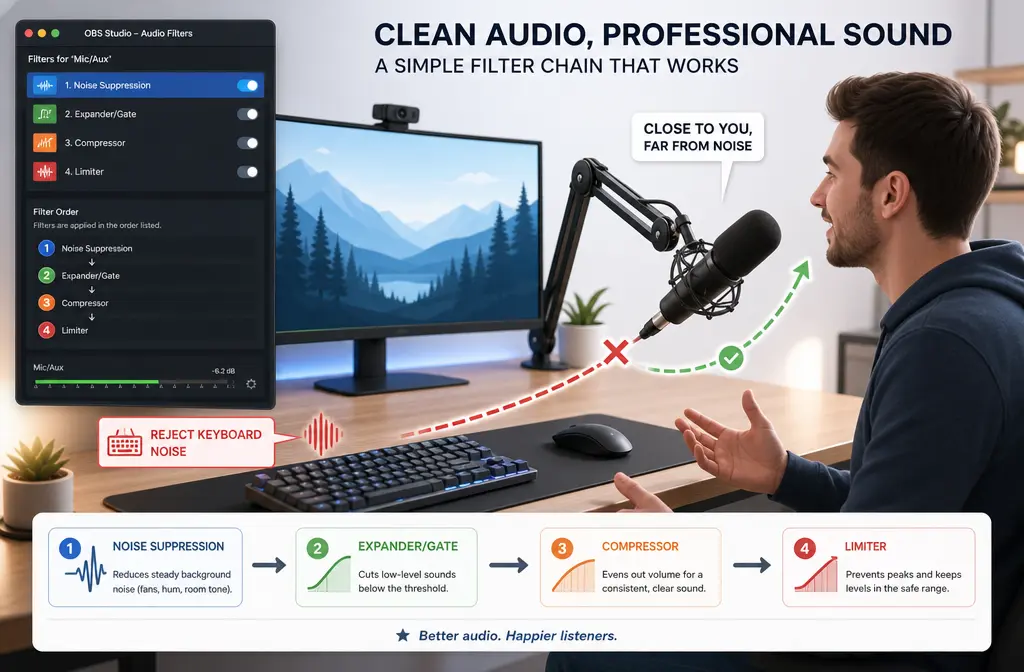
A practical first-pass chain in OBS is:
Noise Suppression → Expander or Noise Gate → Compressor → Limiter
But before you keep stacking filters, fix the physical setup first: get the mic closer to your mouth, lower gain, move it off the desk on a boom arm, and aim the mic away from the keyboard. Those changes usually matter more than another plugin.
If typing is still obvious underneath speech after a sensible live setup, stop endlessly tweaking and clean the OBS recording with SimpleClean after export.
Why keyboard noise gets recorded in OBS
OBS is not the root problem. It is just capturing what your microphone hears. Keyboard clicks get into the mic for a few common reasons:
- The mic is too far from your mouth. That forces you to raise gain, which also raises keyboard noise.
- The gain is too high. More sensitivity means more room noise, switch clicks, and desk vibration.
- The mic and keyboard share the same desk. Physical vibration can travel through the desk into the mic stand.
- The mic is pointed badly. Shure’s polar-pattern basics support the idea that aiming matters: point the mic toward your voice and away from unwanted sound sources when possible.
- You use loud switches or a hard typing style. Clicky mechanical switches and heavy spacebar hits are harder to hide.
The big idea is simple: if your voice and your keyboard are both loud at the mic, software has less to work with. The cleaner separation you create physically, the better OBS can perform.

What OBS filters actually do for keyboard noise
A lot of bad advice comes from expecting one OBS filter to solve every kind of noise. OBS’s own knowledge base is more realistic.
| OBS filter | What it helps with | Where it falls short | Best for |
|---|---|---|---|
| Noise Suppression | Mild background noise | Can struggle with sharp keyboard clicks, especially under speech | Light cleanup before dynamics processing |
| Noise Gate | Cutting mic audio when you are not speaking | Does not fully remove clicks while you are talking | Muting idle keyboard noise between phrases |
| Expander | Reducing low-level background sound more gradually | Still cannot isolate overlapping clicks perfectly | Smoother alternative to a gate |
| Compressor | Keeping voice level more controlled | Can raise room detail if overused | Speech consistency after cleanup |
| Limiter | Preventing peaks and clipping | Not a noise-removal tool | Final safety stage |
According to the OBS documentation, Noise Suppression is meant for mild background noise. That wording matters. It is helpful, but it is not a promise that a live mic can cleanly erase mechanical keyboard sounds while you are talking.
The Noise Gate works by closing the mic below a threshold. The Expander is similar, but reduces quieter sounds more gently instead of snapping fully open and closed. The Limiter belongs last in the chain.
The key limitation: why clicks still pass through while you speak
This is the part many tutorials skip.
A gate or expander is most useful when your voice is absent or very quiet. Once you start talking, the mic is open because it is supposed to capture your speech. If keyboard clicks happen at the same time, they often ride along with your voice.
That is why people say, “My noise gate works until I speak.” In reality, the gate is doing exactly what it was designed to do.
If you only remember one thing from this article, make it this:
- Idle typing noise between phrases: usually manageable in OBS.
- Keyboard clicks overlapping speech: much harder to remove cleanly in OBS without hurting voice quality.
That is also why over-processing often backfires. When you push suppression too hard, the voice starts sounding robotic, phasey, or chopped up, yet some clicks still remain.
Best starting OBS filter chain for speech with typing nearby
If you want a sane default, start here:
Noise Suppression → Expander or Noise Gate → Compressor → Limiter
This order fits the roles described in the OBS guides and gives you a practical workflow:
- Noise Suppression first to reduce mild constant noise before dynamics react to it.
- Expander or Noise Gate next to reduce what comes through when you are not actively speaking.
- Compressor after that to even out speech level.
- Limiter last as your peak safety net.
Best for most people: start with an Expander before trying a hard gate. It is usually more forgiving and less likely to chop the beginnings and endings of words.
Noise Gate vs Expander for keyboard clicks
| Option | Best for | Tradeoff |
|---|---|---|
| Noise Gate | People with clear, strong speech and obvious idle background noise | Can sound abrupt and cut off quiet syllables if thresholds are too aggressive |
| Expander | Creators who want a more natural sound while reducing room and keyboard noise between words | Less dramatic than a gate, so some noise may still be audible |
Use a gate if: your room is fairly controlled and you mainly want the mic to stay shut when you are silent.
Use an expander if: you want smoother behavior and you have already had problems with clipped consonants or word endings.
RNNoise vs Speex vs NVIDIA Noise Removal
If you open Noise Suppression in OBS, you may see different methods depending on your setup. Here is the practical view.
- RNNoise: a good starting point if you want stronger speech-focused suppression than basic legacy options.
- Speex: worth trying if you need a lighter option or if stronger suppression makes your voice sound unnatural.
- NVIDIA Noise Removal / Broadcast path: worth testing if you have the required NVIDIA setup and want a stronger live suppression option.
The honest answer is not that one mode always wins. The right choice depends on how bad the typing is and how much voice quality you are willing to trade.
Best-for guidance:
- Best first try for most OBS users: RNNoise
- Best if your voice starts sounding overprocessed: Speex or lighter suppression
- Best if you have compatible NVIDIA hardware and need a stronger live path: NVIDIA Broadcast
If you want to test the NVIDIA route, use NVIDIA’s official Broadcast setup guide and confirm that your system supports it before rebuilding your audio chain around it.

How to set up OBS to reduce keyboard noise: step by step
- Fix mic position first. Put the mic closer to your mouth and farther from the keyboard. If possible, mount it on a boom arm instead of the desk.
- Aim the mic properly. Based on Shure’s polar-pattern guidance, point the sensitive side toward your mouth and try to place the keyboard more in the mic’s rejection area.
- Set gain before adding filters. Lower gain as much as you can while keeping your speech healthy on the OBS meter.
- Add Noise Suppression lightly. Use it to tame mild background noise, not to crush the life out of your voice.
- Add an Expander or Noise Gate. Start conservatively so you do not clip word beginnings, consonants, or quiet sentence endings.
- Add a Compressor. Use this after cleanup so your speech stays controlled.
- Put a Limiter last. OBS documentation supports keeping the limiter at the end of the chain.
- Do a real typing test. Talk normally while typing as you would in an actual stream or tutorial. Do not judge settings from silence alone.
- Record and review. OBS’s audio mixer guidance supports testing with real recordings instead of blindly copying somebody else’s slider values.
If your live audio sounds clean only when you stop talking, that is a clue that you have reached the normal limit of gating and basic suppression.
Physical fixes that usually outperform software
If your goal is fewer keyboard clicks in OBS, these changes usually beat endless filter tweaking:
- Use a boom arm. This gets the mic off the desk and reduces transmitted vibration.
- Get the mic closer to your mouth. Close mic placement lets you lower gain.
- Aim the mic away from the keyboard. Proper orientation matters.
- Lower the gain. High gain is one of the biggest reasons keyboard noise stays loud.
- Isolate desk vibration. Desk thumps and spacebar hits can travel mechanically, not just through air.
- Consider quieter switches or typing technique. Software cannot fully solve a very loud source at the desk.
In practice, the best live result usually comes from hardware placement first, light suppression second.
Troubleshooting common OBS keyboard-noise problems
My voice gets cut off
Your gate or expander is probably too aggressive. Back off the threshold or use an expander instead of a hard gate.
My speech sounds robotic or watery
Your noise suppression is probably too strong for the signal. Remember: OBS describes Noise Suppression as helping with mild background noise. If you try to force it to erase every click, voice quality can fall apart.
Desk thumps and spacebar hits remain
That often points to physical vibration through the desk or stand. A boom arm and better isolation matter more here than filter changes.
Clicks only happen while I am talking
This is the classic overlap problem. Gates and expanders help most when you are not speaking. Once the mic is open for your voice, keyboard clicks can come through too.
The NVIDIA option is missing
Check NVIDIA’s official Broadcast setup requirements and supported path. Do not assume every GPU or OBS setup will expose the same option.
I copied someone else’s settings and it sounds worse
That is normal. Keyboard noise depends on the microphone, distance, typing style, room, and desk. Use the OBS mixer meter and test recordings as your reference, not someone else’s exact numbers.
When to stop tweaking OBS and clean the exported file afterward
If you have already:
- moved the mic closer,
- lowered gain,
- used sensible suppression,
- tested an expander or gate, and
- recorded a real talk-and-type test,
but the keyboard is still obvious under speech, that is usually the point to stop chasing a perfect live chain.
Instead, export the recording and use SimpleClean for post-cleanup when the live filters are no longer giving you a good voice-to-artifact tradeoff. This is especially useful for tutorials, YouTube videos, course lessons, and recorded presentations where you do not need the entire fix to happen live.
After cleanup, you can also add on-screen subtitles with Best AI Captions, make multilingual versions with Translate Dub, and distribute the finished clips across channels with Mallary.ai if you want a more efficient publishing workflow.
Best option by use case
- Best for live streamers who need a quick fix: improve mic placement, use light Noise Suppression, then add an Expander.
- Best for gamers with loud mechanical keyboards: physical fixes first, then test RNNoise and conservative gating.
- Best for RTX users who need stronger live suppression: test the NVIDIA Broadcast path.
- Best for YouTubers and course creators recording locally: get the cleanest live setup you can, then remove keyboard noise from the exported recording afterward if overlap remains.
Final takeaway
If your OBS mic is picking up keyboard noise, the most important thing to know is that this is partly a live overlap problem, not just a missing setting. OBS can absolutely reduce keyboard noise, especially when you are not talking. But keyboard clicks that happen during speech are the toughest case.
Start with the right chain, keep suppression light, and prioritize physical setup over aggressive filters. If you reach the point where OBS is hurting your voice more than it is helping the clicks, switch strategies and clean the recorded file afterward instead of fighting the same settings for hours.
Sources and further reading
- OBS Audio Mixer Guide - Supports testing with meters and real recordings instead of copying random settings.
- OBS Filters Guide - Supports the roles of built-in OBS audio filters.
- Shure: Mic Basics — Polar Patterns - Supports the section on aiming a microphone toward the mouth and away from unwanted noise.