Quick Answer
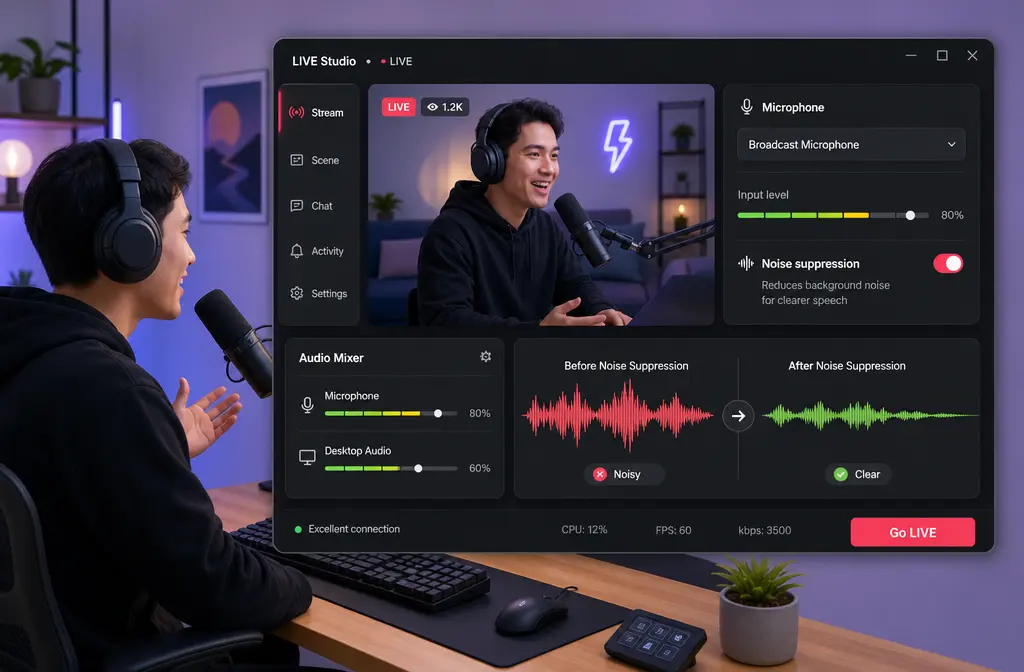
Yes, TikTok LIVE Studio can reduce mild, steady background noise in real time, but it is not a full audio restoration tool. It works best for fan noise, light HVAC, room tone, and mild hiss. It is much less reliable for loud keyboard clicks during speech, overlapping voices, music bleed, clipping, severe echo, wind, or singing and instrument-heavy streams.
The practical workflow is simple: start inside LIVE Studio, use the mic controls in the Audio Mixer, test your mic before going live, and keep processing light. If the saved recording still sounds noisy, export it and clean your TikTok LIVE Studio recording with SimpleClean afterward instead of pushing live suppression harder.
If your goal is the fastest fix: use LIVE Studio for live-safe cleanup, then use file-level cleanup after export for stubborn problems.
Where to Find Noise Controls in TikTok LIVE Studio
TikTok’s Help Center shows the stable path pattern even if labels shift slightly over time: go to the Audio Mixer, open your microphone settings, then use the microphone options under areas like General settings, Audio effects, and Test audio.
According to TikTok’s official preview guide, you can also enable Audio monitoring and run Test audio before starting your LIVE. That matters because a lot of “noise suppression problems” are really mic placement, speaker bleed, or gain problems that should be caught before you go live.
- Open Audio Mixer
- Select your microphone
- Open the mic’s settings
- Use Audio monitoring if needed
- Run Test audio before going live
- Check microphone-side sound tools like EQ and reverb carefully

What TikTok LIVE Studio Noise Suppression Is Good At
Built-in suppression is most useful when the unwanted sound is steady and lower-priority than your speech. In plain English, it likes predictable noise more than chaotic noise.
| Noise type | Usually worth trying in LIVE Studio? | Notes |
|---|---|---|
| Fan noise | Yes | Often a good fit for live suppression |
| AC or HVAC hum | Yes | Works best when the noise is steady |
| Room tone | Yes | Can help a stream sound cleaner without heavy editing |
| Mild hiss | Usually | Good candidate if your voice still stays natural |
| Keyboard clicks while talking | Sometimes, but limited | Often too sharp and too close to speech timing |
| Overlapping voices | No, not reliably | Voice-first suppression struggles when multiple voices compete |
| Music bleed | No, not reliably | Wanted and unwanted sound overlap too much |
| Singing or instruments | Usually not ideal | Suppression may damage wanted audio |
| Severe echo | No | Usually a monitoring or room problem first |
| Clipping/distortion | No | Once clipped, audio is hard to restore live |
| Wind noise | No, not reliably | Better prevented at recording stage or cleaned after export |
What It Will Not Reliably Fix
This is where most generic setup guides get too optimistic. TikTok LIVE Studio is useful, but it is still a live streaming tool, not a dedicated restoration suite.
Do not expect built-in suppression to fully rescue:
- Loud keyboard clicks during speech
- Another person talking nearby
- Game audio or music leaking into the mic
- Speaker playback feeding back into the microphone
- Heavy room echo
- Clipped or distorted voice
- Outdoor wind blasts
- Singing or instruments that need full-frequency detail
If your stream audio falls into one of those categories, the smarter move is often to reduce the problem at the source, finish the LIVE, then clean the local recording afterward.
How to Test Your Mic Before Going Live
If you only change one habit, make it this one. TikTok’s official preview workflow supports testing before you start, and that is the easiest way to catch echo, hiss, and overprocessing before your audience hears it.
- Open LIVE Studio and go to the Audio Mixer.
- Select the correct microphone. Many creators accidentally use a webcam mic instead of their main mic.
- Enable Audio monitoring carefully. Listen for fan noise, hiss, room tone, and any doubling.
- Run Test audio. Speak at your normal stream volume, not your “podcast voice.”
- Type on your keyboard while speaking. If clicks overpower speech, suppression alone probably will not solve it.
- Check speaker vs headset behavior. If you hear your own voice looping or the game chat returns into the mic, fix routing first.
- Make only one change at a time. Do not change suppression, EQ, monitoring, and Windows input settings all at once.
If your saved streams are important for clips, VODs, or repurposing, it can be worth keeping the live chain conservative and later using SimpleClean for exported TikTok LIVE audio on the recording.
Do Not Double-Stack Noise Suppression Unless You Intentionally Choose One Chain
This is one of the most useful fixes for muffled or robotic voice. If you run TikTok LIVE Studio suppression and NVIDIA Broadcast and Krisp or interface-level AI cleanup, you may get worse sound instead of better sound.
Aggressive stacking often causes:
- Muffled speech
- Words getting chopped off
- Robotic or watery artifacts
- Pumping volume
- Voice sounding thin or distant
For most creators, the safest approach is to pick one main processor for live cleanup. If you already like NVIDIA Broadcast, keep LIVE Studio processing lighter. If you want the simplest in-app workflow, try LIVE Studio first and avoid extra layers unless you have a clear reason.
Echo Fixes in TikTok LIVE Studio
Background noise and echo often get confused, but echo is usually a routing or monitoring problem rather than something suppression can remove. TikTok’s co-host help also notes that Discord or in-game voice chat can cause echo in co-host scenarios.
Use this quick echo checklist:
- Use a headset instead of speakers. Speaker playback is a common source of mic echo.
- Check duplicate monitoring. If LIVE Studio monitoring and another app are both returning your mic, you can hear doubling.
- Watch Discord and in-game chat. If the same voice is coming from two places, your audience may hear echo.
- Mute duplicate return paths. Do not let the same source feed the stream twice.
- Reduce room reflections. Severe bare-room echo usually will not be fixed by suppression.
- Test co-host audio separately. Echo may come from the other participant’s speaker setup, not yours.
If you mainly need help with echo after the stream is over, see our guide on removing echo in Audacity for what basic post tools can and cannot do.

A Practical Decision Tree: LIVE Studio First or Clean After Export?
Here is the simplest way to decide.
Use TikTok LIVE Studio first if:
- The noise is mild and steady
- You need a live-safe fix right now
- Your stream is speech-first
- Your mic already sounds decent, just a bit noisy
Export and clean the recording afterward if:
- The noise is still obvious after light suppression
- Your voice sounds robotic or muffled when suppression is stronger
- You have keyboard clicks, wind, bleed, or heavy room problems
- You want cleaner clips for reposting after the LIVE
TikTok’s recording documentation confirms that LIVE Studio can save recordings locally and supports MP4, MOV, and MKV. That makes post-stream cleanup straightforward: save the recording, then run cleanup on the file rather than forcing a live filter to do restoration work it was never meant to do.
How to Clean the Saved Recording After the Stream
If the LIVE was usable but not polished, this is the handoff point.
- Finish the stream and save the local recording.
- Locate the exported file in MP4, MOV, or MKV format.
- Listen for the main remaining problem. Is it hiss, fan noise, room sound, keyboard noise, or low vocal clarity?
- Upload the file to SimpleClean if you want separate cleanup after export.
- Review the cleaned result before turning it into clips.
- Add subtitles with Best AI Captions if you plan to publish shorts or highlights.
- Use Translate Dub if you want dubbed or captioned versions for multilingual audiences.
- Schedule and distribute the cleaned clips with Mallary.ai if you are repurposing the stream across multiple social platforms.
This workflow is especially useful for sellers, streamers, and creators who treat LIVE sessions as content sources rather than one-time broadcasts.
Common Problems After Turning On Suppression
Muffled voice
This often means the processing is too aggressive or stacked with another cleanup tool. Try reducing live processing and choosing one main suppression chain.
Voice cutting out
If word endings or quieter syllables vanish, the suppressor may be treating parts of your voice like noise. Retest at your normal speaking level and back off extra processing.
Robotic sound
This is a classic sign of overprocessing, especially when multiple AI noise tools are active. Simplify the chain.
Low volume after suppression
Sometimes cleanup makes a voice feel quieter even if the noise floor improved. Recheck your mic input and test again before compensating with random boosts.
Still hearing echo
Return to headset use, duplicate monitoring checks, Discord/in-game chat routing, and co-host setup. Suppression is not the main fix for echo.
Best For Recommendations
| Situation | Best option | Why |
|---|---|---|
| Fastest live fix for mild fan or AC noise | TikTok LIVE Studio built-in suppression | Quick, in-app, real-time workflow |
| Speech stream that sounds robotic after multiple tools | Use one processor only | Reduces artifact risk from double-processing |
| Severe echo or routing issues | Fix monitoring, headset, and chat paths first | Echo is usually not a suppression problem |
| Saved LIVE clip that still sounds noisy | Post-export cleanup | File-level cleanup is better for stubborn issues |
| Repurposing highlights for shorts and reels | Clean audio, then caption and distribute | Better polish for cross-platform publishing |
Related Guides
- How to remove background noise in Discord if your stream chat routing is part of the problem
- How to remove background noise in Zoom for a similar live-vs-recording workflow
- Best app to remove wind noise from video if outdoor clips from your stream need extra repair
Final Take
TikTok LIVE Studio is useful for mild live cleanup, not miracle repair. If your mic problem is steady background noise, start in the Audio Mixer, test before going live, and keep the chain simple. If the problem is echo, keyboard-heavy speech, music bleed, clipping, or artifacts from stacked processing, do not force the live tools to solve everything.
Record locally, export the file, and remove background noise from your TikTok LIVE Studio export after the stream when you need a cleaner replay, highlight, or repost.
Sources and further reading
- Preview your video and audio | LIVE Studio Help Center - Supports the Audio Mixer path, Audio monitoring, and Test audio workflow before going live.
- Use audio effects to transform your voice | LIVE Studio Help Center - Supports the existence of microphone-side sound tools like EQ and reverb within LIVE Studio settings.
- Record, highlight, and share your best moments | LIVE Studio Help Center - Supports that LIVE Studio records locally and supports MP4, MOV, and MKV.
- Game together with new co-host layouts | LIVE Studio Help Center - Supports the echo-related note that Discord or in-game voice chat can cause echo during co-hosting.
- TikTok LIVE Studio Help Center - Official product help hub for LIVE Studio guidance and terminology.
- How to Set Up TikTok LIVE Studio in 2026 (Complete Beginner Guide + Streaming Best Practices) - Competitor context for suppression, echo cancellation mention, and NVIDIA Broadcast workflow comparison.
- TikTok LIVE Studio Download (2026 Complete Guide): Setup, Requirements, Troubleshooting & More - Competitor context showing common setup-oriented coverage of noise issues.