
Quick Answer: fastest fix path by symptom
If NVIDIA Broadcast is not working, the fastest fix depends on the exact failure:
| Symptom | Most likely cause | Fastest fix |
|---|---|---|
| People can’t hear you | Wrong device selected somewhere in the chain | In Windows, confirm your real mic works. In NVIDIA Broadcast, choose that real mic as the source. In OBS, Zoom, Discord, Teams, or Slack, choose Microphone (NVIDIA Broadcast) as the input. |
| You can’t hear anything | Wrong speaker routing or virtual-device confusion | In Windows, confirm your real headphones/speakers work. In NVIDIA Broadcast, choose that real output device. Only choose Speakers (NVIDIA Broadcast) in an app if you intentionally want Broadcast to filter incoming audio. |
| “Unable to start microphone effects” | Driver/app issue or device/routing problem | Update NVIDIA Broadcast and your NVIDIA graphics driver, restart, unplug/replug the mic, then reinstall Broadcast if needed. |
| “Check your microphone connection and restart NVIDIA Broadcast” | Mic not visible to Windows or PowerToys Video Conference Mute conflict | Verify the mic appears in Windows, reconnect it, and close Microsoft PowerToys Video Conference Mute before relaunching Broadcast. |
| OBS/Zoom/Discord/Teams not hearing Broadcast | App set to the physical mic instead of the Broadcast virtual mic | Select Microphone (NVIDIA Broadcast) inside the destination app and disable extra noise suppression there. |
| Camera is gray or black in OBS after changing Broadcast settings | OBS needs to reload the camera source | Deactivate and reactivate the camera source in OBS after changing camera settings in Broadcast. |
| Voice sounds robotic or overprocessed | Stacked suppression or wrong effect for the problem | Disable Zoom/Teams/Discord suppression, reduce overlapping effects, and match the tool to the problem: noise removal is not the same as room echo removal or Studio Voice. |
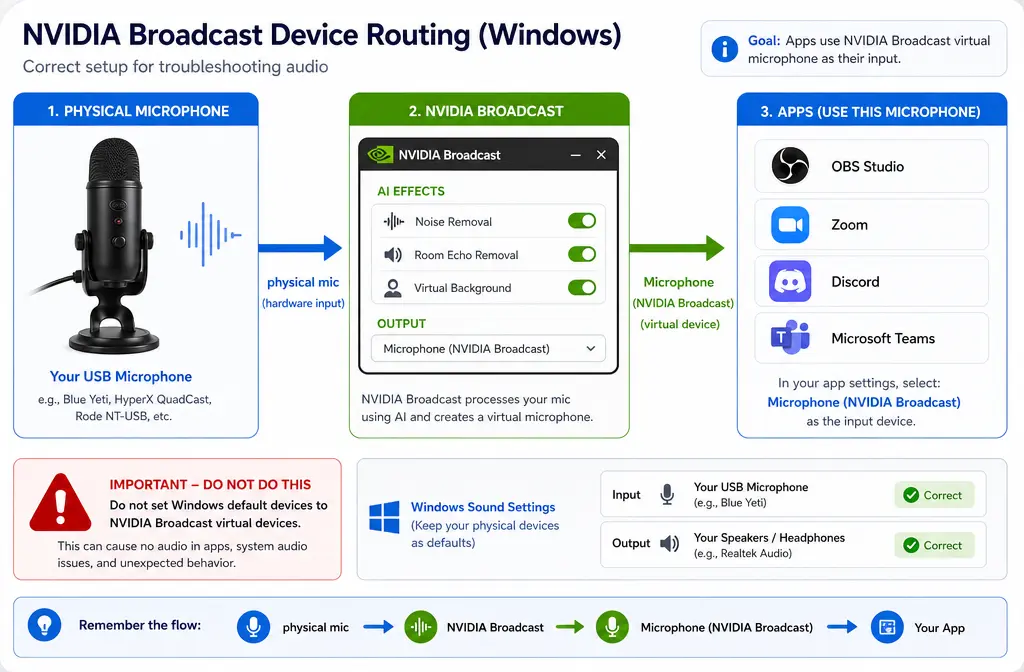
The key idea is simple: NVIDIA Broadcast works as a virtual device layer between your real hardware and your app. The normal live path is physical mic → NVIDIA Broadcast → target app. Most failures happen because one step in that chain points at the wrong device.
If you already recorded the important file, or live cleanup keeps adding artifacts, stop burning time on live troubleshooting and clean recorded audio with SimpleClean instead.
Who NVIDIA Broadcast works with
Before troubleshooting too deeply, make sure your system matches NVIDIA’s own requirements.
- GPU: NVIDIA Broadcast requires an RTX-class GPU.
- OS: NVIDIA’s FAQ lists Windows 10 64-bit.
- Driver: NVIDIA says you need driver 570.xx or higher.
- Studio Voice caveat: NVIDIA says Studio Voice requires at least an RTX 3060 desktop GPU or higher.
If you do not meet those requirements, troubleshooting app settings will not solve the core issue.
How NVIDIA Broadcast routing works
NVIDIA Broadcast does not usually replace your physical microphone or headphones. It creates virtual Windows devices that your meeting or streaming app can use.
- Your real microphone is selected inside NVIDIA Broadcast.
- NVIDIA Broadcast creates Microphone (NVIDIA Broadcast) as the processed input for apps.
- Your app should use that virtual mic if you want Broadcast’s live effects.
For output, the same idea applies:
- Your real speakers or headphones are selected inside NVIDIA Broadcast.
- Broadcast can expose a Speakers (NVIDIA Broadcast) virtual device.
- You only need that in the destination app if you intentionally want to process incoming audio.
Important: NVIDIA’s troubleshooting guide warns against setting Windows default devices to the NVIDIA Broadcast virtual devices, because that can create a loop.
Fix order for “they can’t hear me”
If your mic is not detected, silent, or nobody hears you in Discord, Zoom, Teams, Slack, or OBS, use this order:
- Verify the physical mic in Windows. Make sure Windows can see the real USB or analog microphone first.
- In NVIDIA Broadcast, select the real mic as the source. Do not choose the NVIDIA virtual mic as the source inside Broadcast.
- In the target app, select Microphone (NVIDIA Broadcast). That is the processed device the app should listen to.
- Restart the target app. NVIDIA’s troubleshooting guidance includes restarting apps after reconnecting or changing devices.
- Unplug and replug the mic if needed. NVIDIA specifically recommends reconnecting the device if it is not detected.
If the mic never appears in Windows at all, this is no longer mainly a Broadcast problem. Broadcast cannot process a mic that Windows does not detect.
Fix order for “I can’t hear anything”
If NVIDIA Broadcast seems to break your audio output:
- Test your real speakers or headphones in Windows first.
- In NVIDIA Broadcast, choose the real output device.
- Only use Speakers (NVIDIA Broadcast) in the destination app when you actually want filtered incoming audio.
- Avoid setting Windows default playback to NVIDIA Broadcast virtual devices. NVIDIA warns this can cause a routing loop.
A lot of users accidentally think they must set everything in Windows to NVIDIA Broadcast. That often creates the exact problem they were trying to avoid.
Why NVIDIA Broadcast is not working
Across NVIDIA’s setup, FAQ, and troubleshooting documentation, the most common causes are:
- Wrong device selected in Windows, Broadcast, or the target app
- Windows default-device loop caused by setting defaults to NVIDIA Broadcast virtual devices
- Duplicate noise suppression from Zoom, Teams, Discord, or other app-level processing layered on top of Broadcast
- Outdated NVIDIA driver or outdated Broadcast app
- Device not visible to Windows, so Broadcast cannot use it
- Microsoft PowerToys Video Conference Mute conflict, which NVIDIA documents as a cause of the microphone-connection startup error
- App conflict on camera, especially in OBS after camera changes, where the camera source may need to be reloaded
How to fix “Unable to start microphone effects” in NVIDIA Broadcast
This error usually points to setup, device, or software-state issues rather than one single defect. Use NVIDIA’s recommended workflow in this order:
- Close the app using the mic. Quit OBS, Zoom, Discord, Teams, Slack, or any other app currently holding the device.
- Restart NVIDIA Broadcast.
- Update your NVIDIA graphics driver. NVIDIA’s troubleshooting docs explicitly recommend updating the driver.
- Update or reinstall NVIDIA Broadcast.
- Unplug and replug the physical microphone.
- Confirm the real mic appears in Windows and can be tested there.
- Re-select the real mic inside Broadcast.
If standard driver updating fails, NVIDIA also provides a manual clean driver install path. That is the right escalation step when Broadcast problems appear tied to a broken driver state rather than a simple app setting.
Reinstall workflow
- Update the NVIDIA graphics driver first.
- Restart Windows.
- Reinstall or update NVIDIA Broadcast.
- Reconnect the mic and confirm Windows sees it.
- Open Broadcast and select the real mic.
- Open the target app and choose Microphone (NVIDIA Broadcast).
How to fix “Check your microphone connection and restart NVIDIA Broadcast”
NVIDIA has a specific support note for this exact startup error. Two common causes matter most:
- The microphone is not properly connected or visible to Windows.
- Microsoft PowerToys Video Conference Mute is conflicting with NVIDIA Broadcast.
What to do:
- Make sure the mic is physically connected.
- Confirm Windows can see the mic.
- Close or disable PowerToys Video Conference Mute.
- Restart NVIDIA Broadcast.
If this error appears every launch, check for PowerToys before you start reinstalling drivers. That conflict is easy to miss and easy to fix.
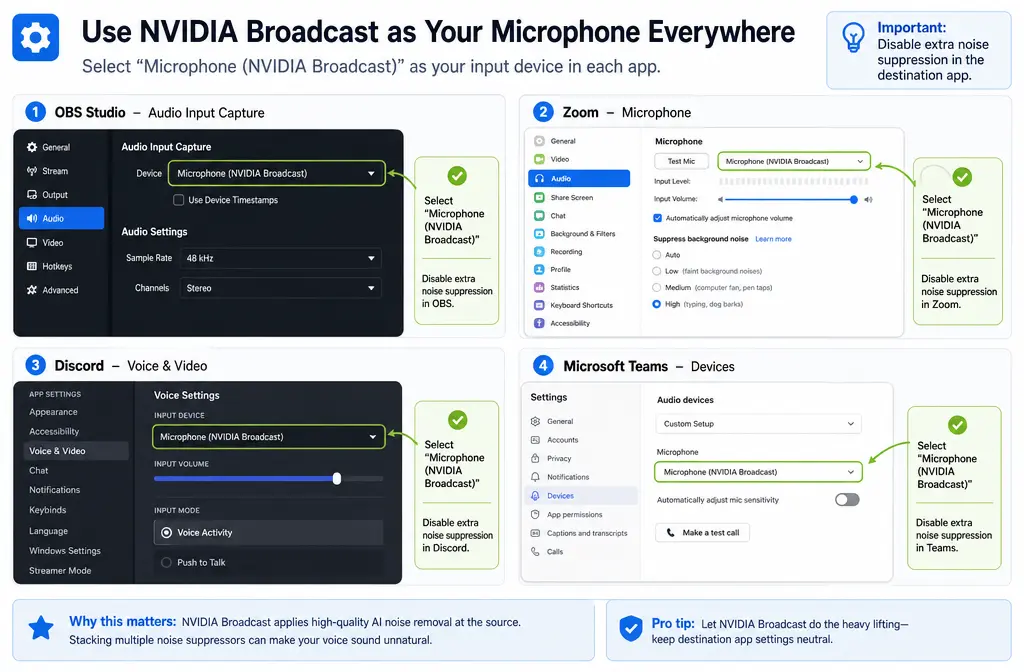
OBS, Zoom, Discord, and Teams setup mini-guide
These app-specific checks solve a large share of “NVIDIA Broadcast not working” complaints.
OBS
- Set your audio input to Microphone (NVIDIA Broadcast).
- If you changed Broadcast camera settings and OBS shows a gray or black image, deactivate and reactivate the camera source.
- Do not try to override camera behavior through OBS custom settings when the change belongs in Broadcast.
Zoom
- Set microphone to Microphone (NVIDIA Broadcast).
- Disable Zoom’s own extra noise suppression if you are already using Broadcast, to avoid stacked processing.
Discord
- Set input device to Microphone (NVIDIA Broadcast).
- Disable Discord noise suppression if Broadcast is already doing the cleanup.
Teams
- Set microphone to Microphone (NVIDIA Broadcast).
- Turn off extra suppression in Teams when possible to reduce double-processing artifacts.
The same logic also applies to Slack, Webex, and Chrome-based calling tools in NVIDIA’s setup guide: real device inside Broadcast, Broadcast virtual device inside the communication app.
Why noise removal still sounds bad
If NVIDIA Broadcast is technically working but the result sounds worse, the issue is often not “broken software.” It is usually a mismatch between the processing and the recording problem.
Common reasons:
- Overlapping suppression: Broadcast plus Zoom, Teams, or Discord suppression can create pumping, clipping, or robotic voice.
- Aggressive effect stacking: Too much processing can make speech sound unnatural.
- Room echo vs background noise mismatch: Noise removal helps noise; it does not solve every echo problem the same way.
- Studio Voice confusion: Studio Voice is not just the same thing as ordinary noise removal, and NVIDIA notes a higher GPU requirement for it.
If your voice sounds metallic, phasey, or hollow after live suppression, see our related guide on reducing keyboard noise in OBS and our existing NVIDIA setup article on removing background noise in NVIDIA Broadcast for cleaner starting setups.
What not to do
- Do not set Windows default input or output to NVIDIA Broadcast virtual devices. NVIDIA warns this can create a loop.
- Do not stack Krisp, Discord, Teams, or Zoom suppression on top of Broadcast unless you have a specific reason.
- Do not assume the app should point to your physical mic. Usually the target app should use Microphone (NVIDIA Broadcast).
- Do not troubleshoot only inside OBS. The chain starts in Windows, then Broadcast, then the destination app.
- Do not keep tweaking live effects forever after the important file is already recorded.
When to use a fallback instead of more live troubleshooting
NVIDIA Broadcast is best for live prevention. It is useful when you need cleaner sound during a call, stream, or recording session. But it is not always the best next move when:
- live suppression fails right before a meeting or stream
- the cleaned result sounds robotic
- the important interview, podcast, or lesson is already recorded
- you need to rescue an exported file instead of fixing a live route
That is the point where SimpleClean makes more sense: upload the finished recording and clean the file you actually need to deliver, instead of trying to stabilize a live virtual-device chain.
This fallback is especially practical for podcasters, streamers clipping highlights, remote teams saving recorded meetings, and creators cleaning voice tracks before subtitles or localization. After cleanup, you can add subtitles with Best AI Captions, create multilingual versions with Translate Dub, and schedule distribution across channels with Mallary.ai if you are republishing the cleaned content to multiple social platforms.
Best option by situation
| Situation | Best choice | Why |
|---|---|---|
| Live call or stream, RTX PC, routing set up correctly | NVIDIA Broadcast | It is designed for real-time mic, speaker, and camera processing through virtual devices. |
| Recorded file already captured and sounds noisy | clean the exported recording with SimpleClean | You can work on the actual deliverable instead of debugging live signal routing. |
| Speech sounds robotic after multiple app filters | Simplify the live chain first | Disable duplicate suppression in the destination app before adding more processing. |
| Need captions or subtitles after cleanup | Best AI Captions | Useful after audio cleanup when publishing video. |
| Need translated dubbed versions after cleanup | Translate Dub | Fits multilingual video workflows after the audio is fixed. |
| Need to distribute cleaned clips to many social platforms | Mallary.ai | Useful for scheduling, publishing, and managing multi-platform distribution. |
How to troubleshoot NVIDIA Broadcast in the right order
- Check compatibility first. Confirm you have an RTX GPU, supported Windows setup, and current driver level.
- Test the real device in Windows. Mic and speakers must work there before Broadcast can help.
- Select the real hardware inside Broadcast. Real mic in, real output out.
- Select the NVIDIA virtual device inside your app. Usually Microphone (NVIDIA Broadcast) for input.
- Disable duplicate suppression in Zoom, Teams, Discord, or similar apps.
- Restart the destination app.
- Reconnect the device.
- Update driver and Broadcast.
- Check for PowerToys Video Conference Mute conflicts.
- Reinstall or clean-install the driver only if simpler fixes fail.
- If the file is already recorded, switch to a file-cleanup workflow.
For related setup help, you may also want our comparisons on Krisp vs Nvidia Broadcast and our troubleshooting guide for AMD Noise Suppression not working.
Sources and further reading
- NVIDIA Broadcast App - Official NVIDIA product page and current product entry point.
- NVIDIA Broadcast App FAQs - Confirms RTX-only requirement, Windows support info, driver requirement, compatible apps, and Studio Voice GPU caveat.
- NVIDIA Broadcast App Setup Guide - Authoritative setup instructions for virtual devices and per-app configuration, including disabling duplicate noise cancellation.
- NVIDIA Broadcast Troubleshooting Guide - Official symptom-based troubleshooting, loop warning, reconnect/restart guidance, and update/reinstall steps.
- NVIDIA Broadcast: 'Check your microphone connection and restart NVIDIA Broadcast' error when launched - Official source for the Microsoft PowerToys Video Conference Mute conflict.
- NVIDIA App driver installation failed. How do I manually clean install the NVIDIA driver for my graphics card? - Official escalation path for clean driver install when normal updates do not resolve Broadcast issues.