Quick Answer
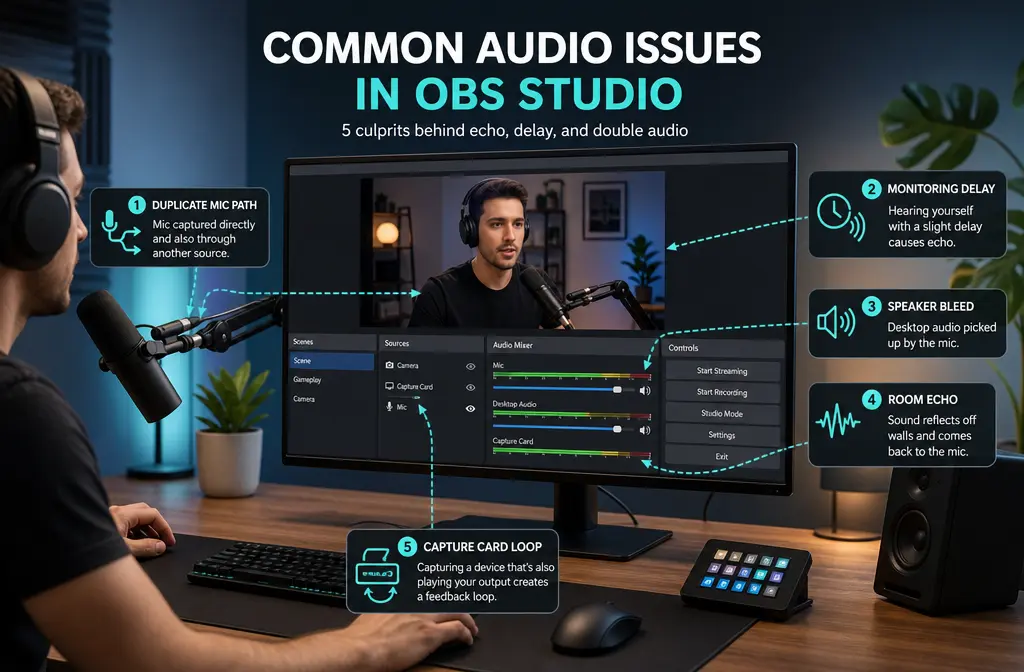
If your microphone is echoing in OBS, the fix depends on which kind of echo you have:
- Two copies of your voice in the recording: you probably captured the same mic twice, often once in Settings > Audio and again as an Audio Input Capture source.
- You hear yourself back in headphones with a delay: microphone monitoring is likely turned on.
- Echo only happens when speakers are on: your mic is picking up speaker playback, so switch to headphones or use direct hardware monitoring.
- Echo starts when you add a capture card, video call, or mixer app: you likely have a routing loop or duplicated return feed.
- Your voice sounds roomy, far away, or like a bathroom: that is usually room reverb, and OBS filters can only help a little. OBS is not a true dereverb tool.
The fastest way to fix it is to mute one source at a time and record a 10-second test clip. That tells you whether the problem is routing, monitoring, speaker bleed, or baked-in room sound.
Important distinction: If your voice sounds like two copies, fix routing. If it sounds like you recorded in a bathroom or empty room, that is room reverb.
What kind of “echo” do you have?
Most OBS echo guides lump everything together, but the symptom matters more than the word “echo.” Here is the simplest way to classify it.
| What you hear | Most likely cause | Best first fix |
|---|---|---|
| Your recording has your voice twice | Duplicate audio paths | Keep only one mic path in OBS |
| You hear yourself in headphones a split second later | Monitoring enabled | Set monitor to Off unless needed |
| Echo happens only when speakers are on | Speaker bleed into mic | Use headphones or hardware monitoring |
| Problem appears after adding capture card, call app, or mixer software | Routing loop / duplicated return | Trace every input and return feed |
| Voice sounds roomy while you speak | Room reverb | Fix the room or use a dedicated dereverb tool |
This separation matters because official OBS documentation points to two common software causes: duplicate capture and monitoring playback. But if the room itself is the problem, no amount of toggling in OBS will fully undo it.
60-second diagnosis: isolate the source before changing everything
Before you touch filters, run this quick test:
- Record a short local clip in OBS.
- Speak for 5 to 10 seconds.
- Mute one audio source in the Audio Mixer.
- Record again.
- Repeat until the echo disappears.
This works because echo in OBS is usually caused by an extra path. If muting one source makes the duplicate vanish, you found it. If no single source fixes it, check monitoring, speaker bleed, or external apps.
Also note where you hear the problem:
- Only in live headphones: usually monitoring delay.
- Only in the recording: usually duplicate capture or routing.
- Only when speakers are on: speaker bleed.
- Everywhere, even in the raw mic sound: room reverb or OS/device setup.

Fix 1: remove duplicate audio paths in OBS
This is the most common cause of “my voice records twice.” OBS warns that adding an audio device as a source can create echo if that same device is already enabled globally.
Check these two places:
- Settings > Audio for global devices like Mic/Aux
- Your scene’s Sources list for Audio Input Capture
If the same microphone appears in both, OBS may be capturing it twice.
What to do
- Go to Settings > Audio.
- See whether your microphone is assigned under a global mic device.
- Then check the current scene for an Audio Input Capture source using that same mic.
- Use one method only for that microphone.
- Record another short test clip.
A clean best practice is simple: one mic, one path.
If you also have browser sources, capture utilities, or scene collections imported from templates, check those too. The duplicated path is not always obvious at first glance.
Fix 2: turn off accidental monitoring
If you are saying “I can hear myself in OBS,” the problem may not be a recorded echo at all. It may be monitoring.
OBS documents monitoring behavior in the mixer and Advanced Audio Properties. If your mic is set to Monitor and Output, OBS sends that mic to the selected monitoring device, which can sound like a delayed echo in headphones.
How to stop hearing yourself in OBS
- In the Audio Mixer, open Advanced Audio Properties.
- Find your microphone.
- Check the Audio Monitoring column.
- Set it to Monitor Off unless you intentionally need live monitoring.
If you do need to hear yourself, direct hardware monitoring from your audio interface or headset is often more comfortable than software monitoring because it avoids that distracting delay.
Fix 3: stop speaker bleed with headphones or direct monitoring
If the “echo” happens only when your speakers are on, OBS may be fine. Your microphone is simply picking up audio coming out of the room.
Typical signs:
- The echo gets worse as speaker volume increases.
- It disappears when you switch to headphones.
- You can hear desktop audio or call participants re-entering the mic.
The practical fixes are:
- Use closed-back headphones while recording or streaming.
- Lower speaker volume if headphones are not possible.
- Move the mic closer to your mouth.
- Use direct hardware monitoring if your interface offers it.
OBS filters will not solve speaker bleed nearly as well as fixing the playback path.
Fix 4: check capture cards, conferencing apps, Wave Link, and mixers
If echo appears only after adding a capture card, conferencing app, or virtual mixer, think in terms of loops and return feeds.
Common examples:
- A capture card sends game or console audio into OBS while desktop audio is also capturing the same signal.
- A video call app outputs participants to desktop audio, while another return mix also brings them back in.
- A mixer app or routing tool sends your mic to OBS, while OBS also captures the physical mic directly.
The fix is not a random filter. It is tracing the path end to end:
- List every audio input entering OBS.
- List every software tool in the chain, such as conferencing apps, virtual devices, or mixer utilities.
- Check whether any signal is being captured both before and after a virtual routing stage.
- Make sure you are not sending participants, game audio, or your own mic back into a return path that OBS also records.
If you are building a call or capture-card workflow, think in “mix-minus” terms: each destination should get what it needs, but not a copy of itself returned again.
Fix 5: know when it is room echo, not OBS
If your voice sounds roomy, distant, hollow, or reflective while you are speaking, that is usually room reverb rather than an OBS routing error.
This is the problem many tutorials skip. OBS can help reduce noise between phrases, but it does not have a true built-in dereverb tool. Official OBS filter documentation supports a narrower role for these tools:
- Noise Gate: cuts sound below a threshold, useful when you are not speaking.
- Expander: reduces quieter background sounds more smoothly than a hard gate.
- Noise Suppression: helps with mild background noise and white noise, not true room-echo rescue.
So if the voice itself is already reverberant, the right order of operations is usually:
- Improve the recording setup first.
- Use OBS filters only for light cleanup.
- Use a dedicated dereverb or post-production cleanup tool if the room sound is already baked into the file.
A few physical fixes often matter more than any plugin:
- Move closer to the mic.
- Reduce distance from mouth to mic.
- Record in a less reflective space.
- Add soft furnishings or temporary absorption around the recording area.
If the recording is already done and the room sound is baked in, you may get a better result by cleaning exported OBS audio with SimpleClean instead of trying to force OBS to undo reverb it did not cause.

What OBS filters can help a little, and what they cannot do
OBS filters still have a place. They just need the right job description.
Helpful for pauses and low-level background noise
- Noise Gate: good when you want the mic closed while you are not speaking.
- Expander: often sounds more natural than a hard gate because it reduces low-level room noise instead of chopping everything off instantly.
- Noise Suppression: useful for mild background noise, but not a true echo remover.
Not a true fix for room reverb
- OBS filters do not reliably remove strong room reflections once your voice is already echoey.
- If you push suppression or aggressive settings too far, your voice can start sounding unnatural or robotic.
For a related filter-chain troubleshooting guide, see How to Fix OBS Noise Suppression Not Working.
When NVIDIA Broadcast or another dedicated dereverb tool is the better fix
If your problem is real room echo rather than duplicated routing, a dedicated external tool may be the better answer. NVIDIA Broadcast includes Room Echo Removal and AI microphone effects on supported systems, which makes it a better fit for this specific problem than stock OBS filters.
That does not mean everyone should switch immediately. Here is the practical split:
| Best for | Use OBS only | Use external help |
|---|---|---|
| Mic captured twice | Yes | No |
| Delayed self-monitoring | Yes | No |
| Speaker bleed | Mostly no; use headphones | No |
| Mild background noise | Sometimes | Optional |
| Actual room echo / roomy voice | Limited | Usually yes |
If you want more on NVIDIA routing and conflicts, these may help too:
Best-practice OBS audio setup for clean voice without echo
If you want the lowest-risk setup, use this template:
- One mic path only: either global device or source-level capture, not both.
- Monitoring off by default: only enable it when you truly need it.
- Headphones for monitoring: avoid speakers during recording.
- Gate or expander for pauses: use these to reduce room noise between phrases.
- Noise suppression for mild noise only: do not expect it to remove room reverb.
- Short test recordings after every change: do not stack five changes at once.
If your exported video still needs polish, you can pair cleanup with publishing tools after the fix:
- Best AI Captions for adding captions and subtitles to the final video.
- Translate Dub if you want translated, dubbed, and captioned versions for multilingual audiences.
- Mallary.ai when you are ready to schedule and distribute the cleaned video or podcast clips across social platforms.
That workflow makes sense when OBS solves the live routing issue first, and your publishing stack handles the finished content after.
How to fix microphone echo in OBS step by step
- Record a 10-second test clip. Do not troubleshoot only by listening live.
- Mute one source at a time. Watch for the exact source that removes the duplicate.
- Check Settings > Audio. See whether the mic is enabled as a global device.
- Check Sources. Remove any duplicate Audio Input Capture for the same microphone.
- Open Advanced Audio Properties. Set mic monitoring to Monitor Off unless intentionally needed.
- Switch to headphones. If the echo disappears, it was speaker bleed.
- Trace external apps. Review capture cards, conferencing apps, mixer utilities, and virtual devices for loops.
- Decide whether the sound is really room reverb. If the voice itself is hollow, fix the room or use a dedicated dereverb workflow.
- Add light filters only after routing is correct. Try gate or expander for pauses, not as a substitute for fixing the cause.
- Clean the exported file if needed. When the bad sound is already printed into the recording, try SimpleClean for OBS recording cleanup.
Best fix by symptom
- Best fix for hearing yourself live: turn monitoring off.
- Best fix for voice recorded twice: remove duplicate mic paths.
- Best fix for echo with speakers: use headphones.
- Best fix for capture-card or call-loop echo: trace routing and remove return loops.
- Best fix for roomy voice: improve the room or use a dedicated room-echo-removal tool.
FAQ
Why is my mic echoing only in OBS?
Usually because OBS is capturing the same microphone twice or monitoring it back to you. Check both Settings > Audio and your scene sources, then check monitoring in Advanced Audio Properties.
How do I stop hearing myself in OBS?
Open Advanced Audio Properties and set your mic to Monitor Off unless you intentionally need monitoring. If you do need monitoring, hardware monitoring is often easier to use than delayed software monitoring.
Why does OBS record my voice twice?
The most likely reason is duplicate routing. OBS officially warns that using the same device globally and as a source can create echo.
Can OBS remove room echo?
Not well. OBS filters can reduce noise between phrases or smooth low-level background sound, but they are not a true built-in dereverb solution for strong room reflections.
Should I use Noise Gate or Expander for echo in OBS?
Use them for pauses and low-level background sound, not for true room reverb. An Expander is often smoother than a hard Noise Gate, but neither is a real dereverb tool.
Why does my capture card cause echo in OBS?
Because the same audio may be entering OBS more than once, or being returned through another path. Check whether the capture card audio and desktop audio are both capturing the same signal.
How do I fix delayed mic monitoring in OBS?
Turn monitoring off unless you really need it. If you must hear yourself, use your interface or headset’s direct monitoring when available.
Why does my voice sound robotic after I try to fix echo?
That usually happens when suppression or filtering is pushed too hard, especially if the original problem was not background noise but room reverb or bad routing. Fix the cause first, then apply light filtering.
Final takeaway
The fastest way to fix microphone echo in OBS is to stop treating every echo like the same problem. Duplicate voice, monitoring delay, speaker bleed, call loops, and room reverb each need a different fix.
Start with routing. Then check monitoring. Then speakers. Then external apps. And if your voice just sounds like it was recorded in a reflective room, accept that OBS may not be the right tool for that final step.
When the recording is already captured and needs cleanup after export, SimpleClean can fit naturally into the workflow before you caption, translate, and publish the finished content.
Sources and further reading
- OBS Audio Sources - Official warning that adding an audio device as a source can cause echo if the same device is also enabled globally.
- OBS Audio Mixer Guide - Official explanation of monitoring controls and mixer behavior.
- OBS Noise Suppression Filter - Official limitation framing: noise suppression helps mild background noise, not true room-echo rescue.
- OBS Noise Gate Filter - Official settings reference for cutting noise while not speaking.
- OBS Filters Guide - Official summary of expander, noise gate, noise suppression, limiter, and VST options.
- NVIDIA Broadcast App - Official source for AI noise removal and room echo removal as an external fix.
- NVIDIA Broadcast Setup Guide - Official setup/use context and effect limitations for Broadcast.
- Microsoft Support: Fix microphone problems - Useful for default-device and OS-level mic troubleshooting when OBS is not the root cause.