Quick Answer
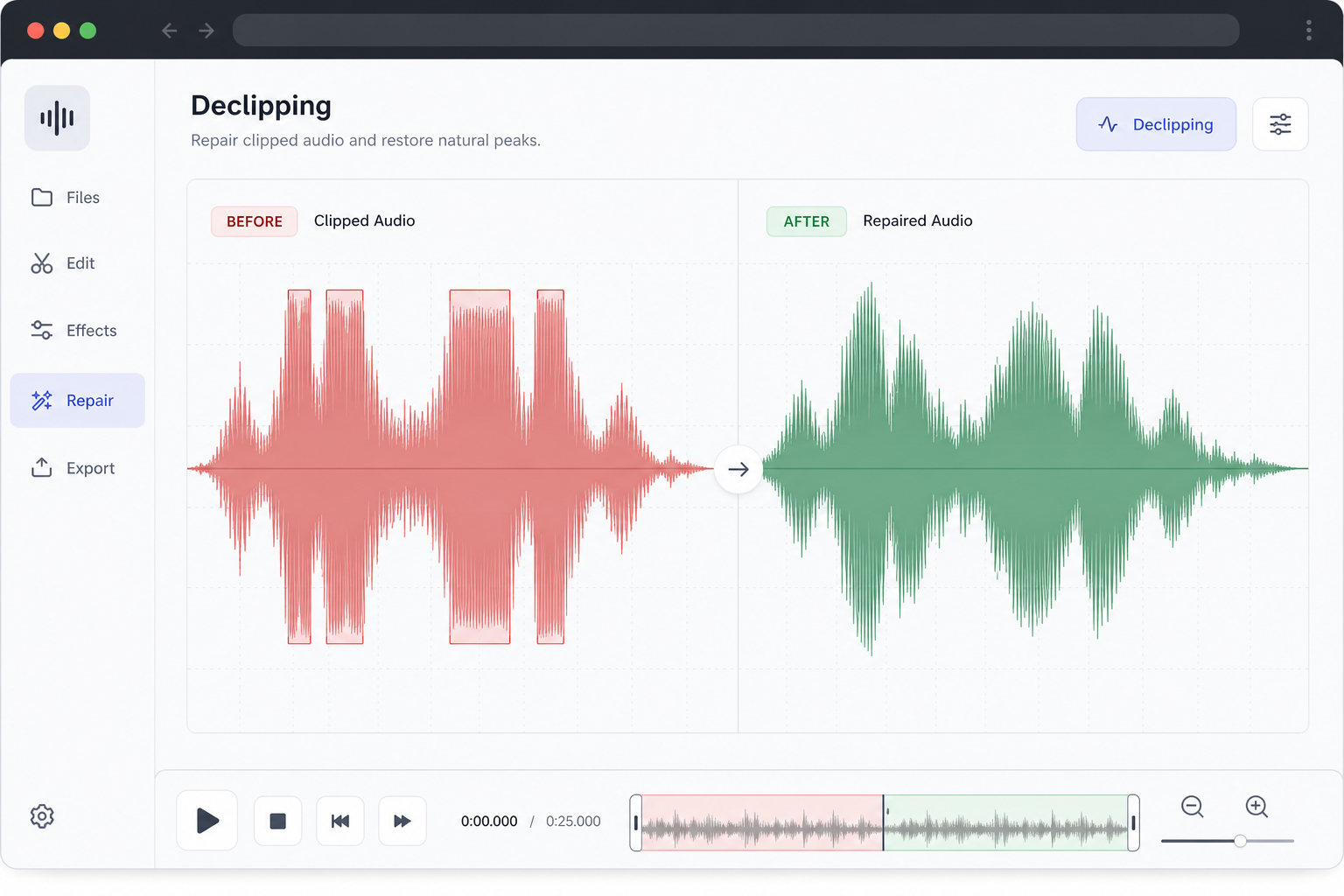
Yes, you can often remove clipping from audio online enough to make speech clearer and more usable, especially when the damage is mild to moderate. Clipping happens when the recording level exceeds what the recording chain can represent, which flattens loud peaks instead of capturing them cleanly. A declipping tool does not simply turn the file down. It tries to reconstruct those damaged peaks, which is why it can improve a recording that still sounds harsh even after lowering the volume. Sources from iZotope, iZotope Learn, and Adobe Audition documentation all describe clipping repair as waveform restoration, not a magic undo.
If you need a fast first pass, SimpleClean is a practical browser workflow for cleaning spoken audio in audio or video files without opening a full DAW first. The realistic goal is salvage: reduce harsh, fried-sounding peaks, then decide whether the result is good enough to publish, needs a second cleanup pass, or should be re-recorded.
What clipped audio sounds like
Clipping usually shows up on loud words, laughs, excited phrases, shouts, or moments when a speaker moved too close to the mic. Instead of sounding merely loud, the voice gets harsh, crunchy, fuzzy, crackly, or “fried.” S and T sounds can feel abrasive, and vowels may sound splattered or broken up.
- Podcast guest gets louder during a story and the voice turns raspy and brittle
- Phone voice note peaks on certain words and sounds like a tiny speaker is tearing
- Camera audio is fine in quiet lines but distorts during applause, laughter, or emphasis
- Zoom or interview capture sounds overloaded only on one participant’s loud moments
How to tell clipping apart from other problems
Diagnosis matters because clipping is often confused with noise or mic technique issues. If you use the wrong fix first, you can waste time or make the file worse.
| Symptom | What it usually sounds like | Most likely issue | Best first move |
|---|---|---|---|
| Flat-topped loud words | Harsh, fuzzy, crackly peaks on louder phrases | Clipping | Run declipping first |
| Steady high-frequency bed | Constant airy shhh in the background | Hiss | Use noise reduction, not declipping |
| Low electrical tone | 50/60 Hz buzz or hum | Hum | Use dehum first or after declipping if both exist |
| Tiny isolated ticks | Saliva clicks or lip smacks between words | Mouth clicks | Use de-click style cleanup |
| Low-end bursts on P and B sounds | Mic thumps, booms, air hits | Plosives | Use plosive cleanup |
| Roomy wash around every word | Echoey, distant, reflective voice | Reverb | Use dereverb, not declipping |
If your recording has multiple issues, clipping should usually be addressed early in the chain. Adobe’s restoration guidance supports an ordered workflow rather than random effect stacking, and declipping is commonly treated as a first repair step before cleaning up remaining artifacts.
Why clipping happens
Clipping occurs when the signal level exceeds what the recording system can capture. That can happen in several places:
- Input gain is set too hot
- A mic, preamp, interface, phone recorder, or camera input overloads
- The speaker is too loud or too close to the mic
- A device auto-gain system reacts badly to sudden volume
- The distortion happens before conversion, which can leave less to recover later
Research from Georgia Tech highlights clipping as a common real-world issue in mobile and device-based recordings, which is one reason browser-based declipping is a meaningful use case rather than a niche edge case.
What clipped waveforms look like
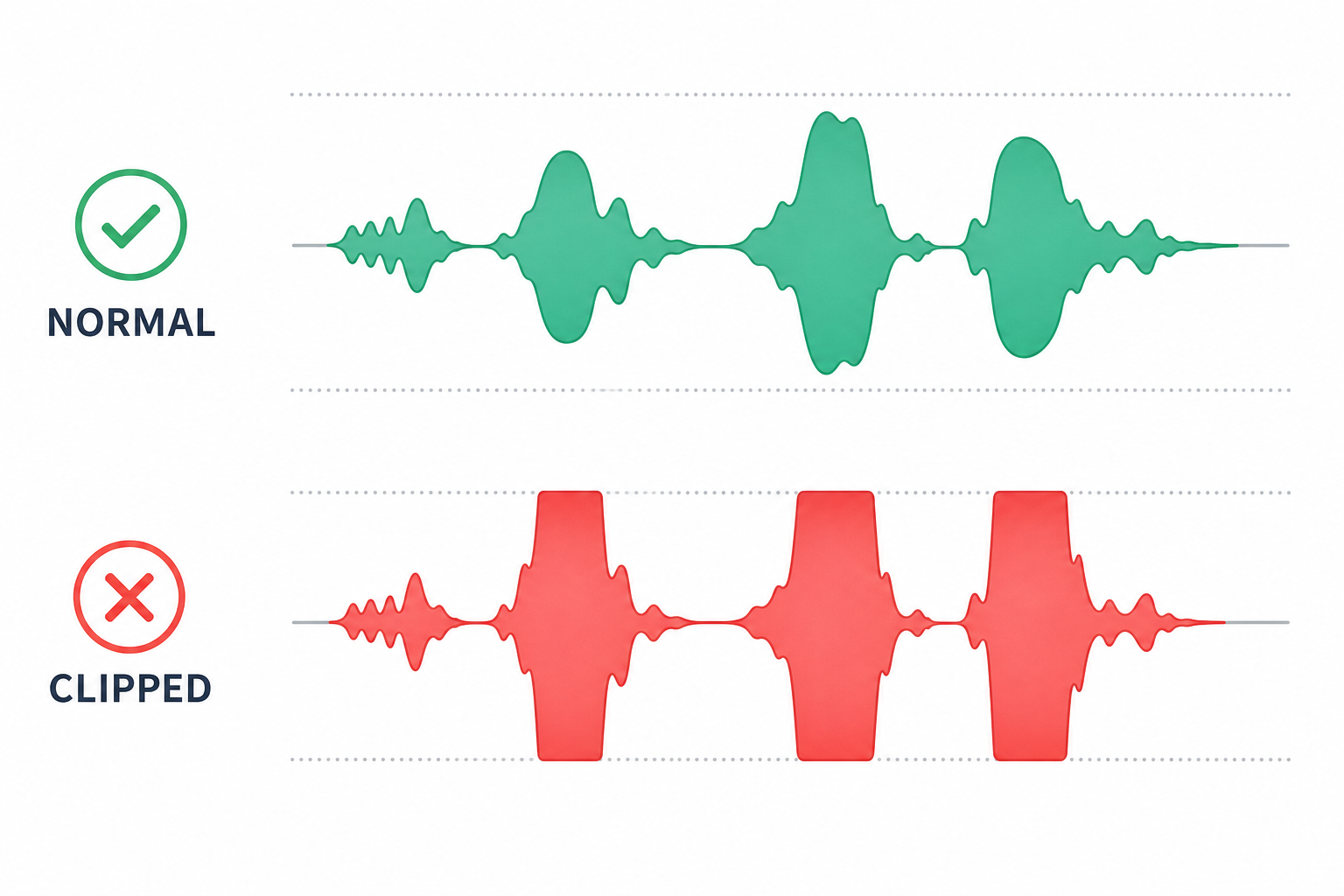
One of the clearest visual signs is a waveform whose peaks look flattened or squared off instead of rounded. On a clipped voice track, the loudest syllables often hit a ceiling and smear into short plateaus. That visual clue lines up with the underlying problem described by iZotope, Adobe, Acon Digital, and Thimeo: the original peak shape has been cut off, and repair tools try to estimate what those lost peaks should have looked like.
Can this be fixed? A simple decision tree
- Only the loudest words sound rough? Usually worth trying online declipping.
- Most of the file sounds harsh but speech is still intelligible? Often improvable, but expect some artifacts.
- The voice is splattered almost all the time and consonants are breaking apart? Repair may help, but a fully clean result is unlikely.
- The signal is badly overloaded from the mic or preamp stage and sounds destroyed throughout? Re-recording may be the only realistic fix.
How much clipping is too much to repair?
| Severity | What you hear | What repair can realistically do | Best next step |
|---|---|---|---|
| Mild clipping | Only occasional harshness on peaks | Often noticeably improved | Declipping first, then minor polish |
| Moderate clipping | Repeated roughness on loud words, but speech remains clear | Often salvageable for podcasts, courses, and web video | Declipping, then decrackle or denoise if needed |
| Severe clipping | Frequent crunchy distortion, broken consonants, smeared vowels | May become more intelligible, but artifacts usually remain | Repair, then decide whether quality is publishable |
| Unrecoverable distortion | Heavily overloaded, unintelligible, distorted through most of the file | Little realistic restoration | Re-record if possible |
This expectation-setting matters. The source material consistently presents declipping as a restoration attempt that can reduce damage, not guarantee perfect recovery.
How to remove clipping from audio online
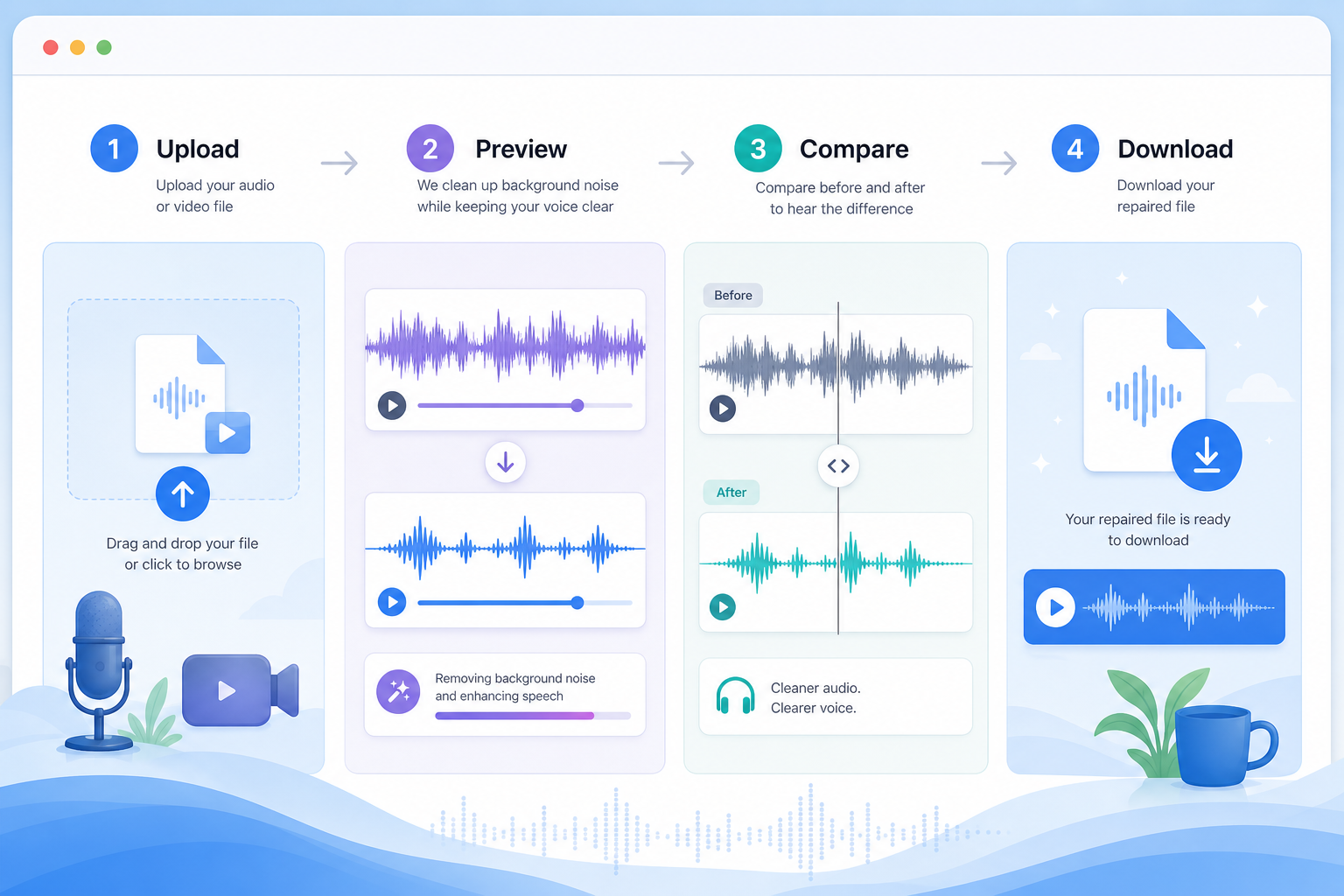
If your priority is speed, an online first pass makes sense before you open desktop restoration software. A practical workflow looks like this:
- Upload the damaged audio or video file.
- Preview cleanup focused on clipped speech.
- Compare before and after on the loudest words, not just the quiet parts.
- Download the repaired version if intelligibility and harshness improve.
- Run a second pass only if a different problem still remains.
This is a good fit for podcasts, interviews, webinar recordings, phone voice notes, course lessons, and camera audio where the content is valuable enough to save but not worth a full forensic restoration session. If that sounds like your case, use SimpleClean as the fast triage step.
Best for: who should start online vs use full restoration software?
- Best for fast online cleanup: podcasters, journalists, marketers, educators, and creators who need a usable spoken-word result quickly.
- Best for advanced desktop restoration: editors dealing with severely clipped masters, music, or mission-critical archival repair where deeper manual control is needed.
- Best for re-recording: files with constant overload, unintelligible speech, or distortion that was baked in long before final capture.
Should you use declipping before noise reduction?
Usually, yes. Declipping first is the safer default because clipping changes the actual waveform shape. If you denoise or aggressively process first, you may make the damaged peaks harder to restore cleanly. Adobe’s audio restoration guidance supports using an ordered repair workflow, and the research brief specifically calls out post-repair sequencing as a gap in competing content.
After declipping, consider a second pass only if you still hear:
- Residual crackle or edge harshness: try decrackle
- Background hiss: try denoise
- Electrical buzz: try dehum
- Pops from breath blasts: try plosive cleanup
For those issues, related SimpleClean guides can help: remove hiss from audio online, remove hum from audio online, remove mouth clicks from audio online, remove plosives from audio online, and remove reverb from video online.
What online cleanup can and cannot fix
What it can often improve
- Harsh peaks on otherwise understandable speech
- Phone, camera, interview, or Zoom audio with occasional overload
- Podcast or course recordings where the loudest phrases are the main problem
- Video files where you need to repair the soundtrack without a DAW-heavy workflow
What it cannot promise
- Perfect restoration of severely flattened peaks
- Complete removal of distortion caused earlier in the hardware chain
- A clean studio result from a recording that is overloaded almost end to end
- Automatic correction of unrelated issues like hum, plosives, or room echo unless those are treated separately
How to avoid re-clipping after repair
One subtle point from iZotope’s declipping guidance: reconstructed peaks can rise after repair. In plain English, your repaired file may need level management afterward so it does not peak again.
- Leave headroom after repair instead of immediately pushing the file loud again
- Lower gain if restored peaks are now hitting the ceiling
- Use a limiter only when needed, not as a substitute for fixing the underlying issue
- Check the loudest words after export, not just the average level
Prevention checklist for your next recording
- Keep a sensible mic distance so loud words do not slam the input
- Set gain conservatively and leave headroom
- Record a short test and intentionally say the loudest line you expect
- Monitor peaks while recording when possible
- Be extra careful with phone mics, USB mics, and camera preamps during excited speech
- Record at 24-bit when possible, since more headroom-friendly workflows are easier to manage
- Use limiting sparingly and avoid relying on it to rescue bad gain staging
Can you fix clipping in a video file too?
Yes. If the distortion lives in the video’s audio track, the workflow is the same in principle: upload the video, repair the clipped speech, then export a cleaned version. That matters for interview footage, webinars, talking-head videos, lessons, and social clips where the visuals are fine but the soundtrack peaked.
Once your audio is usable, you can add finishing steps around the content itself: Best AI Captions is useful for subtitles and captions, Translate Dub helps translate, dub, and caption videos for multilingual distribution, and Mallary.ai fits naturally when you are ready to schedule, publish, and distribute cleaned clips across social channels.
Bottom line
If your recording sounds harsh, crunchy, or fried only on louder moments, there is a good chance it is clipped rather than merely noisy. Mild and moderate clipping in speech is often worth repairing online first. The smart workflow is simple: diagnose the problem, run declipping first, evaluate the loudest words, then apply a second cleanup pass only if another issue remains.
For creators who want the fastest first pass on spoken audio in audio or video files, SimpleClean is the practical place to start. If the file improves enough to sound natural and intelligible, publish it. If it is still badly damaged after declipping, you have your answer quickly and can move to deeper restoration or a re-record.
Sources and further reading
- Adobe Learn: Repair and restore audio - Supports restoration order-of-operations and repair workflow framing.
- Adobe Audition Reference PDF - Supports DeClipper effect references and clipped waveform repair concepts.
- Acon Digital Restoration Suite guide - Supports threshold and clipping detection concepts for restoration tools.
- Thimeo Declipper documentation - Supports clipping detection and restoration concepts.
- Client-Side Audio Declipping (Georgia Tech) - Supports the relevance of browser-based declipping and common clipping in device/mobile recordings.