How to Remove Background Noise in Loom: Noise Filter Defaults, Download Limitations, and When to Clean the Recording After Export
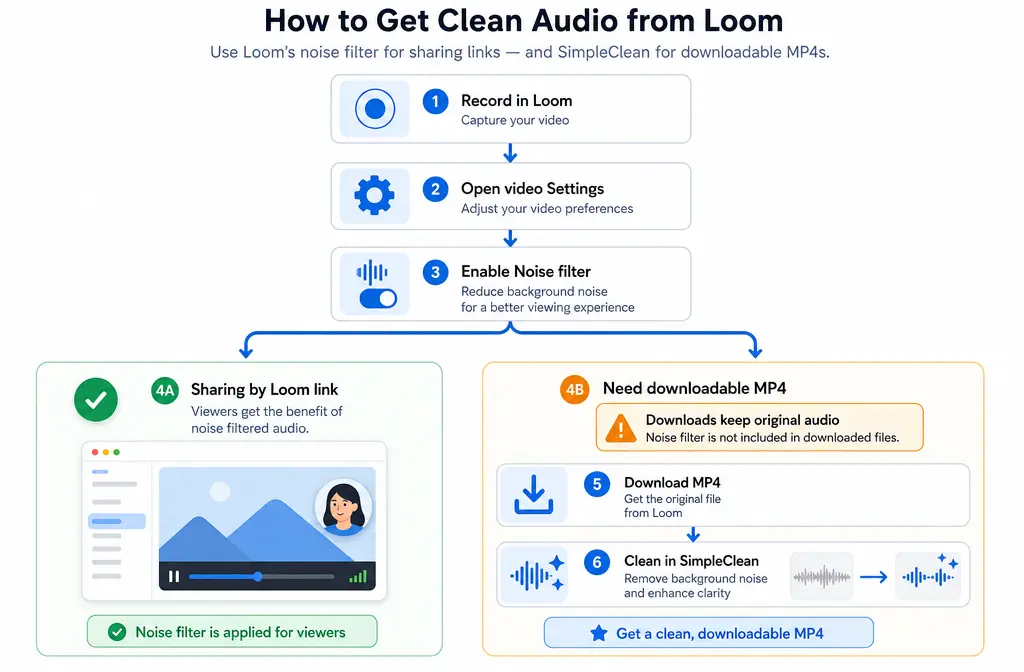
If your Loom recording sounds noisy, Loom does offer a built-in fix. But there is one important limitation that changes the best workflow for a lot of users: Loom’s Noise filter improves playback in the Loom web player, while downloaded video files still include the original audio. That means Loom is often enough for link-based internal sharing, but not always enough when you need a clean MP4 for email attachments, course platforms, social clips, or republishing elsewhere.
Quick Answer
To remove background noise in Loom, open your video’s share page, go to Settings, turn on Noise filter, save, refresh the page, and preview the result. You can also set Noise filter as the default for future recordings. According to Loom’s support documentation, the change is reflected in the Loom web player, but downloaded Loom videos keep the original audio. So if you need a clean downloadable MP4, export the file first and then clean a Loom recording after export with SimpleClean.
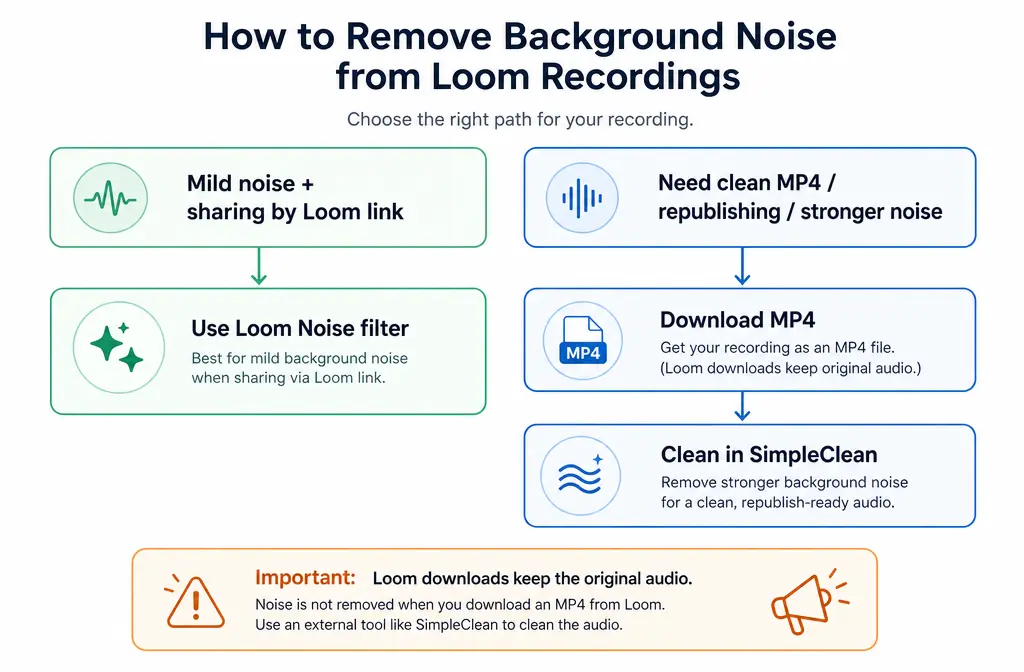
- Use Loom alone when the noise is mild and the video will be shared by Loom link.
- Export and clean afterward when you need the actual MP4 to sound cleaner outside Loom.
- Re-record instead if the original audio has heavy echo, clipping, wind, or very weak speech.
What Loom Can Actually Do for Background Noise
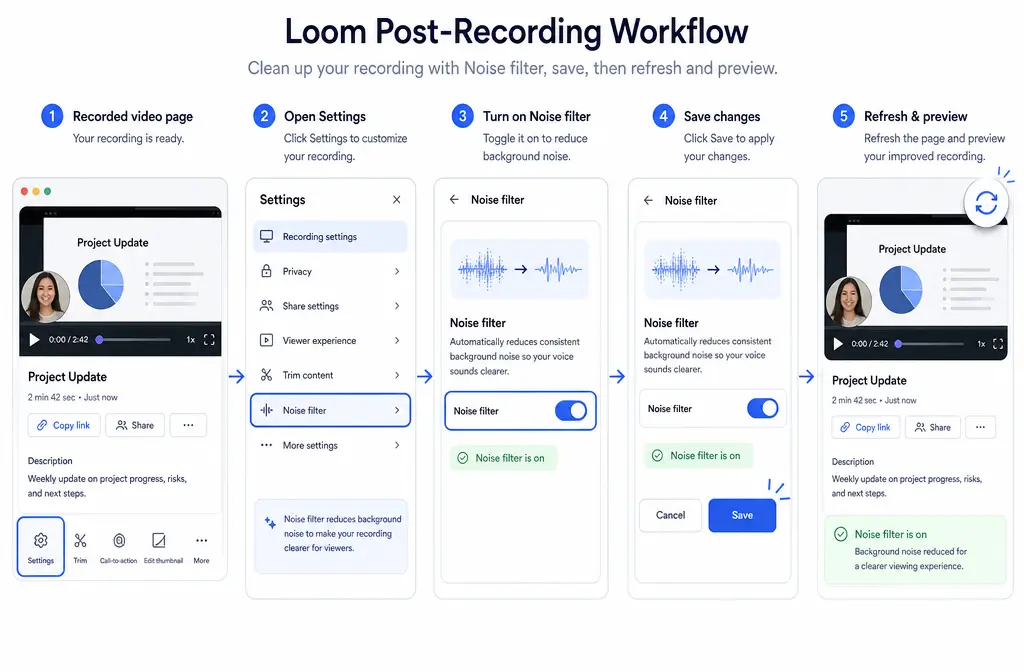
Loom’s built-in background noise suppression is a post-recording toggle. Based on Loom’s support docs, you do not need to re-record just to test it. After recording, you can open the video page, enable Noise filter in Settings, and save the change. Loom also lets you set Noise filter as a default for future videos, and the change is reversible.
This is the core behavior to understand:
- Loom can suppress background noise for playback inside Loom.
- You can apply it after recording.
- You can set it as your default for future recordings.
- You can undo it later.
- But the downloaded video file keeps the original audio.
That last point is the reason many users feel like Loom “didn’t work.” Often, Loom did change the playback on the share page. The problem is that the exported MP4 still contains the untreated recording.
How to Remove Background Noise in Loom Step by Step
- Record your video in Loom.
- Open the video share page.
- Go to Settings.
- Enable Noise filter.
- Save the change.
- Refresh the page.
- Preview the video in the Loom player.
If you like the result and most of your recordings need it, set the same feature as the default for future Loom videos. Loom’s support docs also note that suppression can be undone later, so you can compare before and after.
Where is the Noise filter in Loom?
Per Loom support, the Noise filter lives in the video Settings area after the recording is made. Loom’s desktop app redesign materials also support the idea that audio enhancement controls were brought closer to recording setup, which helps before you hit Record as well.
Loom Noise Filter vs Export Cleanup: Which One Should You Use?
| Situation | Best option | Why |
|---|---|---|
| Quick internal update shared by Loom link | Loom Noise filter | Fast, built-in, no extra workflow |
| Mild office noise, fan hiss, light café ambience | Loom Noise filter first | Often enough for spoken async videos played in Loom |
| You need a clean downloadable MP4 | Export, then clean afterward | Loom downloads keep the original audio |
| You want to reuse the video outside Loom | Export, then clean afterward | You need the actual file to sound better everywhere |
| Noise is strong, irregular, or speech is already thin | Try cleanup after export or re-record | Built-in suppression may not be enough |
| Heavy echo, clipping, wind, or severe mic problems | Usually re-record | These issues are harder to fix cleanly |
When Loom Is Enough
Loom’s built-in filter is a good first stop when you want the fastest fix and the video will stay inside the Loom ecosystem.
Best for:
- Remote teams sharing updates by link
- Customer success walkthroughs
- Sales follow-up videos
- Educators sending quick lesson explainers
- Founders recording async feedback
Usually works best on:
- Light office noise
- Steady fan hiss
- Soft room ambience behind a clear voice
This lines up with general noise-reduction behavior: steady background sounds are usually easier to reduce than chaotic or changing sounds. Audacity’s support documentation is useful here because it explains that noise reduction is generally best on consistent noise, and that aggressive processing can create audible artifacts. That is also why a light touch is usually smarter than pushing denoise too hard.
When Loom Is Not Enough
Loom is not the best final answer in every case, especially if your recording has to live outside Loom.
You will usually need post-export cleanup when:
- You need a downloadable clean MP4
- You want to upload the file to another platform
- You need to republish clips on social media or a course platform
- The noise is strong, uneven, or distracting
- Your voice already sounds thin, distant, or processed
- You are hearing more than simple background noise, such as echo or clipping
This is the handoff point where SimpleClean fits naturally. If the file itself needs to sound better outside Loom, the practical path is to export the video and then remove background noise from a Loom MP4 with SimpleClean.
The Biggest Gotcha: Why Your Downloaded Loom Still Sounds Noisy
Here is the issue most competing articles gloss over: Loom’s own support docs state that when you download the video, the downloaded file includes the original audio, not the Noise-filtered playback version. So if you turn on suppression, hear an improvement in the browser, and then export an MP4 that still sounds noisy, that is expected behavior.
In other words:
- Loom share link playback: can reflect Noise filter changes
- Loom downloaded MP4: retains the original recorded audio
That makes the workflow decision very simple:
- Only sharing by Loom link? Use Loom’s Noise filter.
- Need the file to travel elsewhere? Download it and clean the exported file.
How to Export a Loom Video When You Need Deeper Cleanup
If you need the MP4 itself cleaned, first make sure download access is available. Loom’s download support page notes that downloads can depend on plan and role permissions, and viewers may also need explicit permission to download.
- Open the Loom video.
- Confirm that your plan and role allow downloads.
- If needed, check whether viewer download permission is enabled.
- Download the video as MP4.
- Run cleanup on the exported file.
Once you have the file, you can clean exported Loom audio with SimpleClean before sending it to clients, uploading it to a learning platform, or republishing it somewhere else.
Important export caveat
Loom’s download documentation also explains that certain Loom features do not carry into the downloaded file. That matters because trimming or in-player enhancements do not automatically mean the exported asset will behave the same way everywhere else.
Best Workflow by Use Case
Best for quick internal videos
Use Loom Noise filter only. If the noise is mild and the video will be watched on the Loom share page, the built-in option is the fastest route.
Best for downloadable handoffs
Export first, then clean. This is the right path for customer training videos, knowledge base assets, onboarding recordings, or any file that must sound good as an MP4 outside Loom.
Best for multilingual distribution
After cleaning the exported file, you can add subtitles with Best AI Captions or create translated, dubbed versions with Translate Dub. If you are distributing cleaned Loom clips across multiple platforms, Mallary.ai is a natural next step for scheduling and publishing those assets across social channels from one workflow.
Preventive Tips Before You Hit Record
The best cleanup is still prevention. Loom’s recording tips and desktop app guidance support the idea that better input audio reduces the need for aggressive processing later.
- Choose the right mic. A better microphone usually helps more than heavier denoise later.
- Get closer to the mic. A stronger voice-to-room ratio gives suppression less work to do.
- Reduce room noise first. Turn off fans or move away from obvious hum sources when possible.
- Use a quieter room. Less ambient noise means clearer speech and fewer artifacts.
- Prefer the desktop app when you want fuller recording controls.
If your audio already sounds weak, denoise can make it feel thinner. For a related issue, see how to fix metallic voice after noise reduction.
What Loom Editing Can and Cannot Fix
Loom does offer built-in editing features like trimming with a waveform, editing by transcript, and stitching clips together. Those are helpful when the problem is content rather than audio quality.
Editing helps when you need to:
- Remove dead air
- Cut mistakes
- Tighten the intro or outro
- Combine clips into one message
Editing does not solve:
- Steady hiss
- Electrical hum
- Room echo
- Wind noise
- Clipping distortion
So if your issue is noise texture rather than timing, editing alone is not the fix.
Common Troubleshooting
No download option in Loom
Loom’s support docs say downloads can depend on your plan, your role, and whether the owner has allowed viewer downloads. If you cannot export, check those permissions first.
The Noise filter changed playback but not my MP4
That is expected based on Loom’s documentation. The web player can reflect the suppression, but the downloaded video keeps the original audio.
I trimmed the video, so why is the audio still bad?
Trimming removes sections you do not want. It does not repair constant background noise, hum, or echo.
Can Loom remove echo or only background noise?
The supplied Loom documentation here specifically supports background noise suppression. It does not claim a full echo-repair workflow. If the room is echoey, you may need lighter expectations, post-export cleanup, or a re-record in a better space.
When should I re-record instead of processing?
Re-record if the speech is badly clipped, the room echo is severe, the mic was too far away, or the environment was extremely noisy. Audacity’s support docs are helpful on the general principle here: aggressive noise reduction can introduce artifacts, so there is a point where starting over is cleaner than overprocessing.
Simple Decision Tree
Use this if you want the fastest answer:
- Need a quick fix for a Loom link? Turn on Noise filter in video Settings.
- Need a clean downloadable MP4? Export the file and remove Loom background noise after download with SimpleClean.
- Publishing beyond Loom? Clean first, then add captions with Best AI Captions, translate with Translate Dub, and distribute across channels with Mallary.ai.
Final Take
Loom does have a useful built-in answer for noisy recordings, and for many internal async videos that is enough. The key is understanding what it actually changes. If people will watch the video inside Loom, enable Noise filter and move on. If the recording needs to sound clean as a downloaded file, Loom’s own documentation points to the real limitation: the export keeps the original audio. In that case, the smarter workflow is to download the MP4 and clean a noisy Loom export with SimpleClean.
If you work across multiple async video tools, you may also want related guides on removing background noise in Zoom, removing background noise in Microsoft Teams, and removing background noise in Discord.
Sources and further reading
- Suppress background noise | Loom | Atlassian Support - Primary source for how to enable Noise filter, set it as default, undo it, and the key limitation that downloaded videos keep the original audio.
- Download your Loom video | Loom | Atlassian Support - Source for download workflow, plan and role restrictions, viewer permissions, and download caveats.
- Edit your Loom video | Loom | Atlassian Support - Source for Loom’s editing capabilities like trim, transcript edits, and stitch clips.
- Free Screen Recorder | Loom - Basic product and platform context for Loom recording workflows.
- Loom's Redesigned Desktop App: Record better videos, faster | Atlassian - Supports mention of improved desktop recording controls and setup guidance.
- Recording tips for a great video | Loom | Atlassian Support - Supports preventative recording tips before applying cleanup.
- Loom Pricing | Start Recording For Free | Loom - Plan-context source for cautious mention that access may vary by plan.
- Noise reduction & removal | Audacity Support - External fact-check source for general limits of noise reduction and artifact risks from overprocessing.