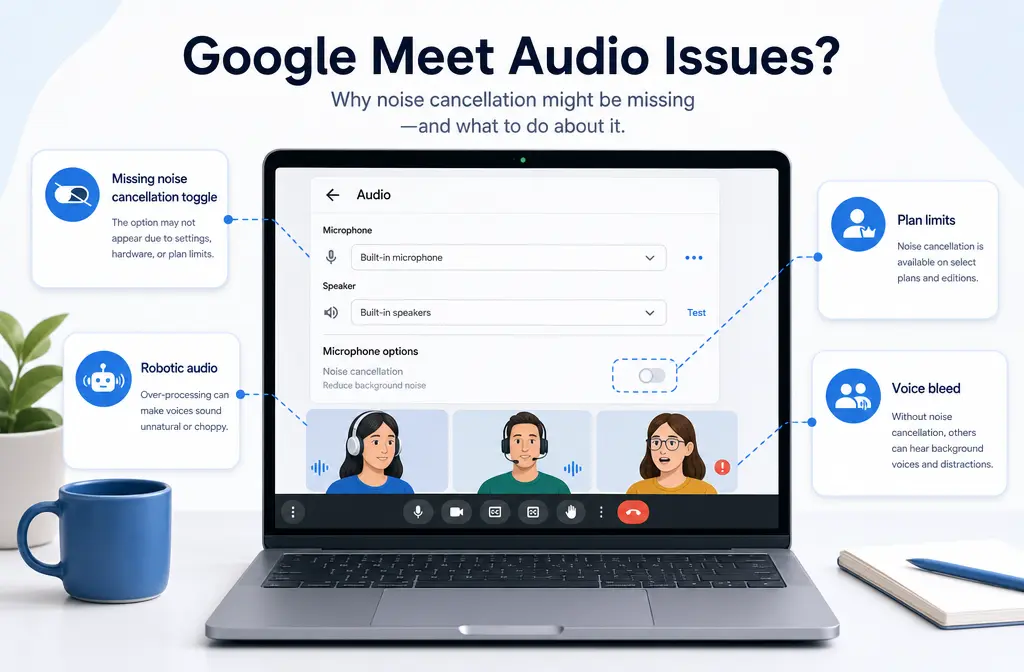
If Google Meet noise cancellation is not working, the most common reason is simple: Meet is designed to reduce non-speech noise like typing, doors, room echo, and construction sounds, but Google says it does not reliably remove TV voices or other people talking, and it does not affect screen-share audio. That means many “it’s not working” cases are actually feature limits, not a bug.
Other common causes are a missing toggle due to account or plan eligibility, Android device-specific support differences, the setting being replaced by Studio sound for some Google Workspace with Gemini users, browser or mic permission problems, or stacked audio processing from tools like Krisp, NVIDIA Broadcast, SteelSeries Sonar, headset AI, webcam DSP, or Mac mic modes.
If Meet cannot fix the kind of noise you have, the fastest fallback is usually to save the meeting audio or video, clean the file separately, and share the improved version. You can fix noisy Google Meet recordings with SimpleClean after export when live suppression is the wrong tool.
Quick Answer
Here is the fastest diagnosis path for Google Meet noise cancellation problems:
| Symptom | Most likely cause | What to do |
|---|---|---|
| Noise cancellation toggle is missing | Unsupported account or plan, unsupported device path, outdated app/browser, admin defaults, or Studio sound replacing the control | Check eligibility, update Meet or browser, look for Studio sound, and rejoin the meeting |
| Noise cancellation is on but you hear no difference | You are testing with voices or music instead of non-speech noise, wrong mic selected, or mic permissions issue | Test with keyboard or fan noise, confirm the correct microphone, and verify browser or device permissions |
| Nearby people or TV voices still come through | This is a known limitation of Meet | Move the mic closer, lower room noise, use a headset, or clean the saved recording afterward |
| Your voice sounds muffled or robotic | Double processing from Meet plus Krisp, NVIDIA Broadcast, Sonar, Mac mic modes, webcam DSP, or vendor AI | Disable one layer of suppression and test again |
Best short answer: Google Meet noise cancellation helps with steady background sounds and incidental noise, but it is not a full voice isolation or post-production cleanup tool.
Is Google Meet noise cancellation actually available on your account or device?
Before changing settings, separate availability problems from performance problems.
According to Google Meet Help, there are two different paths:
- Cloud-based noise cancellation on desktop or laptop, Android, and iOS for supported Google Workspace editions, Workspace Individual, and Google One subscribers with 2 TB or more storage.
- Device-based noise cancellation on many Android phones.
Google also notes that for some Google Workspace with Gemini users, Studio sound replaces noise cancellation. So if you are looking for the old toggle and cannot find it, the feature may not be gone; the interface may have changed.
Eligibility chart
| Scenario | What to know | Best next step |
|---|---|---|
| Desktop or laptop user | Cloud-based Meet noise cancellation depends on supported Google account tiers | Check your subscription or Workspace edition and re-open audio settings |
| Android user | Some Android phones support device-based cancellation even outside the cloud-based path | Update the app and check device support behavior |
| iPhone or iPad user | Cloud-based availability still depends on supported account tiers | Check account eligibility and app version |
| Workspace with Gemini user | Studio sound may appear instead of the older noise cancellation control | Look for Studio sound in audio settings |
Sources: Google Meet Help: Filter out noise from your meeting and Google Meet Help: Premium Meet features for Google Workspace.
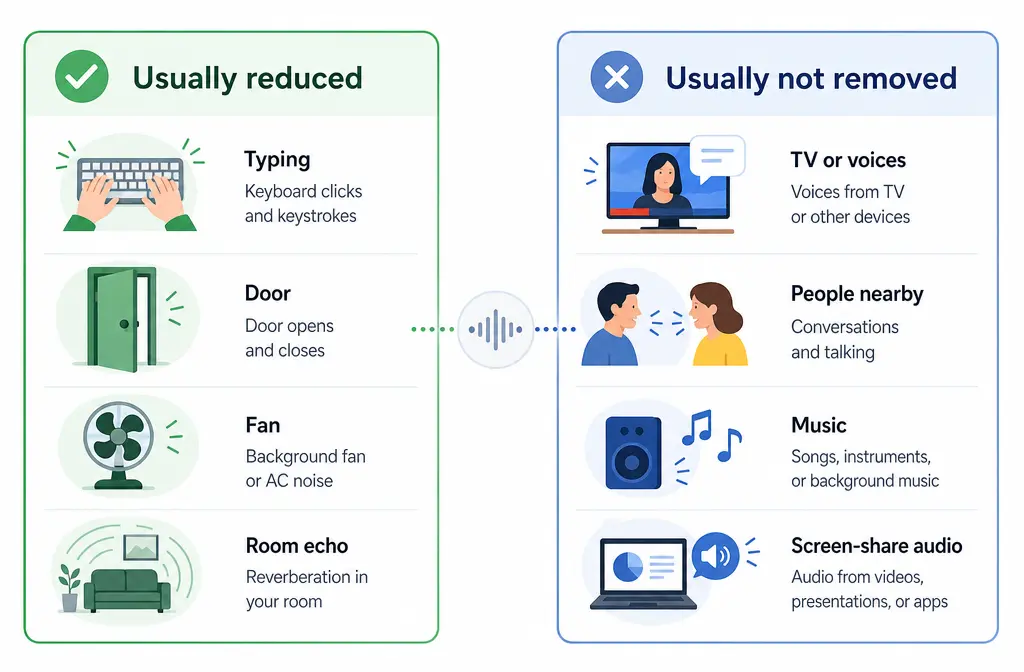
What Google Meet noise cancellation can and cannot remove
This is the part most users misunderstand.
- Usually helps with: typing, doors, room echo, and construction noise.
- Often does not solve: TV dialogue, other people talking nearby, music, overlapping speakers, and screen-share audio.
- Also not a fix for: already-recorded noisy files.
If your complaint is “Meet still picks up my roommate talking,” that does not necessarily mean the feature failed. Google’s documentation says speech-like background sounds are not reliably canceled the same way non-speech noise is.
Why the noise cancellation toggle is missing
If the control is missing entirely, work through these causes in order:
- Your account or plan does not include the cloud-based feature. Google ties Meet premium audio features to certain Workspace and Google One tiers.
- You are on a path that uses device-based Android support instead. Behavior can differ by phone.
- Studio sound replaced noise cancellation. Google documents this for some Google Workspace with Gemini users.
- Your browser or app is outdated. Update Chrome or the Meet mobile app, then fully restart.
- An admin default or organization setting changed how the feature appears. Google notes some defaults can be managed for users in Workspace environments.
- You are checking the wrong place. In Meet, audio settings can appear before joining or during a meeting.
Where to check
- Before joining a meeting: open Meet settings and review audio options.
- During a meeting: open More options, then audio settings.
- If you use a work or school account: compare behavior with a personal eligible account if available.
Desktop fixes: when the toggle exists but Meet still sounds wrong
Google’s official audio troubleshooting guidance points to a few fixes that solve a surprising number of Meet audio problems.
1) Make sure Meet is using the correct microphone
If Meet is listening to your laptop webcam mic instead of your headset mic, noise cancellation may seem ineffective because it is processing a worse source.
- Open Meet audio settings.
- Confirm the selected microphone is the device you actually want.
- If you just connected a headset, disconnect and reconnect it, then re-check the selection.
2) Check browser and device microphone permissions
- Confirm your operating system allows microphone access for the browser.
- In Chrome, confirm Meet has site-level microphone permission.
- If the browser was denied mic access earlier, re-allow it and refresh or restart.
3) Restart Chrome fully
Google specifically recommends restarting Chrome for some Meet audio issues. A full browser restart can reload stuck device routes and permission states. On Chrome, you can use chrome://restart to relaunch the browser.
4) Reconnect Bluetooth devices
Bluetooth headsets can reconnect in the wrong mode or expose the wrong input. Disconnect, reconnect, and then verify that Meet still points to the intended mic and speaker.
5) Watch the Meet voice indicator while testing
When you test, use a clear voice plus a controlled noise source like typing or a fan. If Meet shows mic activity but listeners still hear no improvement, you may be hitting a feature limit rather than a broken setting.
Sources: Fix audio issues in Google Meet and Troubleshoot Meet network, audio, and video issues.
Mac and Windows conflict checks that can make Meet sound worse
Meet is not always the only thing processing your voice. Extra processing at the operating-system or hardware level can stack on top of Meet and create pumping, clipped consonants, or robotic speech.
On Mac
- Mic Modes can apply Apple voice processing before Meet gets the signal.
- Google Workspace troubleshooting also mentions ambient noise reduction as a possible conflict area when diagnosing Mac audio behavior.
- If your voice sounds over-filtered, disable extra Mac-side processing and test Meet again.
On Windows
- Google notes that Windows may reduce sounds from other sources in some audio scenarios.
- Laptop audio enhancement utilities or headset companion apps may add their own suppression or voice focus modes.
- If your voice changes drastically when joining Meet, test with those enhancements off.
For Mac-specific mic processing context, see Apple’s Mic Modes guide.
Third-party conflicts: Krisp, NVIDIA Broadcast, Sonar, headset AI, webcam DSP
This is one of the biggest missed troubleshooting steps.
Krisp’s own Google Meet setup guide recommends disabling Google Meet noise cancellation when using Krisp. The reason is simple: double suppression can make speech sound unnatural and can reduce quality instead of improving it.
The same logic applies if your chain includes:
- Krisp
- NVIDIA Broadcast
- SteelSeries Sonar
- headset vendor AI noise reduction
- webcam microphone DSP
- laptop vendor voice enhancement tools
Rule of thumb: use one main speech-cleaning layer at a time, then test. If your voice becomes watery, clipped, or robotic, stacked suppression is a prime suspect.
If your broader issue is routing or device conflicts with third-party processing, these guides may help too:
- How to fix Krisp not working
- How to fix NVIDIA Broadcast not working
- SteelSeries Sonar mic not working
Source: Krisp Help: Set up Google Meet with Krisp.
When noise cancellation is on but nothing changes
If the toggle is enabled and the feature is available, but results are weak, try this symptom-led checklist:
Test with the right kind of noise
Do not test only with a TV in the next room or another person speaking nearby. Those are exactly the sounds Meet may not cancel well. Test with:
- keyboard typing
- a steady fan
- door sounds
- light room noise
Move the mic closer to your mouth
The cleaner the direct speech signal, the better live suppression tends to behave. A distant laptop mic in a reflective room gives Meet much less to work with.
Reduce room echo
Google lists room echo among the noises Meet may help reduce, but a very echoey room is still a poor source. Hard walls, far mic placement, and speaker playback in the room can overwhelm any live filter.
Use a headset if possible
Google’s troubleshooting materials repeatedly point toward headset use as a practical way to cut echo and peripheral noise.
When Google Meet still picks up background voices
This is one of the most searched complaints, and the answer is usually disappointing but important: Google Meet noise cancellation is not a true voice isolation tool.
If the background sound is speech-like, Meet may leave part of it intact. That includes:
- roommates talking
- students in the hallway
- TV dialogue
- radio hosts or podcasts playing in the room
- music lessons or singing
Best fixes for voice bleed:
- Move to a quieter room.
- Use a closer microphone or headset boom mic.
- Lower speaker volume to reduce acoustic spill.
- Mute when not speaking.
- If the meeting is recorded, clean the exported file afterward.
Why your speech sounds muffled or robotic
If Meet suddenly makes you sound worse, the likely causes are:
- double suppression from Meet plus Krisp or another AI filter
- OS-level or hardware-level audio processing stacking with Meet
- poor Bluetooth mode or wrong input device
- aggressive processing on a weak or distant mic signal
Try this order:
- Turn off third-party suppression first.
- If still bad, turn off Meet’s suppression and compare.
- Reconnect the headset.
- Switch from webcam mic to headset mic.
- Restart Chrome and rejoin.
What Meet cannot fix well in live calls
Even when everything is set up correctly, live Meet suppression is the wrong tool for some jobs:
- strong room reverb or hollow echo
- distant microphone placement
- two people talking over each other
- music teaching or performance audio
- screen-share audio noise
- noisy recordings you already saved
That is where post-processing is usually more practical. If your meeting was already recorded, you can export the audio or video and run separate cleanup afterward with SimpleClean instead of trying to force a live meeting tool to solve a post-production problem.
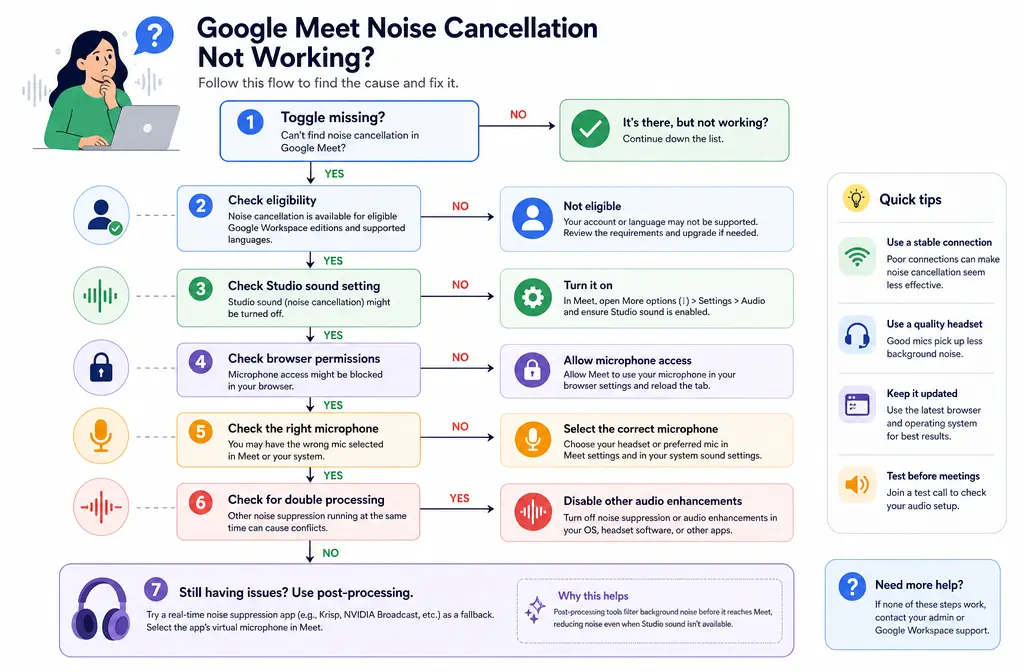
How to fix Google Meet noise cancellation not working: step by step
- Confirm the symptom. Is the toggle missing, or is it on but ineffective?
- Check eligibility. Verify whether your account tier supports cloud-based Meet noise cancellation, or whether you are relying on Android device-based support.
- Look for Studio sound. If you are a Google Workspace with Gemini user, the old control may be replaced.
- Update the app or browser. Then fully restart Chrome or re-open the Meet app.
- Verify the selected microphone. Make sure Meet is not using the wrong device.
- Check browser and OS mic permissions. Re-allow access if needed.
- Reconnect Bluetooth devices. Then recheck the selected input and output.
- Disable extra processing. Turn off Krisp, NVIDIA Broadcast, Sonar, Mac mic modes, webcam DSP, or vendor AI one by one.
- Test with non-speech noise. Use typing or fan noise, not nearby voices, to judge whether Meet is functioning.
- Use a closer mic or headset. This often matters more than software settings.
- If the recording already exists, clean the file afterward. For saved MP4 or M4A cleanup, a post-processing workflow is usually faster.
Best fix by situation
| If your problem is... | Best option | Why |
|---|---|---|
| Missing toggle | Check account, plan, device path, and Studio sound | Most “missing” cases are availability or UI-path issues |
| Keyboard or fan noise during calls | Use Meet noise cancellation if supported | That is the kind of non-speech noise Meet is designed to reduce |
| Nearby talking or TV voices | Use a closer mic, quieter room, or cleanup after recording | Meet does not reliably remove speech-like background sounds |
| Robotic or muffled voice | Disable stacked processing | Double suppression is a common cause of artifacts |
| Echoey room or saved recording | Clean the exported file afterward | Live call filters are limited once the source is bad |
After the meeting: better cleanup and republishing workflow
If the live meeting sounded rough, do not assume the recording is unusable.
- Export the recording audio or video.
- Clean the file separately with a post-processing workflow.
- Add subtitles with Best AI Captions if you want a clearer playback experience for viewers.
- If you need multilingual versions, use Translate Dub to translate, dub, and caption the video.
- If you are distributing the cleaned clip across multiple platforms, Mallary.ai can help with scheduling, publishing, and social distribution from one workflow.
This is especially useful for webinar replays, online classes, client explainers, and internal team updates where the live call had limitations but the shared recording still needs to sound polished.
Related fixes you may also need
- How to fix Zoom noise suppression not working
- How to fix Discord noise suppression not working
- How to fix OBS noise suppression not working
- How to remove echo in Audacity
FAQ
Why is Google Meet noise cancellation missing?
The most likely reasons are unsupported account or plan eligibility, Android device-path differences, an outdated app or browser, or Studio sound replacing the older control for some Google Workspace with Gemini users.
Does Google Meet noise cancellation work on personal accounts?
It depends on the account path. Google documents cloud-based availability for supported Workspace editions, Workspace Individual, and Google One subscribers with 2 TB or more storage, plus device-based support on many Android phones.
Why does Google Meet still pick up background voices?
Because Meet is designed mainly for non-speech background noise. Google says it does not reliably cancel TV voices or other people talking.
Why does Google Meet make my mic sound muffled or robotic?
The most common cause is stacked processing from Meet plus another suppression layer like Krisp, NVIDIA Broadcast, Sonar, Mac mic modes, or hardware DSP.
How do I turn off Google Meet noise cancellation when using Krisp?
Open Meet audio settings and disable noise cancellation there, then let Krisp handle suppression. Krisp specifically recommends not stacking both at once.
Does Google Meet noise cancellation affect screen-share audio?
No. Google’s Meet Help documentation says screen-share audio is not affected by noise cancellation.
What is the difference between Google Meet noise cancellation and Studio sound?
Google notes that for some Google Workspace with Gemini users, Studio sound replaces noise cancellation. If the usual toggle is gone, look for the Studio sound control in audio settings.
Can Google Meet remove echo or room reverb?
Google says Meet can help with room echo, but severe room reverb, speaker spill, and far-mic audio often need better mic placement, a headset, or cleanup after recording.
Bottom line
If Google Meet noise cancellation is not working, first decide whether you have an availability problem or a performance-limit problem. Missing toggle issues usually come from account tier, device support, outdated software, or Studio sound replacing the control. Weak results usually come from testing the wrong kind of noise, using the wrong mic, bad permissions, or stacking too many audio processors.
And if the real problem is voices, music, room reverb, screen-share audio, or a noisy file that is already recorded, Meet may not be the right fix at all. In those cases, it is usually faster to clean a recorded Google Meet file with SimpleClean and then publish the improved version.
Sources and further reading
- Known issues with Google Meet - Google Meet Help - Official source for current known issues and caveats.