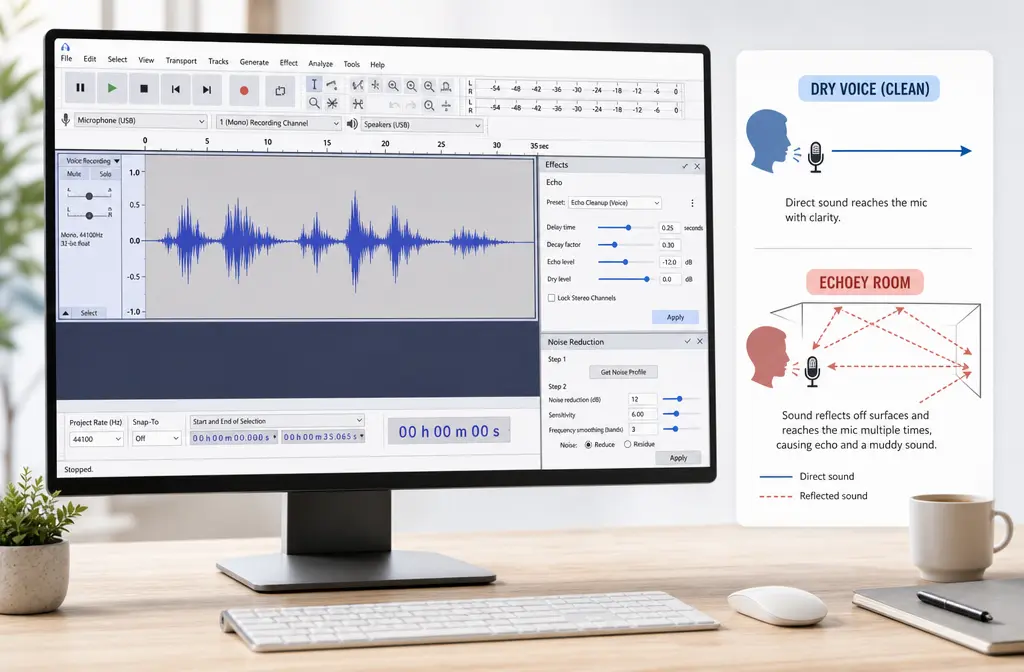
Quick Answer
If you need to remove echo in Audacity, the honest answer is: Audacity can improve mild echo problems, but it does not have a true native de-reverb effect. Audacity’s built-in Noise Reduction, Noise Gate, EQ, and level tools can help with room tone between phrases, boominess, and light reflections. They usually cannot fully repair heavy room reverb, long echo tails, or recordings made too far from the microphone.
For speech, the best Audacity workflow is usually:
- Duplicate the track first.
- Apply light Noise Reduction only if there is steady background noise or room tone.
- Use Noise Gate mainly to reduce the reverb/noise tail between words and phrases.
- Use a high-pass filter or light EQ to reduce low-end boom.
- Do loudness cleanup last, not first.
If the voice still sounds distant, hollow, or obviously “in a room,” exporting the file and using a speech-focused cleanup tool is often faster and sounds better than stacking more Audacity effects. If you already have an MP3, WAV, or MP4 to rescue, you can clean echoey speech audio with SimpleClean after your basic edit.
Best for:
- Audacity only: mild room sound, light boominess, cleanup between phrases
- Export to dedicated cleanup: webinars, talking-head videos, interviews, voiceovers, and far-mic recordings with obvious room reverb
Why Echo Is Harder to Remove Than Background Noise
Many tutorials mix up background noise and reverb, but they are not the same problem.
- Background noise is usually more steady: hiss, fan noise, hum, or air conditioning.
- Echo/reverb is made of reflections of your own voice bouncing around the room.
Audacity’s Noise Reduction works best when there is a relatively consistent noise profile to reduce. That is very different from room reflections, which overlap the words themselves. Audacity’s own forum guidance confirms there is no native de-reverb effect built in, which is the key limitation here.
Audacity’s reverb page also separates the concepts: reverb is a collection of delayed reflections, while echo is a more distinct repeated reflection. In normal speech recordings, people often say “echo” when they really mean a reverberant, roomy, distant voice.

What Audacity Can and Cannot Fix
| Problem | Can Audacity help? | Best tools inside Audacity | Main limitation |
|---|---|---|---|
| Steady hiss or light room tone | Yes, often | Noise Reduction | Too much reduction can sound metallic |
| Reverb tail in pauses | Somewhat | Noise Gate | Only reduces sound when speech drops below threshold |
| Boomy or muddy voice | Yes | High-pass filter, light EQ | Does not remove reflections embedded in speech |
| Heavy untreated-room echo | Usually not well | Limited workaround only | No native dereverb effect |
| Far-mic, hollow voice | Usually not well | Minor EQ cleanup | Direct voice is too weak compared to room reflections |
| Long reverb tail after every phrase | Only partly | Gate may hide pauses | Tail during words still remains |
That leads to the most useful rule:
- If the problem is between phrases, Audacity can often help.
- If the problem is inside the spoken words, Audacity is much more limited.
Symptom-Based Decision Tree
Use this before you start stacking effects.
- Light room ring, but speech is still close and clear: Try gentle Noise Reduction, then a mild Noise Gate, then EQ.
- Long reverb tail after each sentence: Gate may reduce pauses, but full repair is unlikely in Audacity.
- Voice sounds far from the mic: Audacity can brighten or trim lows, but it usually cannot make far-mic audio sound close-mic.
- Boomy room with low-end mud: High-pass filter and light EQ are worth trying.
- Hollow, washy, obvious room sound throughout: Export and use a dedicated dereverb or speech enhancer.
Best Audacity Workflow for Speech
This is the safest built-in workflow for spoken-word recordings.
1) Duplicate your track first
Before applying any repair effect, duplicate the track so you can compare versions and roll back quickly. Echo cleanup is easy to overdo.
2) Use Noise Reduction lightly, only if there is steady noise
Audacity Support recommends getting a noise sample first and warns that heavy settings can create artifacts. That matters even more on voice recordings with room issues.
Starting approach:
- Capture a noise profile from a section with only room tone/noise.
- Apply a conservative amount of reduction first.
- Listen for metallic, underwater, or phasey speech.
Important: Noise Reduction is not true reverb removal. It can reduce steady ambience and make pauses cleaner, but pushing it too hard often makes echoy voice sound even stranger.
3) Apply Noise Gate to reduce tails in silent gaps
Audacity’s Noise Gate does not remove reverb from the words themselves. It reduces sound when the level drops below a threshold, so it is mainly useful for controlling the room/noise tail between phrases.
Good starting mindset:
- Use a gentle threshold.
- Keep attack/hold/decay natural enough that word endings are not chopped off.
- Listen closely to consonants, breath endings, and quiet syllables.
If the gate is too aggressive, the file may sound choppy or unnatural. This is one reason many “echo removal” tutorials disappoint: the room is still there during speech, but now the pauses sound abruptly cut off.
4) Use a high-pass filter or light EQ for boominess
After reducing noise and tail buildup, use EQ gently:
- Trim unnecessary low-end rumble or boom with a high-pass filter.
- Use light EQ to reduce muddiness if the room added low-mid buildup.
- Avoid extreme boosts trying to “force” clarity back in.
This can make speech easier to understand, but it still is not the same as removing reverberation.
5) Do loudness cleanup last
Only after echo-related cleanup should you normalize or otherwise tidy levels. If you boost level too early, you may bring up room tone and reflections before you control them.

Recommended Starting Settings and Warnings
Because room recordings vary so much, there is no universal magic preset. But the safest advice from the supplied sources is to stay conservative.
- Noise Reduction: start light, because over-processing causes metallic or underwater artifacts.
- Noise Gate: set it gently enough that quiet word endings survive.
- EQ: make small moves only; cut boominess before trying to add brightness.
- Compression: optional, and usually better after echo control, not before.
Why the caution on compression? Because compression reduces dynamic range and can raise low-level ambience, which often makes room tone and reverb more obvious. If you compress first, you may end up making the room sound worse before you even try to clean it.
Why Compressor Is Optional, Not Step One
Some competing tutorials recommend compressor early in the chain. For speech with echo, that is risky.
- Compression can make pauses, room tail, and breath noise more audible.
- It can reduce the contrast between direct speech and the room around it.
- If you gate after heavy compression, the gate may behave less naturally.
That does not mean compression is always wrong. It means it is usually a finishing step, not an echo-removal step.
When Audacity Is Enough vs When to Export
Audacity is often enough when:
- The recording has mild room sound
- The speaker is still fairly close to the mic
- The biggest issue is room tone or tail between sentences
- You mainly need a cleaner podcast draft, course lesson, or scratch voiceover
Export to a dedicated cleanup tool when:
- The voice sounds far away
- The room sound stays obvious during every word
- You hear long, hollow reverb tails
- Noise Reduction makes the voice metallic before the echo is solved
- You are rescuing a webinar, interview, talking-head video, or remote recording and need speed
For a quick speech-first fallback, Adobe’s Enhance Speech and its related help documentation describe a dedicated workflow for improving speech and reducing reverb/noise in uploaded files. If you want a direct file-cleanup workflow for exported speech recordings, SimpleClean is a natural next step for cleaning echoey audio after your Audacity edit instead of forcing more gates and filters.
If you specifically want a plugin path, Acon Digital’s DeVerberate is an example of a dedicated reverb-reduction plugin category that is more suitable than generic noise reduction when room reverb is severe.
How to Export From Audacity and Clean the File Somewhere Else
- Do your edit first. Remove mistakes, tighten pauses, and create your final spoken edit in Audacity.
- Apply only light repair. Use gentle Noise Reduction, gate, and EQ if they help.
- Export a clean master. Save a WAV or your preferred delivery format after editing.
- Run speech cleanup externally. If the voice still sounds roomy, upload the exported file to a dedicated speech cleaner rather than adding more aggressive effects.
- Re-import if needed. Bring the cleaned version back into your editing workflow for final delivery.
This is especially practical for creators cleaning interview clips, narrated lessons, or talking-head videos before adding subtitles with Best AI Captions or translating and dubbing the finished video with Translate Dub. Once the cleaned video is ready to publish across multiple channels, Mallary.ai fits naturally for scheduling and distributing that content across social platforms.
Troubleshooting: What Went Wrong?
“My voice sounds metallic or underwater.”
You probably pushed Noise Reduction too hard. Audacity Support specifically warns about artifacts from overuse. Undo, reduce the amount, and accept a little residual room tone if necessary.
“The ends of words are getting chopped off.”
Your Noise Gate is too aggressive. Lower the threshold or adjust timing so it closes less abruptly.
“The audio pumps in and out.”
This usually means the gate or later dynamics processing is reacting too obviously to changing levels. Use lighter settings and avoid stacking aggressive compression on top.
“Now it sounds hollow.”
Too much filtering or reduction can strip natural body from the voice while leaving reflections behind. Roll back EQ and Noise Reduction first.
“It still sounds far away.”
This is the classic sign of a recording problem that Audacity cannot fully repair natively. If the microphone was too far away, the direct voice was captured too weakly compared to the room. At that point, export and try a dedicated dereverb or speech enhancement workflow.
Prevention Beats Repair
Audacity’s own speech-recording guidance for audiobook mastering reinforces a simple truth: recording closer to the mic matters more than post-processing.
To reduce echo at the source:
- Move closer to the microphone
- Record in a room with soft furnishings
- Avoid large bare walls and reflective surfaces
- Reduce the distance between mouth and mic before raising gain
A close-mic recording with mild noise is usually much easier to fix than a far-mic recording from a bad room.
Best Option by Situation
| Situation | Best option | Why |
|---|---|---|
| Light echo in a podcast intro | Audacity workflow | Gate and EQ may be enough |
| Webinar recording with distant voice | Export to dedicated speech cleanup | Far-mic reverb is hard to fix natively |
| Interview clip with room tone between answers | Audacity first, then external cleanup if needed | Pauses may improve, but speech may still sound roomy |
| Course narration recorded in an untreated room | Dedicated cleanup after edit | Cleaner workflow than stacking filters |
| Heavy reverb on every word | Dereverb plugin or speech enhancer | Audacity has no native dereverb |
Final Verdict
If you searched for how to remove echo in Audacity, the most useful answer is also the least flashy: Audacity can reduce some symptoms of echo, but it cannot truly de-reverb speech with native tools alone. Use it for light cleanup, room-tone control, boominess reduction, and careful finishing. Do not expect it to fully rescue a hollow, far-mic, untreated-room recording.
When the voice still sounds obviously in a room after gentle cleanup, exporting to a speech-focused tool is usually the smarter move. If that is your situation, you can remove echo from spoken audio with SimpleClean after editing instead of fighting increasingly harsh settings inside Audacity.
Related help on SimpleClean: remove background noise in Audacity, Adobe Podcast vs VEED vs CapCut, and Adobe Podcast vs Descript vs Riverside.
Sources and further reading
- Is there a way to remove room reverberation? - Audacity Forum - Primary-source confirmation that Audacity has no native de-reverb effect.
- Free Reverb Effect – Add Room, Hall & Cathedral | Audacity - Official reference for explaining reverb versus echo concepts.
- Audiobook Mastering | Audacity Support - Official recording-distance and speech cleanup best practices.
- Remove noise and improve voice quality | Adobe Firefly Help - Official documentation for Adobe speech enhancement workflow and controls.