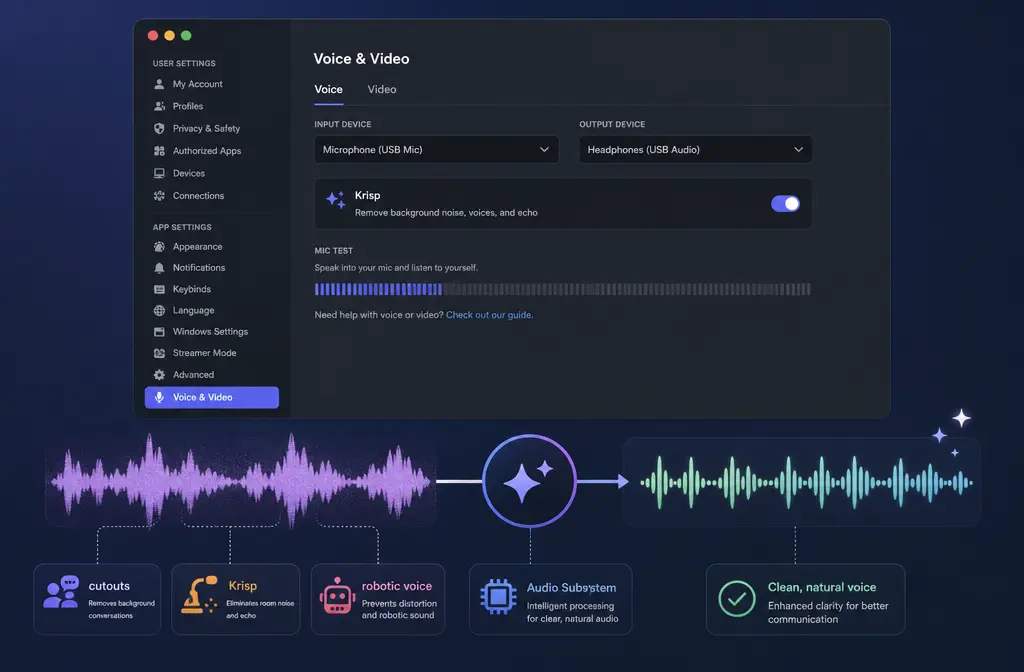
How to Fix Discord Noise Suppression Not Working: Krisp Cutouts, Robotic Voice, Audio Subsystem, and Better Fallbacks
Quick Answer
If Discord noise suppression is not working, the fastest fix path is usually: confirm the correct Input Device, run Discord’s Mic Test, make sure only one noise-processing app is active, adjust input sensitivity if your voice is getting cut off, then Reset Voice Settings and switch Discord’s Audio Subsystem on desktop if distortion continues. Discord also says to disable Krisp if it makes your audio worse, and its help docs note that some distortion cases are tied to input-rate mismatch or Noise Canceller Error 1002.
If your problem is in an already recorded Discord clip, exported screen recording, or a call capture with baked-in noise, live suppression may be the wrong tool. In that case, export the MP4, MOV, WAV, or M4A and clean recorded Discord audio with SimpleClean after the fact.
| Symptom | Most likely cause | Best first fix |
|---|---|---|
| No audible change | Wrong mic selected, suppression not actually active, or noise type is outside what live suppression handles well | Check Input Device, run Mic Test, toggle Noise Suppression off/on |
| Voice cutting out | Input sensitivity too aggressive, Push to Talk mismatch, or double-processing | Disable automatic sensitivity, test Voice Activity vs Push to Talk, remove overlapping apps |
| Robotic or distorted voice | Krisp quality conflict, subsystem issue, or documented input-rate mismatch path | Disable Krisp temporarily, reset voice settings, switch Audio Subsystem |
| Krisp / suppression option missing | App state issue or broader audio detection issue | Restart Discord, verify mic detection, check permissions |
| Mic not detected | Permissions, driver, USB port, or routing problem | Check OS mic permissions, drivers, USB port, and selected input |
Where Discord Noise Suppression is and how to test it safely
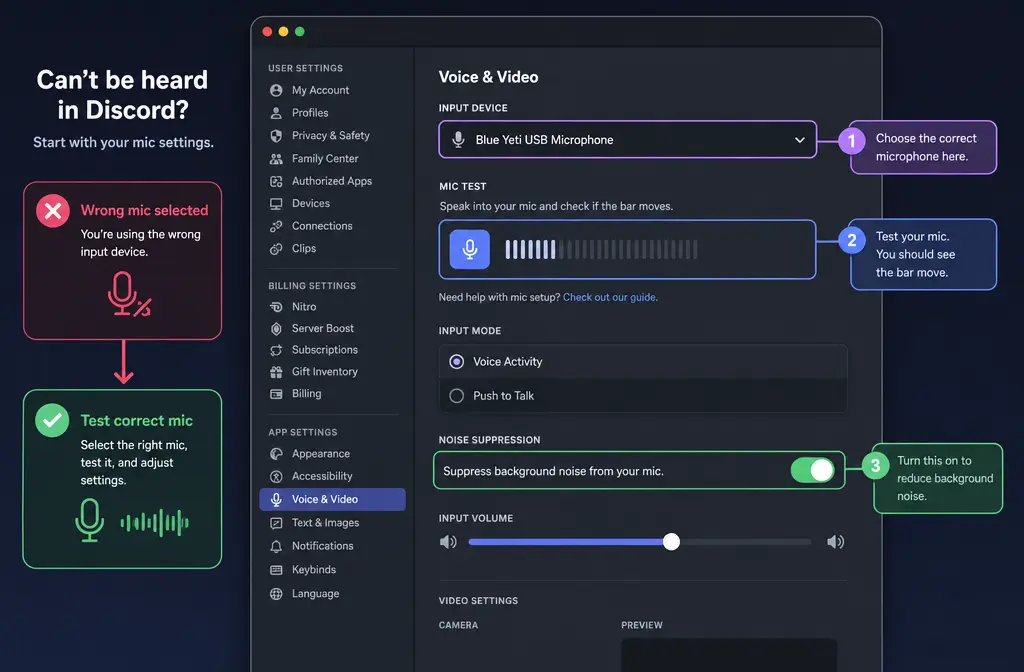
On Discord desktop, go to User Settings > Voice & Video. That is the main place to verify your microphone, input mode, and voice processing options. Before changing five things at once, test in this order:
- Confirm the selected Input Device.
- Use Discord’s Mic Test.
- Toggle Noise Suppression off, speak, then toggle it back on and test again.
- Listen for whether the problem is really background noise, or whether your voice itself is being clipped or distorted.
This matters because “noise suppression not working” often means one of two very different failures:
- Discord is not processing the mic you think it is.
- Discord is processing it, but the voice chain is over-processed and your speech quality gets worse.
Fast diagnosis: what to do based on the symptom
1) Noise suppression does nothing
Start with the simplest official checks. Discord’s troubleshooting guide specifically points users to verify the correct input and output devices and use the Mic Test. If the wrong input device is selected, Noise Suppression can appear broken when it is actually working on a different mic.
Then ask a practical question: what kind of noise are you trying to remove?
- Moderate keyboard, fan, or background room noise: live suppression can help.
- Loud room echo or reverb: don’t expect Discord alone to fully fix it.
- Wind: live call suppression is often not the best answer.
- Already-recorded audio: Discord settings cannot repair the exported file afterward.
If the issue is a saved clip, not the live call, SimpleClean is the more relevant workflow because you can export the recording and clean the file directly instead of trying to recreate the call.
2) Discord Krisp cuts off your voice
This is usually not a “Krisp is broken” problem. It is more often a threshold or double-processing problem.
Try these fixes in order:
- Turn off Automatically determine input sensitivity and test manually.
- Switch between Voice Activity and Push to Talk to see which behaves better for your speaking style.
- If you use the standalone Krisp app, follow Krisp’s setup guidance and avoid stacking Discord’s own processing on top of it.
- Temporarily disable overlapping Discord processing such as Noise Suppression, Echo Cancellation, and automatic sensitivity when Krisp app is handling the chain.
Krisp’s own help center is clear on the double-processing angle: if you run the Krisp desktop app with Discord, use one setup properly rather than letting multiple processors fight each other.
3) Discord makes your mic sound robotic
Discord’s official error-code guide notes a relevant path here: some users can hear robotic or distorted audio due to an input-rate mismatch. Discord also documents that disabling Krisp may help if it is worsening audio quality.
That makes robotic voice a branching problem:
- If robotic audio started after enabling suppression: disable Krisp/noise suppression temporarily and retest.
- If it persists even with suppression off: reset voice settings and switch Audio Subsystem on desktop.
- If the mic also behaves oddly in other apps: check OS-level mic settings, drivers, or hardware connection.
4) Noise suppression option is missing or won’t engage
If the option is missing, grayed out, or simply seems not to respond:
- Fully quit and restart Discord.
- Check whether Discord is detecting any valid microphone input.
- Verify Windows or macOS microphone permissions.
- Update Discord, your operating system, and audio drivers if applicable.
5) Mic not detected at all
If Discord does not see your microphone, noise suppression is not the first problem. Detection comes first.
- Try another USB port.
- Test another microphone if you have one.
- Use Microsoft’s microphone troubleshooting steps on Windows.
- On Mac, confirm Discord has microphone access in system privacy settings.
Turn off overlapping processing from other audio tools
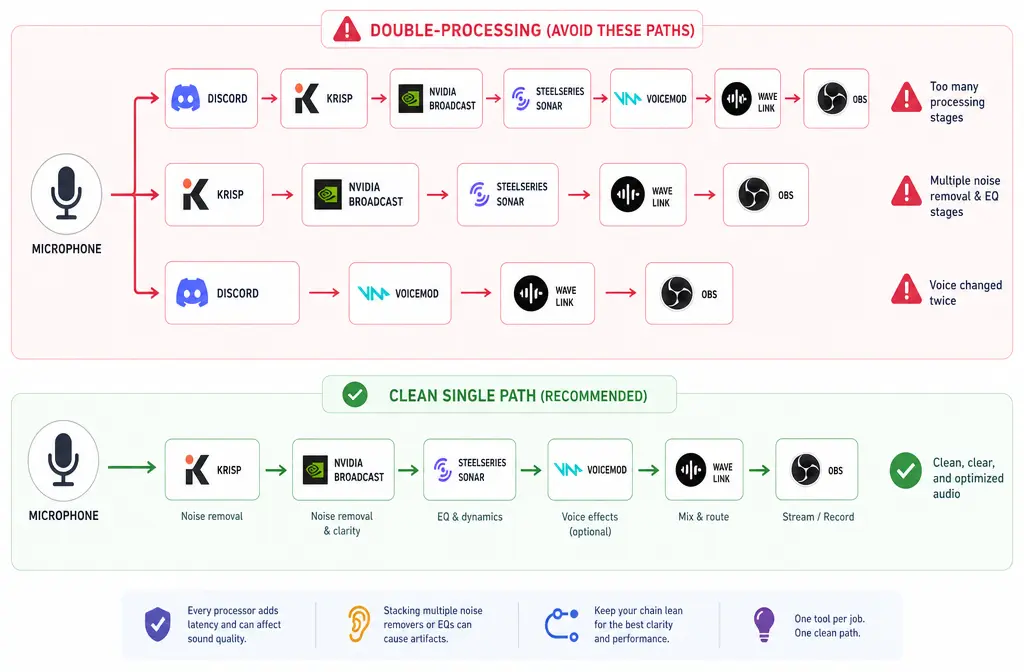
One of the biggest causes of “Discord noise suppression not working” is actually too much suppression. If you are routing audio through another tool, Discord may be the second processor, not the first.
Common conflict sources include:
- Krisp app
- NVIDIA Broadcast
- SteelSeries Sonar
- Voicemod
- Elgato Wave Link
- OBS virtual routing
Best-for guidance:
- Best if you want the simplest setup: use Discord’s built-in suppression alone.
- Best if you already rely on an external processor: use that processor as the mic input to Discord and reduce Discord-side extras.
- Best if you need to repair a saved recording: skip live tweaking and remove noise from an exported Discord recording.
If you use Krisp app specifically, its setup article recommends Discord settings that avoid overlapping processing. That is why disabling Discord-side Noise Suppression, Echo Cancellation, and automatic input sensitivity can help when Krisp app is already handling cleanup.
Related fixes if your chain uses external tools: Krisp not working, NVIDIA Broadcast not working, and OBS noise suppression not working.
Reset Discord voice settings and restart fully
Discord’s official troubleshooting guide recommends Reset Voice Settings as a core fix. This is one of the best moves when you have changed multiple toggles and no longer know which setting broke the chain.
How to reset Discord voice settings:
- Open User Settings.
- Go to Voice & Video.
- Scroll down and choose Reset Voice Settings.
- Confirm the reset.
- Fully quit Discord and reopen it.
After restarting, re-check only the essentials first:
- Input Device
- Input Mode
- Mic Test
- Noise Suppression
Do not re-enable every enhancement immediately. Add them back one at a time.
Switch Audio Subsystem on desktop
If your voice sounds distorted, your mic disappears intermittently, or Discord behaves differently from other apps, Discord’s help docs recommend trying a different Audio Subsystem on desktop, such as Standard vs Legacy.
This is especially worth testing when:
- Your microphone is detected inconsistently.
- Suppression seems fine one launch and broken the next.
- You hear distortion, robotic tone, or device instability.
It is not the first fix for every user, but it is one of the highest-value official troubleshooting steps when basic checks fail.
Check Windows or macOS microphone permissions
If your mic works in one app but not in Discord, permissions are a realistic cause.
Windows
Microsoft’s microphone privacy page explains how to confirm that microphone access is enabled for apps. Also review Windows microphone troubleshooting for detection and input-level issues.
macOS
Apple’s support guidance covers how to allow microphone access for apps when external audio input is blocked.
This section matters most when:
- Discord desktop cannot hear you at all.
- The browser version behaves differently from the desktop app.
- You recently updated the OS and input access changed.
Update drivers, update the OS, and test hardware basics
Do this if Discord still misbehaves after resetting settings:
- Update your audio drivers on Windows.
- Install pending OS updates.
- Reconnect the mic.
- Try a different USB port.
- Test another headset or microphone if available.
These are not glamorous fixes, but they help separate a Discord setting issue from a broader system audio problem.
What Discord error code 1002 means
Discord’s official Audio and Video Error Codes guide includes Noise Canceller Error 1002. In plain English, it means Discord’s noise canceller failed to initialize correctly. If you hit Error 1002, treat it like a feature startup failure rather than a tuning problem.
Practical next steps:
- Restart Discord fully.
- Check whether another audio-processing app is already occupying the chain.
- Reset voice settings.
- Switch Audio Subsystem.
- Confirm OS permissions and device detection.
When live Discord suppression is the wrong fix
Some audio problems are bigger than Discord’s live processing is designed to solve.
Live suppression is often the wrong primary fix for:
- Loud room echo or heavy reverb
- Strong wind
- Already-recorded Discord clips
- Exported screen recordings from OBS, Streamlabs, or capture tools
In those cases, the faster path is often to save the recording and clean it afterward. You can export the MP4, MOV, WAV, or M4A, then fix noisy Discord recordings with SimpleClean instead of burning time re-running test calls.
If you are turning that cleaned clip into content, Best AI Captions can add captions and subtitles, Translate Dub can help with translated dubbing and multilingual captions, and Mallary.ai fits naturally on the distribution side if your team wants to publish or schedule those cleaned call clips across social platforms.
Simple fallback workflow for bad Discord recordings
- Export the recorded file from your screen recorder or editor.
- Keep the original untouched as a backup.
- Upload the noisy MP4, MOV, WAV, or M4A to SimpleClean.
- Clean the audio after recording instead of trying to force Discord’s live suppression to repair a finished clip.
- Add captions or translated versions if you plan to share highlights publicly.
This workflow is especially useful for creators, remote teams, and streamers who discover the problem only after the meeting or recording is over.
Best fix by situation
| If your situation is... | Best next step |
|---|---|
| You hear no difference at all | Verify Input Device and use Mic Test before changing anything else |
| Your speech gets chopped up | Adjust input sensitivity and remove overlapping suppression apps |
| Your mic sounds robotic | Disable Krisp temporarily, reset voice settings, test Audio Subsystem |
| Discord cannot see the mic | Check permissions, drivers, USB port, and hardware |
| The recording is already ruined | Export it and clean the file afterward |
Final takeaway
Most Discord noise suppression failures are not mysterious. They usually come down to the wrong input device, aggressive sensitivity settings, double-processing with tools like Krisp or NVIDIA Broadcast, or desktop subsystem and permission issues. Follow the fixes in order: verify the mic, test it, simplify the chain, reset settings, then switch subsystems if needed.
And if the audio problem is already baked into a clip, do not keep fighting a live-call setting for an offline problem. Export the file and use a post-recording cleanup workflow instead.
Sources and further reading
- Discord Voice and Video Troubleshooting Guide - Used for official guidance on checking input devices, Mic Test, disabling Krisp if it worsens quality, resetting voice settings, and switching Audio Subsystem.
- Discord Audio and Video Error Codes: Troubleshooting Guide - Used for Noise Canceller Error 1002 and the note about robotic or distorted audio tied to input-rate mismatch.
- Where'd my Audio Input go? (+ Various Voice Issues) - Used for microphone detection, subsystem troubleshooting, and official voice issue guidance.
- Set up Discord with Krisp - Used for the double-processing conflict angle and recommended Discord setting adjustments when using the standalone Krisp app.
- Turn on app permissions for your microphone in Windows - Used for Windows microphone permission guidance.
- Fix microphone problems - Used for Windows mic troubleshooting, detection, and driver basics.
- If you can’t record audio from an external source on Mac - Used for macOS microphone permission and external audio input access guidance.