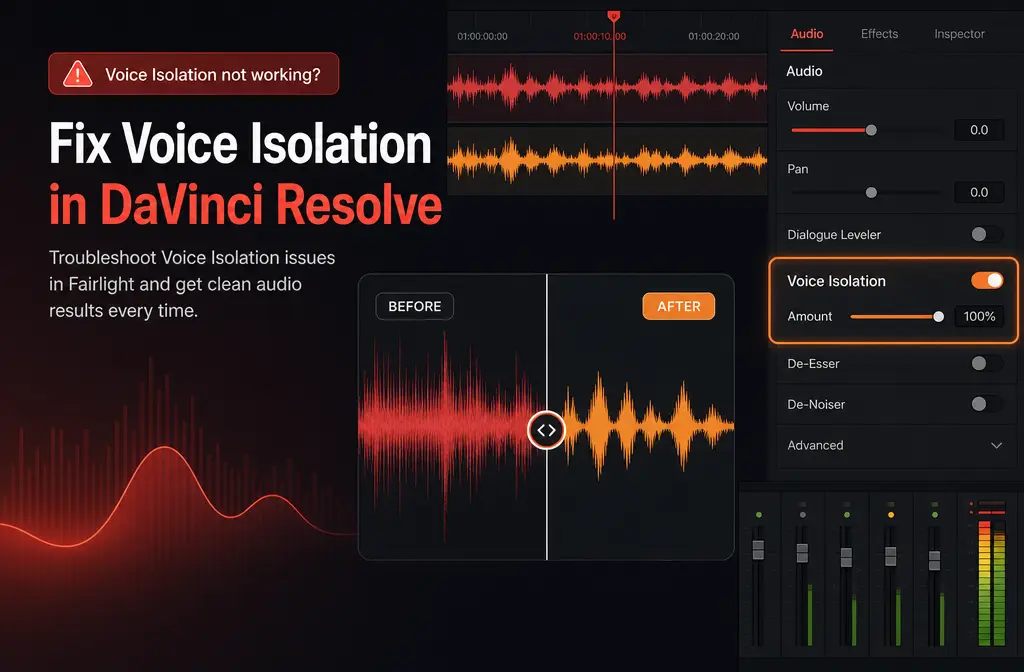
How to Fix DaVinci Resolve Voice Isolation Not Working: Missing Controls, Studio-Only Limits, Track vs Clip Confusion, and Better Fallbacks
If DaVinci Resolve Voice Isolation is missing, not visible, doing nothing, or making dialogue sound robotic, the problem is usually one of five things: you are on the free version, you are looking in the wrong place, you are applying it at the wrong scope, your source audio is a poor match for this tool, or another processing/bug issue is getting in the way.
Quick Answer: the 5 most common reasons Voice Isolation seems broken
| Symptom | Most likely cause | Fastest fix |
|---|---|---|
| Voice Isolation is missing or not showing | You are using free Resolve, not Studio | Check your edition first; Voice Isolation is listed as a DaVinci Resolve Studio feature |
| You cannot find the control | You are looking on the wrong page or in the wrong scope | Check clip Inspector/Fairlight controls, and remember users may encounter clip and track contexts |
| The control is visible but barely changes anything | The noise is not the kind Voice Isolation handles well | Best on clear speech with steady fan, HVAC, room tone, or mild hiss |
| The voice sounds robotic or muffled | Amount is too high or processing is stacked | Lower the Amount and simplify the chain before judging the result |
| Playback sounds right but export sounds wrong, or EQ behaves oddly | Version-specific bug or effect interaction | Test a short export, disable conflicting processing, and check current release notes/support resources |
For mild background noise around a reasonably clear voice, Resolve can be a fast fix. But if the track has heavy wind, strong room echo, multiple competing voices, clipped audio, or lots of music, it is often faster to export the file and use a dedicated cleanup workflow instead. If you are at that point, you can clean noisy dialogue with SimpleClean after export rather than fighting the timeline.
Free vs Studio: is Voice Isolation in free DaVinci Resolve?
No. Voice Isolation is a DaVinci Resolve Studio feature.
The cleanest source for this is Blackmagic’s DaVinci Resolve Studio features PDF, which lists Voice Isolation under Studio features. Blackmagic’s official forum release post for Resolve Studio 18.1 also introduced it as a new Fairlight AI-based core effect.
So if you are searching for:
- “Voice Isolation missing in DaVinci Resolve”
- “Voice Isolation not visible”
- “Why don’t I have Voice Isolation in Resolve?”
...the first thing to confirm is whether you are in Resolve Studio rather than the free edition.
This sounds obvious, but it is one of the biggest real-world causes of confusion, including on the Blackmagic forum thread about Voice Isolation not being visible.
Where the control lives now: clip Inspector vs track-level use
A second common problem is that users expect one fixed location for the tool. In practice, people encounter Voice Isolation in different scopes and workflows.
Blackmagic’s Resolve 20.1 new features material references Voice Isolation for audio clips and tracks in its scripting API language. That matters because it supports the idea that users may run into both clip-level and track-level contexts depending on how they work.
In plain English:
- Clip-level use is usually the safest place to start when only one interview clip or one problem segment needs help.
- Track-level use makes more sense when the whole dialogue track has the same problem.
- If you are on the wrong page, wrong inspector area, or wrong scope, the effect can feel like it disappeared.
Blackmagic’s Resolve Studio 18.1 forum release specifically described Voice Isolation as a Fairlight AI-based core effect, which is another clue: many users who stay mostly on the Edit page do not think to look in Fairlight-related audio processing areas.
Best practice: before assuming the feature is broken, verify three things:
- You are on Resolve Studio.
- You are selecting the actual audio clip or relevant track.
- You are checking the audio Inspector/Fairlight effect area, not just a random clip property panel.

How to fix DaVinci Resolve Voice Isolation not working
- Confirm your edition. If you are on free Resolve, stop there: Voice Isolation is Studio-only.
- Check your version. Blackmagic’s Resolve 19 new features guide says Voice Isolation was improved to work on a wider variety of source signals, with improved stereo performance and buffering. If you are on an older version, updating may change results.
- Apply it to the right thing. Test it on one dialogue clip first before putting it on an entire complicated track.
- Use a short, obvious test clip. Pick 10 to 20 seconds with clear voice plus fan, HVAC, room tone, or mild hiss.
- Start with a moderate Amount. If you jump straight to the maximum, robotic or muffled artifacts are more likely.
- Temporarily disable other processing. Bypass EQ or other cleanup while testing so you can hear what Voice Isolation is doing by itself.
- Test playback and export. If playback sounds fixed but export does not, make a short export test before processing a full project.
- If results are still poor, switch workflows. Export the problem audio and clean it separately rather than spending an hour troubleshooting the timeline.
Why it is visible but does nothing
If Voice Isolation is present but the result is weak, that usually means the source does not match what the tool is best at.
Based on the research brief and Blackmagic’s own notes, Voice Isolation is a stronger fit for:
- Steady fan noise
- HVAC noise
- Room tone
- Mild hiss around otherwise clear speech
It is a weaker fit for:
- Strong wind
- Heavy reverb or echo
- Multiple people talking at once
- Background music competing with voice
- Clipped or distorted recordings
- Very quiet speech buried under louder noise
That is why some editors say it is “not doing anything” when technically it is working, just on a source that gives it too little clean voice to separate.
Signs your source is a bad candidate
- The voice is farther away than the noise
- The noise is changing constantly instead of staying steady
- Another speaker overlaps the main speaker
- The room echo is more obvious than the direct voice
- The waveform is already clipped or damaged
In those cases, remove background noise from exported dialogue outside Resolve and compare the result before you keep tweaking the timeline.
Why Voice Isolation sounds robotic or muffled
Robotic and muffled output is usually not a sign that Resolve failed completely. It is more often a sign that the processing is too aggressive for the source.
Common causes:
- Amount too high: the tool starts shaving off parts of the voice along with the noise.
- Stacked processing: EQ, other noise reduction, or dialogue processing can combine badly.
- Nearby voices: another voice is not “background noise” in the same way a fan is.
- Heavy reverb: echo smears the speech cues the tool needs.
- Wind: wind is broad, messy, and often much harder than HVAC or hiss.
- Music-heavy tracks: prominent music competes with dialogue in a way this tool may not cleanly separate.
Fast fix: back the Amount down, disable the rest of your chain, and compare again. If the voice gets clearer as you reduce processing, the issue is overprocessing, not a missing feature.
Best starting points by noise type
There is no single official “correct” Amount setting in the provided sources, so the safest guidance is to start conservatively and increase only until the noise drops without obvious voice damage.
| Noise problem | Good candidate for Resolve Voice Isolation? | Starting approach |
|---|---|---|
| Fan noise | Yes | Start low to moderate and raise only until the fan recedes |
| HVAC / air conditioner | Yes | Use moderate processing; watch for dullness in the voice |
| Room tone | Yes | Subtle use is often enough |
| Mild hiss | Often yes | Keep it gentle to avoid a papery or watery voice texture |
| Other people talking nearby | Limited | Test briefly; if bleed stays obvious, use a different workflow |
| Wind | Poor candidate | Do not expect a clean rescue inside Resolve |
| Room echo / reverb | Poor candidate | Voice Isolation may not solve the underlying problem |
| Music under speech | Limited | Test lightly; if speech turns robotic, stop |
Known weird behavior: EQ interaction, playback/export inconsistencies, and version-specific issues
There are also cases where the tool is not simply “bad at this audio” but behaves oddly because of version or effect interaction issues.
1) EQ interaction complaints
A Blackmagic forum thread about Resolve 19.0.2 discusses a bug/issue context involving Voice Isolation plus Equalizer on the Edit page. If you enable Voice Isolation and then EQ seems broken, missing, or inconsistent, do not assume you imagined it.
What to test:
- Disable Voice Isolation and re-check the EQ behavior
- Move your testing into a simpler chain
- Try clip-level testing before track-wide processing
- Check the latest Blackmagic support resources and release notes
2) Playback sounds right, export sounds wrong
If monitoring sounds fine but the export does not match, treat that as a real troubleshooting branch, not a user mistake.
What to test:
- Export a very short sample first
- Bypass other audio processing and export again
- Compare clip-level vs track-level use
- Verify your Resolve version and check Blackmagic Support for current installers, manuals, and release notes
3) Version differences matter
Blackmagic’s Resolve 19 new features guide says Voice Isolation was updated to work better on a wider variety of source signals and improved stereo performance and buffering. That means one editor’s “it barely works” experience on an older version may not match current behavior.
If you have not updated in a while, version age is a legitimate troubleshooting factor.

Use Resolve vs export and clean elsewhere: the practical decision
This is the part most competing articles skip. The real question is not just “Can Resolve do it?” but “Should you keep doing this inside Resolve?”
Use Resolve Voice Isolation when:
- You already have Resolve Studio
- The problem is mild fan, HVAC, room tone, or hiss
- The speaker is clear and upfront
- You want a quick in-timeline fix
- You only need modest cleanup
Export and clean the file separately when:
- The voice turns robotic before the noise goes away
- You have wind, echo, competing voices, or clipped audio
- You are hitting playback/export mismatches
- You are troubleshooting effect conflicts instead of editing
- You need a repeatable workflow for many files
That is where SimpleClean fits naturally: export the noisy dialogue, clean the file, then bring it back into your edit instead of stacking more timeline processing on top of an already struggling track.
Best fallback options by use case
| Situation | Best option | Why |
|---|---|---|
| Mild fan/HVAC on a single interview clip | Resolve Voice Isolation | Fast and already inside the edit |
| Dialogue gets robotic in Resolve | Separate file cleanup workflow | Easier to compare clean results without timeline conflicts |
| Heavy wind or echo | Separate cleanup workflow | Poor candidate for simple voice isolation |
| Podcast or course audio from many episodes | Separate cleanup workflow | More repeatable than fixing clip by clip |
| Need captions after cleanup | Best AI Captions | Add captions and subtitles after the dialogue is easier to hear |
| Need multilingual versions | Translate Dub | Translate, dub, and caption cleaned videos for more audiences |
| Need to publish clips across channels | Mallary.ai | Useful once the audio is cleaned and you want to distribute or schedule the finished content |
If your workflow is “clean the talking-head clip, caption it, make translated versions, then push it across platforms,” a practical stack is: clean audio first, add subtitles with Best AI Captions, create multilingual versions with Translate Dub, and distribute those finished clips with Mallary.ai.
FAQ
Is DaVinci Resolve Voice Isolation Studio only?
Yes. Blackmagic’s DaVinci Resolve Studio features PDF lists Voice Isolation as a Studio feature, not a free Resolve feature.
Why is Voice Isolation missing in DaVinci Resolve?
The most common reasons are: you are on free Resolve, you are looking in the wrong place, or you are checking the wrong scope or selected item.
Does Voice Isolation work on tracks or only clips?
Users may encounter both clip and track contexts. Blackmagic’s Resolve 20.1 new features material references Voice Isolation for audio clips and tracks in scripting-related language, which supports the track-vs-clip confusion many editors run into.
Can DaVinci Resolve remove background voices?
Sometimes, but not reliably if the other voice is prominent. Another person talking is a much harder problem than steady HVAC or fan noise.
Why does Voice Isolation make my voice sound robotic?
Usually because the Amount is too high, the source is a poor candidate, or other processing is stacked on top of it.
Can Voice Isolation fix echo or wind?
Those are weak cases for this tool. Heavy room echo and strong wind are often better handled in a separate cleanup workflow, if they can be improved at all.
Why does Voice Isolation work in playback but not export?
That can point to a version-specific issue or effect interaction. Test a short export, simplify the chain, and check the current Blackmagic support and release-note resources.
Can I use EQ with Voice Isolation in Resolve?
You can try, but there has been user-reported issue context around Voice Isolation plus Equalizer behavior on the Edit page in Resolve 19.0.2. If EQ starts acting strangely, test Voice Isolation alone first.
Final takeaway
If DaVinci Resolve Voice Isolation is not working, do not start with random tweaking. Start with the decision tree:
- Am I on Studio?
- Am I applying it in the right place?
- Is this audio a good candidate for voice isolation?
- Am I overprocessing it?
- Am I hitting a bug or interaction issue?
For light constant noise, Resolve can be enough. For wind, echo, overlapping voices, or timeline weirdness, exporting the file and using a dedicated cleanup path is often the faster call. If that is your situation, you can repair dialogue outside Resolve with SimpleClean and get back to editing sooner.
If you want adjacent troubleshooting guides, see our help on Premiere Pro noise reduction not working, Audacity noise reduction not working, and Adobe Podcast Enhance Speech not working.
Sources and further reading
- DaVinci Resolve 19 New Features Guide PDF - Confirms Voice Isolation improvements for a wider variety of source signals and improved stereo performance and buffering.
- DaVinci Resolve 20.1 New Features Guide PDF - Supports explaining that users may encounter clip and track contexts.
- Blackmagic Forum – Release of DaVinci Resolve Studio 18.1 - Official forum release post describing Voice Isolation as a Fairlight AI-based core effect.
- Blackmagic Forum – Item "Voice isolation" not visible - Evidence of common missing-control confusion among users.
- Blackmagic Forum – Bug v19.0.2: Voice isolation + Equalizer on the edit page - Supports the section on EQ interaction complaints and version-specific weird behavior.
- DVResolve.com – Voice Isolation & Dialogue Leveler Audio Tools - Supplemental practical source for usage context and real-world limitations.