
Adobe Podcast Enhance Speech Not Working? Fix Upload Failed, Enhance Failed, Limits, and Better Fallbacks
If Adobe Podcast Enhance Speech is not working, the cause is usually one of five things: an unsupported file or plan limit, a browser issue, a network blocker, a bad upload session, or an Adobe-side processing problem. The fastest way to diagnose it is to check whether your file format and size are supported, confirm you have not hit your daily limit, refresh and re-sign in, disable extensions or VPNs, and test a tiny sample clip. If a short clean test file works but your real file does not, the problem is usually the file, the plan limit, or Adobe’s processing on that specific upload rather than your whole account.
And if you already have an exported MP3, WAV, MP4, or MOV and just need the audio cleaned without more browser friction, you can clean podcast audio with SimpleClean and move on.
Quick Answer: the 5 most common reasons Adobe Podcast fails
- Your file is unsupported or too large. Adobe’s FAQ lists accepted upload formats, and Adobe’s plan pages also set file-size and duration limits.
- You hit Free or Premium plan limits. Free and Premium have different duration, daily-hour, file-size, video, and bulk-upload rules.
- Your browser session is broken. Adobe recommends refreshing long-open tabs, updating the browser, clearing cookies for some errors, and disabling extensions or VPNs.
- Your network blocks Adobe. Adobe specifically points to firewall and proxy issues for connection-related failures.
- Adobe is processing badly on that file or at that moment. Community reports show real “upload failed” and “enhance failed” cases, even when users retry. That does not prove a global outage, but it does mean the problem is not always on your end.
Symptom-based troubleshooting table
| Symptom | Most likely cause | What to do first | When to stop and use a fallback |
|---|---|---|---|
| White loading page | Browser session problem, extension conflict, cached cookies, or network filtering | Hard refresh, sign out/in, update browser, disable extensions/VPN, clear cookies, try another browser | If multiple browsers still show a blank or white page, clean the exported file directly instead of waiting |
| Upload failed | Unsupported format, file too large, unstable upload, browser conflict | Check format and size, retry with a tiny sample clip, refresh, disable VPN/extensions | If a small test works but the real file fails repeatedly, export a fresh WAV or MP3 and use a direct file cleaner |
| Enhance failed | Processing issue on that file, plan-limit issue, browser/network interruption | Re-upload, shorten the file, test a smaller clip, verify daily limit, retry in another browser | If multiple re-uploads fail on the same asset, switch workflows instead of burning time |
| Stuck processing | Long file, unstable connection, Adobe-side queue or processing stall | Refresh after waiting, retry with a shorter section, test another file | If short files work and the long one never completes, split or clean outside Adobe |
| Connection Failed | Cookie/session issue, firewall, proxy, blocked network | Clear cookies, re-sign in, try another network, check firewall/proxy settings | If the same account works on another network, stop troubleshooting the file and fix the network or use another tool |
| Video upload missing or rejected | Free plan limitation or unsupported workflow expectation | Confirm whether you are on Free or Premium and whether your video format is supported | If you only need speech cleanup on an exported video, use a file-based workflow and re-import |

Supported file formats and specs from Adobe
Before you troubleshoot anything else, check the file itself. Adobe’s FAQ says Adobe Podcast supports these upload formats:
- Audio: MP3, WAV, M4A, AAC, AIF, AIFF
- Video: MP4, MOV
If your file is outside those formats, transcode it first. If your export is damaged or oddball, the safest test is a plain WAV or MP3 made from your editor or media converter.
This is also why one file can work yesterday while another fails today: Adobe may accept your account and browser just fine, but choke on one specific export, codec variation, or oversized file.
Adobe Podcast Free vs Premium limits that explain many failures
A lot of “not working” reports are really plan-limit issues. Based on Adobe’s features and FAQ pages, here is the practical difference:
| Feature | Free | Premium |
|---|---|---|
| Max file duration | 30 minutes | 2 hours |
| Daily Enhance Speech allowance | 1 hour per day | 4 hours per day |
| Max file size | 500 MB | 1 GB |
| Video support | No, audio only | Yes |
| Bulk upload | No, one file at a time | Yes |
| Strength adjustment | No | Yes |
So if Adobe Podcast will not take your MP4, the answer may be simple: the Free plan is audio-only. If a 42-minute podcast fails on Free, the issue may be the 30-minute max duration. If your second long job of the day suddenly stops processing, check whether you already burned through the daily hour limit.
Adobe also notes on its video guide that if the result sounds too intense or robotic, you may need to dial the enhancement back. That strength control is part of the Premium feature set.
Why Adobe Podcast says “Upload Failed”
“Upload Failed” usually points to the file, the upload session, or the connection between your browser and Adobe.
Try this order:
- Confirm the file format is supported.
- Check file size and duration against your plan.
- Refresh the page and sign in again.
- Disable browser extensions, ad blockers, and VPNs.
- Try a different browser.
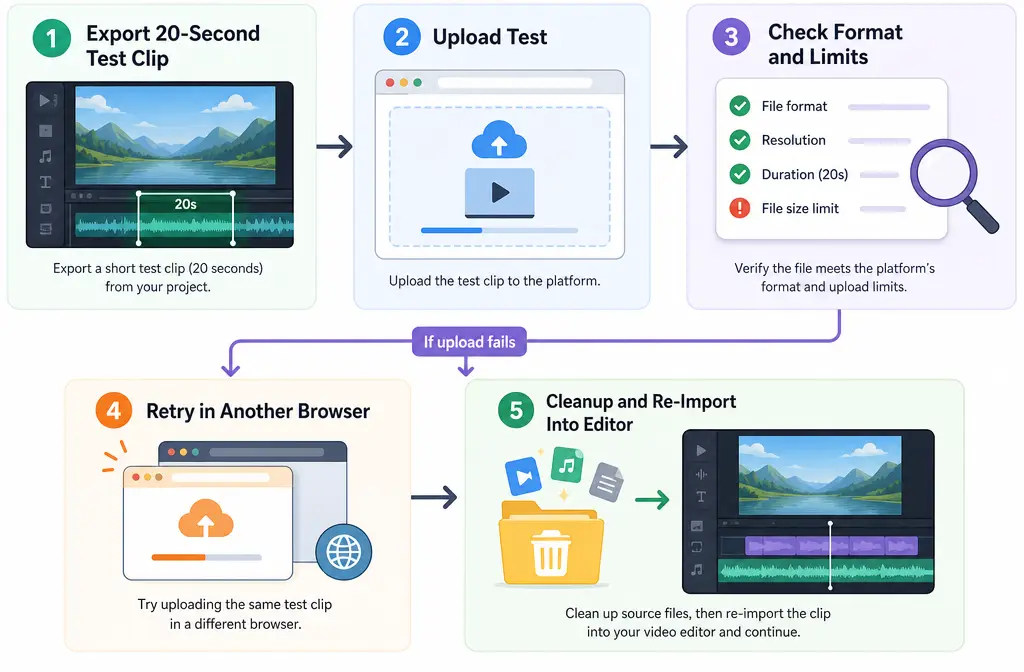
- Export a tiny 15- to 30-second sample as WAV or MP3 and upload that.
If the tiny clip uploads but the original does not, the browser is probably not the main problem. The real culprit is more likely file size, file corruption, an export quirk, or Adobe failing on that specific asset.
Why Adobe Podcast says “Enhance Failed”
“Enhance Failed” is different from “Upload Failed.” It usually means the file made it into Adobe, but processing did not complete.
Adobe’s community forum contains recent user reports of this exact behavior, including repeated failures and retries. Those reports are useful because they show the issue is real, but they do not prove every failure is an Adobe-wide outage.
What to do:
- Re-upload the file instead of retrying the same stalled session.
- Cut the file into a shorter section and test that segment.
- Verify you have not hit the daily Enhance Speech limit.
- Try another browser or a private window with extensions off.
- Export a fresh WAV or MP3 from your editor and retry.
If multiple clean exports of the same content still fail, this is a good point to stop fighting the tool and remove background noise from the exported file with SimpleClean.
Browser fixes Adobe itself recommends
Adobe’s FAQ is fairly clear on the core browser checklist. If Adobe Podcast Enhance Speech is not working, run through these first:
- Refresh the page, especially if the tab has been open for a long time.
- Update your browser to the latest version.
- Sign out and sign back in.
- Disable browser extensions.
- Disable VPNs.
- Clear cookies, especially for “Connection Failed” behavior.
- Try a different browser to isolate a browser-specific problem.
If your issue is a white screen or page that never fully loads, browser cleanup is the first place to look. Some third-party articles focus heavily on one operating-system fix, but Adobe’s own guidance is broader and safer: rule out stale sessions, cookies, extensions, VPNs, and browser version issues first.
Network fixes: firewall, proxy, and unstable connection problems
Adobe also points to network conditions for connection-related failures. If Adobe Podcast works on your phone hotspot but not your office or school Wi-Fi, that is a strong sign the network is the problem.
Watch for these patterns:
- The page loads, but upload or processing never starts.
- You see Connection Failed again after re-signing in.
- The same account works on a different connection.
Try these fixes:
- Switch networks.
- Turn off VPNs.
- Check firewall or proxy restrictions.
- Retry from a personal network if your company network is locked down.
If your team publishes a lot of cleaned clips after editing, it can help to separate production from distribution: clean the file first, then publish through your normal workflow. For distribution, Mallary.ai fits naturally if you want to schedule posts, add first comments, and manage social publishing across multiple platforms from one dashboard or API.
File-side fixes that solve more problems than people expect
When Adobe keeps failing on one specific upload, do not just keep hitting retry. Simplify the file.
Best file-side fixes
- Export a fresh WAV or MP3 instead of reusing a complex source file.
- Shorten long files to stay safely under duration limits.
- Cut a tiny test clip to isolate whether the issue is your file or Adobe generally.
- If you started with video but only need speech cleanup, export the audio track alone first.
This “tiny test clip” method is the fastest diagnosis trick in this whole article.
How to isolate the problem in 5 steps
- Make a 20-second sample. Export it as WAV or MP3 from the same timeline as the failing file.
- Upload the sample first. If it works, your account and browser are probably fine.
- Compare the original file. Check whether it exceeds your plan’s duration or size limits.
- Try a fresh export. Re-export the full file as a plain WAV or MP3 and upload again.
- Switch workflows if needed. If the sample works and the full file still fails, clean the exported file directly and re-import it into your editor.
That last step is often the fastest route for podcasters, video editors, and course creators. Instead of waiting on a browser tool to accept the project, you clean the audio asset you already own, drop it back into Premiere Pro, Resolve, CapCut, or your podcast editor, and keep moving.
When the issue is probably Adobe-side
You should suspect an Adobe-side problem when:
- Supported small files fail in multiple browsers.
- Your network is stable and other web apps work normally.
- Re-signing in and clearing cookies do not help.
- Other users are reporting similar “Enhance Failed” or “Upload Failed” behavior in the Adobe community around the same time.
Even then, be careful about calling it an outage unless Adobe confirms it. The practical move is simple: save your time, retry later, and use a fallback if the deadline matters.
When to stop troubleshooting and use a fallback cleaner
Stop troubleshooting Adobe Podcast if:
- You are clearly blocked by Free-plan limits.
- You already exported the file and only need cleanup.
- The same file keeps failing after fresh export and browser changes.
- You need to deliver today, not after another hour of retries.
That is the sweet spot for SimpleClean: direct cleanup of exported speech-heavy files when Adobe is blocked by limits, browser friction, or failed processing.
Clean spoken audio from MP3, WAV, MP4, or MOV, then re-import the cleaned file into your editing app. If you are also packaging the final video for social, Best AI Captions can help add captions and subtitles, and Translate Dub is the natural next step if you need translated, dubbed, and captioned versions for multilingual audiences.
Best workflow for exported video and audio files
If Adobe keeps failing, this workflow is usually cleaner than endless retries:
- Export your talking audio as WAV or MP3, or keep the MP4/MOV if your cleanup workflow supports it.
- Run cleanup on the exported file.
- Re-import the cleaned result into your editor.
- Finish cuts, music, and mastering.
- Add captions or translations if needed.
- Schedule and distribute the final assets.
This is especially practical for marketers and course creators handling lots of finished assets rather than live recordings.
Best-for recommendations
- Use Adobe Podcast Enhance Speech if your file fits Adobe’s supported formats and plan limits and you want Adobe’s browser-based speech enhancement workflow.
- Use a direct file-cleanup workflow if you already have exported media and Adobe is failing on upload, processing, or plan restrictions.
- Use caption and translation tools after cleanup if your goal is repurposing for social, courses, or global distribution.
If you are comparing options more broadly, you may also want to read Adobe Podcast vs VEED vs CapCut or Adobe Podcast vs Descript vs Riverside.
Final takeaway
Most Adobe Podcast Enhance Speech failures come down to four checks: supported format, plan limits, browser/session health, and network restrictions. After that, the best diagnostic move is a tiny sample clip. If the sample works and the real file does not, do not keep guessing. Re-export cleanly, shorten the file, or switch to a direct cleanup workflow so your project keeps moving.
And if your deadline matters more than troubleshooting, you can clean noisy voice recordings with SimpleClean, re-import the result, and publish without waiting on Adobe to cooperate.
Frequently asked questions
Why does Adobe Podcast say upload failed?
Usually because the file format is unsupported, the file exceeds your plan’s size or duration limits, the browser session is broken, or the network is interrupting the upload. Test a tiny WAV or MP3 clip first to isolate the cause.
Why does Adobe Podcast say enhance failed?
That usually means the file uploaded but Adobe did not finish processing it. Re-upload the file, try a shorter segment, confirm you have not hit your daily limit, and test a fresh export in another browser.
What files does Adobe Podcast Enhance Speech support?
According to Adobe’s FAQ, supported audio uploads include MP3, WAV, M4A, AAC, AIF, and AIFF. Supported video uploads include MP4 and MOV.
Does Adobe Podcast free plan support video?
No. Based on Adobe’s features page, the Free plan is audio-only. Video support is part of Premium.
What are Adobe Podcast free plan limits?
Adobe’s published Free-plan limits include one file at a time, audio only, no strength adjustment, up to 30 minutes per file, up to 500 MB per file, and up to 1 hour of Enhance Speech per day.
How do I fix Connection Failed in Adobe Podcast?
Adobe recommends clearing cookies, re-signing in, checking your connection, disabling VPNs, and reviewing firewall or proxy settings.
Why is Adobe Podcast stuck on a white loading page?
The most likely causes are a bad browser session, extension conflict, VPN, stale cookies, or a network restriction. Refresh, update the browser, clear cookies, disable extensions, and try another browser or network.
What should I use if Adobe Podcast still will not process my file?
If you already have an exported recording or video, use a direct file-cleanup workflow. That lets you clean the file, re-import it into your editor, and keep the project moving even when Adobe upload or processing keeps failing.
Sources and further reading
- Adobe Podcast FAQ - Primary source for supported formats, troubleshooting guidance, and Connection Failed advice.
- Adobe Podcast Features / Plans - Source for Free vs Premium limits including duration, daily hours, file size, video support, bulk upload, and strength adjustment.
- Enhance Speech v2 from Adobe - Supports current product positioning for Enhance Speech.
- Enhance Speech for video - Supports Adobe’s browser workflow framing and note about dialing back enhancement if audio sounds robotic.
- Adobe Podcast Speech Enhance - Enhance Failed | Community - Evidence of real user-reported failure patterns, without overstating them as universal outages.