Quick Answer
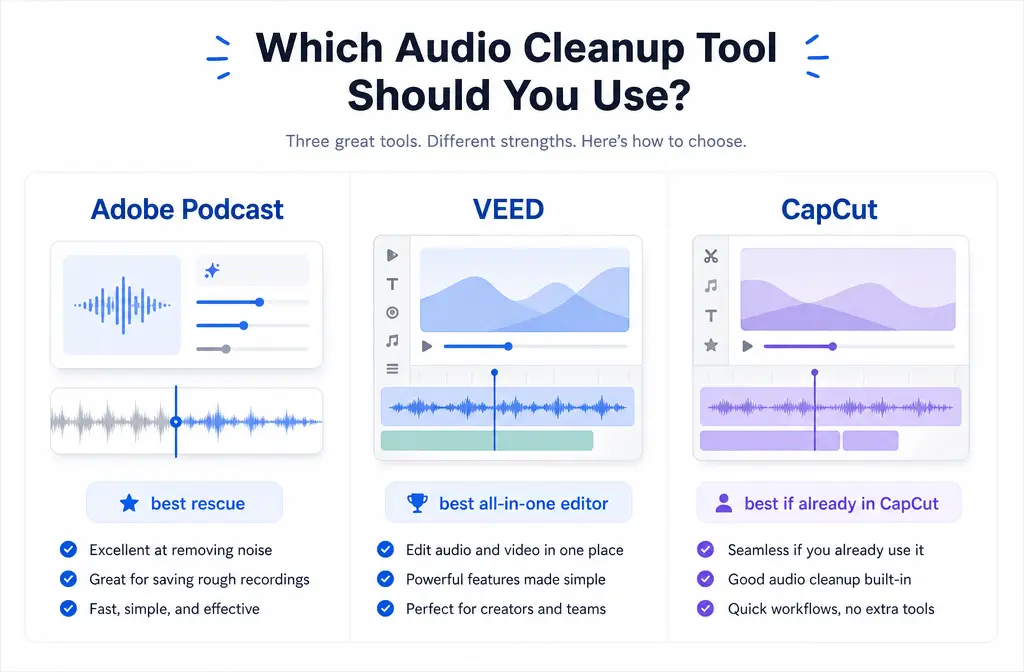
If you already have a noisy talking-head video and your main goal is clearer speech, Adobe Podcast is usually the best first pass for speech rescue. If you want to trim, caption, and clean the clip without leaving a browser editor, VEED is the best all-in-one workflow. If you already edit in CapCut and the noise is mild, CapCut is the simplest keep-moving option.
That said, these three tools are not the same kind of product. Adobe Podcast is speech-first enhancement after recording. VEED is a browser video editor with one-click cleanup. CapCut is an edit-first social tool with built-in denoise.
| Best for | Winner | Why |
|---|---|---|
| Fastest speech rescue on already-recorded dialogue | Adobe Podcast | Built around enhancing spoken audio after recording, with Premium adding video support, bulk upload, strength controls, and higher file limits. |
| Easiest all-in-one browser workflow | VEED | Clean Audio works on video and audio files, so you can stay inside one browser editor instead of exporting to a separate tool. |
| Simplest workflow for creators already editing social videos | CapCut | Built-in noise reduction is convenient when the clip is already in your project and the cleanup needed is fairly light. |
My practical recommendation:
- Use Adobe Podcast when speech intelligibility matters most.
- Use VEED when convenience inside the timeline matters most.
- Use CapCut when you are already editing there and just need a mild cleanup pass.
What each tool is really for
Adobe Podcast: speech enhancement after recording
Adobe Enhance Speech is positioned around cleaning spoken audio, and Adobe also provides a dedicated guide for using Enhance Speech with video. This makes it the most directly focused option here for exported interviews, webcam clips, explainers, and talking-head videos where the voice needs the biggest lift.
Important limit: per Adobe’s plans page, the free plan enhances audio only. Premium adds video support, bulk upload, strength controls, and larger processing limits including up to 1 GB files, up to 2-hour duration, and 4 hours per day.
VEED: edit and clean in one browser project
VEED’s AI Audio Enhancer and its remove-background-noise workflow are more about convenience inside a browser editor. VEED’s help docs state that Clean Audio works with both video and audio files. That matters if you want to fix sound, trim the edit, and keep moving in one place.
VEED’s help page also says free users get a one-time try, while ongoing access requires a paid plan.
CapCut: edit-first workflow with built-in denoise
CapCut’s noise removal tool is positioned as a quick way to reduce background noise from audio, and it fits best for creators who are already cutting social clips there. CapCut is convenient because cleanup can happen as part of an existing edit, but the strongest decision point is not “Can it denoise?” It is “Do you need a heavy speech rescue, or just a light polish while editing?”
On plan friction, CapCut’s Pro help page explains that Pro unlocks advanced features, but the final price varies by region and platform and is shown at checkout.
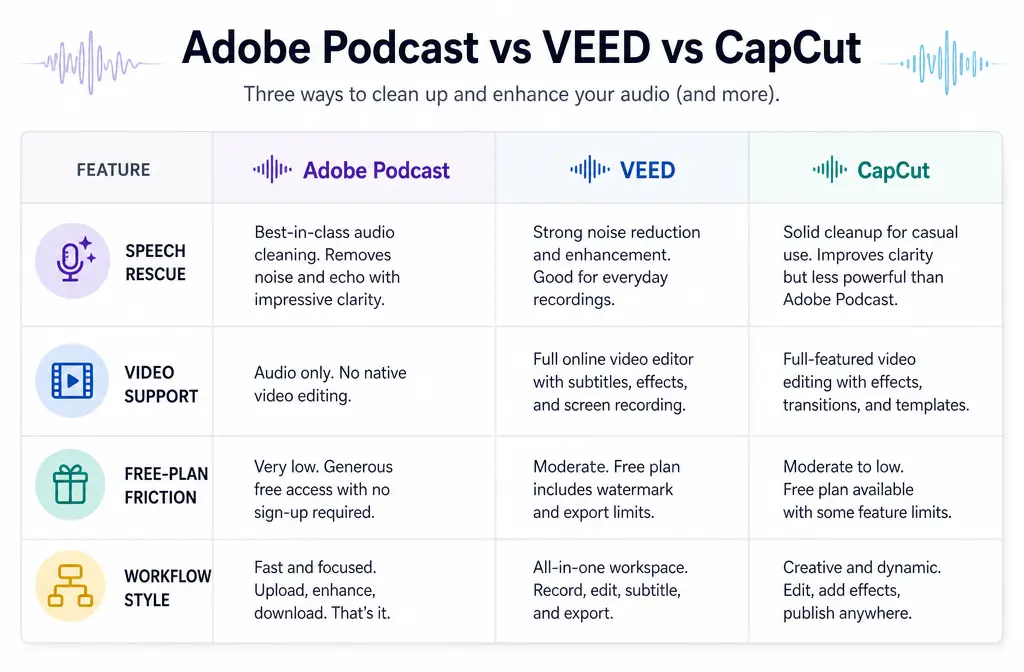
Feature and limit comparison
| Category | Adobe Podcast | VEED | CapCut |
|---|---|---|---|
| Main job | Speech enhancement after recording | Browser video editing with built-in cleanup | Social-first editing with built-in denoise |
| Accepts audio files | Yes | Yes | Yes, per CapCut’s audio-noise workflow |
| Accepts video files | Premium only, per Adobe plans | Yes | Yes, inside CapCut editing workflow |
| Bulk upload | Premium | Not specified in supplied sources for Clean Audio | Not specified in supplied sources |
| Adjustable strength | Premium | Not specified in supplied sources cited here | Not specified in supplied sources cited here |
| Free-plan friction | Free plan is audio only | One-time free Clean Audio try | Advanced features gated by Pro; price shown at checkout |
| Best workflow style | Export, enhance, compare result | Stay in one browser timeline | Keep editing where you already are |
Noise-type fit: where each tool tends to make the most sense
For noisy talking-head clips, the most useful comparison is not brand vs brand. It is noise type vs workflow.
- Steady fan, AC, or hiss: All three are reasonable candidates, but Adobe Podcast is usually the strongest first pass when the voice itself needs the biggest intelligibility boost.
- Echo or room reverb: Adobe Podcast is the most speech-focused option of the three, so it is often the best place to start. Still, room echo is a common failure point for every tool if it is severe.
- Street noise: VEED or CapCut can be fine for light cleanup during editing, but Adobe Podcast is typically the safer first test if traffic or ambient wash is masking speech.
- Keyboard clicks: Brief transient noises can be harder than steady hum. Built-in cleanup may reduce them, but none of these tools should be treated as perfect click removers.
- Background music under dialogue: This is a weak spot for all three when the music is loud and mixed into the same file as the voice.
If your noise is mild and you are already in an editor, it makes sense to try the built-in option first. If your voice is still hard to understand, switch to a speech-first workflow.
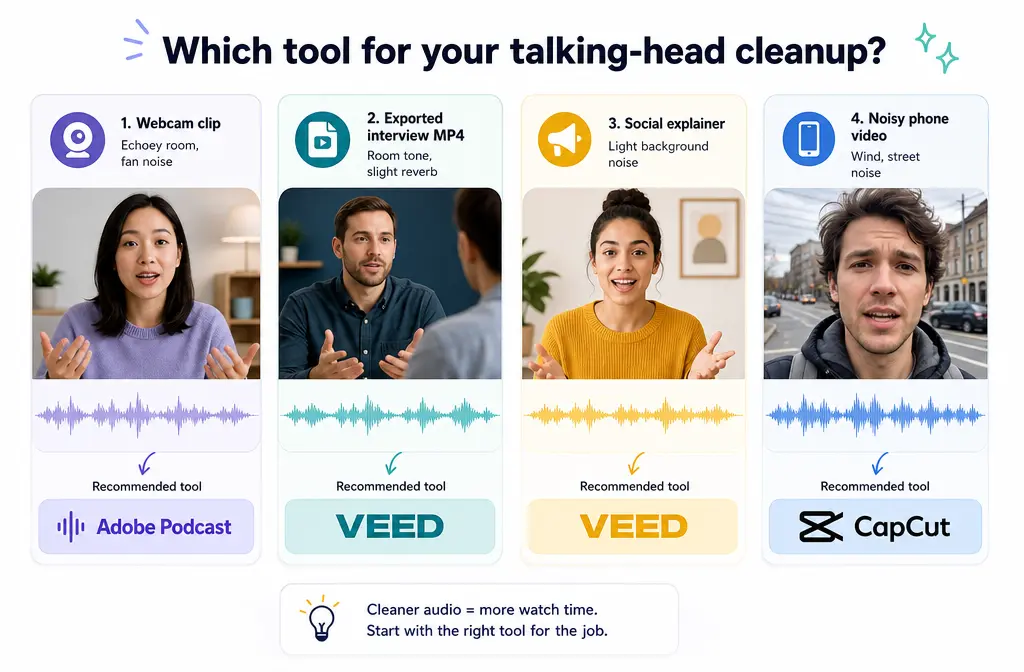
Talking-head test scenarios: which one I’d reach for first
1) Noisy webcam clip for a webinar recap
Best first choice: Adobe Podcast. A webcam recording with fan hum or room wash is exactly the kind of “already recorded speech” problem Adobe Podcast is aimed at.
2) Exported MP4 interview that needs cleanup before social edits
Best first choice: Adobe Podcast if dialogue clarity is the priority. Best workflow choice: VEED if you also want to trim and caption in the same browser session.
3) Short social explainer already being edited in a vertical project
Best first choice: CapCut when the noise is mild and you are already working there. If the voice starts sounding thin or artificial, stop and compare against the original before committing.
4) Noisy phone video from an office, hallway, or street
Best first choice: Adobe Podcast when speech is the hero. VEED is the better convenience option when you want to clean, cut, subtitle, and export in one web workflow.
When Adobe Podcast wins
Adobe Podcast wins when your file is already recorded, the content is mainly spoken dialogue, and you need the strongest speech rescue of these three options. Its whole positioning is centered on improving spoken audio after the fact, and Adobe explicitly supports a video cleanup workflow through Enhance Speech for video.
Choose Adobe first when:
- The speaker is understandable but buried under fan noise, hiss, or room tone.
- You have an interview, explainer, webinar, webcam clip, or talking-head video.
- You are willing to do a separate enhancement pass instead of staying in your editor.
- You want Premium-only controls like video support, bulk upload, and strength adjustment.
It is the least “editor-like” option here, but often the most sensible one when audio quality matters more than timeline convenience.
When VEED wins
VEED wins when you want to stay in one browser editor. Its Clean Audio workflow supports both video and audio files, so you do not need to break your process into “fix sound in one tool, then re-import somewhere else.”
Choose VEED first when:
- You want to clean and edit in the same project.
- You are already trimming clips, resizing formats, or building a browser-based social edit.
- You want the lowest workflow friction for light-to-moderate cleanup.
- You only need to test the feature once before deciding on a paid plan, since free users get a one-time try.
VEED also fits naturally if you want to add subtitles right after cleanup. For that step, a tool like Best AI Captions can help add captions and subtitles once your speech is clearer.
When CapCut wins
CapCut wins when the project is already there, the clip is headed for social, and the noise problem is mild. It is the convenience play.
Choose CapCut first when:
- You already edit in CapCut and do not want to export to another service.
- You are making short explainers, creator videos, or social talking-head clips.
- The issue is light background noise rather than major speech damage.
CapCut becomes a weaker choice when the voice needs a dramatic rescue rather than a quick polish. That is when a speech-first pass tends to make more sense.
Failure cases for all three
None of these tools should be expected to fully fix:
- Clipped audio from a mic recorded too hot
- Heavy overlapping speakers
- Severe wind noise
- Loud background music under dialogue
- Very strong reverb in a bad room
Those are also the scenarios where users often keep pushing denoise harder and end up with worse artifacts instead of better clarity.
Artifact watchouts: when cleanup goes too far
No matter which tool you choose, compare the result against the original before publishing. Common overprocessing signs include:
- Robotic voice
- Watery or swirly texture
- Thin, hollow speech
- Over-isolated voice that sounds disconnected from the room
If that sounds familiar, this guide on how to fix metallic voice after noise reduction is worth reading before you stack more processing.
Best workflow if built-in cleanup is not enough
- Start with the tool that fits your workflow. Adobe Podcast for strongest speech rescue, VEED for one-browser editing, CapCut for quick in-project cleanup.
- Export a clean source version. Do not stack multiple denoisers on top of each other without checking results.
- Compare before and after. If the cleaned file sounds thin, robotic, or watery, stop there.
- Then use a separate fallback cleanup pass. If the built-in result is not usable, try SimpleClean as a dedicated cleanup pass on the exported file rather than pushing the editor harder.
- Finish captions and localization after the audio is stable. Once the voice is clearer, use Best AI Captions for subtitles or Translate Dub if you want to translate, dub, and caption the cleaned video for multilingual audiences.
- Publish everywhere from one workflow. After cleanup and captions, teams distributing clips across channels can use Mallary.ai to schedule posts, auto-add first comments, and manage social publishing across platforms.
If your main problem is exported MP4 dialogue that still sounds rough after an in-editor pass, a dedicated talking-head video audio cleanup workflow is often the safer next step than stacking more aggressive denoise.
How to choose in 30 seconds
- Choose Adobe Podcast if your video is already recorded and speech clarity is the biggest issue.
- Choose VEED if you want to clean video audio without leaving a browser editor.
- Choose CapCut if you are already editing there and the noise is light.
If you often clean exported meeting or screen-recording clips too, you may also want these guides on removing background noise in Zoom and cleaning noisy Loom recordings after export.
FAQ
Can these tools clean MP4 audio?
Yes, but not in exactly the same way. VEED’s Clean Audio works on both video and audio files. Adobe Podcast supports video on Premium, while Adobe’s free plan is audio only. CapCut can apply noise reduction within its editing workflow for video projects.
Which one works on free plans?
Adobe Podcast’s free plan enhances audio only. VEED’s help docs say free users get a one-time try of Clean Audio. CapCut offers built-in noise reduction, while advanced features are tied to Pro and the final price is shown at checkout depending on region and platform.
Is Adobe Podcast better than VEED for noisy voice recordings?
For already-recorded spoken dialogue that needs the biggest intelligibility boost, Adobe Podcast is usually the better first test. VEED is stronger when you value keeping cleanup and editing together inside one browser project.
Can CapCut remove background noise from exported MP4 videos?
CapCut can reduce background noise within its editing workflow, so it can be useful for exported videos you bring into a project. It makes the most sense when the noise is mild and you are already editing there.
Does VEED Clean Audio work on video files or only audio?
According to VEED’s support article, Clean Audio works on both video and audio files.
Which tool is best for talking-head videos with fan noise?
Adobe Podcast is usually the strongest first choice when the goal is clearer speech from an already-recorded talking-head clip. VEED and CapCut are more attractive when workflow convenience matters more than maximum speech rescue.
Can Adobe Podcast enhance video files on the free plan?
No. Based on Adobe’s plans page, the free plan is audio only, while Premium adds video support.
What happens when noise reduction makes a voice sound robotic?
That usually means the cleanup is being pushed too far for the source material. Compare with the original, reduce processing, or switch to a separate cleanup workflow instead of stacking more denoise.
Sources and further reading
- Adobe Podcast FAQ - Source for Adobe’s usage caveats and practical guidance.