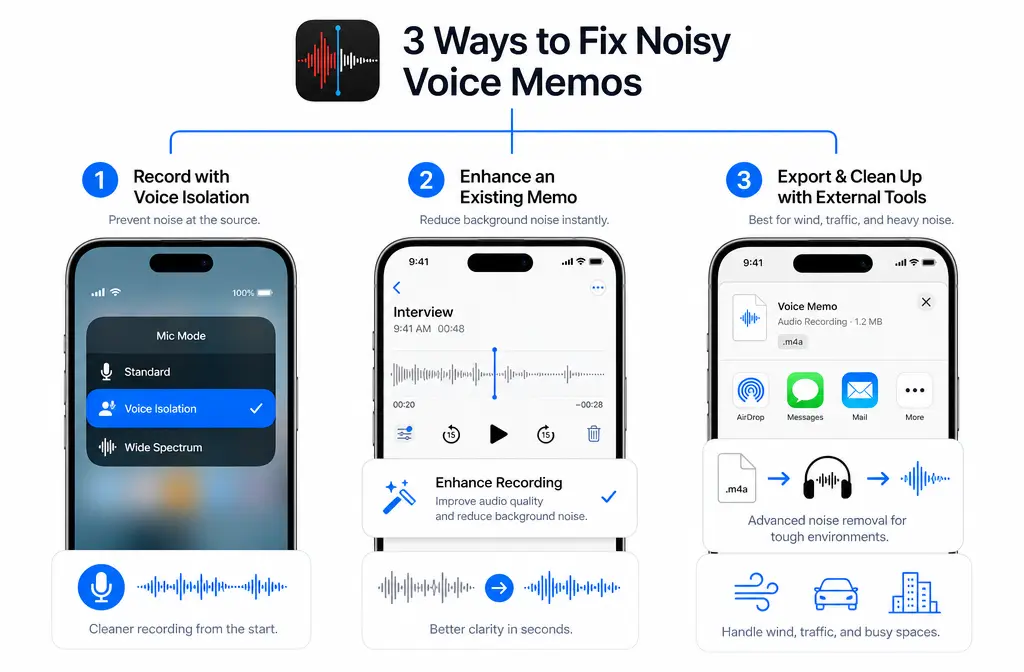
Quick Answer: the 3 real ways to reduce noise in iPhone Voice Memos
If you want to remove background noise in iPhone Voice Memos, there are really three different Apple tools to try, and they work at different stages:
- Before or during recording: use Voice Isolation from Control Center while recording in Voice Memos on supported devices and software.
- After recording: use Enhance Recording inside Voice Memos to reduce background noise and echo on mono and stereo recordings.
- For supported spatial audio recordings: try Studio Voice during playback or editing if your iPhone and recording type support it.
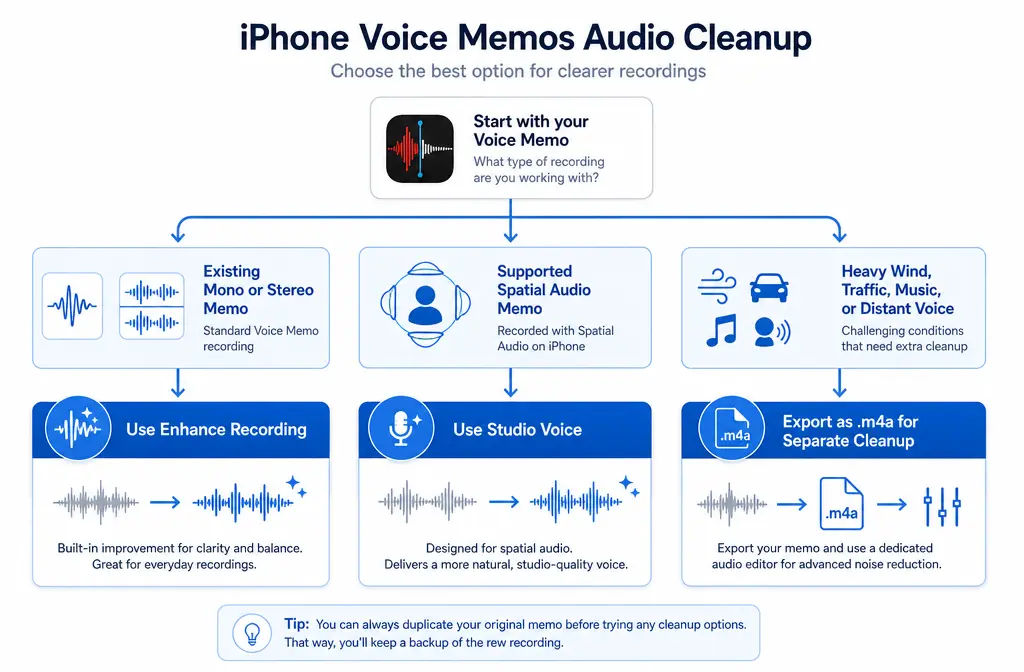
The fastest decision tree is simple:
- If you have not recorded yet, start with Voice Isolation.
- If the memo already exists, try Enhance Recording.
- If it was captured as spatial audio on a supported iPhone, test Studio Voice.
- If the clip still has heavy wind, traffic, distant speech, overlapping voices, compression artifacts, or background music, export it and do a separate cleanup pass.
That last step is where SimpleClean makes more sense: when Voice Memos improves the clip a bit, but not enough to make it truly usable.
What each Voice Memos noise tool actually does
| Tool | When to use it | Best for | Usually not enough for |
|---|---|---|---|
| Voice Isolation | While recording | Steady room noise, mild ambience, making your voice more prominent during capture | Bad wind, loud traffic, music, multiple competing speakers |
| Enhance Recording | After recording existing mono or stereo memos | Background noise and echo reduction on saved clips | Severe noise, very distant speech, already-compressed bad recordings |
| Studio Voice | On supported spatial audio recordings | Testing a more polished voice presentation on compatible recordings | Unsupported devices, non-spatial recordings, major environmental damage |
Apple’s built-in tools are useful, but they are not all-purpose audio repair. They help most when the voice is already understandable and the noise is moderate rather than extreme.
Method 1: Use Voice Isolation while recording in Voice Memos
This is the best option if you are about to record an interview note, lecture summary, quick podcast segment, or spoken idea and want the cleanest capture from the start.
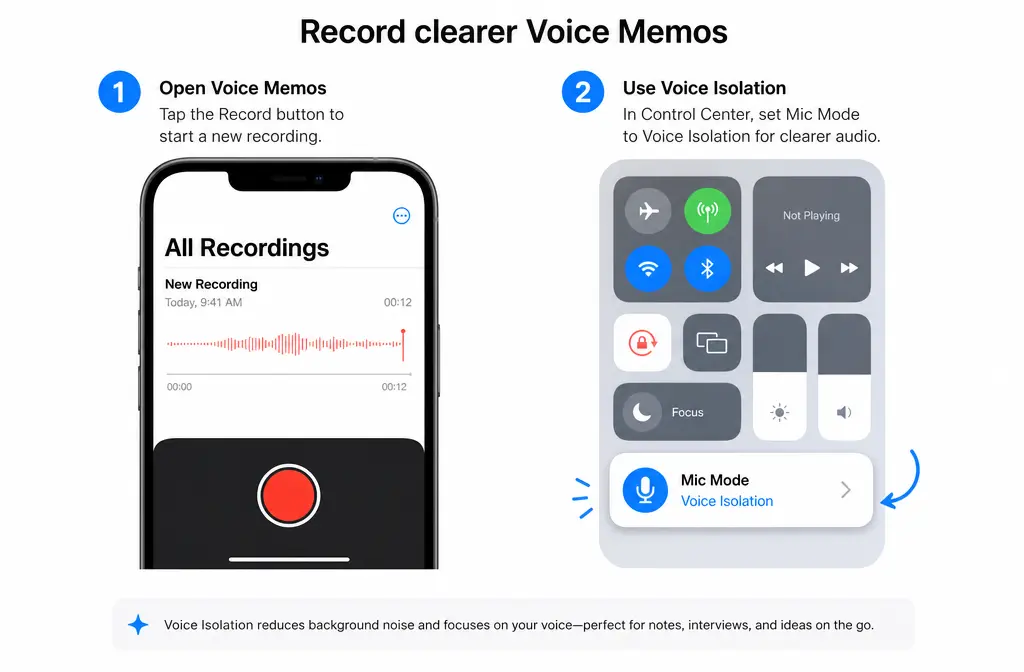
Apple says recording apps such as Voice Memos can use mic modes like Voice Isolation on iOS 26 or later. Apple also says Voice Isolation and Wide Spectrum are supported on iPhone XR, iPhone XS, and later.
How to turn on Voice Isolation for Voice Memos
- Open Voice Memos.
- Start a recording, or get ready to start one.
- Open Control Center.
- Tap the mic mode controls.
- Select Voice Isolation.
- Return to Voice Memos and record your memo.
Best for:
- Air conditioner or fan noise
- General room ambience
- Mild office or home background sound
- Getting clearer speech before you ever need cleanup
Not best for:
- Wind hitting the mic
- Cars, sirens, or very loud street noise
- Another person talking over you nearby
- Background music you want removed later
If you are recording in a noisy place and speech matters more than natural ambience, Voice Isolation should usually be your first move.
Method 2: Use Enhance Recording on an existing Voice Memo
If the recording is already done, Enhance Recording is the first fix to try inside Voice Memos itself. Apple describes it as reducing background noise and room reverberation, and Apple’s support documentation specifically ties it to mono and stereo recordings.
How to use Enhance Recording
- Open Voice Memos.
- Select the recording you want to improve.
- Tap the recording controls to expand them if needed.
- Open the options for the memo.
- Turn on Enhance Recording.
- Listen back and compare it with the untreated version.
Apple also notes that playback options can be reset, so this is a practical thing to test without committing to a permanent destructive edit first.
What Enhance Recording is actually good at
- Low, steady background noise
- Some room echo or hollow-sounding speech
- Ordinary indoor voice notes that just need to sound cleaner
- Lecture or meeting notes where speech is already fairly close to the phone
Where Enhance Recording often falls short
- Wind rumble
- Street recordings with strong traffic
- Speech recorded too far from the phone
- Audio that was already badly compressed before you got it
- Clips with music underneath the speech
If your memo sounds a little better but still distracting, that is the sign to export the file and clean it separately instead of forcing the built-in treatment to solve everything.
Method 3: Use Studio Voice on supported spatial audio recordings
Newer iPhones can record in different modes depending on the model, including mono, stereo, or Spatial Audio. Apple’s Voice Memos documentation says Studio Voice is available for supported spatial audio recordings.
This means Studio Voice is not a universal fix for every memo. It depends on both:
- your iPhone model, and
- whether the recording was captured as a supported spatial audio recording.
When Studio Voice is worth trying
- You recorded on a supported newer iPhone
- The clip was made in a spatial audio mode supported by Voice Memos
- You want to hear whether the voice presentation improves more than basic enhancement alone
Important limit to know
If you export a Voice Memo, Apple says the default export is .m4a, and Spatial Audio recordings export as stereo. In other words, export can flatten advanced recording behavior into a more standard file for sharing and cleanup.
That is useful for compatibility, but it also means you should test built-in Voice Memos playback options before exporting if you want to hear what Apple’s advanced modes can do.
Best-for recommendations: which method should you use first?
| Your situation | Best first step | Why |
|---|---|---|
| You have not recorded yet | Voice Isolation | Prevents some noise during capture instead of fixing it later |
| You already have a normal voice memo | Enhance Recording | Fastest built-in cleanup for mono or stereo clips |
| You recorded spatial audio on a supported iPhone | Studio Voice | Designed for supported spatial audio recordings |
| You hear wind, traffic, music, or very distant speech | Export and clean separately | These problems often exceed what Voice Memos can fix cleanly |
Version and device notes that explain why options may be missing
This topic gets confusing because many older articles only talk about iOS 14-era Enhance Recording. Apple’s current support pages add newer mic-mode behavior and device requirements.
- Voice Isolation in recording apps like Voice Memos: Apple documents this for iOS 26 or later.
- Voice Isolation and Wide Spectrum support: Apple says these are available on iPhone XR, iPhone XS, and later.
- Recording format support: Voice Memos may record in mono, stereo, or Spatial Audio depending on the iPhone model.
- Studio Voice: available for supported spatial audio recordings, so not every recording will show it.
Apple’s December 2024 newsroom post also shows that some newer Voice Memos features are tied to recent hardware, which is another reminder that not every Voice Memos option appears on every iPhone.
How to export a Voice Memo
If Apple’s built-in cleanup is not enough, export the memo and clean the file separately.
How to export to Files on iPhone
- Open Voice Memos.
- Select the recording.
- Tap the share options.
- Choose Save to Files.
- Pick a location and save it.
According to Apple, Voice Memos exports use .m4a by default. Apple also notes that:
- Spatial Audio recordings become stereo on export.
- Layered recordings flatten on export.
That matters because the file you send elsewhere is usually a standard shareable version, not a preserved advanced recording environment.
When Voice Memos is enough vs when to use SimpleClean after export
Voice Memos is usually enough when:
- The speaker is close to the iPhone
- The noise is steady and moderate
- The problem is light room ambience or mild echo
- You just need the memo to sound clearer for playback or quick sharing
Export and use a separate cleanup pass when:
- The clip has strong wind noise
- Traffic or outdoor rumble dominates the voice
- The speaker sounds distant or buried
- There are overlapping voices
- Background music competes with speech
- The file already sounds crushed, compressed, or unnatural
That is the practical handoff point for remove wind noise with SimpleClean or clean iPhone voice notes with SimpleClean. Voice Memos is great for fast built-in fixes, but exported cleanup is the better workflow when the recording problem is bigger than mild noise reduction.
If you plan to turn the cleaned memo into a video clip, Best AI Captions can add captions and subtitles after you fix the audio. If you want to publish the same spoken content in multiple languages, Translate Dub fits naturally after cleanup. And if the memo becomes a social post, promo video, or audio snippet you want to push across channels, Mallary.ai is useful for scheduling and distributing it across multiple social platforms from one workflow.
Troubleshooting
Voice Isolation or Studio Voice is missing
- Check your iOS version.
- Check whether your iPhone model supports the feature.
- For Studio Voice, confirm the recording is a supported spatial audio recording.
- For Voice Isolation, remember Apple documents it for recording apps such as Voice Memos on iOS 26 or later.
Enhance Recording is missing
Apple ties Enhance Recording to playback of existing Voice Memos, especially mono and stereo recordings. If you do not see it, check that you are working on a normal playable memo and that your device software is current enough to match Apple’s documented Voice Memos features.
The recording still sounds muffled
- The voice may have been recorded from too far away.
- The noise may be stronger than Apple’s built-in tools can remove cleanly.
- The file may already be compressed or low quality.
In those cases, exporting and doing a separate cleanup pass is usually more productive than repeatedly toggling the same in-app option.
Enhancement sounds metallic or unnatural
If cleanup makes speech sound processed, compare it with the untreated original or reset playback options. Over-processed voice usually means the recording was already difficult, and a lighter or separate cleanup workflow may sound better.
For more on that artifact, see our guide on how to fix metallic voice after noise reduction.
A practical workflow for interviews, lectures, and spoken notes
- Before recording: if supported, enable Voice Isolation.
- Record as close as practical to the speaker: even the best cleanup works better with a stronger voice signal.
- After recording: test Enhance Recording.
- If available on a spatial clip: compare Studio Voice too.
- Export to Files: save the memo as the default .m4a export.
- Use separate cleanup when needed: especially for wind, traffic, distant voice, or overlapping sounds.
- Then publish or repurpose: add captions, translate, or distribute once the audio is actually clear.
If you regularly clean spoken recordings from meetings or calls, you may also like these related guides:
- remove background noise in Zoom
- remove background noise in Microsoft Teams
- remove background noise in Discord
- remove background noise in Loom
Bottom line
For most iPhone users, the cleanest workflow is not “find one magic button.” It is:
- Voice Isolation while recording, if you can
- Enhance Recording for existing mono or stereo memos
- Studio Voice for supported spatial audio recordings
- Export and separate cleanup when the memo has serious real-world noise
That order is faster, more reliable, and more realistic than expecting Voice Memos to fully rescue every bad recording on its own.
Sources and further reading
- Play a recording in Voice Memos on iPhone - Apple Support - Primary support for Enhance Recording, Studio Voice, Skip Silence, and reset behavior.
- Make a recording in Voice Memos on iPhone - Apple Support - Supports recording-time mic modes in Voice Memos.
- Use Voice Isolation, Wide Spectrum, or Automatic Mic Mode on your iPhone and iPad - Apple Support - Supports iOS 26 and device compatibility for Voice Isolation and Wide Spectrum.
- Change sound recording options on iPhone - Apple Support - Supports mono, stereo, and Spatial Audio recording mode context.
- Export a Voice Memos recording to Files on iPhone - Apple Support - Supports export format details including default .m4a and Spatial Audio becoming stereo on export.
- Voice Memos update brings Layered Recordings to iPhone 16 Pro and iPhone 16 Pro Max - Apple Newsroom - Supports hardware-tied newer Voice Memos capabilities.