Quick Answer
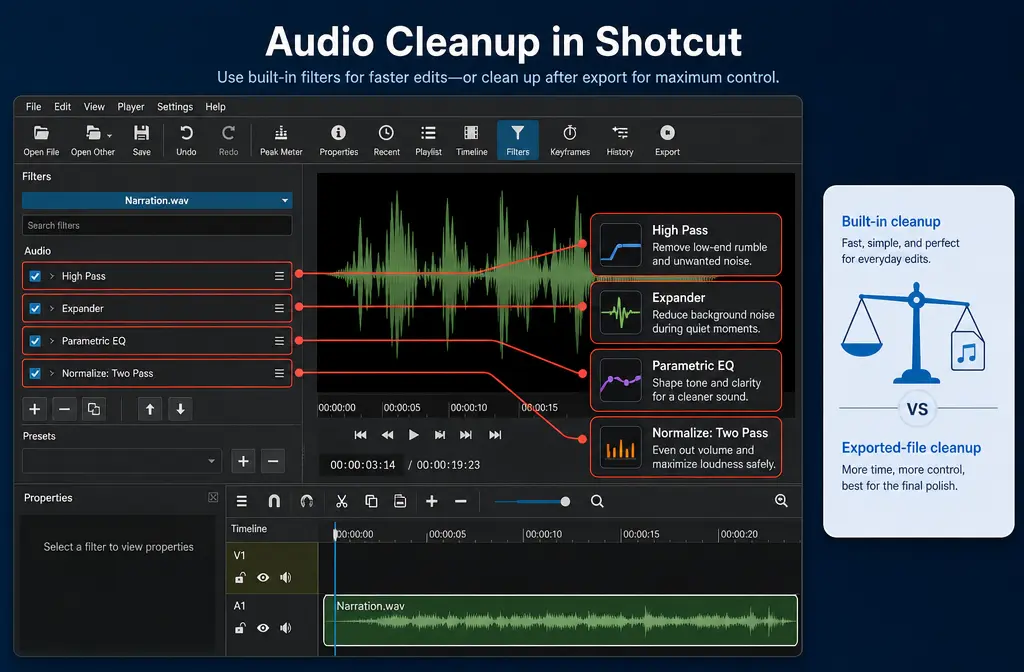
Yes, you can reduce some background noise in Shotcut, but Shotcut is best for light speech cleanup, not deep one-click denoise. Its built-in audio tools can help with rumble, some hiss, noise between phrases, and tonal problems like hum. The most practical chain for spoken voice is usually: High Pass -> optional Low Pass -> Expander or Noise Gate -> Parametric EQ -> Normalize: Two Pass -> optional Limiter.
The catch: Shotcut does not offer a true broadband spectral or AI voice denoiser for constant fan noise, steady hiss, echo, or overlapping background voices. Shotcut’s own FAQ also says detailed wave and sample-level audio editing is not its strength and points users to dedicated audio tools such as Audacity for deeper work. If your export still sounds noisy after a light filter chain, it is usually faster to clean exported Shotcut audio online with SimpleClean than to keep stacking filters and making the voice sound unnatural.
If you also need subtitles after cleanup, Best AI Captions fits naturally into that workflow, and if you want multilingual versions, Translate Dub can help translate, dub, and caption the finished video.
Does Shotcut have noise reduction?
Not in the way most people mean it.
When users search for “Shotcut noise reduction,” they usually expect a dedicated denoise effect that can learn a noise profile or intelligently remove constant broadband noise from speech. Based on the supplied Shotcut documentation and forum references, Shotcut instead gives you a set of building-block filters:
- High Pass
- Low Pass
- Noise Gate
- Expander
- Equalizer: Parametric
- Normalize: Two Pass
- Compressor / Limiter
Those tools can absolutely improve dialogue, but they do it indirectly. For example:
- High Pass removes low-frequency rumble.
- Expander lowers low-level noise more gently than a hard gate.
- Noise Gate can mute room noise in pauses, but can sound choppy if pushed too hard.
- Parametric EQ helps target specific tonal problems.
- Normalize: Two Pass is a finishing loudness step, not a denoiser.
That is why Shotcut can help with cleanup, but it is not the best tool for heavy fan noise, strong hiss, reverb, or background conversation baked into the same speech track.
What Shotcut actually does well vs what it cannot fix well
| Problem | Shotcut built-ins can help? | Best approach |
|---|---|---|
| Low rumble, HVAC throb, mic handling noise | Yes | Start with High Pass around 80-120 Hz for dialogue |
| Noise between phrases | Yes | Use Expander first; use Noise Gate carefully |
| Mild hiss | Sometimes | Gentle Low Pass and light EQ, but avoid dulling speech |
| Electrical hum | Sometimes | Manual EQ/notch-style cuts if you can identify the tone |
| Constant fan noise across the whole voice | Limited | Usually faster to clean the exported file separately |
| Echo or reverb | Very limited | Use external cleanup; Shotcut is not built for this |
| Background conversation overlapping the speaker | Very limited | External cleanup may help, but no editor can fully separate all overlaps |
Best for using only Shotcut: tutorials, voiceovers, screen recordings, interviews, and podcasts with mostly clean speech plus a bit of rumble, room tone, or pause noise.
Best for exporting and cleaning separately: fan-heavy laptop recordings, noisy home office audio, echoey room recordings, strong hiss, steady hum, or clips where the Shotcut chain starts making the voice metallic or muffled.
Best built-in Shotcut filter chain for speech
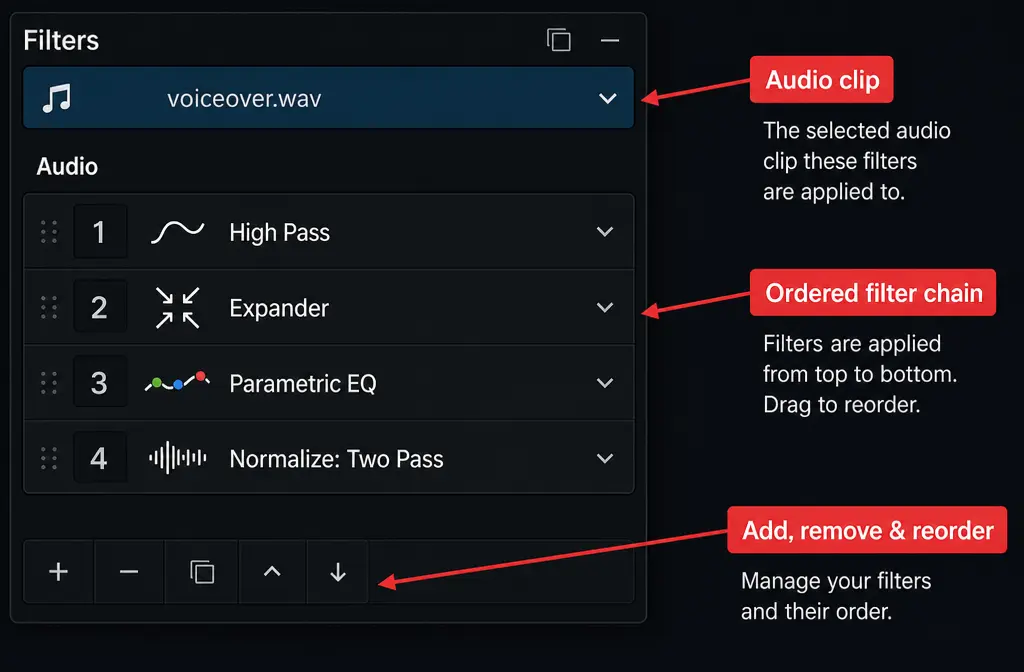
If your goal is cleaner dialogue without leaving Shotcut, this is the most practical starting order:
- High Pass
- Optional Low Pass
- Expander or Noise Gate
- Parametric EQ
- Normalize: Two Pass
- Optional Limiter
This order works because it removes obvious low-frequency junk first, controls low-level noise before final loudness, then finishes with normalization. Shotcut’s Normalize: Two Pass analyzes the audio first and then applies fixed gain based on your loudness target, which is more reliable than guessing gain by ear.
1) High Pass
Shotcut’s High Pass filter is the first thing to try for speech rumble. The official documentation explains that it reduces low frequencies while leaving higher frequencies relatively unaffected, and it specifically mentions spoken voice cleanup as a use case. A practical dialogue starting point is around 80-120 Hz. If the speaker gets thin, back it off.
- Use it for HVAC rumble, desk vibration, mic stand bumps, and low-end room noise.
- Do not push it so high that the voice loses body.
2) Optional Low Pass
Use Low Pass only when hiss is distracting and you need a gentle top-end trim. This is a compromise tool: it can reduce harsh high-frequency noise, but it also removes brightness and intelligibility. If your voice becomes dull, undo it or use less.
- Good for: mild hiss
- Bad for: preserving crisp consonants if overdone
3) Expander or Noise Gate
For most spoken-word editing in Shotcut, Expander is the more natural first choice. Shotcut’s Expander lowers signals below a threshold rather than slamming them fully on and off. That tends to sound smoother in pauses and softer word endings.
Noise Gate has its place, but the official docs make clear it is a more abrupt threshold-based tool with controls such as threshold, attack, hold, decay, and range. In real use, gates can clip consonants, swallow breaths, and make sentence endings disappear if set too aggressively.
4) Parametric EQ
Shotcut’s Parametric EQ is where you handle specific tonal problems. The official docs describe it as a precise equalizer for boosting or reducing chosen frequencies. For dialogue cleanup, this is useful when the problem is narrow and identifiable, such as:
- a boxy room resonance
- a sharp hum tone
- harshness in a narrow band
If the noise is broad and constant across many frequencies, EQ becomes too manual and too limited. That is the point where exported-file cleanup is often faster.
5) Normalize: Two Pass
Use this near the end, after cleanup. Shotcut’s Normalize: Two Pass analyzes first, then applies gain to reach your target loudness. It is a better finishing step than boosting first and discovering later that the cleanup filters react badly.
6) Optional Limiter
If your processed voice has occasional peaks after normalization, a light limiter can help catch them. Keep it gentle. If you hear obvious pumping, you are probably asking too much from the chain.
Recommended starter settings by noise type
These are starting points, not universal rules. Adjust by ear.
| Noise type | Start here in Shotcut | Watch out for |
|---|---|---|
| Rumble / HVAC / handling noise | High Pass around 80-120 Hz | Thin voice if cutoff is too high |
| Hiss | Gentle Low Pass, then tiny EQ touch if needed | Muffled consonants, dull speech |
| Room tone between phrases | Expander before trying a hard gate | Pumping if threshold is too high |
| Hum | Parametric EQ cuts around the hum frequency and harmonics | Too much manual EQ can hollow out the voice |
| Fan noise | High Pass plus light Expander may help a little | Constant fan across speech usually needs external cleanup |
| Keyboard noise | Expander may reduce some pause noise | Keystrokes during speech are hard to remove cleanly |
| Background chatter | Very limited in Shotcut | Overprocessing makes speech worse before chatter disappears |
Noise Gate vs Expander in Shotcut
This is one of the most useful decisions in the whole workflow.
Use Expander when:
- you want a more natural spoken result
- the room noise is mostly obvious in pauses
- you want to reduce noise instead of fully muting it
- your speaker has quiet word endings or soft breaths
Use Noise Gate when:
- the recording has very obvious idle noise between lines
- you can spend time dialing threshold, attack, hold, and decay carefully
- you do not mind stronger on/off behavior
Short version: start with Expander for voice. Move to Noise Gate only if you still need firmer silence in gaps.
If you are also fighting keyboard clicks in a tutorial recording, this related guide may help: remove keyboard noise from audio online.
How to remove hum, hiss, fan noise, and room noise in Shotcut
Rumble or HVAC noise
Start with High Pass. The Shotcut High Pass documentation specifically supports dialogue cleanup, and around 80-120 Hz is the normal speech range to test first.
Electrical hum
Hum is often more tonal than broadband, which means EQ may help. Use Parametric EQ to reduce the offending frequency and, if needed, its harmonics. Conceptually this is a notch-style approach. But if you find yourself making multiple deep cuts and the voice starts sounding hollow, Shotcut is becoming too manual for the job.
For hum-heavy files, you may want a dedicated external workflow instead, or see our related guide on removing hum from audio online.
Hiss
Shotcut can only handle hiss gently. A modest Low Pass or careful EQ may reduce it, but this also reduces clarity. If the hiss is constant and obvious through the whole voice, Shotcut is not giving you true denoise here.
For that case, a separate cleanup step is often faster. Related guide: remove hiss from audio online.
Fan noise
Constant fan noise is one of the clearest cases where Shotcut falls short. High Pass can cut low rumble, and Expander can lower noise in gaps, but neither truly removes a steady fan that overlaps the speaking voice. If your export still sounds washy, move to the external cleanup workflow below.
Room tone and pause noise
This is where Expander shines. It can push room noise down in silent sections without the abrupt cutoff you often hear from a hard Noise Gate.
Background chatter or echo
Shotcut is not the right tool for serious overlap removal or de-reverb. You can improve the overall track a little, but do not expect clean isolation of one voice from another. If you are dealing with echo, use a separate cleanup workflow; this guide may help: remove echo from audio online.
How to export from Shotcut for separate cleanup
Shotcut’s export system creates a new video or audio file from your project. That makes the fallback workflow straightforward.
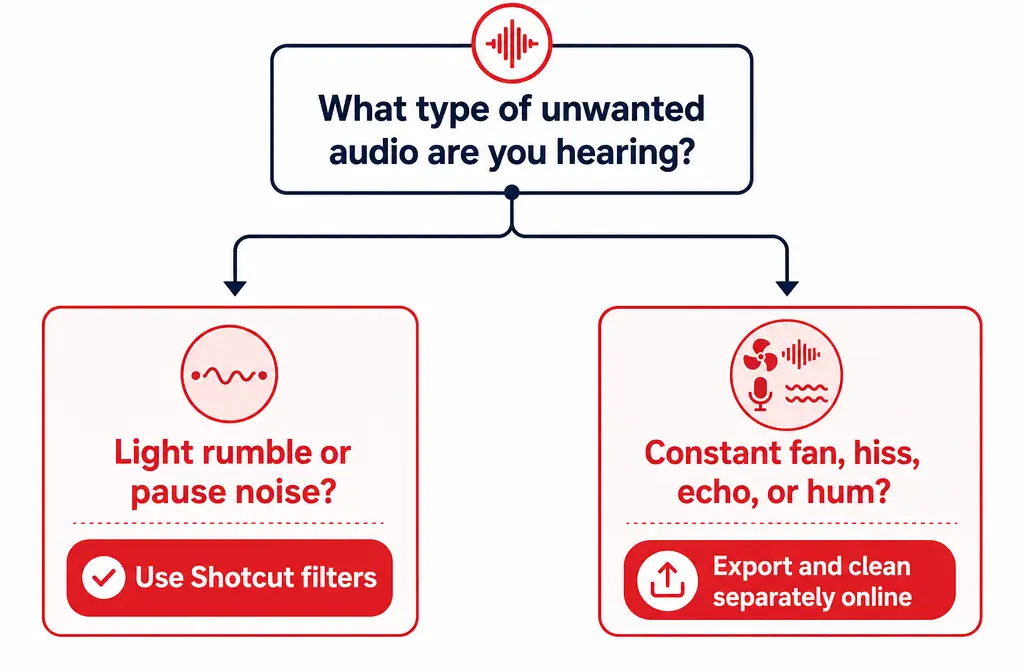
When this is the smarter move
- The voice still sounds noisy after a light Shotcut chain
- Adding more filters makes the voice metallic, choppy, or muffled
- You have constant fan noise, hiss, or echo
- You want faster cleanup without learning a full DAW
Step-by-step
- Finish your main edit in Shotcut. Cut mistakes, trim silence, and lock your timeline timing first.
- Export either audio only or the finished video. Shotcut’s export tools can create a new file from the project, so choose the format that best fits your next step.
- Clean the exported file separately. If Shotcut’s filters are not enough, upload the export to SimpleClean and clean the spoken audio there instead of stacking more filters inside the editor.
- Reimport the cleaned file into Shotcut. Put it on a new track aligned with the original clip.
- Mute, detach, or replace the original noisy audio. Keep only the cleaned version active.
- Preview sync and transitions. Make sure edits, cuts, and fade points still feel natural.
- Export the final video.
This is often the fastest route for screen recordings and YouTube tutorials. If that is your use case, you may also want our guide on cleaning screen recording audio online.
Troubleshooting Shotcut noise cleanup
My voice sounds metallic
You are probably overprocessing. Back off the gate or expander first. If you also used a strong Low Pass, reduce it. Metallic or swirly voice is a sign to stop stacking filters and clean the exported file separately.
The audio pumps up and down
This usually points to aggressive dynamics settings. Lower the threshold on the Expander or Noise Gate, or use less limiting and compression.
Word endings are getting clipped
That is classic hard-gate behavior. Switch from Noise Gate to Expander, or reduce the gate threshold and adjust timing controls more gently.
The voice sounds muffled
Your High Pass may be set too high, your Low Pass may be too strong, or your EQ cuts may be too broad. Undo one change at a time until speech clarity returns.
I exported with different hardware encoding settings. Why didn’t noise improve?
Because video encoding settings are unrelated to the actual noise cleanup. Audio quality changes come from the filters and the source recording, not from switching hardware encoding on the export side.
I’m confused about exporting audio only
The key point from Shotcut’s export basics is that export creates a new file from your project. If you prefer, export the full video and clean that file’s audio. If you want a smaller handoff for cleanup, export audio. Either path works as long as you reimport the cleaned result and replace the original track.
When Shotcut is enough vs when to clean the exported file online
Stay inside Shotcut if:
- the problem is mostly low rumble
- the noise is strongest in pauses, not during speech
- you only need a light improvement
- you are comfortable tweaking EQ and dynamics manually
Clean the exported file online if:
- noise is constant across the whole voice
- you hear fan wash, hiss, echo, or hum that survives EQ
- the gate or expander makes speech sound unnatural
- you want a faster result than manual trial and error in Shotcut
A practical rule: if your first light chain does not fix it, do not build a giant chain. Clean noisy Shotcut exports with SimpleClean and then bring the result back into your project.
After cleanup: captions, translation, and publishing
Once the audio is clear, you can get more value from the same edit:
- Best AI Captions for subtitles and on-screen captions
- Translate Dub for translated, dubbed, and captioned versions
- Mallary.ai if you want to distribute clips or finished videos across social platforms, schedule posts, add first comments, and manage publishing from one place
That combination is especially useful if you are repurposing a tutorial, interview, or podcast clip after fixing the audio first.
Bottom line
Shotcut can reduce background noise, but mostly through a smart combination of filters rather than a dedicated denoise feature. For most voice projects, the best built-in chain is High Pass -> optional Low Pass -> Expander or Noise Gate -> Parametric EQ -> Normalize: Two Pass -> optional Limiter. Use it for rumble, mild hiss, and pause noise. Be careful with hard gates and heavy top-end cuts.
When the problem is stronger constant noise, echo, or chatter, Shotcut becomes a manual compromise. In those cases, export the audio or finished video, clean the file separately, then reimport the result. It is usually faster, simpler, and easier on the voice quality.
Sources and further reading
- Shotcut High Pass Audio Filter documentation - Supports the explanation of High Pass, dialogue cleanup use cases, and the 80-120 Hz starting range.
- Shotcut Expander Audio Filter documentation - Supports recommending Expander as a gentler speech cleanup tool than a hard gate.
- Shotcut Noise Gate Audio Filter documentation - Supports the description of threshold, attack, hold, decay, range, and gating behavior.
- Shotcut Equalizer: Parametric Audio Filter documentation - Supports the explanation of targeted EQ cleanup for resonant or tonal problems.
- Shotcut Normalize: Two Pass Audio Filter documentation - Supports the finishing loudness step and two-pass analysis explanation.
- Shotcut Export Basics documentation - Supports the export workflow for creating a new audio or video file from the project.
- Shotcut FAQ - Supports the limitation that detailed wave/sample-level editing is not Shotcut’s strength and that deeper audio editing is better suited to a dedicated tool.
- Audacity Noise Reduction manual - Supports the explanation that dedicated external tools offer noise-reduction methods beyond Shotcut’s built-in filter approach.