Quick Answer
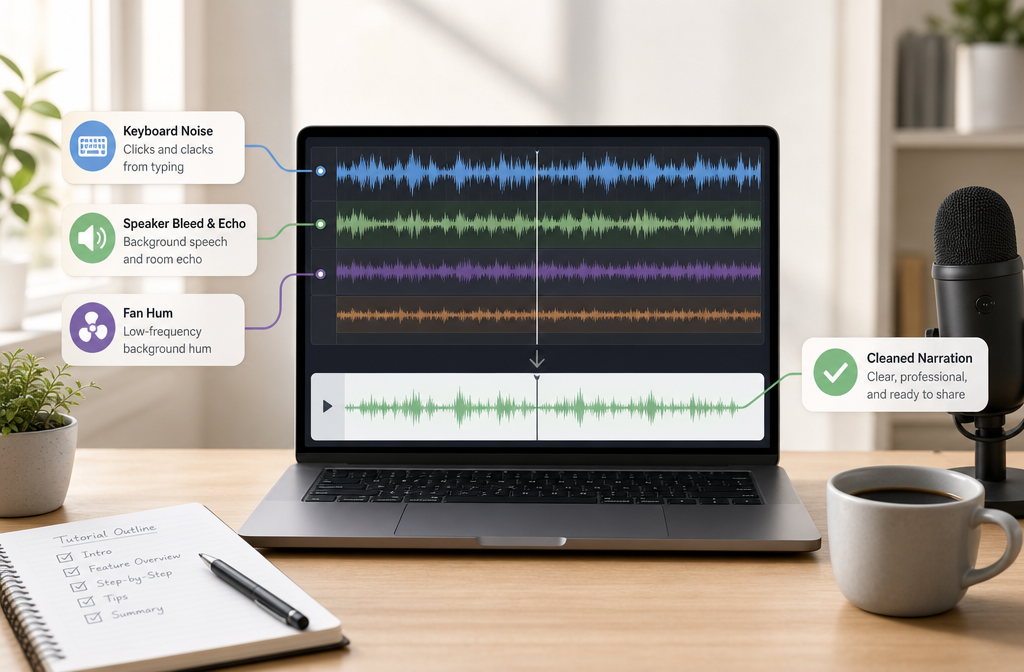
Yes, you can often clean screen recording audio online after recording, especially if the problem is steady fan noise, HVAC rumble, light keyboard noise, mild room echo, hum, or thin laptop-mic narration. The usual workflow is simple: upload the exported recording, preview the worst sections, apply cleanup carefully, compare before and after, and export the cleaned file.
The biggest limit is overlap. If your narration is fighting loud app audio, speaker playback was re-captured by the mic, or the voice is clipped and distorted, AI can often improve the result but may not fully restore it. In those cases, the best answer is sometimes a partial salvage or a re-record.
If you already have an MP4, MOV, WebM, M4A, or WAV file and just need faster post-production cleanup, SimpleClean fits this exact browser-based workflow.
What makes screen recording audio different?
Screen recording audio is not the same as a normal camera video or a dedicated voiceover session. It often combines two very different sound sources:
- Your microphone narration
- System audio such as app sounds, alerts, music, demo audio, or a browser tab
That combination creates problems that are common in tutorials, demos, walkthroughs, support clips, and course videos:
- Keyboard and mouse clicks while speaking
- Fan or HVAC noise from a laptop or office
- Speaker bleed that creates echo or doubled sound
- Thin, hollow narration from a built-in laptop mic
- Hum, hiss, or room tone under speech
- Narration that is too quiet compared with app audio
It also matters how the recording was captured. Apple notes that on Mac you can choose a microphone for screen recording, and feedback can occur unless volume is lowered or headphones are used. That is one reason screen recordings can sound echoey even when your voice sounded fine in the room. TechSmith also documents workflows that include mic and system audio capture, and Camtasia specifically highlights multitrack recording when you want more control later.
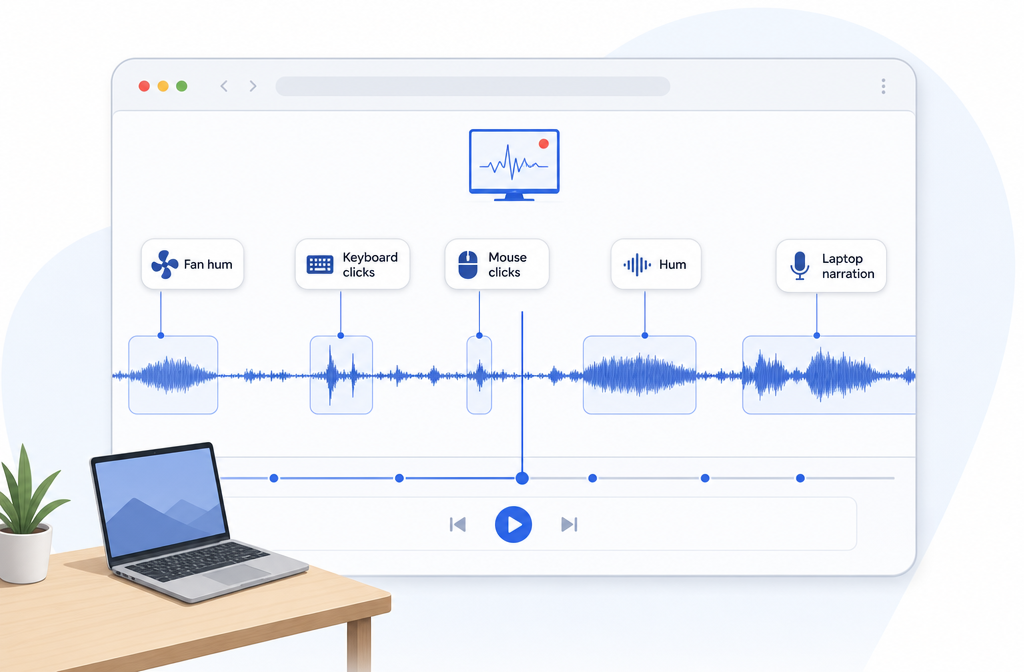
Fast diagnosis: what can be cleaned well, what can only be softened, and what usually needs a re-record?
| Symptom | What it usually means | Good cleanup candidate? | Best action |
|---|---|---|---|
| Steady fan, HVAC, white-noise-like room wash | Constant background noise under speech | Yes | Apply moderate noise cleanup and compare before/after |
| Light keyboard or mouse clicks | Short transient noises under narration | Often | Reduce them, but avoid over-processing the voice |
| Mild echo or room sound | Mic picked up room reflections or some speaker bleed | Sometimes | Use gentle cleanup; strong echo may only improve partially |
| Thin, tinny laptop narration | Weak onboard mic capture or compressed export | Often | Enhance clarity carefully without making app audio harsh |
| Loud typing during every sentence | Frequent overlap with speech | Partly | Expect reduction, not perfect removal |
| App audio competing with narration | Mic and system audio merged into one track | Limited | Use light cleanup; if words are masked, re-record may be faster |
| Clipping, crackle, distorted peaks | Audio recorded too hot | Limited | Try repair, but severe distortion often remains |
| Missing mic audio | Microphone not captured | No | Re-record narration |
| Doubled echo from speakers | Speaker playback re-entered microphone | Partly | Reduce it if mild; use headphones next time |
This is where many articles stop too early. The real question is not “can AI remove noise?” but “what kind of problem is in this exported file?” For screen recordings, overlap is the deciding factor.
Best candidates for online cleanup
Online cleanup tends to work best when the unwanted sound is more predictable than the speech. Based on the sources in this brief, the strongest candidates are:
- Steady fan noise and white-noise-like background wash; OBS describes suppression as especially useful for mild steady noise like fan noise and white noise
- Light HVAC rumble or hum
- Mild room echo or slight hollowness
- Thin narration from a laptop mic
- Light keyboard noise between phrases or under quieter parts of speech
It is less reliable when the problem is dense overlap:
- Heavy typing directly on top of every word
- Loud app sounds masking the narration
- Two versions of the same audio arriving at different times from speaker bleed
- Clipped speech where detail was never captured cleanly
Step-by-step: how to clean screen recording audio online
- Export or locate the final file. Most people bring in MP4 or MOV files from OBS, QuickTime, Loom, Camtasia, Clipchamp, or browser recorders. Sometimes it is easier to work from extracted audio such as M4A or WAV.
- Upload the recording. If your video editor lets you detach audio first, that is a common workflow. Microsoft Clipchamp documents detaching video audio before applying noise suppression, which is useful if you only need to repair the sound.
- Find the worst 10 to 20 seconds first. Preview the noisiest section rather than judging from a quiet intro. Choose a moment with speech plus the actual problem: typing, fan, hum, or echo.
- Start with moderate cleanup. Strong processing can make voices sound watery or make app audio feel unnaturally dull. For screen recordings, moderate cleanup usually beats maximum cleanup.
- Compare before and after on narration. Ask one question: are the words easier to understand? That matters more than making every trace of noise disappear.
- Check app sounds separately. If your tutorial includes notification tones, product audio, or music previews, make sure the cleanup is not crushing important system audio.
- Export and review in context. Listen once on speakers and once on headphones before publishing.
If you want a quick browser workflow for this, try cleaning a screen recording with SimpleClean and audition the noisiest section before exporting the whole file.
How to handle mixed mic + system audio without ruining app sounds
This is the hardest screen-recording scenario. If narration and system audio were captured together into one track, cleanup has to be conservative. Why? Because the software cannot perfectly know whether a sharp high-frequency sound is keyboard noise, part of the voice, or part of the app audio.
Use this rule of thumb:
- If narration is the priority, clean enough to improve speech even if app audio becomes slightly softer.
- If app audio is essential, use lighter cleanup so clicks and hum are reduced without making the product demo sound smeared.
- If you can record separate tracks next time, do it. Camtasia’s multitrack screen recorder is a strong example of why separate mic and system tracks matter. It gives you much better control than a single mixed file.
For browser-based enhancement, Adobe describes a web workflow for speech enhancement, which supports the general idea of cleaning exported recordings after the fact. But for mixed tutorial audio, the practical goal is balance, not perfection.
Echo from speaker bleed: why it happens and when it is fixable
If your screen recording sounds doubled, hollow, or like it was recorded “through the room,” the mic may have captured speaker playback in addition to your direct voice. TechSmith support explains this clearly for recording audio echo: sound coming from speakers gets picked up again by the microphone. Apple also warns about feedback risk during screen recording unless volume is lowered or headphones are used.
What you can do now:
- If the echo is mild, online cleanup may reduce the hollow sound enough to make the tutorial usable.
- If the echo is strong and the delayed version of your voice is obvious, expect only partial improvement.
- If app audio is also bleeding into the mic, cleanup becomes even harder because there are now two layered versions of the same sound.
What to do next time:
- Use headphones instead of speakers
- Lower monitoring volume if speakers must be on
- Keep the mic closer to your mouth than to the speakers
- Record a 15-second test clip before the real take
For deeper guidance on this specific problem, see how to remove echo from audio online and how to remove reverb from video online.
Keyboard noise in tutorials and live demos
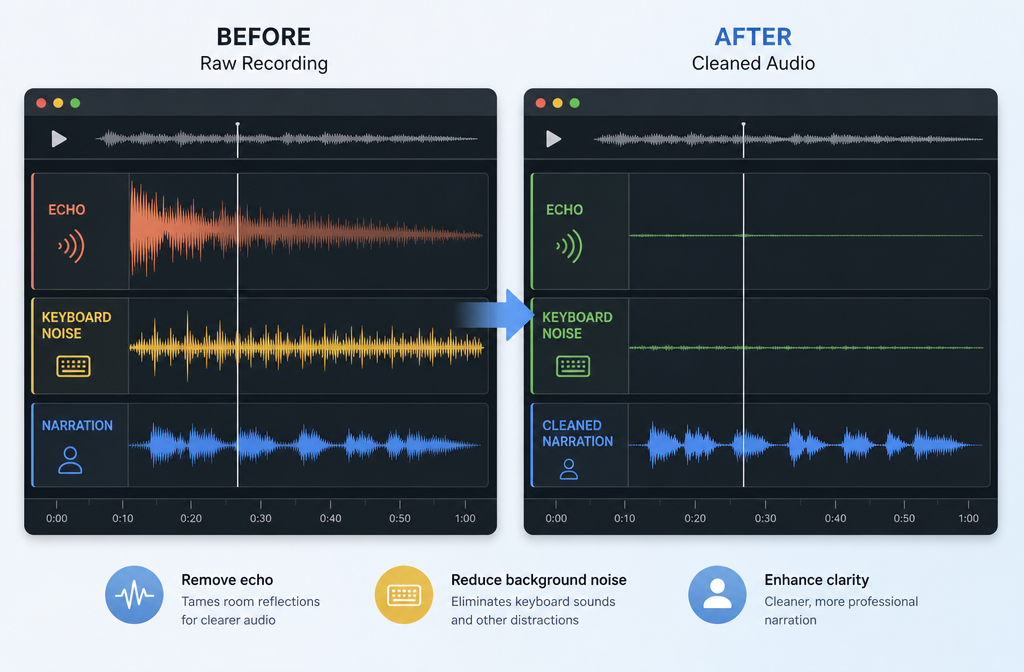
Keyboard noise is one of the most common screen-recording issues because it often happens exactly when you are explaining what you are doing onscreen. The challenge is timing: the clicks frequently overlap with important words.
Online cleanup can help most when:
- Typing happens between phrases
- The keyboard is quieter than the voice
- The clicks are occasional rather than constant
It helps less when:
- You are narrating continuously while typing heavily
- You use a loud mechanical keyboard very close to the mic
- The laptop mic is far from your mouth and close to the keyboard
If keyboard noise is the main issue in your exported tutorial, read our guide to removing keyboard noise from audio online. If the bigger issue is a constant whoosh underneath, fan noise cleanup or hum removal may be the better match.
Formats you can bring from common screen recorders
People usually arrive with one of these:
- MP4 from OBS, Loom, Clipchamp, browser recorders, or exported editors
- MOV from QuickTime or Mac-based workflows
- WebM from some browser tools and web apps
- M4A if audio was detached or exported separately
- WAV if the editor or recorder saved higher-quality audio separately
If your tool allows separate export of the audio, using the audio-only file can make review faster. But if you want to keep the whole video intact, cleaning the attached audio in the original video workflow is still a normal post-production path.
Best-for recommendations
- Best for fast salvage of an already-exported recording: a browser-based cleanup workflow where you can upload, preview, compare, and export quickly.
- Best for recordings with light steady noise: gentle cleanup focused on fan, hum, HVAC, and room wash.
- Best for keyboard-heavy tutorials: moderate processing plus realistic expectations if typing overlaps speech.
- Best for demos with important product audio: lighter cleanup so app sounds stay recognizable.
- Best for future-proofing your workflow: record mic and system audio on separate tracks when the recorder supports it.
If the end goal is publishing the cleaned tutorial more widely, you can add subtitles with Best AI Captions, create multilingual versions with Translate Dub, and distribute clips or posts across channels with Mallary.ai if your team wants a single publishing and engagement workflow.
Prevent-it-next-time checklist
- Choose the correct microphone before recording; Apple shows microphone selection as part of screen recording setup on Mac
- Use headphones to prevent speaker bleed and echo
- Keep the mic closer to your mouth than to the keyboard or laptop fan
- Record a short test clip with both voice and app audio
- Disable notifications before recording
- Lower room noise where possible; OBS notes suppression works best for mild steady noise, not very loud environments
- Record mic and system audio on separate tracks when your tool supports it
- Mute the mic during silent walkthrough portions if narration is not needed
When to re-record instead of repair
Re-recording is usually faster if:
- The narration is clipped or badly distorted
- The microphone audio is missing
- App audio and speech overlap so heavily that important words are masked
- Speaker bleed created a very obvious doubled track of both your voice and the system audio
If re-recording is not possible, aim for clearer speech rather than perfect sound. A “good enough to understand” result is often the right business decision for support, internal training, and fast product demos.
And if you just need to rescue the file you already exported, clean screen recording audio online with SimpleClean before you move on to captions, dubbing, or distribution.
FAQ
How do I remove background noise from a screen recording?
Upload the exported file, preview the noisiest section, apply moderate cleanup, compare before and after, and export the improved version. Steady noises like fan hum, HVAC, and light room wash are usually the best candidates.
Can I clean screen recording audio after recording?
Yes. That is a common workflow for exported MP4, MOV, WebM, M4A, and WAV files. Clipchamp even documents a post-production pattern where users detach audio from imported video before applying suppression.
Why does my screen recording sound echoey?
Often because speaker playback was captured again by the microphone, creating a doubled or hollow sound. TechSmith support explains this as speaker audio being picked up by the mic, and Apple notes feedback risk unless volume is lowered or headphones are used.
How do I remove keyboard noise from tutorial videos?
Use moderate cleanup and judge success by speech clarity, not total click removal. Light or occasional typing can often be reduced well. Heavy typing directly under narration is harder and may only be softened.
Can AI fix thin laptop mic narration?
Often, yes, at least partly. Thin or tinny narration is usually more fixable than missing or clipped audio. Improvement is most noticeable when the voice is present but just sounds weak, narrow, or hollow.
Can AI fully remove keyboard noise?
Not always. It works best when the clicks are lighter than the speech or happen between phrases. If loud typing overlaps every word, expect reduction rather than full removal.
Can it recover clipped audio?
Only sometimes, and usually not perfectly. If the recording is audibly distorted because the signal clipped during capture, restoration may help a bit but severe damage often remains.
Should I record system audio and microphone on separate tracks?
Yes, when possible. Separate tracks make cleanup much easier because you can improve the narration without damaging app sounds. TechSmith’s Camtasia materials specifically support the value of multitrack recording.
Can I clean OBS or QuickTime screen recording audio online?
Yes. OBS and QuickTime exports are common examples of files people clean after recording. The same upload-preview-compare-export workflow applies whether the file came from OBS, QuickTime, Clipchamp, Camtasia, Loom, or a browser recorder.
Sources and further reading
- How to record the screen on Mac - Apple Support - Supports microphone selection during Mac screen recording and feedback/headphones context.
- Free online screen recorder with audio - TechSmith - Supports common screen recording workflow with mic and system audio options.
- Multitrack screen recorder - Camtasia | TechSmith - Supports recommending separate tracks when possible.
- Echo in Snagit Video Recording Audio – TechSmith Support - Supports explanation of speaker bleed causing echo and using a headset to prevent it.
- Noise Suppression Filter | OBS - Supports realistic expectations for noise suppression on mild steady noise like fan/white noise.
- How to use noise suppression | Microsoft Support - Supports detaching audio from video as a common post-production workflow.
- What is Enhance Speech? | Adobe Podcast - Supports browser-based speech enhancement as a web cleanup workflow reference.