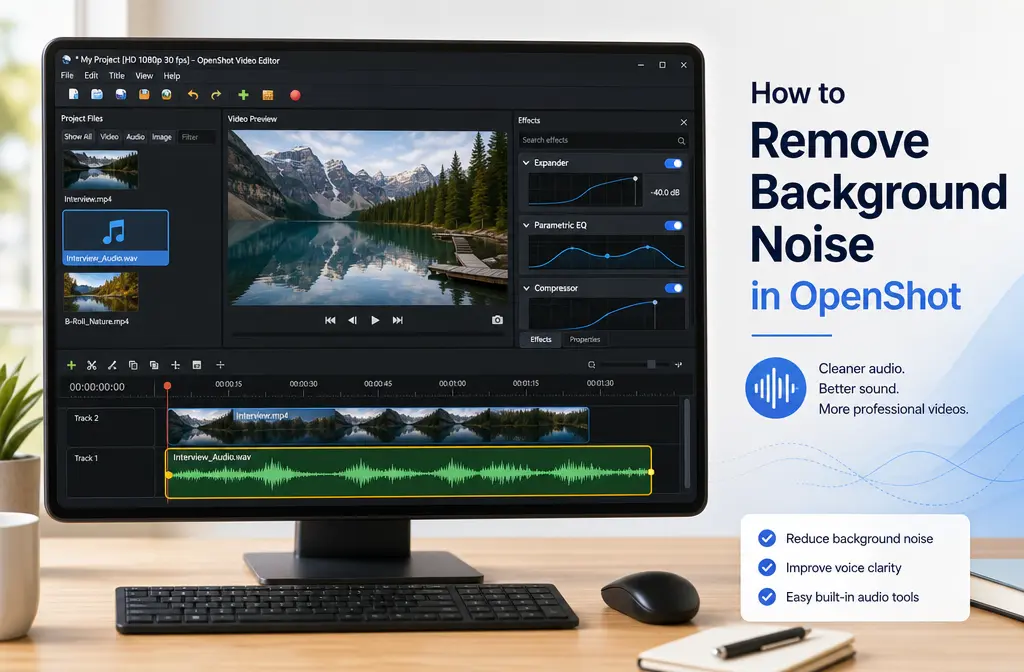
How to Remove Background Noise in OpenShot: Best Built-In Effects, What OpenShot Can’t Truly Fix, and When to Clean the Exported File Online
Quick Answer
Yes, you can remove some background noise in OpenShot if the noise is light and steady. OpenShot includes audio effects such as Expander, Parametric EQ, and Compressor, and those can help reduce room noise, fan rumble, mild hiss, or low hum around speech. But OpenShot does not offer true noise-print reduction or AI dialogue isolation like dedicated restoration tools do.
So the honest answer is:
- Use OpenShot for quick, basic cleanup inside your edit.
- Export and clean the file separately when the recording has heavy hiss, echo, wind, traffic, overlapping voices, or multiple noise problems at once.
If you want the fastest route after OpenShot’s built-in tools start making speech sound thin, gated, or unnatural, you can export the audio or final video and clean OpenShot audio with SimpleClean.
Does OpenShot have noise reduction?
Not in the way many users expect. According to the OpenShot effects documentation, OpenShot includes audio effects like Expander, Compressor, and Parametric EQ, and the Expander is described as useful for reducing background noise. But that is not the same thing as capturing a noise profile and subtracting it from the recording, which tools like Audacity Noise Reduction can do.
In practice:
- Expander lowers quieter sound, which can push room noise down between spoken phrases.
- Parametric EQ can cut frequency areas where hum, rumble, or hiss are strongest.
- Compressor can even out speech after cleanup, but it can also bring noise back up if overused.
- Volume keyframes let you manually reduce problem sections or tame loud overlaps.
That means OpenShot is best for light speech cleanup, not deep restoration.
What OpenShot actually has for audio cleanup
Based on the OpenShot documentation, these are the most relevant built-in tools for noisy spoken audio:
- Expander — useful for reducing low-level background noise between phrases.
- Parametric EQ — useful for targeted frequency cuts, such as hum or hiss.
- Compressor — useful after cleanup if voice volume becomes uneven.
- Clip audio controls and keyframes — useful for adjusting clip volume and manually shaping problem spots.
- Audio-only export — useful when you want to send the track to a separate cleaner.
OpenShot also supports exporting your project with audio only from the export window, which is the clean handoff path if its built-in effects are not enough.
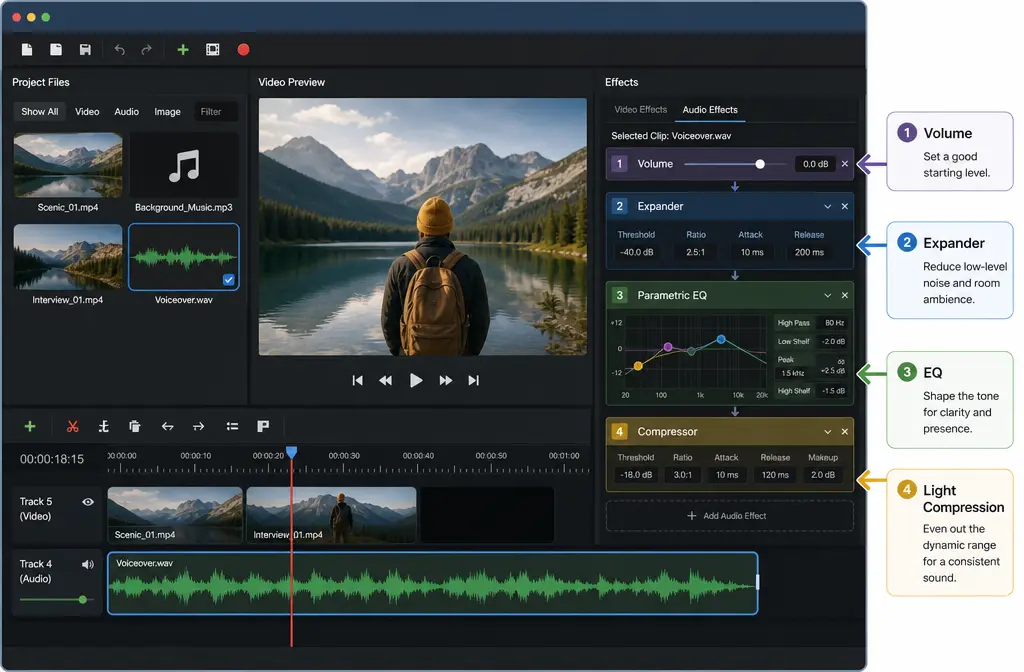
Best built-in filter order for speech in OpenShot
If your goal is clearer dialogue, this order is the safest place to start:
- Set clip volume first so you are not clipping or wildly overdriving the effects.
- Add Expander conservatively to lower room noise between phrases.
- Add Parametric EQ to cut obvious hum, rumble, or hiss.
- Add light Compressor last only if the voice now feels too uneven.
This order matters. If you compress first, you may raise background noise before trying to control it. If you overdo expansion before checking volume, you may chop off word endings.
Why this chain works
- Volume first: prevents clipping and keeps later moves predictable.
- Expander second: best for pushing down constant room sound during pauses.
- EQ third: trims frequency-specific problems without overprocessing the whole voice.
- Compression last: smooths the result after noise control instead of fighting against it.
Best OpenShot settings by noise type
The exact numbers depend on your recording, so the smartest approach is symptom-based rather than preset-chasing.
| Noise problem | What to try in OpenShot | What to avoid | When to export and clean separately |
|---|---|---|---|
| Fan or HVAC noise | Use gentle Expander plus EQ cuts for low rumble | Over-aggressive threshold that chops quiet words | If the fan overlaps speech constantly and still masks clarity |
| Steady hiss | Use mild high-frequency reduction with Parametric EQ | Heavy top-end cuts that make speech dull or lispy | If hiss remains obvious after EQ or speech loses detail |
| Low hum | Use a narrow EQ cut around the offending low-frequency region | Broad cuts that thin out the whole voice | If the hum changes over time or includes harmonics you cannot isolate |
| Room noise between phrases | Use Expander conservatively | Gate-like settings that clip consonants and syllable endings | If noise is present under every word, not just between phrases |
| Echo or reverb | Very limited help inside OpenShot | Stacking EQ and dynamics hoping it will de-reverb the room | Usually export immediately for separate cleanup |
| Wind, traffic, or variable street noise | Little reliable improvement with basic EQ/dynamics | Extreme processing that creates pumping or metallic speech | Usually export immediately for separate cleanup |
1) Fan or HVAC noise
Try a combination of light expansion and low-frequency cleanup. The goal is to reduce the rumble and push the remaining room tone down between phrases. If your voice starts sounding chopped, your Expander threshold is probably too aggressive.
2) Steady hiss
Hiss usually responds better to a gentle high-frequency reduction than to aggressive dynamics. A small EQ cut can help, but if you push too far, the voice starts sounding dull. This is where OpenShot often reaches its limit quickly because it lacks true broadband noise reduction.
3) Low hum
For hum, use a narrow EQ cut in the offending low-frequency area rather than a wide scoop. The Audacity documentation on alternative noise reduction techniques specifically distinguishes notch-style filtering from broader denoise approaches, which is useful context here: hum is often a frequency-specific problem, while hiss is not.
4) Room noise between phrases
This is the case where OpenShot’s Expander helps most. Used gently, it can make silence feel cleaner without destroying natural speech. Used too hard, it turns into obvious gating.
What OpenShot cannot truly fix
This is the part many articles skip: some audio problems are simply not good fits for OpenShot’s toolset.
OpenShot struggles with:
- Echo and room reverb
- Wind blasts
- Heavy or changing traffic noise
- Background voices overlapping the speaker
- Multiple noise issues at once, such as hiss + hum + echo
Why? Because its tools are mostly dynamics and EQ controls. Those can reshape audio, but they do not provide true noise-profile subtraction or AI voice isolation. Audacity’s Noise Reduction manual is a good benchmark for what deeper denoise workflows do that OpenShot does not.
If you are hearing a noisy webinar, interview, or screen recording where speech is still masked after your first pass, it is usually faster to export and remove background noise from an OpenShot export instead of fighting the timeline effects.
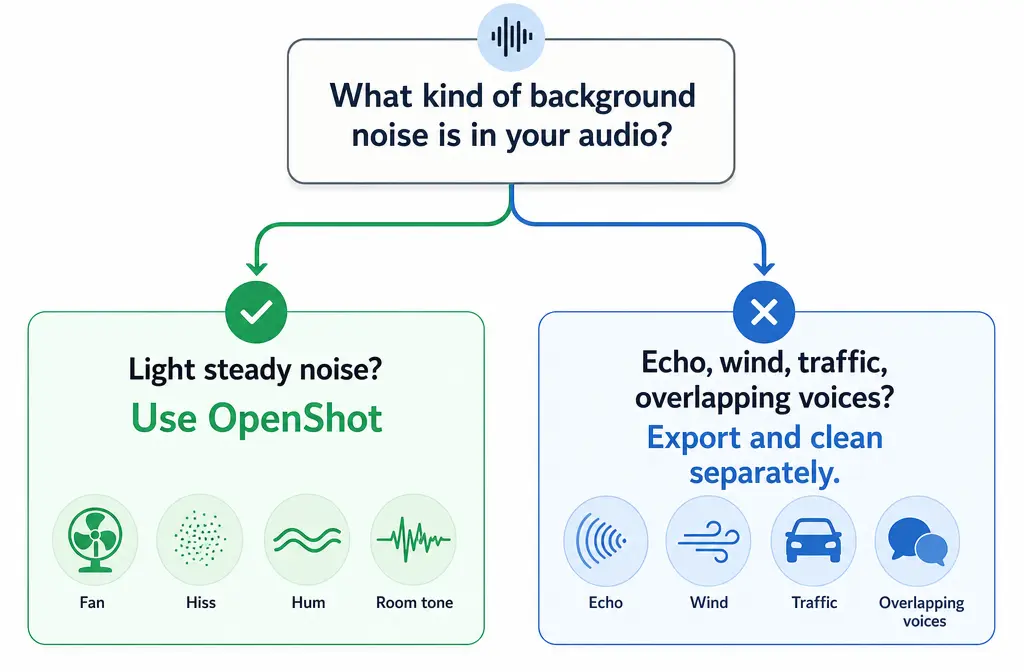
When OpenShot is enough vs when to clean the exported file online
OpenShot is enough when:
- The noise is light and steady
- You mainly need cleaner pauses between phrases
- You hear a mild hum, rumble, or hiss
- You want a quick in-editor fix without leaving your project
Export and clean separately when:
- You have hiss + hum + echo together
- Speech is still masked after EQ and Expander
- Your voice starts sounding metallic, thin, or unnaturally gated
- You are losing too much time manually tweaking effects
- You need clearer speech for captions, translation, or republishing
This export-first path also fits content repurposing. If you plan to add subtitles with Best AI Captions, create multilingual versions with Translate Dub, or distribute clips across channels with Mallary.ai, cleaner speech usually improves the final result before you publish.
How to remove background noise in OpenShot: step-by-step
- Listen to the raw problem first. Identify whether you mainly hear hum, hiss, fan noise, room tone between phrases, or something OpenShot will not handle well like echo.
- Adjust clip volume before effects. Use clip audio controls and keyframes so the track is not clipping and overlapping clips are not too loud together.
- Add Expander. Start conservatively. The goal is to reduce noise between phrases, not to make silence unnaturally hard-cut.
- Add Parametric EQ. Cut low hum or rumble with a focused reduction. For hiss, use a gentle reduction in the higher range rather than a drastic top-end removal.
- Add light Compressor only if needed. If the voice becomes uneven after cleanup, use compression gently so you do not raise the remaining noise too much.
- Preview problem spots. Check quiet phrases, sentence endings, and breaths. These reveal overprocessing quickly.
- Decide whether to stay in OpenShot or export. If the voice now sounds clear enough, finish in OpenShot. If not, export the audio or video for separate cleanup.
How to export audio only or full video from OpenShot before cleanup
OpenShot’s export documentation confirms that you can export a project and choose audio-only output.
To export audio only:
- Open your project.
- Go to the Export window.
- Choose the option for audio only.
- Export the file.
This is the best choice if you only want to clean speech and do not need to re-render the video yet.
To export the full video:
- Open the Export window.
- Choose your normal video export settings.
- Export the final MP4 or other target format.
If your next step is separate cleanup on the finished file, either path can work. Audio-only is usually cleaner for speech-focused workflows. The OpenShot support article on pops and crackles also notes that uncompressed audio such as WAV is preferable when possible.
Troubleshooting OpenShot audio cleanup
My voice sounds metallic or unnatural
You are probably pushing the Expander or EQ too hard. Back off the threshold or reduce how much top end you are cutting.
The audio pumps up and down
This often means the dynamics processing is too aggressive. Ease off the Expander first, then check whether the Compressor is exaggerating level changes.
Word endings are getting chopped
This is a classic sign that the Expander threshold is too aggressive for speech. Lower it and re-check quieter consonants and syllable tails.
I still hear hum
Try a narrower EQ cut around the offending low-frequency region instead of a broad low cut. If the hum has several harmonics or changes over time, OpenShot may not be the best tool.
I still hear hiss
If a gentle high-frequency cut is not enough, OpenShot has likely reached its limit. Broadband hiss is exactly the kind of problem that dedicated denoise tools handle better than basic EQ.
I get crackles or clipping after export
OpenShot’s support guidance points to three common causes:
- Overlapping clip volumes are too high
- Sample-rate mismatch
- Compressed audio workflow issues, where using uncompressed WAV can help
So if your exported file sounds worse than the timeline preview, check overlapping levels, keep sample rates consistent, and use WAV where practical before re-importing or further cleanup.
Best for: which route should you choose?
- Best for quick in-editor fixes: OpenShot alone
- Best for light fan noise or room tone between phrases: OpenShot Expander + EQ
- Best for hum: OpenShot Parametric EQ with a narrow cut
- Best for hiss, echo, or multiple problems at once: export and clean separately
- Best for repurposing a cleaned video afterward: clean the audio first, then caption with Best AI Captions, translate with Translate Dub, and schedule distribution with Mallary.ai
If you regularly edit tutorials or screen recordings, you may also want our related guides for Shotcut noise cleanup, Kdenlive noise cleanup, and cleaning screen recording audio online.
Final takeaway
OpenShot can reduce light, steady background noise, but it cannot truly replace dedicated denoise or AI speech-cleanup tools. The best OpenShot-native workflow is simple: set volume, add Expander gently, cut problem frequencies with Parametric EQ, then compress lightly only if needed.
That works for mild fan noise, low hum, hiss, and room noise between phrases. It does not reliably solve echo, wind, heavy street noise, or complex overlapping sounds. When that happens, exporting the audio or video is not a workaround. It is usually the smarter workflow.
For the fast path after editing, try SimpleClean if you need to clean an OpenShot export before publishing, captioning, translating, or sharing it more widely.
Sources and further reading
- OpenShot Effects documentation - Confirms the built-in audio effects available in OpenShot, including Expander, Compressor, and Parametric EQ.
- OpenShot Export documentation - Confirms OpenShot export options, including audio-only export.
- OpenShot Clips documentation - Supports discussion of clip audio properties, volume controls, and keyframes.
- OpenShot Support: Audio Pops and Crackles - Supports troubleshooting guidance on overlapping clip levels, sample rates, and use of uncompressed WAV audio where possible.
- Audacity Manual: Alternative Noise Reduction Techniques - Supports distinctions between notch-style filtering, gating-style approaches, and broader denoise methods.