How to Remove Background Noise in OBS Studio: Best Filter Order, RNNoise vs Speex, and When to Clean the Recording After Export
Quick Answer
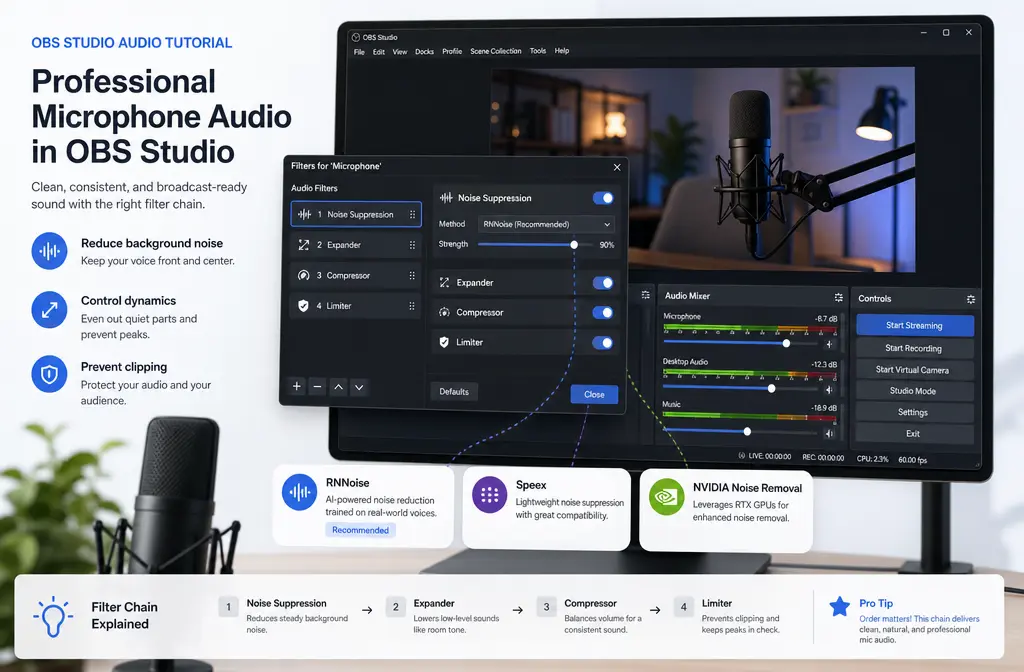
Yes, you can remove background noise in OBS Studio well enough for many live streams and screen recordings, but OBS is best at reducing mild background noise in real time, not fully repairing loud rooms or noise that overlaps your voice. OBS’s own documentation says its Noise Suppression filter is mainly effective for mild background noise such as PC fan noise. In practice:
- Use Noise Suppression for steady noise like fans or room tone.
- Use an Expander or Noise Gate to reduce what your mic picks up when you are not talking.
- Use a Compressor and Limiter after that to keep speech controlled and avoid distortion.
- If keyboard clicks, fan noise, room echo, or chatter are still obvious while you’re speaking, stop over-tweaking OBS and clean the exported recording afterward with SimpleClean.
A practical starting chain for speech is: Noise Suppression → Expander or Noise Gate → Compressor → Limiter. That order is an editorial recommendation based on the purposes of the official OBS filters and the OBS guidance that expanders can sound smoother than hard gating.
Where to Find Mic Filters in OBS
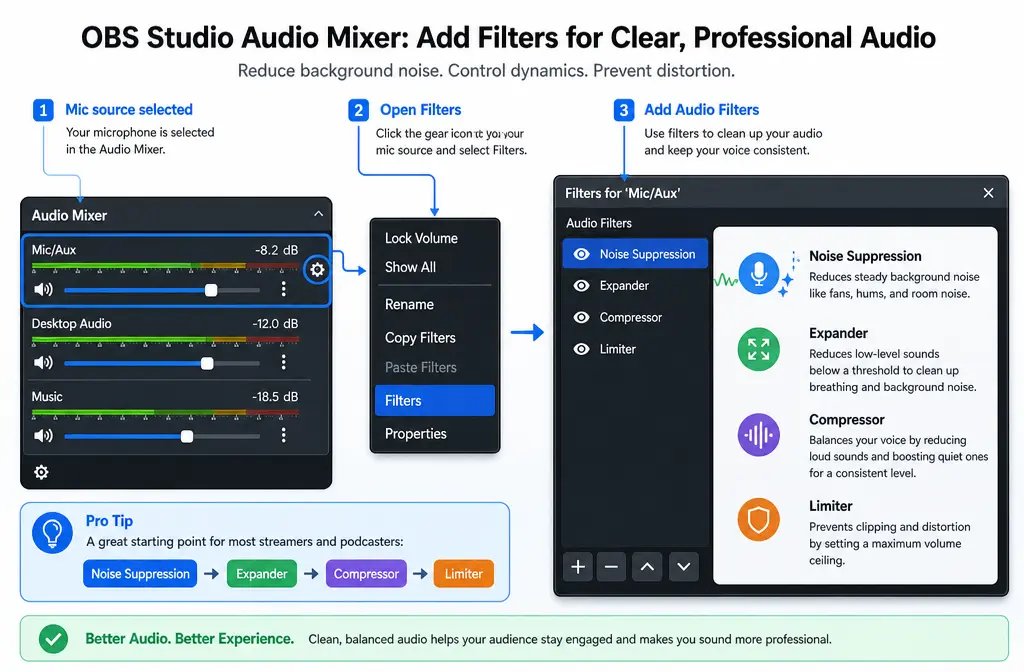
In OBS Studio, go to the Audio Mixer, click the gear/cog next to your mic source, then choose Filters. That is where you add Noise Suppression, Noise Gate, Expander, Compressor, Limiter, and other audio filters. OBS documents the Audio Mixer and filter workflow in its official knowledge base.
What Each OBS Audio Filter Actually Does
Many guides say “add Noise Suppression and Noise Gate” and stop there. That is why people end up with clipped words, robotic speech, or keyboard noise that still leaks through while talking. Here is the simpler way to think about each filter.
| Filter | What it helps with | What it does not fix well | Best use |
|---|---|---|---|
| Noise Suppression | Steady background noise like fan or light room tone | Loud rooms, echo, overlapping speech/noise | Live cleanup before streaming or recording |
| Noise Gate | Mute mic when you are silent | Noise during speech | Simple open/close behavior in quiet setups |
| Expander | Reduces low-level noise more smoothly than a gate | Heavy noise under speech | Natural spoken-word cleanup |
| Gain | Raises or lowers mic level | Noise itself | Fix weak or hot input before other tuning |
| Compressor | Tames loud peaks and evens speech | Background noise removal | Consistent vocal level |
| Limiter | Stops clipping above a ceiling | Noise removal | Final safety net |
Two key points from the official OBS docs matter most here:
- Noise Gate only helps when you are not speaking. If your keyboard or fan is still audible while you talk, the gate cannot solve that by itself.
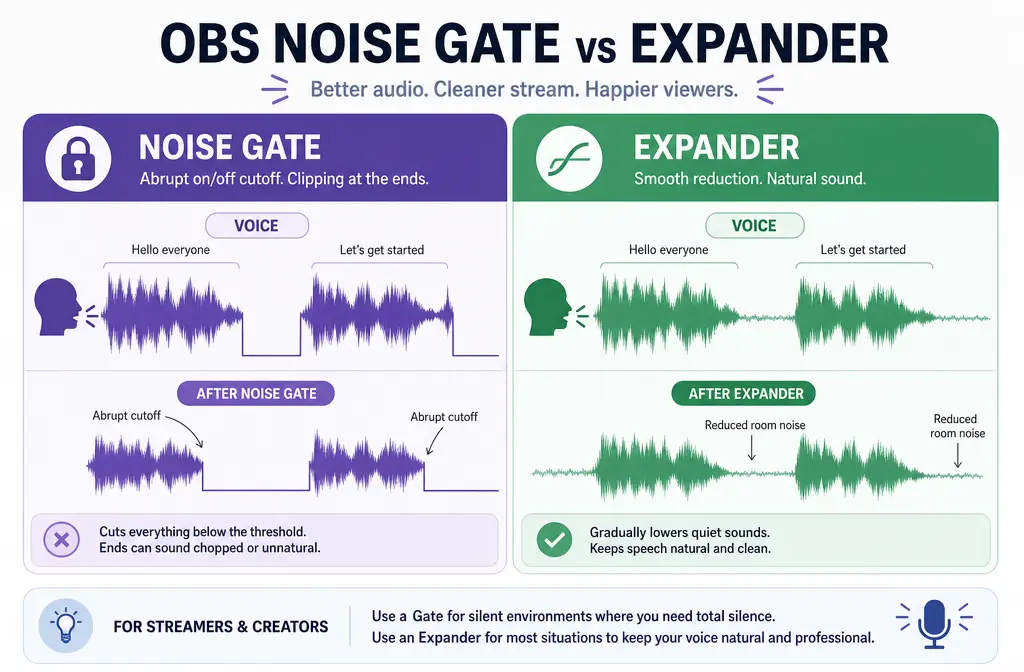
- Expander can sound smoother than a gate. OBS specifically notes that an expander can be less jarring because it turns down quieter signals instead of fully slamming the mic open and shut.
Best Filter Order for OBS Mic Audio
If you want a reliable starting point for live speech, use this chain:
- Noise Suppression
- Expander or Noise Gate
- Compressor
- Limiter
Why this order works:
- Noise Suppression first reduces steady junk before the dynamics filters react to it.
- Expander or Gate second keeps idle-room noise lower between phrases.
- Compressor third evens out your speech after the cleanup stage.
- Limiter last catches peaks so your recording or stream does not clip.
This is not the only possible chain, but it is the most practical starting setup for commentary, streaming, tutorials, webinars, and voice-heavy recordings in OBS.
RNNoise vs Speex vs NVIDIA Noise Removal
OBS offers multiple suppression methods. Choosing the right one matters more than copying random threshold numbers from a YouTube video.
| Method | Best for | Tradeoff | Requirements |
|---|---|---|---|
| RNNoise | Most users who want better real-time voice cleanup | Heavier processing than Speex | Built into OBS |
| Speex | Lower-resource systems and lighter suppression | Generally less advanced than RNNoise | Built into OBS |
| NVIDIA Noise Removal | Users with supported NVIDIA setup who want GPU-based suppression | Needs correct NVIDIA software setup | NVIDIA Broadcast SDK installed; OBS notes this option appears after that |
Based on the official OBS documentation:
- RNNoise is usually the better first choice for voice quality if your system handles it well.
- Speex is the fallback when you need lower resource use or lighter processing.
- NVIDIA Noise Removal depends on installing the NVIDIA Broadcast SDK. OBS release notes also note that OBS 32.0 added VAD improvements to NVIDIA RTX Audio Effects.
Best for recommendations
- Best overall for most streamers: RNNoise
- Best if OBS feels heavy: Speex
- Best if you already use a supported NVIDIA audio effects setup: NVIDIA Noise Removal
- Best for severe noise in a recorded file: export and clean OBS recordings after export
Noise Gate vs Expander: Which Should You Use?
If you only remember one thing from this article, make it this: for spoken-word audio, Expander is often smoother than Noise Gate.
A Noise Gate is binary. Below the close threshold, the mic closes. That can be useful, but it is easy to make speech sound choppy if your voice dips at the start or end of words.
An Expander is more gradual. Instead of muting the mic completely, it reduces quieter sounds. That is why it often feels more natural for streamers, tutorial creators, and webinar hosts.
Use Noise Gate if:
- Your room is already fairly quiet
- You want clear on/off behavior
- You do not mind a more aggressive sound
Use Expander if:
- You want smoother speech tails
- You keep clipping word endings with a gate
- You want idle noise reduced without obvious open/close pumping
How to Remove Background Noise in OBS Studio Step by Step
- Open your mic filters. In the Audio Mixer, click the gear next to your microphone and choose Filters.
- Add Noise Suppression. Start with RNNoise unless you need a lighter option, in which case try Speex. If you use NVIDIA’s method, make sure the required SDK is installed first.
- Add Expander or Noise Gate. Start with Expander if you want smoother speech. Use Gate if you want stronger cutoffs while silent.
- Add Compressor. This keeps your speaking volume more even.
- Add Limiter last. Use it as the final ceiling to prevent clipping.
- Watch your meter. OBS’s Audio Mixer meter should stay out of distortion. For spoken word, avoid pushing peaks so high that they clip. If your chain makes audio louder, lower gain or compressor output so the limiter is not constantly smashing everything.
- Record a short test. Say quiet and loud phrases, type on your keyboard, pause between sentences, and listen back.
- Tune one filter at a time. If the voice gets robotic, back off suppression. If words get chopped, relax the gate or use an expander. If the track distorts, reduce level before the limiter.
Starter Presets by Scenario
These are starting points, not absolute settings. Your mic, room, distance, and speaking volume matter.
1) PC fan or light HVAC hum
- Start with RNNoise
- Add a light Expander
- Keep suppression moderate to avoid metallic speech
- If the fan is still obvious while speaking, export and clean the file afterward
2) Keyboard clicks while gaming or teaching
- Use Noise Suppression plus Expander
- Do not rely on Noise Gate alone; it only helps when you are silent
- Move the mic closer to your mouth if possible so your voice dominates the keyboard
- If clicks are still sharp during speech, post-cleanup is usually faster
3) Untreated room tone
- Use light RNNoise
- Prefer Expander over a hard gate for natural room decay
- Do not expect OBS to fix echo or reverb fully in real time
4) Headset mic
- You may need less suppression because the mic is close
- Use lighter dynamics settings to avoid pumping
- Watch for harshness if the mic is already thin-sounding
5) Laptop mic
- Expect more room pickup and keyboard leakage
- Use suppression conservatively
- If the result becomes hollow or robotic, skip the aggressive live chain and fix the exported recording instead
Troubleshooting Common OBS Noise Problems
My voice cuts off at the start or end of words
Your gate or expander is probably too aggressive. Try switching from Noise Gate to Expander, or relax your thresholds and timing.
Noise suppression makes my voice sound robotic
You are pushing suppression too hard, or asking OBS to remove noise it cannot clean gracefully in real time. OBS itself says suppression works best for mild background noise. Reduce suppression or clean the recording after export.
Keyboard noise still leaks while I am talking
That is normal for a gate-only setup. Noise Gate does not remove sound that overlaps your speech. Add Noise Suppression, reduce keyboard pickup physically if possible, and if the clicks are still obvious, repair the OBS recording after export.
NVIDIA Noise Removal is missing
OBS says the NVIDIA option appears after installing the required Broadcast SDK. If it is not showing, verify that software requirement first.
My audio clips after I add filters
Compression, gain changes, and other filters can raise your effective level. Use the OBS meter and lower your level so peaks do not distort. Keep the limiter as a final safety stage, not as a crutch for a too-hot chain.
When OBS Is Enough vs When to Clean the Recording After Export
OBS is enough when:
- The problem is mild fan noise or low room tone
- You need a live-safe solution for streaming
- Your mic is already close and clear
- The filtered voice still sounds natural
Export the recording and clean it afterward when:
- Fan noise stays obvious under speech
- The room is echoey or reverberant
- There is chatter, TV noise, or busy-room sound
- Your OBS chain starts sounding robotic or overprocessed
- You want cleaner audio for subtitles, transcripts, or repurposed clips
This is the workflow most people miss. OBS is a production tool, not a full restoration suite. If you already recorded the file, or your live chain is fighting severe noise, it is usually faster to export the WAV or MP4 and remove background noise from the OBS recording with SimpleClean afterward instead of stacking more filters.
If your goal is content repurposing after cleanup, you can then add subtitles with Best AI Captions, create multilingual versions with Translate Dub, and schedule or distribute clips across platforms with Mallary.ai.
Can OBS Remove Background Noise From an Already Recorded Video?
Not in the way most people mean. OBS filters work on sources inside OBS during monitoring, streaming, or recording workflows. If you already have a finished MP4 or WAV, the practical path is to clean that exported file in a post-production tool rather than trying to turn OBS into a restoration app.
Related SimpleClean Guides
- Clean screen recording audio online
- Remove background noise in Audacity
- Remove background noise in DaVinci Resolve
- Remove background noise in Premiere Pro
Bottom Line
If you want cleaner mic audio in OBS, start simple: Noise Suppression → Expander → Compressor → Limiter. Use RNNoise first for most voice setups, try Speex if you need lighter processing, and use NVIDIA Noise Removal only when the required NVIDIA setup is in place.
Most importantly, do not expect a Noise Gate to fix keyboard noise while you are talking, and do not expect OBS to fully restore a noisy room. For mild live noise, OBS is great. For stubborn fan noise, room issues, or overprocessed recordings, export the file and clean recorded OBS audio more effectively afterward.
Sources and further reading
- OBS Noise Gate Filter - Used for explaining what a gate does and for troubleshooting voice cutoff and threshold behavior.
- OBS Expander Filter - Used for the point that an expander can be smoother and less abrupt than a gate.
- OBS Filters Guide - Used for filter definitions and the overall role of suppression, dynamics, compressor, limiter, and VST support.
- OBS Audio Mixer Guide - Used for level-meter guidance and avoiding clipping in speech recordings.
- OBS Studio GitHub Releases - Used for the note that OBS 32.0 added VAD improvements to NVIDIA RTX Audio Effects.
- OBS Studio Overview - Supports the location and purpose of the Audio Mixer within OBS Studio.