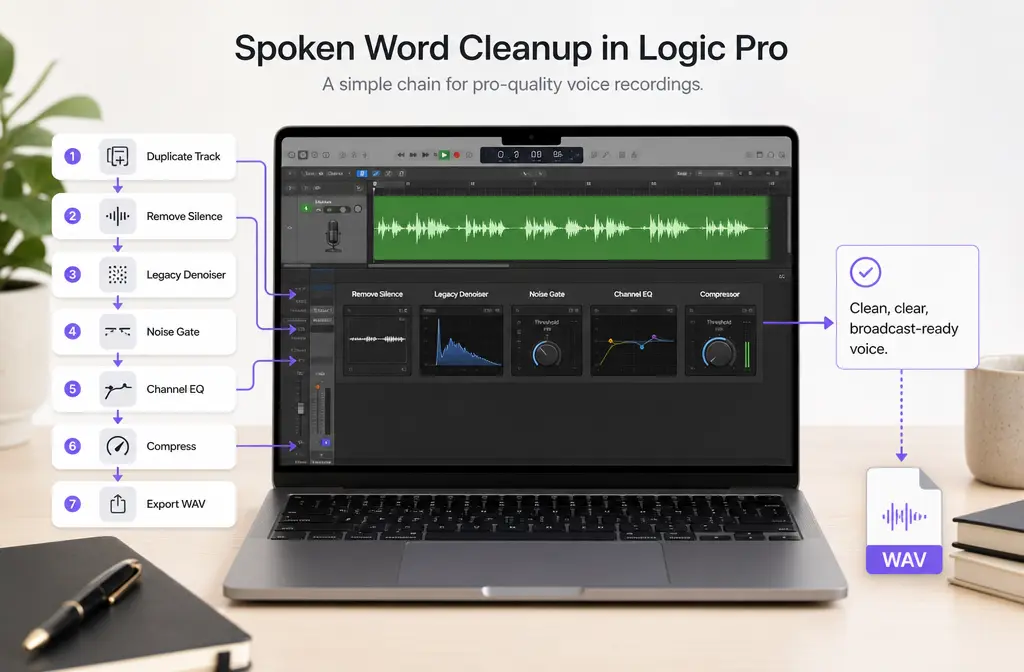
If you need to remove background noise in Logic Pro, the fastest built-in workflow for spoken-word audio is usually: duplicate the track, cut or remove dead air first, use Legacy Denoiser gently for steady hiss or fan noise, add a light Noise Gate only if gaps are still noisy, shape low rumble or hum with Channel EQ, then compress lightly after cleanup. Logic Pro can help with steady background noise, mild hum, and room tone between phrases, but it is much weaker against heavy echo, traffic bursts, keyboard clicks during speech, clipping, distortion, and strong wind. In those cases, it is often smarter to export a WAV and clean Logic Pro audio with SimpleClean.
Quick answer
Yes, Logic Pro can reduce background noise in speech recordings, especially steady hiss, fan or HVAC noise, mild hum, and noisy gaps between phrases. For most Mac creators using current Logic Pro for Mac 11.x, the best built-in order is:
- Duplicate your track.
- Use Remove Silence or manual cuts for dead air.
- Use Legacy Denoiser for steady broadband noise.
- Use Noise Gate gently only if pauses are still distracting.
- Use Channel EQ to trim rumble or shape hum.
- Add light compression after cleanup, not before.
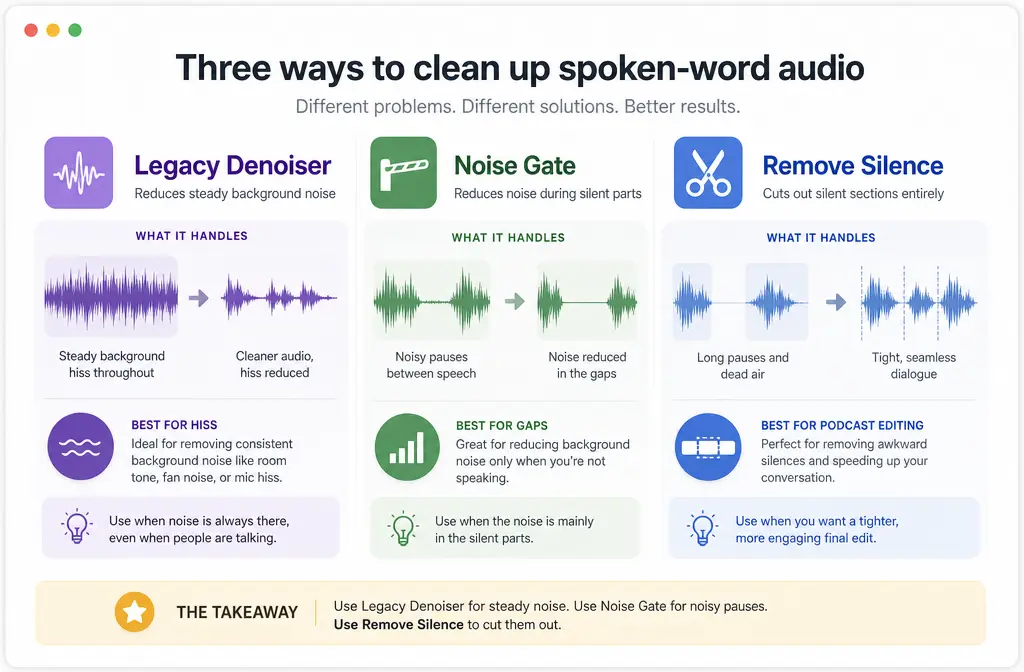
The key is using the right tool for the right noise. Denoiser is for steady noise under the voice. Noise Gate is for reducing noise in gaps. Remove Silence is often cleaner than a gate for podcast dialogue. EQ helps with low-end rumble. If the recording has strong room reverb, overlapping speakers, clipping, or intermittent noises inside words, Logic Pro is usually not the best fix.
What version of Logic Pro are most users on now?
Apple’s current release notes place Logic Pro for Mac in the 11.x line, so this article uses current Logic Pro framing rather than older “Logic Pro X” wording. If you see older tutorials using that older name, the core ideas may still be helpful, but the terminology can be outdated.
For current documentation, start with Apple’s Logic Pro User Guide and Logic Pro for Mac 11 release notes.
The best built-in Logic Pro cleanup order for speech
This order matters. If you compress first, background noise often becomes more obvious. If you gate before cutting obvious dead air, you may spend longer chasing settings than necessary.
| Step | Tool | Best for | Why it goes here |
|---|---|---|---|
| 1 | Duplicate track | Safety copy | Lets you compare processed vs original and undo faster. |
| 2 | Remove Silence or manual cuts | Room tone in pauses, empty gaps | Deletes obvious quiet sections before plugin processing. |
| 3 | Legacy Denoiser | Hiss, fan, HVAC, steady broadband noise | Targets continuous background noise under speech. |
| 4 | Noise Gate | Residual noise between phrases | Used gently, it can tidy gaps after denoising. |
| 5 | Channel EQ | Low rumble, some hum shaping | Cleans low-end junk and refines tone after noise reduction. |
| 6 | Light compression | Leveling spoken voice | Final polish after noise is already under control. |
For speech, this order is usually faster and cleaner than dropping several processors on the track and hoping one will fix everything.
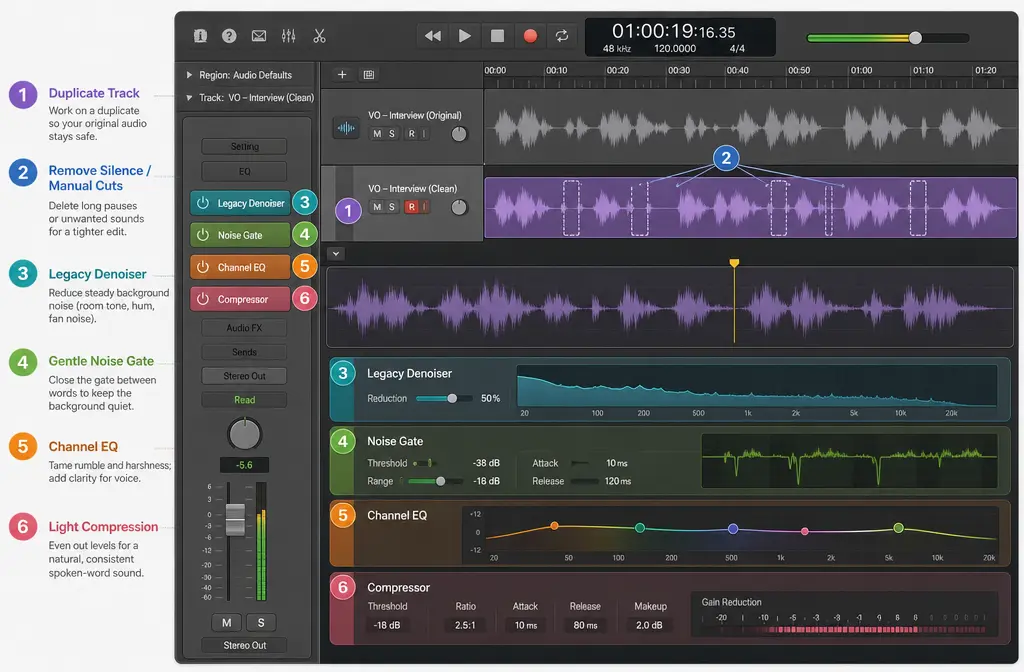
Best built-in tool in Logic Pro for each noise type
- Steady hiss: Legacy Denoiser first, then a little EQ if needed.
- Fan or HVAC noise: Legacy Denoiser, sometimes followed by gentle gating in pauses.
- Low hum or rumble: Channel EQ for low-end cleanup; Denoiser may help a little, but EQ is often more direct here.
- Room tone between phrases: Remove Silence or manual cuts usually beat a gate for natural dialogue editing.
- Mild noise in gaps: Noise Gate, but keep it subtle to avoid chattering.
How to remove background noise in Logic Pro step by step
1) Duplicate the track first
Before you process anything, duplicate the dialogue or voice track. This gives you a clean fallback and makes A/B comparisons easy. It also helps when one section needs lighter processing than another.
2) Remove dead air before using plugins
Apple’s Remove Silence function creates new regions from audio that rises above a threshold. For spoken-word editing, that often gives a cleaner result than relying on a gate to close and open constantly.
Use Remove Silence when:
- the speaker pauses clearly between sentences
- you want clean cuts you can inspect visually
- the noise is mostly obvious in gaps, not under every word
Use manual cuts or silencing when:
- only a few sections are noisy
- you want precise control over breath spacing and pacing
- automatic silence detection is cutting too aggressively
Apple also documents the ability to trim or silence noisy quiet passages, which is useful when you do not want a plugin reacting in real time.
3) Use Legacy Denoiser for steady noise
Apple’s Legacy Denoiser uses FFT analysis to reduce noise below a threshold. Apple also warns that pushing it too far can create artifacts. In practice, that means you should treat it as a gentle cleaner, not a miracle fixer.
A practical spoken-word workflow:
- Find a short section where only the background noise is present.
- Insert Legacy Denoiser on the track.
- Set the threshold conservatively.
- Increase the reduction only until the hiss or fan noise starts to back off.
- Stop as soon as the voice starts sounding watery, metallic, phasey, or hollow.
- Back off slightly from that point.
Rule of thumb: if the noise is still a little audible but the voice sounds natural, that is usually better than forcing extra reduction and damaging the speech.
4) Add Noise Gate only if the gaps are still distracting
Apple’s Noise Gate is for suppressing signal below a threshold. For speech, that means it is usually best used to reduce low-level background noise between phrases, not to slam the gate shut on every breath.
Plain-English settings guide:
- Threshold: the level where the gate starts opening. Set it too high and it cuts off words.
- Reduction: how much quieter the signal gets when the gate closes. Full shutoff can sound unnatural; a gentler reduction often sounds smoother.
- Attack: how quickly the gate opens. Too slow can clip consonants.
- Hold: how long it stays open after the signal falls below threshold. More hold can stop chattering.
- Release: how quickly it closes. Too fast can sound twitchy; too slow can leave noise hanging.
- Hysteresis: creates separate open and close behavior so the gate is less likely to flicker on borderline audio.
A gentle speech-first starting approach is:
- set threshold low enough that soft words still open the gate
- use partial reduction instead of extreme reduction when possible
- keep attack fast enough to preserve word starts
- add a little hold and release so the gate does not chatter between syllables
- use hysteresis if the gate keeps opening and closing nervously
5) Use Channel EQ for rumble and tone shaping
Channel EQ is not a full noise-reduction tool, but it is very useful after denoising. Apple’s Channel EQ overview confirms it can help you visualize frequency content with an analyzer, which is useful when chasing low-end problems.
Use EQ for:
- low rumble: reduce excess low frequencies
- some hum cleanup: shape the offending low area if it is still obvious
- post-denoiser polish: restore clarity after gentle noise reduction
If the noise is a clear low-frequency problem, EQ is often more effective than asking Denoiser to do all the work.
6) Compress lightly after cleanup
Compression should usually come after your noise work on spoken-word tracks. If you compress first, the background noise floor often becomes more noticeable. Once the track is cleaner, use light compression to level speech without bringing the noise back up too much.
Denoiser vs Noise Gate vs Remove Silence in Logic Pro
| Tool | What it does | Best for | Not ideal for |
|---|---|---|---|
| Legacy Denoiser | Reduces steady noise below a threshold | Hiss, fan, HVAC, mild broadband noise | Heavy echo, bursts, clicks in speech, clipping |
| Noise Gate | Suppresses quieter audio when signal drops below threshold | Noisy pauses between spoken phrases | Noise that continues under active speech |
| Remove Silence | Creates regions from audio above a threshold | Dialogue editing, podcasts, interviews with clear pauses | Messy timing where automatic cuts remove wanted ambience |
Best for most podcasters and voice editors: Remove Silence first, Denoiser second, Noise Gate only if needed.
When Remove Silence beats Noise Gate for dialogue
For podcast editing, interviews, tutorials, and voiceovers, Remove Silence often sounds more natural because you decide exactly what stays and what goes. A gate is reactive. It opens and closes based on level. That can create obvious pumping or chopped breaths if the settings are too aggressive.
Remove Silence is usually better when:
- you want consistent edits between phrases
- the speaker has soft word endings that a gate may cut
- the room tone changes enough to confuse a gate
- you plan to add music or additional processing later
Noise Gate is usually better when:
- you want a quick cleanup without making many edits
- the noise is only mildly distracting in pauses
- the speaker level is consistent enough for stable gating
What Logic Pro handles well vs what it struggles with
Logic Pro usually handles these pretty well
- steady hiss
- fan noise
- HVAC noise
- mild hum or rumble
- room tone between phrases
Logic Pro is much less effective for these problems
- strong room echo or reverb
- overlapping voices
- traffic bursts and other intermittent intrusions
- keyboard clicks inside spoken words
- clipping and distortion
- heavy wind
If your recording falls into that second list, Logic Pro can still help a little around the edges, but it is often not the fastest or cleanest solution.
When to export WAV and clean the exported file online instead
Exporting the audio is usually the smarter path when:
- Denoiser makes the voice sound metallic before the noise is gone
- Noise Gate sounds obvious or unnatural
- the problem is more than steady background noise
- you are cleaning spoken-word audio fast for delivery, not mixing a full production
- you want to process the final edited speech file instead of tweaking multiple regions
In those cases, bounce or export a WAV from Logic Pro at a high level, then remove background noise from a Logic Pro export with SimpleClean. WAV is the safest handoff format because it preserves quality better for further cleanup.
This is especially useful for creators finishing podcast episodes, interviews, course videos, and YouTube talking-head content. After cleanup, if you are publishing video, Best AI Captions can help add captions and subtitles. If you need multilingual versions, Translate Dub is a natural next step for translation, dubbing, and captions. And once the cleaned content is ready to promote across channels, Mallary.ai fits the distribution side by letting teams schedule and publish to multiple social platforms from one API or dashboard.
High-level export guidance from Logic Pro
You do not need a complicated export workflow just to hand the file off for cleanup. The key point is simple: export or bounce the edited speech as WAV when possible before using an external cleaner. That keeps the best quality for any downstream processing.
Troubleshooting Logic Pro noise removal
My voice sounds metallic or watery after Denoiser
You are probably pushing the reduction too hard. Apple’s Denoiser documentation warns about artifacts. Lower the amount of reduction, raise the threshold more conservatively, and accept a little remaining noise if the speech sounds more natural.
The Noise Gate keeps pumping or chattering
Lower the threshold, add more hold or release, and use hysteresis so the gate does not open and close too aggressively around the same level. Also consider replacing the gate with Remove Silence if this is dialogue editing rather than live monitoring.
The cuts between phrases sound too abrupt
Remove Silence may be trimming too tightly, or manual cuts may need short fades and better spacing. For dialogue, preserving natural pauses usually sounds better than stripping every trace of room tone.
Noise gets louder after compression
This usually means compression came too early or was too strong. Move cleanup earlier in the chain and compress more lightly after the track is already cleaner.
Hum remains after Denoiser
Denoiser is not always the best tool for low-frequency problems. Try Channel EQ for low-end shaping. If the hum is still distracting, see our guide on removing background hum from audio.
There are keyboard clicks inside the words
That is one of the cases where Logic’s basic built-in cleanup chain often struggles. If the clicks overlap speech, a dedicated external cleanup step may be faster. See how to clean screen recording audio online for related workflow advice.
The recording has echo or sounds like a bad room
Logic Pro is not the best tool for strong room echo. If that is the main issue, skip endless denoiser tweaking and review how to remove echo from audio online.
The voice is clipped or distorted
Noise reduction will not truly repair clipping. If distortion is your main problem, use a workflow designed for that. We cover that separately in our clipping article below.
Best-for recommendations
- Best built-in Logic workflow for podcasters: Remove Silence, light Denoiser, little or no gate, light EQ, light compression.
- Best built-in Logic workflow for voiceover: Denoiser first for steady booth noise, then EQ and very gentle compression.
- Best built-in Logic workflow for interview cleanup: manual cuts or Remove Silence first, then only mild denoising per track.
- Best option when the recording is badly compromised: export WAV and use SimpleClean on the rendered file.
Useful related SimpleClean guides
- Clean podcast audio online
- Remove echo from audio online
- Remove background hum from audio online
- Remove clipping from audio online
- Clean screen recording audio online
Bottom line
Logic Pro can absolutely reduce background noise in spoken-word recordings, but it works best when you match each built-in tool to the actual problem. Use Remove Silence for dead air, Legacy Denoiser for steady hiss or fan noise, Noise Gate sparingly for gaps, and Channel EQ for rumble or hum shaping. Once Logic starts creating artifacts or the noise problem is more complex than steady background wash, export a WAV and use a cleaner built for the finished file. That is usually the fastest path to clearer dialogue.
FAQ
Does Logic Pro have a noise reduction plugin?
Yes. Apple documents Legacy Denoiser as a built-in Logic Pro plugin for reducing steady noise below a threshold. Logic Pro also includes Noise Gate, which is different because it suppresses quieter audio rather than directly reducing continuous noise under speech.
What is the difference between Denoiser and Noise Gate in Logic Pro?
Denoiser is for reducing steady background noise such as hiss or fan noise that exists under the voice. Noise Gate is for suppressing noise when the signal drops below a threshold, so it is mainly useful between phrases.
How do I remove hiss from vocals in Logic Pro?
Use Legacy Denoiser gently on a duplicated track, find a noise-only section, and increase reduction only until the hiss starts to fall without making the voice metallic. You can then use light EQ to polish the result if needed.
How do I remove hum or low rumble in Logic Pro?
Start with Channel EQ for low-frequency cleanup. Denoiser may help a bit with some noise, but low hum and rumble are often better handled with EQ shaping than broadband denoising alone.
Why does Logic Pro noise reduction make my voice sound metallic?
Because the denoising is being pushed too hard. Apple notes that Denoiser can create artifacts. Reduce the amount, use a more conservative threshold, and accept a small amount of remaining background noise if the speech stays natural.
Should I use Remove Silence or Noise Gate for podcast editing?
Usually Remove Silence or manual cuts. For podcast dialogue, that often gives more controlled, natural results than a gate, which can chatter or clip soft word endings if the settings are too aggressive.
Can Logic Pro remove echo or reverb from a bad room recording?
Not well, at least not with the built-in spoken-word cleanup chain covered here. Logic Pro is much better at steady noise reduction than fixing strong room echo or reverb. For that, exporting the file for external cleanup is often the better move.
Sources and further reading
- Legacy Denoiser in Logic Pro for Mac - Apple Support - Supports how Denoiser works, threshold and reduce behavior, and artifact cautions.
- Use Noise Gate in Logic Pro for Mac - Apple Support - Supports the Noise Gate controls including Threshold, Reduction, Attack, Hold, Release, and Hysteresis.
- Remove silent passages in Logic Pro - Apple Support - Supports Remove Silence behavior and threshold-based region creation.
- Trim or silence audio files in Logic Pro - Apple Support - Supports manual silencing of unwanted noise in quiet passages.
- Channel EQ overview in Logic Pro - Apple Support - Supports use of Channel EQ and analyzer context for frequency shaping.
- 4 Ways to Remove Background Noise in Logic Pro - Boris FX - SERP benchmark source showing common coverage gaps this article improves on.