How to Remove Background Conversation from Audio Online: Fix Chatter, Overlapping Voices, and Noisy Room Recordings
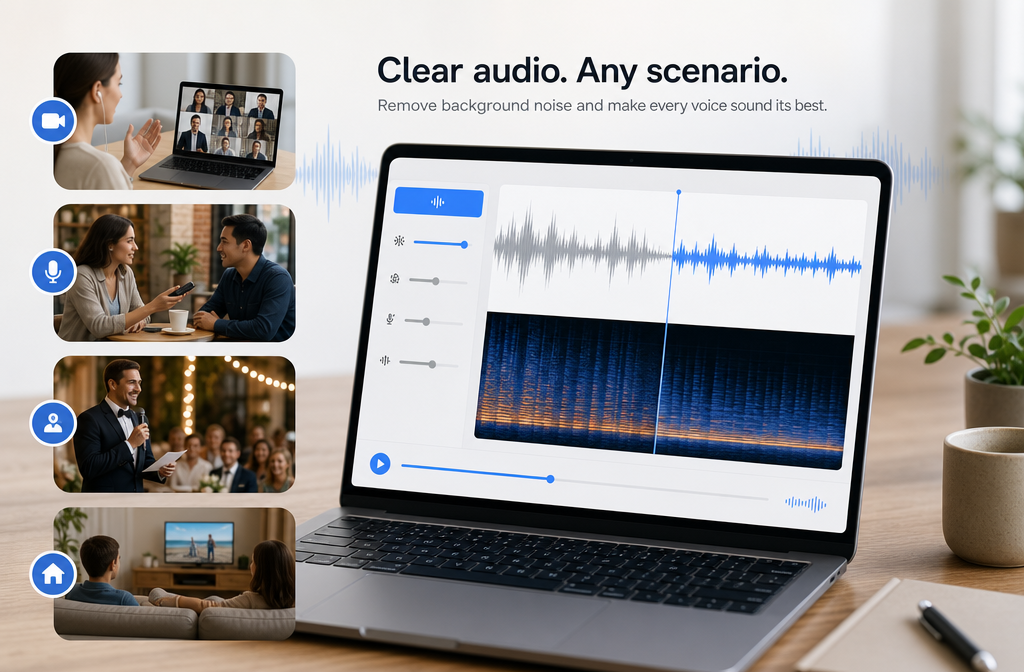
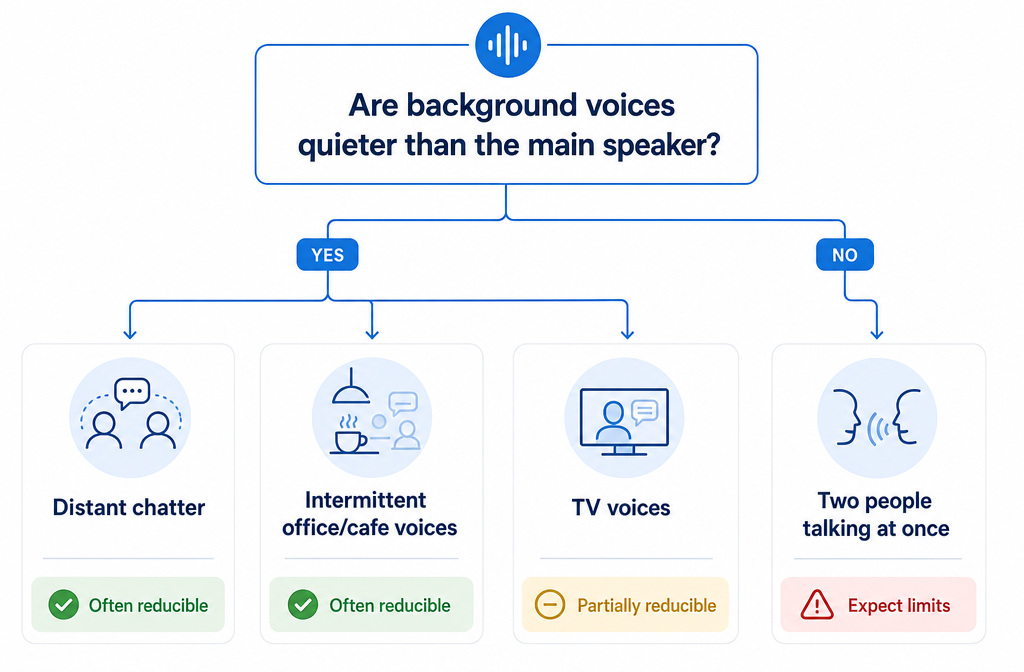
Quick Answer: Yes, you can often reduce background conversation from audio online, but the result depends on how much the unwanted voices overlap with the main speaker. Distant office chatter, crowd murmur, or TV voices in another room can often be softened enough to make the main voice clearer. But if two people speak at the same time at similar volume, no tool can promise perfect removal. Speech overlaps the same frequency range as the voice you want to keep, which makes background conversation much harder to clean than hum, hiss, or fan noise. For most creators, the fastest approach is to upload the file to SimpleClean, preview the result, and check whether the chatter is reduced enough to improve intelligibility.
If you already have a damaged recording, the practical goal is usually not “erase every background voice.” It is to reduce distractions, pull the lead voice forward, and make the recording easier to understand.
Why background conversation is harder than normal background noise
Classic noise reduction works best on more stationary sounds like hiss, fan noise, hum, and buzz, according to Audacity’s own guidance. Background conversation is different because it is variable, speech-like, and often shares the same frequencies as the voice you want to keep. That is why chatter in a cafe, office, wedding hall, classroom, or living room is harder to remove cleanly than AC rumble or electrical buzz.
In plain English:
- Steady noise is easier to target because it changes less over time.
- Background voices move constantly and can mask words, consonants, and syllables in the main speech.
- True overlapping dialogue is the hardest case because the wanted and unwanted voices occupy similar parts of the signal at the same time.
Quick diagnosis: what kind of problem do you actually have?
| Problem type | What it sounds like | How fixable it is online | Best approach |
|---|---|---|---|
| Steady noise | Hum, hiss, fan, HVAC, buzz | Usually highly fixable | Standard noise reduction or AI cleanup |
| Intermittent chatter | Nearby talking between phrases | Often fixable or reducible | AI speech cleanup, light reprocessing |
| Overlapping dialogue | Two people talking at once | Partially reducible at best | AI cleanup first, then manual repair for isolated sections |
| Echo / reverb | Roomy, distant, smeared speech | Sometimes improved, not always solved | Speech cleanup plus reverb treatment |
| TV voices in room | Speech from speaker or another room | Sometimes reducible if quieter than main voice | AI cleanup, clip splitting, manual repair if isolated |
A simple rule: if your speaker is closer and louder than the background voices, your odds are much better.
Can AI remove background voices completely?
Usually no, not completely. The honest answer is that AI can often reduce, suppress, or soften background conversation, but complete removal is realistic only in easier cases.
Best-case scenario:
- Main speaker is close to the mic
- Background voices are distant or muffled
- There are pauses between the unwanted chatter
- The recording is not heavily echoey
Hard-case scenario:
- Two voices speak at once for long stretches
- Both voices are similar in level or tone
- The room is reverberant
- The file is already compressed, clipped, or noisy
That distinction matters because some competing pages imply that AI can fully isolate any voice. In practice, overlapping speech often can only be made less distracting, not perfectly separated.
When using an online tool makes sense
An online workflow is usually the best starting point if you need a fast result and do not want to open a DAW or learn spectral editing.
Good use cases for online cleanup:
- Podcasts recorded in untreated rooms
- Zoom or meeting recordings with office chatter
- Phone videos with people talking nearby
- Webinar clips and screen recordings
- Interviews recorded in cafes or event spaces
- Classroom or lecture captures
- Wedding speeches with table talk in the background
- Course videos recorded at home with TV voices or family noise nearby
Browser-based enhancement tools are already standard in the market. Adobe Podcast, for example, frames enhancement as a browser workflow and also supports video-oriented cleanup expectations such as MP4 and MOV handling in its ecosystem. That makes an upload-clean-export approach familiar for users who just need clearer speech quickly.
How to remove background conversation with SimpleClean
If you want the fastest realistic test, start with one pass and listen carefully before doing anything more aggressive.
- Upload your file. Add your MP3, WAV, MP4, or MOV recording to SimpleClean. This works well for voice memos, meeting audio, interview recordings, and video clips where speech clarity matters most.
- Run speech cleanup and preview. Listen for whether the main voice comes forward, whether chatter drops back, and whether consonants still sound natural.
- Export the cleaned version. If the first pass helps, export it. If some sections are still messy, split the clip and treat only the worst parts separately instead of pushing the entire file too hard.
What good results usually sound like:
- Lower background chatter
- Clearer lead voice
- Fewer distractions between phrases
- Better intelligibility in meetings, interviews, and spoken video
What bad-case results usually sound like:
- Watery or swirly artifacts
- Pumping background
- Missing consonants
- Thin or robotic speech
If you hear those artifacts, back off rather than processing harder. Riverside’s help guidance also notes that noise reduction can help with room sounds like fans or AC, but may reduce fidelity. That tradeoff applies even more when the unwanted sound is speech-like.
Once your audio is usable, you can repurpose it: add subtitles with Best AI Captions, create multilingual versions with Translate Dub, and schedule clips or social promos across channels with Mallary.ai if you want a cleaner recording to turn into posts, shorts, or campaign assets.
Best for: which approach fits your situation?
- Best for speed: SimpleClean or another browser-based speech cleanup workflow
- Best for podcasts, Zoom, and phone recordings: Online AI cleanup first
- Best for isolated problem words or short noises: Manual spectral repair
- Best for steady hum or hiss: Traditional noise reduction tools
- Best for severe overlapping voices: Manage expectations, reduce distractions, and consider rerecording if possible
When manual repair is better than one-click cleanup
Online AI is the right first step for most users, but it is not always the final step. Adobe’s Spectral Frequency Display workflow and iZotope RX Spectral Repair both support the idea of surgical cleanup for isolated regions. That matters when the issue is not constant throughout the file.
Manual repair can be better when:
- A cough, shout, or short background phrase appears in a visible isolated region
- TV noise only intrudes between words
- You need to target one spot without degrading the whole recording
- The file is short enough to justify detailed editing
Manual repair is not magic recovery for fully overlapped dialogue. If two people are speaking over each other in the same moment, spectral tools may help soften parts of the intrusion, but they cannot always reconstruct missing speech underneath.
Manual fallback: what Audacity can and cannot do
If you want a free fallback, Audacity is useful, but it has limits here. Audacity’s own Noise Reduction feature is positioned around stationary noise such as hiss, fan noise, hum, and buzz. That makes it less ideal for variable background conversation.
What you can try in Audacity:
- Noise Reduction: better for steady background noise than changing voices
- EQ: can tame some low-end room buildup or harshness, but will not isolate one voice cleanly
- Noise gate: may reduce background sounds in pauses, but not while the main speaker is talking
- Spectrogram view: can help you inspect problem spots, but speech-on-speech overlap is still difficult
Audacity’s sample starting points for noise reduction are modest, which is a clue in itself: aggressive settings tend to create audible artifacts. If the chatter is woven into the main speech, classic processing can quickly make the recording sound worse instead of better.
Real-world scenarios
1) Zoom meeting with office chatter
This is often salvageable if the main speaker used a headset or was close to their laptop mic. AI cleanup can reduce surrounding office talk and make the meeting more listenable. If the room is also echoey, you may need follow-up cleanup for room sound too.
2) Phone interview in a cafe
Cafe chatter is harder because voices, dishes, and room reflections all compete with speech. You may get a useful improvement, but expect reduction rather than total removal. For worst sections, split the clip and treat only those areas.
3) Wedding speech with table talk
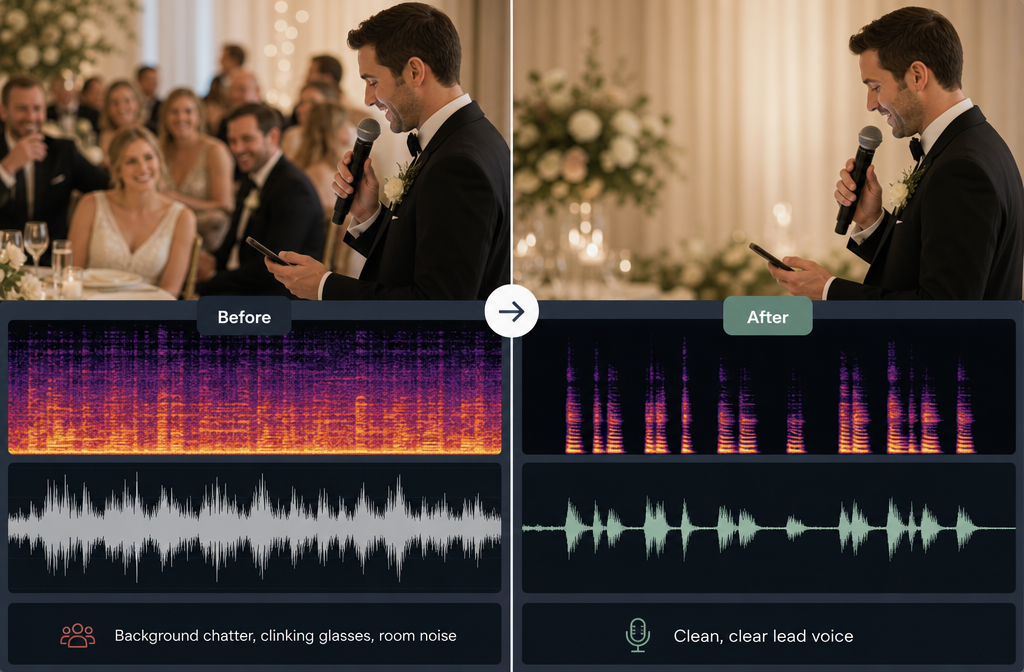
If the speech mic was near the speaker, table chatter can often be pushed back enough for highlight edits. If guests near the camera are louder than the speech, results will be limited.
4) Indoor video with TV voices in another room
This is one of the more realistic fixable cases if the TV is quieter and off-axis. The main voice can often be made clearer, though background dialogue may still remain faintly audible.
Troubleshooting common problems
Background voices are still audible
- That may be the practical limit of the source.
- Try a lighter second pass on only the worst section, not the whole file.
- Split the clip so easy sections stay natural while hard sections get more treatment.
- If the chatter is isolated, use manual spectral cleanup for those moments.
My voice sounds robotic
- You likely pushed reduction too far.
- Reprocess more gently.
- Keep some background sound if needed; natural speech matters more than total suppression.
The room still sounds echoey
- Background conversation and room reverb are separate problems.
- After reducing chatter, you may also need to remove reverb from video online if the recording sounds distant or smeared.
Speech got clipped or words disappeared
- This often happens when the wanted and unwanted voices overlap heavily.
- Use lighter processing.
- If the source was already distorted, check whether you also need help to remove clipping from audio online.
The audio still has hiss, hum, or static
- Layered problems are common.
- You may need separate cleanup for hum or static after dealing with background voices.
Prevention checklist for future recordings
- Place the mic closer to the main speaker
- Increase distance between the speaker and the noise source
- Separate speakers when possible
- Use soft furnishings to reduce room reflections
- Record a little room tone
- Avoid speakerphone if clarity matters
- Turn off TVs and nearby talk sources before recording
- Use a directional mic or headset for meetings and interviews
Should you clean it or rerecord it?
If the recording contains critical information and two voices are talking over each other at similar level for long sections, rerecording is often smarter if that is still possible. If rerecording is not possible, the best goal is a more intelligible version, not a perfect studio result.
That is why the safest promise is this: upload the file, test a pass, and judge the preview on clarity. If the main speech becomes easier to understand without turning robotic, the cleanup is doing its job.
Upload your audio or video and test whether chatter can be reduced in minutes.
Sources and further reading
- Audacity – Free Noise Reduction Tool - Supports the claim that classic noise reduction works best on stationary noise such as hiss, fan noise, hum, and buzz, and helps explain the limits on speech-like noise.
- Adobe Learn – Use the Spectral Frequency Display to clean up your audio - Supports the explanation of manual spectral cleanup for isolated regions or events.
- Adobe Podcast - Supports market-standard framing for browser-based speech enhancement workflows and video-oriented cleanup expectations.
- Riverside Help Center – Enable noise reduction in the studio - Supports the tradeoff point that noise reduction can help room sounds but may reduce fidelity.
- iZotope RX Spectral Repair - Supports the manual-repair alternative section for surgically targeting specific regions.
- Wondershare UniConverter Noise Remover - SERP benchmark for general noise-removal and background talking use cases.
- Kapwing Online Audio Editor - SERP benchmark for browser-based editing and one-click cleanup messaging.