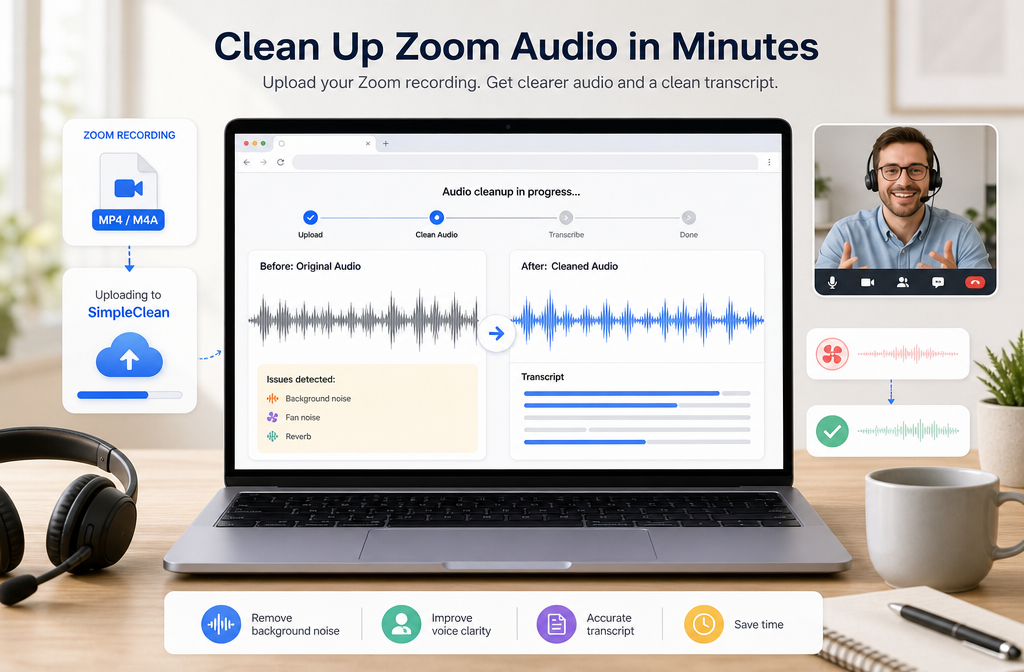
Quick Answer
If you already have a Zoom recording, the fastest way to clean it up online is to upload the Zoom audio you have, preview a light-to-moderate cleanup pass, and export only after checking that voices still sound natural. In most cases, AI cleanup can improve steady fan noise, room tone, light keyboard noise, and some mild echo. It usually cannot fully rebuild clipped speech, severe overlap, very heavy room echo, or the thin, bandwidth-limited sound caused by conferencing compression.
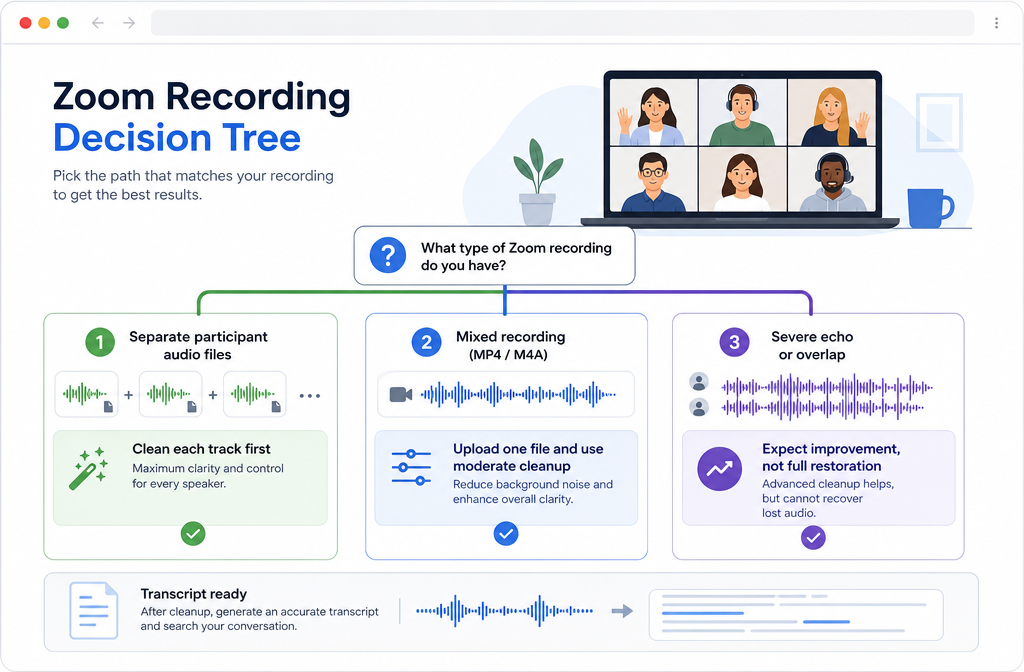
Your best path depends on the files Zoom gave you:
- Best case: you recorded separate audio files for each participant in a local recording. Clean each speaker track first, then combine later if needed.
- Most common case: you have one mixed MP4 or M4A. Upload that file and use conservative cleanup settings.
- Expectation-setting case: if multiple people talk over each other or the recording has severe reverb, aim for better intelligibility, not full restoration.
If you want a browser-based workflow, try SimpleClean on the Zoom file you already have, then export a cleaner version for review, transcription, or stakeholder sharing.
What This Guide Covers
This guide is for people who already have a recorded Zoom file and want to clean it up online without opening a DAW like Audacity. It is specifically about post-recording cleanup of Zoom audio from:
- Zoom MP4 video recordings
- Zoom M4A audio-only recordings
- Zoom projects that may also include VTT transcript or caption files for cloud recordings
According to Zoom’s recording file format documentation, recorded outputs can include MP4, M4A, and VTT/CC.VTT files depending on the recording type. That matters because the audio cleanup step should happen on the clearest source you have available.
Quick Diagnosis: What Problem Are You Actually Hearing?
| What you hear | Likely cause in a Zoom recording | Usually improves well online? | Best move |
|---|---|---|---|
| Steady fan, HVAC, laptop whir, room tone | Constant background noise under speech | Yes, often | Use moderate noise reduction and re-check speech clarity |
| Light echo or roomy sound | Distance from mic, reflective room, speaker bleed | Sometimes | Try a gentle pass; severe echo usually remains partly audible |
| Keyboard clicks and mouse noise | Close mic plus desk activity | Often partly | Reduce conservatively so consonants do not become dull |
| Tinny, swishy, compressed call sound | Bandwidth limits and conferencing compression | Only partly | Improve intelligibility, but do not expect studio audio |
| Words clipped or distorted | Input overload or damaged source | Rarely fully | Try repair, but expect permanent damage |
| People talking over each other | Mixed recording with overlapping voices | Limited | Clean the mix lightly; separate voices usually cannot be fully restored after the fact |
This is the biggest Zoom-specific reality most generic landing pages skip: different problems respond very differently to cleanup. AI tools are strongest on steady, repeatable noise, not on reconstructing information that was never captured cleanly.
The Fastest Online Workflow for a Zoom MP4 or M4A
If you want the shortest path from “bad Zoom recording” to “usable file,” use this sequence:
- Choose the best source file. If Zoom gave you both MP4 and M4A, the M4A audio-only file is often the simplest file to upload for speech cleanup. If the audio lives only inside the video deliverable you need to share, use the MP4.
- Check whether you have separate participant files. If yes, clean those individually before mixing.
- Upload and preview. Start with a moderate setting rather than the most aggressive option.
- Listen for artifacts. Over-processing can make speech sound watery, metallic, or phasey.
- Export and re-check. Play the cleaned version on speakers and headphones before sending it out.
This conservative approach matters because stronger cleanup is not always better. The Audacity Noise Reduction manual notes that aggressive noise reduction can introduce artifacts and distortion, especially when the noise is loud or variable. That same tradeoff applies to modern AI cleanup tools too.
If your file mainly has fan noise, hum, or room tone, a browser workflow can be enough. If the problem is echo-heavy speech, you may also want to read our guide on removing reverb from video online. For typing-heavy meetings, see how to remove keyboard noise from audio online.
Clean My Audio is a good next step when you need a quick cleanup pass without opening traditional editing software.
Best-Case Workflow: Clean Each Participant Track Separately
If you made a local recording and enabled separate audio tracks, this is the best cleanup path by far. Zoom documents that local recordings can save a separate audio file for each participant when that option is enabled in recording settings. See Zoom’s local recording support page.
Why this helps:
- You can reduce noise on each speaker without affecting everyone else.
- You avoid cleaning overlap and cross-talk as one single problem.
- A noisy participant can be treated more aggressively while clean voices stay natural.
- Transcript prep usually improves when each voice is as clean as possible before final assembly.
Best for: podcasters, interviewers, researchers, recruiters, and course creators who record repeat Zoom conversations and want the cleanest possible post-production path.
If you only have one mixed file, do not worry. You can still improve it. Just keep expectations realistic if the recording includes overlap, compression, or room echo baked into the mix.
What Zoom Files You May Have
Zoom output types vary depending on whether the recording was local or cloud-based. Based on Zoom’s file-format documentation, these are the main files to look for:
- MP4: the recorded video with embedded audio
- M4A: audio-only recording output
- VTT / CC.VTT: transcript or caption-related text files for supported cloud-recording workflows
What should you upload?
- Upload M4A if your goal is speech cleanup only.
- Upload MP4 if you need the cleaned result to stay attached to the video.
- Upload separate participant audio files first if you have them.
What AI Cleanup Can Usually Improve in Zoom Recordings
For Zoom files, online cleanup usually works best on problems that sit underneath speech rather than replacing it. Based on the research brief and Adobe’s guidance that enhancement quality depends heavily on the audibility of speech and the amount of background noise present, realistic improvements include:
- Steady fan noise and HVAC-like background sound
- Low-level room tone
- Light keyboard noise
- Some light echo or distant-room character
- General speech clarity for easier review and sharing
Adobe notes in its Adobe Podcast FAQ that better inputs produce better outputs and enhancement depends on how audible the speech is relative to noise. That is a useful rule for Zoom cleanup too: the cleaner the voice is in the source, the more convincing the improvement will sound.
What AI Usually Cannot Fully Restore
Realistic expectations box: cleanup can improve a bad Zoom file, but it cannot always turn it into a studio recording.
These issues are usually only partly recoverable:
- Severe overlap: when two or more people speak at once in a mixed file
- Clipped speech: when the recording distorted at capture time
- Very heavy room echo: especially when speech is distant from the mic
- Tinny or bandwidth-limited call audio: conferencing compression removes detail that post-processing cannot fully rebuild
- Rapidly changing noise: especially if it masks the same frequency range as speech
If your main problem is clipped or distorted dialog, our guide on removing clipping from audio online is the better companion read. If the issue is more like hiss or constant broadband noise, this hiss-removal guide may help.
How to Clean a Zoom Recording Audio File Online
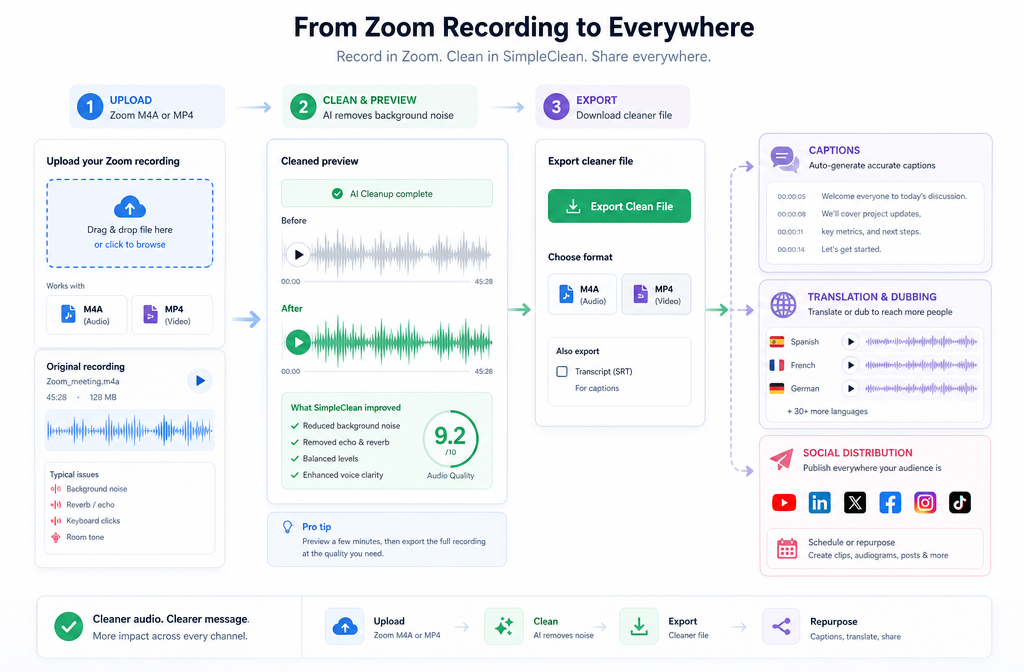
- Locate the Zoom export.
Find the MP4, M4A, and any transcript-related VTT files from the recording folder or cloud download. - Choose the cleanest source available.
If separate participant files exist, process those first. If not, choose the M4A for audio-only cleanup or the MP4 if video delivery matters. - Upload to an online cleaner.
Use a browser-based speech cleanup workflow so you can preview quickly and avoid a full DAW session. - Start conservatively.
Do not max out noise reduction immediately. Stronger passes can reduce natural consonants and leave digital artifacts behind. - Preview the worst sections.
Check the noisiest moment, the most echoey moment, and at least one section with fast speech. - Export a cleaned version.
Save the improved file and compare it with the original before sending it to a client, teammate, or editor. - Prep for captions, dubbing, or publishing.
Once the audio is cleaner, create subtitles with Best AI Captions, translate and dub it for multilingual audiences with Translate Dub, and distribute clips or finished episodes across channels with Mallary.ai.
After Cleanup: Transcription and Stakeholder Sharing
Cleaner speech often makes a recording easier to review, quote, caption, and summarize. For Zoom-specific workflows, it also helps to know what Zoom itself can generate. Zoom’s support docs explain that audio transcription is a cloud-recording feature; see Zoom’s transcription documentation.
Practical post-cleanup workflow:
- Export the cleaned file and spot-check names, jargon, and action items by ear.
- If you use Zoom cloud recording transcripts, compare the VTT output with the cleaned audio for easier correction.
- Add subtitles for internal review or public release using Best AI Captions.
- If the meeting content needs multilingual delivery, use Translate Dub after cleanup so translated output starts from a clearer source.
- For repurposing into clips, promos, or scheduled posts, use Mallary.ai to publish and distribute across social channels from one workflow.
Can cleanup help transcription? Often yes, especially when the main issue is steady background noise. It is less transformative when the recording is dominated by overlap, clipping, or heavy compression.
Best-For Recommendations
- Best for the fastest browser cleanup: people who already have a single Zoom MP4 or M4A and just need a clearer version for sharing.
- Best for the highest-quality Zoom workflow: anyone who recorded separate participant tracks locally and can clean each speaker individually first.
- Best for transcript prep: recordings with mostly one speaker at a time and steady noise rather than constant interruptions.
- Best for realistic salvage: mildly noisy, mildly echoey Zoom calls where voices remain audible under the problems.
- Not ideal for one-click miracles: badly clipped interviews, severe room echo, or heavy cross-talk in a single mixed file.
For Next Time: Zoom Recording Settings That Make Cleanup Easier
If you record Zoom meetings regularly, prevention matters more than rescue. Zoom says meetings use noise suppression and echo cancellation by default. It also notes that Original sound for musicians preserves more raw mic audio by disabling Zoom echo cancellation and audio filters, which is not always what typical spoken-word users want. See Zoom’s audio settings guidance.
For most spoken-word Zoom recordings, keep these ideas in mind:
- Enable separate audio files for each participant in local recording settings when possible.
- Use the mic close to the speaker to reduce room sound.
- Be careful with Original sound for musicians; it can preserve raw audio in a way that also bypasses helpful Zoom processing for normal meetings.
- Ask guests to avoid laptop speakers when possible to reduce echo and bleed.
- Record a short test before the real conversation.
Conclusion
If you need to clean Zoom recording audio online, the winning move is not “find the most aggressive fixer.” It is: start with the best Zoom file available, clean lightly, and judge success by whether voices become easier to understand without sounding unnatural.
When you have separate participant audio, clean each track first. When you only have a mixed MP4 or M4A, use moderate cleanup and keep expectations realistic for echo, overlap, and compressed call audio. If you want a quick browser-based workflow, SimpleClean is a practical place to start.