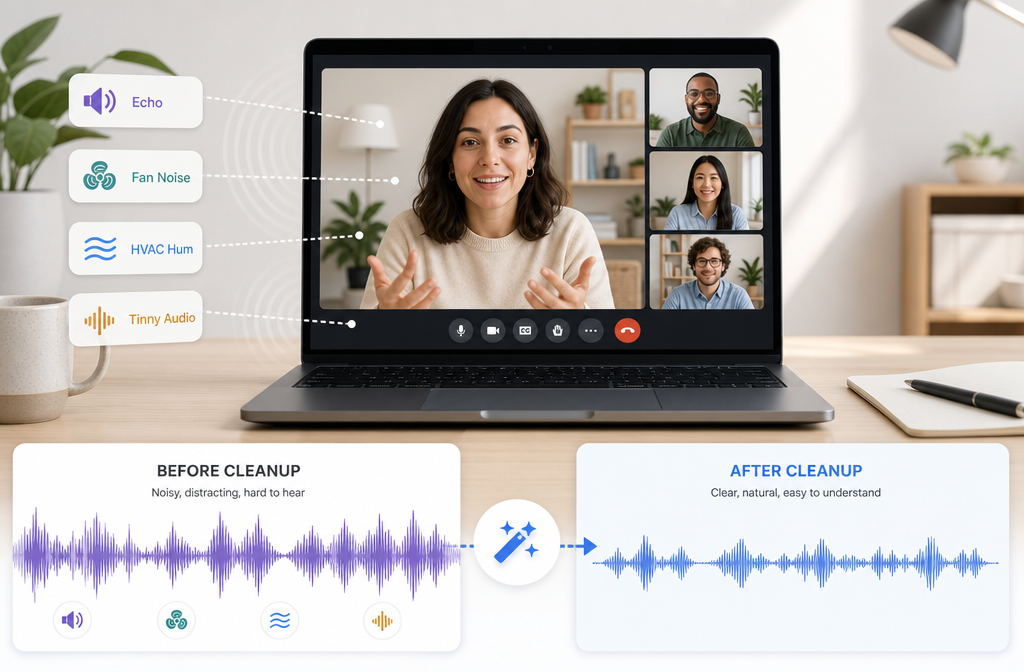
If you already have a Google Meet recording and the audio sounds echoey, noisy, or thin, you can usually improve it after the meeting. The simplest workflow is: download the meeting file from Google Drive, clean the audio first, then trim, transcribe, caption, or share the improved version. This works best for problems like fan noise, HVAC hum, keyboard noise, mild room echo, hiss, and generally muddy speech. It can help tinny or compressed calls sound more usable, but it will not fully restore severely clipped, distorted, or heavily bandwidth-compressed speech.
Quick Answer
To clean Google Meet recording audio online:
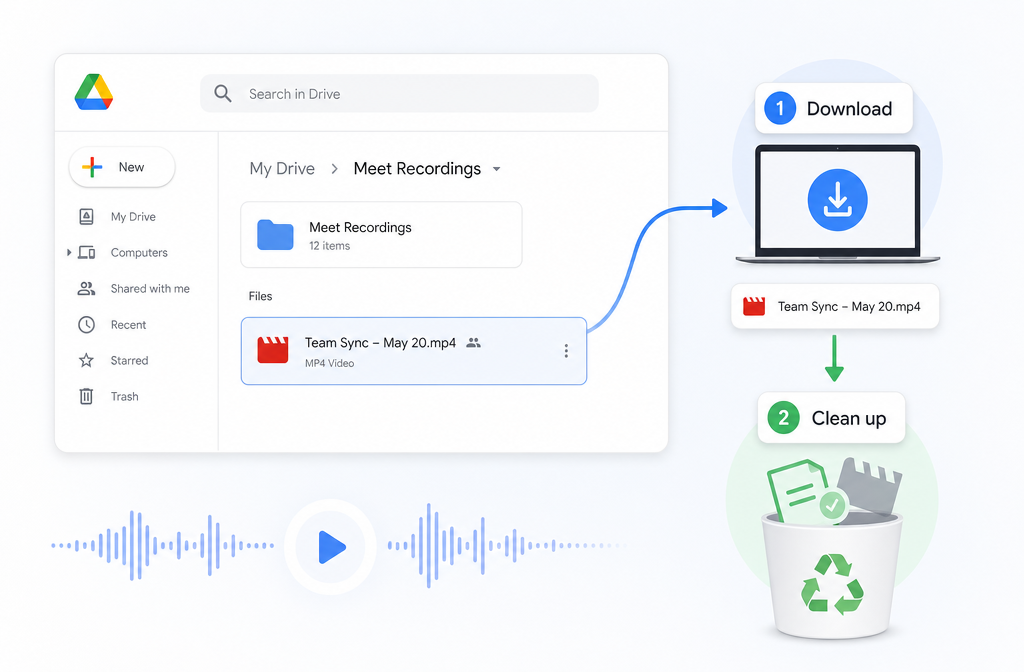
- Open Google Drive and find the recording in My Drive > Meet Recordings.
- Download the recorded meeting file.
- Upload the file to SimpleClean.
- Clean the audio to reduce issues like echo, fan noise, HVAC rumble, keyboard clicks, hiss, and thin-sounding call audio.
- Export the cleaned version.
- Then use the improved file for training, customer interviews, internal notes, class playback, or transcription.
Google Meet does offer live noise cancellation, but Google says it focuses on non-speech sounds such as typing, closing doors, room echo, and construction noise. It does not cancel voices coming from a TV or nearby people. So if the bad audio is already baked into the recording, post-recording cleanup is often the practical next step.
What Google Meet records and where to find the file
According to Google Meet Help, meeting recordings are saved to the organizer's Google Drive in My Drive > Meet Recordings. Google also notes that recordings capture the active speaker and anything being presented. If captions are used, they can be embedded in the recording, and meeting chat is saved separately as an .SBV file.
That matters for cleanup because your audio repair workflow usually starts with the downloaded meeting video file, not the chat or caption file.
- Recording file: the main video you will clean
- Captions: may be embedded in the recording
- Chat: saved separately as an .SBV file
If you are preparing a recording for reuse, clean the main file first. After that, you can trim it, create notes, generate captions, or publish clips.
What Google Meet noise cancellation can and cannot fix
This is the key distinction many articles miss.
Google Meet has built-in noise cancellation for live meetings. Google says it is designed to filter out non-speech noises like:
- typing
- a closing door
- construction outside
- room echo
But Google also says noise cancellation does not cancel voices, including voices from a nearby TV or other people talking close by.
So there are really two stages:
- Before or during the meeting: Meet's live controls may reduce some environmental noise.
- After the meeting: if the recording still sounds bad, you need a post-recording cleanup workflow.
If the file is already sitting in Drive and you can hear fan whir, HVAC rumble, roominess, or a thin call sound, that's where post-processing fits.
Common Google Meet recording problems to fix after the meeting
These are the issues people usually want to repair once the meeting is over:
- Room echo: common when someone used laptop speakers or sat far from the mic
- Laptop fan noise: steady whir under speech
- HVAC hum or rumble: air conditioner, vents, low-frequency room noise
- Keyboard and mouse noise: especially in training calls and demos
- Distant voice: speaker sounds far away and hard to understand
- Low-level hiss: mic or room noise floor
- Compressed or tinny tone: speech sounds narrow, brittle, or “phone-like”
For issue-specific help, you can also see our guides on removing echo from video, removing keyboard noise, removing hum from audio, and removing hiss from audio.
The best order of operations
If your goal is a cleaner, more usable Google Meet recording, do the steps in this order:
- Clean noise and echo first
- Then trim or repurpose the file
- Then transcribe, caption, share, or publish
This order gives downstream tools a better source file. A cleaner recording is typically easier to follow for viewers and more useful for note-taking and transcription workflows.
How to download and clean a Google Meet recording online
Here is the simple post-recording workflow for a Meet file you want to salvage.
Step 1: Find the recording in Google Drive
Go to Google Drive and open My Drive > Meet Recordings. Locate the meeting you want to improve.
Step 2: Download the recording
Download the recorded file to your computer so you can upload it for cleanup.
Step 3: Upload the file to SimpleClean
Open SimpleClean and upload the downloaded meeting file. This is the easiest path when you want to improve an existing recording without opening a full DAW.
Step 4: Clean the audio first
Focus on speech intelligibility. For most Google Meet recordings, the priority is reducing the distractions under or around the voice:
- fan noise
- HVAC hum
- keyboard noise
- mild room echo
- general background noise
- some thin or tinny call character
Step 5: Export the cleaned version
Once the audio sounds more understandable, export the cleaned file for your next step.
Step 6: Trim, transcribe, caption, or distribute
Now that the recording is cleaner, you can turn it into something useful:
- Training clips: trim long meetings into short lessons
- Transcription prep: use the cleaned version before creating notes or summaries
- Captions: add subtitles with Best AI Captions
- Multilingual reuse: translate and dub recordings with Translate Dub
- Distribution: publish clips and promos across channels with Mallary.ai
If you share meeting recaps on social, in communities, or across multiple brand channels, Mallary.ai fits naturally at the distribution stage after the audio is cleaned and your clip is ready to publish.
What AI cleanup can fix well vs only improve
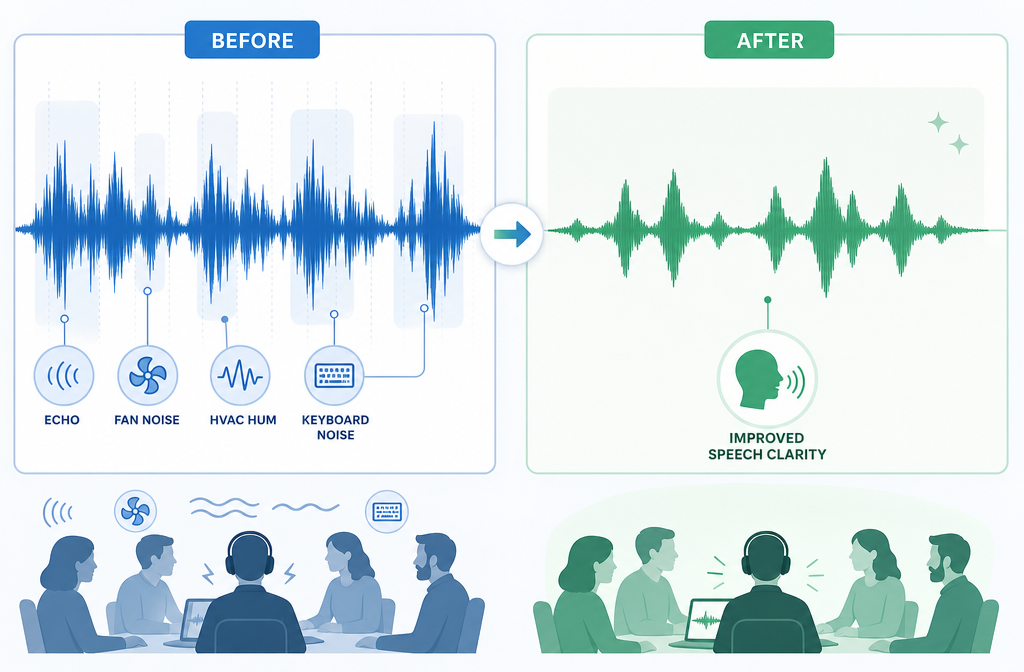
Set expectations correctly and this workflow is extremely useful. Expect improvement, not miracles.
| Problem | Typical cleanup outcome | What to expect |
|---|---|---|
| Fan noise / HVAC hum | Usually good | Steady background noise is often one of the most salvageable issues. |
| Mild room echo | Often good | Speech can sound more focused, though severe echo may remain partly audible. |
| Keyboard clicks | Often good | Intermittent typing noise can often be reduced noticeably. |
| Low-level hiss | Usually good | Background hiss can often be softened without ruining speech. |
| Distant voice | Partial | Clarity may improve, but poor mic placement still limits the result. |
| Background voices / TV voices | Partial | Since these are speech-like sounds, separation is harder and may not be complete. |
| Tinny or compressed call audio | Limited to moderate | Can become more usable, but missing detail cannot always be restored. |
| Clipping / heavy distortion | Limited | Severely damaged speech usually cannot be fully recovered. |
This is especially important with Google Meet recordings because some bad call audio is caused by mic distance, speaker playback, room acoustics, or network-related compression. Cleanup can improve intelligibility, but it cannot recreate detail that never made it into the recording.
Best for: when this workflow makes the most sense
- Remote teams: make internal updates and planning calls easier to replay
- Educators: clean class recordings before posting for students
- Recruiters: improve interview recordings for review and note-taking
- Customer success teams: salvage customer calls for training and handoffs
- Agencies: turn noisy client meetings into usable reference assets
- Coaches and consultants: repurpose session recordings into lessons or follow-ups
- Solo creators: clean webinars, async updates, and collaborative calls before clipping them for content
Will cleaning a Google Meet recording help transcription?
Often, yes. If the original recording has less noise, less echo, and clearer speech, it is generally a better source for transcription and notes. That does not mean every transcript will become perfect, especially if speakers talk over each other or the call audio is heavily compressed. But cleaning first is usually the smarter order.
For teams turning calls into reusable assets, a practical chain looks like this:
- Clean the meeting audio
- Trim the sections you want
- Create transcript, notes, or captions
- Translate or dub if needed
- Publish or schedule clips
Quick prevention tips for your next Google Meet call
Post-recording cleanup helps, but prevention is still better. For future meetings:
- Use headphones when possible
- Reduce room noise before the meeting starts
- Avoid speaker playback that can feed back into the mic
- Enable Google Meet noise cancellation when appropriate
- Keep the mic close to the speaker
- Ask participants to mute when not speaking
These simple habits reduce the need for repair later and improve the final recording quality at the source.
Google Meet vs post-recording cleanup
| Need | Best tool stage | Why |
|---|---|---|
| Reduce non-speech noise during a live call | Google Meet settings | Meet can filter some noises live before they land in the recording. |
| Fix an already recorded noisy meeting | Post-recording cleanup | Once the file is in Drive, you need to work on the recording itself. |
| Remove TV voices or nearby people talking | Limited in both | Google says Meet does not cancel voices; recorded speech overlap is harder to repair. |
| Prepare a file for transcript, captions, or repurposing | Clean first, then repurpose | A cleaner source is better for everything that follows. |
When to use SimpleClean
If your meeting is already over and the audio needs help before anyone listens to it, shares it, or transcribes it, this is the right moment to use SimpleClean. The workflow is straightforward: download the file, clean it, export it, then move on to editing and distribution. Use the cleaned version for internal training, hiring reviews, customer call libraries, webinars, class recordings, or async updates.
FAQs
Can you improve Google Meet recording audio after the meeting?
Yes. If you already have the recording, you can download it from Google Drive and clean the file afterward. This is the main solution for echo, fan noise, HVAC hum, keyboard noise, hiss, and generally unclear meeting audio.
Does Google Meet noise cancellation remove voices in the background?
No. Google says Meet noise cancellation targets non-speech sounds and does not cancel voices, including voices from a TV or nearby people.
Where are Google Meet recordings saved?
Google says recordings are saved in the organizer's Google Drive under My Drive > Meet Recordings.
Can you remove echo from a Google Meet recording?
You can often reduce mild to moderate room echo after the fact. Severe echo is harder to fix completely, but cleanup can still improve intelligibility.
Can AI fix tinny or compressed Google Meet audio?
It can sometimes make tinny or compressed call audio more usable, but recovery is limited when the original recording has already lost too much detail.
Will cleaning a Google Meet recording improve transcription accuracy?
It often helps because cleaner speech is easier to process. Results still depend on overlap, compression, mic quality, and how damaged the source is.
How do you download and edit a Google Meet recording from Google Drive?
Find the file in My Drive > Meet Recordings, download it, clean the audio first, then trim, caption, transcribe, or share the improved version.
Sources and further reading
- Google Meet Help — Filter out noise from your meeting on Google Meet - Used for facts about what Meet noise cancellation filters and its limitation with background voices.
- Google Meet Help — Record a video meeting - Used for facts about what recordings include, where they are saved, captions, and separate chat file behavior.
- Google Meet Help — Troubleshoot recording issues in meetings - Used as supporting source for recording availability and limitations context.
- Cleanvoice — How to Edit Google Meet Recording with Cleanvoice - Competitor benchmark for workflow structure and post-recording editing framing.
- Noota — How to Edit your Google Meet Recordings Easily - Competitor benchmark for storage and editing flow coverage.
- IRIS Audio — How to remove background noise on Google Meets - Competitor benchmark highlighting live noise removal versus after-the-fact cleanup gap.
- Noise Remover — Clean up Zoom recording - Adjacent use-case benchmark for meeting recording cleanup framing.