Quick Answer
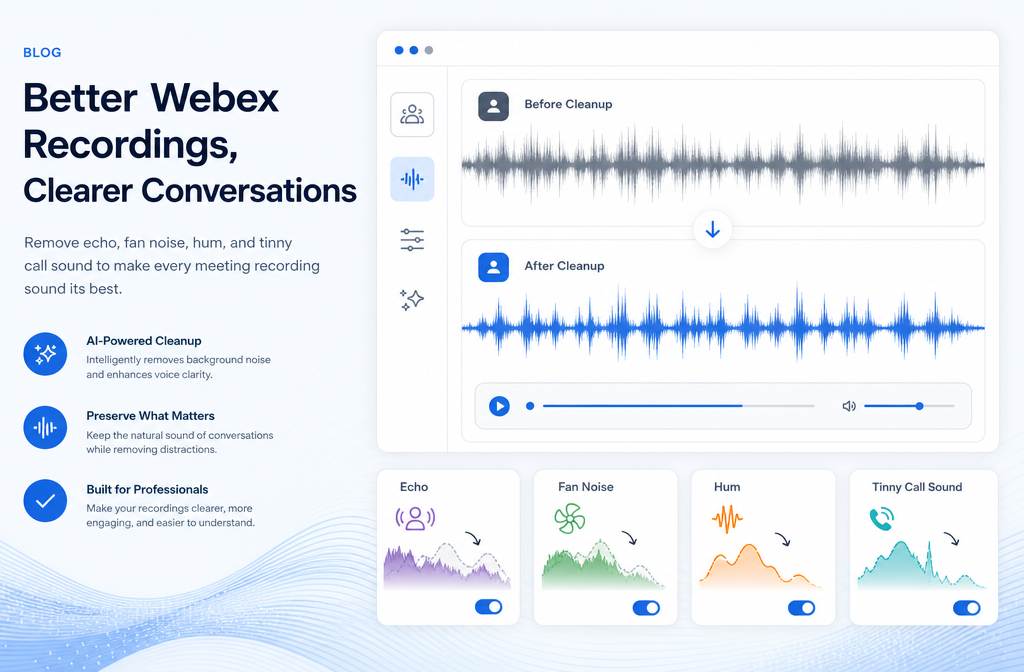
Yes, you can often clean Webex recording audio online after the meeting is over, especially if the exported file has steady background noise, fan or HVAC sound, light room echo, hum, keyboard noise, or general call harshness. The most important first step is checking the file type:
- MP4: usually the easiest format to clean and re-export.
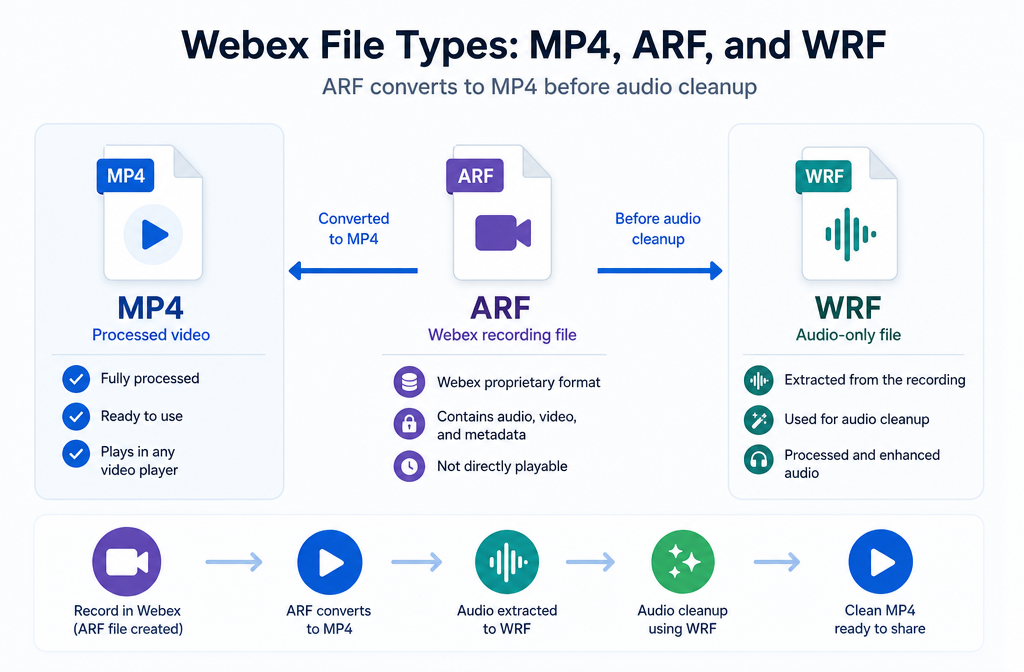
- ARF: often needs conversion to MP4 before cleanup. Cisco documents ARF-to-MP4 conversion through the Webex Recording Converter on Windows.
- WRF: older Webex recording format; Cisco treats it as a Webex player format rather than a standard edit-ready media file.
Best-case results are usually steady noise and mild echo. Tinny or compressed conference-call sound can often be improved, but not fully restored to studio quality. Severe overlap, clipped distortion, and hard-baked echo usually only improve partially.
If you already downloaded your recording, the fast workflow is simple: get an MP4 copy, upload it to an online cleanup tool, preview a balanced setting, compare before and after, and export the cleaned file for sharing, training, transcripts, captions, or republishing. If you want a fast browser workflow, you can clean Webex recording audio with SimpleClean and then move on to captions, translation, or publishing.
Clean Webex recording audio online
Webex recording problems usually fall into a few repeat patterns. Knowing which one you have makes cleanup faster and helps set realistic expectations.
- Echo or room reverb: voices sound hollow, distant, or like they are bouncing off walls.
- Fan or HVAC noise: constant air movement or low mechanical rumble under speech.
- Keyboard and desk noise: clicks, taps, and handling sounds mixed into speech.
- Hum or buzz: steady low-frequency electrical or room noise.
- Background chatter: other voices in the room or office noise.
- Thin or tinny call sound: speech sounds compressed, narrow, sharp, or “phone-like.”
Those issues are common in exported meeting and webinar recordings used for:
- internal training libraries
- customer webinar replays
- compliance review
- meeting-note transcription
- knowledge-base clips
- repurposed social snippets
The good news is that online AI cleanup can often make speech clearer and easier to listen to. The limit is that it can only work with what is already baked into the recording.
Webex file types before you start
Before you try any audio cleanup, identify whether your Webex recording is an MP4, ARF, or WRF file. This matters because some formats are far easier to process after export.
| File type | What it means | Best next step | Cleanup readiness |
|---|---|---|---|
| MP4 | Standard video file. Cisco documents local recordings as MP4 files. | Upload directly for cleanup. | Best for online cleanup and re-export. |
| ARF | Webex advanced recording format commonly associated with network-based recordings. | Convert to MP4 first using Cisco's supported process. | Usually needs conversion before cleanup. |
| WRF | Older Webex recording format played through Webex tools. | Open with Webex player tooling and export or convert when possible. | Less convenient for direct web-based cleanup. |
According to Cisco, local recordings save as MP4, while ARF and WRF are Webex-specific formats with different playback and editing behavior. Cisco also notes that MP4 is the easiest recording type to share and edit after the fact.
If you only have an ARF file, do not skip conversion. Cleanup tools are typically designed for common media formats, so your practical path is:
- Open or convert the ARF recording with Cisco's supported tools.
- Create an MP4 version.
- Run cleanup on the MP4.
Cisco specifically documents that the ARF Recording Converter is Windows-only and can convert ARF recordings to MP4.
Can you clean ARF directly?
Usually, the better workflow is ARF first, MP4 second, cleanup third. The Cisco guidance in the supplied sources focuses on converting ARF to MP4 rather than treating ARF as a general-purpose editing format. So if your question is “Can I clean a Webex recording if it is an ARF file?” the practical answer is: convert it to MP4 first whenever possible.
What AI cleanup can and cannot fix
This is where most generic pages fall short. Not every bad-sounding Webex recording is equally repairable.
Usually the best results
- Steady fan noise
- HVAC rumble
- Light background hiss or hum
- Mild room echo
- Low-level office noise
These problems are relatively consistent over time, so cleanup systems can usually reduce them without destroying speech.
Often improved, but not fully restored
- Tinny or narrow-band call audio
- Compressed webinar speech
- Remote participants with thin laptop-mic sound
- Moderate echo already baked into the mix
These cases can sound clearer after processing, but they rarely become full, studio-like speech because the missing detail was never captured in the first place.
Partial recovery cases
- Multiple speakers talking over each other
- Clipped or distorted speech
- Severe speakerphone echo
- Very aggressive conferencing artifacts
In these cases, cleanup may still help intelligibility, but expectations should stay realistic. Reduction is more likely than complete repair.
If your main issue is reverb, you may also want our guide on how to remove echo from audio online. If the recording is distorted, see how to remove clipping from audio online.
Best for: which Webex cleanup path fits your recording?
| If your Webex recording sounds like… | Best approach | Expected result |
|---|---|---|
| Constant fan, air conditioner, or low room hum | Balanced noise reduction | Usually strong improvement |
| Hollow voice with mild room reflections | Moderate echo/reverb reduction | Often clearer, less roomy |
| Thin, sharp, compressed call audio | Gentle cleanup focused on clarity, not heavy suppression | Often improved, not fully restored |
| Keyboard noise under one speaker | Noise reduction with careful previewing | Often reduced if speech stays intact |
| Several people talking at once | Light cleanup only | Limited improvement |
| Distorted or clipped recording | Try restoration, but expect only partial recovery | Limited improvement |
Step-by-step: how to clean a Webex recording online
- Check the file format. If the recording is already MP4, proceed. If it is ARF, convert it to MP4 first using Cisco's documented converter workflow. If it is WRF, open it using Cisco's playback tools and export to a standard format if available.
- Keep the highest-quality copy you have. Start from the original downloaded recording rather than a re-encoded version sent through chat or email.
- Upload the exported file to an online cleanup tool. For a browser-based workflow, try SimpleClean on the MP4 or extracted audio.
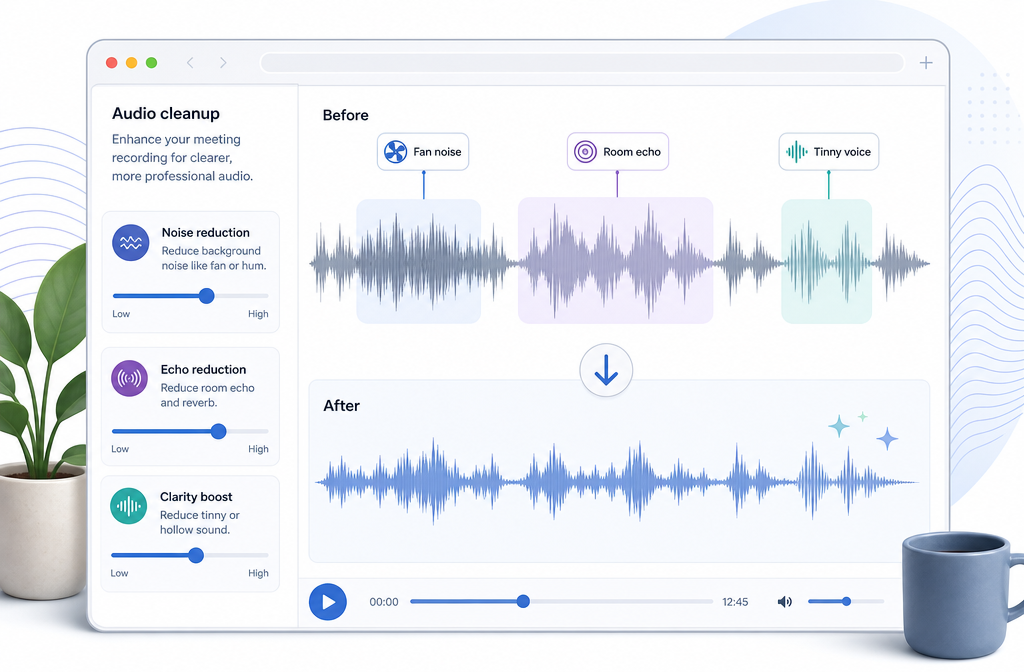
- Preview a balanced cleanup pass. Start with moderate cleanup, especially if the recording already sounds thin. Heavy reduction can make voices watery or phasey.
- Compare before and after. Listen for three things: speech clarity, background-noise reduction, and whether voices still sound natural.
- Export the cleaned result. Use the cleaned file for internal sharing, training libraries, webinar replays, or transcription.
- Add captions or language versions if needed. After cleanup, you can send the video to Best AI Captions for subtitles or use Translate Dub to translate, dub, and caption the recording for multilingual teams.
The key idea is simple: fix the recording you already exported. Cisco's prevention guidance is useful for future meetings, but once the meeting is over, your best leverage is format handling plus careful post-processing.
Best settings by symptom
- Fan or HVAC noise: Start with moderate noise reduction. These steady sounds are often the cleanest wins.
- Hum or buzz: Use a balanced setting and preview pauses between speech to confirm the hum actually drops.
- Mild echo: Reduce echo carefully. Too much processing can make voices sound swirly or underwater.
- Tinny Webex call sound: Avoid extreme suppression. The goal is usually to reduce distractions and improve intelligibility, not manufacture warmth that was never recorded.
- Keyboard noise: Moderate cleanup often works better than aggressive removal if typing overlaps speech.
- Background chatter: Light cleanup can help if chatter is softer than the main speaker, but overlapping voices are inherently hard to separate cleanly.
How cleanup helps transcription and meeting notes
One of the biggest practical reasons to clean a Webex recording is to improve downstream speech understanding for humans and machines. Cleaner speech can make recordings easier to review for:
- meeting summaries
- action items
- training transcripts
- webinar archives
- compliance documentation
If your file has steady fan noise, room hum, or light echo, removing some of that distraction can make spoken words easier to hear and easier to transcribe accurately. It will not fully solve severe overlap or clipped speech, but it can still improve the source before transcription and notes.
For teams turning recordings into reusable content, a practical sequence is:
- clean the Webex recording audio
- generate captions with Best AI Captions
- create multilingual versions with Translate Dub
- schedule and distribute clips or webinar excerpts through Mallary.ai if you want one place to publish and manage social posting across platforms
That workflow fits webinar teams, enablement teams, and content marketers who want one recorded session to support replay pages, short clips, subtitles, translated versions, and scheduled promotion.
Audio-only or full video export: which should you process?
Choose based on what you need next.
- Process audio-only if your main goal is transcription, meeting notes, internal review, or podcast-style listening.
- Process full video if you need to publish the webinar or meeting replay with improved sound for viewers.
If your Webex recording is a normal MP4 meeting export, video-based cleanup is usually the most practical route because it preserves sync and gives you a ready-to-share output. If your next step is documentation rather than viewing, audio-only extraction can be enough.
Troubleshooting Webex recording cleanup
| Problem after cleanup | Likely cause | What to do |
|---|---|---|
| Echo still sounds hollow | Echo is too strong or baked into the original mix | Use lighter cleanup and accept partial improvement; severe speakerphone echo is hard to fully remove |
| Voice became watery or swirly | Too much noise or echo reduction | Back off to a more balanced setting and preview again |
| Noise dropped but speech is still thin | Original call audio was narrow-band or compressed | Use gentle cleanup focused on clarity; this is often an improvement-not-restoration case |
| Multiple speakers are still hard to understand | Overlapping speech is inherently difficult to separate | Use only light cleanup and rely on context, captions, or manual notes |
| Recording still sounds distorted | Clipping or overload happened during capture | Try restoration, but set expectations for only partial recovery |
| Tool will not accept the file | You may still have ARF or WRF instead of MP4 | Convert to MP4 first using Cisco-supported tools |
How to avoid noisy Webex recordings next time
This article is about fixing the exported file now, but prevention still matters for your next recording. Cisco's own guidance is clear that better input gives better recorded sound.
- Use a headset rather than laptop speakers and mic. Cisco specifically advises avoiding internal microphones and speakerphones when possible.
- Test microphone levels before recording. Cisco recommends checking your input level before the session starts.
- Mute attendees who are not speaking. This reduces accidental background noise entering the recording.
- Use Webex smart audio features where available. Cisco documents options to remove background noise during meetings or webinars.
- Use “Optimize for my voice” or “Optimize for all voices” where appropriate. Cisco provides these voice optimization options for different speaking scenarios.
- Use computer audio when using smart audio features. That aligns with the feature context Cisco documents for voice optimization and noise removal.
- Avoid mobile phones, internal laptop mics, and speakerphone-style setups when recording something important. Cisco's NBR quality guidance explicitly warns that these choices reduce quality.
If you are recording locally in Webex App, Cisco notes that local recordings save as MP4, which is the easiest format to clean later.
For related cleanup guides, see how to clean screen recording audio online, how to remove hum from audio online, and how to remove air conditioner noise from video online.
Final take
If your Webex meeting or webinar export sounds noisy, echoey, or thin, there is a good chance you can improve it online without opening a DAW. The biggest Webex-specific step is checking the format first: MP4 is ready, ARF usually needs conversion, and WRF is less convenient for direct cleanup. After that, use balanced processing and realistic expectations. Steady noise and light echo are the easiest wins. Tinny call audio can often be improved, but not magically rebuilt.
If you want a quick browser workflow, you can fix Webex recording audio online with SimpleClean and then move straight into captions, translated versions, or scheduled content distribution.
Sources and further reading
- Cisco Webex Help: What Is the Difference Between .MP4, .ARF and .WRF Recording Files? - Supports the MP4 vs ARF vs WRF explanation and editability guidance.
- Cisco Webex Help: Convert an ARF recording to MP4 format - Supports the ARF-to-MP4 workflow and Windows-only converter limitation.
- Cisco Webex Help: How Do I Improve Audio Quality when Using Network-Based Recording (NBR)? - Supports prevention tips such as headset use, input testing, and muting attendees.
- Cisco Webex Help: Remove background noise during Webex meetings or webinars - Supports mention of Webex background-noise removal features for future recordings.
- Cisco Webex Help: Optimize your Webex Webinars and Webex Meetings for all voices - Supports the wording around Optimize for my voice and Optimize for all voices.
- Cisco Webex Help: Enable local recordings in Webex App - Supports the statement that local recordings save as MP4.
- Cisco Webex: Get the Webex Player - Supports official playback and handling references for ARF and WRF files.