
If your Loom video sounds echoey, noisy, thin, or distracting after you download it, you usually need to clean the exported file itself. Loom does offer background noise suppression, but its help docs note an important limitation: downloaded videos keep the original audio. That means playback inside Loom can sound cleaner than the MP4 you upload elsewhere, archive, transcribe, or send to a client. See Loom’s documentation on background noise suppression.
Quick Answer
To clean Loom recording audio online, download the Loom video, upload the file to SimpleClean, preview the cleaned audio, and export the improved version. This is the fastest option when your downloaded file has fan noise, HVAC hum, keyboard noise, mild echo, hiss, or a distant or tinny voice.
Use Loom’s built-in Noise filter when:
- You only need the video to sound better inside Loom’s player.
- You want a quick playback improvement without exporting a new file.
- You do not need the cleaned audio to carry into a downloaded MP4.
Use external cleanup on the exported Loom file when:
- You need a cleaner MP4 for sharing outside Loom.
- You are uploading the recording to another platform.
- You want better source audio for captions, transcripts, training libraries, or repurposed content.
- Your recording has Loom-specific issues like speaker bleed, room echo, or low-volume, thin narration that still sounds bad after download.
What counts as a Loom audio problem?
Loom is used for async meetings, presentations, lessons, walkthroughs, and screen-audio messages, according to Loom’s product pages for its online screen recorder and screen audio recorder. In practice, the most common speech-first audio issues are:
- Fan noise: laptop fans, desk fans, or HVAC air movement under your voice.
- Keyboard and mouse noise: especially in demos, support walkthroughs, and coding recordings.
- Room echo: speech sounds roomy, hollow, or far away.
- Hum or hiss: a steady low or high noise floor.
- Tinny or distant voice: common when the mic is too far away.
- Speaker bleed: your computer speakers get picked up by the mic.
- Low volume: your voice is understandable, but too quiet for comfortable listening.
These problems do not just make a Loom sound less polished. They can also make onboarding videos, support explainers, lesson recordings, and internal SOPs harder to follow and harder to transcribe.
The Loom limitation that creates the cleanup problem
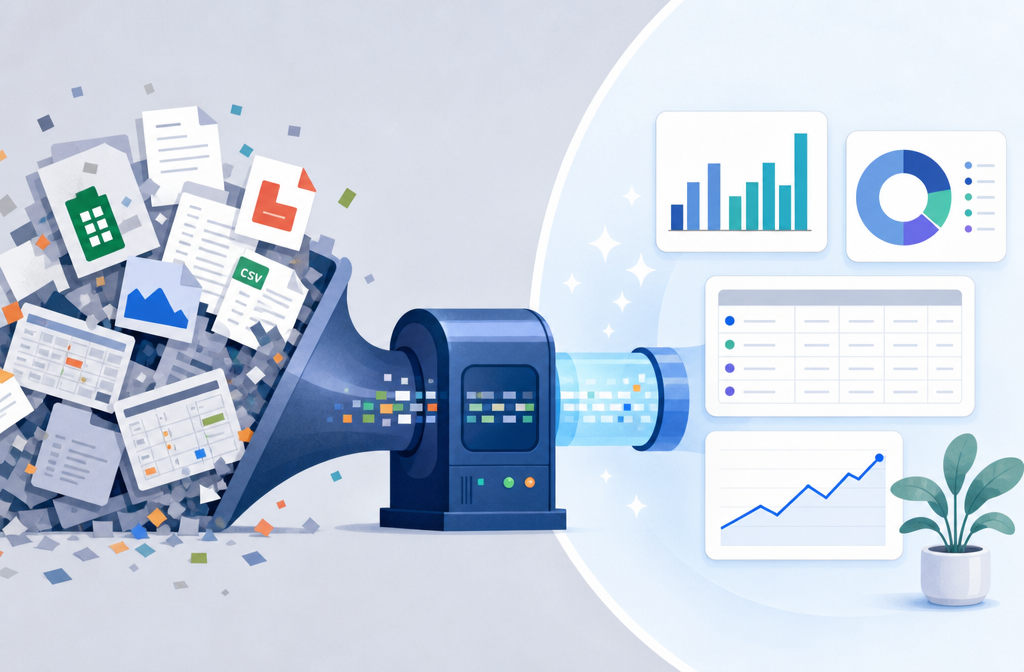
Loom’s background noise suppression is useful, and Loom says you can toggle it after recording and revert the change later. But Loom also states that downloaded videos still use the original audio rather than the noise-suppressed playback version. That is the key reason users need external cleanup for exported files. Source: How to suppress background noise.
So if your workflow is:
- record in Loom,
- download the video,
- upload it to a course platform, help center, CMS, social platform, or shared drive,
then Loom’s in-player cleanup is not enough. You need post-processing on the exported file.
Loom Noise filter vs external cleanup: which should you use?
| Option | Best for | Main limitation |
|---|---|---|
| Loom Noise filter | Improving playback inside Loom quickly | Downloaded videos keep original audio |
| External cleanup on exported file | Making the MP4 itself cleaner for sharing, republishing, archiving, and transcription | Cannot fully repair severe clipping, heavy overlap, or extreme distance from mic |
Best for Loom’s built-in filter:
- Internal reviews where the video will stay inside Loom
- Quick playback cleanup
- Minor background noise issues
Best for external file cleanup:
- Sales demos sent outside your workspace
- Support walkthroughs uploaded into a help center
- Onboarding and training libraries
- Lesson recordings shared across platforms
- Any Loom video that needs captions, transcripts, dubbing, or republishing
If your team turns Loom videos into documentation or social snippets, cleaner source audio helps downstream tools too. After cleanup, you might add subtitles with Best AI Captions, create multilingual versions with Translate Dub, or schedule the finished clips across channels with Mallary.ai.
Why does my Loom recording have echo?
Loom’s help docs point to a common cause: echo can happen when Loom captures internal audio while your speakers are also playing that sound and your microphone picks it up again. In plain English, the same sound gets recorded twice through different paths. See Loom’s guide to capturing internal audio / system audio.
Common echo causes in Loom recordings include:
- Capturing system audio while using open speakers
- Mic picking up your own playback from the room
- Recording in a reflective room with lots of hard surfaces
- Using a laptop mic too far from your mouth
Loom recommends using headphones to avoid audio looping back into the mic. Loom also notes an important tradeoff: system audio and the Noise filter cannot be used at the same time. Source: Loom internal audio/system audio help.
If the file already has mild echo, AI cleanup can often improve it. If the recording has severe feedback or strong double-capture, expectations should be lower.
How to clean up a Loom recording after downloading it
You do not need a DAW for most business-use Loom fixes. A simple file-based workflow is enough.
- Download the Loom recording. Get the video file you plan to share or republish.
- Upload it to SimpleClean. Use the exported Loom file rather than relying on player-only noise suppression.
- Preview the result. Listen for cleaner speech, less fan noise, lower hum, and reduced room distraction.
- Export the cleaned version. Save the improved file for upload, archiving, training, or documentation.
This is the right workflow when the problem is in the file itself, not just in Loom playback.
Remove background noise with SimpleClean
What AI cleanup usually handles well
For typical Loom recordings, cleanup works best on steady and predictable noise underneath speech. That includes:
- Steady fan or HVAC noise
- Light room noise
- Keyboard and mouse noise
- Mild hiss or hum
- Mild echo or roominess
- Thin, slightly distant narration that needs clearer speech focus
If your Loom sounds mostly understandable but distractingly messy, cleanup is usually worthwhile.
What AI cleanup handles poorly
Not every bad recording can be restored into a perfect one. Set expectations correctly.
- Heavy overlapping audio: voice competing with loud music, loud speakers, or other speech
- Severe clipping: distorted, crackly peaks from recording too hot
- Loud speaker feedback: strong screeching or repeated looped playback
- Extremely distant mic audio: when the voice was barely captured in the first place
Audacity’s documentation notes that stronger noise reduction can introduce artifacts and distortion, which is a useful reminder not to over-process. See Audacity Manual: Noise Reduction. Apple’s iMovie guide also reflects the same general expectation that audio cleanup tools use adjustable reduction rather than perfect restoration; see Correct and enhance audio in iMovie on Mac. The goal is usually clearer, not magically studio-perfect.
Loom-specific troubleshooting by symptom
1. Fan noise or HVAC hum
This is one of the best cleanup cases. If the noise is steady and your voice is already intelligible, external cleanup is usually the right move for the downloaded file.
Related reading: remove air conditioner noise from video online and remove hum from audio online.
2. Keyboard clicks during a walkthrough
This is common in support, engineering, and product demos. Cleanup can often reduce the distraction while keeping speech intact.
Related reading: remove keyboard noise from audio online.
3. Echo or reverb
First ask whether the echo came from double capture: internal audio plus speakers plus mic. If yes, prevention matters most next time. For an existing file, cleanup may improve mild echo, but severe double-capture is harder.
Related reading: remove reverb from video online and remove echo from audio online.
4. Tinny, distant voice
This often points to mic placement. If the recording is understandable, cleanup can help focus speech and reduce room sound. If the mic was extremely far away, only moderate improvement may be possible.
5. Low-volume narration
If your Loom is simply too quiet, cleanup can help the voice feel more present, but it cannot invent detail that was never captured. Very quiet, very distant speech remains a tough repair case.
Why cleaner Loom audio helps transcripts and repurposing
Loom recordings often become more than one-to-one messages. Teams reuse them for onboarding, support content, internal documentation, sales follow-up, and education. Cleaner speech helps in three practical ways:
- Better comprehension: viewers do not have to fight noise to follow the point.
- Better transcription inputs: clearer speech gives transcript and caption tools a better source.
- Better republishing results: if a Loom gets turned into a help video, a social clip, or a lesson asset, weak audio becomes much more noticeable.
A practical workflow is: clean the exported Loom file, add subtitles with Best AI Captions, translate or dub if needed with Translate Dub, then distribute finished assets with Mallary.ai if your team publishes clips or updates across multiple channels.
Best-for recommendations
- Best for internal Loom-only playback: Loom’s built-in Noise filter
- Best for exported MP4 cleanup: a post-download workflow in SimpleClean
- Best for fan, hum, and keyboard noise: external cleanup on the downloaded file
- Best for severe echo prevention: use headphones and avoid speaker bleed during recording
- Best for multilingual republishing: clean first, then dub or translate afterward
How to prevent the problem on your next Loom
Loom’s recording tips align with the basics: keep the mic close, record in a quiet space, and do a test recording. See Recording tips for a great video.
- Keep your microphone closer to your mouth.
- Record in a quieter room when possible.
- Do a short test before the real recording.
- Use headphones if you are capturing system audio.
- Avoid open-speaker playback near the mic.
If you know you will later download, republish, or transcribe the video, it is worth treating the Loom as source media, not just a quick message.
Simple workflow summary
If you only care about playback inside Loom, try the Noise filter first. If you need the actual file to sound better, download the Loom, clean it externally, preview before and after, and export the improved version. That approach is faster than opening a full editor and more reliable than assuming Loom’s player-side suppression will carry into your MP4.
If you already have a noisy Loom you need to send, train from, or republish, SimpleClean is the practical next step.