If you record talking-head videos, phone voiceovers, webcam tutorials, or podcast clips for TikTok, Reels, and Shorts, the real question usually is not “which editor is best?” It is “which tool will clean this noisy spoken file fastest without wrecking my voice?”
Quick Answer
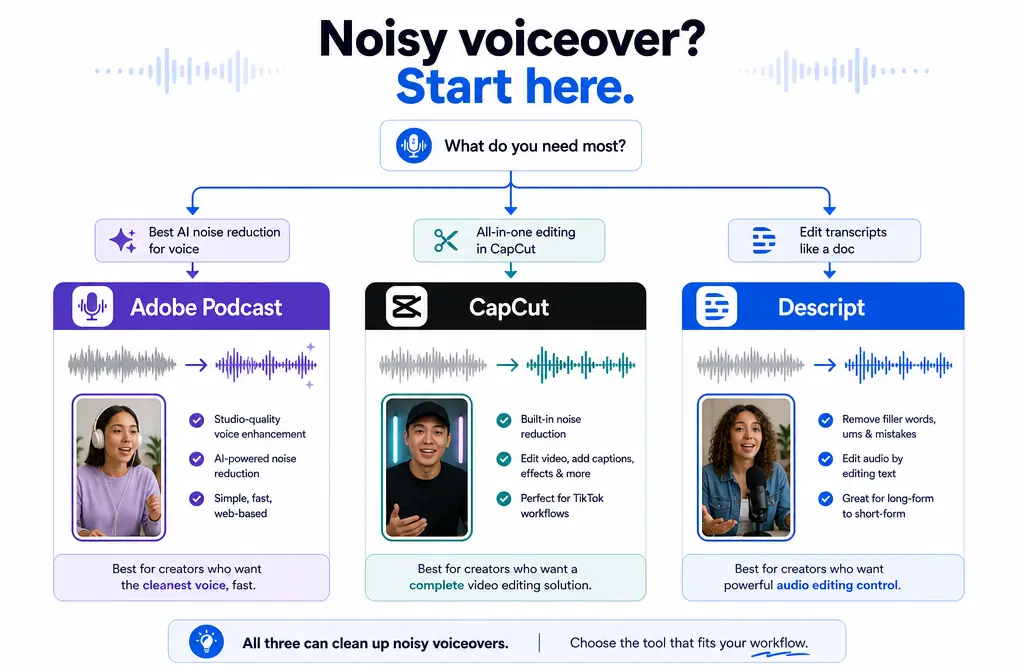
For noisy spoken voiceovers, Adobe Podcast is usually the best one-click rescue tool when the audio itself is the problem and you want to clean it before editing your short-form video. Descript is the better choice when you also want transcript-led editing and speech cleanup in the same workflow. CapCut is the best choice when the noise is mild and you want to stay inside your social-video edit without exporting files back and forth.
- Best for one-click rescue: Adobe Podcast Enhance Speech
- Best for transcript-based cleanup: Descript Studio Sound
- Best for staying inside the short-form editor: CapCut voice/noise cleanup tools
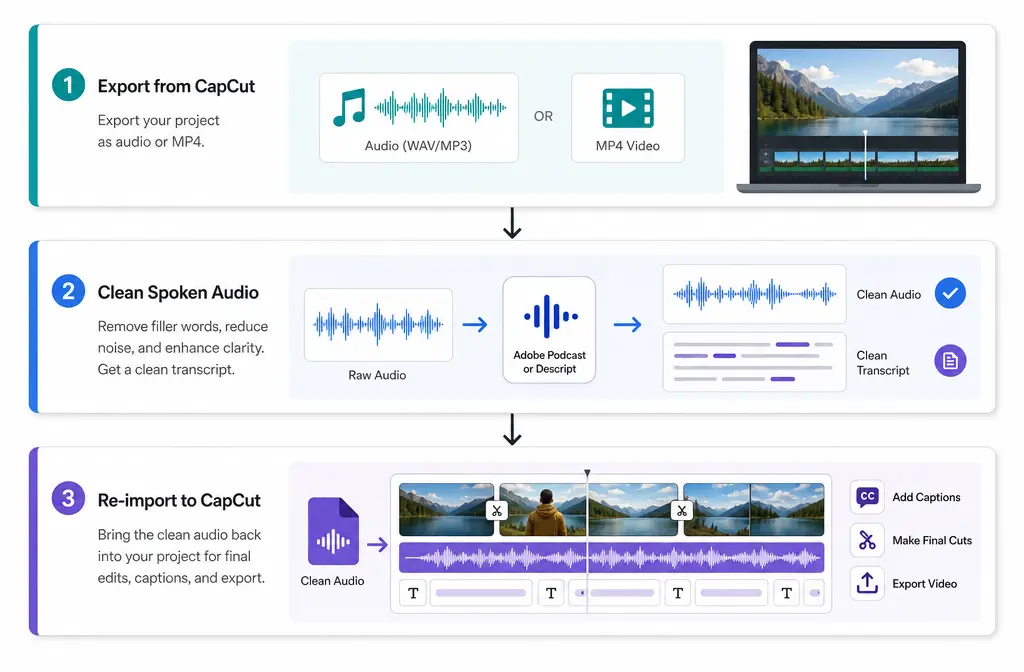
If you already cut inside CapCut, the smartest workflow is often simple: clean first in Adobe Podcast or Descript, then bring the cleaned file back into CapCut for final captions, pacing, and export.
Who This Comparison Is For
This guide is for creators cleaning spoken audio, not mixing songs or mastering music. It is especially useful if you are working with:
- TikTok, Reels, or Shorts voiceovers
- Phone-recorded talking-head clips
- Webcam tutorials with fan noise or room echo
- Podcast-to-social repurposing clips
- Exported MP4 files that sound worse than expected
If that sounds like you, keep reading. If your main problem is metallic or watery artifacts after over-processing, also see how to fix metallic voice after noise reduction.
What Each Tool Actually Does Now
Adobe Podcast
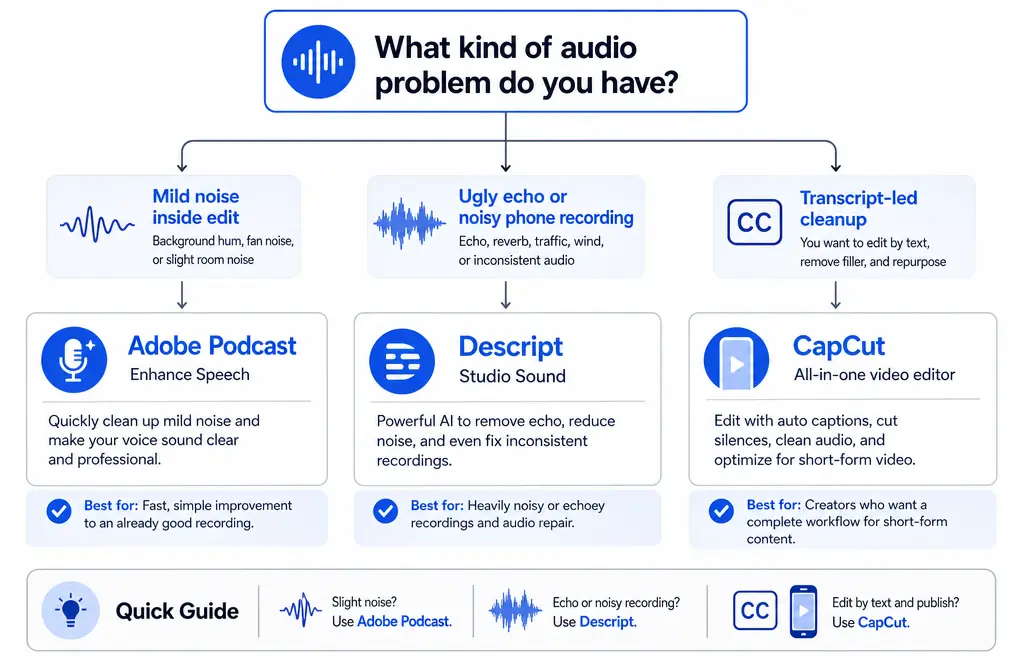
Adobe Podcast’s core cleanup tool is Enhance Speech. Based on Adobe’s plans page, the free version is audio-only, while Premium adds video support, bulk upload, strength adjustment, files up to 2 hours, and up to 4 hours per day. Adobe’s March 5, 2026 update also highlights advanced source separation for more control over cleanup. That makes Adobe Podcast more than a simple podcast upload tool; it is now a strong pre-edit rescue option for spoken audio and, on Premium, video files too.
Descript
Descript’s speech cleanup feature is Studio Sound. Descript says Studio Sound reduces background noise, echo, and other distractions, and it is applied at the file level. That matters because Descript is not just a cleaner; it is a transcript-first editing environment. If you want to delete filler words, cut by transcript, and improve the sound in one place, Descript has a strong workflow fit.
CapCut
CapCut positions its Voice Enhancer as a way to clarify speech and remove noise automatically. That is useful when you are already editing a short-form video and the issue is mild enough that you do not want to leave the app. CapCut’s help documentation also notes that plan details and pricing vary by region and platform, so it is better to treat feature access carefully instead of assuming one universal pricing setup.
Adobe Podcast vs CapCut vs Descript at a Glance
| Tool | Best use | Input fit | Video support | Transcript editing | Control level | Best final destination |
|---|---|---|---|---|---|---|
| Adobe Podcast | One-click speech rescue for noisy files | Audio first; spoken-word cleanup; exported voice tracks; MP4 on Premium | Yes on Premium, while free Enhance Speech is audio-only | No transcript-led editing focus in the supplied sources | More control now, including strength adjustment and advanced source separation on current Adobe references | Bring cleaned file back into CapCut or another editor |
| Descript | Transcript-led editing plus audio polish | Speech recordings, interviews, podcast clips, tutorials | Works in a video-editing workflow, but cleanup is described at the file level | Yes | Moderate; Studio Sound is applied at the file level | Edit in Descript, then export to CapCut if needed for final short-form layout |
| CapCut | Fast cleanup inside the social-video edit | Talking-head clips and short-form edits already in timeline | Yes, in-editor workflow | Not the main reason to choose it here | More lightweight, convenience-first | Stay in CapCut when the problem is minor |
Fast Verdict by Scenario
- Noisy phone voiceover: Adobe Podcast
- Webcam tutorial with ugly room sound: Adobe Podcast first, then CapCut
- Podcast clip where transcript edits matter: Descript
- Exported MP4 with bad spoken audio: Adobe Podcast or Descript first, then re-import
- Mild hiss or fan noise already inside your CapCut edit: CapCut may be enough
- Multi-speaker interview you need to trim by text: Descript
When Adobe Podcast Is the Best Choice
Choose Adobe Podcast when your top priority is saving a spoken recording that sounds rough. It is the easiest recommendation for creators who say things like:
- “I recorded on my phone and the room sounds bad.”
- “I already have an MP4 and just need the voice clearer.”
- “I do not need transcript editing. I just need this cleaned fast.”
Its biggest advantage in this comparison is that it is built around speech enhancement, not around being your whole social editor. That focus makes it a strong rescue pass before the real edit.
If Adobe Podcast gets you close but not natural enough on a finished export, you can also clean noisy voiceovers with SimpleClean as a separate speech-first pass.
When Descript Is the Better Choice
Choose Descript when your audio problem and your editing problem are connected. That is common when you are repurposing a longer clip into multiple short videos.
Descript makes more sense than Adobe Podcast if you want to:
- edit by transcript
- remove verbal stumbles while improving audio
- work with podcast clips or interviews
- create multiple shorts from one spoken recording
It is especially useful for coaches, solo marketers, and podcast repurposers who think in scripts and captions as much as waveforms.
After cleanup, you can add on-screen subtitles with Best AI Captions, or translate and dub your finished clips for multilingual audiences with Translate Dub.
When CapCut Alone Is Enough
CapCut is enough when the noise problem is light and convenience matters more than maximum cleanup quality.
Good CapCut-only cases:
- light fan noise
- minor hiss
- slightly dull speech that needs quick clarification
- you are already deep in a short-form edit and do not want to round-trip files
CapCut is often the right answer when you are posting frequently and the clip is disposable enough that “good enough today” beats “perfect tomorrow.”
But if the file has real room echo, harsh background distraction, or ugly phone-recorded ambience, staying inside CapCut can become a false economy. That is when a separate cleanup pass is smarter.
When It Is Smarter to Export and Clean Separately
Leave CapCut and clean elsewhere first if any of these are true:
- The voice sounds distant or echoey
- The room tone is obvious between words
- The MP4 was recorded in a bad space and needs rescue
- You need transcript-led cuts before final social editing
- CapCut cleanup starts making the voice robotic
In those cases, CapCut is better treated as the destination editor, not the main repair tool.
Recommended Workflow: Clean First, Then Finish in CapCut
- Export the source file. If your clip is already in CapCut, export the cleanest source you have available, either audio or the original spoken video file.
- Choose the cleanup tool based on the problem. Use Adobe Podcast for one-click rescue, or Descript if you also want transcript editing.
- Apply cleanup once. Avoid stacking multiple heavy speech enhancers on the same file unless you have a specific reason.
- Listen for artifacts. Check for robotic tone, watery consonants, or muffled words before moving on.
- Re-import into CapCut. Replace the original noisy speech with the cleaned file.
- Finish the short-form edit. Add cuts, zooms, music, graphics, and platform formatting.
- Add captions and publish. Use Best AI Captions for subtitles if needed, then schedule and distribute through Mallary.ai if you are publishing across multiple social channels.
This workflow is usually faster than fighting a weak in-editor cleanup and re-exporting repeatedly.
Failure Modes to Watch For
No speech-cleanup tool is magic. The most common failure modes are similar across all three:
- Robotic voice: common when suppression is too aggressive
- Watery or swirly artifacts: often happens when the tool over-separates speech from noise
- Muffled speech: the cleaner removes too much high-end detail
- Over-suppressed ambience: the room disappears so hard that the voice feels fake
- Music damage: speech-first enhancers can behave badly if background music is important to the clip
If that happens, reduce the cleanup intensity where possible, go back to the original file, and avoid stacking multiple enhancers. For a deeper troubleshooting guide, see this article on metallic and watery voice artifacts.
Pricing and Plan Caveats
Pricing and included features change, so this article sticks only to the supplied source material.
- Adobe Podcast: As of the current Adobe plans reference supplied for this article, free Enhance Speech is audio-only, while Premium adds video support, bulk upload, strength adjustment, longer files, and higher daily limits.
- Descript: Studio Sound is part of Descript’s broader plan and AI-tool structure; check Descript’s pricing page for the current plan details tied to your account.
- CapCut: CapCut says Standard vs Pro access and pricing vary by region and platform, so do not assume one public number applies everywhere.
Date note: this comparison uses Adobe’s supplied plans page and Adobe’s March 5, 2026 “What’s New” update as the current anchors.
Bottom-Line Recommendations by Creator Type
- TikTok creator with a noisy phone take: Adobe Podcast
- Solo marketer cutting educational talking-head clips: Adobe Podcast first, then CapCut
- Coach repurposing long recordings into many shorts: Descript
- Editor who already lives in CapCut and only needs light polish: CapCut
- Podcast-to-social repurposer: Descript for transcript cuts, then CapCut for final formatting
- Creator with an exported MP4 that still sounds rough: Adobe Podcast first; if the voice still feels unnatural, try a separate speech cleanup workflow with SimpleClean
Final Verdict
If you want the shortest answer: Adobe Podcast is the best cleaner-first choice, Descript is the best edit-and-clean choice, and CapCut is the best convenience choice.
For most short-form creators, the practical winner is not one app doing everything. It is a handoff workflow:
- clean in Adobe Podcast when the recording needs rescue
- use Descript when transcript editing matters too
- finish in CapCut for pacing, visuals, and platform-native export
If none of those gets the exported voiceover natural enough, SimpleClean is worth trying as a separate speech-first cleanup pass before you publish.
Related Reading
- Adobe Podcast vs Descript vs Riverside
- How to remove background noise in YouTube Shorts
- How to remove background noise in Adobe Express
- How to remove background noise in InShot
FAQs
Is Adobe Podcast better than CapCut for background noise removal?
Usually yes for noisy spoken recordings. Based on the supplied sources, Adobe Podcast is more purpose-built for speech cleanup, while CapCut is more about convenient in-editor enhancement. If the noise is light, CapCut may still be enough.
Can Descript Studio Sound clean TikTok voiceovers better than CapCut?
Often yes when you need stronger spoken-audio cleanup and transcript-based editing together. If your voiceover also needs text-based cuts, Descript is usually the more complete workflow than CapCut alone.
Should I clean audio before or after editing in CapCut?
Clean first if the file has obvious echo, fan noise, hiss, or bad room sound. Edit first only when the noise is minor and you want to stay inside CapCut for speed.
Which tool is best for noisy phone-recorded talking-head videos?
Adobe Podcast is the safest first recommendation in this comparison for a quick rescue pass on spoken audio. Then bring the cleaned file back into CapCut for the final short-form edit.
Does Adobe Podcast support video files now?
According to the supplied Adobe plans source, video support is included on Premium, while free Enhance Speech is audio-only.
When does CapCut noise reduction make voices sound robotic?
Usually when the source audio is worse than the in-editor cleanup can handle, or when speech enhancement is pushed too hard. Strong echo and heavy background noise are common triggers for robotic results.
Can I use Descript just for audio cleanup and then export back to CapCut?
Yes. That is one of the most practical workflows for creators who want Descript’s Studio Sound and transcript tools but still prefer CapCut for the final vertical-video edit.
Sources and further reading
- Adobe Podcast home - Primary source for Adobe Podcast positioning and workflow framing.
- Adobe Podcast plans - Source for free vs premium limits, audio-only vs video support, file length, daily hours, bulk upload, and strength adjustment.
- What’s new in Adobe Podcast? March 2026 - Source for March 5, 2026 update and advanced source separation reference.
- CapCut Voice Enhancer - Source for CapCut’s current voice clarification and noise removal positioning.
- CapCut Help: Standard vs Pro subscription - Source for region/platform-dependent plan framing.
- Descript Studio Sound help - Source for Studio Sound behavior and file-level application.
- Descript pricing - Source for current pricing-plan framing for Descript.