How to Fix Webex Noise Cancellation Not Working: Missing Smart Audio, Use Computer Audio, Mac Mic Mode Conflicts, and Better Fallbacks
If Webex noise cancellation is missing, weak, or making your voice sound strange, the problem is usually not random. In most cases, it comes down to four things: you joined the meeting the wrong way, the wrong Smart Audio mode is selected, Music mode is on, or another layer of mic processing is fighting with Webex.
This guide is organized by symptoms so you can fix the issue fast.
Quick answer
For most people, the fastest fix is this:
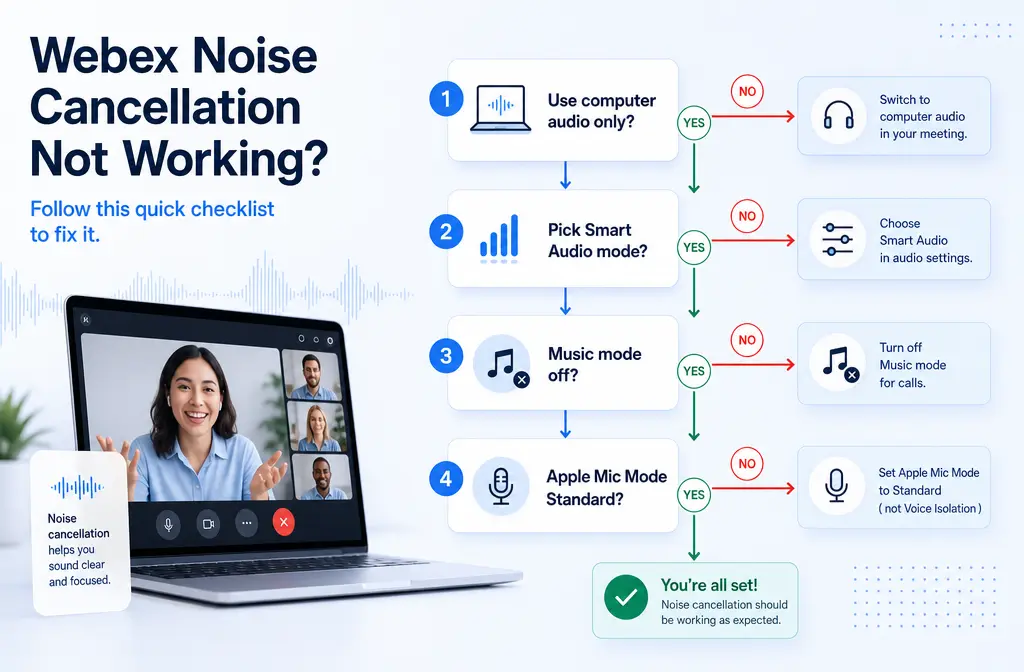
- Join with Use computer audio only. Webex says Noise removal and Optimize for my voice/all voices depend on computer audio in meetings and webinars.
- Pick the right Smart Audio mode. For solo speech, start with Noise removal. If background people are talking nearby, switch to Optimize for my voice. Avoid Optimize for all voices unless you actually want multiple nearby voices to be heard.
- Turn off Music mode. Webex says enabling Music mode turns off Noise removal.
- On Mac, set Apple Mic Mode to Standard. Webex warns that macOS Mic Modes can conflict with Smart Audio.
- If the saved recording is still noisy, clean the exported file separately. Live suppression helps during a call, but it cannot always rescue room echo, wind, or already-recorded artifacts. In those cases, you can clean a noisy Webex recording with SimpleClean.
Best starting point by situation:
- Fan, HVAC, keyboard, dog barking: Noise removal
- People talking near you, but you want only your voice: Optimize for my voice
- You want multiple nearby speakers heard clearly: Optimize for all voices
- Music lessons or instruments: Music mode
Why Webex noise cancellation seems “not working”
Users usually mean one of six different problems:
- The Smart Audio or Noise removal option is missing.
- The setting is on, but there is no audible change.
- Webex still picks up other people talking nearby.
- Your voice sounds robotic, clipped, or over-processed.
- Music mode was turned on accidentally.
- The meeting recording is still noisy after the call is over.
The good news is that each symptom points to a short list of likely causes.
Diagnosis order: check these first
- Confirm how you joined audio. In meetings and webinars, Webex documents that background-noise features require Use computer audio only.
- Confirm the Smart Audio mode. Noise removal and Optimize for my voice are not the same thing.
- Turn off Music mode. Webex says Music mode disables Noise removal.
- Check for Apple Mic Mode conflicts. On macOS Sonoma and on iPhone/iPad, OS-level voice processing can overlap with Webex processing.
- Reduce processing stack conflicts. Headset apps, OS Voice Isolation, and third-party suppression tools can fight with Webex.
- If browser behavior is odd, test the desktop app or a different supported browser.

Webex Smart Audio modes: what each one is actually for
| Mode | Best for | What it tries to do | Common mistake |
|---|---|---|---|
| Noise removal | Solo speech with general background noise | Reduces non-speech distractions like fan or typing noise | Expecting it to fully suppress nearby talking people |
| Optimize for my voice | One speaker in a noisy shared space | Prioritizes your voice and suppresses background speech | Not switching to it when nearby voices are the real problem |
| Optimize for all voices | Multiple people near one mic who all should be heard | Brings multiple voices forward | Using it when you only want your own voice heard |
| Music mode | Music lessons, singing, instruments | Preserves more natural audio detail for music | Leaving it on for normal speech calls, which disables Noise removal |
If your complaint is “Webex still hears my coworkers in the background,” Optimize for my voice is usually the first thing to try. If your complaint is “the app suddenly stopped removing noise,” check whether Music mode is active.
Symptom 1: Smart Audio or Noise removal is missing
If the option is absent, check these first:
- You did not join with computer audio. In meetings and webinars, Webex says these features work with Use computer audio only.
- You are in a browser scenario with different behavior. Webex documents web-app behavior differences across browsers.
- You are on an iOS limitation. Webex notes a 32-bit iOS limitation for Noise removal.
- You are looking in the wrong settings area. Meetings/Webinars and the Webex App expose Smart Audio in slightly different places.
Where to find the setting
Webex Meetings or Webinars: open audio settings before joining or during the meeting and look for the microphone processing or Smart Audio options in the audio settings panel.
Webex App: go to your audio settings and locate the Smart Audio section, where Webex lists Noise removal, Optimize for my voice, Optimize for all voices, and Music mode.
If the option is missing in one browser, test the desktop app next. For IT teams, that is usually the quickest way to separate a browser-specific issue from a broader account or environment problem.
Symptom 2: Noise cancellation is on, but you hear no difference
This usually means one of three things:
- You picked the wrong mode for the kind of noise.
- The microphone is capturing speech you actually want Webex to reject, which requires Optimize for my voice rather than basic Noise removal.
- Another processing layer is already shaping the sound before Webex gets it.
Try this order:
- Start with Noise removal for fan noise, HVAC, light keyboard noise, or occasional household sounds.
- If background people are still audible, switch to Optimize for my voice.
- If there is still no improvement, disable extra processing in your headset software, OS mic effects, or third-party suppression apps so Webex is the only active processor.
Stacking multiple suppression tools can make results worse instead of better. One tool may gate your voice, another may try to reconstruct it, and the final result can sound thin or unstable.
Symptom 3: Webex still picks up other people talking nearby
This is the most common misunderstanding. Noise removal is not the same as voice isolation.
If nearby voices are leaking through:
- Switch from Noise removal to Optimize for my voice.
- Make sure you are not using Optimize for all voices, because that mode is designed to make multiple nearby voices clearer.
- Move the mic closer to your mouth if possible, especially with a headset mic.
- Lower the chance of room pickup by reducing speaker volume and using headphones.
Webex can help suppress background speech, but it cannot guarantee total removal of a loud nearby talker, especially if that voice is close to your mic.
Symptom 4: Your voice sounds robotic, clipped, or unnatural
If your voice got worse after turning on suppression, check for these conflicts:
- Apple Mic Mode is not set to Standard. Webex specifically warns that macOS Sonoma Mic Modes can conflict with Webex Smart Audio.
- Another app is doing noise suppression too. Vendor headset software or tools like Krisp-style processing can stack badly with Webex.
- You are using the wrong Smart Audio mode. A more aggressive speech-prioritizing mode may sound less natural in some rooms.
Mac, iPhone, and iPad Mic Mode conflict fix
If Webex Smart Audio is acting strangely on Apple devices:
- Open Apple’s Mic Mode controls while using Webex.
- Set Mic Mode to Standard.
- Return to Webex and test Smart Audio again.
Apple also offers modes like Voice Isolation and Wide Spectrum on supported devices, but when Webex is already handling speech processing, Standard is the safer starting point.
If your voice still sounds clipped, try stepping down from Optimize for my voice to plain Noise removal and test again.
Symptom 5: Music mode is on by accident
This one is easy to miss. Webex states that enabling Music mode turns off Noise removal.
Music mode is useful when the goal is to preserve musical detail, but it is usually the wrong choice for everyday meetings, support calls, recruiting screens, classes, and sales conversations.
Fix: turn off Music mode, then switch back to Noise removal or Optimize for my voice depending on your environment.

Browser and platform caveats
- Meetings and webinars: many Smart Audio benefits depend on Use computer audio only.
- Web app: Webex documents default behavior differences in Chrome, Edge, and Firefox, plus Safari caveats.
- iPhone and iPad: Apple Mic Modes can affect the sound path; Webex also notes a 32-bit iOS limitation for Noise removal.
- Desktop app: when troubleshooting, it is often the cleanest comparison point against browser oddities.
If you are supporting other users, ask them to test three things before escalating: desktop app vs browser, computer audio vs another join method, and Standard Mic Mode vs Apple Voice Isolation.
What Webex can fix well, and what it usually cannot
Webex usually helps with
- Fan and HVAC noise
- Light keyboard and mouse noise
- Occasional household sounds
- Some background speech, especially with Optimize for my voice
Webex may struggle with
- Loud nearby talkers close to your microphone
- Room echo and reverb
- Wind hitting the mic
- Already-recorded noisy files
- Heavy processing conflicts from OS or third-party tools
That last point matters: live meeting cleanup and post-recording cleanup are different jobs. Live suppression tries to improve what other people hear right now. It is not always the best tool for repairing a saved MP4 or M4A later.
When to clean the exported recording separately
If the meeting already happened and the recording is still noisy, it is usually faster to export or download the file and clean it separately instead of trying to re-diagnose the live call setup.
That is the best fallback when your recording has:
- Persistent background hiss or hum
- Wind or handling noise
- Roomy, echoey speech
- Noisy webinar or interview audio that was captured imperfectly
In those cases, you can upload the saved audio or video to SimpleClean and use it as a post-meeting repair step. This is especially useful for webinar replays, recruiting interviews, sales demos, teaching clips, and support call snippets that need to sound clearer before sharing.
If you plan to repurpose the cleaned recording, you can then add subtitles with Best AI Captions, create multilingual versions with Translate Dub, and schedule social or distribution posts through Mallary.ai if your team publishes clips across multiple platforms.
How to fix Webex noise cancellation not working
- Rejoin with computer audio only. In meetings and webinars, this is a key requirement for Noise removal and Optimize modes.
- Open Webex audio settings. Find Smart Audio or microphone processing options.
- Select the right mode. Start with Noise removal for general noise. Use Optimize for my voice if nearby people are talking.
- Turn off Optimize for all voices unless multiple local speakers should be heard.
- Disable Music mode. Webex says Music mode turns off Noise removal.
- On Mac, iPhone, or iPad, set Apple Mic Mode to Standard.
- Disable overlapping suppression layers. Temporarily turn off headset-app processing, OS Voice Isolation, or third-party tools.
- Test in the desktop app or another browser. This helps isolate browser-specific behavior.
- Review the result. If live audio improves but the saved recording still sounds bad, export the file and repair the Webex recording audio afterward.
Best mode for each type of Webex user
- Remote workers in home offices: Start with Noise removal. Switch to Optimize for my voice if other household voices leak in.
- Recruiters and support reps: Optimize for my voice is often the safest default when privacy and speech focus matter.
- Teachers with student discussion nearby: Choose based on whether only you should be heard or whether local participants should be audible too.
- Webinar hosts: Keep Music mode off unless the content is actually musical.
- IT admins: Validate join method, browser, desktop app, and Apple Mic Mode before escalating deeper.
Short IT/admin checklist
- Verify the user joined with Use computer audio only.
- Verify the exact Smart Audio mode selected.
- Check whether Music mode is enabled.
- On Apple devices, set Mic Mode to Standard.
- Test the desktop app and another browser before assuming account-level failure.
- Ask whether headset software or third-party suppression is also active.
If you need the basic setup walkthrough first, see our companion guide on removing background noise in Webex. For similar troubleshooting logic in other meeting apps, our posts on Zoom noise suppression not working, Google Meet noise cancellation not working, and Microsoft Teams noise suppression not working may also help.
Final takeaway
If Webex noise cancellation is not working, do not start by randomly toggling settings. Check the join method first, then the Smart Audio mode, then Music mode, then Apple Mic Mode conflicts. That sequence solves most cases quickly.
And if the live call is over and the recording is still rough, do not expect Webex to repair the saved file afterward. Export it and clean up the recorded Webex audio separately.
Sources and further reading
- Remove background noise during Webex meetings or webinars - Primary source for Noise removal behavior, steps, browser notes, Use computer audio only guidance, and the 32-bit iOS limitation.
- Webex App | Change your audio settings - Source for where Smart Audio settings live in the Webex App and Webex guidance on macOS Sonoma Mic Modes conflicts.
- Webex App | Webex Smart Audio in calls, meetings, and webinars - Source for what Noise removal, Optimize for my voice, Optimize for all voices, and Music mode are designed to do.
- Select audio settings for Webex Meetings and Webex Webinars - Source for official settings locations and audio troubleshooting context in meetings and webinars.
- Optimize your Webex Webinars and Webex Meetings for all voices - Source for Optimize for my voice and Optimize for all voices behavior and the Use computer audio only requirement.
- Enable music mode in Webex Meetings and Webex Webinars - Official source confirming that enabling Music mode turns off Noise removal.
- Use Mic Modes on your Mac - Apple reference for Standard, Voice Isolation, and Wide Spectrum on Mac.
- Use Voice Isolation, Wide Spectrum, or Automatic Mic Mode on your iPhone and iPad - Apple reference for Mic Mode behavior on iPhone and iPad.