
Quick Answer
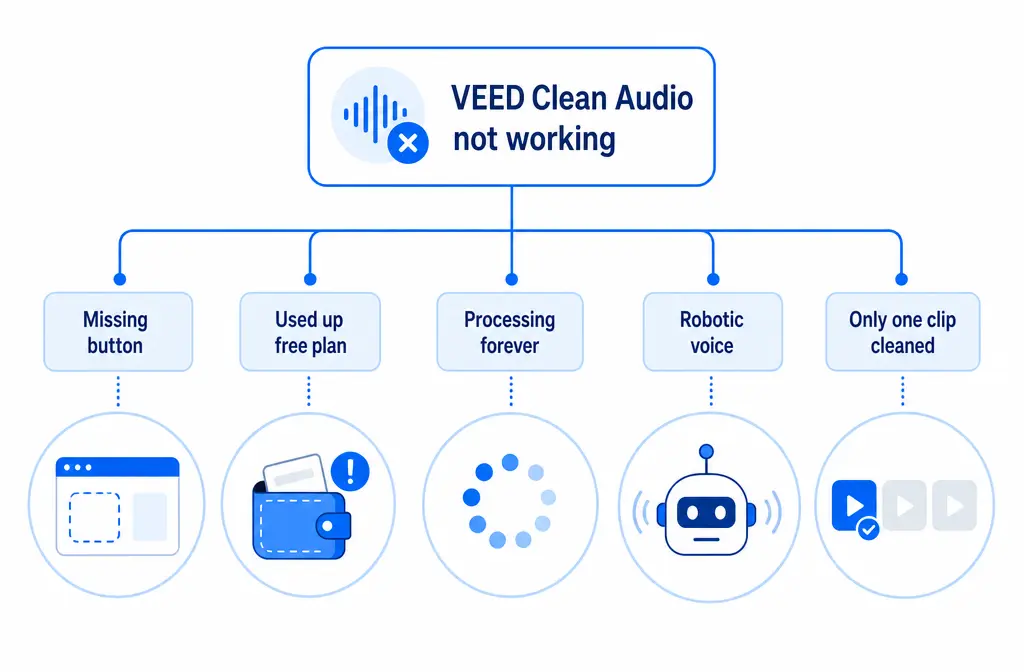
If VEED Clean Audio is not working, the problem is usually one of six things:
- The wrong place in the UI: on the web editor, Clean Audio lives under Editor > AI Tools.
- No clip is selected: Clean Audio applies to the selected clip, not automatically to the whole project.
- Plan/access confusion: VEED says free users get one-time use per account, while paid plans have full access. VEED LITE on iOS has its own Mobile Pro rule.
- Web vs app confusion: the VEED web editor, VEED app, and VEED LITE do not use the exact same workflow.
- Processing or platform issues: if it seems stuck, check VEED Status before assuming your file is broken.
- The tool worked, but the result is weak: one-click speech cleanup is less reliable on heavy wind, strong reverb, overlapping speakers, music-heavy clips, or already-compressed bad audio.
If you just need the recording fixed fast, export the noisy clip and clean podcast audio with SimpleClean instead of repeatedly reprocessing the same file inside the editor.
| Symptom | Most likely cause | Fastest fix |
|---|---|---|
| VEED Clean Audio missing | No clip selected, wrong editor area, or using a different VEED app/version | Select the clip, open AI Tools, confirm whether you are on web editor or VEED LITE |
| Button unavailable or you cannot use it again | Free-plan one-time-use limit or mobile plan restriction | Check account plan/access rules |
| Processing forever | Temporary platform issue or upload/project problem | Wait briefly, retry, then check VEED Status |
| No audible change | Wrong clip, subtle noise, or source problem beyond basic cleanup | Compare raw clip vs cleaned preview vs export |
| Voice sounds robotic or thin | Noise reduction artifacts from difficult audio | Reduce dependence on one-click cleanup; export and clean separately |
| Export still sounds bad | You previewed a different clip, cleaned only one clip, or source limitations remain | Verify per-clip application and test an exported audio workflow |
What VEED Clean Audio actually does
According to VEED’s help documentation, Clean Audio is designed to handle noise removal, speech enhancement, and loudness normalization. That explains why some users expect a dramatic before-and-after: it is not just a simple mute-the-hiss button.
But it also explains why the feature can feel inconsistent. If your clip has light room noise behind a clear voice, the result may sound good. If the real problem is wind blasts, roomy echo, two people talking at once, or music competing with speech, the tool may technically process the file while still giving a disappointing result.
VEED Clean Audio missing: where it lives now and why users miss it
The current official path on the web editor is Editor > AI Tools > Clean Audio. A common reason people think VEED removed the feature is that they are looking in the wrong panel or expecting it to appear automatically without first selecting media.
Two practical checks matter here:
- Select the exact audio or video clip first. VEED’s documentation makes clear the tool works on the selected clip.
- Open AI Tools, not just generic audio controls. If you only scan the timeline or inspector quickly, it is easy to miss.
If the button still seems missing, ask yourself which product you are actually using:
- VEED web editor: uses the Editor > AI Tools workflow.
- VEED LITE on iOS: has a different path and requires Mobile Pro for Clean Audio.
- Another VEED mobile app experience: may not match web instructions exactly.
This web-versus-mobile confusion is one of the biggest reasons users search for “VEED Clean Audio missing” when the feature is not truly gone.
VEED Clean Audio free plan: what the access limits mean
VEED’s official help article says free users can use Clean Audio one time per account. It also says paid tiers have full access. If you already used that one free use, the tool may feel “broken” when the real issue is that you hit the account limit.
On mobile, the iOS VEED LITE help article says Clean Audio is available with Mobile Pro. So a user who saw the feature on desktop or in marketing pages may assume it should also be available in the same way on mobile, even when the access rule differs.
Bottom line:
- If you are on the free plan, confirm whether you already used your one free Clean Audio use.
- If you are on VEED LITE for iOS, confirm whether you have Mobile Pro.
- If you switched devices, do not assume the web and mobile experiences have identical feature access.
VEED Clean Audio only affects one clip because it is per-clip
This is another high-frequency confusion point. VEED’s help center states that Clean Audio must be applied to each selected clip. It does not automatically clean every clip in your entire project.
So if your intro clip sounds cleaner but the next talking-head segment is still noisy, that does not necessarily mean Clean Audio failed. It may mean you only processed clip one.
Use this quick test:
- Select clip A and apply Clean Audio.
- Play clip A and note the result.
- Select clip B and check whether Clean Audio has been applied there too.
- Repeat for each noisy segment in the timeline.
If your project has many cuts from the same recording, this per-clip behavior can be tedious. In those cases, it may be faster to clean the source audio first, then edit.
Before deeper troubleshooting: file and setup checks
VEED supports common audio and video uploads, and its upload documentation covers video, audio, music, and image file imports across platforms. Before assuming the Clean Audio feature itself is failing, rule out basic project friction:
- Use a commonly supported audio or video format from VEED’s upload guidance.
- Make sure the file uploaded correctly and fully appears in the editor.
- Keep the project manageable if you are already working with a large, busy timeline.
- Confirm you are cleaning the right media item, especially if you duplicated clips or replaced footage.
If your voice recording is important, it can also help to export just the troublesome section as audio and test it separately.
VEED Clean Audio processing forever: how long to wait and when to suspect an issue
VEED does not promise an exact universal processing time in the supplied sources, so it is best not to assume every file should finish instantly. A short wait is normal. But if the tool appears stuck for an unusual amount of time or repeated attempts do not complete, stop guessing and check VEED Status.
That status page is the fastest way to separate:
- A platform-side issue affecting editor tools, exporting, or mobile systems
- A project-specific issue affecting only your file
If VEED Status shows an operational issue, waiting is smarter than re-uploading multiple times. If status looks normal, retry with a simpler test clip so you can tell whether the problem is your specific file or the current project.
VEED Clean Audio robotic voice: why it happens
“It processed, but now my voice sounds robotic” is different from “it did not work.” In many cases, the model is trying to suppress noise that overlaps too much with speech.
Based on the research brief, this is most likely when your recording has:
- Heavy wind
- Strong room echo or reverb
- Overlapping speakers
- Music-heavy audio with speech on top
- Already-compressed or low-quality source audio
Those are hard cases for one-click enhancement tools generally. The result may become thinner, phasey, watery, or robotic because the cleanup is removing parts of the voice along with the noise.
If that is what you hear, do not keep applying the same process hoping the artifact will magically disappear. Switch tactics and remove wind noise with SimpleClean or clean the exported voice track separately.
No audible change or export still sounds bad
If the preview seemed cleaner but the export still sounds wrong, compare three things in order:
- The raw source clip
- The cleaned preview inside VEED
- The final export
This helps isolate what is happening:
- If the raw clip and cleaned preview sound different, Clean Audio likely applied.
- If the export sounds like the raw clip, re-check whether you cleaned the correct clip or all needed clips.
- If the preview and export both still sound poor, the limitation may be the source recording itself rather than a VEED bug.
For voice-first content, it can also help to test an audio-only export workflow where relevant, then compare that file independently. That makes it easier to hear whether the problem is the cleanup result or the broader video-export chain.
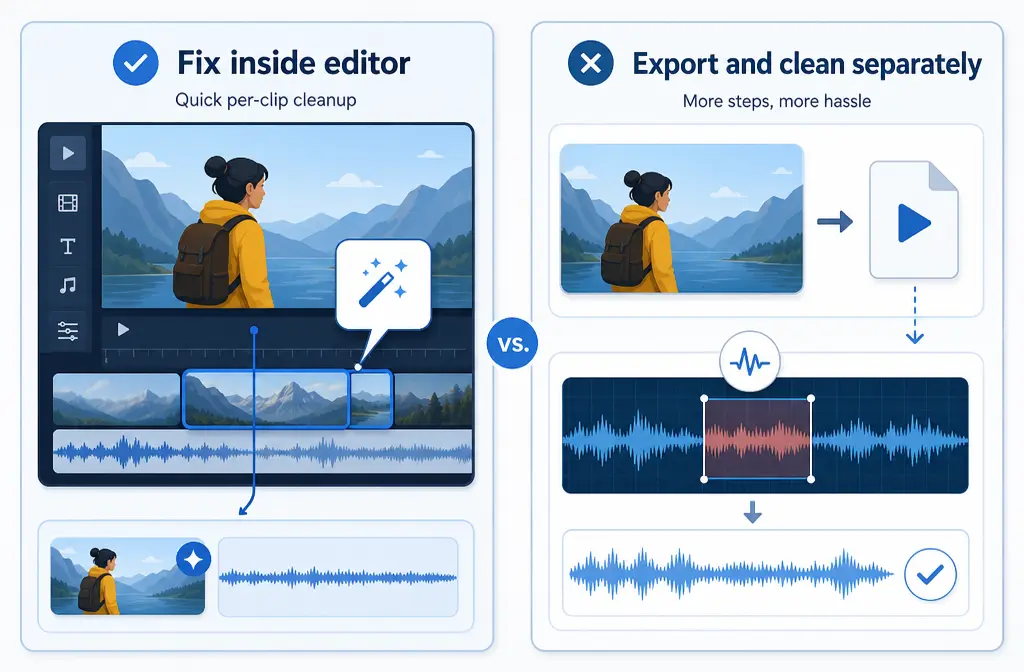
Fix inside VEED vs export and clean elsewhere
| Option | Best for | Less ideal for |
|---|---|---|
| Fix inside VEED | Quick per-clip cleanup, light background noise, simple voice edits already happening in VEED | Severe wind, hum, echo, artifact-heavy results, or projects where you need to process many clips consistently |
| Export and clean in SimpleClean | Tougher noise cases, preserving usable speech when VEED sounds robotic, and situations where the feature is unavailable or already used up | Users who only need a tiny one-click touch-up on a single easy clip |
A practical fallback is simple:
- Export the noisy clip or audio track from VEED.
- Clean the file in SimpleClean for voice recordings.
- Bring the cleaned version back into your edit if needed.
This is especially sensible when the built-in tool is unavailable, weak on your source, or creating artifacts.
How to troubleshoot VEED Clean Audio step by step
1. Confirm which VEED product you are using
Make sure you are following instructions for the web editor if you are on desktop, or the VEED LITE iOS workflow if you are on mobile.
2. Select the exact clip first
Clean Audio works on the selected clip. If nothing is selected, the feature may appear missing or irrelevant.
3. Open AI Tools
On web, go to Editor > AI Tools and look for Clean Audio there.
4. Check access limits
If you are on free, confirm whether you already used the one-time account use. On VEED LITE for iOS, check Mobile Pro access.
5. Try a small test clip
If a full project seems stuck, test a short voice clip to see whether the issue is project-specific.
6. Check VEED Status
If processing stalls or behaves oddly, look at VEED Status before doing major rework.
7. Compare preview vs export
Listen to the raw clip, the cleaned timeline preview, and the final export to isolate whether the tool applied correctly.
8. Use a fallback when the source is too difficult
If the audio has strong wind, hum, reverb, or robotic artifacts after processing, export the file and clean it in SimpleClean.
Best next move by creator type
- Fast-moving social creators: If VEED cleanup is missing or weak, clean the source first, then add subtitles with Best AI Captions.
- Course makers and podcasters: If one clip sounds robotic, export the dialogue track and use a dedicated cleanup pass before final editing.
- Multilingual marketers: Clean the voice first, then use Translate Dub for translated dubbing and captions.
- Distribution-focused teams: Once the cleaned video is ready, publish and schedule across channels with Mallary.ai if you want one workflow for posting and social distribution.
Related fixes you may also need
If you work across multiple editors, these guides may help with similar audio-cleanup failure patterns:
- How to fix Premiere Pro noise reduction not working
- How to fix Clipchamp noise suppression not working
- How to fix Descript Studio Sound not working
FAQ
Why is Clean Audio missing in VEED?
Usually because no clip is selected, you are looking outside the AI Tools area, or you are following web instructions while using VEED LITE or another mobile workflow.
Is VEED Clean Audio free?
VEED’s help center says free users get one Clean Audio use per account. Paid plans have full access. VEED LITE on iOS uses a separate Mobile Pro rule.
Does VEED Clean Audio work on audio files or only video?
VEED supports uploading both audio and video media. Clean Audio is positioned as an audio-enhancement feature for selected clips in the editor.
Why does VEED Clean Audio only affect one clip?
Because it works per clip. You need to apply it to each selected clip rather than expecting it to clean the whole project automatically.
Why does VEED make my voice sound robotic after noise removal?
That usually happens when the source is too difficult for one-click cleanup, especially with strong wind, echo, overlapping speech, or poor compressed audio.
Is VEED LITE different from the VEED web editor?
Yes. The supplied VEED sources show different workflows and access rules, including the Mobile Pro requirement for Clean Audio in the iOS LITE app.
How do I know if VEED is down?
Check VEED Status to see whether editor, export, or mobile systems are currently operational.
What should I do if VEED noise removal is too weak?
Export the noisy clip and use a separate cleanup workflow. That is often the fastest path when VEED’s result is too subtle, too artifact-heavy, or unavailable on your plan/device.
If you are done troubleshooting and just want the voice recording usable, try cleaning a noisy VEED export with SimpleClean and then bring the improved file back into your edit.
Sources and further reading
- VEED Help Center — How to use the Clean Audio tool - Primary source for feature location, what Clean Audio does, free-plan one-time use, paid access, and per-clip behavior.
- VEED Help Center — How to upload Video, Audio, Music, or Image files - Source for supported upload types and practical upload/setup guidance.
- VEED Help Center — How to clean your audio in the iOS LITE app - Source for VEED LITE mobile workflow differences and Mobile Pro access rule.
- VEED — AI Audio Enhancer / Clean Audio - Current product positioning and top-level messaging about the Clean Audio feature.
- VEED Learn — How to Remove Background Noise from Video in One Click - Competing educational framing that this article improves on with troubleshooting detail.
- TechRadar — Veed AI video editor (2026) review - Independent confirmation that Clean Audio is part of VEED’s current editor toolkit.