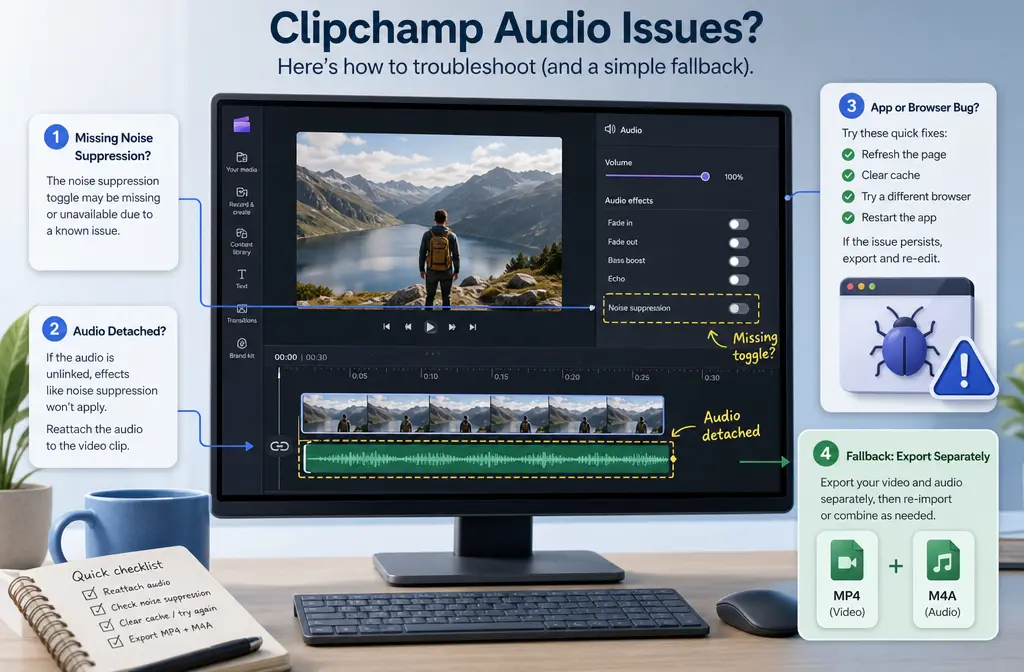
If Clipchamp noise suppression is not working, the problem is usually one of a few specific issues: you are in the Microsoft 365 video player instead of the editor, you selected the video clip instead of the audio clip, you did not detach audio first, you are using an unsupported browser, the media file is behaving badly, or the preview improvement is too small for the kind of noise in the recording. Microsoft’s current support docs say the editor tool lives in the Audio tab, works on audio clips, detached audio, and recordings, and often requires detaching audio from video before the toggle appears. If Clipchamp still gives weak results, exporting the file as MP4 or audio-only M4A and then cleaning it separately can be faster. For saved files, SimpleClean is the natural fallback when you just need cleaner speech without more timeline troubleshooting.
Quick diagnosis: what “not working” usually means
| Symptom | Likely cause | Quickest fix |
|---|---|---|
| Noise suppression toggle is missing | You are in the player, not the editor; or you selected a video clip instead of audio | Open the Clipchamp editor, detach audio if needed, then click the audio clip and check the Audio tab |
| No audible change | Noise is too complex, or the wrong clip is selected | Confirm the audio clip is selected; if the issue is wind, echo, or competing voices, use a saved-file cleanup workflow |
| Voice sounds muffled or robotic | The cleanup is pushing past what the source can support | Compare before/after carefully; if quality drops, export and try cleaning the exported recording instead |
| Echo or reverb is still obvious | Severe room echo is beyond light suppression | Use Clipchamp for mild noise only; for stronger cleanup, export MP4 or M4A first |
| Preview sounded better, but export failed or froze | Browser/app instability, cache, extensions, or export complexity | Reload, restart, clear cache, disable extensions, update browser/app, or try app vs browser |
| File imports oddly or controls behave inconsistently | Unsupported or partially corrupt media | Check Clipchamp-supported formats and re-export or replace the source file if needed |
Check 1: Are you in the editor, or only in the Microsoft 365 video player?
This is one of the biggest sources of confusion.
Microsoft has one support page about using noise suppression in the Clipchamp editor and a separate page about turning playback noise suppression on or off in the Microsoft 365 video player. Those are not the same thing.
- Editor noise suppression: changes your project audio while editing.
- Player noise suppression: affects playback behavior in the Microsoft 365 video player.
If you found a Microsoft page about playback controls and expected an editing toggle in your timeline, you were likely looking at the wrong feature. For editor troubleshooting, use the current Microsoft instructions for how to use noise suppression in Clipchamp, not the player article about turning playback noise suppression on or off.

Check 2: Did you detach audio from the video and select the audio clip itself?
This is the most common reason users say the toggle is missing.
According to Microsoft’s current editor documentation, noise suppression works on:
- audio clips
- detached audio from video
- audio recordings
If your footage is still a single video clip on the timeline, clicking the video itself may not show the control you expect. In many cases, you need to detach the audio first, then click the audio clip on the timeline, then open the Audio tab.
That means the fix is often this simple:
- Select the video on the timeline.
- Detach the audio.
- Click the detached audio clip, not the video clip.
- Open the Audio tab and look for the noise suppression toggle.
If you want the standard setup steps, see our related guide on removing background noise from video online. This article focuses on what to do when that normal path fails.
Check 3: Are you using a supported environment?
Microsoft says Clipchamp is supported mainly in desktop Chromium-based environments and the Windows app. That matters because a missing control or unstable session may not be your project at all.
Best-supported environments:
- Google Chrome
- Microsoft Edge
- other Chromium-based desktop browsers
- the Clipchamp Windows app
Less ideal for this workflow:
- Safari
- Firefox
- mobile browsers
If you are trying to edit in Safari, Firefox, or a phone browser, move the project to Chrome, Edge, another Chromium desktop browser, or the Windows app first. Microsoft’s supported-browser guidance is here: Which web browsers does Clipchamp support?
Check 4: Is the source file supported but partially corrupt?
If the toggle appears sometimes, the timeline acts strangely, the media loads slowly, or exports fail after an apparently successful preview, the source file may be part of the problem.
Microsoft publishes supported file format guidance for Clipchamp. If your file is outside the expected formats, or technically supported but damaged, you can get odd behavior that looks like a noise suppression problem when it is really an import problem.
- Check the source file against Clipchamp-supported formats.
- If possible, try a different copy of the same recording.
- If the original came from another editor or recording app, test a freshly exported version.
This is especially worth checking when one file misbehaves but others work normally.
Check 5: Browser and app fixes for freezes, crashes, or controls that disappear
Microsoft’s export and troubleshooting docs support a practical set of stability fixes that also help when editor features seem to stop responding.
Try these in order:
- Reload the browser tab.
- Restart the Clipchamp app if you are using the Windows app.
- Clear browser cache.
- Disable browser extensions.
- Avoid Incognito or InPrivate mode.
- Update your browser or the Clipchamp app.
- If the browser is unstable, try the Windows app; if the app is unstable, try Chrome or Edge.
Those are not random guesses. They align with Microsoft’s own troubleshooting recommendations for Clipchamp export and stability issues: Exporting from Clipchamp (Troubleshooting).
If you are comparing options across tools, you may also find our troubleshooting posts on Premiere Pro noise reduction not working and CapCut noise reduction not working useful, since the same “wrong asset selected vs weak source audio” pattern shows up there too.
What Clipchamp can usually clean well
Based on Microsoft’s own description, Clipchamp noise suppression is meant to reduce background noise, hum, and echo. In practice, that makes it a reasonable first stop for lighter cleanup problems such as:
- mild steady hum
- fan noise
- light hiss
- light room noise
If your recording problem fits one of those categories, Clipchamp may be enough once you select the correct audio clip.
What Clipchamp usually cannot fully fix
This is where many users think the feature is broken when it is really just the wrong tool for the job.
Clipchamp is less likely to fully rescue:
- strong wind
- nearby competing voices
- severe room echo or reverb
- clipped or distorted speech
- noise already baked into aggressive compression or gain processing
If your result is still noisy after the toggle is on, or if the voice gets dull before the noise disappears, that is usually the practical limit of quick in-editor suppression rather than proof that the feature failed.

Why Clipchamp may make your voice sound muffled or robotic
If the tool removes some noise but hurts speech clarity, that usually means the recording is asking too much from a lightweight cleanup pass. Common cases include:
- speech overlapping with background voices
- echo masking the spoken words
- wind bursts that share the same frequency range as the voice
- already-compressed or distorted source audio
When that happens, do not keep forcing the timeline fix if each extra attempt makes the voice less natural. It is often faster to export the file and use a dedicated cleanup workflow on the saved media.
If your real issue is subtitles after cleanup, Best AI Captions is a natural next step for adding captions and subtitles to the cleaned video.
How to fix Clipchamp noise suppression not working: step by step
- Confirm you are troubleshooting the editor, not the Microsoft 365 player. If the page you found talks about playback defaults, you are looking at a different feature.
- Move to a supported environment. Use Chrome, Edge, another Chromium desktop browser, or the Windows app.
- Detach the audio from the video. This is often required before the editor control appears.
- Select the audio clip itself. Clicking the video clip can hide the option you need.
- Open the Audio tab and enable noise suppression. Compare before and after on a short problem section.
- If controls are missing or unstable, troubleshoot the session. Reload, restart, clear cache, disable extensions, avoid private browsing, and update the app or browser.
- If one file behaves strangely, test the media file. Re-export it or replace it with a cleaner copy if the current file may be corrupt.
- If the preview improves but export fails, troubleshoot export separately. Microsoft recommends steps like clearing cache, disabling extensions, and trying app vs browser.
- If the result is still weak, export and clean the saved file separately. Clipchamp exports video as MP4 and audio-only as M4A, which makes handoff straightforward.
Best fallback workflow when Clipchamp is the wrong fix
If the timeline tool is missing, unstable, or just not good enough for your recording, this is the cleanest fallback path supported by Microsoft’s export docs:
- Finish the basic cut in Clipchamp.
- Export as MP4 if you need the video, or M4A if audio-only is enough.
- Run cleanup on the saved file.
- Re-upload or reinsert the cleaned media into your project if needed.
Microsoft confirms Clipchamp exports video as MP4 and audio-only as M4A: Exporting and saving a video in Clipchamp.
This fallback is especially useful when:
- the original project is already edited
- noise suppression is too weak
- the voice turns muffled before the noise is gone
- you need a faster result on a saved recording
For that situation, clean Clipchamp exports with SimpleClean instead of continuing to fight the timeline. It is the better path when your problem is the finished file, not the edit itself.
Best for: Clipchamp vs exported-file cleanup
| Best for | Use Clipchamp noise suppression | Use exported-file cleanup |
|---|---|---|
| Quick timeline cleanup | Yes | Not necessary unless results are weak |
| Mild hum, hiss, fan noise | Good first try | Helpful if preview is only partly improved |
| Wind, heavy echo, competing voices | Often limited | Usually the better fallback |
| Missing toggle or unstable editor session | Troubleshoot first | Good escape hatch once you have an export |
| Already-finished MP4 or M4A | No timeline advantage | Best fit |
After cleanup: captions, translation, and publishing
Once the audio is usable, the next bottleneck is usually distribution.
- Use Best AI Captions if you want captions or subtitles added to the final video.
- Use Translate Dub if you want to translate, dub, and caption the video for multilingual audiences.
- Use Mallary.ai when you are ready to publish and schedule cleaned content across social platforms, especially if your workflow includes repurposing clips, adding first comments, or handling replies from one dashboard or API.
A note on older forum answers
If you found an older Microsoft Community thread saying the feature is unavailable or missing, treat it carefully. Community posts can reflect older rollouts or outdated product states. For this topic, current Microsoft support pages are the safest source of truth, and they now list noise suppression in Clipchamp’s editor documentation and feature comparison pages for both personal and work versions.
Bottom line
When Clipchamp noise suppression is not working, start with the exact failure mode. Most cases come down to one of three things: wrong place, wrong clip, or wrong expectations. Make sure you are in the editor, detach audio, select the audio clip itself, use a supported desktop environment, and troubleshoot the browser or app if the session is unstable. If the noise is still too strong or the voice starts sounding artificial, stop fighting the toggle and switch to a saved-file workflow. For finished MP4 or M4A files, remove noise from Clipchamp exports with SimpleClean and move on.
Sources and further reading
- Feature comparison between Clipchamp for work and personal versions | Microsoft Support - Supports the statement that noise suppression is listed for both work and personal versions.