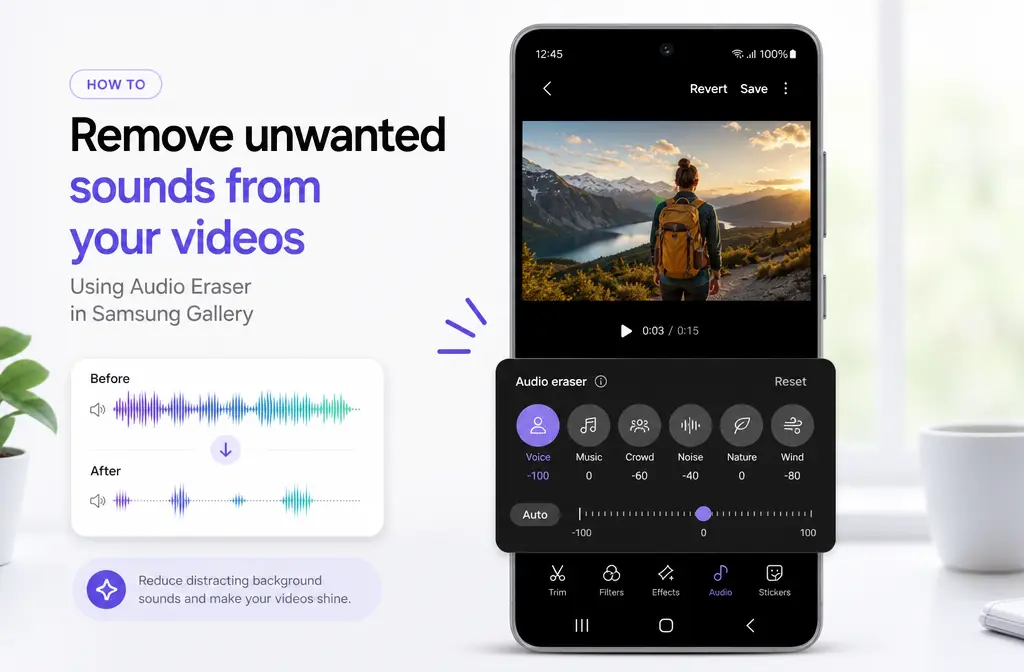
Quick Answer
Yes—Samsung can reduce background noise in videos with Audio Eraser, but it is not available on every Galaxy device. Samsung says the feature is available on select Samsung phones and tablets running Android 14 with One UI 6.1 or higher, and actual availability can still vary by device.
For most people, the main workflow is inside Gallery: open the recorded video, tap Edit, tap Audio, open Audio eraser, choose Auto or adjust sound categories manually, compare with Hear original, then Apply edits and Save copy. Samsung also notes that short sounds may not be detected and some sounds may be misidentified.
Best use: light wind, crowd noise, ambient background noise, and background music competing with speech.
Usually not enough for: room echo, clipped or distorted audio, severe hiss or hum across the whole recording, or voices that turn watery or metallic after aggressive cleanup.
If Audio Eraser is missing, unsupported, or overprocesses the voice, export the MP4 or MOV and clean Samsung video audio with SimpleClean online as a second pass.
Can Samsung remove background noise from videos?
It can—on supported devices and in supported app contexts. The most universal use case in Samsung’s own documentation is cleaning a saved video in Gallery. On newer supported devices, Samsung also describes expanded Audio Eraser behavior in other places, including Video Player and Quick Panel playback controls for some live or playback scenarios. Depending on the device, Samsung also references Audio Eraser use in apps such as Voice Recorder, Samsung Notes, and call recordings.
That distinction matters because many users search for the feature after hearing about newer live or real-time demos, then open Gallery on an older or unsupported phone and cannot find the same controls. For recorded video cleanup, start by assuming the Gallery workflow is the one to check first.
Supported devices and software: what Samsung actually confirms
Samsung’s support documentation is careful here. Rather than publishing a universal model list, it says Audio Eraser is available on select Samsung phones and tablets with:
- Android 14
- One UI 6.1 or higher
That means two things are true at once:
- You generally need the right software generation.
- Even then, availability may still vary by device.
If you do not see Audio Eraser, that does not automatically mean you missed a setting. It may simply not be enabled on your specific Galaxy model or in your current app context.
| Question | Short answer |
|---|---|
| Does Samsung have built-in background noise removal? | Yes, via Audio Eraser on select Galaxy phones and tablets. |
| Does every Galaxy phone support it? | No. Samsung says select devices only. |
| What software does Samsung mention? | Android 14 and One UI 6.1 or higher. |
| Where should most users look first? | Gallery video editing. |
| Does it overwrite the original clip? | No. Samsung’s workflow uses Save copy. |
Where Audio Eraser appears on Samsung
There are really two different ways people encounter Audio Eraser now.
1) Gallery editing for recorded videos
This is the core workflow most users need when they already recorded a noisy clip.
2) Newer playback or live-use contexts on some supported devices
Samsung’s newer Galaxy S26 messaging describes enhanced Audio Eraser behavior in Video Player and through the Quick Panel during playback, with real-time separation across six sound layers. Some news coverage also highlights streaming and third-party playback use cases. That does not replace the standard Gallery editor; it is an expansion on newer supported devices.
So if your goal is to fix a saved talking-head clip for Instagram, TikTok, YouTube, or a client update, the safest instruction set is still the Gallery method.
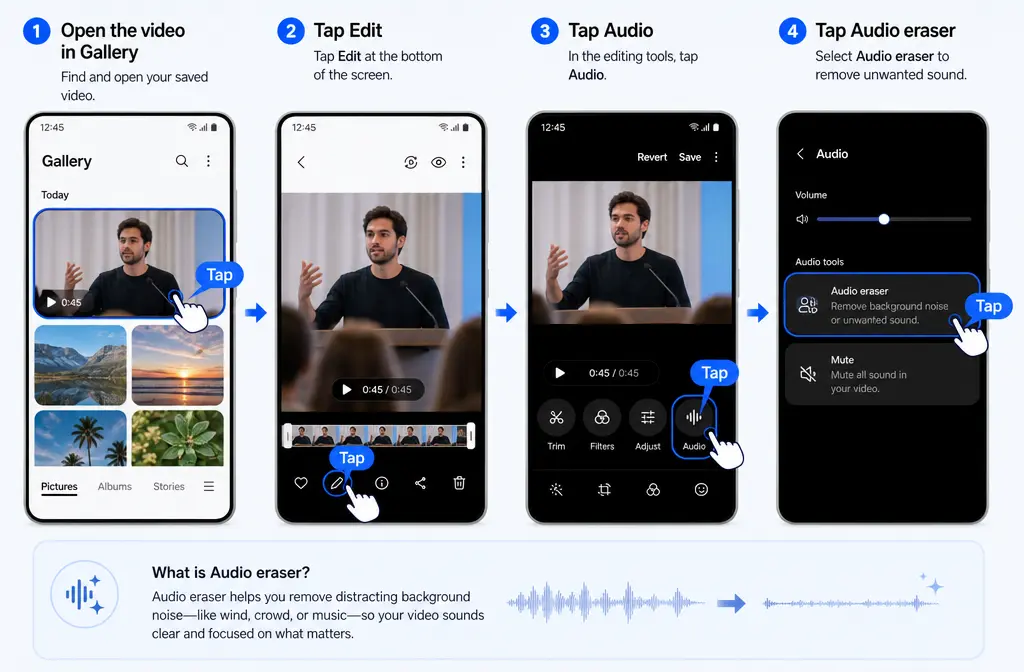
How to remove background noise from a Samsung video in Gallery
- Open Gallery and select the video you want to clean.
- Tap Edit.
- Tap Audio.
- Tap Audio eraser.
- Let Samsung analyze the clip.
- Choose Auto if you want Samsung to make automatic adjustments, or manually adjust the detected sound categories.
- Use Hear original to compare before and after.
- Tap Apply edits.
- Tap Save copy.
That last step matters. Samsung’s support flow emphasizes saving a copy, which helps you keep the original recording in case the processed version sounds worse.
What the Audio Eraser categories mean
Samsung’s support materials describe up to six sound types, including:
- Voices
- Music
- Noise
- Crowd
- Nature
- Wind (noted in newer six-layer descriptions)
Exact labels may vary by device or context, but the practical idea is the same: Samsung tries to separate common audio elements so you can reduce one without fully muting the others.
Which slider to lower first
- Wind noise: lower Wind first. If your phone mainly shows a general Noise category, try that next.
- Busy sidewalk or restaurant: lower Crowd first.
- AC, fan, broad background wash: try Noise.
- Birds, water, outdoor ambience: try Nature.
- Song playing behind dialogue: lower Music.
- Speech buried under everything else: reduce the competing categories first before touching Voices.
For speech-heavy videos, the usual goal is not “remove everything.” It is “make the voice clearer without damaging it.” If Auto starts to make the speaker sound strange, back off and reduce only the most obvious offending category.
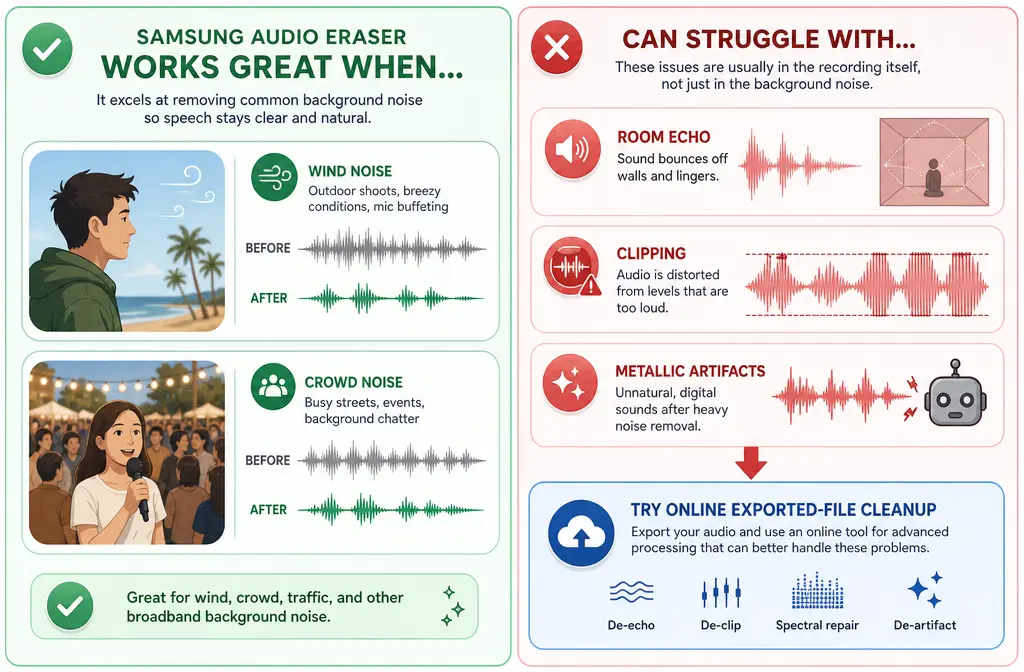
What Samsung Audio Eraser is best at
Based on Samsung’s positioning and support guidance, Audio Eraser is most useful when the unwanted sound is fairly recognizable and the speech is still reasonably present in the recording.
Best-for situations:
- Light to moderate wind around spoken dialogue
- Crowd chatter behind a person speaking to camera
- General ambient background noise
- Background music that competes with a voice
- Quick cleanup before posting a social video
If you also want the video to perform better after cleanup, you can add subtitles with Best AI Captions. If you need multilingual versions after cleaning the audio, Translate Dub fits naturally into that next step.
What Audio Eraser does not fix well
This is where a lot of SERP articles stop too early. Samsung’s built-in cleanup can help, but it is not a magic repair tool for every bad recording.
Expect limited results with:
- Room echo or reverb: voice bouncing off walls in a bare room
- Clipping or distortion: audio recorded too loud, with crunchy or overloaded peaks
- Steady full-track hiss or hum: persistent noise across the entire recording
- Very short noises: Samsung says short sounds may not be detected
- Badly buried speech: if the voice is too far under the noise, there may not be enough clean information to recover
- Misclassified sounds: Samsung notes some sounds may be identified incorrectly
If you push denoising too hard, the voice can start sounding watery, metallic, or synthetic. That is usually a sign to stop tweaking inside Samsung and switch to a cleaner second-pass workflow instead of stacking more aggressive reduction.
For a deeper explanation of why that happens, see how to fix metallic voice after noise reduction.
Troubleshooting Samsung Audio Eraser
Audio Eraser is missing
Check the basics first:
- Your device is a select Samsung phone or tablet that actually supports the feature
- You are on Android 14 and One UI 6.1 or higher
- You are looking in the Gallery edit > Audio path for a recorded video
If all of that looks right and the option still does not appear, the most careful conclusion is that your device or current app context may not support it.
Audio Eraser is greyed out or does not detect anything
Samsung notes that short sounds may not be detected. If the noise is brief or intermittent, the tool may not separate it into a clean category. You may also run into clips where the sound is too mixed together for clear classification.
The results sound watery or metallic
This usually means the cleanup was too aggressive for the source recording. Try this order:
- Compare with Hear original.
- Undo the strongest reduction.
- Lower only the single category causing the main problem.
- Save a copy and listen again.
If the voice still sounds unnatural, export the clip and use a separate cleanup workflow. Samsung is convenient, but convenience is not the same as surgical repair.
Can I edit the original file?
Samsung’s documented flow ends with Save copy. In practice, think of Audio Eraser as creating an edited version while preserving your original. That is helpful if you want to try different cleanup approaches or compare Samsung’s result with an online tool later.
I cleaned the wrong version by mistake
Open both files and confirm which one is the newly saved copy before posting. This sounds basic, but it is a common source of confusion when the original and edited clips appear next to each other in Gallery.
Samsung Audio Eraser vs exporting the file and cleaning it online
| Use Samsung Audio Eraser first if… | Export and clean the file online if… |
|---|---|
| You have a supported Galaxy device | Audio Eraser is missing or unavailable |
| The problem is light wind, crowd, or ambient noise | The main problem is echo, hum, hiss, or distortion |
| You want a quick on-phone fix | You want a more consistent workflow across videos from any device |
| The voice is already fairly clear | The voice becomes metallic or watery after AI reduction |
| You just need a fast social-ready cleanup | You need a second pass before delivery or publishing |
When to clean the exported Samsung file online instead
Use this decision tree:
- Use Samsung first if the clip has manageable wind, crowd noise, or mild ambience around speech.
- Stop inside Samsung if Auto makes the speaker sound artificial.
- Export and clean elsewhere if the real issue is room echo, fan or hum across the whole track, clipping, or inconsistent results between clips.
If you hit those limits, export the edited or original MP4/MOV and remove background noise from Samsung video with SimpleClean. This is especially useful when Samsung’s built-in tool is unavailable on your device, when you need a more repeatable workflow across multiple files, or when the first AI pass improved noise but hurt voice quality.
After cleanup, you can caption the video with Best AI Captions, create translated versions with Translate Dub, and schedule or distribute the finished content across platforms with Mallary.ai if you are publishing client clips, tutorials, or recurring social content.
Best workflow by use case
Best for quick on-phone fixes
Samsung Audio Eraser in Gallery
Use it when the clip is already decent and just needs lighter cleanup.
Best for speech-first social videos
Samsung first, then captions
Reduce background distractions, then add readable captions so the message still lands even in silent autoplay feeds.
Best for stubborn audio problems
Export and do a second pass
That is the safer route for echo, hum, or artifact-heavy results.
Best for multilingual repurposing
Clean audio, then dub/translate
Cleaner source audio usually gives you a better base before captioning, dubbing, or broader distribution.
A practical Samsung cleanup workflow that wastes the least time
- Try Gallery > Edit > Audio > Audio eraser.
- Test Auto once.
- If Auto hurts the voice, switch to manual category reduction.
- Use Hear original before committing.
- Save copy.
- If the voice is still unclear—or now sounds metallic—export the file.
- Use SimpleClean for a second pass on the MP4/MOV.
- Then add captions, translations, or publishing automation as needed.
If you also edit in other apps, you may want these related guides: remove background noise in YouTube Create, remove background noise in KineMaster, and remove background noise in Canva.
Final takeaway
Samsung Audio Eraser is a genuinely useful built-in tool for supported Galaxy devices, especially when your video just needs lighter cleanup for speech. The key is to use it for the jobs it handles well—wind, crowd, ambience, and background music around a voice—and not force it to solve echo, clipping, or severe noise damage.
When the feature is missing, too limited, or too aggressive, the smarter move is simple: save or export the video file, then clean exported Samsung video audio online before you publish.
Sources and further reading
- Samsung US Support: Use Audio eraser on Samsung phones and tablets - Primary source for supported-device wording, Android 14 and One UI 6.1 requirement, Gallery steps, sound categories, Save copy workflow, and detection caveats.
- Samsung Canada Support: Clean up audio in your videos with Audio eraser on your Samsung Galaxy - Secondary official support source reinforcing the Gallery workflow and creator-oriented use cases.
- Samsung US Newsroom: Faster, Real-Time: Enhanced ‘Audio Eraser’ With the Galaxy S26 Series - Source for distinguishing standard Gallery editing from newer real-time or playback behavior on supported Galaxy S26 devices.
- Android Central: How to use Audio Eraser on the Samsung Galaxy S25 - Helpful SERP comparison source for step framing users may have already seen.
- SamMobile: Audio Eraser on Galaxy S25: How exactly does it work? - Useful secondary context for the six sound classes and Gallery entry point.
- Android Authority: Galaxy S26's Audio Eraser makes dialogue clearer in Netflix shows - Used only to contextualize the newer playback expansion users may have heard about.