Quick Answer
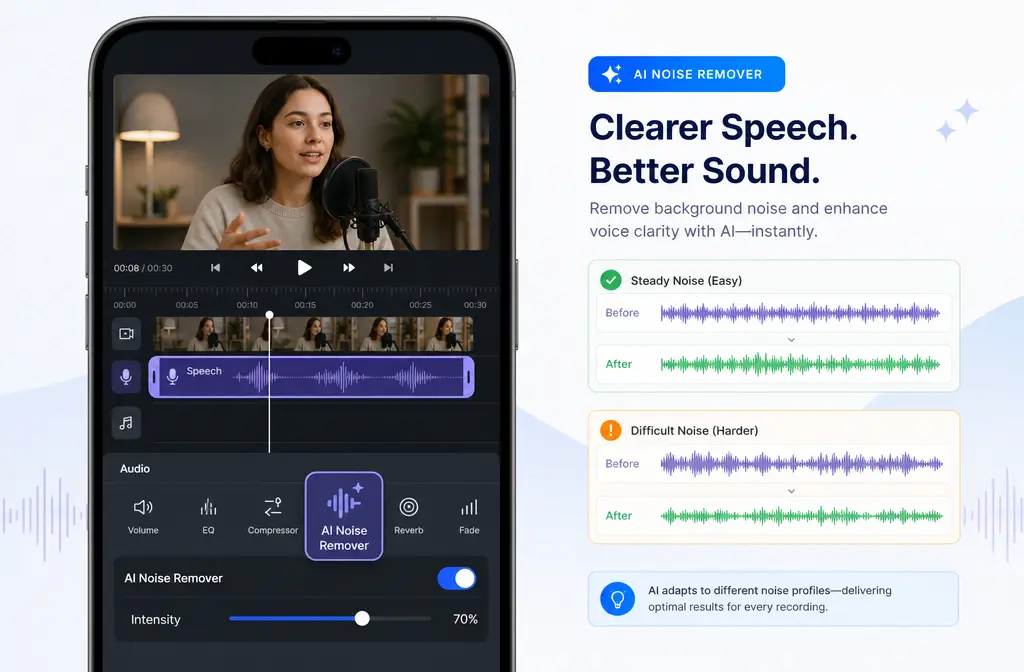
Yes — KineMaster can remove some background noise on mobile using its AI Noise Remover. According to KineMaster, the feature is available on iOS and Android, works on both video clips and audio-only clips, processes on-device, and edits non-destructively. It works best when your main goal is clearer speech over steady ambient noise like air conditioning, traffic, café noise, or wind. It is much less reliable for echo, sudden bangs, barking, overlapping voices, or changing noise that keeps shifting through the clip.
If KineMaster makes the voice clearer without side effects, stay in the app. If the voice turns metallic, watery, dull, or chopped, or if the noise problem is more complex than steady background sound, export the MP4 and clean KineMaster audio with SimpleClean separately.
Who KineMaster Noise Remover Is Best For
KineMaster’s AI Noise Remover is a good fit for mobile creators who want a fast, in-app fix without leaving their phone or tablet.
- Talking-head Reels and Shorts
- Street or café vlogs with steady ambient noise
- Interview clips where speech is clearly louder than the background
- Voiceovers recorded in mildly noisy rooms
- Teachers, marketers, and creators editing directly on iPhone, iPad, or Android
It is less ideal when the clip has strong room echo, bursts of wind, background conversation competing with the speaker, or random impacts like keyboard clicks and door slams.
What KineMaster Removes Well vs Poorly
| Noise type | Usually works well? | Notes |
|---|---|---|
| Fan or HVAC noise | Often yes | Steady background sound is the best-case use. |
| Light traffic wash | Often yes | Can improve speech clarity if the voice is already intelligible. |
| Café ambience | Sometimes | Better for general ambience than for distinct nearby voices. |
| Constant wind bed | Sometimes | May help mild steady wind, but bursts are harder. |
| Barking, bangs, crashes, shouts | Usually no | KineMaster notes loud transient sounds may not be removed. |
| Overlapping voices | Usually no | Speech against speech is much harder than speech against steady noise. |
| Heavy echo or room reverb | Usually no | Noise removal is not the same as de-reverb. |
| Keyboard clicks and mixed intermittent noise | Often limited | Changing noise tends to need separate cleanup. |
KineMaster says its AI is designed to distinguish human speech from ambient noise such as air conditioning, traffic, café chatter, and wind. That points to the right expectation: this is a speech-focused cleanup tool, not a full repair suite for every bad recording.
How to Remove Background Noise in KineMaster
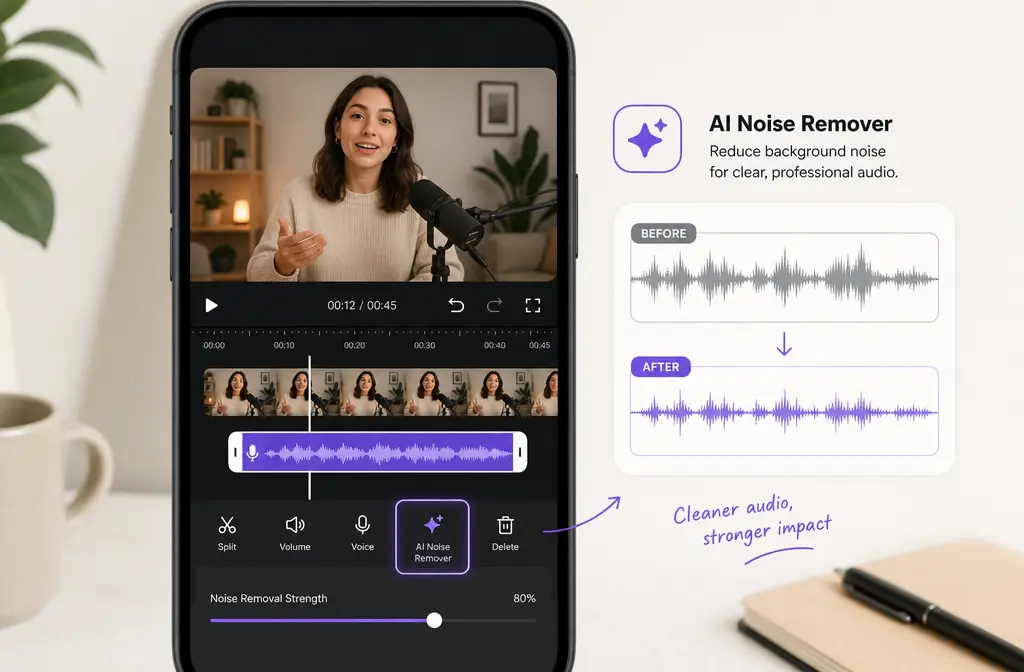
- Import your clip. Start a project and add the noisy video or audio file.
- Select the clip. Tap the video clip if the noisy audio is attached to video, or tap the audio clip if you imported sound separately.
- Open Noise Remover. In the editing controls, choose Noise Remover.
- Run the process. Let KineMaster apply the AI cleanup to the selected clip.
- Preview the result. Listen with headphones if possible. Focus on consonants, breaths, and word endings.
- Compare before and after. Toggle or undo if the voice starts sounding unnatural.
- Continue editing only if the speech improved. If it helped, move on to the rest of your audio polish. If not, export and clean the file separately.
KineMaster describes the workflow as one-tap and non-destructive, which is useful for testing. You are not locked into the result just because you tried it.
Best Workflow Order Inside KineMaster
The safest order is:
- Apply Noise Remover first
- Preview the voice
- Add light EQ or other audio shaping only if needed
- Avoid stacking aggressive effects that fight each other
This order matters because cleanup should happen before creative shaping. KineMaster also offers audio effects, but if you denoise heavily and then push more processing on top, the voice can start sounding artificial faster than you expect.
Good post-cleanup uses:
- A small tonal touch if the voice is slightly dull
- Very light level balancing
- Music added after you confirm the dialogue is understandable
Avoid this chain:
- Heavy noise removal
- Then strong EQ boosts
- Then more voice effects
- Then trying to fix artifacts with still more processing
If you have already hit the point where the voice sounds metallic or watery, read how to fix metallic voice after noise reduction before pushing it further.
Important KineMaster Limits to Know
This is where many tutorials stay vague, but the practical limits matter on mobile.
- AI tools need sufficient device specs. KineMaster notes that some AI features require certain device capabilities.
- Supported video inputs: MP4, MOV, and 3GP with H.264 or H.265 video and AAC or PCM audio.
- Supported audio-only inputs: MP3, AAC/M4A, and WAV.
- Output format: MP4 with H.264 video and AAC audio.
- 4K support: KineMaster supports up to 4K/2160p, but device performance still matters.
- Some screen recordings or externally encoded files can behave badly. KineMaster warns that some screen recordings and externally encoded files may cause editing issues.
So if Noise Remover is missing, slow, or unstable, the issue may not be your editing steps. It may be your device, your file, or the way that file was encoded before it reached KineMaster.
Privacy: Does KineMaster Upload Your Audio?
According to KineMaster’s Noise Remover page, processing happens on-device. That means your audio does not need to be uploaded for the denoise step itself. For users working with interviews, internal business clips, or classroom recordings, that is a meaningful advantage.
When You Should Stop Using the In-App Fix
KineMaster is convenient, but not every noisy clip should be forced through mobile denoise. Stop and switch workflows if you notice any of these warning signs:
- The voice sounds metallic or robotic
- Words fade in and out unnaturally
- Syllables feel chopped or watery
- The room tone pumps up and down between phrases
- The background noise changes constantly through the clip
- There is strong room echo or reverb
- Another person’s voice is competing with the main speaker
In those cases, KineMaster may still be good for the edit, captions, timing, and export — just not for the final voice cleanup.
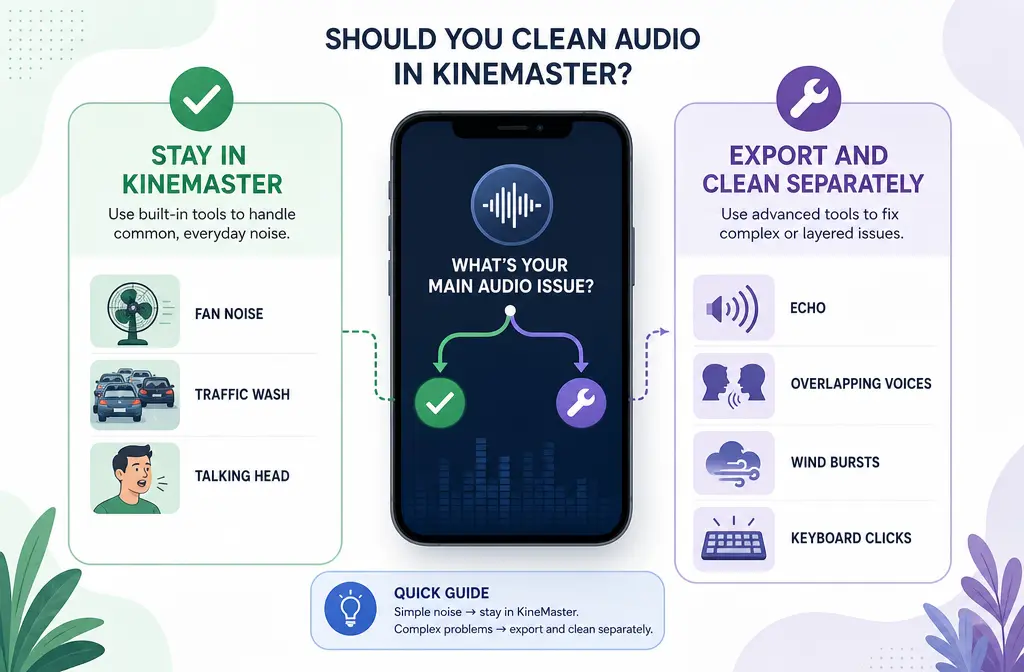
Decision Chart: Stay in KineMaster or Export First?
Stay in KineMaster if:
- The noise is steady and low-level
- The speaker is clearly louder than the background
- You only need a quick improvement for social video
- The before/after preview sounds cleaner without artifacts
Export and clean separately if:
- You hear echo or room reverb
- The noise changes over time
- There are wind bursts or impact sounds
- Background conversation is distracting
- The denoised voice sounds unnatural
- Speech is the main priority and video quality is secondary
When that happens, export the MP4 from KineMaster and use SimpleClean on the file itself. If speech is the only thing you care about, an audio-only export or extracted audio workflow is often even better than handing off the whole video.
Troubleshooting KineMaster Noise Remover
1) I can’t see Noise Remover in KineMaster
- Make sure you selected the actual audio-bearing clip.
- Check whether your device supports KineMaster’s AI tools well enough.
- Try a standard supported file type rather than an odd screen recording or externally encoded file.
2) The file imports, but editing behaves strangely
KineMaster notes that some screen recordings and externally encoded files can cause issues. If possible, convert or re-export the source into a standard MP4/MOV workflow before retrying.
3) The effect runs, but it does not help enough
That usually means the problem is not simple steady noise. Echo, overlapping voices, and intermittent noises are common failure cases. Export and clean separately rather than stacking more aggressive effects.
4) My voice sounds robotic after noise reduction
This is classic overprocessing. Undo the pass if possible, use less processing, or move cleanup outside the app. For a deeper explanation, see this guide to metallic and watery denoise artifacts.
5) I’m editing a social clip and want the fastest path
Use KineMaster for the cut, trim, and first-pass denoise. If the audio is good enough, finish there. Then add subtitles with Best AI Captions, create multilingual versions with Translate Dub, and schedule distribution across channels with Mallary.ai once the cleaned video is ready to publish.
Export Advice: MP4 vs Audio-Only
For most creators, MP4 is the easiest handoff format because it stays closest to the KineMaster project and matches KineMaster’s normal export flow.
But choose audio-only cleanup when:
- The video does not matter during repair
- You only care about speech clarity
- You want to avoid repeated video exports while testing audio cleanup
If your final destination is Reels, Shorts, TikTok, or interview clips, a clean voice track often improves perceived video quality more than another round of visual polishing.
KineMaster vs Separate Cleanup: Best For Recommendations
| Option | Best for | Less ideal for |
|---|---|---|
| KineMaster Noise Remover | Fast mobile cleanup for steady background noise | Echo, overlapping voices, shifting noise, artifact-prone clips |
| Exported MP4 cleaned separately | Creators who want to keep the mobile edit but improve voice more carefully | People who want a one-tap in-app result only |
| Audio-only cleanup workflow | Interviews, voiceovers, lessons, and speech-first content | Projects where synced video export is the only priority |
If KineMaster gets you 80% of the way there, great. If not, remove background noise from your KineMaster export without redoing the entire edit.
FAQ
Is KineMaster Noise Remover free?
According to KineMaster’s feature page, Noise Remover is free on iOS and Android.
Does KineMaster remove background noise on iPhone and Android?
Yes. KineMaster states that Noise Remover is available on both iOS and Android.
Why can’t I see Noise Remover in KineMaster?
Common reasons include selecting the wrong clip, using a problematic file type, or running on a device that does not meet the practical requirements for some AI tools.
Can KineMaster remove echo or room reverb?
There is no source support that KineMaster Noise Remover is an echo-removal tool. Based on KineMaster’s own positioning, it is best for speech against ambient background noise, not strong reverb.
What file formats does KineMaster support for noisy clips?
KineMaster lists MP4, MOV, and 3GP video inputs with H.264 or H.265 video and AAC or PCM audio, plus MP3, AAC/M4A, and WAV for audio-only files.
Does KineMaster process audio on-device or upload it?
KineMaster says Noise Remover runs on-device, so the audio does not need to be uploaded for processing.
Why does my voice sound robotic after noise reduction?
Usually because the tool is being pushed beyond what the recording can support. This is common with echo, mixed noise, intermittent sounds, or aggressive denoise settings.
Should I clean the audio in KineMaster or export it first?
Use KineMaster first for steady low-level noise and fast mobile edits. Export first when the clip has echo, changing noise, overlapping speech, wind bursts, or artifact problems.
Final Take
KineMaster’s AI Noise Remover is a useful mobile tool when your clip has understandable speech and mostly steady background noise. It is especially appealing because it works on-device, supports both video and audio clips, and fits directly into a phone-first editing workflow.
But it is not a magic rescue button for every bad recording. If the sound turns metallic, if the problem is actually echo, or if the background includes competing voices and changing noise, the smarter move is to export and clean your KineMaster voice track online rather than forcing a mobile fix that damages the speech.
Once the audio is clear, you can finish the rest of the publishing stack: captions with Best AI Captions, translated versions with Translate Dub, and multi-platform scheduling and response workflows with Mallary.ai.