Quick Answer
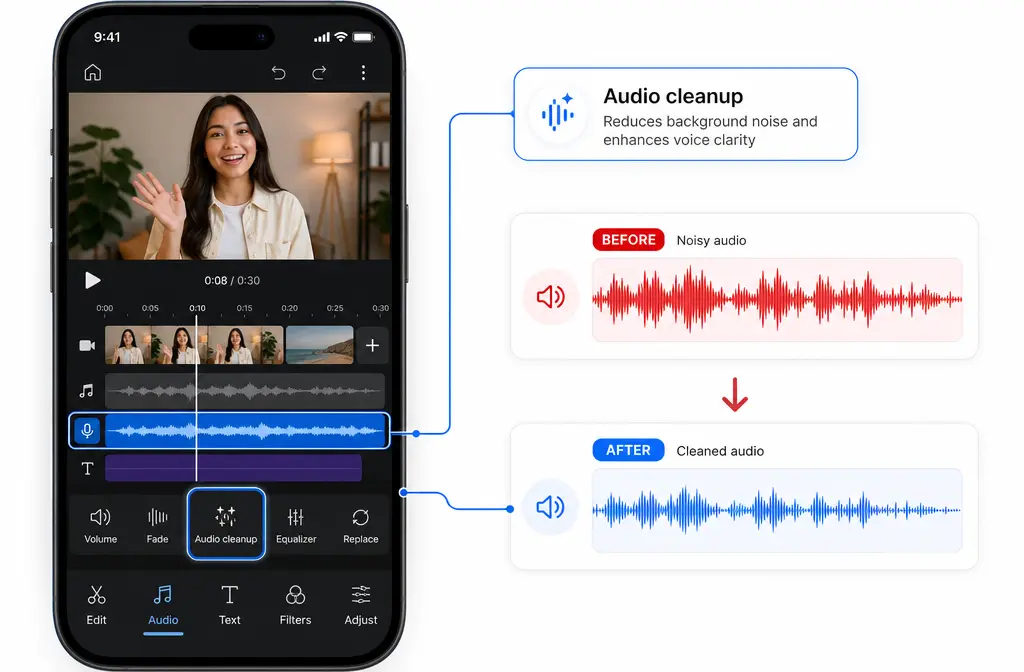
Yes, YouTube Create has an Audio cleanup tool for reducing background noise on spoken audio. To use it, import your clip, tap the audio layer in the timeline, open the audio editing toolbar, choose Audio cleanup, then preview the result before adjusting volume and fades. It works best on steady background noise around speech, such as light fan or room noise. It is usually not enough for heavy echo, clipped audio, loud music under speech, severe wind, or dense crowd noise.
YouTube says YouTube Create is available on Android 8.0+ phones with at least 4 GB RAM and on iPhone XR or newer with iOS 17+ in supported countries. One important export caveat: music from the Shorts Audio Library can be automatically removed from exported videos longer than 15 seconds unless you upload directly to YouTube for longer licensed use.
If YouTube Create makes your voice sound robotic or still leaves too much noise, the practical next step is to export the MP4 and clean exported video audio with SimpleClean.
What YouTube Create's Audio cleanup tool does
YouTube positions Audio cleanup as part of its mobile editing workflow for creators who want faster polishing inside the app. According to YouTube Help, Audio cleanup lives in the audio editing toolbar after you select an audio layer. In the same area, YouTube Create also supports tools like volume, fade, split, and beat finding.
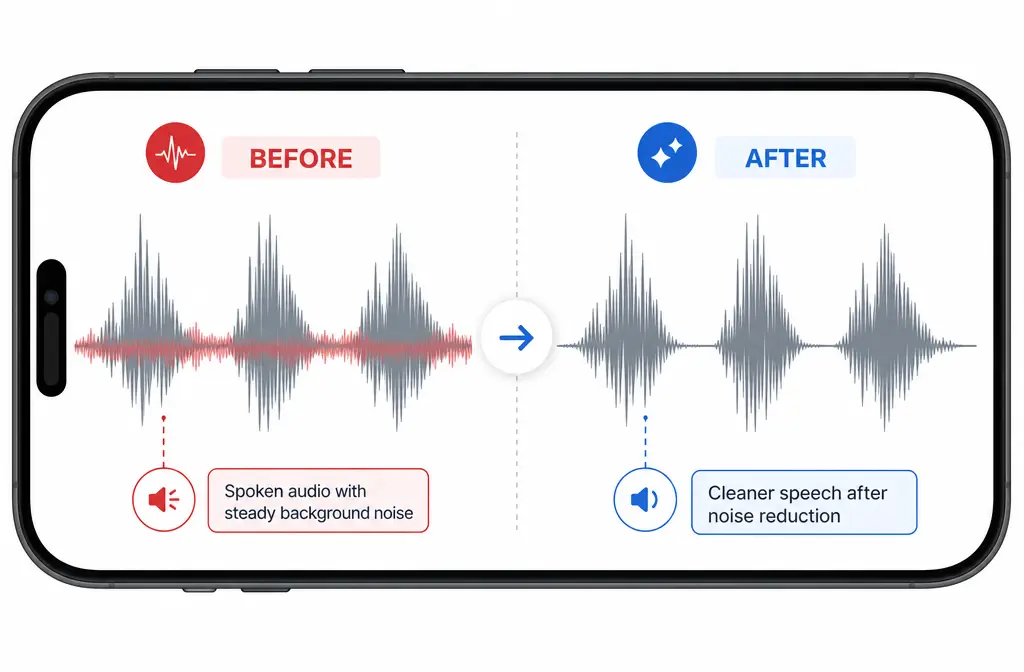
In plain terms, Audio cleanup is a first-pass speech cleaner. It is a good fit when your voice is understandable but has a layer of steady noise underneath it. It is not the same as a full audio restoration suite.
| Situation | Is YouTube Create Audio cleanup a good fit? | Best next move |
|---|---|---|
| Light fan, HVAC, room hiss behind clear speech | Yes | Use Audio cleanup in-app and preview carefully |
| Speech improves, but sounds watery or robotic | Partly | Back off further processing and consider cleaning the export separately |
| Heavy echo, clipped voice, loud music under dialogue, severe wind, crowd noise | Usually no | Export the MP4 and use a dedicated cleanup workflow |
Where is Audio cleanup in YouTube Create?
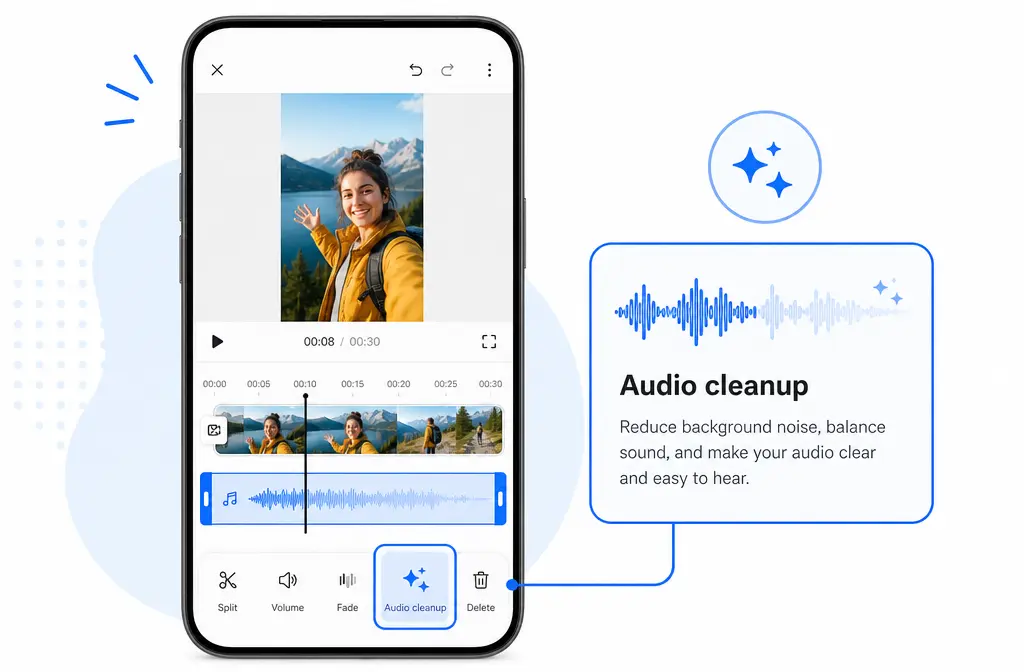
For most creators, the path is:
- Open your project in YouTube Create.
- Select the clip or audio layer you want to edit.
- Tap into the audio editing toolbar.
- Choose Audio cleanup.
- Preview the result before making other volume changes.
If you do not see it, jump to the troubleshooting section below. Missing tools are often caused by device support, app availability, or selecting the wrong layer rather than the feature being removed.
Step-by-step: how to remove background noise in YouTube Create
This is the cleanest mobile workflow if your goal is understandable speech without leaving the app.
1) Import your footage
Start a project and bring in your recorded video. If you already know the beginning or end has dead space, trim that first so you are only working on the section you plan to keep.
2) Select the spoken audio layer
Tap the audio associated with your video or voiceover. This matters because Audio cleanup is accessed from the audio toolbar after selecting an audio layer.
3) Run Audio cleanup
Apply Audio cleanup to the spoken track. Let the app process it, then listen on headphones if possible. The first question is simple: is the noise reduced without damaging the voice?
4) Preview before doing anything else
Do not immediately stack more changes. Listen for:
- Cleaner pauses between words
- Less steady background hiss or hum
- Speech that still sounds natural
- Artifacts like robotic, metallic, or watery voice
If the speech already sounds overprocessed, stop there and consider exporting for separate cleanup instead of forcing more edits.
5) Adjust volume and fades after cleanup
Once the spoken track sounds acceptable, then use the other audio controls in YouTube Create such as volume and fade. This order matters because it is easier to judge music balance after you know what the cleaned voice actually sounds like.
6) Add music last
If you are using music, set it after your voice cleanup. This helps prevent a common mistake: making the music bed too loud, then trying to “fix” the voice again because it still feels unclear.
Best editing order inside YouTube Create
If you want the shortest answer, use this sequence:
- Trim the clip if needed
- Clean the spoken audio with Audio cleanup
- Preview for artifacts
- Set voice volume
- Add music bed
- Adjust music volume and fades
This order matches the way YouTube surfaces audio tools and avoids one of the biggest mobile-editing problems: treating a mix problem like a noise problem.
For example, if speech feels buried because your background music is too loud, Audio cleanup will not solve that. Lowering the music often helps more than extra processing.
What Audio cleanup is best for
YouTube Create's built-in cleanup is most useful when the recording has steady background noise around otherwise usable speech. Good candidates include:
- Light fan noise
- Room tone
- Soft HVAC noise
- Low-level broadband hiss
That makes it ideal for fast-turn mobile edits, especially when you want to stay inside YouTube Create for a Short or quick talking-head video.
What it usually cannot fully fix
Based on the official positioning and the limits described in the research brief, do not expect YouTube Create to fully repair:
- Heavy echo from a reflective room
- Clipped audio where the mic overloaded
- Loud music under speech
- Severe wind
- Crowd noise or chaotic background sound
In those cases, even if Audio cleanup helps a little, the result may still sound unnatural. If you hear speech turning phasey, metallic, or watery, that is your sign to stop adding more cleanup.
For a deeper explanation of those artifacts, see how to fix metallic or robotic voice after noise reduction.
Device, platform, and availability limits
If Audio cleanup is missing, first confirm that your device actually meets YouTube Create's current requirements.
- Android: Google says YouTube Create works on Android phones with at least 4 GB RAM. The Google Play listing says it requires Android 8.0+ and at least 4 GB RAM.
- iPhone: Google says YouTube Create is available on iPhone XR or newer with iOS 17+.
- Availability: YouTube Create is only available in supported countries.
If you are on an older phone, an unsupported region, or below the listed RAM or OS requirement, the app or some features may not appear as expected.
Important music workflow caveat for exports over 15 seconds
This is the YouTube Create detail many creators miss. According to YouTube Help, music from the Shorts Audio Library is automatically removed if you export a video longer than 15 seconds, unless you upload directly to YouTube to use longer licensed clips there.
Why this matters for audio cleanup:
- You may preview a polished mix in the app
- Export the file locally
- Then discover the music is gone from the exported version
So if your plan is to clean the exported file separately, pay close attention to whether your project relies on Shorts Audio Library music and whether the final video exceeds 15 seconds.
When built-in cleanup is enough, when it helps, and when to export
1) Built-in cleanup is enough
Best for: creators with understandable dialogue and light constant noise.
Stay in YouTube Create if:
- Your voice is already clear
- The noise is steady and not too loud
- Audio cleanup reduces it without obvious artifacts
- You just need a fast mobile workflow
2) Built-in cleanup helps but leaves artifacts
Best for: creators who get partial improvement, but the voice starts sounding strange.
Use YouTube Create as a first pass if:
- The noise drops, but the voice gets slightly watery
- The result is acceptable only for quick social clips
- You can improve clarity more by lowering music and adjusting fades
If the tradeoff feels too noticeable, export the MP4 and remove background noise from the exported video with SimpleClean.
3) Export the MP4 and clean it separately
Best for: creators dealing with tougher recordings or who need cleaner speech than the in-app tool can deliver.
This is the better route when:
- Echo is the main problem
- Wind or crowd noise competes with speech
- The voice sounds robotic after cleanup
- You want to preserve more natural speech quality
That is where SimpleClean fits naturally: use YouTube Create for the edit, then clean the exported file if the built-in pass is too blunt.
Troubleshooting YouTube Create Audio cleanup
Why is Audio cleanup missing?
Check these first:
- You selected the wrong layer instead of the audio layer
- Your phone does not meet the current device requirements
- Your OS version is below the listed minimum
- You are in a country where YouTube Create is not currently supported
Why does my voice sound weird after cleanup?
The tool may be pushing too far for the kind of noise in your clip. This often happens when the background sound is not steady, or when echo and noise are mixed together. If the voice becomes metallic, robotic, or watery, stop stacking more processing. In many cases, separate cleanup on the exported file is safer.
Can it remove echo?
Not reliably as a complete fix. Audio cleanup is better treated as a speech-noise reduction tool than a full room-echo repair system.
Can it remove wind noise?
Sometimes only partially. Severe wind usually needs a stronger cleanup workflow than a quick in-app pass.
Can I export a cleaned file without publishing?
You can export from YouTube Create, but remember the music caveat: Shorts Audio Library tracks may be removed from exported videos over 15 seconds unless you upload directly to YouTube for longer licensed use.
Best-for recommendations
- Best for fast mobile edits: YouTube Create Audio cleanup on clear speech with light steady noise
- Best for preserving natural voice when YouTube Create sounds robotic: clean exported MP4 audio online
- Best for adding subtitles after cleanup: Best AI Captions
- Best for multilingual publishing after cleanup: Translate Dub
- Best for distributing cleaned clips across channels: Mallary.ai for scheduling, publishing, and social distribution workflows
A simple creator workflow looks like this: clean the speech, caption the finished video, create translated versions if needed, then use Mallary.ai to schedule and publish the cleaned content more broadly.
Final takeaway
YouTube Create's Audio cleanup is worth using when your recording has steady background noise and otherwise decent speech. It is fast, mobile-friendly, and built for creators who want to finish inside the app. But it is still a first-pass tool, not a full restoration environment.
If your voice becomes robotic, if the noise is chaotic, or if the real problem is echo or wind, the better workflow is to export the video and clean your YouTube Create export with SimpleClean after editing.
If you also publish beyond YouTube, pair that cleaned export with Best AI Captions for subtitles, Translate Dub for multilingual versions, and Mallary.ai to distribute and schedule the finished content across social platforms.
Sources and further reading
- YouTube Help: Add and edit audio - Primary source for where Audio cleanup lives, related audio tools, and the Shorts Audio Library export caveat.
- YouTube Help: YouTube Create available locations - Primary source for supported countries and iPhone or Android device eligibility.
- YouTube Blog: How to use YouTube Create - Official overview of the app workflow and Audio Cleanup use case.
- Google Play: YouTube Create - Official app listing confirming Android requirement details and feature presence.
- App Store: YouTube Create - Official iPhone app presence supporting iOS availability context.
- Android Authority: The handy YouTube Create app is now in the US - Secondary source for SERP context and competitive framing.