
How to Remove Background Noise in FaceTime: Voice Isolation on iPhone, iPad, and Mac
Quick Answer
To remove background noise in FaceTime, turn on Voice Isolation during the call. On iPhone or iPad, open Control Center while the call is active, tap Mic Mode, then choose Voice Isolation. On Mac, open FaceTime, click Video in the menu bar, then choose Mic Mode > Voice Isolation. Apple says Voice Isolation filters ambient noise so your voice comes through more clearly in FaceTime.
If that does not help, the next most important thing to know is this: Voice Isolation changes what your microphone sends out. It does not fix noise coming from the other person’s side.
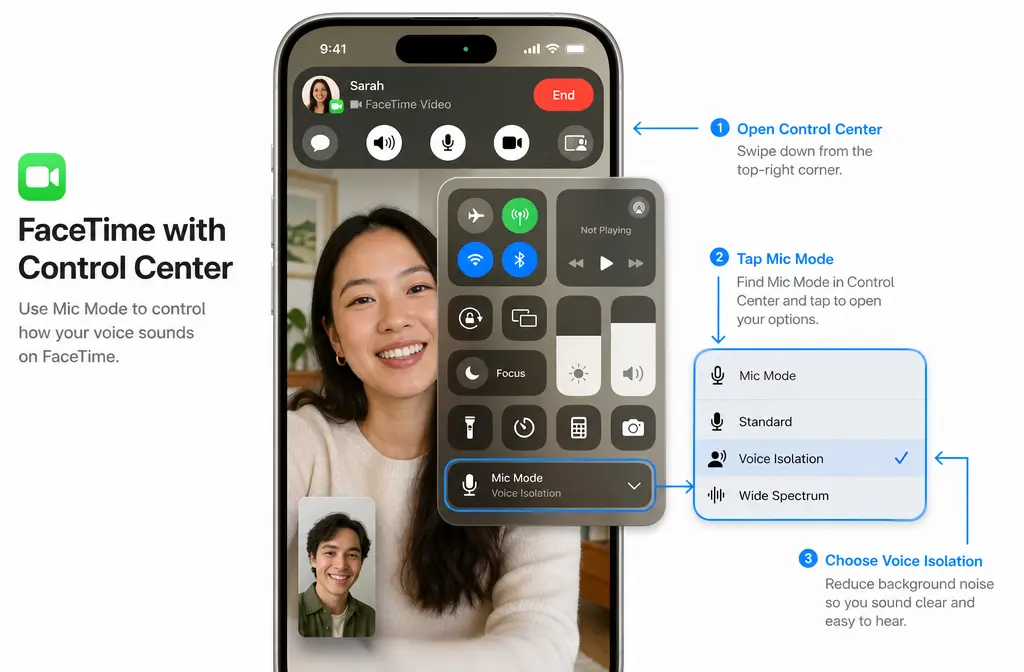
How to turn on Voice Isolation in FaceTime on iPhone or iPad
- Start or join a FaceTime call.
- Open Control Center while the call is active.
- Tap Mic Mode.
- Choose Voice Isolation.
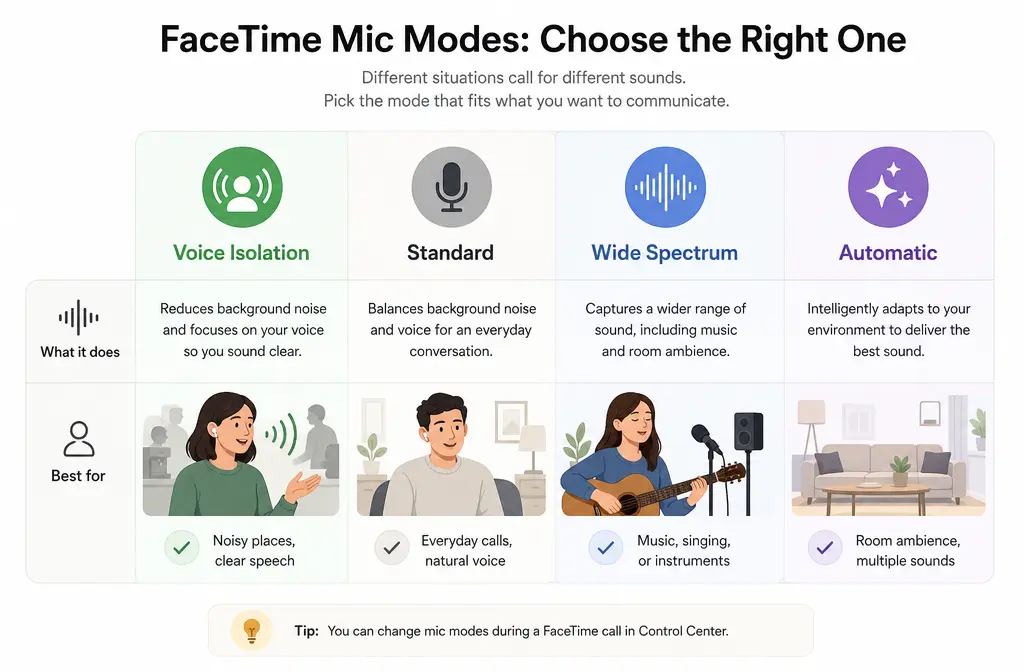
Apple’s iPhone guide lists Voice Isolation, Wide Spectrum, and Automatic as FaceTime audio options available from the in-call controls. If you are in a noisy place like a café, near traffic, or beside a fan, Voice Isolation is usually the right first setting to try.
Best for on iPhone or iPad
- Voice Isolation: Work calls, family calls, telehealth, interviews, and speech in noisy places.
- Automatic: Good default if your device supports it and you want iPhone or iPad to choose the most appropriate mode.
- Standard: Useful if Voice Isolation makes you sound too processed or clips nearby voices you actually want included.
- Wide Spectrum: Best only when you want room sound, music, or multiple people in the same room to be heard.
How to turn on Voice Isolation in FaceTime on Mac
- Start or join a FaceTime call on your Mac.
- In the menu bar, click Video.
- Choose Mic Mode.
- Select Voice Isolation.
Apple says Voice Isolation on Mac is available on Mac models from 2018 and later. If you do not see the option, your Mac model or software version may be the reason.
Voice Isolation vs Standard vs Wide Spectrum vs Automatic
Most articles stop at “turn on Voice Isolation.” The better answer is knowing when not to use it.
| Mic mode | What it does | Best for | When to avoid it |
|---|---|---|---|
| Voice Isolation | Prioritizes your voice and filters ambient sound | Speech during noisy FaceTime calls | Music, singing, room tone, multiple speakers nearby |
| Standard | Regular microphone behavior | Natural sound when isolation feels too aggressive | Noisy places where background sound overwhelms your voice |
| Wide Spectrum | Captures you plus surrounding sound | Group moments, room ambience, music or instruments | Busy environments when you want cleaner speech |
| Automatic | Selects the most appropriate mode automatically | Users on supported devices who want a smart default | Cases where you need a specific, predictable mic mode |
Apple explicitly contrasts Voice Isolation and Wide Spectrum this way: one reduces background sound for speech clarity, while the other preserves surrounding audio. That is why music or other nearby voices can seem to disappear when Voice Isolation is on. In many cases, that is expected behavior, not a bug.
When Voice Isolation helps most
- Fan or AC noise in a home office
- HVAC rumble in a clinic or conference room
- Street traffic outside a window
- Café chatter behind you
- General room noise during one-on-one conversation
For these scenarios, Voice Isolation is the fastest built-in fix because it is designed for spoken voice, not for preserving the whole environment.
When not to use Voice Isolation
- Singing or playing instruments
- Sharing a concert, rehearsal, or room ambience
- Trying to include multiple people speaking from around the room
- Any call where the background sound is intentional
In those cases, switch to Wide Spectrum if you want FaceTime to keep more of the room sound, or use Standard if Voice Isolation sounds too artificial.
Requirements and compatibility
Based on Apple’s current support guidance:
- FaceTime Voice Isolation and Wide Spectrum on iPhone and iPad: require iOS 15 or later or iPadOS 15 or later.
- Automatic Mic Mode on iPhone and iPad: requires iOS 18 or later.
- Voice Isolation for regular phone calls: requires iOS 16.4 or later.
- Supported iPhones: Apple lists iPhone XR, iPhone XS, and later.
- Supported iPads: Apple lists many newer iPad models in its support documentation.
- Mac: Apple says Voice Isolation is available on Mac models from 2018 and later.
If your device is older, or if your software is behind, you may not see the Mic Mode options at all.
Why people can still hear background noise on FaceTime
If callers still hear noise after you enable Voice Isolation, one of these is usually happening:
- The noise is very close to your mouth or mic. Voice Isolation helps, but it is not the same as total silence.
- You are solving the wrong problem. If you hear noise, the issue may be on the other person’s side, not yours.
- You need a different mic mode. If the sound you want to keep is music or nearby voices, Voice Isolation will try to suppress it.
- Your device or OS does not support the feature. The option may be missing or unavailable.
- Automatic is already choosing a mode. On supported devices, Automatic may already be managing the mic behavior unless you switch manually.
Troubleshooting: FaceTime cuts off my words or makes me sound muffled
This is the most important practical issue missing from many quick how-tos. If someone says you sound clipped, choppy, or muffled after turning on Voice Isolation, try this order:
- Switch from Voice Isolation to Standard. If the processing feels too aggressive, Standard may sound more natural.
- Try Automatic instead if your iPhone or iPad supports it. Apple positions Automatic as choosing the most appropriate mic mode.
- Move farther from competing sounds. Voice Isolation works best when your voice is still the main thing near the microphone.
- Do not use Voice Isolation for music or multiple speakers. That is exactly the kind of audio it is designed to suppress.
- Ask what problem the other person hears. “Muffled” and “background noise” are different problems and may need different settings.
If your words are being cut off, that does not necessarily mean FaceTime is broken. It can mean the speech-focused filtering is deciding some sounds are not part of the primary voice. In that case, Standard or Wide Spectrum may be a better fit depending on what you are trying to capture.
Outgoing mic noise vs incoming audio problems
Many users search for “remove background noise in FaceTime” when the real issue is the sound coming from the other person.
- Voice Isolation fixes your outgoing microphone pickup.
- It does not clean the other caller’s room noise.
- It does not repair a weak speaker, poor connection, or distorted incoming audio.
So if the other person sounds noisy, ask them to enable Voice Isolation on their device. Changing it only on your side will not clean their transmitted audio.
Does Automatic Mic Mode already remove background noise?
Sometimes, yes. Apple says Automatic chooses the most appropriate mic mode on supported devices. That means some users may already be getting noise reduction behavior without manually switching to Voice Isolation. Still, if you need a predictable result for a noisy FaceTime call, manually selecting Voice Isolation is the clearest direct fix.
Is Voice Isolation available on Mac?
Yes, Apple says Voice Isolation is available on Mac models from 2018 and later. To use it in FaceTime, start the call, then choose Video > Mic Mode > Voice Isolation from the menu bar.
Can I use Voice Isolation on regular phone calls too?
Apple says Voice Isolation is available for phone calls on iPhone with iOS 16.4 or later. That is separate from FaceTime support, which Apple lists from iOS 15 onward for compatible devices.
What to do if you recorded something outside FaceTime
FaceTime is mainly a live-call settings problem, so Apple’s built-in Mic Modes should be your first fix during the call. But if you also made a recording outside FaceTime, like a voice memo, screen recording, exported interview clip, or saved video, then post-call cleanup can make sense.
That is where SimpleClean fits naturally: use it to clean noisy recorded audio after the FaceTime call when the file already exists and you need a better-sounding version for sharing or editing.
If your noisy clip is going into a social video, you can also add subtitles with Best AI Captions. If you need to repurpose that cleaned video for multilingual audiences, Translate Dub can help translate, dub, and caption it. And if you plan to publish the finished content across multiple social platforms, Mallary.ai is a natural next step for scheduling and distribution.
Best setup by scenario
- Best for work calls: Voice Isolation
- Best for remote interviews with speech only: Voice Isolation, unless it sounds too processed
- Best for family calls from a quiet room: Automatic or Standard
- Best for showing a room, event, or music: Wide Spectrum
- Best for callers who say you sound clipped: Standard first, then Automatic if supported
Step-by-step checklist if FaceTime is still noisy
- Confirm the noise problem is on your microphone side, not the other person’s.
- During the call, switch to Voice Isolation.
- If speech sounds clipped or unnatural, switch to Standard.
- If you want room audio or multiple voices, switch to Wide Spectrum.
- If your device supports it, test Automatic as the default.
- Check whether your device and OS meet Apple’s support requirements.
- If you recorded a separate file outside FaceTime, use FaceTime recording cleanup with SimpleClean afterward.
Related guides
- How to remove background noise in iPhone Voice Memos
- How to remove background noise in Zoom
- How to remove background noise in Discord
- How to fix metallic or robotic voice after noise reduction
Bottom line
If you want to remove background noise in FaceTime, the fastest fix is to turn on Voice Isolation during the call. It is best for spoken conversation in noisy places. But it is not the right mode for music, room ambience, or multiple speakers, and it can sometimes make speech sound clipped or over-processed. In those cases, switch to Standard, Wide Spectrum, or Automatic depending on what you actually need the microphone to capture.
Sources and further reading
- Apple Support — Use Voice Isolation, Wide Spectrum, or Automatic Mic Mode on your iPhone and iPad - Primary source for requirements, supported devices, Automatic Mic Mode, and definitions of Voice Isolation and Wide Spectrum.
- Apple Support — Change FaceTime audio settings on iPhone - Primary source for exact in-call steps on iPhone and iPad and Apple’s explanation of Mic Mode choices.
- Apple Support — Change audio options for FaceTime calls on Mac - Primary source for Mac FaceTime steps and Mac Voice Isolation availability.
- Apple Support — FaceTime Support - Supports Apple’s positioning of Voice Isolation as the background-sound filter for FaceTime.
- Beebom — How to Remove Background Noise in FaceTime Calls - SERP benchmark competitor used for content-gap comparison, not as a primary factual source.
- Guiding Tech — How to Optimize FaceTime Audio and Video Settings on iPhone - SERP competitor benchmark showing broader settings coverage.
- MacRumors — iOS 15: How to Enable Voice Isolation Mode in FaceTime - Legacy SERP competitor reference useful for noting that some older coverage predates newer Automatic Mic Mode guidance.