Quick Answer
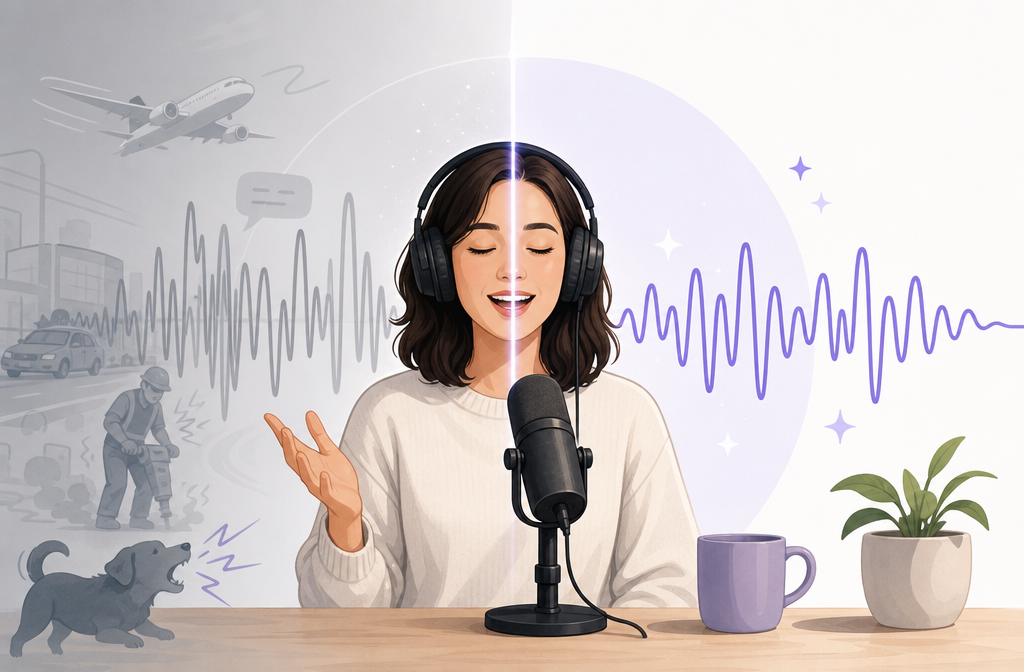
Yes, Adobe Podcast can remove background noise automatically with Enhance Speech, and it often works well for spoken-word recordings. Adobe’s own FAQ notes that results depend on how audible the speaker is compared with the surrounding noise. In practice, Adobe Podcast is strongest on single-speaker dialogue with mild steady noise, light room echo, or rough laptop and phone mic recordings.
If Adobe Podcast makes the voice clearer without sounding synthetic, it is usually enough. If the result sounds metallic, robotic, inconsistent, or overprocessed, it is often better to export the actual WAV or MP4 and use SimpleClean for final-file spoken-audio cleanup instead of stacking more enhancement.
What Adobe Podcast Enhance Speech does now
Adobe positions Enhance Speech as an AI tool for improving spoken audio by reducing unwanted sounds and making dialogue clearer, including for video workflows. According to Adobe’s official overview and video guide, the feature is built around speech cleanup for audio and video files rather than full-spectrum restoration. Adobe also says in its FAQ that results vary based on speaker audibility and background noise.
That framing matters. Enhance Speech is designed to make speech easier to hear. It can work very well on weak voice recordings, but it can also flatten ambience, mis-handle overlapping voices, or create an artificial tone when the source is difficult.
In Adobe’s current workflow, you upload audio or video, preview the processed result, and export or download the finished file. Adobe’s recent updates also reference speech and background controls where available, so it makes sense to preview first and make only light adjustments when those options appear. See Adobe’s Enhance Speech overview, Enhance Speech for Video, and latest updates.

How to remove background noise in Adobe Podcast step by step
- Open Adobe Podcast and choose Enhance Speech. Upload the audio or video file you want to clean.
- Wait for processing. Adobe analyzes the file and creates an enhanced preview.
- Listen before changing anything. Check whether speech is clearer, whether room noise is reduced, and whether the voice still sounds natural.
- Adjust speech/background balance if available. If the background is still distracting, increase speech emphasis carefully. If the result sounds too sterile, robotic, or hollow, back off.
- Compare difficult sections. Jump to laughs, crosstalk, transitions, and noisy moments. These are often where artifacts show up first.
- Export or download the result. If the preview sounds good across the whole file, you are done.
- If not, export the actual file and clean it separately. For a more natural result on webinars, screen recordings, or mixed-content edits, upload the exported WAV or MP4 to clean exported Adobe Podcast audio online with SimpleClean instead of repeatedly reprocessing inside the speech enhancer.
What Adobe Podcast fixes well
Adobe Podcast is often a good first pass when your main problem is intelligibility, not detailed restoration.
- Single-speaker voice recordings where one voice is clearly dominant
- Mild fan or HVAC noise that sits under the speech
- Light room echo rather than severe reverb
- Laptop or phone mic recordings that sound rough or amateur
- Basic talking-head or webcam videos where the goal is cleaner dialogue fast
- Podcast or interview pickups that need a fast usability boost rather than detailed manual repair
If that sounds like your file, Adobe Podcast may be enough by itself.
Where Adobe Podcast struggles
The same speech-focused design creates predictable weak spots.
- Overlapping speakers or background conversation: if the unwanted sound also resembles speech, separation is harder
- Loud music: music mixed close to the voice is harder to separate cleanly
- Heavy reverb: light echo may improve, but severe room reflections often remain or turn unnatural
- Clipped or distorted audio: enhancement cannot fully undo recording damage
- Severe wind and transient noises: sudden bursts are much harder than steady noise
- Artifacts from aggressive processing: voices can become metallic, hollow, or robotic
Adobe Research explains Enhance Speech as a model that reconstructs cleaner speech, which helps explain why difficult recordings can produce artificial artifacts instead of natural cleanup.
When Adobe Podcast is enough
Use Adobe Podcast as your complete solution when these conditions are true:
- The file is mainly spoken dialogue
- One speaker is clearly louder than the environment
- The noise is fairly steady, like fan, hum, or mild room tone
- The preview sounds cleaner and still sounds like the real person
- You do not hear major changes between sections
- You need a fast turnaround more than deep control
A simple rule: if Enhance Speech gives you a result you would publish as-is, stop there.
When to clean the exported file online
You should export the file and clean it separately when Adobe Podcast improves intelligibility but the final sound still feels off.
- The voice sounds robotic or metallic
- Laughs, reactions, breaths, or room tone get swallowed
- Some sections sound better than others
- The file is a mixed-content export from Premiere, a webinar platform, or a screen recording
- You are cleaning an MP4 or WAV after editing and want the result to reflect the final cut
- You do not want to stack multiple rounds of speech enhancement
This is where a file-level cleanup workflow can make sense. Instead of asking a speech enhancer to keep reinterpreting the same voice, you work from the real exported file that will actually be published.
If you are in that situation, remove background noise from your exported Adobe Podcast file with SimpleClean. That makes the export-and-clean decision point clear: once Adobe has helped as much as it naturally can, switch to cleaning the publish-ready file.
Adobe Podcast vs SimpleClean for spoken audio cleanup
| Workflow | Best for | Strengths | Watch-outs |
|---|---|---|---|
| Adobe Podcast Enhance Speech | Fast one-click speech enhancement | Quick upload, easy preview, built for dialogue cleanup in audio and video | Can sound synthetic on difficult material; weaker with music, crosstalk, heavy reverb, clipping, or speech-like noise |
| SimpleClean on the exported file | Final-file cleanup after Adobe, Premiere, webinars, or screen recordings | Lets you clean the actual WAV or MP4 you plan to publish; useful when Adobe helped but did not finish the job naturally | Not a substitute for severely damaged source recording; still depends on what is recoverable in the file |
Best for Adobe Podcast
- Podcasters doing a quick first-pass cleanup
- YouTubers fixing webcam or talking-head dialogue
- Creators with a mostly clean voice recording and mild background noise
Best for SimpleClean
- Editors who already exported a WAV or MP4
- Teams cleaning webinars, tutorials, and screen recordings
- Anyone who tried Enhance Speech and liked the clarity but not the texture
Troubleshooting: robotic voice, weird artifacts, and inconsistent sections
Why does Adobe Podcast sound robotic?
The usual reason is that the model is working too hard relative to the source quality. If the speaker is buried in noise, mixed with music, clipped, or recorded in a very reflective room, the enhancement may start replacing natural detail with an artificial reconstruction.
Try this:
- Reduce the amount of speech/background processing if those controls are available
- Compare the noisiest sections instead of only the cleanest ones
- Avoid re-exporting and re-enhancing the already processed result
- Switch to a final-file cleanup workflow if the first pass is clearer but less natural
Why did laughter or reactions disappear?
Because the tool is optimized for intelligible speech. Non-speech details like room reaction or subtle ambience may be treated as background.
Best move: if those moments matter editorially, keep Adobe’s processing lighter or move to exported-file cleanup.
Why do only some sections sound bad?
AI speech cleanup is rarely uniform across a whole timeline. A close-mic sentence, a distant sentence, and a noisy interruption may all be handled differently.
Best move: listen to section changes, guest handoffs, intros with music, and cut points before exporting your final deliverable.
Does stacking enhancement help?
Usually not. If the first pass already introduced artifacts, another speech-focused pass can exaggerate them.
WAV vs MP4: which file should you export and clean?
If you have access to a clean audio export, WAV is usually the simplest file to clean because it isolates the audio. But if your final deliverable is already an MP4 from Premiere, Adobe Podcast, a webinar platform, or a screen recorder, cleaning the MP4 itself can be the more practical workflow because you are improving the exact file that will be published.
The key idea is simple: clean the file that represents your real final timeline.
- Podcast episode: export WAV, then clean that file
- YouTube talking-head video: export MP4 if that is the final cut
- Screen recording or webinar: clean the downloaded MP4 directly
If your next step is publishing clips, adding subtitles with Best AI Captions can help after the audio is cleaned. If you need multilingual versions, Translate Dub fits naturally after cleanup and before distribution.
Practical decision tree
- Start in Adobe Podcast. It is the fastest first check for spoken-word cleanup.
- If the voice is clear and natural, keep it.
- If the voice is clearer but artificial, export the file.
- Clean the exported WAV or MP4 separately. This is especially useful for edited projects, webinars, and screen recordings.
- Then publish and repurpose. Once the final file sounds right, distribute clips and episodes through your normal channels. For teams pushing content to multiple platforms, Mallary.ai can help with scheduling and publishing workflows.
Sources
- Adobe Podcast FAQ
- Adobe Podcast | What is Enhance Speech?
- Adobe Podcast | How Enhance Speech Can Improve Your Recording Sound Quality
- Adobe Podcast | Enhance Speech for Video
- Adobe Podcast | Latest Updates
- Adobe Podcast | What's New in March 2026
- Adobe Research | Behind the Tech: Enhance Speech in Adobe Podcast
Final takeaway
Adobe Podcast can remove background noise well enough for many creators, especially when the recording is speech-first and only moderately noisy. But it is not the right tool for every damaged or mixed-content file. A practical workflow is: try Enhance Speech first, judge the result honestly, and if it starts sounding synthetic, export the real file and clean spoken audio from Adobe Podcast exports with SimpleClean.
Related help: if your main issue is echo, see how to remove echo from audio online. If your file is really a webinar or screen capture, these guides may be a closer fit: clean screen recording audio online, clean Zoom recording audio online, and clean podcast audio online.