Quick Answer
If you want to remove background noise in iMovie, the answer depends on your device:
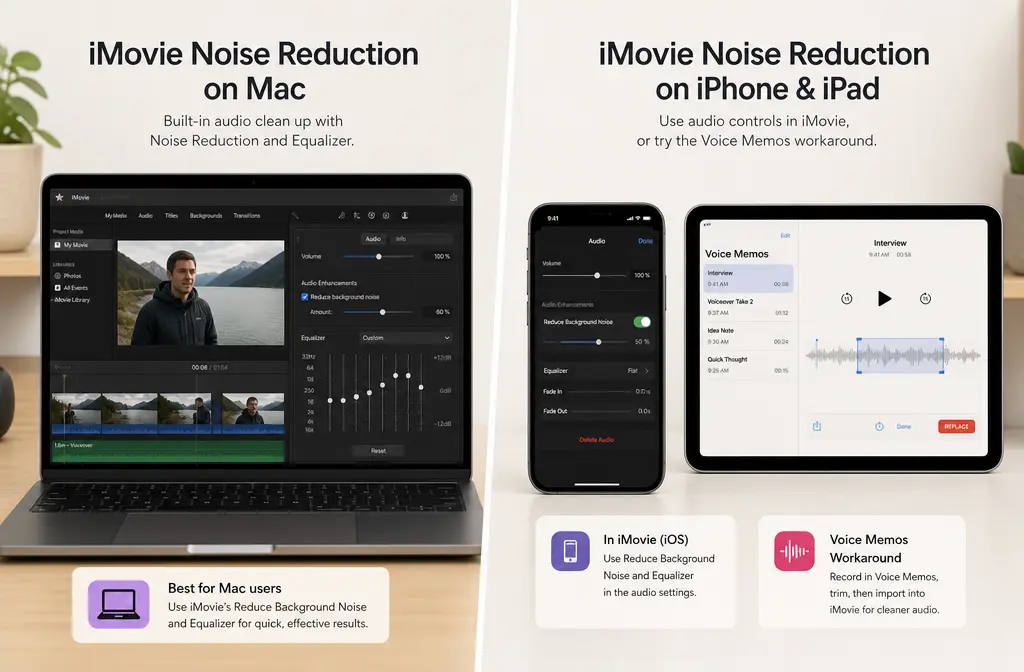
- iMovie on Mac: Yes. Apple includes a built-in Noise Reduction and Equalizer control. Select a clip, open the audio controls, check Reduce background noise, and adjust the slider from 0% to 100% while listening back.
- iMovie on iPhone and iPad: No native background-noise reduction slider is documented in Apple’s current iMovie mobile guides. On mobile, iMovie officially focuses on volume, mute, ducking, fades, and detached-audio edits.
So if you’re on a Mac, stay in iMovie first. If you’re editing on iPhone or iPad, the best workaround is usually to record or prep cleaner speech in Voice Memos before you edit, or export the audio/video and clean it in a dedicated tool when the problem is too severe.
If your clip has wind blasts, echo, strong street noise, or distorted speech, a separate cleaner is usually the faster path. For that kind of fix, you can remove background noise from video with SimpleClean after export instead of pushing iMovie past its limits.
Mac vs iPhone/iPad: what iMovie can actually do
This is where many tutorials blur things together. Apple’s current documentation is much clearer:
- Mac iMovie has a real background-noise reduction control.
- iPhone and iPad iMovie do not document a matching denoise slider.
That distinction matters because a Mac workflow tutorial won’t help if you’re trying to find a button that simply is not exposed in the mobile app.
| Platform | Built-in background noise reduction in iMovie? | What Apple documents instead | Best use case |
|---|---|---|---|
| iMovie on Mac | Yes | Noise Reduction and Equalizer, auto enhance, EQ presets | Mild hiss, light HVAC noise, low room rumble |
| iMovie on iPhone | No native denoise slider documented | Volume, mute, ducking, fades, detach audio | Quick level edits and simple mobile cuts |
| iMovie on iPad | No native denoise slider documented | Volume, mute, ducking, fades, detach audio | Quick level edits and simple mobile cuts |
How to remove background noise in iMovie on Mac
On Mac, Apple’s workflow is straightforward.
- Select the video or audio clip in your timeline.
- Above the viewer, click Noise Reduction and Equalizer.
- Check the box for Reduce background noise.
- Move the slider from 0% to 100%.
- Play the clip back and stop where the voice sounds cleaner without becoming dull or artificial.
Apple also documents equalizer presets in the same area, which can help after denoise.

Best workflow on Mac: clean only the noisy parts
One of the biggest practical limits in iMovie is that cleanup is applied at the clip level. That means one long talking-head clip gets one treatment unless you split it.
In real projects, noise often changes over time:
- an AC unit kicks on halfway through
- a bus passes only once
- the speaker turns away from the mic for one sentence
- wind hits only the intro outdoors
So instead of applying the same amount of noise reduction to the entire take, split the timeline and treat the worst sections separately. That gives you a cleaner result and helps protect the natural tone of the parts that were already fine.
Good candidates for iMovie’s built-in tool:
- light steady hiss
- mild HVAC noise
- soft room rumble
- low-level background wash behind speech
Poor candidates for iMovie alone:
- wind blasts
- heavy echo or reverb
- loud crowd noise
- strong traffic or machinery
- distorted phone mic audio
If your recording falls into that second list, iMovie may improve it a little, but it usually won’t perform true restoration. In those cases, it often makes more sense to clean podcast audio with SimpleClean or another dedicated tool after export.
What percentage should you use for iMovie background noise reduction?
Apple lets you move the slider anywhere from 0% to 100%, but that does not mean higher is always better.
A practical rule: start low, listen, and stop as soon as the distraction drops without damaging the speech.
- Low settings: often best for mild hiss or room tone
- Medium settings: worth trying when the noise is obvious but steady
- Very high settings: can make speech sound muffled, thin, or dull
This is the main mistake beginners make: they hear less noise, but they also lose clarity. If the voice starts sounding boxed-in or smeared, back the slider down.
Use the equalizer after denoise, not before
Apple’s Mac version of iMovie also includes equalizer presets. These can help shape the voice after you’ve reduced background noise.
The most useful preset category here is usually voice enhancement. In some cases, a preset aimed at reducing hum can also help depending on the problem. The key is to think of EQ as a tone-shaping step, not a magic cleanup step.
A practical order is:
- Apply light background-noise reduction first.
- Listen for lost presence or remaining low-end rumble.
- Try an EQ preset that improves intelligibility.
- Compare against bypassed audio so you do not overprocess.
If the noise is still distracting after denoise plus a light EQ adjustment, that is usually your signal to stop forcing iMovie to do a job it was not designed to do.
iMovie on iPhone and iPad: what you can do natively
On iPhone and iPad, Apple’s current iMovie guides document audio controls like:
- change volume
- mute audio
- add fade-in or fade-out
- duck audio
- detach audio from video for separate edits
Those are useful editing tools, but they are not the same as a true background-noise reduction slider. So if you are searching for “Reduce background noise” in iMovie on mobile and cannot find it, you are not missing a hidden menu in Apple’s current documented workflow.
Best iPhone and iPad workarounds
1) Record cleaner speech first with Voice Memos and Voice Isolation
Apple documents Voice Isolation in Voice Memos while recording on supported devices and software versions. If your workflow allows it, record your spoken track there first, then bring that cleaner audio into your edit.
This is often the best mobile workaround because prevention beats repair. If you can reduce noise at recording time, iMovie has less to fight later.
- Best for voiceovers, lessons, explainers, and talking-head narration
- Less helpful if the noise is already baked into a camera recording you cannot redo
2) Try Voice Memos playback options before import
Apple also documents playback options in Voice Memos such as Enhance Recording and, for supported spatial audio recordings, Studio Voice. These can be worth testing before you import audio into iMovie.
Important nuance: Apple says these playback options do not change the original recording itself. So be careful not to assume they permanently “fix” the file in every workflow. Test the result you actually export or share before you commit your edit around it.

Stay in iMovie or clean audio outside it?
| Problem type | Is iMovie likely enough? | Best mobile workaround | Use a dedicated cleaner? |
|---|---|---|---|
| Light fan or HVAC hiss | Usually yes on Mac | Record in Voice Memos with Voice Isolation if possible | Only if the hiss stays obvious |
| Low room rumble | Often yes on Mac | Prep voice in Voice Memos first | Maybe, if speech still sounds muddy |
| Single noisy section in one long clip | Yes, if you split the clip and treat only that section | Not natively in mobile iMovie | Only if the section is severe |
| Wind blasts outdoors | Usually no | Re-record or use external cleanup | Yes |
| Strong echo or reverb | Usually no | External cleanup more realistic | Yes |
| Crowd or traffic noise under speech | Sometimes slightly, rarely fully | Voice Memos workaround helps only for fresh recordings | Usually yes |
| Distorted mic audio | No | No reliable native iMovie fix | Yes, though even dedicated tools may be limited |
Best-for recommendations
- Best for Mac users with mild noise: Use iMovie’s built-in background-noise slider first.
- Best for iPhone/iPad creators recording a voiceover: Use Voice Memos with Voice Isolation where supported, then import into iMovie.
- Best for heavy cleanup: Export and use a dedicated cleaner. If you need a simple post-export option, remove wind noise with SimpleClean.
- Best for captioning the cleaned video: Best AI Captions can add captions and subtitles after your audio is clearer.
- Best for multilingual publishing: Translate Dub fits naturally when you want to translate, dub, and caption the finished video for additional audiences.
- Best for distribution after cleanup: If you’re turning one cleaned edit into a publishing workflow across channels, Mallary.ai is a natural next step for scheduling, posting, and managing social distribution.
Troubleshooting
The “Reduce background noise” checkbox is missing
You are probably on iPhone or iPad, not Mac. Apple’s current iMovie mobile guides do not document the same Mac denoise control.
The effect is too strong
Lower the slider. Very high reduction can make the voice sound muffled or lifeless.
The voice sounds dull after cleanup
Back off the reduction amount, then test an equalizer preset for voice enhancement. If that still does not sound natural, start over with lighter processing on a split clip.
Only one clip improved
That is normal if you edited only one selected clip. iMovie’s cleanup is clip-level, so each clip may need separate treatment.
I can’t remove wind noise in iMovie
That is a common limitation. Wind is usually a poor candidate for simple denoise controls, especially when it comes in blasts or overwhelms the voice.
I cleaned audio in Voice Memos, but I’m not sure it stuck
That caution is valid. Apple notes that Voice Memos playback options do not change the original recording itself, so test your export workflow instead of assuming the change is permanent.
Simple workflow you can follow today
- If you are on Mac, try iMovie’s built-in background-noise slider first.
- Split the timeline so only noisy sections get stronger reduction.
- Use an EQ preset only after denoise if the voice needs help.
- If you are on iPhone or iPad, do not waste time hunting for a native denoise slider that Apple does not document.
- For new recordings, use Voice Memos with Voice Isolation where available.
- Test Enhance Recording or Studio Voice in Voice Memos before import.
- If the problem is severe, export and clean the file outside iMovie.
If you regularly edit quick client videos, reels, lessons, or podcasts on Apple devices, that workflow will save you time because it matches what iMovie can actually do instead of what people hope it can do.
Related guides
- How to remove background noise in iPhone Voice Memos
- Best app to remove background noise from video on iPhone
- Best app to remove wind noise from video
- How to remove background noise in Final Cut Pro for iPad
Bottom line
Yes, you can remove background noise in iMovie on Mac using Apple’s built-in Noise Reduction and Equalizer controls. No, the same native denoise slider is not part of Apple’s current documented iMovie workflow on iPhone or iPad.
That means the smartest path is device-specific:
- Mac: use iMovie first for mild noise
- iPhone/iPad: rely on Voice Memos prep or external cleanup
- Severe noise: export and use a dedicated cleaner
For tougher recordings that go beyond light hiss or rumble, SimpleClean is the practical next step after export.
Sources and further reading
- Apple Support: Correct and enhance audio in iMovie on Mac - Primary source for Mac noise reduction steps, slider range, auto enhance, and equalizer presets.
- Apple Support: Adjust audio in iMovie on iPhone - Primary source for documented iPhone iMovie audio controls and the absence of a native denoise slider.
- Apple Support: Adjust audio in iMovie on iPad - Primary source for documented iPad iMovie audio controls and the absence of a native denoise slider.
- Apple Support: Make a recording in Voice Memos on iPhone - Primary source for recording-time Voice Isolation in Voice Memos.
- Apple Support: Play a recording in Voice Memos on iPhone - Primary source for Enhance Recording, Studio Voice, and the note that playback options do not change the original recording itself.
- Apple Support: Use Voice Isolation, Wide Spectrum, or Automatic Mic Mode on iPhone and iPad - Primary source for device and OS requirements related to Voice Isolation.
- iDownloadBlog: How to reduce background noise in iMovie - Useful supporting source for the Mac-vs-mobile framing and common user confusion.