How to Remove Background Noise in Descript: Studio Sound, Intensity, File-Level Limits, and When to Export for Separate Cleanup
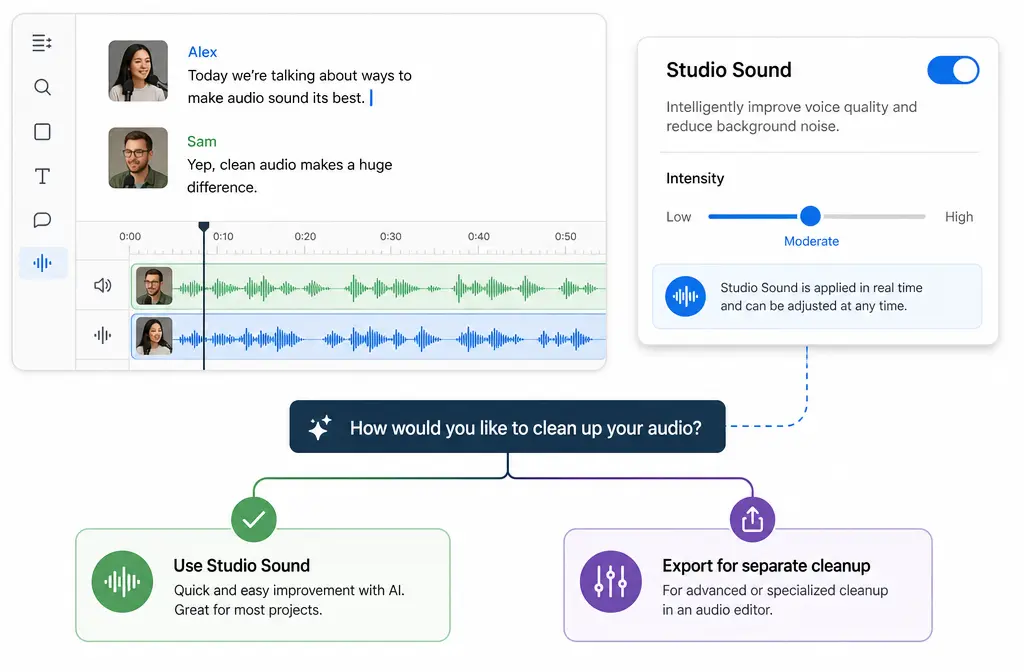
If you are already editing in Descript and just want the fastest path: use Studio Sound first for spoken-word recordings with mild to moderate constant noise, then back off the Intensity slider if the voice starts sounding flattened, dull, or overly processed.
That is the good news. The important catch is what many tutorials skip: Studio Sound works at the source-file level, not just the one clip instance you are looking at. That means one toggle can affect every place that same media file appears in your project. Once you understand that, the right workflow becomes much easier.
This guide shows the exact steps for compositions and multitrack sequences, how to clean only one section of a file, what effects to stack after Studio Sound, common failure cases, and when it is safer to export the file for separate cleanup instead of pushing Descript harder.
Quick Answer
Best way to remove background noise in Descript:
- Apply Studio Sound to your spoken-word source.
- Start with a moderate Intensity setting rather than maxing it out.
- Listen for swallowed consonants, dullness, pumping, or an artificial voice texture.
- If needed, add only light post-processing after it, such as a high-pass filter for rumble, gentle EQ, and compression or limiting.
- If the noise is very loud, the file has severe wind or reverb, or Studio Sound starts damaging the voice, export WAV or MP4 and do separate cleanup instead of cranking Intensity further.
For exported files that still are not publishable, you can clean podcast audio with SimpleClean after Descript rather than forcing a stronger Studio Sound setting.
What Studio Sound is best at
According to Descript’s help documentation, Studio Sound is designed to enhance spoken audio. In practical use, it is best for:
- Steady background noise behind speech
- Light room tone or hiss
- Some echo reduction on voice recordings
- General speech clarity improvement
It is usually a strong first step when your recording is understandable but not polished.
It is not the best tool to keep pushing when the problem is more extreme, such as:
- Very loud ambient noise compared with the voice
- Severe wind
- Heavy reverb
- Audio where enhancement starts removing consonants or making the speaker sound synthetic
In those cases, exporting for separate cleanup is often the safer workflow.
Descript noise cleanup workflow at a glance
| Situation | Best move in Descript | When to stop and export |
|---|---|---|
| Fan noise, room tone, mild hiss | Use Studio Sound first | If voice becomes flat or processed before noise is controlled |
| Moderate echo on spoken audio | Try Studio Sound at moderate Intensity | If echo remains obvious or speech starts sounding artificial |
| Only one section of a file is bad | Use the partial-file workaround with a new composition and flattened media | If the repaired insert still sounds mismatched |
| Rumble, tonal imbalance, uneven loudness after cleanup | Add light high-pass, gentle EQ, and compression/limiting after Studio Sound | If stacking effects makes artifacts more noticeable |
| Very loud noise, wind, severe reverb | Do a light test only | Export for separate cleanup early |
How to remove background noise in a composition or script layer
If you are editing in Descript’s transcript-driven composition view, this is usually the fastest path.
- Open the composition containing your spoken recording.
- Select the source audio or open the media properties for that file.
- Turn on Studio Sound.
- Let Descript process the enhancement.
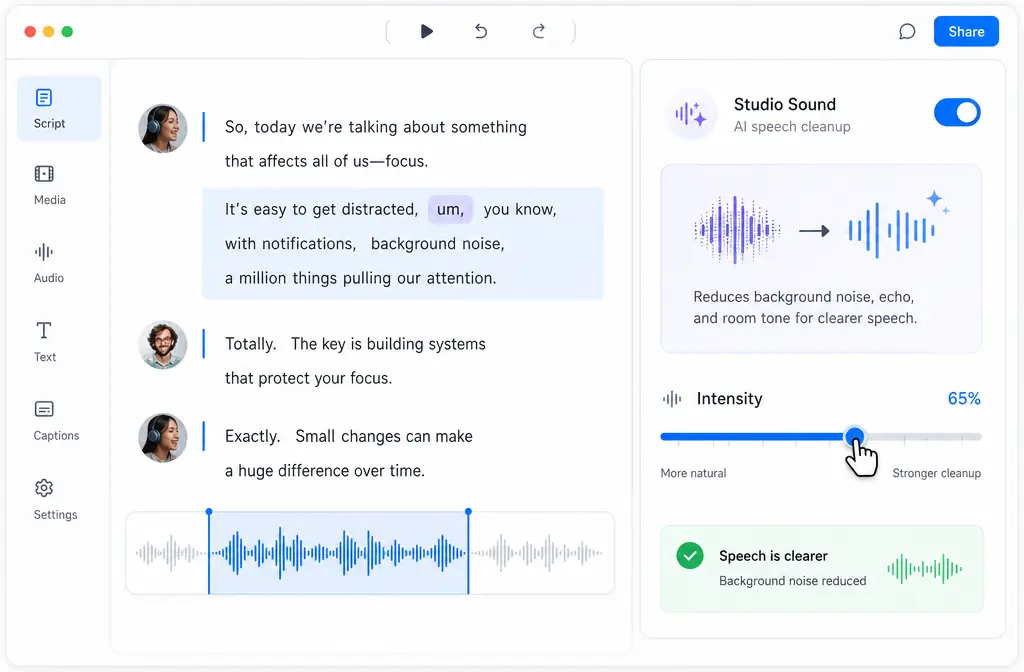
- Adjust the Intensity slider while listening to a few representative phrases.
- Check the beginning, middle, and noisiest section before deciding it is done.
The key listening test is simple: if noise is lower and the voice sounds more present, you are in the right range. If the speaker starts sounding pinched, muffled, phasey, or unnaturally smooth, reduce Intensity.
How to remove background noise on a multitrack sequence track
If you are working in a multitrack sequence, Descript also lets you apply effects at the track level.
- Open your multitrack sequence.
- Select the track that contains the spoken recording you want to improve.
- Open the track’s audio effects.
- Enable Studio Sound for that track or source as available in your current edit context.
- Adjust Intensity while monitoring the speech in context with music or other speakers.
- Then add any light EQ, filtering, or dynamics processing you still need.
This path is useful when you are mixing interviews, narration, music, and B-roll audio in one place. Just remember the same limitation still matters: the Studio Sound processing attaches to the media file, not only to one visual clip appearance of it.
The most important limitation: Studio Sound is file-level
This is the part most users discover the hard way.
Descript’s help docs state that Studio Sound is applied at the file level. So if the same source file appears multiple times in a project, enabling Studio Sound affects every instance of that source.
Why this matters:
- You cannot treat one repeated clip as fully independent if it still points to the same underlying file.
- You may accidentally change cleaner sections while trying to fix only one noisy moment.
- It changes how you should handle pickups, one bad answer in an interview, or a noisy section inside an otherwise usable take.
That is why the best Descript workflow is not just “turn it on.” It is “turn it on, knowing whether you are changing the whole source file.”
How to clean only one section of a file in Descript
If only part of a recording needs stronger cleanup, use Descript’s workaround rather than applying Studio Sound to the original full file.
- Duplicate the noisy section into a new composition.
- In that new composition, isolate only the part you want to repair.
- Flatten the tracks so Descript creates a new media file from that isolated section.
- Apply Studio Sound to that new flattened file.
- Export or copy that repaired section back into the original project.
- Replace only the bad section in your main edit.
In plain English: you create a fresh file for the problem section, enhance that new file, then swap it into the original timeline. This is the cleanest way to get section-specific treatment while respecting Descript’s file-level behavior.
If Descript improves the segment but not enough, you can export just that repaired portion and remove background noise from spoken audio with SimpleClean before dropping it back into the edit.
How to set Intensity without wrecking the voice
The Intensity slider is where most of the quality tradeoff happens.
A good rule: increase Intensity only until the distracting noise stops being the first thing you notice. Do not aim for total silence if the voice starts suffering first.
Lower Intensity if you hear:
- Dull or flattened tone
- Missing consonants
- Over-suppressed breath detail
- Processed or synthetic vocal texture
- Obvious pumping between words
Higher Intensity may help when you hear:
- Persistent steady fan noise
- Room tone still masking quiet words
- Mild hiss that remains distracting after the first pass
If you keep moving the slider up and the result gets stranger instead of cleaner, that is your signal to stop and switch workflows.
What to stack after Studio Sound
After Studio Sound, keep processing light. Descript’s audio effects overview and mixing documentation support using standard tools for separate mix issues.
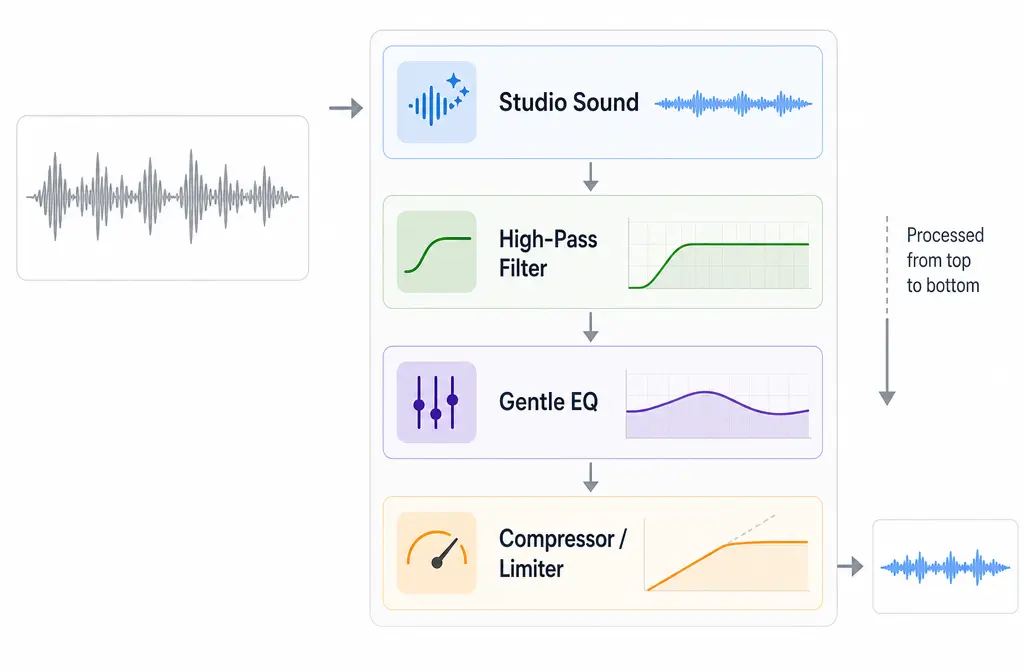
Usually the best post-Studio Sound chain is:
- High-pass filter for low rumble
- Gentle EQ for small tonal corrections
- Compression or limiting if levels still vary too much
Those tools address different problems than speech enhancement. For example, slower-varying background balance, leveling, and gating are mixing concerns, not the same thing as AI speech cleanup.
Important: Descript processes stacked effects top to bottom. So the order you use matters. In most spoken-word cases, it makes sense to place Studio Sound first, then do smaller corrective shaping after it.
Troubleshooting Descript Studio Sound
1) Studio Sound enhancement failed
If enhancement fails, Descript’s help guidance points to a few known causes. One common issue is source compatibility, including problematic WEBM files from Firefox recordings. If you have a Firefox-recorded WEBM, re-encode or export it to a more standard format first, then import again and retry Studio Sound.
2) The waveform looks flat or the result sounds silent
This can happen when the background noise is so loud that the enhancement struggles to identify usable speech. In other words, the noise floor can overwhelm the voice enough that the processed result collapses or becomes nearly silent.
When that happens, do not keep retrying stronger settings. Export the file and use a dedicated cleanup path instead.
3) Echo or drift appears after export
Descript documents a known issue involving export echo or drift on Chrome for macOS and Windows, along with a repair path. If your timeline playback sounds fine but the export does not, check that known issue before rebuilding the whole edit.
4) Long files process slowly
Very long recordings can take longer to process with Studio Sound. If you are under deadline, it can be faster to split work into smaller sections, especially if only one segment needs repair.
5) The voice sounds worse after enhancement
That usually means one of three things:
- Intensity is too high
- The source problem is too severe for this workflow
- You are stacking extra processing too aggressively after Studio Sound
Try a lower Intensity, bypass other effects, and compare again. If the best version is still unnatural, export for separate cleanup instead of forcing it.
AI credits: what to know before you process everything
Descript’s help center states that Studio Sound uses AI credits. It also notes a useful reuse detail: if you import media that has already been processed in another Descript project, you can reuse that processed media without being charged again for the same enhancement.
That matters for teams handling:
- Repeated intro or outro segments
- Versioned social edits
- Shared clips used across multiple projects
If you clean a source once and plan to repurpose it widely, keeping the processed media organized can save time and avoid unnecessary repeat processing.
When Descript is enough vs when to export for separate cleanup
Descript is usually enough for
- Fan noise behind voice
- Light room tone
- Mild hiss
- Moderate echo on speech
- Fast transcript-first editing where speed matters
Export for separate cleanup when
- The ambient noise is very loud
- The recording has severe wind
- The room reverb is heavy
- Studio Sound starts swallowing consonants
- The voice becomes artificial before the noise is controlled
- You only need strong repair on one isolated section and want more control
That is where a second-stage tool can make more sense than pushing Descript beyond its comfort zone. If your edit is already done and you just need cleaner publishable speech, SimpleClean can be a practical export-stage option for WAV or MP4 cleanup.
Best-for recommendations
- Best for fast spoken-word cleanup inside an active edit: Descript Studio Sound
- Best for transcript-led podcast and interview editors: Descript, because cleanup and text-based editing happen in one workflow
- Best for one bad section inside an otherwise good file: Descript partial-file workaround with a flattened duplicate section
- Best for severe problem audio after the edit is locked: export and use separate cleanup instead of increasing Intensity
After cleanup, many teams also need packaging and distribution. For accessibility, Best AI Captions can add captions and subtitles to the cleaned video. If you are publishing for multilingual audiences, Translate Dub fits naturally after speech cleanup because it handles translation, dubbing, and captions. And if you are turning one cleaned interview into clips across multiple channels, Mallary.ai is useful for scheduling and distributing those posts across social platforms from one workflow.
Step-by-step workflow if Studio Sound is not enough
- Finish the transcript edits and cuts in Descript first.
- Test Studio Sound at moderate Intensity.
- If the voice improves cleanly, keep it and do light EQ or dynamics after.
- If it gets unnatural before the noise is acceptable, stop increasing Intensity.
- Export a high-quality WAV for audio-only work, or MP4 if you need the full video.
- Run separate cleanup on the exported file.
- Re-import the cleaned result only if you still need final editing or caption timing.
This workflow is especially smart when the recording quality is borderline and you do not want cumulative artifacts from repeated AI processing.
Related guides
- Adobe Podcast vs Descript vs Riverside
- Adobe Podcast vs CapCut vs Descript
- Adobe Podcast vs Descript Studio Sound vs Krisp
- How to Fix Metallic Voice After Noise Reduction
FAQs
How do I remove background noise in Descript?
Use Studio Sound on the spoken-word file, let it process, then adjust Intensity until the noise is reduced without making the voice sound unnatural. After that, use only light EQ or dynamics if needed.
What does Studio Sound do in Descript?
It enhances spoken audio by improving clarity and reducing some types of background noise and echo, especially on voice-first recordings.
Can I apply Studio Sound to only part of a file?
Not directly on the original shared source file. Because Studio Sound applies at the file level, the workaround is to duplicate the needed section into a new composition, flatten it into a new file, apply Studio Sound there, and replace that section in the main edit.
Why does Studio Sound make my audio silent?
Descript notes cases where very loud background noise can cause the processed waveform to appear flat or silent. When the noise overwhelms the speech, export for separate cleanup instead of pushing Studio Sound harder.
Does Descript Studio Sound use AI credits?
Yes. Descript’s help documentation says Studio Sound uses AI credits. It also notes that reusing already-processed media across projects can avoid being charged again for the same processing.
What order should I apply audio effects in Descript?
Descript processes stacked effects from top to bottom. In most speech-cleanup workflows, use Studio Sound first, then add light high-pass filtering, EQ, and compression or limiting after it.
Can Descript remove echo and hiss?
It can help with moderate echo and mild hiss on spoken audio, but results depend on how severe the problem is. Heavy reverb or extreme noise often calls for separate cleanup after export.
When should I export audio from Descript for separate cleanup?
Export when the recording has very loud ambient noise, severe wind, heavy reverb, or when increasing Studio Sound Intensity starts swallowing consonants or making the voice sound artificial.
Sources and further reading
- Studio Sound – Descript Help - Primary source for what Studio Sound does, how to apply it, Intensity, file-level behavior, partial-file workaround, and troubleshooting.
- Visual and audio effects overview – Descript Help - Source for available audio effects and effect stacking order.
- Track and understand your media minutes and AI credits – Descript Help - Source confirming that Studio Sound uses AI credits.
- Import files from other projects – Descript Help - Source for reusing already-processed media across projects without a new charge.
- Record, edit, and export your audio podcast – Descript Help - Source confirming Studio Sound fits into a normal edit and export workflow.
- Advanced Audio Mixing Settings – Descript Help - Support for separating speech enhancement from mixing tasks like leveling, gating, and slower-varying background issues.