How to Remove Background Noise in Descript: When Studio Sound Is Enough vs When to Clean the Exported File Online
Quick Answer
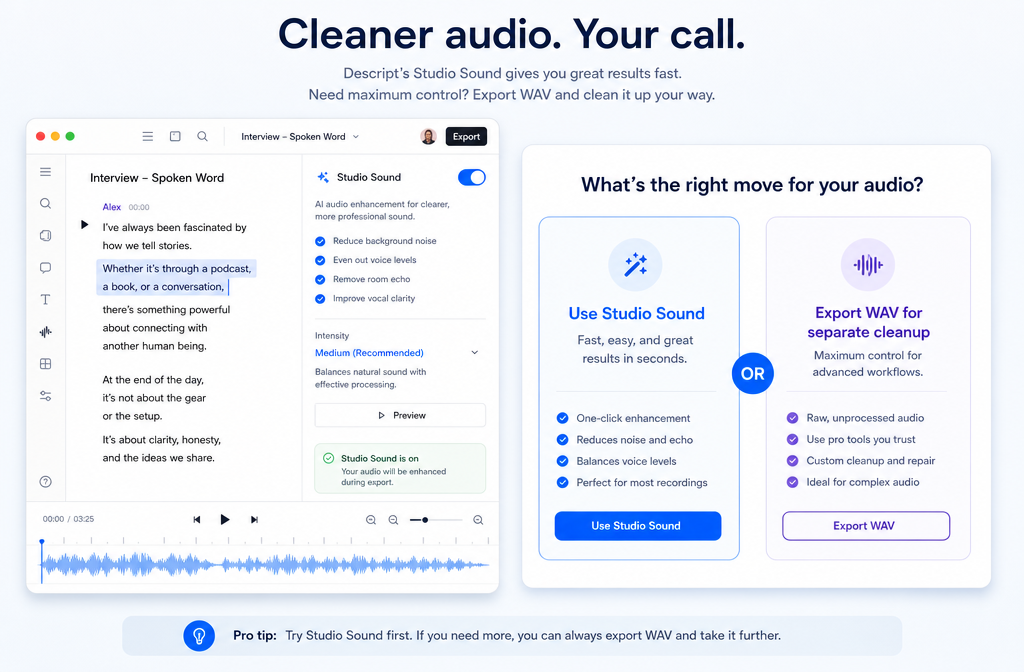
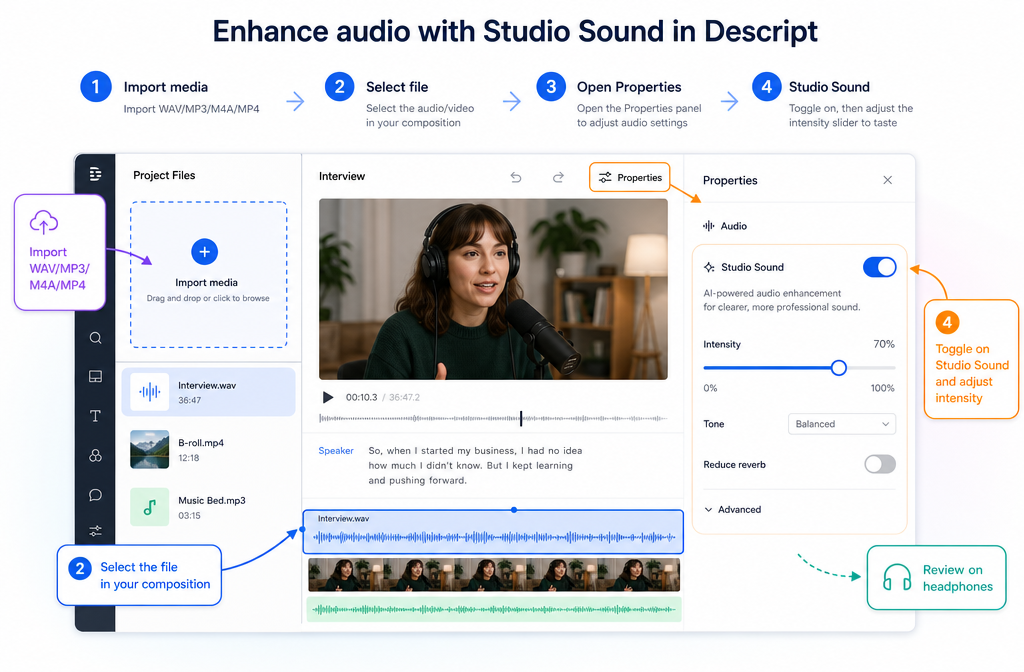
To remove background noise in Descript, import your audio or video, add it to the script, select the file, turn on Studio Sound in the Properties panel, and adjust the intensity slider while monitoring on headphones. Descript says Studio Sound can reduce background noise, echo, and other distractions, which makes it a strong built-in option for spoken-word recordings with steady fan or AC noise, light room echo, and mild broadband noise. It is often enough when the problem is moderate and consistent across the whole file. Source
The key limitation is that Studio Sound applies at the file level. If only one section is bad, or if the voice starts sounding metallic, pumpy, or suppressed, it is usually smarter to export the cleaned or original file and repair it separately instead of forcing more intensity on the whole recording. Descript also notes that very noisy recordings can cause speech suppression or silence. Source
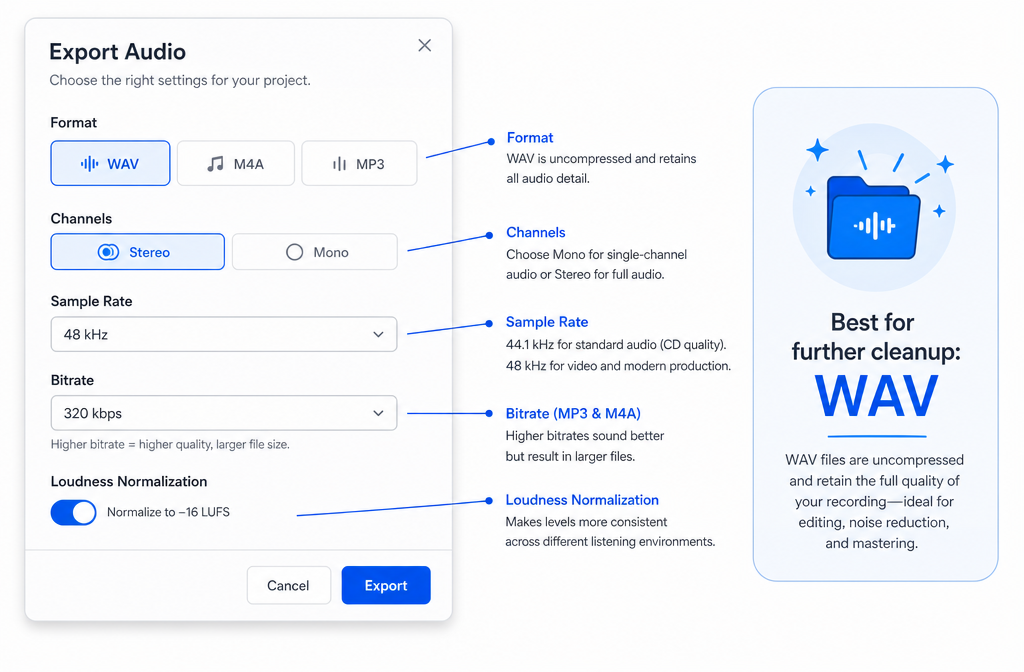
For external cleanup, export WAV when possible so you avoid adding another lossy compression step before restoration. Descript supports audio export as WAV, M4A, or MP3. Source
When Descript Is Enough vs When to Export the File
| Situation | Best move | Why |
|---|---|---|
| Steady fan, HVAC hum, light room echo, mild hiss on spoken-word audio | Use Studio Sound inside Descript | That matches Descript’s stated use case: reducing background noise, echo, and distractions with a simple file-level enhancement. |
| The whole recording needs a similar amount of cleanup | Use Studio Sound inside Descript | Studio Sound is applied to the file, so file-wide cleanup is the cleanest fit. |
| Only one short section needs repair | Duplicate or isolate that section first, or export for separate cleanup | Descript’s own help docs say Studio Sound is file-level, not arbitrary moment-by-moment unless you create a separate file for that section first. |
| Intermittent noises, severe room problems, clipped audio, or obvious artifacts after enhancement | Export and clean separately online | This is the safer choice when a one-pass file-wide enhancement starts hurting the voice or cannot target the issue surgically. |
| Studio Sound suppresses speech or fails to enhance | Lower intensity, replace/reprocess, or export for external repair | Descript documents suppression/failure cases on very noisy files and recommends reprocessing if needed. |
This “stay in Descript vs export elsewhere” rule is an editorial recommendation based on Descript’s file-level behavior, its troubleshooting guidance, and practical best practices from the supplied third-party tutorial. Descript Help · Ruzuku
Exact Workflow: How to Remove Background Noise in Descript
- Import your media into Descript. Descript supports common audio and video formats including WAV, MP3, M4A, FLAC, AAC, MP4, MOV, WebM, and MKV, among others. Import workflow · Supported file types
- Add the media to your script or composition. This is the normal Descript edit flow before applying enhancements. Source
- Select the file and open Properties. Turn on Studio Sound. Source
- Adjust the intensity slider. Start conservatively, then increase only as much as the voice can handle without sounding unnatural. Source
- Review with headphones. Pay attention to voice texture, breathing, room tone transitions, and whether consonants start sounding swishy or suppressed.
- Export if needed. If the result is good, finish in Descript. If it is not, export the file for separate cleanup, ideally as WAV. Source
What Studio Sound Fixes Well
Based on the Descript help documentation and the use cases described in the research brief, Studio Sound is best treated as a speech cleanup tool, not a miracle fixer for every noisy recording.
- Steady fan or AC hum
- Light room echo or reverb
- Mild broadband background noise
- General spoken-word distractions that are consistent through the file
If your recording is a podcast, talking-head video, course lesson, webinar segment, or voiceover with moderate environmental noise, Descript is often enough. That is especially true if you want a quick edit-publish workflow without round-tripping to another tool.
If you are finishing a creator workflow in one pass, this is also a good point to think downstream: after cleanup, you might add subtitles with Best AI Captions, localize the finished video with Translate Dub, and schedule clips or episode promos across channels with Mallary.ai.
Important Limitation: Studio Sound Is File-Level
This is the part many quick tutorials skip. Descript’s help center says Studio Sound applies at the file level. That means you cannot freely paint it onto one random noisy sentence while leaving the rest of the same file untouched. Source
If one section needs different treatment, the workaround is to duplicate or isolate that section into a new file first, then apply Studio Sound there. That matters in cases like:
- a single cough or chair squeak in an otherwise clean interview
- one noisy pickup line recorded in a different room
- a course lesson where only the intro has AC rumble
- an edited composition built from mixed recording conditions
If that sounds cumbersome, it is a sign that exporting and cleaning the target section separately may be the easier path.
Signs Descript Is Not Enough
Here is the practical decision point most users actually need.
- The voice becomes metallic, phasey, or pumpy. That usually means the intensity is too aggressive for the material.
- Speech gets partially suppressed. Descript explicitly warns that very noisy recordings can cause speech suppression or silence. Source
- The problem is intermittent, not constant. Random bumps, occasional background voices, and isolated noises are harder to solve well with a file-level enhancement.
- The recording is clipped or distorted. Noise reduction cannot fully solve distortion damage.
- Only one part needs repair. File-level processing may help one section while hurting the rest.
- You already ran one pass and the second pass makes it worse. The supplied third-party guidance cautions against stacking multiple noise-reduction passes unless necessary. Source
In those cases, exporting for targeted cleanup is usually the safer move. If that is your situation, you can clean podcast audio with SimpleClean after export instead of pushing Descript harder than the source material allows.
How to Export from Descript for Separate Online Cleanup
- Open the export menu for audio.
- Choose WAV, M4A, or MP3. Descript supports all three for audio export. Source
- Prefer WAV for further restoration. This preserves the most quality before another processing step. This is an editorial best-practice inference supported by the fact that Descript offers WAV export. Source
- Choose mono or stereo appropriately. Spoken-word exports are often fine in mono if the source is mono; keep stereo if the project actually uses stereo content. Source
- Choose sample rate. Descript provides 44.1 kHz and 48 kHz options. Source
- Set bitrate for lossy exports if using MP3 or M4A. Source
- Use loudness normalization only if it fits your delivery workflow. Descript includes that option in advanced export settings. Source
If your end goal is external cleanup, WAV is usually the best starting point. If your goal is fast publishing and the audio already sounds acceptable, MP3 or M4A may be enough.
Troubleshooting Bad Studio Sound Results
If Descript makes your voice sound weird, do not assume the recording is ruined. Usually the fix is one of these:
- Lower the intensity slider. This is the first fix for metallic or overprocessed voice.
- Reprocess after replacing the file if enhancement fails. Descript documents this as a troubleshooting path. Source
- Avoid stacking multiple cleanup passes unless you truly need them. Overprocessing can create more artifacts than the original noise. Source
- Listen on headphones, not laptop speakers. Subtle artifacts are easier to catch.
- Export and repair selectively if only one section is problematic. File-level processing is not ideal for isolated trouble spots.
A simple rule: if lowering intensity still leaves the voice sounding unnatural, stop there and switch workflows. You will often get a more believable result by treating the exported file rather than pushing one-click enhancement further.
Does Studio Sound Use AI Credits?
Yes. Descript’s help center says current plans use AI Credits for AI-powered features including Studio Sound, so it is worth checking your plan usage before assuming unlimited cleanup. Source
Best For Recommendations
- Best for fast all-in-one cleanup: Descript Studio Sound on mild to moderate speech recordings.
- Best for selective repair: Export and clean the file or isolated section separately.
- Best for preserving quality before another restoration pass: Export WAV from Descript.
- Best for creators publishing finished videos: Clean audio first, then add subtitles with Best AI Captions, translate with Translate Dub, and distribute clips or full episodes with Mallary.ai.
A Practical Descript Workflow That Usually Works
- Import the original recording into Descript.
- Apply Studio Sound at a moderate setting.
- Review the full file on headphones.
- If the voice sounds cleaner and natural, keep editing in Descript.
- If one section sounds wrong, isolate that section or export it.
- If the whole file sounds overprocessed, export WAV and clean it separately.
- After cleanup, finish captions, localization, and publishing.
If you need the exported-file route, remove background noise from exported audio with SimpleClean and then continue your normal post-production workflow.
Related SimpleClean Guides
- How to Clean Podcast Audio Online
- How to Remove Echo from Audio Online
- Remove Fan Noise from Audio Online
- How to Remove Hiss from Audio Online
- How to Remove Clipping from Audio Online
You can also browse SimpleClean if your Descript export still needs a second cleanup pass before publishing.
FAQ
How do I remove background noise in Descript?
Import your file, add it to the script, select the file, enable Studio Sound in Properties, and adjust the intensity slider while listening carefully. Descript says Studio Sound can reduce noise, echo, and distractions. Source
Does Descript Studio Sound remove echo?
It can reduce echo in many spoken-word recordings. Descript specifically describes Studio Sound as reducing background noise and echo, but results depend on how severe the room sound is. Source
Why does Descript Studio Sound make my voice sound weird?
The most common reason is too much intensity or source audio that is too noisy for a natural-sounding one-pass enhancement. Lower the intensity first. If the voice still sounds metallic, pumpy, or suppressed, export and repair the file separately.
Can I apply Studio Sound to only part of a clip?
Not directly in a freeform, moment-specific way. Descript says Studio Sound applies at the file level. To treat only one section, you would need to isolate or duplicate that section into a separate file first. Source
What file format should I export from Descript for further audio cleanup?
WAV is the safest choice when possible because it avoids another lossy compression step before restoration. Descript also supports M4A and MP3 exports. Source
Does Studio Sound use AI credits?
Yes. Descript’s help documentation says Studio Sound uses AI Credits on current plans. Source
When should I use Descript vs a separate online audio cleaner?
Use Descript when the issue is mild to moderate, constant, and affects the whole spoken-word recording. Export for separate cleanup when the noise is severe, intermittent, selective, or when Studio Sound starts damaging the voice. That recommendation follows from Descript’s file-level behavior and troubleshooting guidance.
Sources and further reading
- How to Remove Background Noise in Descript: 1-Min Guide – Storylane - SERP reference illustrating the simple click-path many users search for.