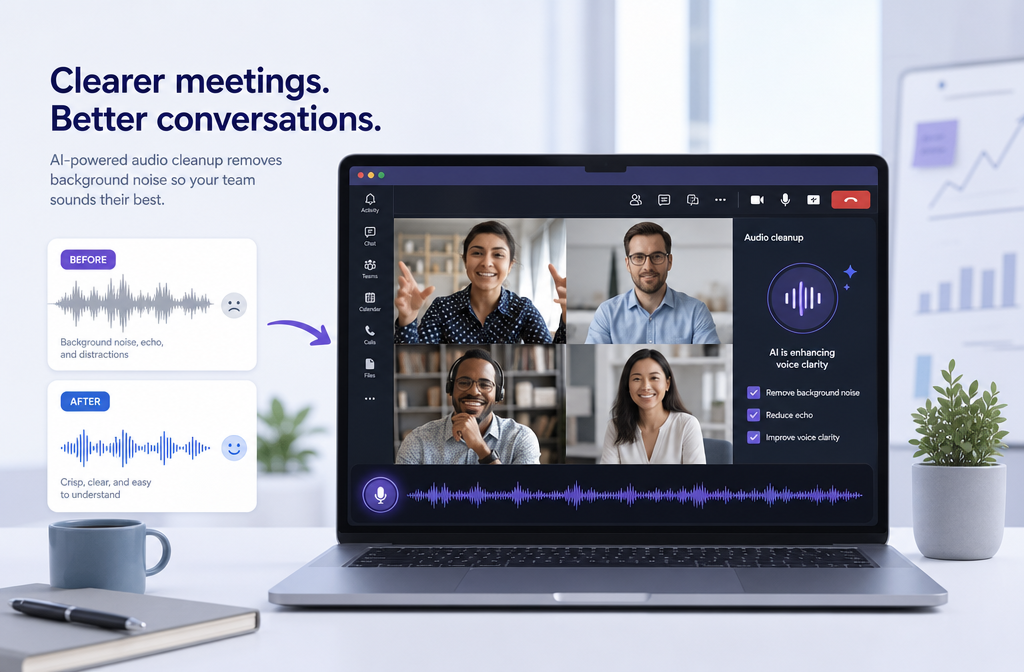
If you already have a Microsoft Teams recording that sounds rough, you usually do not need a full DAW to make it more usable. In many cases, you can download the MP4 from OneDrive or SharePoint, upload it to SimpleClean, reduce steady noise like fan or HVAC sound, soften mild echo, and export a cleaner file for sharing, recaps, or transcription.
Quick Answer
To clean Microsoft Teams recording audio online:
- Find the recording in Teams, OneDrive, or SharePoint.
- Download the meeting recording as an MP4 file.
- Upload the MP4 to SimpleClean.
- Preview the cleaned result and export the improved file.
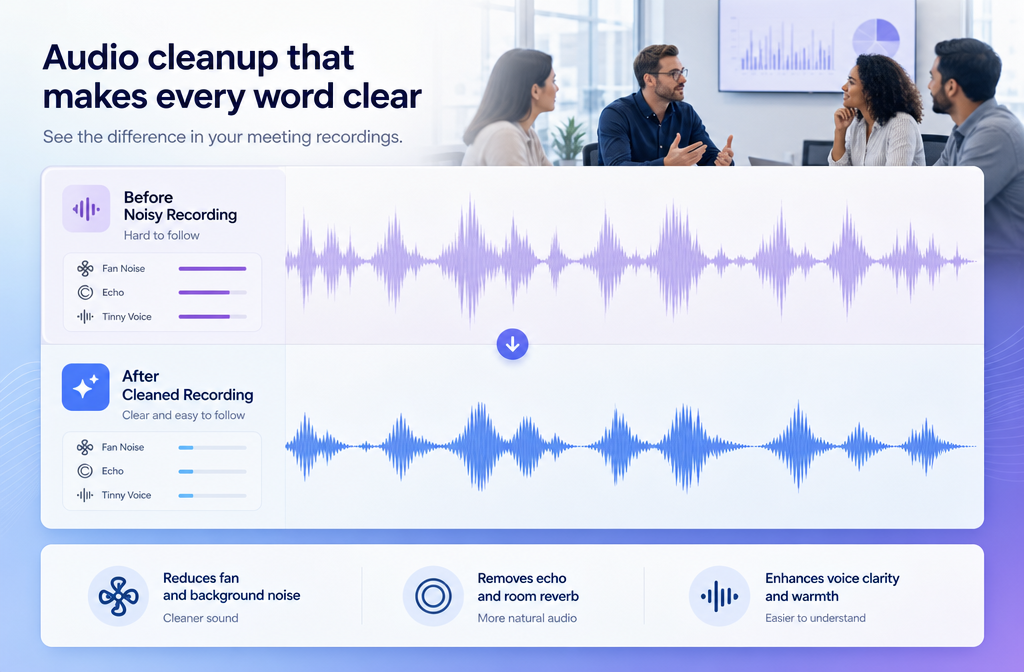
This works best for common problems such as fan noise, HVAC rumble, low-level office hum, and thin or harsh laptop-mic sound. Mild room echo may improve too. Severe clipping, heavy overlapping speech, or audio that was poorly captured in the first place may only improve partially.
What This Solves
This workflow is for Teams recordings that are already finished and already saved. It is especially useful when the call content matters, but the sound quality makes people less likely to watch, share, or trust the recording.
- Echoey or roomy speech
- Fan or HVAC noise under voices
- Electrical or office hum
- Tinny, compressed, or laptop-mic audio
- Low-level room noise in meeting recordings
Microsoft Teams includes live noise suppression features for meetings, but those settings help during capture. They do not retroactively repair a bad recording after the meeting is over. That is where post-processing is useful.
Where Microsoft Teams Recordings Are Saved
Before you can clean the file, you need to find it.
- For non-channel meetings, recordings are generally stored in the organizer's OneDrive Recordings folder.
- For channel meetings, recordings are generally stored in SharePoint.
- Teams meeting recordings are saved as MP4 files.
Microsoft documents these storage basics in its Teams recording support articles and Learn documentation. That is helpful because it means most users are starting with a standard video file that can be downloaded and cleaned outside Teams.
How to download the MP4
- Open the meeting recording from Teams.
- Use the file location or open-in-OneDrive/SharePoint option if needed.
- Download the recording locally as an MP4.
If your goal is to send the meeting to coworkers, clients, trainees, or a wider internal audience, it is usually easier to clean the downloaded MP4 first rather than share the noisy original.
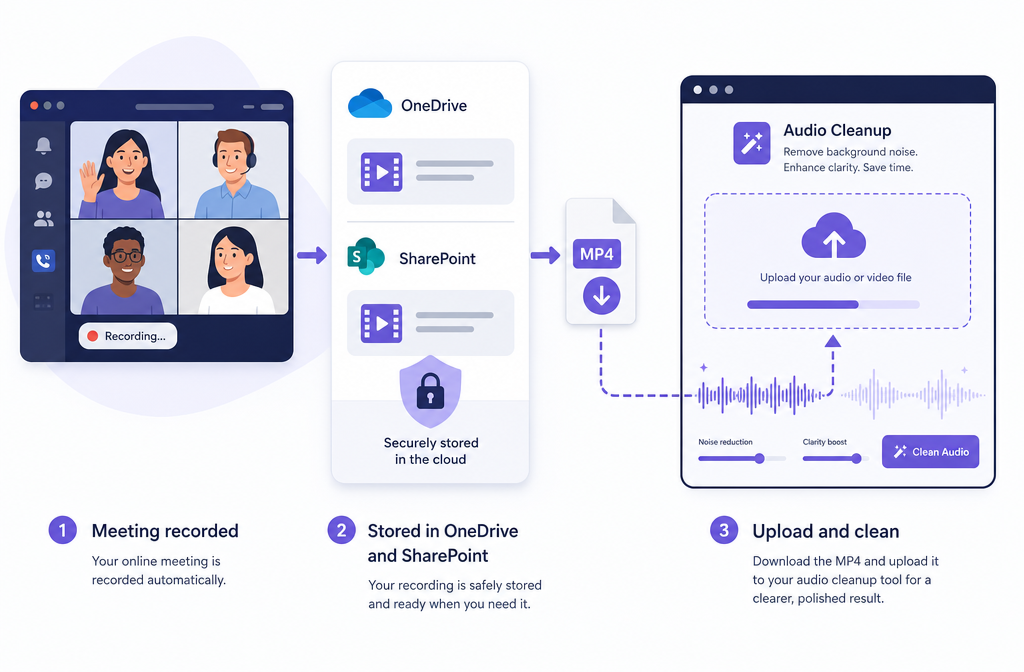
The Fastest Workflow: Download, Clean, Export
If you want the short version, this is the practical workflow:
- Download the Teams recording from OneDrive or SharePoint.
- Upload the MP4 to SimpleClean for online cleanup.
- Preview and export the cleaner version for reuse.
That is the main appeal of browser-based cleanup for Teams recordings: you are not rebuilding the meeting in an editor or learning a mixing workflow. You are improving speech clarity fast enough to make the recording more usable.
Step-by-Step: How to Clean a Teams Recording Online
1. Find the recording
Start in the Teams meeting chat or event details. If it is not directly accessible there, open the related OneDrive or SharePoint location.
2. Download the MP4
Save a local copy before processing. Teams recordings are typically MP4, which makes them easy to move into a cleanup tool.
3. Upload the file for cleanup
Upload the recording to SimpleClean and let the tool analyze the speech and background noise.
4. Preview the result
Listen for the main pain points:
- Is fan or HVAC noise lower?
- Does speech sound less harsh or less thin?
- Has mild room echo been reduced enough to improve intelligibility?
5. Export the cleaned version
Once the audio is clearer, export the improved file and use that version for sharing, recaps, training libraries, or downstream transcript work.
Teams Prevention vs Post-Meeting Fixes
Microsoft Teams does offer native tools that can help prevent some audio problems in future meetings.
- Noise suppression can reduce background sounds during meetings.
- Voice isolation is designed to prioritize the speaker's voice in supported scenarios.
- Microsoft also describes AI-based improvements such as echo cancellation and speech enhancement in Teams.
Those features matter, but they are mainly capture-time defenses. If the meeting already happened and the exported MP4 sounds bad, you need post-processing instead.
That distinction is important for searchers with high intent: if you are holding a noisy Teams file right now, changing the Teams setting today will not fix yesterday's recording.
Issue-by-Issue Troubleshooting for Microsoft Teams Recordings
| Problem | What it sounds like | How well cleanup may help | Best next move |
|---|---|---|---|
| Fan or HVAC noise | Steady whoosh, air rumble, vent noise | Usually one of the best cases for improvement | Run cleanup on the MP4 and check speech clarity after noise reduction |
| Office hum | Constant low electrical or room tone under voices | Often improves well if the hum is consistent | Clean the file before sharing or transcribing |
| Room echo | Speech sounds distant, roomy, reflective | Mild echo may improve; heavy reverb is harder | Set realistic expectations and compare preview before export |
| Speaker bleed | Another person's audio leaking back into a mic | Sometimes partially reducible, not always removable | Clean what you can, but future meetings should use better monitoring and Teams prevention features |
| Distant mic | Weak, roomy, low-presence speech | Can improve some clarity, but cannot fully recreate close-mic detail | Use cleanup for intelligibility, not full restoration |
| Laptop mic harshness or tinny call tone | Thin, brittle, compressed speech | Often can sound more listenable after cleanup | Process before sending to clients or building training content |
| Overlapping voices | People talking over each other | Hard to fully fix because speech competes in the same recording | Expect partial improvement at best |
What AI Cleanup Can and Cannot Fix
The most important expectation-setting point is this: cleanup improves audio, but it does not magically recreate information that was never captured well.
Usually good candidates
- Steady fan noise
- HVAC rumble
- Constant office hum
- Light background noise under speech
- Mildly tinny or harsh meeting audio
Sometimes improvable, but not perfectly
- Mild room echo
- Speaker bleed
- Distant mic recordings
- Compressed call artifacts
Often only partially recoverable
- Severe overlapping voices
- Clipped or distorted speech
- Audio missing because it was filtered out during capture
This last point is important. Microsoft explains live suppression and voice isolation behavior, but if speech or external audio was suppressed during the meeting itself, a later cleanup pass may not be able to restore what was never clearly preserved in the recording.
If distortion is the real issue, our guide on removing clipping from audio online covers what is and is not recoverable.
Best For: Which Approach Fits Your Situation?
- Best for the fastest fix: Upload the Teams MP4 to SimpleClean when you mainly need clearer speech fast.
- Best for future meetings: Adjust Teams noise suppression or voice isolation before the next call.
- Best for heavy editing: Use a full editor only if you also need cuts, layout changes, or timeline-based production work.
- Best for transcription and recap workflows: Clean the audio first, then generate or share transcripts and summaries.
If your issue is specifically roomy audio, you may also want our deeper guide on removing echo from audio online. If the main problem is AC or vent noise, see how to remove air conditioner noise from video online.
Why Cleaner Audio Matters for Sharing, Transcripts, and Repurposing
Microsoft Teams supports transcripts in meeting workflows, and Microsoft also provides options around transcript viewing and downloading. While Microsoft does not guarantee that cleanup will improve transcript accuracy, it is a reasonable inference that clearer speech can be more helpful for downstream transcription than noisy, echo-heavy audio.
In practice, that matters when you are using Teams recordings for:
- Internal recaps
- Customer call summaries
- Onboarding libraries
- Training videos
- Recruiting interviews
- Educational recordings
Once the audio is cleaner, you can also extend the value of the recording:
- Add subtitles with Best AI Captions.
- Create multilingual versions with Translate Dub.
- Distribute clips, recaps, or training promos across channels with Mallary.ai if your team wants a more automated social publishing and distribution workflow.
That makes Teams cleanup more than a repair task. It becomes a practical content-reuse step.
Simple Comparison: Live Teams Settings vs Cleaning the Exported File
| Approach | When to use it | Main benefit | Main limit |
|---|---|---|---|
| Teams noise suppression / voice isolation | Before or during the meeting | Prevents some noise problems at capture time | Does not repair an already-bad recording |
| Online cleanup of the MP4 | After the meeting | Improves an exported recording you already have | Cannot fully restore severely damaged or missing audio |
When to Clean Before Sending the Recording
If the recording is going to coworkers, clients, candidates, trainees, or students, it often makes sense to clean it first when:
- The noise is distracting enough to reduce trust or attention
- Speech sounds thin or tiring to listen to
- You want a cleaner source for transcripts, captions, or summaries
- You plan to repurpose the meeting into clips, documentation, or social posts
You do not need to promise perfect restoration to get value. Often, “clearer and easier to follow” is enough.
Frequently Asked Questions
Can I clean Microsoft Teams MP4 files online?
Yes. Teams recordings are typically stored as MP4 files, and you can download the file from OneDrive or SharePoint and upload it to an online cleanup tool.
Where are Microsoft Teams recordings stored?
For non-channel meetings, recordings are generally stored in the organizer's OneDrive Recordings folder. For channel meetings, they are generally stored in SharePoint.
Can I fix echo in a Teams recording after the meeting?
You can often reduce mild room echo after the meeting, but heavy reverb is harder to remove completely. Cleanup usually helps more with steady noise than with severe echo.
Can you remove background noise from a Teams recording?
Often, yes. Steady background sounds like fan noise, HVAC rumble, and low office hum are usually among the best candidates for improvement.
How do I download a Teams recording as MP4?
Open the recording from Teams, then access the associated OneDrive or SharePoint file location if needed and download the recording. Microsoft documents Teams recordings as MP4 files.
Will cleaning Teams audio help transcription?
Cleaner speech may help downstream transcription in practice, but that should be treated as an inference rather than a Microsoft guarantee.
Final Takeaway
If your Teams meeting already happened and the audio is noisy, echoey, or tinny, the fastest practical fix is usually simple: download the MP4, clean it online, and export a clearer version before you share it. Teams can help prevent some problems live, but post-processing is what helps after the recording is already saved.
If you have a Teams recording in hand and just need a cleaner result without opening a full editor, SimpleClean is the straightforward next step.
Sources and further reading
- Play, share, and download meeting recordings in Microsoft Teams - Microsoft Support - Source for Teams recording playback, sharing, download flow, and MP4 format.
- Teams meeting recording and transcript storage and permissions in OneDrive and SharePoint - Microsoft Learn - Source for recording storage locations and permissions context.
- Reduce background noise in Microsoft Teams meetings - Microsoft Support - Source for Teams noise suppression settings and prevention framing.
- Voice isolation in Microsoft Teams calls and meetings - Microsoft Support - Source for voice isolation behavior and future-meeting prevention guidance.
- How Microsoft Teams uses AI and machine learning to improve calls and meetings - Microsoft 365 Blog - Supporting context for echo cancellation, noise suppression, and Teams audio problem types.
- Start, stop, and download live transcripts in Microsoft Teams meetings - Microsoft Support - Source for transcript availability and download context.
- How to use noise suppression - Microsoft Support (Clipchamp) - Supporting benchmark for browser-based noise suppression workflow language.