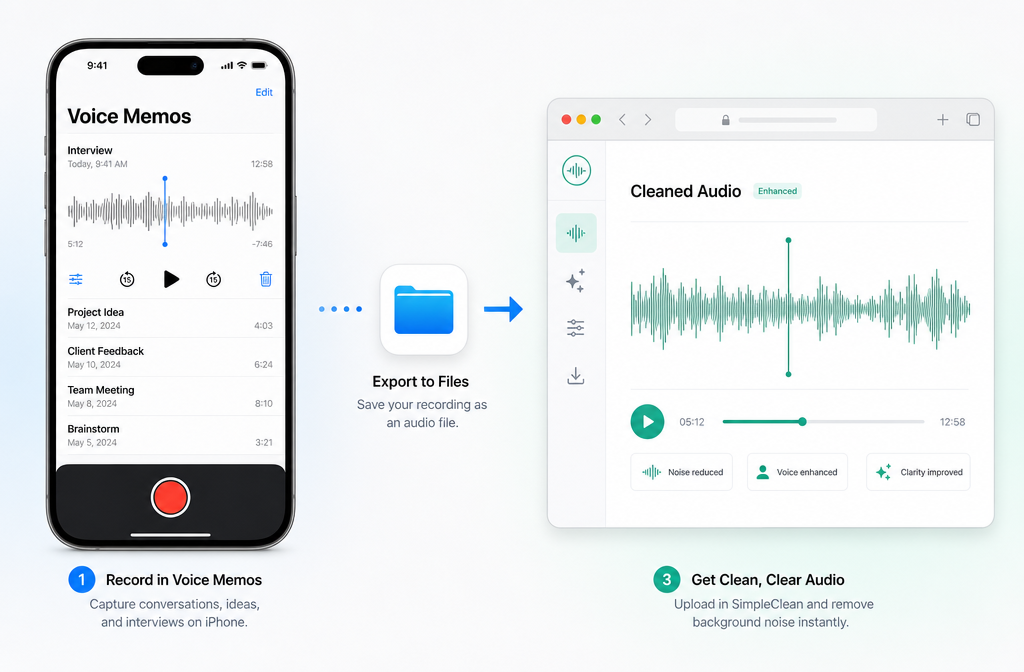
How to Clean iPhone Voice Memos Audio Online: Remove Background Noise and Echo Without a DAW
If an iPhone Voice Memo is important enough to send, quote, transcribe, archive, or publish, the key question is simple: should you use Apple’s built-in cleanup tools, or export the memo and clean the actual file online?
Quick Answer
Use Apple Voice Memos first if your recording only needs a quick listening improvement on your device. Apple currently offers recording-time options such as Voice Isolation and playback-side options such as Enhance Recording, Skip Silence, and, on supported models, Studio Voice. But Apple also states that playback settings do not change the underlying recording itself.
That limitation matters. If your memo still has distracting traffic, HVAC hum, room echo, hiss, or handling noise after you try Apple’s options, export the memo as its rendered .m4a file and clean that file directly in the browser. That gives you a new cleaned file you can actually share, archive, or use for transcription.
| Option | Best for | What it can do | Main limitation |
|---|---|---|---|
| Enhance Recording in Voice Memos | Quick playback improvement for speech | Can reduce background noise and room reverberation during playback | Apple says playback settings do not alter the original recording |
| Studio Voice in Voice Memos | Supported models where you want clearer playback presentation | Applies a more polished playback voice effect | Also a playback setting, not a repair of the saved source file |
| SimpleClean for iPhone Voice Memos | Files you need to send, transcribe, archive, or repurpose | Cleans the exported audio file itself after upload | It can improve many problems, but not fully restore severe clipping, extreme wind, or overlapping voices |
Best workflow for most people: duplicate the memo, test Apple’s native options, then export the memo and clean the actual file if the noise is still distracting.
When to Use Apple Voice Memos Tools vs When to Export and Clean Online
- Use Apple tools only when the memo is mostly understandable and you just want better playback on your own device.
- Export and clean online when you need a cleaner deliverable for another person, a transcript, a report, a quote, or published content.
- Do both carefully only if you are testing results. In general, avoid double-processing the same audio too aggressively because over-cleaning can make speech sound muffled or robotic.
If your Voice Memo still sounds hollow, noisy, or distracting after native cleanup, it is usually time to clean the exported iPhone Voice Memo online.
Why iPhone Voice Memos End Up Sounding Bad
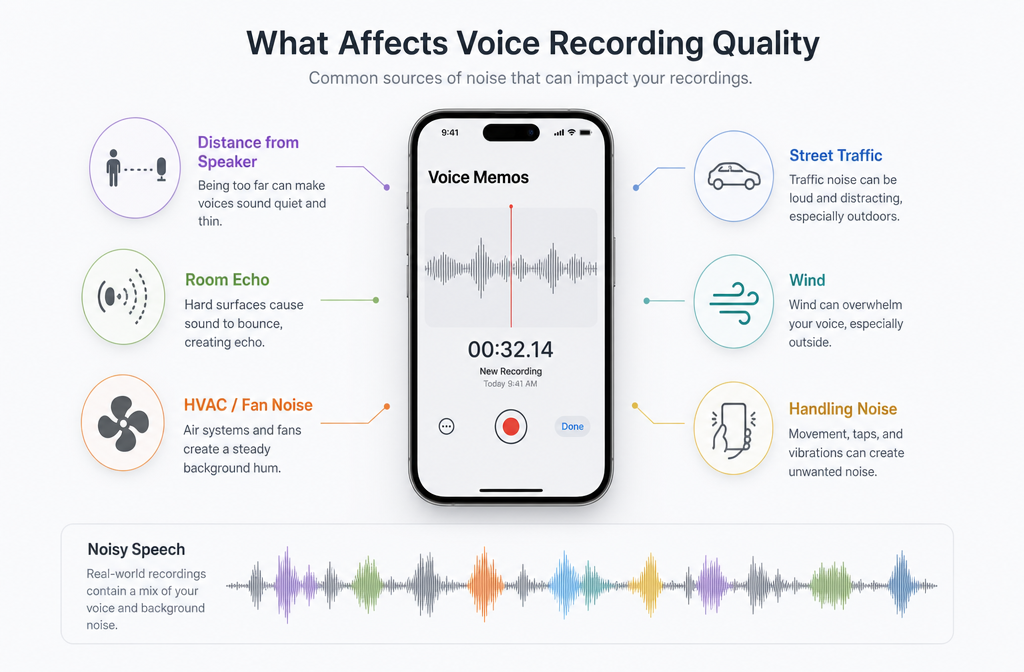
Most bad Voice Memos are not caused by a broken app. They come from common recording conditions:
- Too much distance from the phone: the voice gets quiet while room sound gets louder.
- Room echo: bare walls and hard surfaces create a hollow or distant sound.
- Wind: outdoor air movement can overpower speech.
- Traffic and street noise: cars, buses, brakes, and city rumble compete with the voice.
- HVAC and fan noise: air conditioners, vents, and laptop fans create steady background noise.
- Handling noise: moving the phone, rubbing fingers on the case, or setting it on a table creates thumps and scrapes.
- Overlapping voices: another speaker, TV audio, or crowd chatter masks the target speaker.
The harder the noise overlaps with speech in time and frequency, the harder it is to remove cleanly. Audacity’s noise reduction documentation notes that denoising works less well when noise is variable, when speech-to-noise ratio is low, or when the noise shares frequencies with speech.
What Apple Voice Memos Can Do Natively
Apple’s current Voice Memos workflow is more capable than many people realize.
- Voice Isolation while recording: Apple documents Voice Isolation as a recording-time option in Voice Memos on supported iPhone models.
- Enhance Recording: Apple says this can reduce background noise and room reverberation during playback.
- Studio Voice: on supported models, Apple offers Studio Voice as a playback option.
- Skip Silence: useful for faster review of spoken recordings.
- Transcription: Voice Memos can show a transcription on supported devices and languages.
- Recording modes and external mic support: Apple documents additional recording behavior and accessory support in Voice Memos.
Those features are useful, especially before you share or quote a memo. But there is one limitation you should not miss.
Important Limitation: Playback Options Do Not Fully Repair the File
Apple explicitly states that playback settings in Voice Memos do not change the original recording. That means toggling Enhance Recording or Studio Voice may make the memo sound better while you listen, but it does not give you a newly repaired source file by itself.
So if you need a file that is actually cleaner when sent to someone else, uploaded elsewhere, archived, or run through transcription, exporting and cleaning the audio file itself is the more reliable path.
Best Workflow: Duplicate, Export, Clean, Download
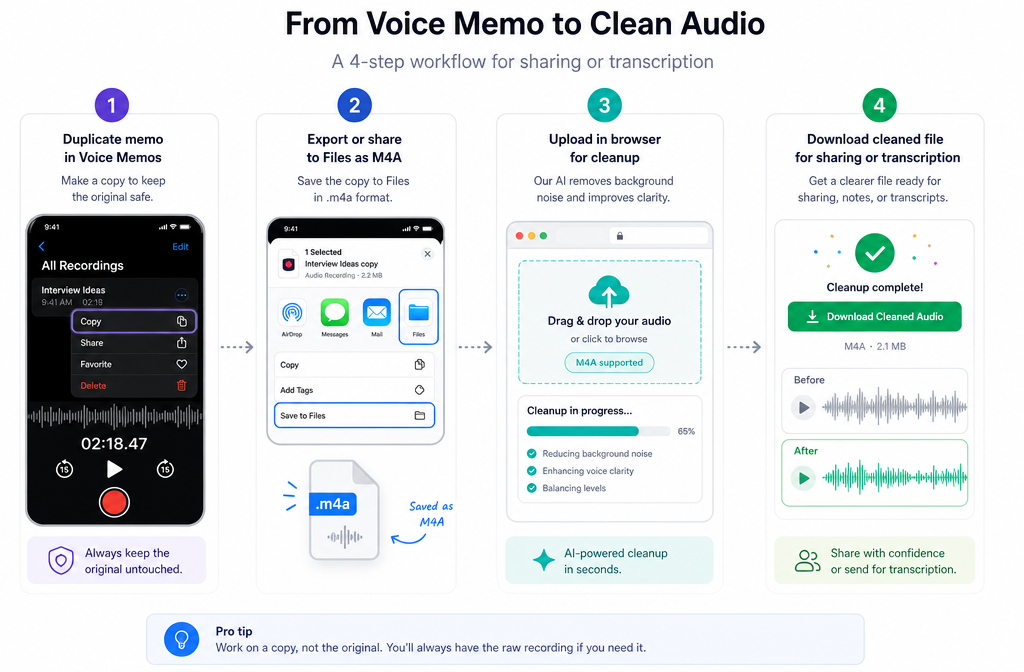
Here is the simplest post-recording repair workflow for noisy iPhone Voice Memos.
- Duplicate the memo first. If you plan to trim or test changes, keep an untouched original. Apple’s edit workflow also distinguishes between saving changes to the current recording and saving a new recording.
- Preview Apple’s playback options. Try Enhance Recording, and if available on your device, Studio Voice. This helps you judge whether native cleanup is already enough.
- Export the memo. Share a rendered version or export it to Files. Apple says rendered sharing creates a single .m4a file, and export to Files also saves the recording as an .m4a.
- Upload the file to SimpleClean. Voice Memo exports are typically M4A, and if you converted elsewhere first, MP3 or WAV can also fit many cleanup workflows.
- Preview the cleaned result. Focus on intelligibility, not perfection. The goal is usually a less distracting recording, not a studio remake.
- Download the cleaned file. Use that version for sharing, storage, team handoff, or transcription.
How to Export a Voice Memo to Files and Clean It
Apple provides a direct export path from Voice Memos to Files, which is the easiest route if you want to clean the memo online.
- Open Voice Memos on your iPhone.
- Select the recording you want to clean.
- Tap the More button.
- Choose Share or the export option to Files.
- Save the memo to your chosen folder in Files.
- Confirm the exported file is an .m4a.
- Open your browser and upload that file to remove noise from your iPhone Voice Memo with SimpleClean.
- Preview the result and download the cleaned version.
If your memo is synced through iCloud, Apple also documents that you can keep recordings updated across Apple devices. That is helpful when you recorded on your phone but prefer exporting from another device later.
Once you have a cleaned version, it is much easier to send a better-sounding file to clients, editors, classmates, or teammates.
Supported File Expectations for Voice Memos
- Default export from Voice Memos: .m4a
- Rendered sharing from Voice Memos: a single .m4a file
- Also common in cleanup workflows: MP3 or WAV, if the memo was converted in another app first
You do not need GarageBand or Audacity just to clean a normal Voice Memo export.
Problem-Based Fixes for Noisy Voice Memos
1) Echoey room or hollow speech
This is common in kitchens, conference rooms, classrooms, and empty offices. Apple’s Enhance Recording may help during playback, but if the exported file still sounds distant, browser cleanup is often the better next step.
For a deeper explanation of what is and is not fixable, see how to remove echo from audio online.
- Usually improves well: mild to moderate room reverb around a clear voice
- Harder cases: very distant speaker in a highly reflective room
2) Fan or AC hum
Steady mechanical noise is often one of the more salvageable problems, especially when the voice is still reasonably strong. If the memo was recorded near an air vent, air conditioner, or laptop fan, cleaning the exported file can make speech easier to follow.
Related guide: remove air conditioner noise from audio and video recordings.
3) Street noise and traffic
Street recordings can improve, but results depend on how dominant the traffic is compared with the speaker. Passing trucks, sirens, and brakes are harder than low steady road rumble.
Related guide: remove traffic noise from recorded audio.
4) Hiss or constant background noise
Hiss, light static, and general background noise often respond reasonably well, especially in spoken-word recordings. But heavy reduction can make speech sound dull or synthetic if pushed too far.
Related guide: remove hiss from audio online.
5) Handling noise, bumps, and phone movement
Short thumps and scrapes can sometimes be reduced, but severe contact noise may leave artifacts. If the handling noise covers important words, expect improvement rather than full repair.
6) Low voice with loud background
This is one of the toughest Voice Memo scenarios. When the speaker is far away and the background is loud, cleanup may help intelligibility somewhat, but it may not create a polished result. Audacity’s documentation is a useful neutral reminder here: denoising gets much harder when speech is not sufficiently separated from noise.
7) Overlapping speakers
If two people talk at the same time, no simple cleanup tool can reliably “unmix” them into perfect isolated dialogue. You may be able to reduce background distraction, but overlapping speech usually remains only partially improved.
When Cleanup Works Well vs When It Only Improves the File
| Recording problem | Typical outcome | Expectation to set |
|---|---|---|
| Steady fan, AC, or light hiss | Often cleans up well | Speech can become clearer and less fatiguing |
| Mild room echo | Often improves | Voice may sound less hollow, though not fully dry |
| Street noise behind a close speaker | Moderate improvement | Background can soften, but some noise usually remains |
| Overlapping voices | Limited improvement | Can reduce distraction, not fully separate speakers |
| Clipping or distortion | Sometimes partially salvageable | Do not expect a pristine result |
| Severe wind or extremely distant speech | Often only partial improvement | Usability may improve, but quality may still be rough |
How to Prepare a Cleaned Voice Memo for Sharing, Archiving, or Transcription
After cleanup, do a short quality check before you send the file anywhere.
- Listen on headphones and speakers. A file that sounds fine on phone speakers may still have distracting artifacts on headphones.
- Keep the original memo. Save the untouched source in case you want a lighter cleanup pass later.
- Name files clearly. Example: Interview-original.m4a and Interview-cleaned.m4a.
- Use the cleaned file for transcription. Apple’s Voice Memos transcription availability depends on supported device and language conditions, and clearer speech generally gives you a better starting point for review and quoting.
- Avoid repeated re-exports and re-cleaning. Each extra processing step can push the audio further from the original.
If you are turning the memo into content, you can also repurpose it after cleanup. For example:
- Turn a cleaned clip into a subtitled video with Best AI Captions.
- Translate and dub it for multilingual audiences with Translate Dub.
- Schedule and distribute those clips across social platforms with Mallary.ai if your team wants a cleaner publishing workflow after audio repair.
Best For Recommendations
- Best for quick personal listening: Voice Memos playback tools like Enhance Recording and Skip Silence
- Best for supported-device voice polish tests: Studio Voice
- Best for files you need to actually send or archive: exported M4A cleanup in the browser
- Best for journalists, students, founders, and researchers: export first, clean the file, then transcribe or quote from the cleaner version
- Best for creators repurposing memo-based content: clean the memo, caption it, translate it if needed, then distribute it
Common Mistakes to Avoid
- Assuming playback enhancement permanently repaired the file
- Editing the only copy instead of duplicating first
- Cleaning an already heavily processed file again and again
- Expecting complete removal of overlapping voices or severe wind blast
- Sending the original noisy memo to transcription when a cleaned export would be easier to review
Conclusion
Apple Voice Memos is better than it used to be, and its built-in tools are worth trying first. But they are not the same thing as repairing the saved audio file. Apple’s own documentation makes that distinction clear.
If your recording still sounds noisy, echoey, or distracting after native playback enhancement, the practical fix is to export the memo as its .m4a file and clean that file directly. For important recordings, that is usually the best path to a result you can actually share, archive, and transcribe with more confidence.
Clean your exported iPhone Voice Memo online with SimpleClean when the built-in Voice Memos options are not enough.
FAQ
Does Voice Memos already remove noise?
It can reduce background noise and room reverberation during playback with Enhance Recording, and Apple also offers other playback tools such as Skip Silence and, on supported devices, Studio Voice. But Apple says playback settings do not change the original recording.
Can Apple Voice Memos reduce echo?
Yes, Apple says Enhance Recording can reduce room reverberation during playback. If the memo still sounds hollow when you need a cleaner shareable file, export the memo and clean the file itself.
Does Enhance Recording permanently change the file?
No. Apple states that playback settings do not alter the original recording.
What format do iPhone Voice Memos export in?
Apple documents that exporting a Voice Memo to Files saves it as an .m4a, and rendered sharing creates a single .m4a file.
Can I clean an M4A voice memo online?
Yes. Since Voice Memos exports as M4A, that is the normal file type to upload for browser-based cleanup.
Can I clean a memo without GarageBand or Audacity?
Yes. If you export the Voice Memo from the iPhone to Files or share it as a rendered M4A, you can clean it online without opening a full DAW.
Why does my Voice Memo sound muffled or robotic after noise reduction?
That usually means the cleanup was pushed too hard or the speech was too buried in the noise to begin with. This is more common when noise overlaps strongly with speech, the voice is very distant, or the recording has already been processed multiple times.
Can cleaning hurt transcript accuracy?
It can go either way. A cleaner file often helps make speech easier to understand, which can help with review and transcription. But overly aggressive processing can make words sound unnatural, so it is best to preview the cleaned result before using it for quoting or summarizing.
How do I export a Voice Memo to Files and clean it?
Open the memo, use the Share or export option to save it to Files as an M4A, then upload that file to a browser-based cleanup tool and download the cleaned version.
Sources and further reading
- Make a recording in Voice Memos on iPhone - Apple Support - Source for Voice Memos recording behavior, Voice Isolation while recording, recording modes, and related Apple-native options.
- Play a recording in Voice Memos on iPhone - Apple Support - Source for Enhance Recording, Studio Voice, Skip Silence, and Apple’s statement that playback settings do not alter the original recording.
- Share a recording in Voice Memos on iPhone - Apple Support - Source for rendered sharing behavior and the fact that rendered sharing creates a single M4A file.
- Export a Voice Memos recording to Files on iPhone - Apple Support - Source for the export-to-Files workflow and default M4A export format.
- Edit or delete a recording in Voice Memos on iPhone - Apple Support - Source for trim/replace behavior and guidance relevant to preserving the original versus saving changes as a new recording.
- View a Voice Memos transcription on iPhone - Apple Support - Source for Voice Memos transcription availability and caveats on supported devices and languages.
- Keep recordings up to date in Voice Memos on iPhone - Apple Support - Source for iCloud sync details when users want to export from another Apple device.
- Noise Reduction - Audacity Manual - Neutral source for limits of noise reduction when noise is variable, speech is weak, or noise overlaps with speech.