Quick Answer
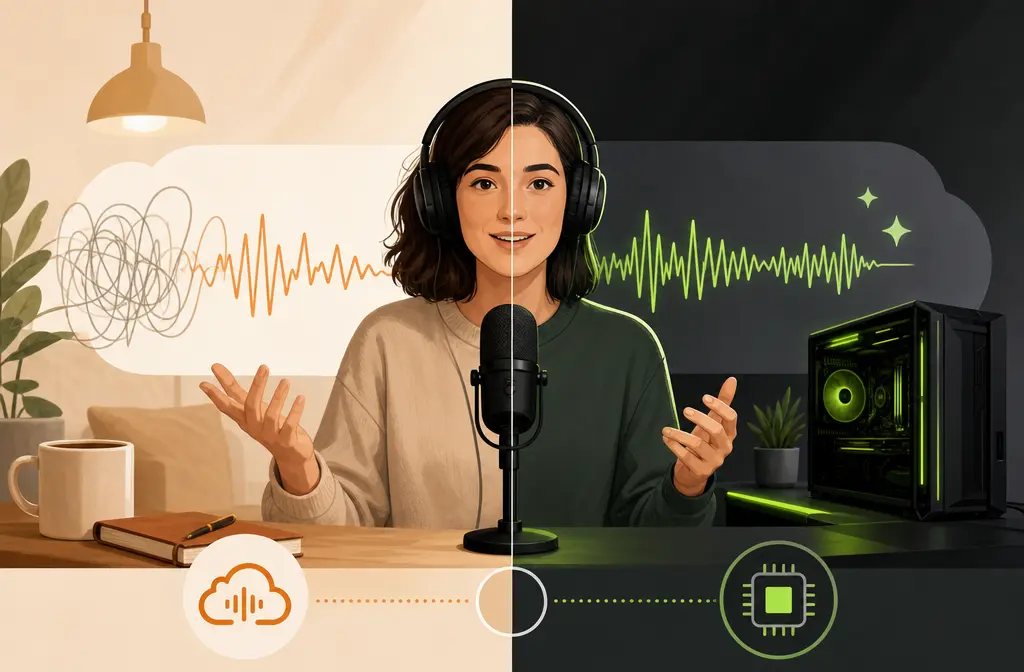
If you need live microphone cleanup for OBS, Zoom, Teams, or game streaming, NVIDIA Broadcast is usually the better fit because it runs real-time AI effects through a virtual mic and speaker on compatible Windows PCs with an RTX GPU.
If you already have a saved recording to fix, Adobe Podcast Enhance Speech is usually the better fit because it is a browser-based upload-and-process tool that does not depend on RTX hardware.
- Best for live use: NVIDIA Broadcast
- Best for saved recordings: Adobe Podcast
- Best free option if you already own RTX hardware: NVIDIA Broadcast
- Best browser option if you do not own an RTX GPU: Adobe Podcast
The biggest mistake people make is comparing these as if they do the same job. They do not. One is mainly for real-time routing. The other is mainly for uploaded files. So the right choice depends less on brand preference and more on your workflow.

What each tool actually is
NVIDIA Broadcast
NVIDIA Broadcast is a desktop app for Windows that applies AI effects in real time. According to NVIDIA, it uses virtual microphone and speaker devices, which means your streaming or meeting app must actually select NVIDIA Broadcast as the input or output device for the effects to work.
Relevant effects listed by NVIDIA include:
- Mic noise removal
- Room echo removal
- Studio Voice
It also has a major hardware gate: it requires a compatible RTX GPU. If you do not have that, NVIDIA Broadcast is effectively out of the running.
Adobe Podcast Enhance Speech
Adobe Podcast Enhance Speech is an upload-based web tool designed to clean up spoken-word recordings after capture. Adobe positions it as a simple way to improve speech by uploading a file and letting the service process it.
From Adobe's official features page:
- The free plan is limited to audio only
- The free plan processes one file at a time
- The free plan supports up to 30 minutes per file
- The free plan includes up to 1 hour per day
- Premium adds video support, bulk upload, strength adjustment, and higher limits
That makes Adobe Podcast much easier to try if your problem is already sitting in a WAV, MP3, or exported video file.
Adobe Podcast vs NVIDIA Broadcast at a glance
| Category | Adobe Podcast Enhance Speech | NVIDIA Broadcast |
|---|---|---|
| Main job | Post-processing uploaded recordings | Real-time mic and speaker cleanup |
| Works live? | No, it is primarily upload and process | Yes, through virtual devices |
| Best for | Saved spoken-word files and browser-based cleanup | Streaming, calls, and live recording on RTX PCs |
| Platform | Web-based | Windows app |
| Hardware requirement | No RTX requirement stated in the supplied sources | Compatible RTX GPU required |
| Free plan limits | Audio only, one file at a time, 30 minutes per file, 1 hour per day | No upload limits because it is not an upload tool |
| Video support | Premium | Works on live routed audio rather than uploaded video cleanup |
| Bulk processing | Premium | Not the point of the tool |
| Strength control | Premium | Different live effect controls, not the same upload-style strength workflow |
| Echo or reverb handling | Speech enhancement, but Adobe warns results depend on source audibility and noise conditions | Includes room echo removal |
Who should choose NVIDIA Broadcast
Choose NVIDIA Broadcast if the question in your head is really, How do I make my mic sound cleaner before or during the session?
It is usually the better pick for:
- OBS streamers who want cleaner mic input during a live stream
- Zoom or Teams hosts who need real-time suppression for meetings and webinars
- Creators recording live commentary who want the cleanup baked into the monitoring and routing chain
- RTX PC owners who want a no-upload workflow
NVIDIA Broadcast is especially appealing when you cannot stop the session to upload audio somewhere else. It is built for the moment before you hit Record or Go Live.
Important setup nuance: NVIDIA's troubleshooting guidance says the app only works when the target software is actually using the NVIDIA Broadcast device. NVIDIA also warns against stacking other noise-removal features because they can interfere. So if you enable Broadcast but leave Zoom, OBS, Discord, or your DAW pointed to the raw USB mic, you will not get the result you expect.
If you want more live-stream-specific cleanup tips, see remove background noise in OBS.
Who should choose Adobe Podcast
Choose Adobe Podcast if your question is really, I already recorded this. What's the easiest way to improve it now?
It is usually the better pick for:
- Podcasters with exported WAV or MP3 files
- YouTubers who already finished recording and need cleaner dialogue
- Remote workers who recorded an interview locally and now want cleanup
- Mac users or non-RTX users who cannot run NVIDIA Broadcast
- People who want a browser workflow instead of virtual audio routing
Adobe also has a lower learning curve for file cleanup. Upload, wait, review, and export is simpler for many users than changing device routing across multiple apps.
That said, Adobe's FAQ is careful here: results depend on factors like how audible the speaker is and the amount of background noise. So it should not be treated as magic recovery for dialogue that is deeply buried, distorted, or overwhelmed by other voices.
Audio quality reality: where each tool tends to help, and where each can struggle
Neither tool is perfect, and both can create tradeoffs.
Steady fan or HVAC noise
- NVIDIA Broadcast: Good fit when you need that suppression live.
- Adobe Podcast: Good fit when the file is already recorded and you want a quick spoken-word cleanup pass.
Keyboard noise and desk bumps
- NVIDIA Broadcast: Often the more practical option during calls and streams because the cleanup happens in real time.
- Adobe Podcast: Can still help afterward, but it is a repair step, not a prevention step.
Room echo or reverb
- NVIDIA Broadcast: Has a dedicated room echo removal effect.
- Adobe Podcast: Can improve speech presentation, but the supplied Adobe sources do not position it as a dedicated live de-reverb tool.
Overlapping voices
This is a weak spot for both. If background voices are competing with the main speaker, cleanup becomes much harder because the unwanted sound is speech-like and overlaps the same frequency range. Adobe explicitly notes that results depend on speaker audibility and noise conditions. In practice, neither option should be oversold here.
Overprocessed or robotic artifacts
Both tools can sound unnatural when the source is rough enough or when processing is too aggressive. If your top priority is a natural voice, compare the cleaned result against the original before committing. The safer mindset is not remove everything, but make the voice clearer without wrecking it.

Best for specific workflows
Best for OBS streamers
Pick NVIDIA Broadcast if you have an RTX PC. Its real-time virtual mic approach is built for this kind of workflow.
Best for Zoom or Teams hosts
Pick NVIDIA Broadcast if the problem happens during the meeting and you need the other person to hear the cleaner signal immediately.
Best for podcasters with exported WAVs
Pick Adobe Podcast if the recording is already done and you want a browser-based cleanup step without re-recording.
Best for YouTubers editing exported MP4 or MOV files
Pick Adobe Podcast Premium if you specifically want Adobe's video support and batch-oriented post workflow. If you are instead trying to repair a finished exported file as simply as possible, a focused cleanup workflow may be faster.
Best if you do not own an RTX GPU
Pick Adobe Podcast. NVIDIA Broadcast requires compatible RTX hardware, so for non-RTX users this comparison ends quickly.
Can you use both together?
Yes, and this is often the smartest setup for creators who record live but also publish polished versions later.
A practical sequence looks like this:
- Use NVIDIA Broadcast during the live recording, call, or stream.
- Capture your session as cleanly as possible.
- If the saved recording still needs polish, run a light post-cleanup step afterward.
This layered approach makes sense because the two tools solve different moments in the workflow rather than directly replacing each other.
If the recording is already exported, stop comparing live tools and fix the file
If you already have a noisy MP4, MOV, WAV, M4A, or other exported recording, the live-tool debate may be the wrong debate. At that point, you do not need virtual routing, device switching, or RTX compatibility. You need a straightforward file-cleanup step.
In that situation, a dedicated file-cleanup workflow can be faster than reconfiguring live devices or forcing the file back through a longer editor workflow. If you want that kind of direct path, SimpleClean, another tool from our team, is built for cleaning up saved recordings.
Related reading that may help if you are editing after the fact:
- remove echo in Premiere Pro
- remove background noise in Adobe Podcast
- Adobe Podcast vs Premiere Pro Enhance Speech
How to choose in under 2 minutes
- Ask whether the audio problem is live or already recorded.
If live, lean NVIDIA Broadcast. If already recorded, lean Adobe Podcast. - Check your hardware.
No compatible RTX GPU? NVIDIA Broadcast is not the practical choice. - Check your operating system and workflow.
Want a browser tool? Adobe Podcast. Want virtual mic routing on Windows? NVIDIA Broadcast. - Check the file limits.
On Adobe's free plan, you are limited to audio only, one file at a time, up to 30 minutes per file, and 1 hour per day. - Think about the exact noise problem.
For live mic cleanup and room echo removal, NVIDIA Broadcast is better aligned. For uploaded spoken-word enhancement, Adobe Podcast is better aligned. - If the file is already exported and you just want it fixed fast, use a dedicated cleanup pass.
That is often the shortest path for saved media.
Bottom line
Choose NVIDIA Broadcast if you need real-time noise removal on a Windows RTX PC for streaming, meetings, or live recording.
Choose Adobe Podcast if you need browser-based cleanup for saved spoken-word recordings, especially if you do not have RTX hardware.
If you are holding an already-exported file, the simplest answer is usually to use a file-based cleanup workflow rather than keep comparing live tools.
Frequently Asked Questions
Is Adobe Podcast better than NVIDIA Broadcast for background noise?
For saved recordings, Adobe Podcast is usually the better fit because it is designed for upload-and-process cleanup. For live audio, NVIDIA Broadcast is the better fit because it works in real time through a virtual device.
Can NVIDIA Broadcast remove echo better than Adobe Podcast?
NVIDIA Broadcast includes a room echo removal effect in its official feature set. Adobe Podcast is positioned as a speech enhancement tool, but the supplied Adobe sources do not frame it as a dedicated live echo-removal app.
Does Adobe Podcast work for live streaming?
Not in the same way NVIDIA Broadcast does. Adobe Podcast Enhance Speech is an upload-based workflow for recorded files, not a live virtual mic app.
Do you need an RTX GPU for NVIDIA Broadcast?
Yes. NVIDIA lists compatible RTX hardware as a requirement for NVIDIA Broadcast.
Which sounds more natural: Adobe Podcast or NVIDIA Broadcast?
There is no universal winner. The more accurate answer is that either can sound less natural if pushed too far or fed poor source audio. Test with your own voice and noise conditions before standardizing on one workflow.
Should I use NVIDIA Broadcast before recording or clean the file after export?
Use NVIDIA Broadcast before or during recording when you need live cleanup. Clean the file afterward when the recording already exists and you want post-processing instead.
Can I use Adobe Podcast and NVIDIA Broadcast together?
Yes. Many creators can use NVIDIA Broadcast for the live capture stage and then apply a light post-cleanup pass afterward if the saved recording still needs work.
Can Mac users use NVIDIA Broadcast?
Based on the supplied NVIDIA sources, NVIDIA Broadcast is a Windows app. For Mac users, Adobe Podcast is the more directly relevant option in this comparison.
Does Adobe require upload limits or paid features for longer files?
Yes. Adobe's official features page says the free plan is limited to one file at a time, up to 30 minutes per file, with up to 1 hour per day. Adobe also says Premium adds higher limits, video support, bulk upload, and strength adjustment.