Quick Answer
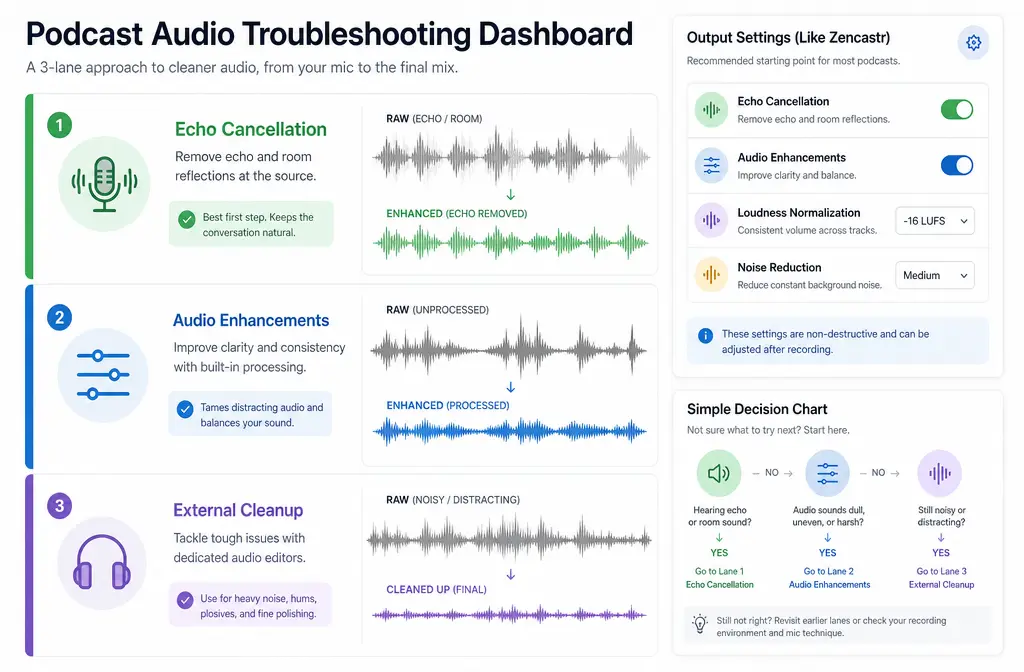
If Zencastr noise reduction is not working, the problem is usually not just “bad denoise.” It is usually one of three things:
- You are hearing echo-cancellation artifacts during overlapping speech, which can sound muffled or strange and gets confused with noise reduction problems.
- You did not actually run Zencastr Editing audio enhancements, or your plan/access does not include the enhancement features you expected.
- The source audio has problems noise reduction cannot fully repair, such as clipping, heavy room echo, crosstalk from speakers, weak mic technique, or very low-quality audio.
The fastest way to diagnose it is to export three versions: a raw WAV, an enhanced mix, and separate enhanced tracks. If the raw file sounds better than the processed one, reduce or avoid stacked processing in Zencastr and clean podcast audio with SimpleClean after export instead.
What people usually mean by “Zencastr noise reduction not working”
Most searches for this problem fall into a few buckets:
- There is no audible change after enabling enhancements.
- The voice sounds muffled, robotic, or overprocessed.
- Speech gets worse when two people talk over each other.
- You still hear room echo, speaker bleed, or another person faintly in the background.
- The export is still noisy because the issue was clipping or poor recording quality, not steady background noise.
Zencastr’s help docs separate these issues across different articles, but in real use they get mixed together. That is why a simple “turn on noise reduction” answer often does not help.
Diagnosis table: what is actually failing?
| What you hear | Most likely cause | What to do next |
|---|---|---|
| No audible change at all | Enhancements were not run, Output Settings were not applied, or your recording/export path is not using the feature set you expected | Check Editing access, confirm Output Settings, then compare raw export vs enhanced export |
| Muffled or robotic voice | Enhancement stack is too aggressive, or you are blaming echo-cancellation artifacts on denoise | Compare raw WAV to enhanced mix and separate enhanced tracks; if raw sounds better, back off processing and clean externally |
| Voices sound bad when people talk over each other | Echo cancellation behavior during recording | Review echo cancellation and headphone usage; this is not the same thing as postproduction noise reduction |
| You still hear echo or another speaker faintly bleeding in | Speaker bleed/crosstalk from poor headphone setup or open playback | Use headphones on future recordings; for the current file, export separate tracks and salvage externally as needed |
| Steady hiss, hum, or ambient noise remains | Noise reduction may be too light, unavailable in your workflow, or the noise is stronger than the tool can clean transparently | Test enhanced tracks; if still noisy, export WAV and process outside Zencastr |
| Crunchy distortion or broken peaks | Clipping in the original recording | Be realistic: clipped audio is rarely fully recoverable after the fact |
The big confusion: echo cancellation is not the same as noise reduction
This is the mistake behind a lot of “Zencastr noise reduction not working” complaints.
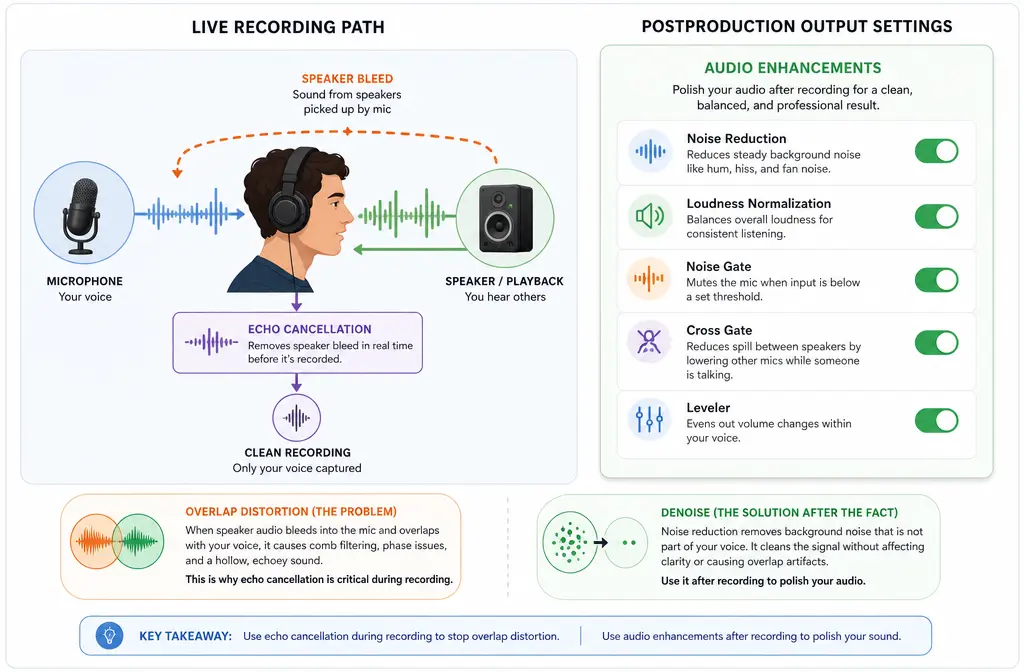
According to Zencastr’s help center, echo cancellation is meant to reduce speaker playback from leaking back into the microphone during recording. That is different from Noise Reduction in Zencastr Editing, which is one postproduction enhancement among several in Output Settings.
If your audio sounds strange when people overlap each other, that points more toward echo-cancellation behavior than background-noise removal. Zencastr specifically notes that echo cancellation can cause muffled overlap in some situations and recommends headphones to reduce headphone leakage and crosstalk.
So if your complaint is, “My voice sounds muffled when we talk over each other,” start with echo cancellation and headphone bleed, not denoise sliders.
Where to find Zencastr Editing audio enhancements
Zencastr’s Help Center says audio enhancements are controlled in Output Settings inside Zencastr Editing. The relevant enhancement options include:
- Noise Reduction
- Loudness Normalization
- Noise Gate
- Cross Gate
- Leveler
These are separate processes, and what you hear in the final file may be the result of several of them working together, not Noise Reduction alone. That matters because a user may say “noise reduction made this worse” when the actual audible change came from gating or leveling.
Before troubleshooting, confirm plan and access
Zencastr’s documentation and pricing page make an important point: Editing is a paid feature, and feature availability depends on your plan. If you can see a help article about an enhancement, that does not automatically mean your current workflow includes it.
Before you do anything else, confirm:
- You have access to Zencastr Editing.
- Your project is using a recording/export path that supports the enhancement you want.
- The specific option, such as Remove Background Noise, is available in your plan and output settings.
If you expected cleanup but never actually ran the enhancement stack, that explains the “no difference” result immediately.
How to test properly: export raw, enhanced mix, and separate enhanced tracks
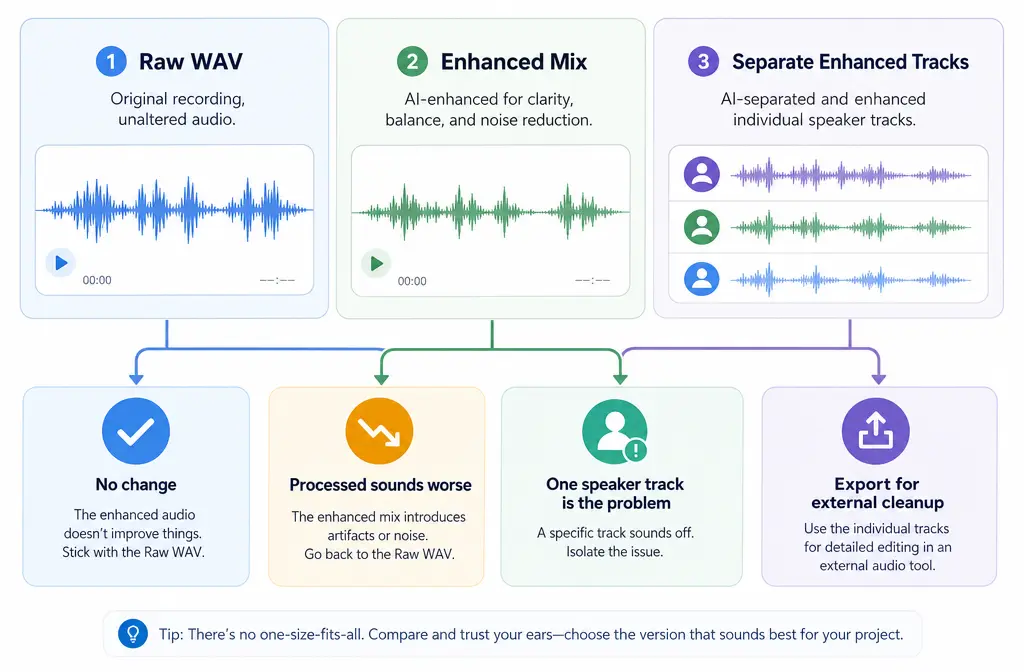
The cleanest diagnostic method is a three-export test:
- Export a raw WAV so you can hear the untouched source.
- Export an enhanced mix using your Zencastr Editing settings.
- Export separate enhanced tracks so you can hear what happened to each participant individually.
Zencastr’s separate enhanced tracks feature is especially useful because it lets you export participant-by-participant enhanced files in WAV or MP3. That is the bridge between “try Zencastr’s cleanup first” and “salvage the files elsewhere if needed.”
Here is how to interpret the results:
- If raw and enhanced sound nearly identical, the enhancement may not have run, may be unavailable in your workflow, or the noise problem may not be one the tool changes much.
- If enhanced sounds worse than raw, the processing stack is too aggressive for that source audio.
- If one guest sounds much worse than another, separate enhanced tracks will reveal that the issue is track-specific, often mic technique, room sound, or bleed.
- If overlap is the only bad part, think echo cancellation rather than postproduction denoise.
Why headphones matter more than most users think
Zencastr recommends headphones because they reduce crosstalk and playback leakage. That matters for troubleshooting because speaker bleed can create a fake “noise reduction failed” scenario:
- The main voice may sound fine.
- But a second voice leaks through the first speaker’s microphone.
- No background-noise tool can perfectly remove that because it is not simple hiss or hum; it is another voice embedded in the track.
If you hear your guest faintly in your own track, or vice versa, that is often a headphone and echo problem, not a denoise problem. Zencastr’s headphone guidance exists to prevent exactly this issue.
For future sessions:
- Use headphones instead of speaker playback.
- Prefer properly fitting headphones to reduce leakage.
- Keep mic placement consistent and close enough for a strong source signal.
When uploaded audio or video cannot use the same enhancements
This is another easy miss. Zencastr’s Editing documentation notes that uploaded audio and video have more limited editing, and uploaded files cannot use the same audio enhancements as Zencastr-native recordings.
So if you imported a file and expected the same enhancement stack you get from a native Zencastr recording, the missing result may not be user error at all. It may be a workflow limitation.
That is a strong signal to export the best source you have and use external cleanup for the repair step.
What Zencastr noise reduction can help with
Based on Zencastr’s enhancement descriptions, Noise Reduction is best thought of as help for steady, background-type noise, such as:
- Hum
- Hiss
- Consistent ambient noise
It can be useful when the speech is already recorded reasonably well and the cleanup job is modest.
What it usually cannot fully fix
There are limits you should be realistic about. Zencastr’s documentation on clipping and echo-related problems points to several issues that postprocessing does not fully solve:
- Clipping: once peaks are badly clipped, recovery is limited.
- Heavy room echo: background-noise removal is not the same as strong dereverb repair.
- Severe crosstalk: another person’s leaked voice is harder to remove cleanly than simple noise.
- Bad mic distance: weak, roomy voice capture gives every downstream tool less to work with.
- Very weak source audio: if the recording is poor, enhancement can sometimes make artifacts more obvious rather than less.
Best fallback workflow: Zencastr inside the app vs external cleanup
Best for using Zencastr fixes inside the app:
- You have native Zencastr recordings
- The problem is light hum, hiss, or steady ambient noise
- The enhanced export sounds at least as good as the raw file
- You want a fast all-in-one edit and export
Best for exporting and cleaning externally:
- The processed version sounds muffled or unnatural
- You need track-by-track rescue work
- You are working from uploaded files with limited enhancement support
- You want more control over what gets cleaned and what stays natural
If Zencastr processing is unavailable, too aggressive, or just not enough, export the highest-quality version you can, ideally WAV, then use SimpleClean for Zencastr audio cleanup. That keeps your repair step separate from your recording platform and is often the fastest way to avoid stacked artifacts.
How to fix Zencastr noise reduction not working
- Identify the symptom clearly.
Is it no audible change, muffled speech, overlap distortion, room echo, or clipping? Do not treat them as the same problem. - Check whether you are dealing with echo cancellation instead of denoise.
If the main complaint happens during overlapping speech, review echo cancellation and headphone usage first. - Confirm Editing access and feature availability.
Make sure your plan and workflow actually include the enhancement path you expect. - Open Output Settings and review the full enhancement stack.
Remember that Noise Reduction, Normalization, Gates, and Leveler can all change the perceived result. - Run the three-export test.
Export raw WAV, enhanced mix, and separate enhanced tracks. - Compare per speaker, not just the full mix.
One guest may be the source of the problem, especially if their room, mic distance, or playback setup was weaker. - If raw sounds better, stop stacking more processing.
Back off the enhancement path and use external cleanup on the exported file. - If the audio is clipped, reset expectations.
Clipping is rarely fully removable after recording, so focus on making it more usable rather than perfect. - Use WAV for cleanup when possible.
Zencastr supports separate enhanced track export in WAV or MP3, and WAV is the safer choice for further processing. - After cleanup, finish your publishing workflow.
Once the audio is fixed, you can add subtitles with Best AI Captions, create multilingual versions with Translate Dub, and distribute clips or episode promos across channels with Mallary.ai.
WAV or MP3 from Zencastr for cleanup?
If you plan to repair audio after export, WAV is the better fallback. Zencastr allows separate enhanced track export as WAV or MP3, and WAV preserves more of the original information for post-processing. MP3 may still be fine for quick review copies, but for cleanup work, WAV is the safer starting point.
Best recommendations by situation
- Best for “no audible change”: verify Editing access, feature availability, and export the enhanced version again.
- Best for muffled overlap: investigate echo cancellation and headphone leakage first.
- Best for speaker bleed/crosstalk: export separate tracks and salvage externally; prevent it next time with headphones.
- Best for steady hum or hiss: try Zencastr enhancements first, then compare against raw.
- Best for clipped or badly recorded audio: accept that recovery is limited and aim for the most natural external cleanup possible.
Final takeaway
Zencastr noise reduction is not one single switch. The most common failure is misdiagnosis: users blame “noise reduction” when the real issue is echo cancellation, missing Editing access, uploaded-file limits, or source audio that was never clean enough to rescue perfectly.
If you do one thing, do this: export raw WAV, enhanced mix, and separate enhanced tracks, then compare them before committing to more processing. That one test usually tells you whether Zencastr is helping, doing nothing, or making the file worse.
And if the built-in result is unavailable or not good enough, export the cleanest source you can and clean Zencastr recordings with SimpleClean before your final edit.
For related troubleshooting on similar recording workflows, see our guides on Riverside Remove Background Noise Not Working and Zoom Noise Suppression Not Working.
Sources and further reading
- Editing: Audio Enhancements | Zencastr Help Center - Used for the description of Zencastr Editing audio enhancements, including Noise Reduction, Loudness Normalization, Noise Gate, Cross Gate, and Leveler.
- Editing: Separate Enhanced Tracks | Zencastr Help Center - Used to support the advice to export separate enhanced tracks and confirm WAV or MP3 export options.
- Should I disable echo cancellation? | Zencastr Help Center - Used for the distinction between echo cancellation and noise reduction, and for overlap-related muffling guidance.
- Selecting Headphones | Zencastr Help Center - Used for headphone recommendations to reduce crosstalk and playback leakage.
- Editing Audio Recordings | Zencastr Help Center - Used for where Output Settings live and for the limitation that uploaded content has more restricted enhancement support.
- Pricing | Zencastr - Used to support that feature availability and Editing access depend on plan/package.
- Audio Recorded Too Loud or Clipped | Zencastr Help Center - Used for the warning that clipping is rarely fully recoverable after recording.